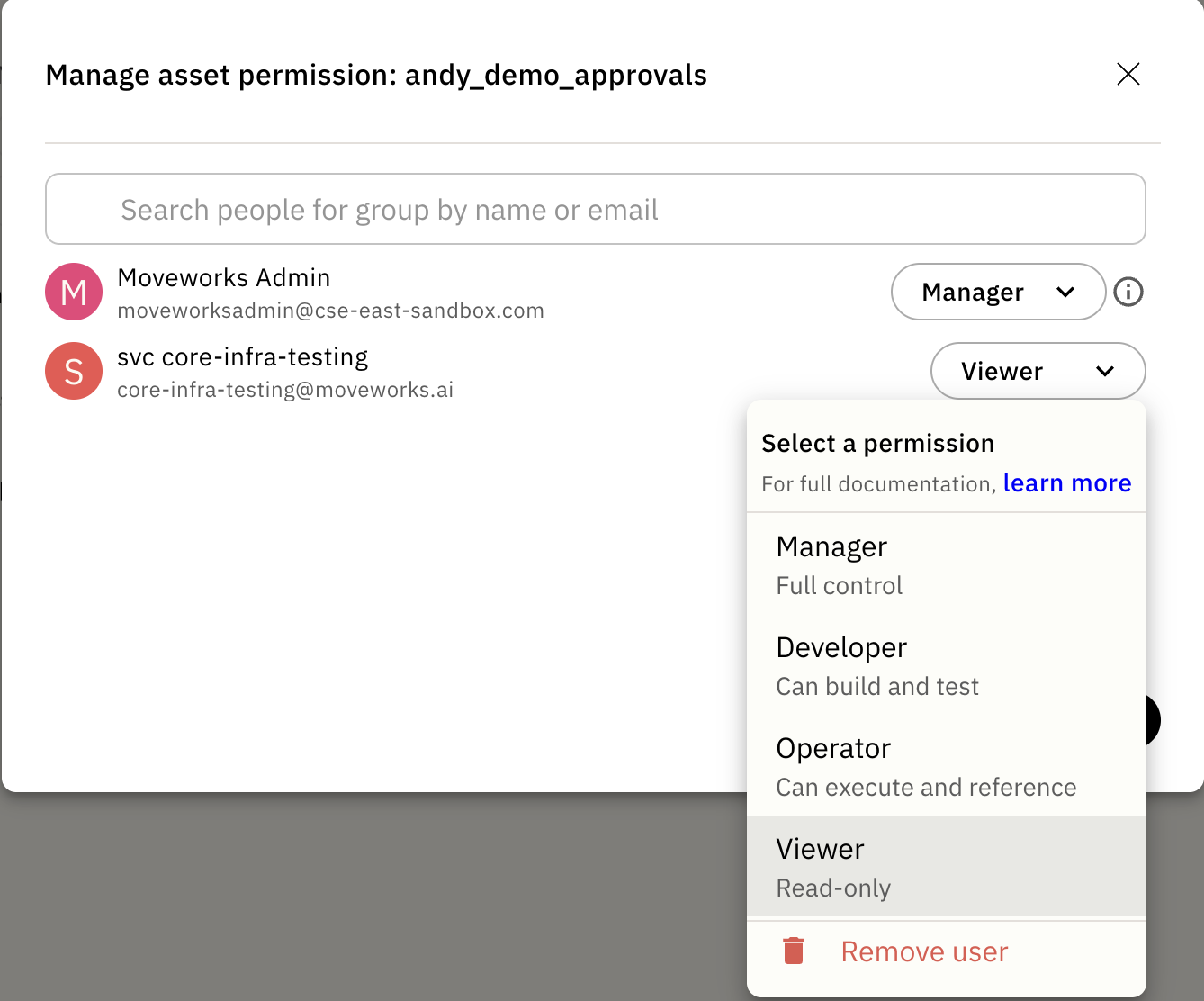
| Role | What it grants | Typical use |
|---|---|---|
| Manager | Full control: run, edit, and manage access | The asset owner or a folder administrator |
| Developer | Build, edit, and test the asset | An active builder working on the asset |
| Operator | Run and reference the asset, but not edit it | A consumer who runs or depends on the asset without modifying it |
| Viewer | Read-only | A read-only observer |
 ## The Two Permission Axes
Each role maps to editing access, runtime access, or both.
### Editing Axis (Authorship)
The editing axis controls who can read and change an asset's configuration and logic. Each level includes the levels below it:
`View` \< `Edit` \< `Manage`
* **View**: see the asset's definition and metadata.
* **Edit**: modify the asset's configuration and logic, publish it, and move it between folders.
* **Manage**: everything in Edit, plus delete the asset and change who can access it.
### Runtime Axis (Execution)
The runtime axis is a single permission:
* **Use**: run the asset, test it, view its execution logs, and reference it from another asset.
`Use` controls both build-time selection and runtime execution. Without it, you cannot pick the asset in a dropdown, run it, or test anything that would execute it.
### Why the Axes Are Independent
Editing and runtime answer different questions. Having one does not imply the other.
For example, a developer can have `Edit` on a Workday HTTP action. They can read and change the action's logic, but they cannot run it unless they also have `Use` on the action and the underlying Workday connector.
Teams can let more developers build while limiting execution to the right people.
`Use` decides whether a *developer* can run or test an asset while building. It does not control which *employees* can use a published plugin. For that, use [End-User Access Control](/agent-studio/access-control/end-user-access-control).
## How Roles Map to Axes
## The Two Permission Axes
Each role maps to editing access, runtime access, or both.
### Editing Axis (Authorship)
The editing axis controls who can read and change an asset's configuration and logic. Each level includes the levels below it:
`View` \< `Edit` \< `Manage`
* **View**: see the asset's definition and metadata.
* **Edit**: modify the asset's configuration and logic, publish it, and move it between folders.
* **Manage**: everything in Edit, plus delete the asset and change who can access it.
### Runtime Axis (Execution)
The runtime axis is a single permission:
* **Use**: run the asset, test it, view its execution logs, and reference it from another asset.
`Use` controls both build-time selection and runtime execution. Without it, you cannot pick the asset in a dropdown, run it, or test anything that would execute it.
### Why the Axes Are Independent
Editing and runtime answer different questions. Having one does not imply the other.
For example, a developer can have `Edit` on a Workday HTTP action. They can read and change the action's logic, but they cannot run it unless they also have `Use` on the action and the underlying Workday connector.
Teams can let more developers build while limiting execution to the right people.
`Use` decides whether a *developer* can run or test an asset while building. It does not control which *employees* can use a published plugin. For that, use [End-User Access Control](/agent-studio/access-control/end-user-access-control).
## How Roles Map to Axes
| Role | Editing | Runtime |
|---|---|---|
| Manager | Manage | Use |
| Developer | Edit | Use |
| Operator | View | Use |
| Viewer | View | None |
| Action | Viewer | Operator | Developer | Manager |
|---|---|---|---|---|
| View asset definition and metadata | ✅ | ✅ | ✅ | ✅ |
| See the asset name for reference | ✅ | ✅ | ✅ | ✅ |
| Test or run the asset | ✅ | ✅ | ✅ | |
| Reference the asset in another asset | ✅ | ✅ | ✅ | |
| View execution logs and analytics | ✅ | ✅ | ✅ | |
| Modify asset configuration and logic | ✅ | ✅ | ||
| Publish the asset | ✅ | ✅ | ||
| Launch a plugin to users | ✅ | ✅ | ||
| Move the asset into a folder | ✅ | ✅ | ||
| Export or import the asset | ✅ | ✅ | ||
| Delete the asset | ✅ | |||
| Change the asset's access and sharing | ✅ |