---
title: HTTP Action Files
excerpt: >-
Learn how to handle file uploads in HTTP Actions using multipart/form-data
encoding and the File tab mapping system.
deprecated: false
hidden: false
link:
new_tab: false
metadata:
robots: index
---
> ❗ Files in HTTP Actions are currently in Limited Preview!
>
> _To get access, please request through our [Community](https://community.moveworks.com/p/file-slots-limited-preview)_
# Overview
When a `File` slot is resolved in a plugin, the file is not sent in the HTTP request body. Instead, it is passed as a dedicated file argument using `multipart/form-data encoding`. This is handled automatically by the HTTP Action editor via the File tab.
The File tab constructs a file dictionary where:
* **Keys** = field name expected by the target API
* **Values** = the File object
Only **one file** is ever included, even if multiple were selected in the UI.
***
# File Object Structure
```json
{
"file_name": string, // Original filename (e.g., "report.pdf")
"location": string, // Internal file ID
"content": string // base64 encoded
}
```
This object is referenced in the File tab as `file`.
***
# Mapping in the File Tab
The `data` keyword is unnecessary when accessing your input argument in the **File Mapping** section
Use the **File** tab to map the incoming file to the API's expected field name.
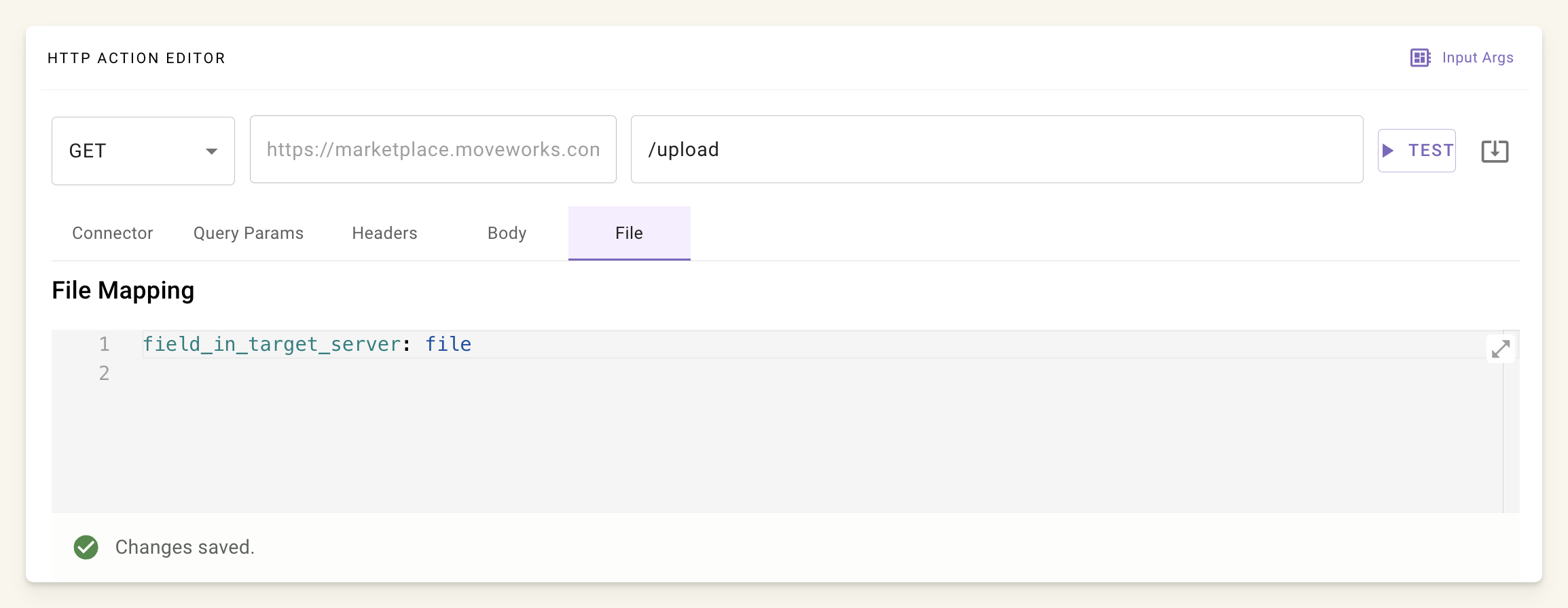
In the **File** tab, define:
```yaml
: file # or your input_arg name
```
## Example: API expects field attachment
| API Field Name | Mapped Value |
| :------------- | :--------------------------------------------------------- |
| `attachment` | `file` (this is your `input_arg` name, defaults to `file`) |
### Generated Request (cURL equivalent):
```curl
curl -X POST https://api.example.com/upload \
-F "attachment=@original_filename.pdf"
```
> The HTTP Action editor constructs this **automatically** from the File tab mapping.
## Example: API requires extra fields
Based on this `cURL` request to upload an attachment to a ServiceNow table
```curl
curl "https://instance.servicenow.com/api/now/attachment/upload" \
--request POST \
-F 'table_name=incident' \
-F 'table_sys_id=xyz'\
-F 'uploadFile=@ location of the file on file system'
```
You need to fill up 3 fields:
| API Field Name | Mapped Value |
| :------------- | :--------------------------------------------------------- |
| `uploadFile` | `file` (this is your `input_arg` name, defaults to `file`) |
| `table_name` | `your_table_name` |
| `table_sys_id` | `your_table_sys_id` |
You will need to map the file in the `File` tab:
```yaml
uploadFile: file
```
And map the remaining fields in the `Body` tab:
```json
{
"table_name": "{{your_table_name}}",
"table_sys_id": "{{your_table_sys_id}}"
}
```
## Example: Send base64 encoded string
To send the base64 encoded string of the file, you will need to follow the same steps by mapping the file in the **File** tab and pass the base64 content in the **Body** of the request with the following syntax `files.file_input_arg_name.content`
Based on an API that requires the following fields:
| API Field Name | Mapped Value |
| :------------- | :----------------------------------------------------------------------- |
| `file_string` | `files.file.content` (this is your `input_arg` name, defaults to `file`) |
| `notes` | `notes` |
You will map the file in the `File` tab:
```yaml
file: file
```
And map the remaining fields and content in the `Body` tab:
```json
{
"file_string": {{{files.file.content}}},
"table_sys_id": "{{notes}}"
}
```
**Important:** The key you access within `files` must match the key you mapped in the `File` tab. In the example above, we use `files.file.content` because we mapped the key as `file` in the File tab. If you had mapped it to `attachment` instead, you would need to access it as `files.attachment.content`. The pattern is always `files.[your_mapped_key].[property]` where `[property]` can be `content`, `file_name`, or `location`.
One caveat is that this will create a new input_arg in your input arguments panel. Make sure to delete that dummy argument there.
***
# Filename Handling
> **Callout**: The uploaded filename is fixed to file.file_name at upload time.
> **You cannot change it via the File tab.**
### Options to Control Filename
| Option | How |
| :----------------------------- | :--------------------------------------------------------------- |
| User renames before upload | Instruct user: `"Rename file to Q3_Report.pdf before uploading"` |
| API accepts filename parameter | Send in JSON body: |
#### Let API handle filename
Send filename separately in JSON body:
```json
{
"filename": "{{file.file_name}}",
"category": "invoice"
}
```
**cURL Equivalent (Generated Internally)**
For an HTTP action with:
* URL: `POST https://upload.example.com/submit`
* Body: `{ "user": "john" }`
* File mapping: `doc` → `file`
```curl
curl -X POST https://upload.example.com/submit \
-H "Content-Type: multipart/form-data" \
-F "doc=@report.pdf" \
-F "{"user": "john"}"
```
***
# Best Practices
1. **Always use File tab** — never embed in JSON.
2. Rename early if needed.
3. **Use `TEST` button** — check your service for the uploaded file.