---
title: Python Reference
deprecated: false
hidden: false
metadata:
robots: index
---
This Feature is currently being tested internally and not available to Customers today. Please reach out to the Moveworks Team to learn more around support for the same.
The **Python Script Actions** environment is the standard code execution platform, offering broader capabilities than **APIthon**, including access to a pre-approved and verified list of external libraries.
The **Libraries** supported today :
| Library | Primary Use |
| :---------------------------------- | :-------------------------------------------------------------------------------------------------------------------------------------------------------------- |
| **beautifulsoup4** | Use for parsing HTML and XML documents, allowing you to navigate, search, and modify the parse tree to extract data. |
| **nltk (Natural Language Toolkit)** | Use for for working with human language data, including tokenization, stemming, classification, and parsing. |
| **numpy** | Use for providing efficient multi-dimensional array objects (ndarray) and a large collection of high-level mathematical functions. |
| **pandas** | Use for handling tabular data (like spreadsheets or SQL tables) |
| **plotly** | Use for creating interactive, web-based visualizations (e.g., charts, graphs, maps) |
| **pycryptodomex** | Use for low-level cryptographic functions. |
| **scikit-learn** | Use for for numerous ML and statistical modeling algorithms, including supervised learning (classification, regression) and unsupervised learning (clustering). |
| **seaborn** | Use for to create visually appealing and informative statistical graphics |
In order to request additional library support you would need to work with the Moveworks Team.
# Limitations & Callouts
The Python Script Actions environment has specific restrictions to ensure security and stability:
* **Internet Access is Disabled:** Internet access is blocked at the infrastructure level. So the **request** library cannot be used as this could lead to security concerns.
* In order to use data from external systems in a secure way, you must first retrieve the data using HTTP actions and then pass the necessary data into the script.
* Python Script execution has a strict **8-second timeout.**
# How to use Python Script Actions
Python Script Actions can be integrated into **Compound Actions** and **Conversational Processes** within the agent studio. This section explains how to define and reference the data collected from the user (slots) within your Python script.
The fundamental concept to remember is that the script's output is determined by the value of the **last line of code executed**.
## 1. Defining and Mapping the Input Argument
For your Python script to use data collected from the user (a "slot"), you must define an **Input Argument** and then map the collected **slot value** to that argument.
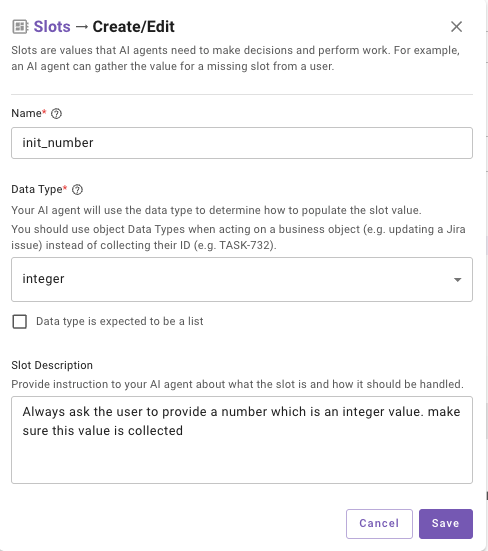
* **Define the Slot:** When building the plugin using a **conversational process** or **compound action** you must define a **required slot** (e.g., init_number) that the AI Assistant collects from the user. This information will be collected from the user during Plugin execution.
* **Defining the Python Script:** When selecting the Script Action during the build you can **pass Input Arguments** to it from a **slot** we have already fulfilled (e.g., init_number) that specifies the expected Data Type (e.g., integer) and whether it is Required.
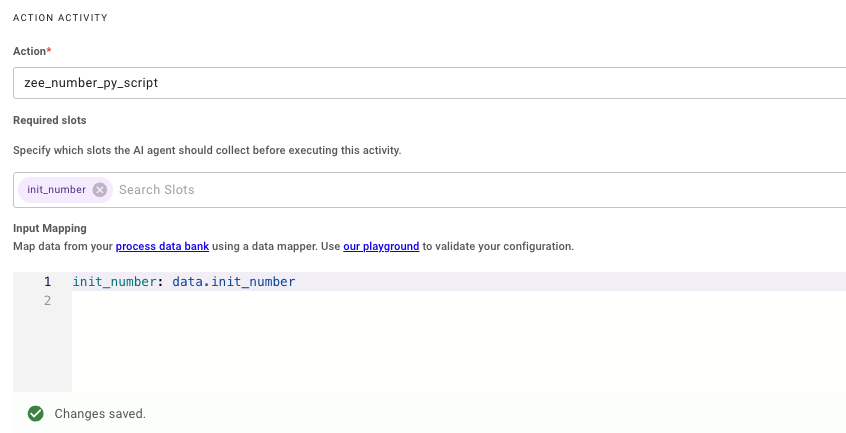
* You will also need to Select the **Slot** we created earlier under **Required Slots** so the Slot is collected and passed as an input to the Script Action.
## 2. Referencing the Slot in the Python Script
Once the Input Mapping is configured, We can now define the Python code in the Script Action. In order to do this you need to select **Python** in the Code Executor dropdown.
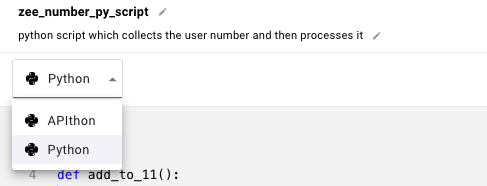
the slot value collected (e.g., 9) is available directly inside the Python function under the name of the **Input Argument** (init_number).
* **Creating the Input Argument:** Inside the Script Action you will need to define an **Input Argument** which will store the slot value being passed from the previous step. The slot value collected (e.g., 9) is available directly inside the Python function under the name of the **Input Argument** (init_number).
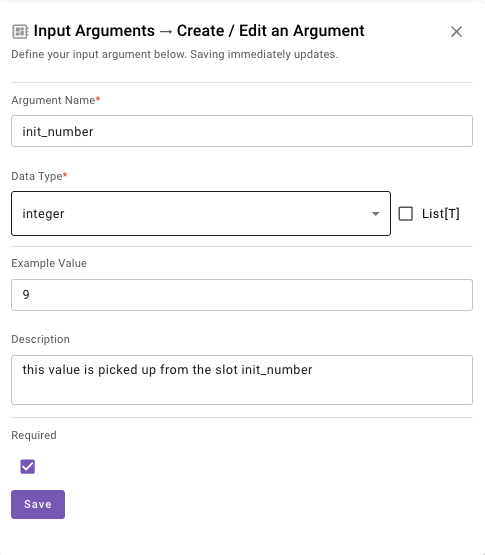
* **Using Input Arguments In the Script:** Once the Arguments have been set, we can now reference them in the Python Code by using the name of the Input Argument directly **init_number**. You can then run any lines of code on this.
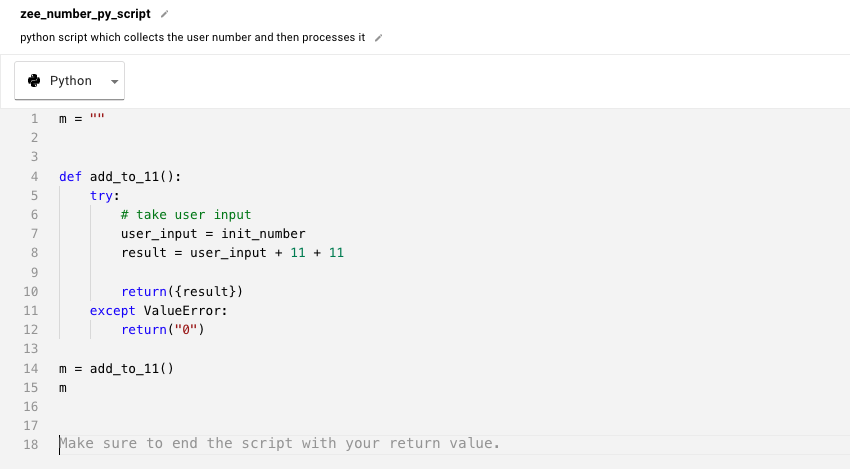
* **Returning the Result:** Once the code has been executed we need to ensure the last line of the script is returning the required information back which will be stored in the **output_key** defined by the user. In this example I have initialised **variable 'm'** as an empty String where the final result will be stored.
**Ensure the correct Data Type is being selected for Slots, Input Arguments across steps to keep them aligned.**
# Troubleshooting
* Remember to use **|** after **code**: to tell the editor that you're about to write multiline code
* Make sure your indentation is correct - Python is very picky about this!
* The last line of your code is what gets saved to your output_key
* Use the **Test button** in the Script Action to verify the code.