---
title: 'Data API : How to calculate top metrics'
excerpt: ''
deprecated: false
hidden: false
metadata:
title: ''
description: ''
robots: index
next:
description: ''
---
## Overview
This document provides calculation methods for key performance metrics using the Moveworks Data API. All calculations are based on the Beta2 version of the API and use the actual response structures from the Moveworks platform.
## API Endpoints
The Moveworks Data API provides five main endpoints:
* **Conversations**: `https://api.moveworks.ai/export/v1/records/conversations`
* **Interactions**: `https://api.moveworks.ai/export/v1/records/interactions`
* **Plugin Calls**: `https://api.moveworks.ai/export/v1/records/plugin-calls`
* **Plugin Resources**: `https://api.moveworks.ai/export/v1/records/plugin-resources`
* **Users**: `https://api.moveworks.ai/export/v1/records/users`
## Data Structure
The API returns data in OData JSON format:
```json
{
"odata.context": "...",
"odata.nextlink": "...",
"value": [
{ /* Record 1 */ },
{ /* Record 2 */ }
]
}
```
### Data Hierarchy
* **Conversations** (parent) → **Interactions** (1-to-many)
* **Interactions** → **Plugin Calls** (1-to-many)
* **Plugin Calls** → **Plugin Resources** (1-to-many)
* **Users** (standalone table) → All tables contain User ID which can be used to lookup data from this table.
Please note: The following section refers to data tables such as Conversations, Interactions, and Plugin-calls. This assumes that you have already fetched the data from the API and stored it in your data lake.
# Metric Calculations
## Adoption Metrics
### Active Users
Active users are defined as users who perform at least one interaction within a given timeframe.
**Method 1 (Interactions-based):**
1. Fetch all interactions in the timeframe.
2. Count distinct values of the `user_id` field.
**Method 2 (Users table-based):**
1. Query the users table.
2. Count users where `latest_interaction_time` falls within the timeframe.
### User Adoption Over Time
Shows the adoption trend of the AI Assistant over time.
1. Identify all unique users with interactions in the timeframe.
2. Retrieve all users with `access_to_bot = true` from the users table.
3. Plot the unique active users against the baseline (total users with access to the AI Assistant).
### User Retention Over Time
Tracks the percentage of users who return to the AI Assistant within a defined time window.
1. Extract unique `user_id` values from the interactions table.
2. If the same `user_id` appears more than once in the timeframe, mark that user as retained.
### New Users
New users are those who interact with the AI Assistant for the first time within the selected timeframe.
1. Count users from the users table where `first_interaction_time` falls within the timeframe from the users table.
2. To find single-interaction users, count users where `first_interaction_time = latest_interaction_time`.
***
## Conversation Metrics
### Total Conversations
* Count all distinct `id` values from the conversations API in the timeframe.
### Conversations by Route
* Fetch unique conversation IDs from the conversations table.
* Group them by the `route` attribute.
### Conversations by Domain
* Fetch unique conversation IDs from the conversations table.
* Group them by the `primary_domain` attribute.
### Conversation Topics
Conversation topics are aggregated from interaction-level topic detection.
1. Filter interactions where `type = INTERACTION_TYPE_FREE_TEXT`in the interactions table.
2. Group `detail.entity` values by conversation ID.
***
## Interaction Metrics
### User Feedback
End users can provide feedback via thumbs clicks or feedback forms.
#### :+1: :-1: Clicks
* Captured as type = `INTERACTION_TYPE_INTERNAL_LINK` in the interactions table.
* Identified using `detail.resource_id`:
* `Helpful` → Thumbs Up
* `Unhelpful` → Thumbs Down
#### Feedback form submissions
* Captured as type = `INTERACTION_TYPE_UIFORM_SUBMISSION`.
* The `label` attribute indicates a feedback form.
* The feedback type (Helpful/Unhelpful) is stored in `detail.detail`.
* Free-text input is captured in `detail.content`.
### Live agent transfers
The end users can escalate their issues to live agent if they find the summarized response provided the AI Assistant as not helpful or request to connect with an agent directly.
#### Plugin calls table
1. In either cases if the end user is connected with a live agent it will be captured in the plugin-calls table. Search for the `name` as "Start Live Agent Chat" plugin.
2. To find the successful cases where the end user was placed in the queue the served and used will be `true`.
3. Capture the conversation and interaction id. To fetch the interaction details use the `interaction_id` attribute and fetch the details from the interactions table.
#### Interactions table
The interaction table will also capture if a end user has requested to connect with the live agent. There are two methods - Either go through the handoff or requesting to connect directly
1. In either cases the end user is presented with form to be submitted when they want to connect.
2. Filter for interaction based on the type = `INTERACTION_TYPE_UIFORM_SUBMISSISION`and label = `handoff`or `mw_form`
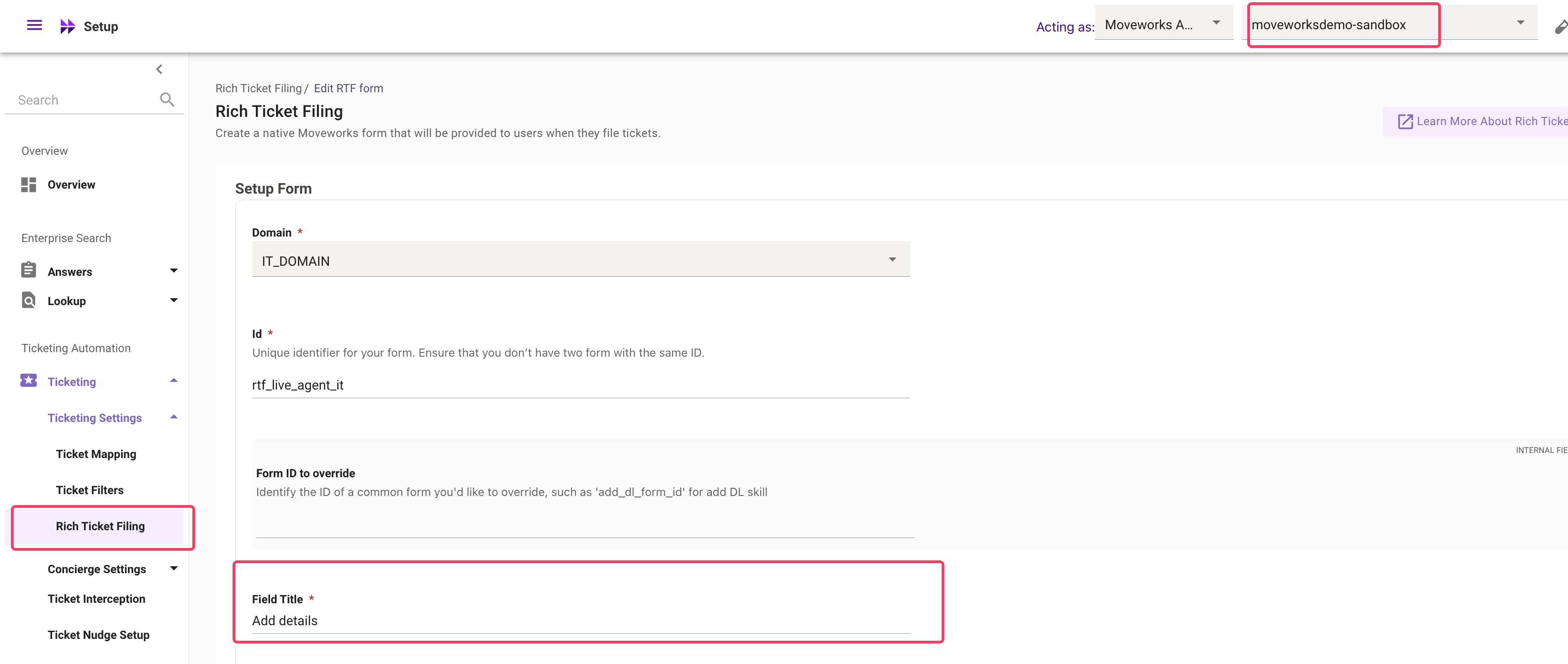
3. The detail.detail attribute will contain the form name will contain `Live Agent chat request`. However if you have configured a separate Rich Ticket Filing form - The form name will reflect the field called as `Field Title`
### Create Ticket interaction
End users can file a ticket related to their issue if they do not find the AI Assistant as helpful. Similar to the above live agent request this can be tracked both via the plugin calls table and the interactions table.
#### Plugin calls table
1. In either cases if the end user is connected with a live agent it will be captured in the plugin-calls table. Search for the `name` as "Create Ticket" plugin.
2. To find the successful cases where the end user was placed in the queue the served and used will be `true`.
3. Capture the conversation and interaction id. To fetch the interaction details use the `interaction_id` attribute and fetch the details from the interactions table.
#### Interactions table
1. In either cases the end user is presented with form to be submitted when they want to connect.
2. Filter for interaction based on the type = `INTERACTION_TYPE_UIFORM_SUBMISSISION`and label = `handoff`or `mw_form`
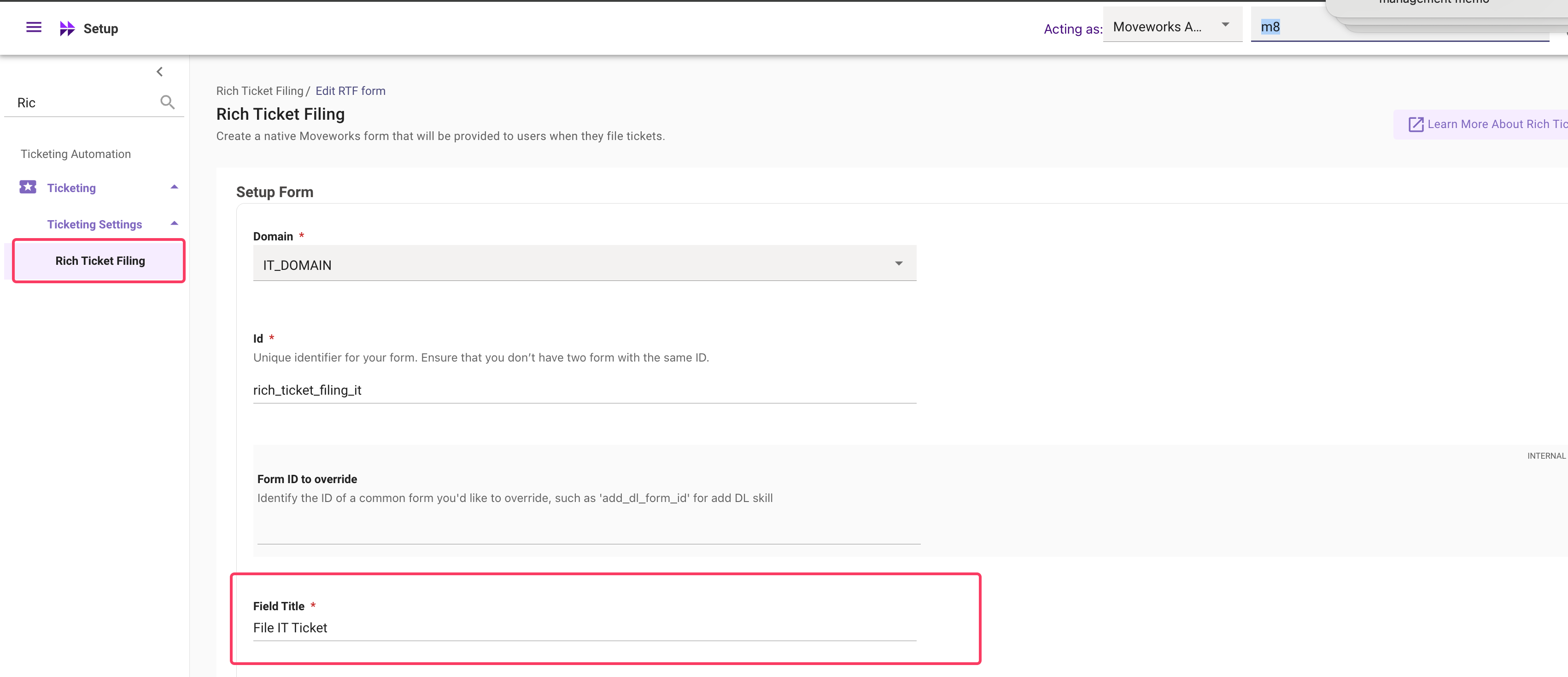
3. The detail.detail attribute will contain the form name will contain `File IT Ticket`. However if you have configured a separate Rich Ticket Filing form - The form name will reflect the value in field called as `Field Title`
***
## Plugin call metrics
### Plugin success rate
The success of a plugin can be measured by evaluating when it was served and used, and comparing those outcomes against user feedback. You can measure this for a specific plugin or a list of plugin based on your requirement.
1. **Filter plugin calls**
* Query the `plugin-calls` table using the plugin’s `name` attribute.
2. **Identify served and used cases**
* Select all scenarios where:
* `served = true`
* `used = true`
3. **Retrieve interaction IDs**
* For each matching plugin call, capture the `interaction_id` attribute.
4. **Attribute feedback**
* Query interactions where:
* `type = INTERACTION_TYPE_UIFORM_SUBMISSION`
* `label = feedback`
* Match the `parent_interaction_id` against the interaction IDs from Step 3.
* If a match exists, attribute that feedback to the plugin interaction.
5. **Mark success or failure**
* If the feedback is **Helpful**, mark the plugin call as a **success**.
* If the feedback is **Unhelpful**, mark it as a **failure**.
* ⚠️ _If feedback coverage is very low, handle**no-feedback cases** according to your reporting requirements (e.g., exclude, assume neutral, or distribute proportionally)._
### Knowledge gaps
A knowledge gap is considered when Knowledge base plugin is called but it is Unsuccessful (Served = false & Used = false)
1. **Filter plugin calls**
1. `name` = "Knowledge Base"
2. `served` = false and `used `= false
2. Capture the interaction ID and find those in the interaction table based on the `id` column.
3. The user message will be present in the `detail.content` attribute and the detected topic will be present under the `detail.entity` attribute.
*The knowledge gap referenced here is prescriptive - You can adapt this to your own definition
### Approvals processed
To fetch the approvals processed via the AI Assistant search for plugin name as 'Update Approval Record' plugin and Served = true and Used = true.
1. **Filter plugin calls**
1. `name` = "Update Approval Record"
2. `served` = true and `used `= true
2. Capture the plugin call id from the `id` attribute
3. Go through the plugin resource table and find all of the approval resources processed through that specific plugin call. Filter on `plugin_call_id`and enter the id's fetched from the above step.
### Agent studio plugin reporting
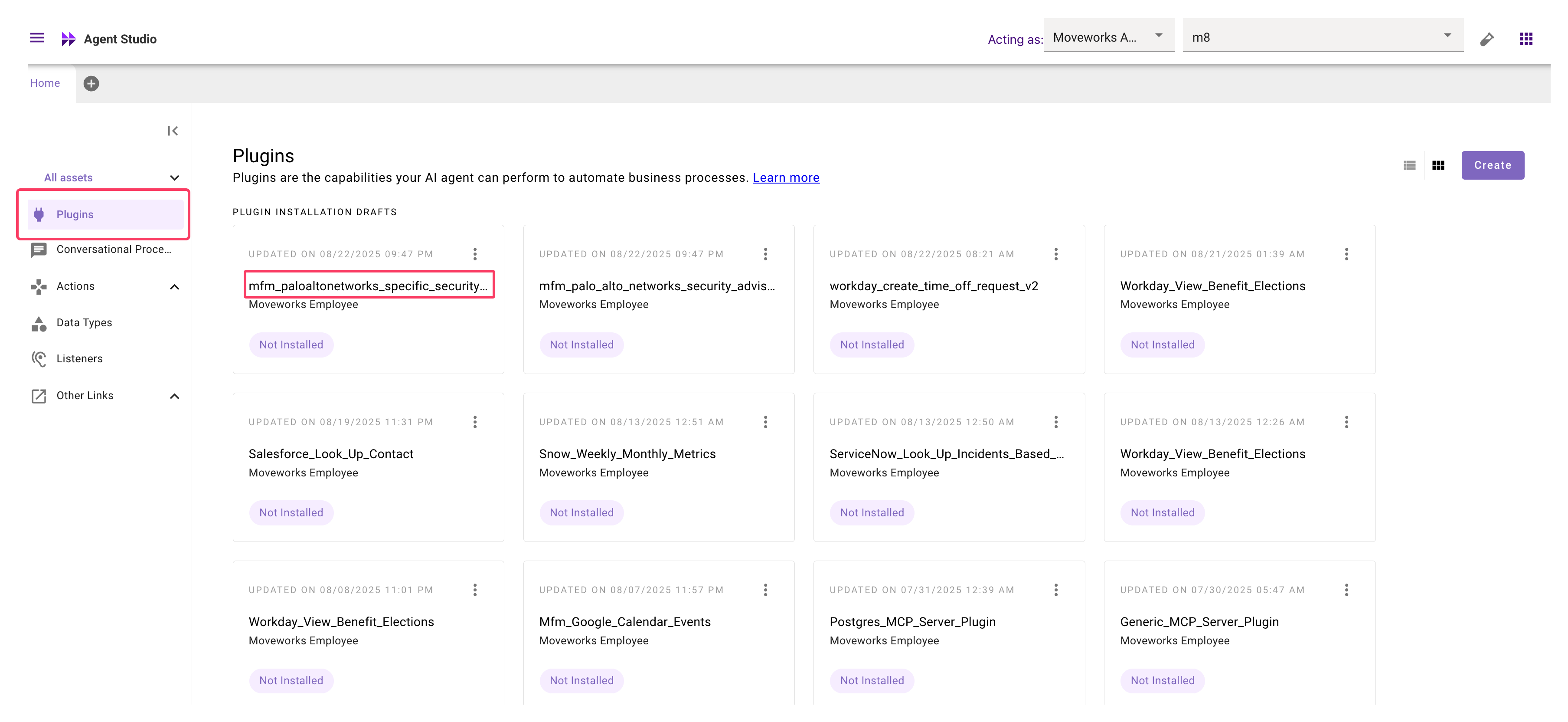
If you built custom plugin or installed plugins from marketplace - These are included in the Data API details. The custom plugin will be referred in the plugin-calls table.
1. Filter for the plugin call instance containing custom plugin name based on `name` attribute.
To find the custom plugin name open to the Agent studio app and go through the plugins listed there.
***
## Value Metrics
These are prescriptive definitions. Please feel free to modify the calculations as per your own requirements.
### Deflections / Resolutions
**Definition:**
Deflections are interactions where no ticket was filed, no live agent connection was requested, and no negative feedback was given by the end user.
#### Steps
1. **Fetch free-text interactions**
* Filter all interactions where `type = INTERACTION_TYPE_FREE_TEXT` and capture the `id` values.
2. **Identify ticket filing cases**
* Filter for interactions where:
* `type = INTERACTION_TYPE_UIFORM_SUBMISSION`
* `label = "handoff"` or `"mw_form"`
* `detail.detail = "File IT Ticket"` (adjust based on your ticketing form name).
3. **Identify live agent handoffs**
* Filter for interactions where:
* `type = INTERACTION_TYPE_UIFORM_SUBMISSION`
* `label = "handoff"` or `"mw_form"`
* `detail.detail = "Live Agent chat request"` (adjust based on your form name).
4. **Identify negative feedback**
* Filter for interactions where:
* `type = INTERACTION_TYPE_UIFORM_SUBMISSION`
* `label = "feedback"`
* `detail.resource_id = "Unhelpful"`.
5. **Match signals to free-text interactions**
* Use the `parent_interaction_id` from steps 2, 3, and 4.
* If a match is found with a free-text interaction, assign the signal accordingly.
6. **Count deflections**
* Remaining interactions (without a ticket, handoff, or negative feedback) are **deflected interactions**.
### Time Savings
**Definition:**
Time savings are calculated based on the hours saved when specific requests are automated by the AI Assistant.
#### Requirements
1. Estimated hours saved for each automated request.
2. Personas for which you want to calculate hours saved.
#### Example: Software Requests
1. **Filter plugin calls**
* Select plugin calls where `name = "Grant Software Access"`.
* Only include cases where `served = true` and `used = true`.
2. **Count successful automations**
* Count the number of unique `interaction_id` values that meet the above criteria.
3. **Calculate time savings**
* Multiply the count by the estimated **hours saved per instance**.
* This gives the **total time saved** by automating software requests.
### MTTR
**Definition:**
**Mean Time to Resolution (MTTR)** is a key metric typically defined by the formula: (Sum of all resolution times)/Total resolutions
In the world of AI assistants, conversations are often **multi-turn**, involving several back-and-forth interactions between a user and the bot. Here’s how you can calculate MTTR in this context.
### Steps
#### 1. Calculate the Sum of All Resolution Times
1. **Get user interactions**: Retrieve the `interaction_id` and `created_time` for all interactions where the `actor` is the 'user' and the `type` is 'INTERACTION_TYPE_FREE_TEXT'.
2. **Find corresponding bot responses**: For each user interaction, find the matching bot response. Look for interactions where the `actor` is the 'bot' and the `parent_interaction_id` matches the user's `interaction_id` from the previous step. Get the `created_time` for these bot interactions.
3. **Calculate and sum resolution times**:
* For each user-bot pair, calculate the resolution time by subtracting the user's `created_time` from the bot's `created_time`.
* Add up all these individual resolution times to get the total sum.
**Optional: Excluding Escalations**
The method above counts every bot response as a resolution. To get a more precise metric, you might want to exclude cases that were escalated to a human.
* Find all escalation interactions, such as those with a `type` of 'INTERACTION_TYPE_UIFORM_SUBMISSION' where the `detail.detail` contains "Live agent chat request" or "File IT ticket".
* Check the `parent_interaction_id` of these escalations.
* If an interaction from step 1 is found here, **exclude** its resolution time from your total sum.
#### 2. Find the Total Number of Resolutions
1. To get the denominator for your MTTR calculation, determine the total count of resolutions by following the steps in the official documentation:
* [API Responses for Top Use Cases - Deflections & Resolutions](/docs/data-api-api-responses-for-top-use-cases#deflections--resolutions)
#### 3. Calculate the Final MTTR
1. Finally, divide the **sum of resolution times** (from Step 1) by the **total number of resolutions** (from Step 2) to get your MTTR.