***
title: How To Guides for People and Places Lookups
position: 4
excerpt: ''
deprecated: false
hidden: false
metadata:
title: ''
description: ''
robots: index
next:
description: ''
---------------
# How to Exclude Records from People Lookups
You can tag records as `SITE_USER` or `SERVICE_ACCOUNT` in the mapping step under the User Identity config to have them be excluded from People Lookups. This is done in the identity vars mapping.
# How To customize the Label for Lookups Discovery Button
1. Navigate to **Lookups** > **Lookup Configs**
2. Find **Label for "Lookups" Discovery Button**

3. Input the preferred label for the button
4. **Submit** the changes
5. Once you submit the changes, the label text will be updated
# How To customize Lookup Sample Queries
1. Navigate to **Lookups** > **Lookup Configs**
2. Scroll to find **Sample Queries to Try in the Lookups Discovery Card**
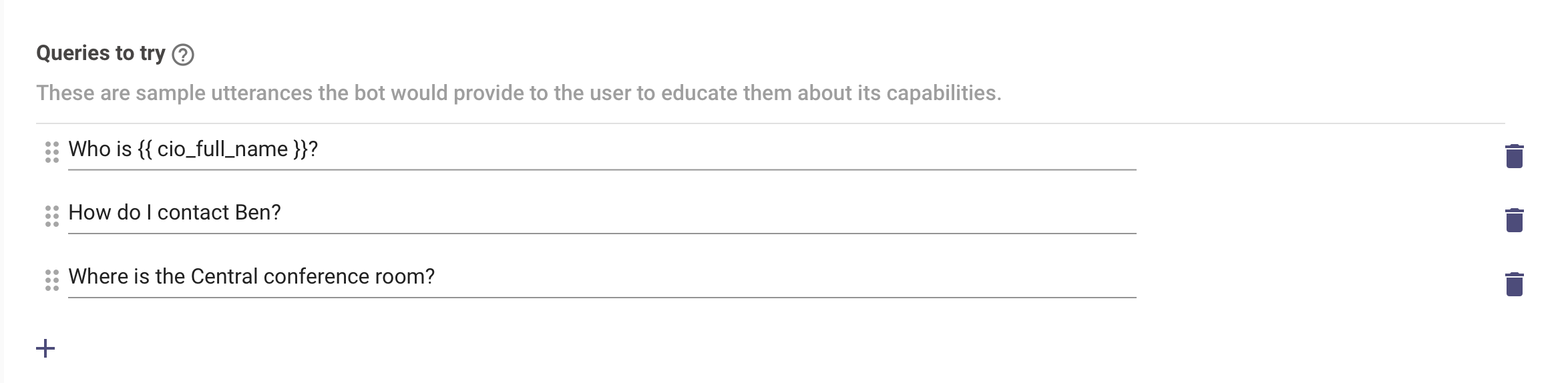
3. Add, edit, or delete the sample queries
4. **Submit** the changes
5. Once you submit the changes, the Lookups Discovery Card will display the updated queries
# How To customize Fields for People Lookup Results
1. Navigate to **Lookups** > **Lookup Configs**
2. Scroll to find **Override default fields** in **People Lookup Card Results Configs**
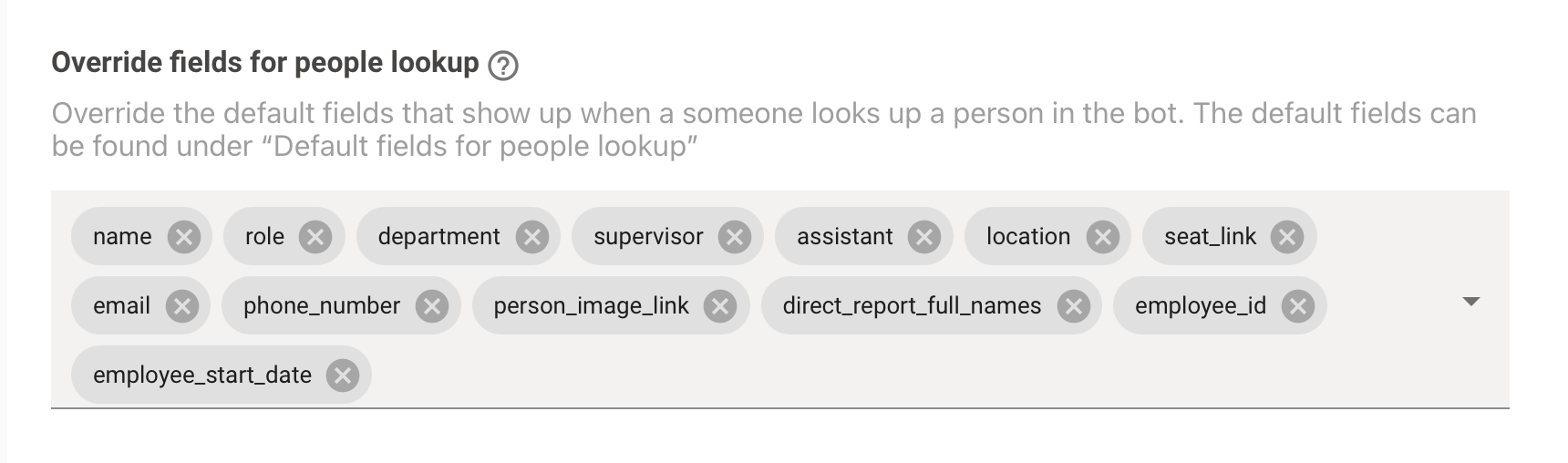
3. Add or delete the fields that you want to show in the people lookup results card
4. **Submit** the changes
5. Once you submit the changes, the selected fields will be shown in people lookup results card
This config will replace all the fields defined in the 'Default Fields' for People Lookups.
# How To customize Field for Lookup fields
1. Navigate to **Lookups** > **Lookup Configs**
2. Scroll to find **Customize default field titles for people and places** in the **Additional Settings for Lookup Result Field Configs**
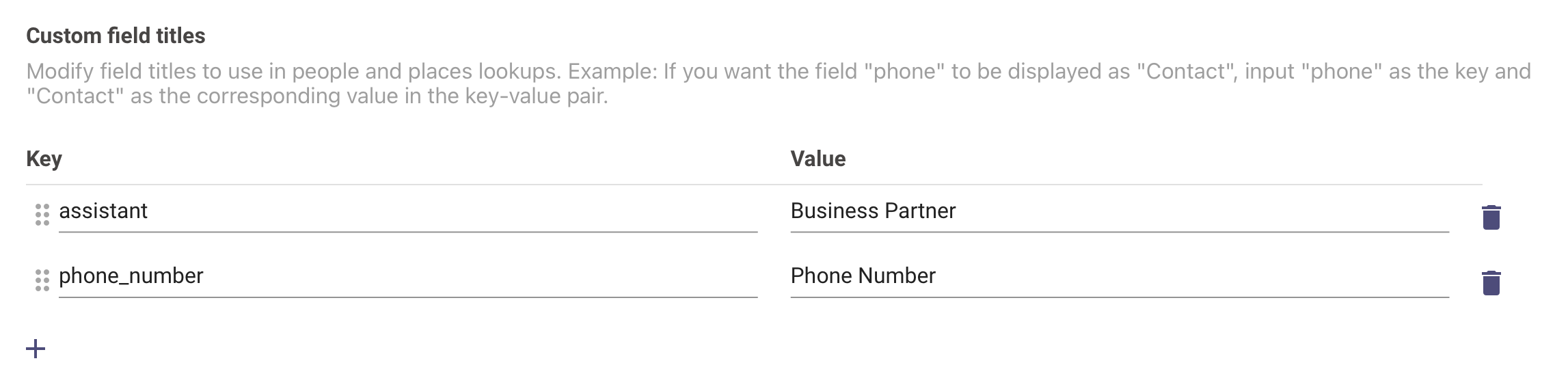
3. Add (or delete) the default field titles as keys and desired field titles as values. For example, if you want `first_name` to be displayed as `First Name`, then `first_name` will be the key and `First Name` will be the value
4. **Submit** the changes
5. Once you submit the changes, the customized fields titles will be shown instead of default field titles in people and places lookup results card
6. **I want to customize fields shown in case of similar or ambiguous results**
1. Navigate to **Lookups** > **Lookup Configs**
2. Scroll to find **Distinguishing fields in case of ambiguous results** in the **Additional Settings for Lookup Result Field Configs**

3. From the dropdown, select the fields that should be shown to help distinguish between lookup results that are similar or ambiguous
4. **Submit** the changes
5. Once you submit the changes, the selected fields will shown to distinguish results in case of ambiguity
# How To Setup or Update the Conference Room Integration
1. Navigate to **Lookups** > **Conference Rooms Configs**
2. Select the data source from the dropdown menu to determine where the details will be retrieved from

1. For **OfficeSpace**, you don’t need to provide any key or ID
2. For **SpaceIQ**, you will need to provide your API key
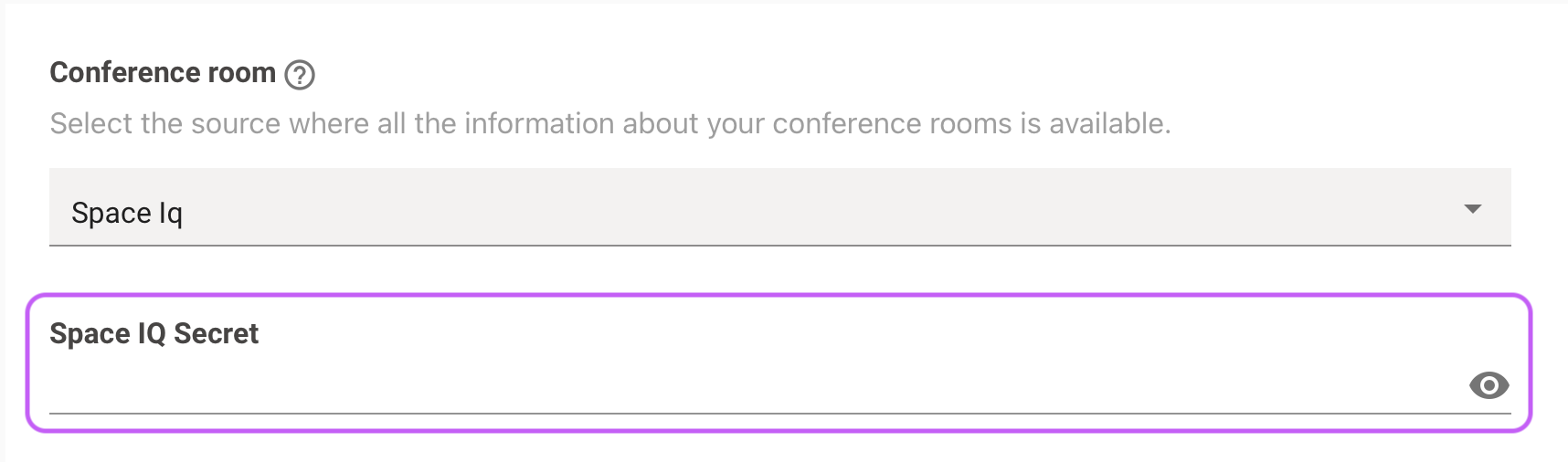
3. For **Google Sheets**, you will need to provide the sheet ID
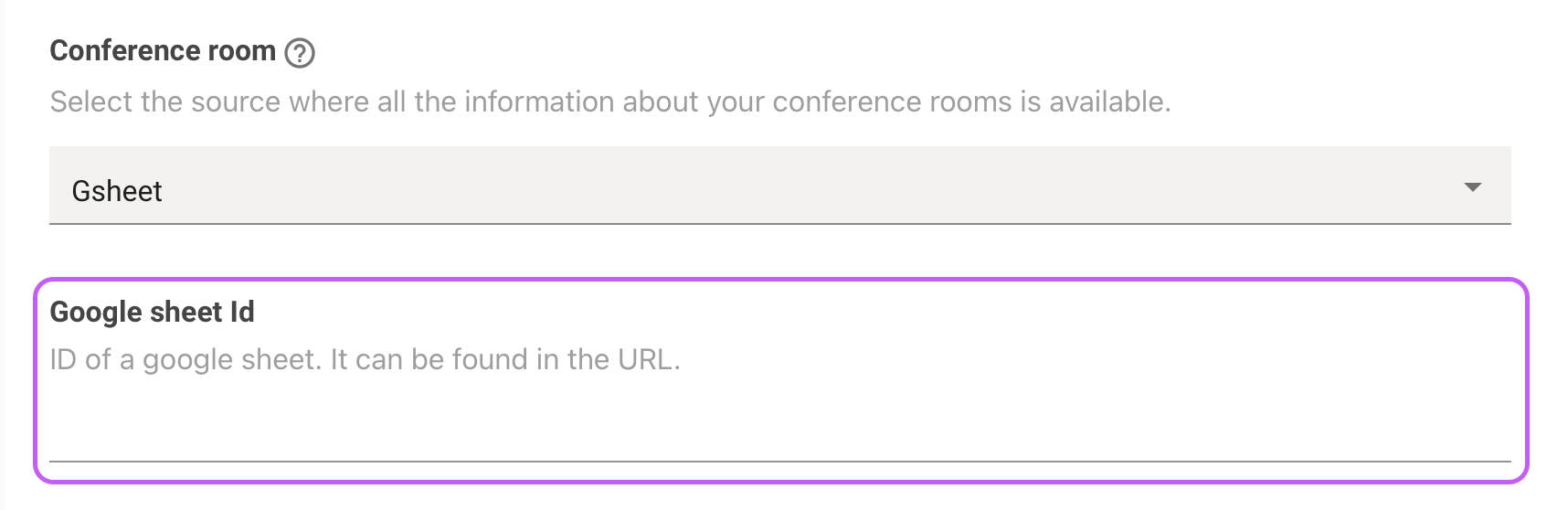
3. **Submit** the changes
4. Once you submit the changes, the new/updated conference room details will be ingested
There are certain advanced or deprecated configs that we do not recommend modifying. If you need to update those settings, please contact our customer success team for assistance.
# How To Add Custom Attributes to the User Roster
### Prerequisite
* There should be an already configured user ingestion before continuing with this guide.
* The external identity system API field names should be validated.
### Configuration
First, navigate to **User Identity -> Import Users**.
1. Click **Edit** on the existing user ingestion settings.
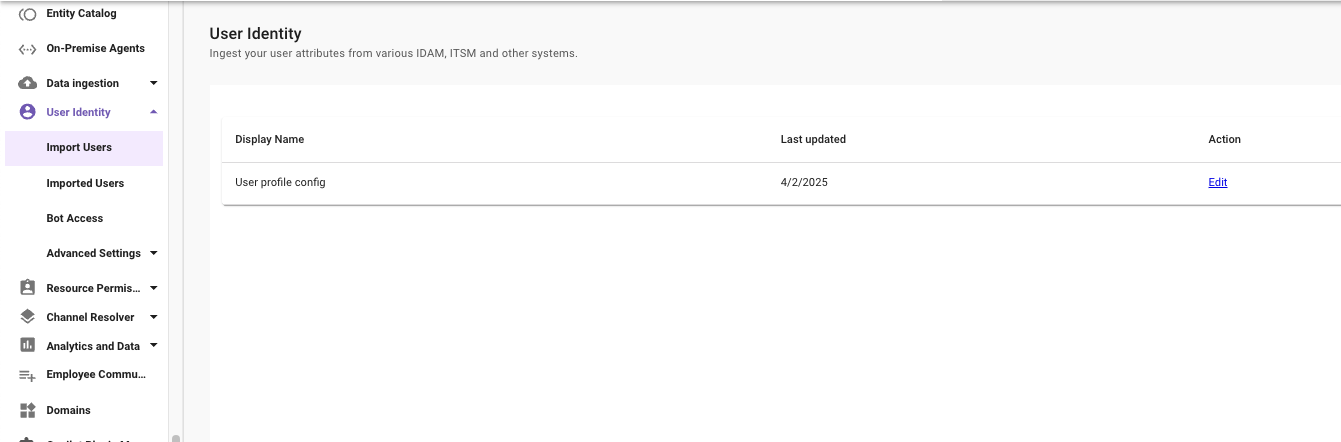
2. Click **Next**.
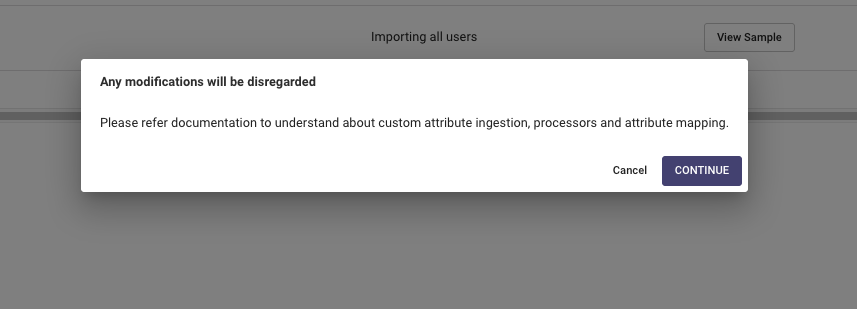
3. Click the **Advanced mode** toggle to switch to Advanced Mode
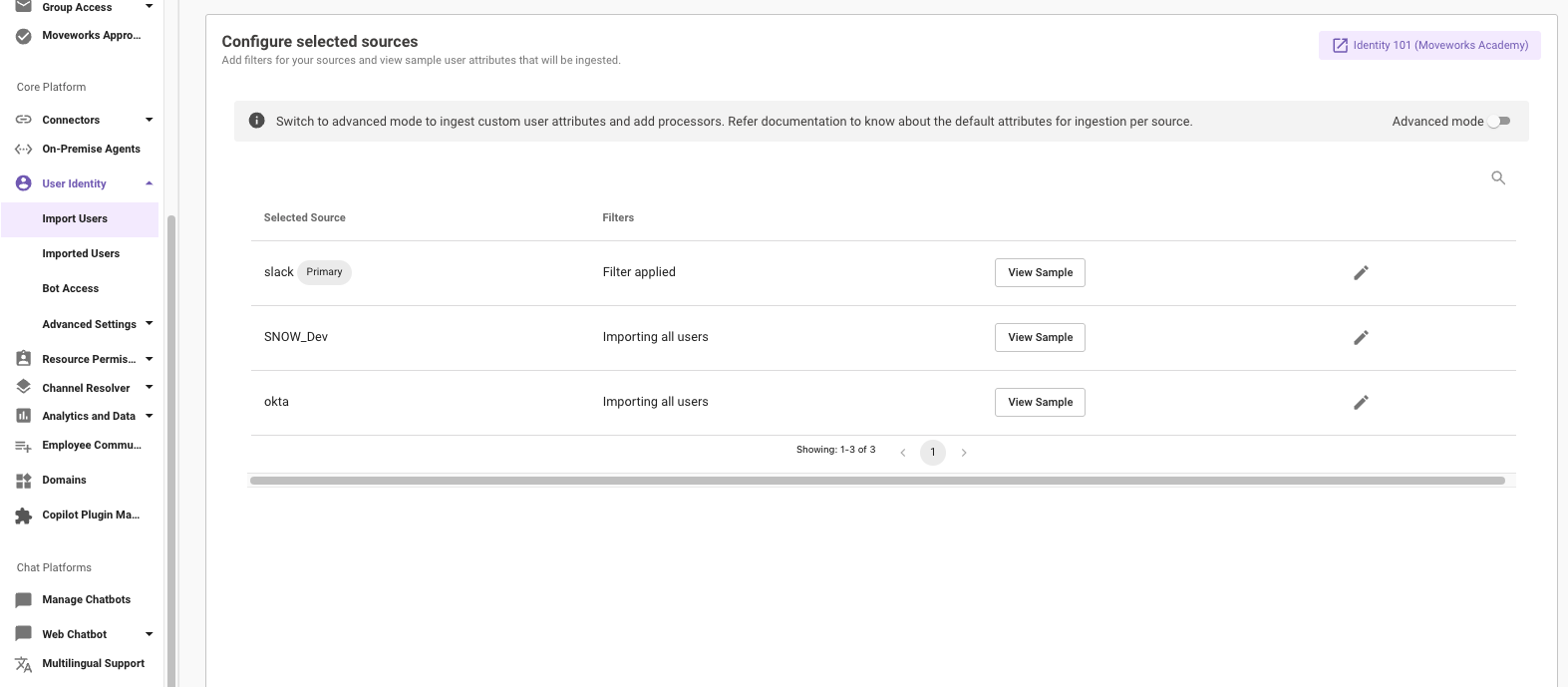
4. Click **Continue**
5. Navigate to the identity system settings that the custom attribute is to be sourced from and click into the **Source-Specific User Attribute Mapping**.
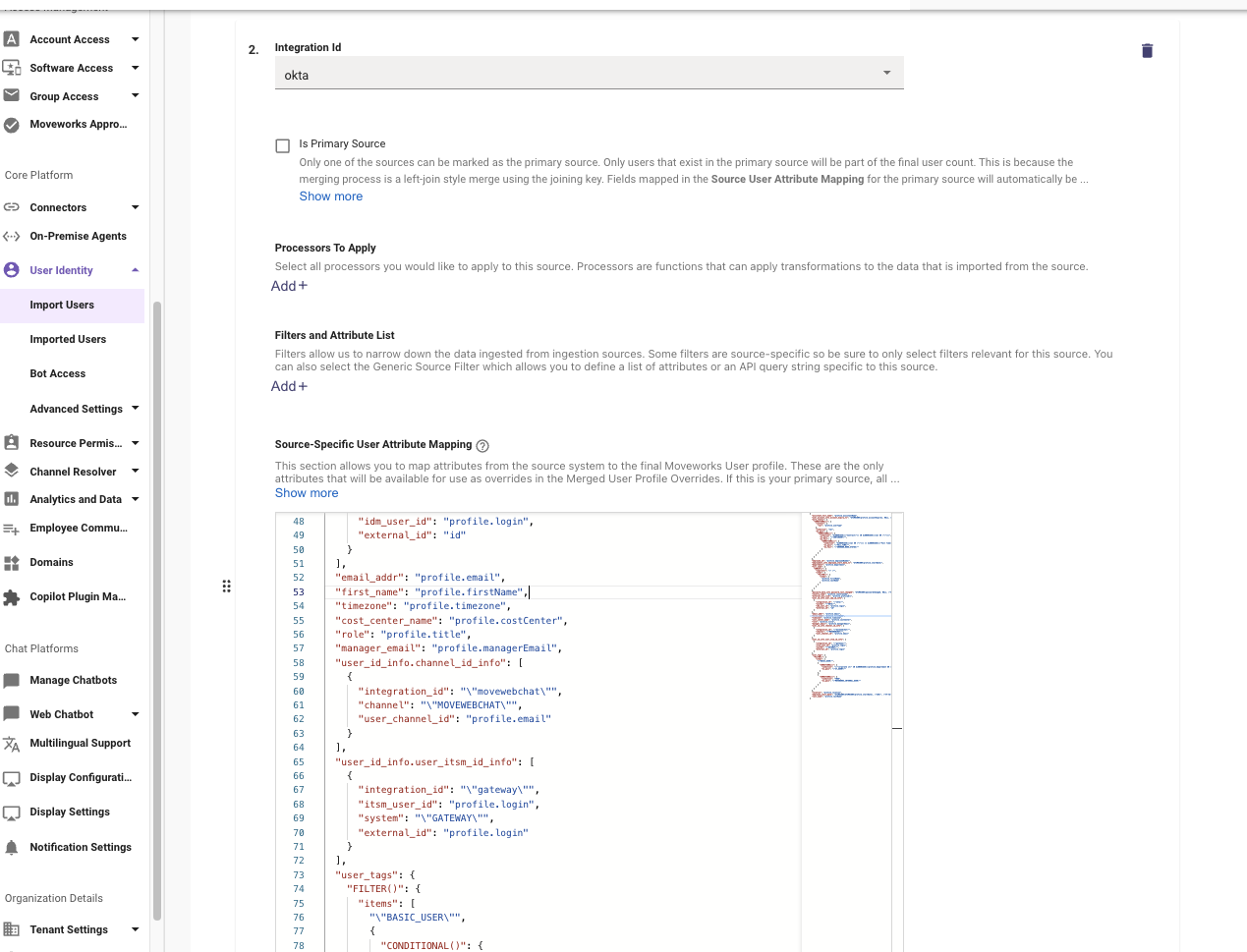
6. Add in a **custom\_attributes** JSON object and the attribute that should be saved to the user roster.
1. In this example, there are two okta fields that will be ingested as custom attributes. **is\_manager** and **is\_contractor**. In okta, all user fields are stored within the **profile** object. This is different per other system APIs.
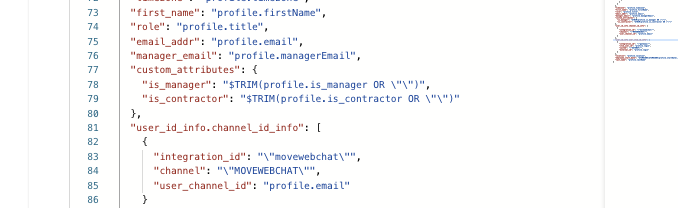
7. Click **Submit** in the lower right.
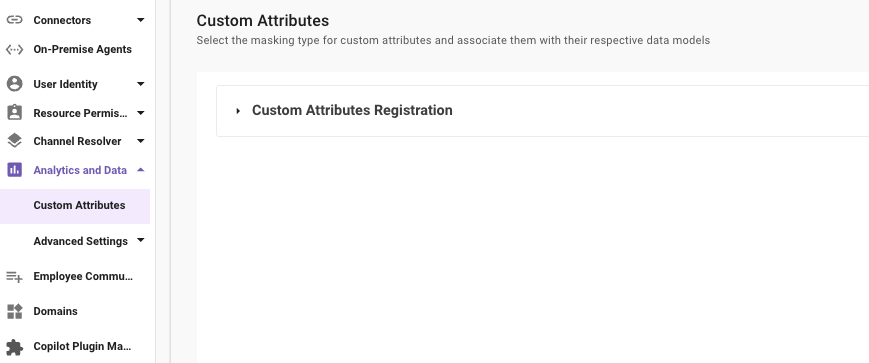
Next, navigate to **Analytics and Data -> Custom Attributes**.
1. Click on the **Custom Attributes Registration** toggle.
2. Click **Add +**
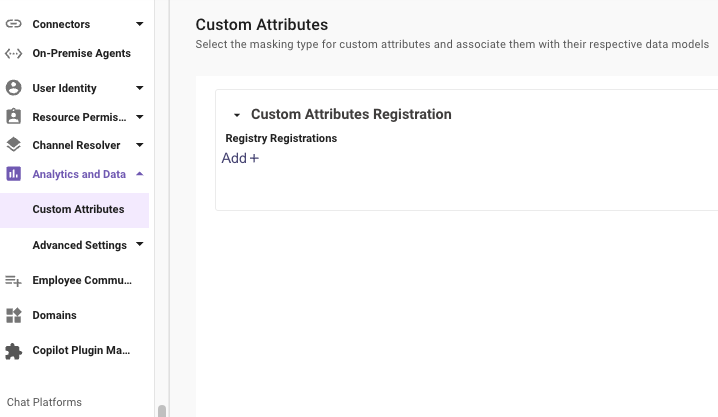
3. The **Model** dropdown will be **User Data Model**.
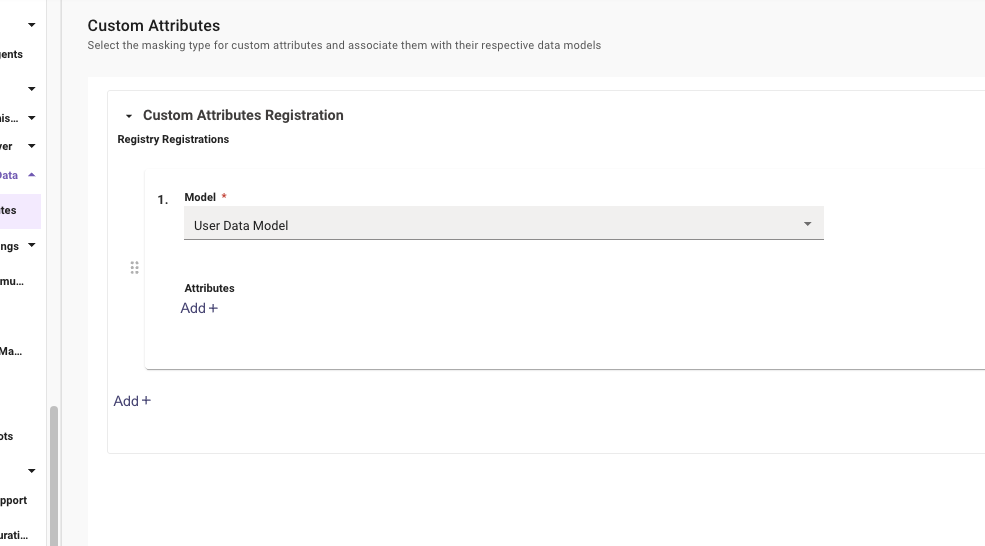
4. Click **Add +** to add a blank **Attributes** object
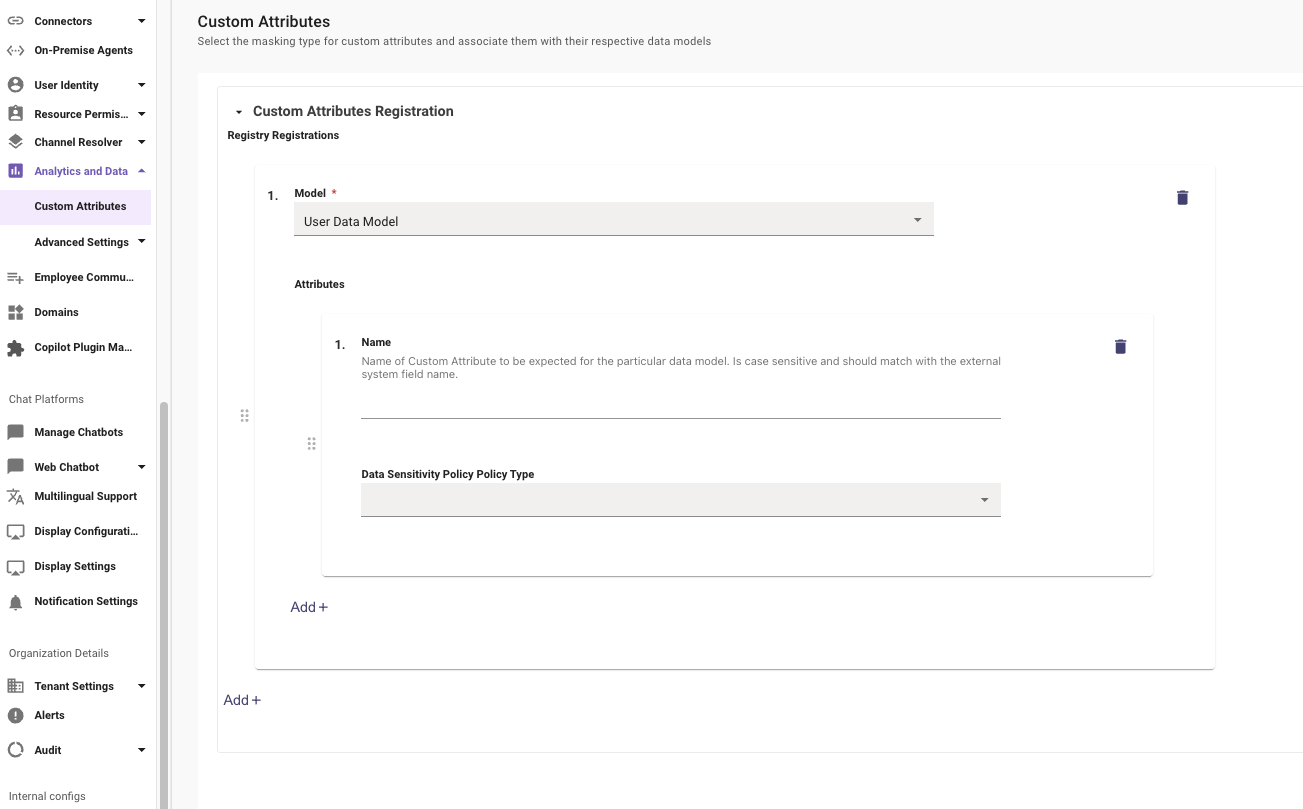
5. The **Name** will be the custom attribute name that was listed within the **Import Users** mapper.
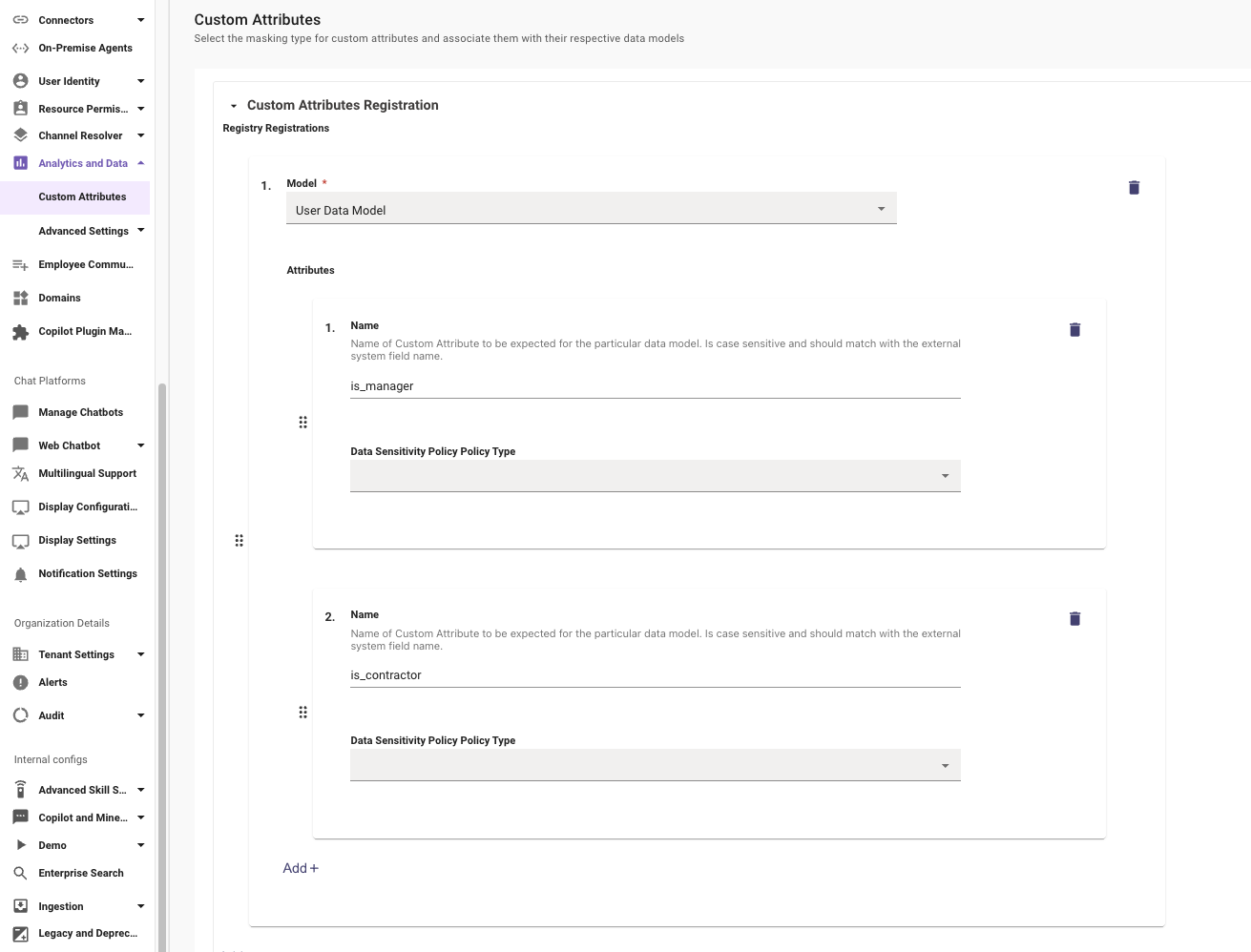
6. The **Data Sensitivity Policy Policy Type** dropdown will be set to **Customer Data**.
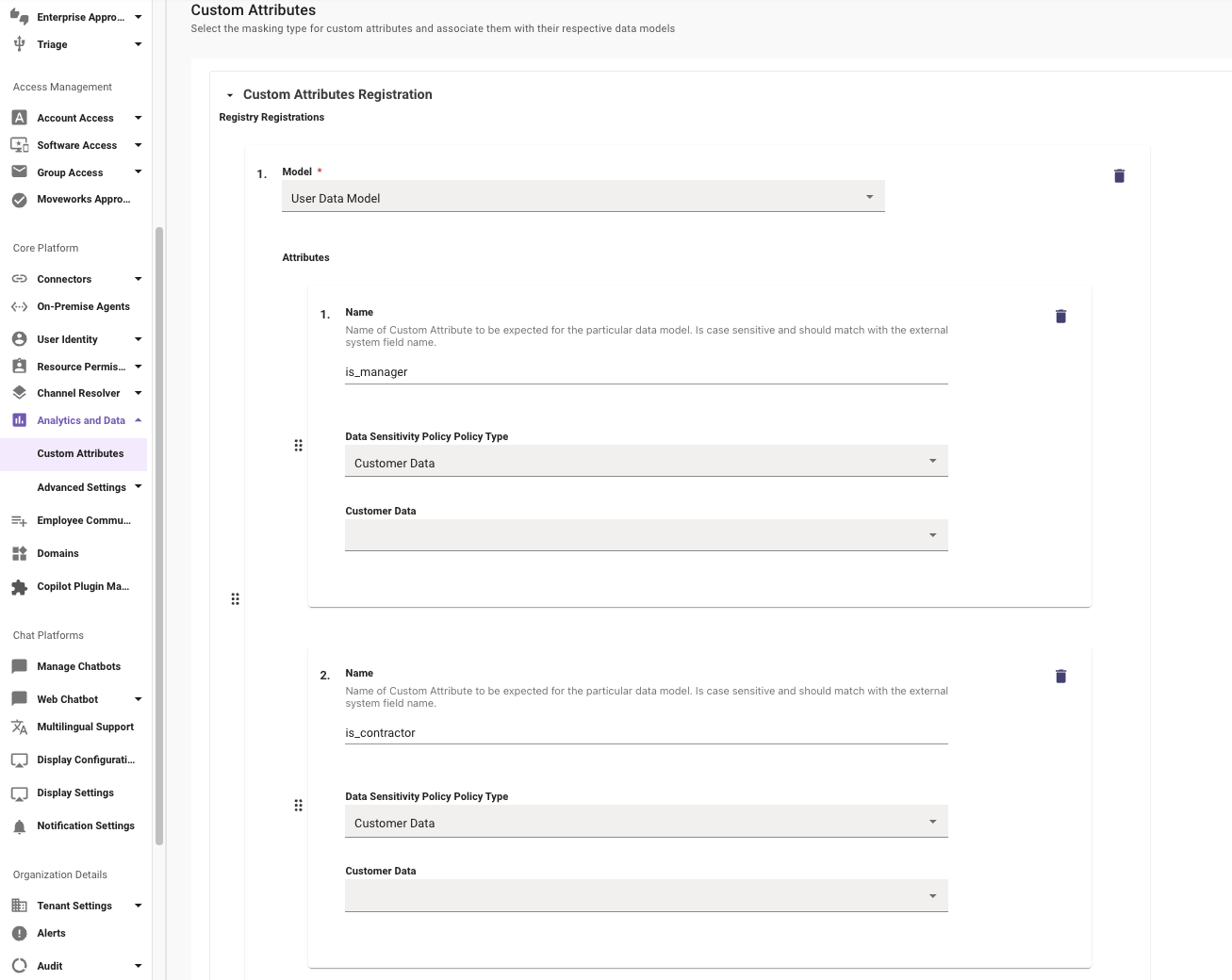
7. The **Customer Data** dropdown will be set to **CUSTOMER\_DATA\_USER\_DATA**.
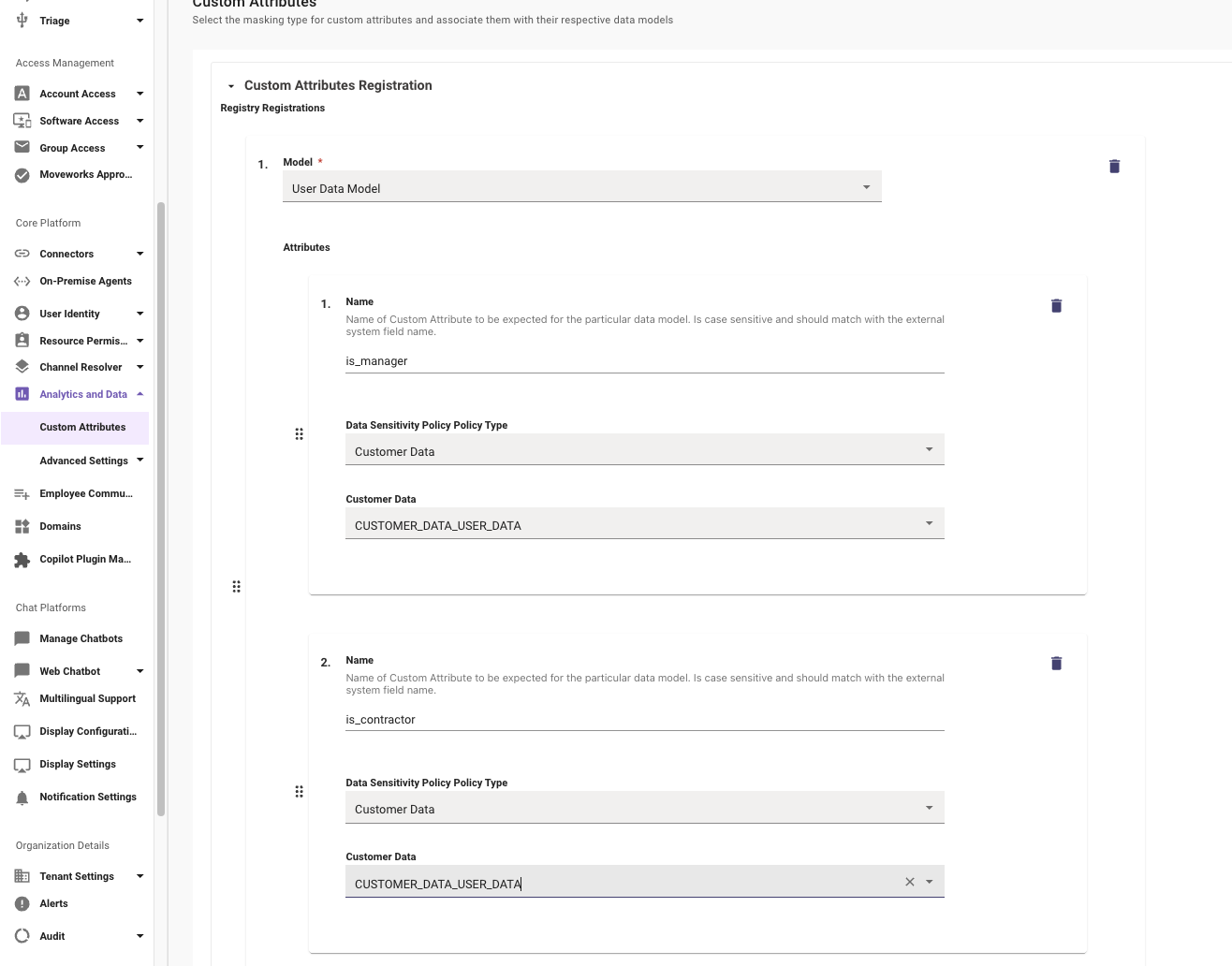
8. Click **Submit** in the lower right.
### Validation
This new custom attribute can be found within the **User Identity -> Imported User** roster lookup after the next user ingestion. It can take 24 - 48 hours for a custom attributes to propagate to the user roster.