---
title: Embedded AI Assistant Installation - ServiceNow
excerpt: ''
deprecated: false
hidden: false
metadata:
title: ''
description: ''
robots: index
next:
description: ''
---
# Installing Embedded AI Assistant using SSO (Recommended)
First, follow the steps to configure an SSO application for authentication to the Embedded AI assistant in the guide related to the SSO system you are using (e.g. Azure, Okta, etc.).
Okta OIDC: /docs/moveworks-for-web-installation-okta-oidc/
Azure OIDC: /docs/moveworks-for-web-installation-azure-oidc/
For additional SSO system guides, check the navigation menu on the left side of the page.
Once steps are complete and you have your code snippet, you can add it to your ServiceNow service portal.
Navigate to the `sp_portal` table. Find the portal(s) on which you'd like to include the widget, and click into its Theme record.
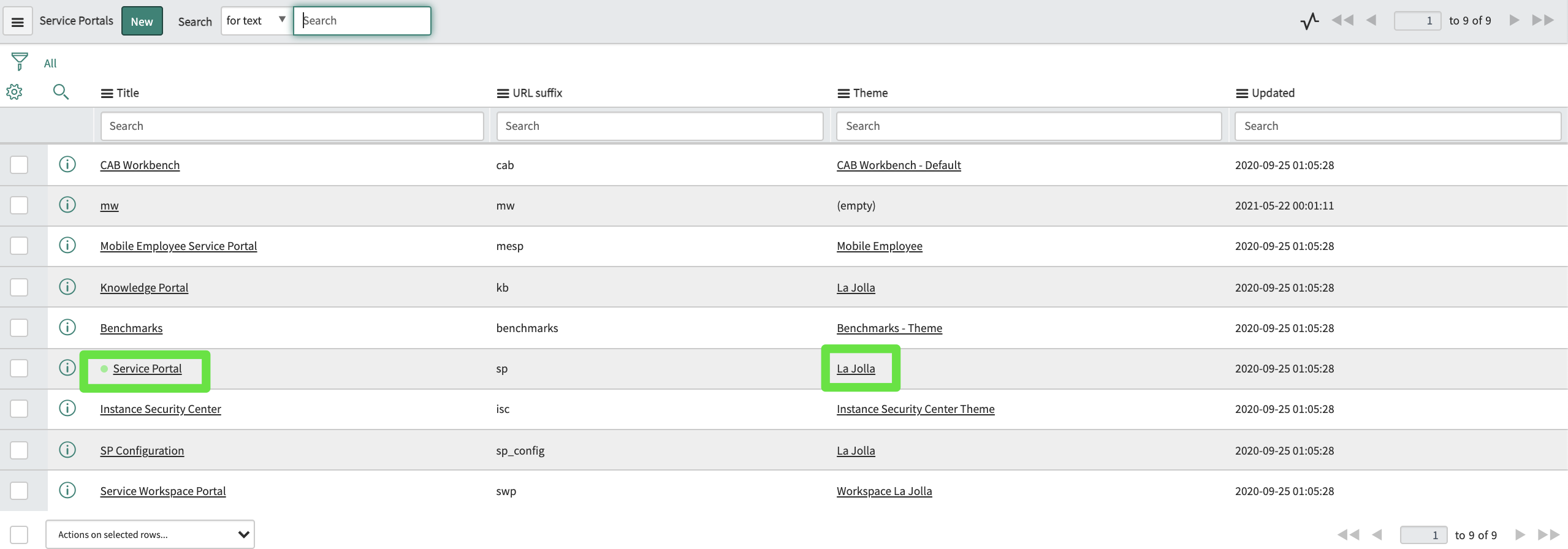
Find the footer field:

If there is nothing there, use the magnifying glass to create a new footer record and navigate to it. If there is already a footer there, navigate to that record.
In the footer record, add the relevant snippet to the Body HTML template field. For example:
```
```
Ensure the footer is applied to your theme:

Now the widget is set to appear on any page using that theme, including your Service Portal.
Once Moveworks configuration is complete, and you have access to the web bot, navigate to your Service Portal to see the Moveworks web AI Assistant widget.
# Installing Embedded AI Assistant using ServiceNow Auth
**It is NOT recommended to use ServiceNow Auth for the Embedded AI Assistant.**
**Please use SSO instead. Only follow the below instructions if SSO is not an option.**
## Installation Participants
On the day of installation, we need these individuals from your team on the call:
* ServiceNow admin (able to elevate to the security_admin role)
## Installation Overview
**At the start of the installation, Moveworks will need to send you an encrypted email containing the following:**
* Java KeyStore certificate and password
* Latest base Moveworks update set XML file (if not already installed)
* Latest Embedded AI Assistant update set XML file
* Footer HTML snippet
First, we will create a JWT provider in your instance that will be responsible for generating authentication tokens for our services to verify a user is properly authenticated into ServiceNow whenever they visit a page with the Embedded AI Assistant widget on it. This is what enables Embedded AI Assistant to automatically log users in. The following steps will walk you through creating the records below:
* MW Java Key Store Certificate
* JWT Key
* JWT Provider
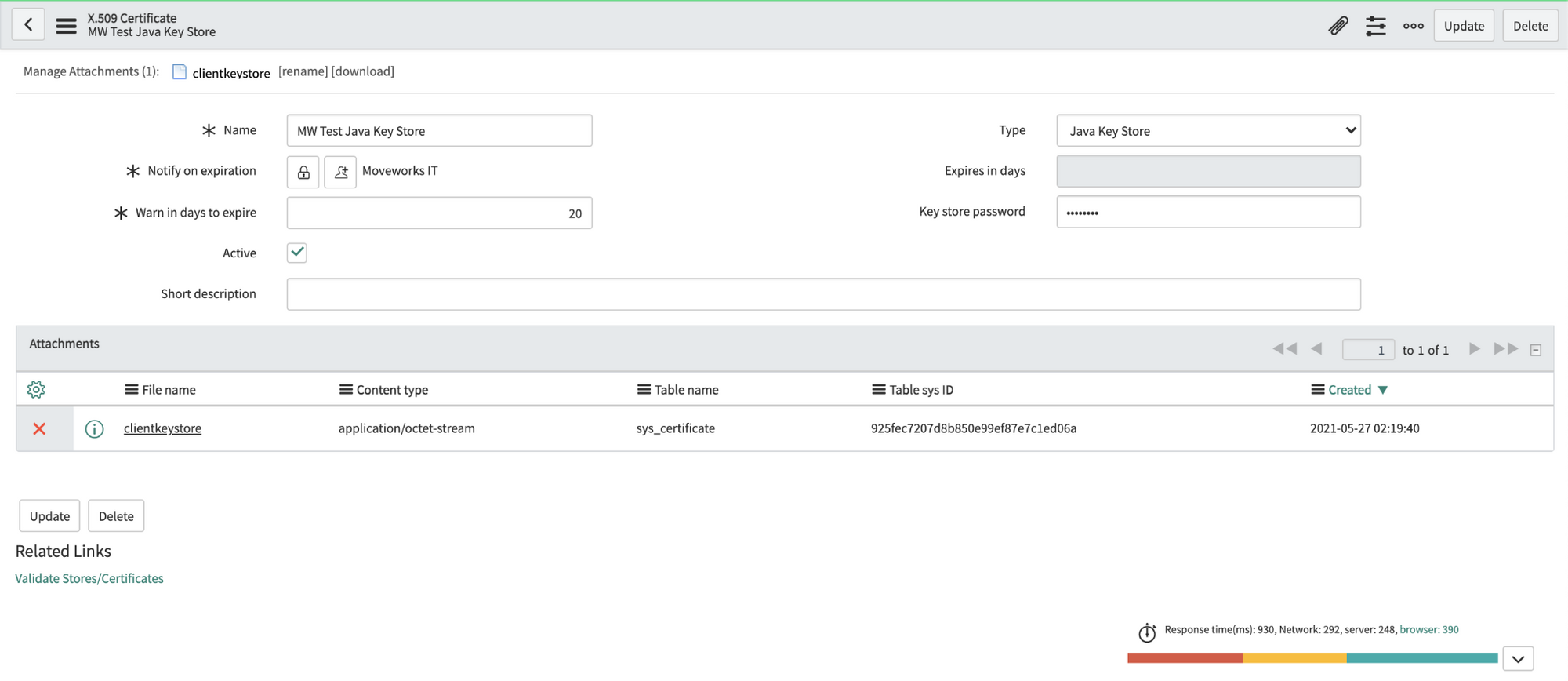
1. Navigate to the X.509 Certificate table in SNOW (search for "Certificates" to find it), create a new record as follows:
**Name:** MW Java Key Store
**Type:** Java Key Store
2. Click on the paperclip in the upper right to attach the JKS certificate.
3. Enter the password provided by Moveworks. Right click the top gray bar, click save.
**Important:** If you save before entering the password, it may seem to auto populate the Key-store password. This doesn't always work correctly, so **always enter the password manually**.
4. Click "Validate Stores/Certificates" under Related Links to ensure the record was configured properly.
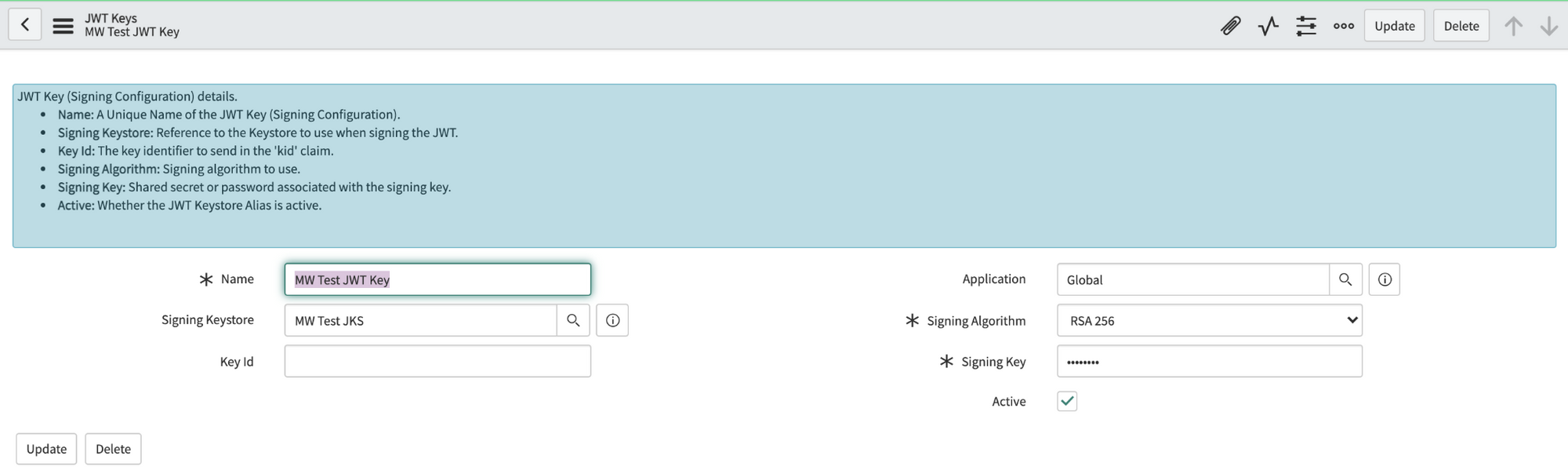
5. Navigate to the **JWT Keys** table (under System Oauth). Create a new record and set its Signing Key Store to the certificate record you made in the previous step. Enter the same password Moveworks provided in the Signing Key field. Save this record.
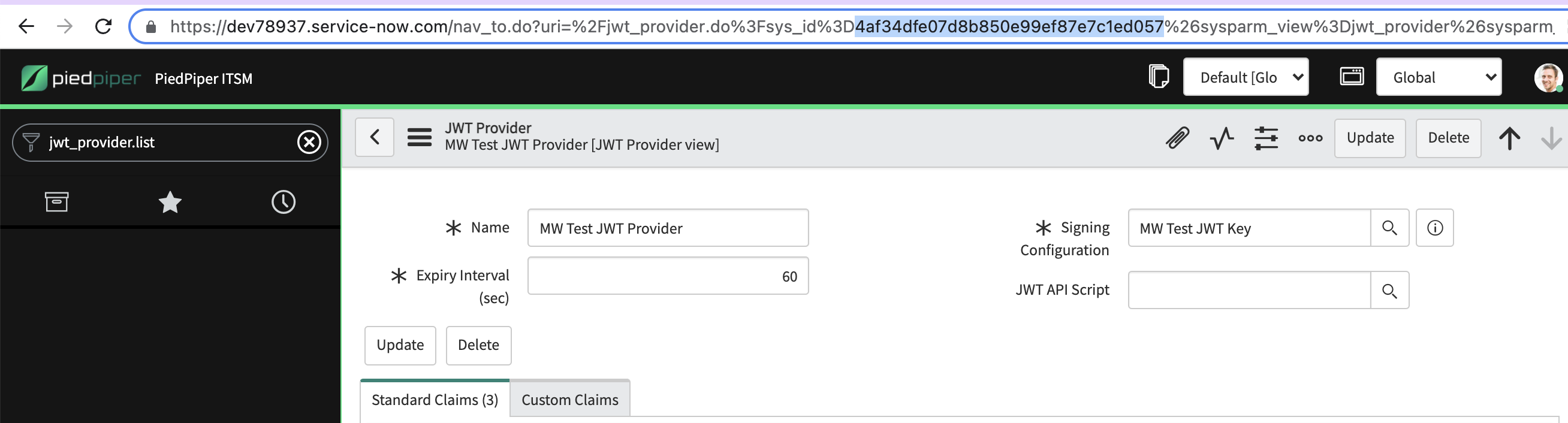
6. Navigate to the **JWT Provider** table. Create a new record and set its Signing Configuration to the key record you made in the previous step.

> 🚧 **Important**: Copy the **sys_id** of this JWT Provider record as it will be needed in the API initialization later.
Moveworks offers a number of ServiceNow modules we install into your ServiceNow environment via update sets. If you've previously used other Moveworks modules, you may already have the "base" update set module in place. You can find the the latest one [here](/docs/servicenow-update-sets#/moveworksbase100xml-).
If you need to install the base module, navigate to the **Retrieved Update Sets** table and click **Import Update Set from XML** under **Related Links**.
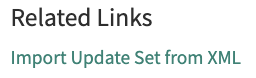
Upload the base update set file you received in the encrypted email, preview the changes, and commit them.
**Important:** One of the changes the base update set makes in your environment is adding a `moveworks_user` role that will allow us to make an API call later to finalize setup. Please navigate to the `sys_user` table and apply the role to the Moveworks service account.
Navigate again to the **Retrieved Update Sets** table and click **Import Update Set from XML** under **Related Links**.
Upload the Embedded AI Assistant update set (**moveworks.webchat.0.0.4.xml**), preview the changes, and commit them.
* These modules are very self-contained. If you encounter any errors while committing the files, this is usually self-referential and not something to be concerned about. You can usually ignore the warnings and commit the changes.
**Note:** If you ever need to update a Moveworks module, back out the old update set before importing the new one.
The Embedded AI Assistant update set makes a widget available in your system that can either be drag and dropped onto individual pages via the Page Designer or placed across multiple portal pages at once by adding a snippet to your portals' theme(s).
We recommend the latter as it is fast and maximizes availability for your users.
Navigate to the `sp_portal` table. Find the portal(s) on which you'd like to include the widget, and click into its **Theme** record.

Find the **Footer** field:

If there is nothing there, use the magnifying glass to create a new footer record and navigate to it. If there is already a footer there, navigate to that record.
In the footer record, add this snippet to the Body HTML template field:
```
```
Ensure the footer is applied to your theme:

Now the widget is set to appear on any page using that theme.
> 📘 This step can be done with any API tool such as Postman. This example uses the native ServiceNow REST API Explorer
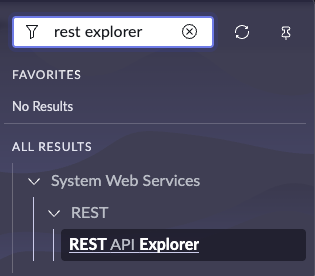
1. Within ServiceNow, navigate to the **REST API Explorer**
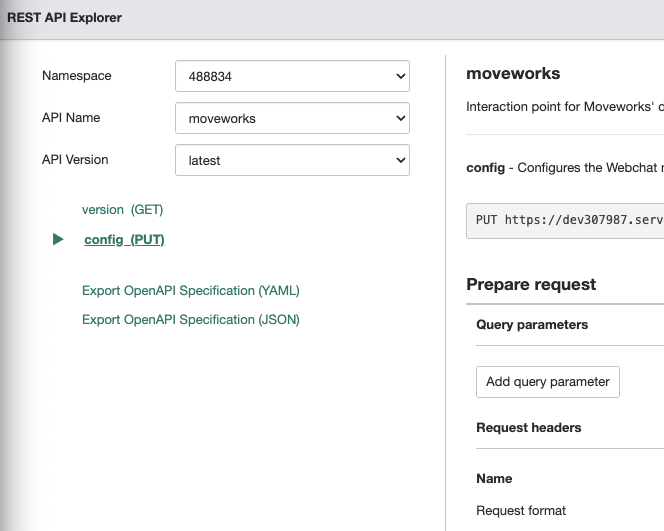
2. Set **Namespace** to **488834**
3. Set the API request to **config (PUT)**
4. 
Add the following **Request Body** to the API request. This can be done using the **Builder** or **Raw** toggle. The **Builder** view is shown below. Ensure to update the required fields below:
1. **bot_name**: The AI Assistant name
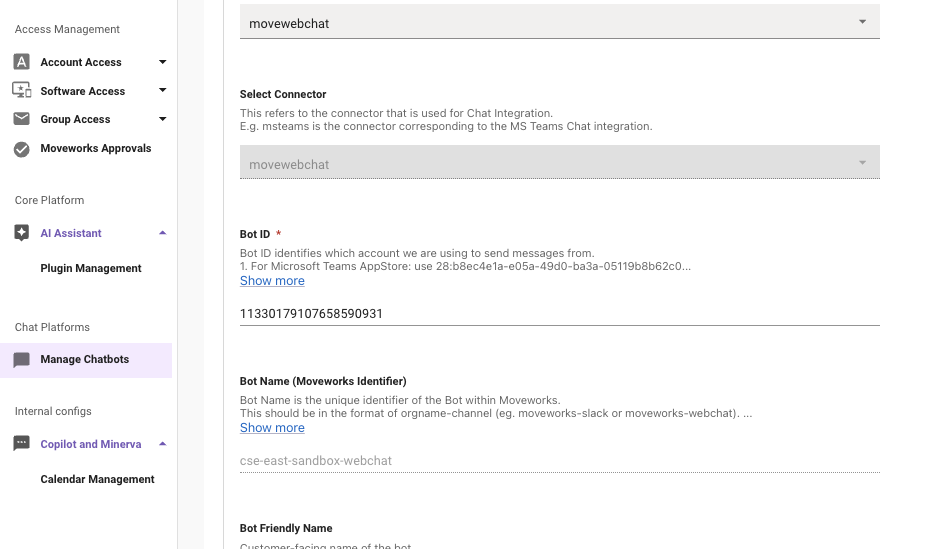
2. **bot_id**: The bot id which can be found within the **Manage Chatbots** record for the embedded AI Assistant
1. 
3. **jwt_provider_sys_id**: The JWT Provider sys_id value from Step 1.
```json json
{
"moveworks.webchat.bot_friendly_name": "bot_name",
"moveworks.webchat.bot_identifier": "bot_id",
"moveworks.webchat.jwt_provider_sys_id": "jwt_provider_sys_id",
"moveworks.webchat.connection_timeout_in_ms": "3000",
"moveworks.webchat.initialization_options": "{\"styles\":{\"bottom\":\"0px\"}}", // example: "{\"styles\":{\"bottom\":\"0px\",\"right\":\"10px\"}}, \"tokenRefresh\":{\"enabled\":true, \"interval\":30}}"
"moveworks.webchat.jwt_life_in_seconds": "60",
"moveworks.webchat.user_identifier_type": "EMAIL_ADDR", // alternative is to use "ITSM_USER_ID" in case email addr is not reliable.
"moveworks.webchat.widget_meta_template": "\n \n
\n",
"client_script_uri": "https://webchat-kprod.moveworks.io/movewebchat-client-script.js"
}
```
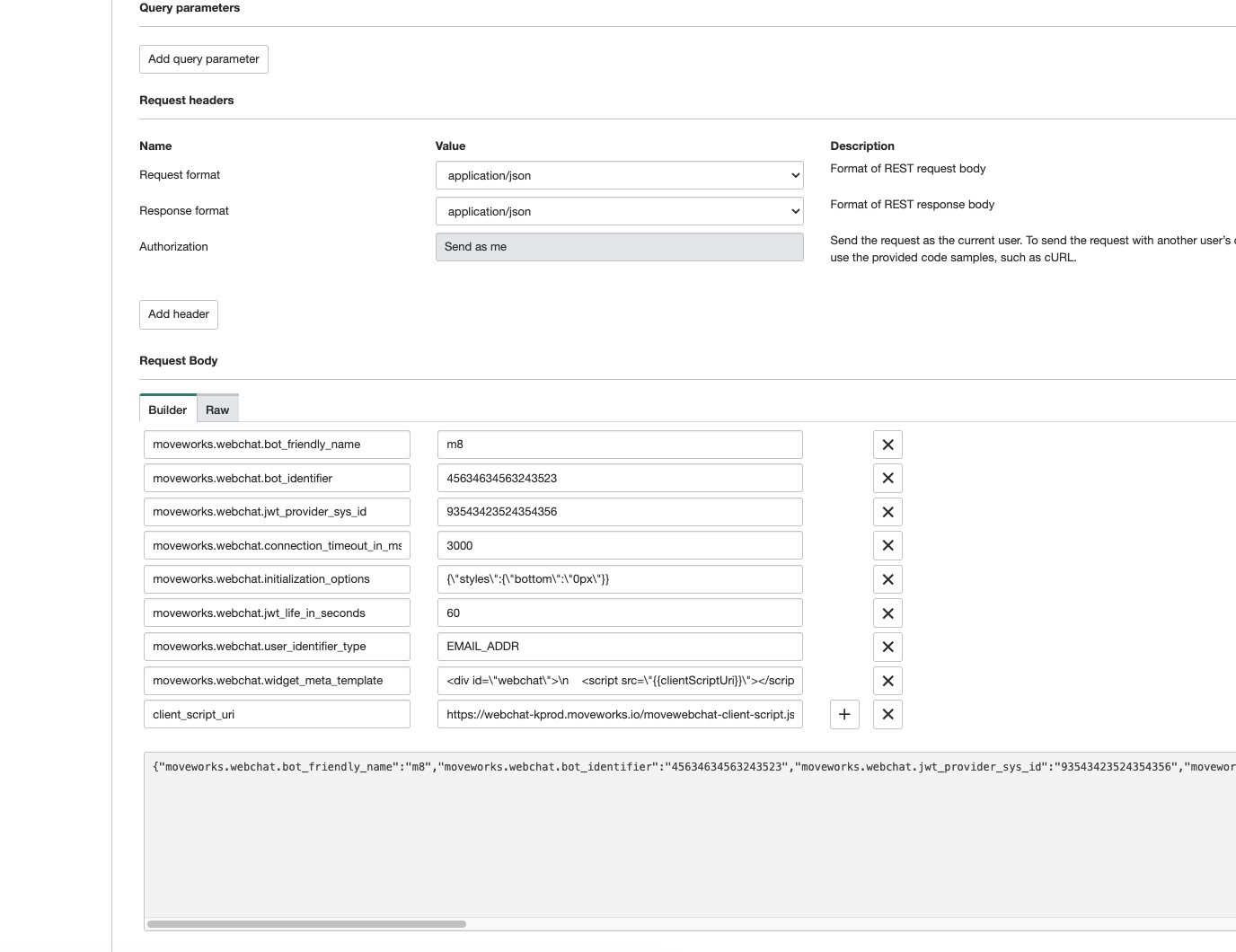
5. Hit **Send** to initiate the API call and the AI Assistant
6. When complete, the response should look similar to the following and should show **200 OK**
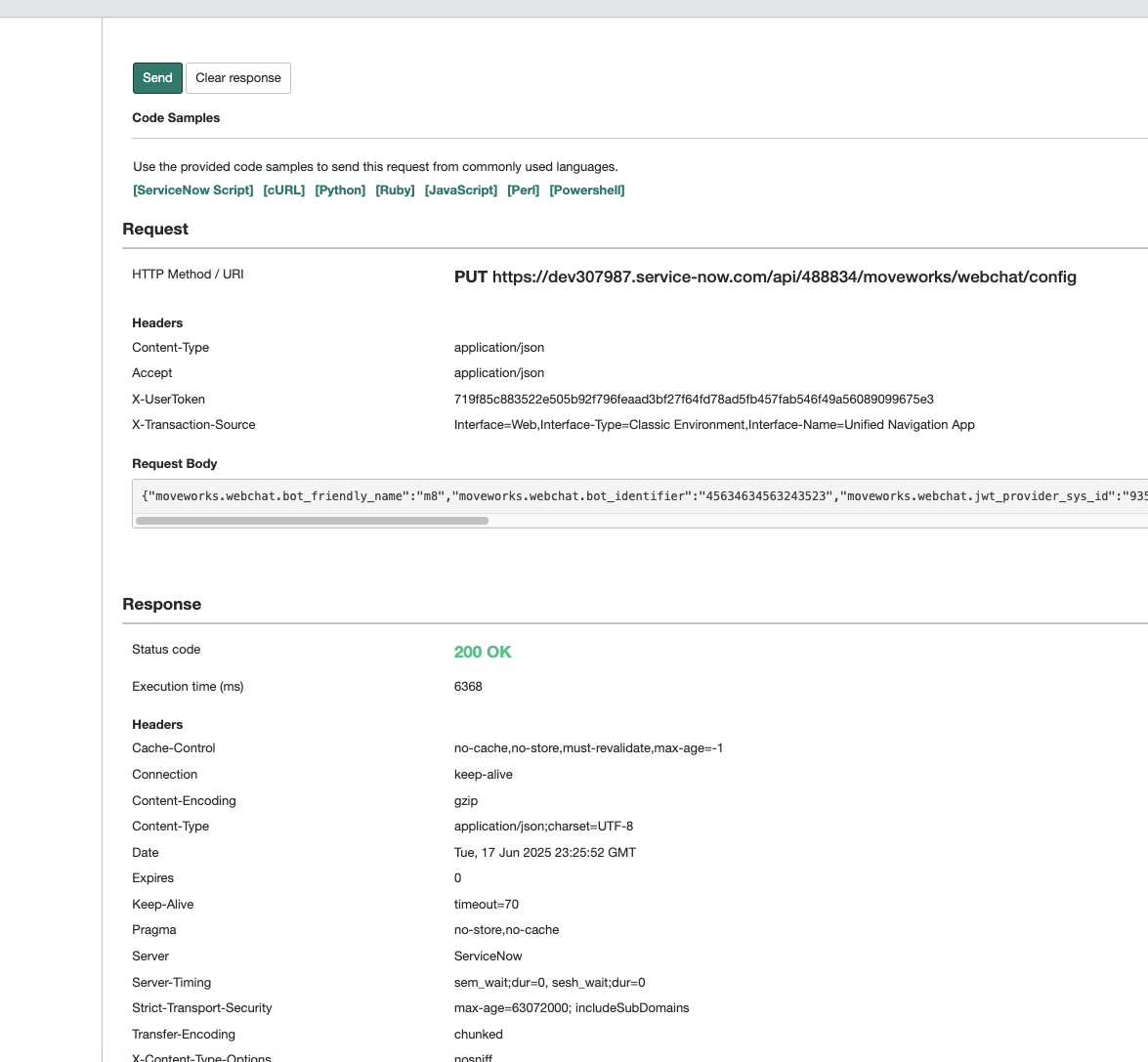
This API also allows us to make tweaks to the positioning of the AI Assistant on the page if necessary (in case it is blocking something else on your page for instance).
The AI Assistant should now be available on the portal pages where it was embedded!