***
title: How to Configure ServiceNow File Ingestion
excerpt: >-
This Document outlines how Moveworks Integrates with ServiceNow to ingest and
serve up Files.
deprecated: false
hidden: false
metadata:
robots: index
-------------
The following guide will walk you through the steps for configuring and setting up ServiceNow File Search via Moveworks Setup. Before we start the Configuration it is important to understand how ServiceNow Files work.
In ServiceNow, Files are always attached as part of an existing Knowledge Article and hence do not have their own permissions. Configuring ingestion of ServiceNow Knowledge is required for ingesting Files, and permission to view each file will depend on permission to view its parent Knowledge Article.
# Pre-requisites
* Ensure you have read through the **ServiceNow Access Requirements** document which walks you through the process of setting up a connector to ServiceNow and configuring a service account with the required permissions.
* Ensure that you have read through the **ServiceNow Knowledge Ingestion Configuration Guide** document which walks you through the process for configuring ingestion of ServiceNow knowledge articles.
* Please ensure the Service Account being used for connecting to ServiceNow has access to the **Knowledge Bases** corresponding to the articles that users want to ingest files from.
# 1. Configure File Ingestion in Moveworks Setup
In this step, you will configure the File Ingestion for ServiceNow in Moveworks Setup, using the Connector you have created.
* Start by Navigating to **Answers > Ingestion > File Settings** under the **Enterprise Search** module. Click on create to start Configuration.
* Start by Selecting the **ServiceNow Connector**. This connector is only responsible for ingesting the Permissions for the Files on the Sites, defined in the configuration.

Continue to the by clicking **Next: Setup Ingestion**.
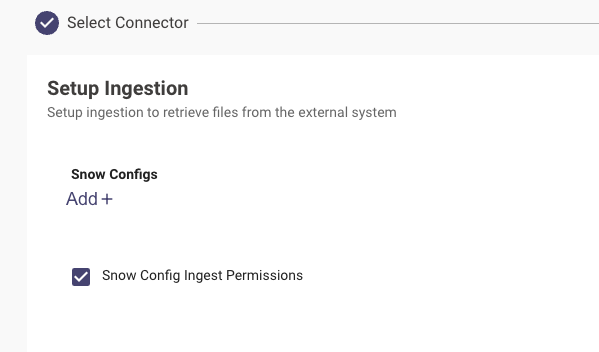
On the next page, click **Add +** to add an ingestion config, and check the **Snow Config Ingest Permissions** checkbox.
Choose a domain under which these Files would be present. In this scenario, we set it to the **IT Domain**. Also, ensure that the **Snow File Config** checkbox is checked.
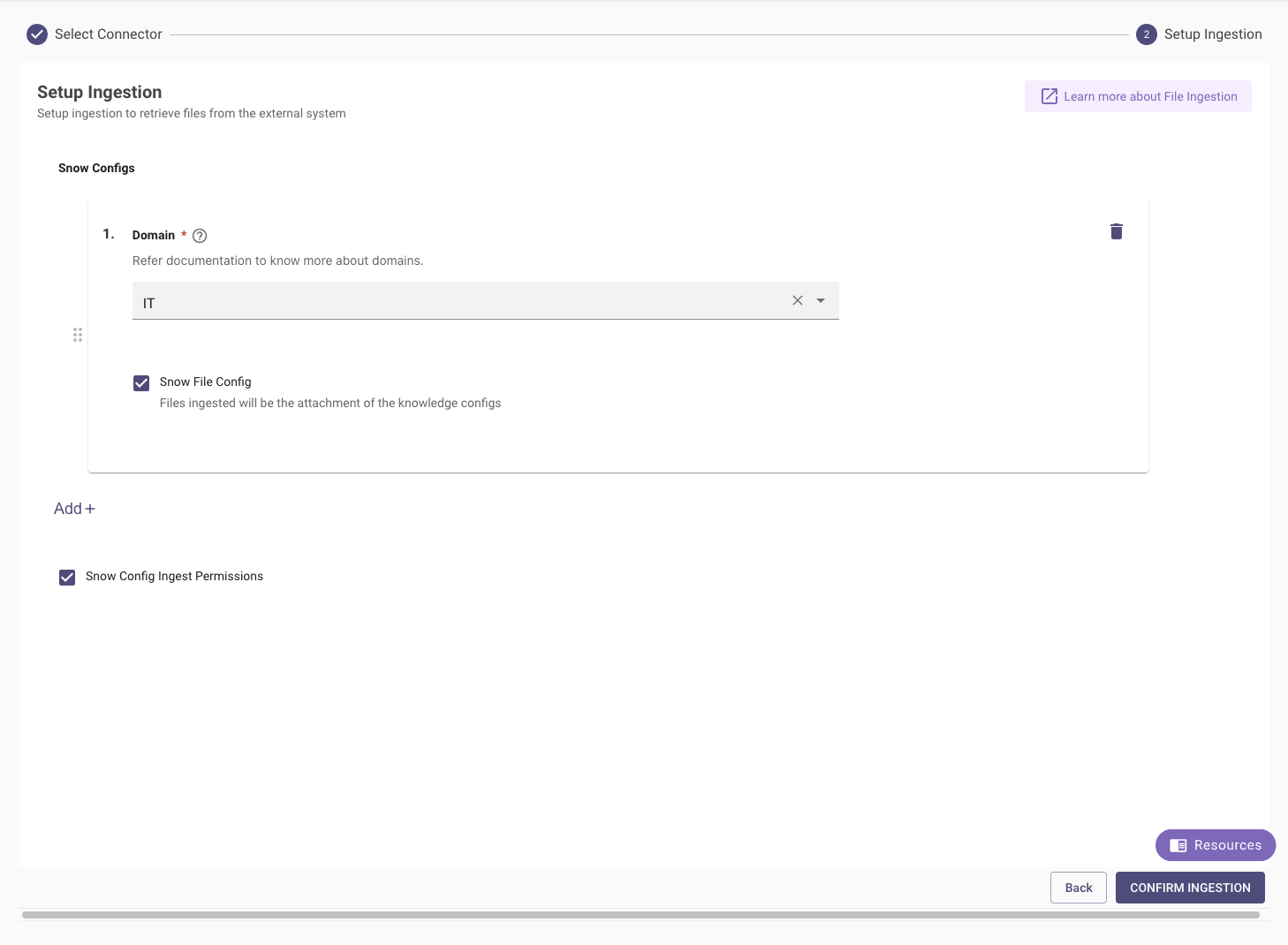
Finally, click **Confirm Ingestion** to save the config.
# 2. Configure Resource Permissions
* Navigate to **Resource Permissions > Permissions Rules** under **Core Platform**. Click on **Create**.
* Select the **Strategy Config** to be **Rebac** - This strategy mirrors the permission rules in ServiceNow by ingesting them on the Moveworks end.
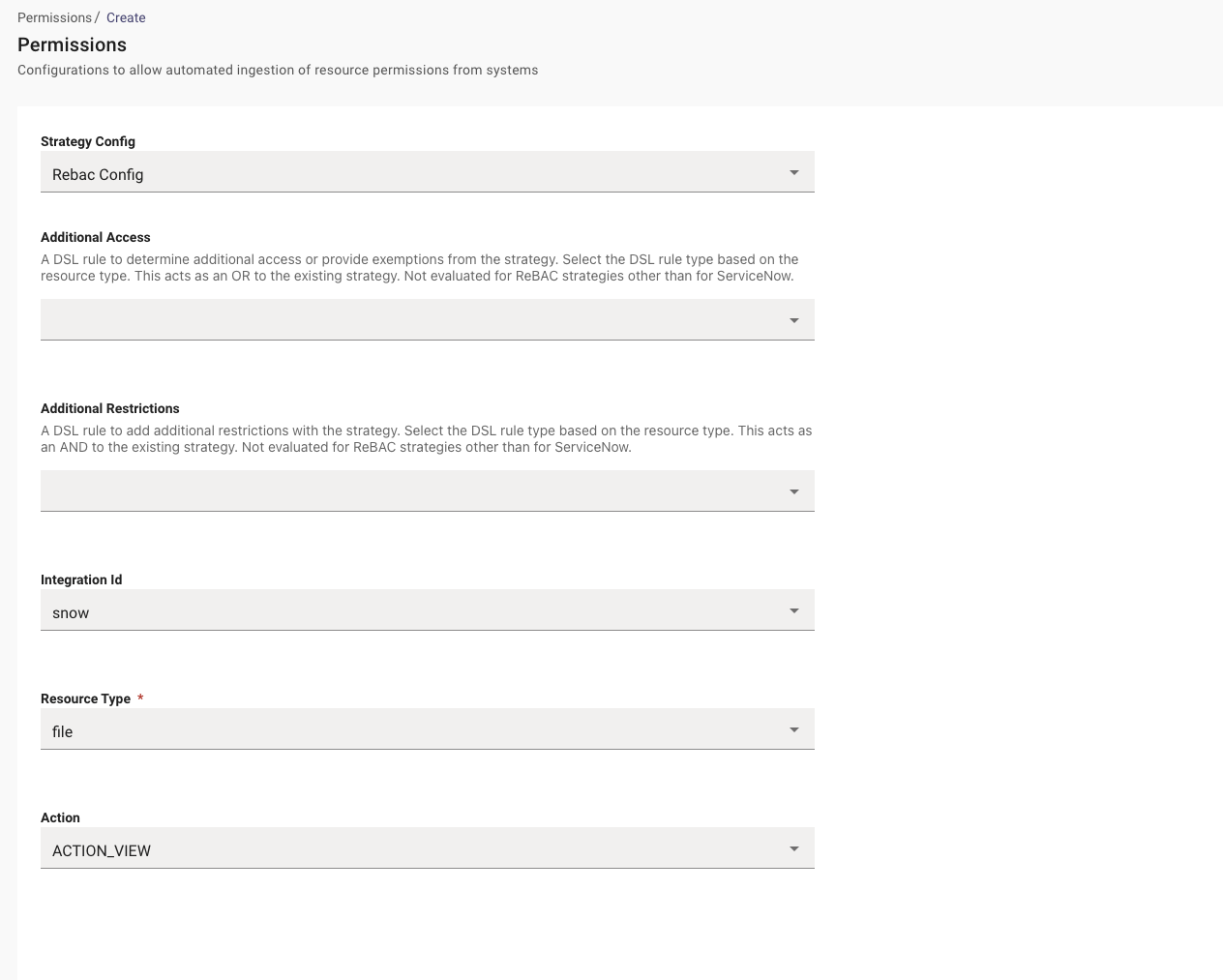
* The Fields **Additional Access** and **Additional Restrictions** can be left empty as we will Mirroring Permissions.
* Select the **ServiceNow Connector** under the **Integration ID** as this connector Ingests the Content.
* Set the Resource Type to **file**.
* Action - ACTION\_VIEW
# 3. Check Ingestion Status
In this step, you will check to see the up-to-date view on the status of your ingestions.
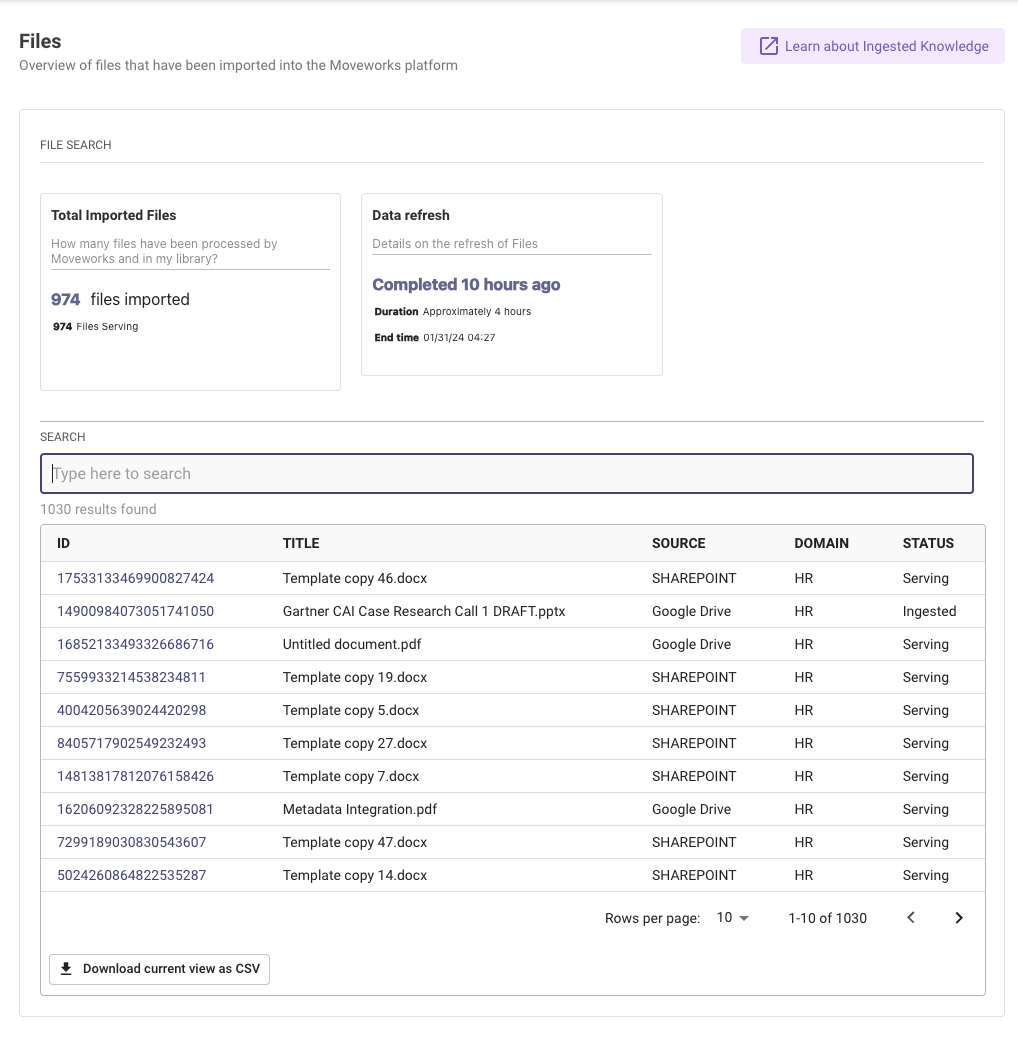
Navigate to **Answers > Ingested Knowledge > Files** where you can see when your most recent ingestion is finished running and the status of all your ingested files.
### Status Definitions
| Status | Definition | Action Item |
| -------- | -------------------------------------------------------------------------------------------------- | ----------------------------------------------------------------------------- |
| Serving | When the File has been ingested and indexed, and is now ready to serve in bot (or actively serving | Your files are ready to serve! Continue to Step 3 to |
| Ingested | When the File has been ingested, but not indexed and ready to serve in bot yet | Your files are actively indexing and almost ready to serve – check back later |
| Dropped | When the File has been dropped, due to various error reasons | Your files were dropped due to exceeding file limit |
# 4. Launch File Search to a test group of employees, validate permissions
In this step, you will turn on File Search to a whitelist set of test users, as well as validate that permissions are working as expected.
1. Navigate to **Answers > Plugin Settings**.
2. Check the **Enable File Search** checkbox.
3. Specify a test group of users to launch the skill to under **Enable File Search Rule**:
1. Input specified emails of your allowlist users:
1. Input must be a Moveworks DSL Rule in the following format:
`user.email_addr.$LOWERCASE() in ["john.smith@company.com".$LOWERCASE(), "jane.doe@company.com".$LOWERCASE(), “user3@company.com".$LOWERCASE()]`
4. Click the **Submit** button.
**Note: This filter will be applied to files within all configured File Ingestion Sources (i.e. if you have also configured ingestion of files from another source such as SharePoint or Box, this filter will be applicable)**
### To validate permissions are working
1. Access your Moveworks bot with one of the users in the allowlist.
2. Attempt to search for a file for which you do not have access in ServiceNow (e.g. “restricted\_inaccessible\_file.pdf”)
3. You should not receive the contents of that restricted file in your search.
4. **Note: We are building Permissions Analytics soon, to allow you to validate all file permission tokens and audit history of interactions and permissions filtering**.
# 5. Launch File Search to Your Employees
In this step, you will turn on File Search to make all your ingested files available to Search (mirrored permissions in ServiceNow will still be respected).
1. Navigate to **Answers > Plugin Settings**.
2. Remove the DSL filter under **Enable File Search Rule** or replace the filter with **true**.
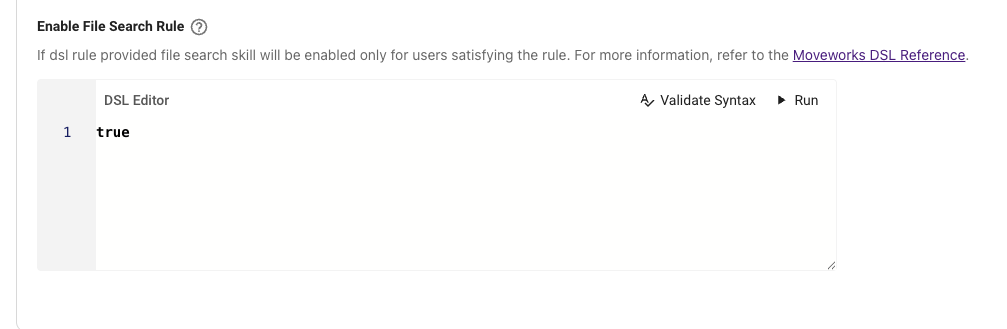
3. Click the **Submit** button.
# FAQ
### Q: How can I apply a filter to restrict user access to file search per content connector? (i.e. I want to give a specific set of users access to ServiceNow File Search, but I want to retain organization-wide access to other content sources)
**A:** This is not supported - instead, we recommend testing using a limited subset of files and controlling access directly in ServiceNow.