***
title: ServiceNow SSP Banner Link to the Moveworks Bot
excerpt: ''
deprecated: false
hidden: false
metadata:
title: ''
description: ''
robots: index
next:
description: ''
---------------
## What is it?
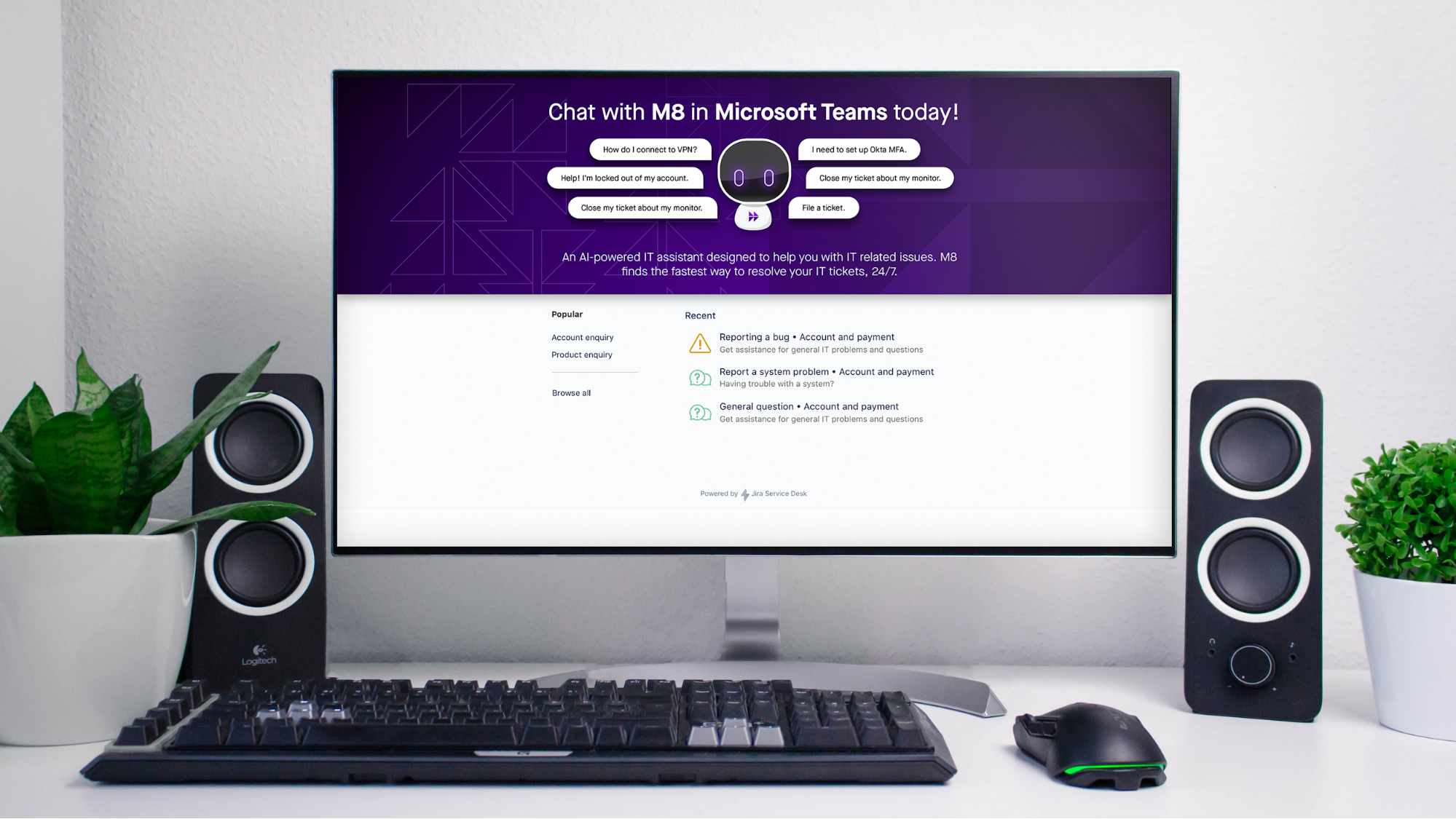
An eye-catching, bot-branded banner at the top of your ServiceNow self-service portal (SSP) that when clicked brings users straight to the bot in chat.
## SME Needed and Time to Complete
* **ServiceNow Admin** - 10-15 min
## Moveworks Provided Assets
* Company-branded bot banner
* Moveworks deep link to the bot
## How To
* Log in to ServiceNow as an administrator
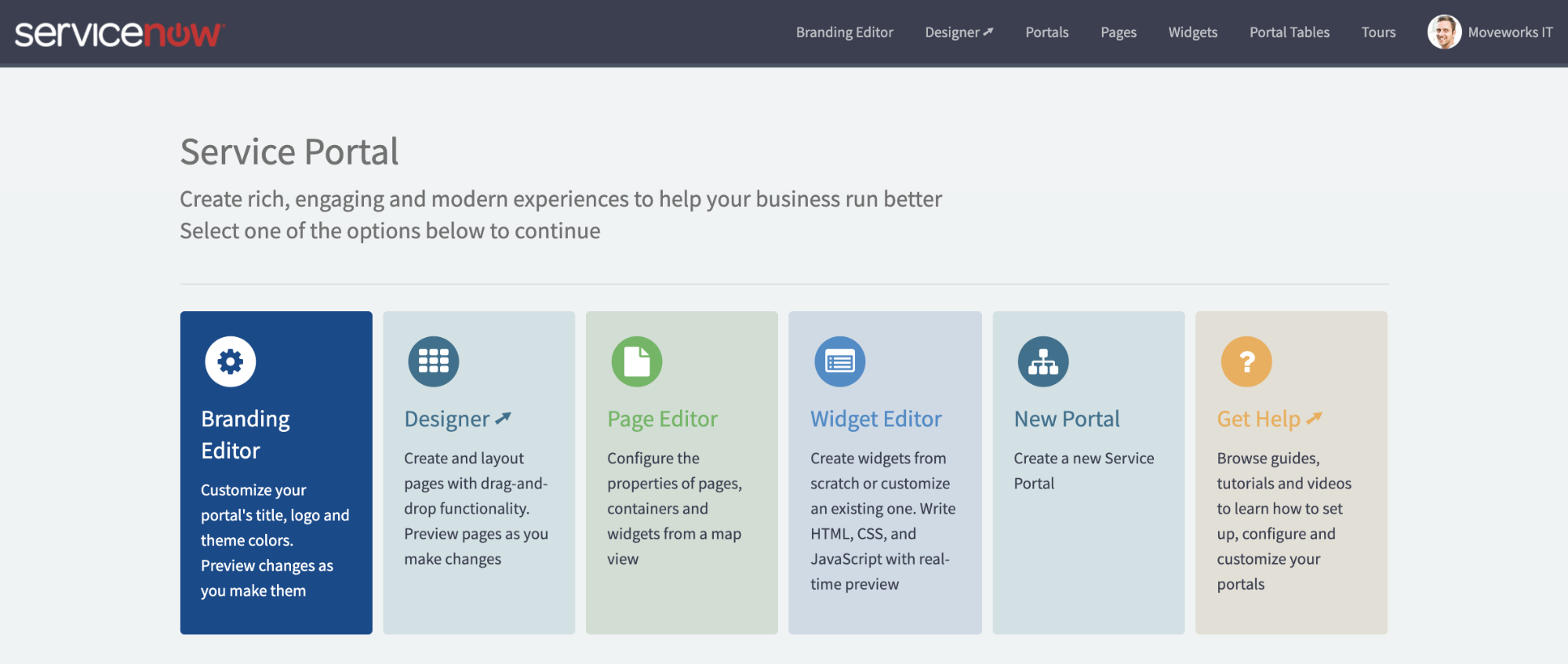
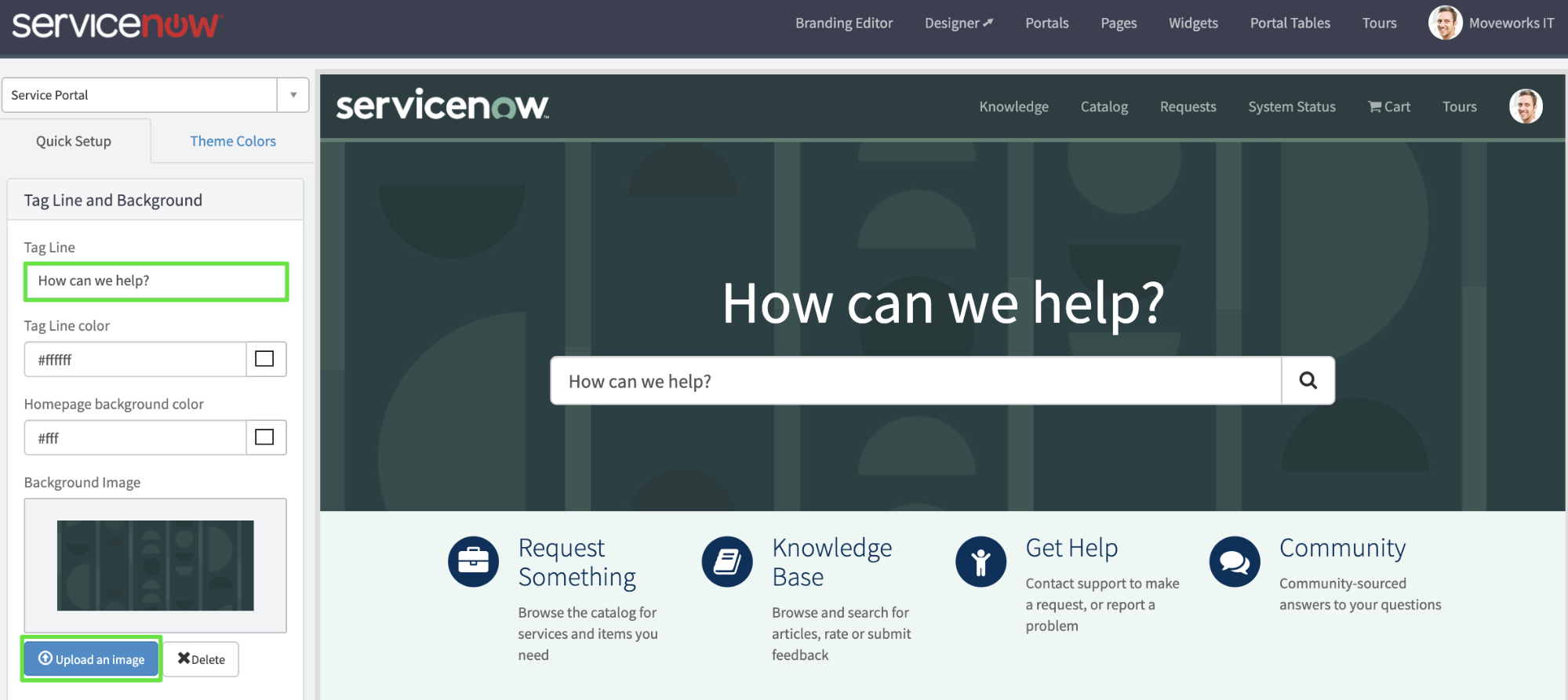
* Navigate to **Service Portal Configuration** and click **Branding Editor**.\
\
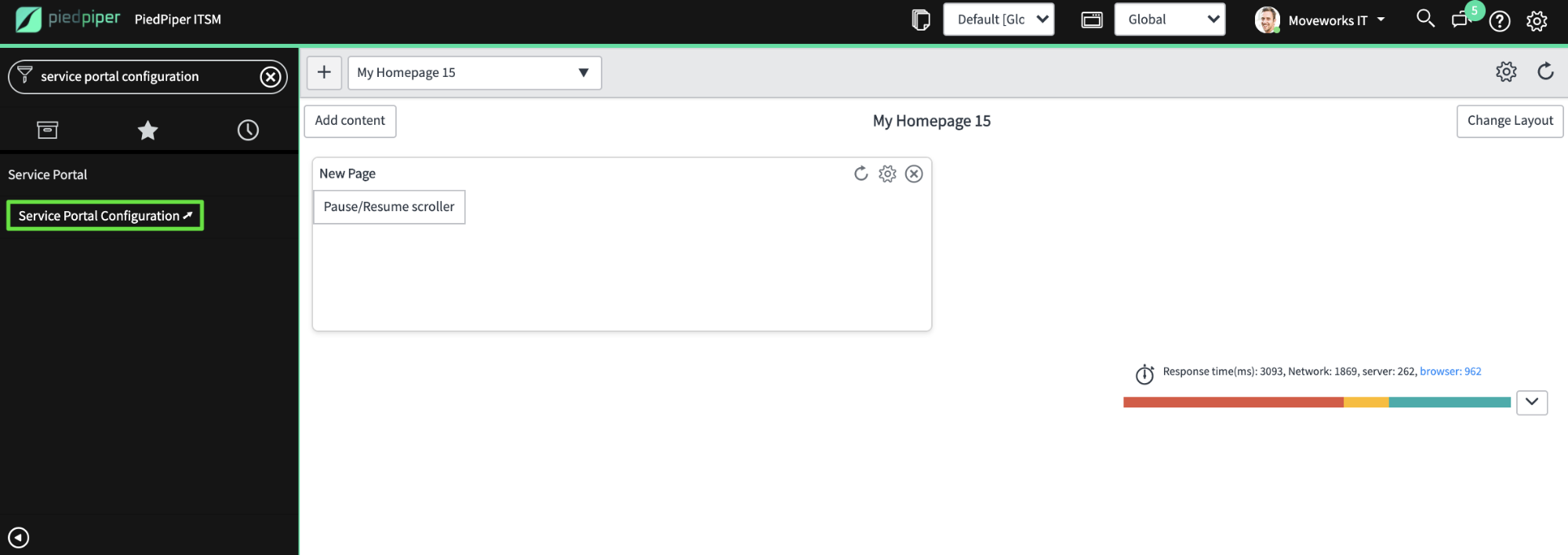
* In the editor view, scroll down the left panel, delete any text in **Tag Line**.
* Click **Upload an image** and select your Moveworks-provided banner.\
\

* There are two things left to do now:
* make the banner link to the bot and
* move the search bar to be less obtrusive.
* We’ll do this by making a copy of the default search widget with a couple tweaks.
* Back in the main ServiceNow admin UI, navigate to the **Service Portal → Widgets** table and search for the Homepage Search widget.\

* Click into the record and then click **Clone Widget**.\

* In the new copy of the widget, paste the following into the **Body HTML template** box, being sure to replace `“https://YOUR.MOVEWORKS.PROVIDED.BOT.MOVEWORKS.LINK”` with the link Moveworks provided you:
```
```
```
```
* The image below shows what we are deleting in red, and what we are adding in green. Very minor tweaks.\

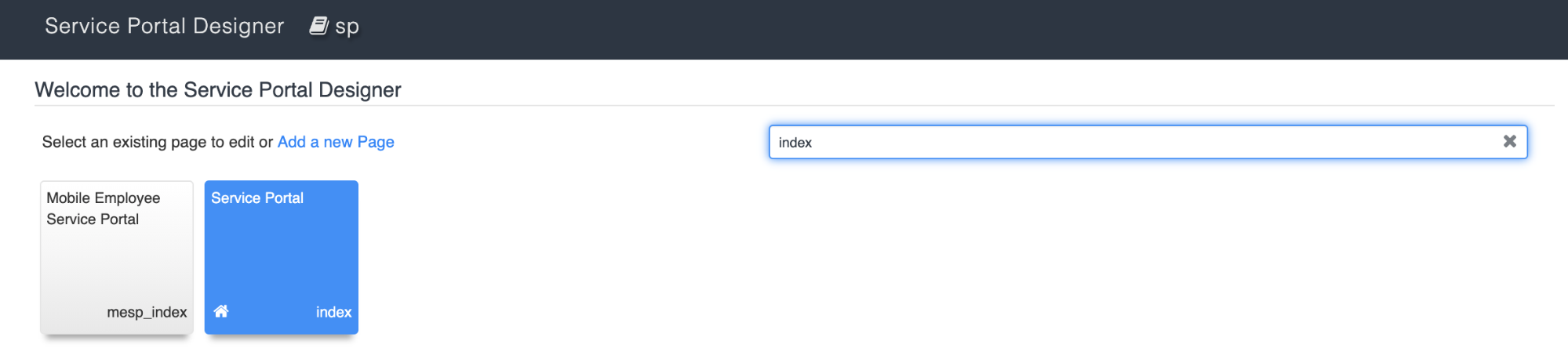
* Return to **Service Portal Configuration** and click **Designer**.\

* On the following page, find your home page. By default this is called **index** but it may be called something else in your environment if your organization is using a custom home page.\
* The following screen gives you a drag and drop layout of your page.
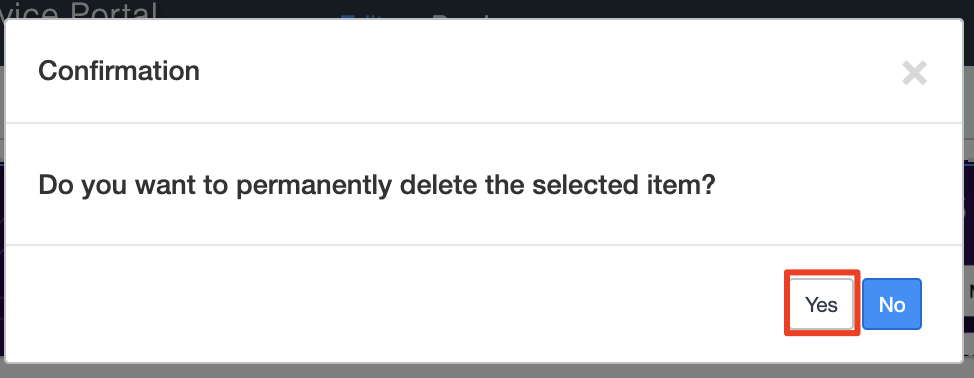
* Click the little blue trash can in the upper right corner when hovering over the **Homepage Search** widget.\

* Click **Yes** when asked to confirm (*don’t worry you can always add this back anytime*).\
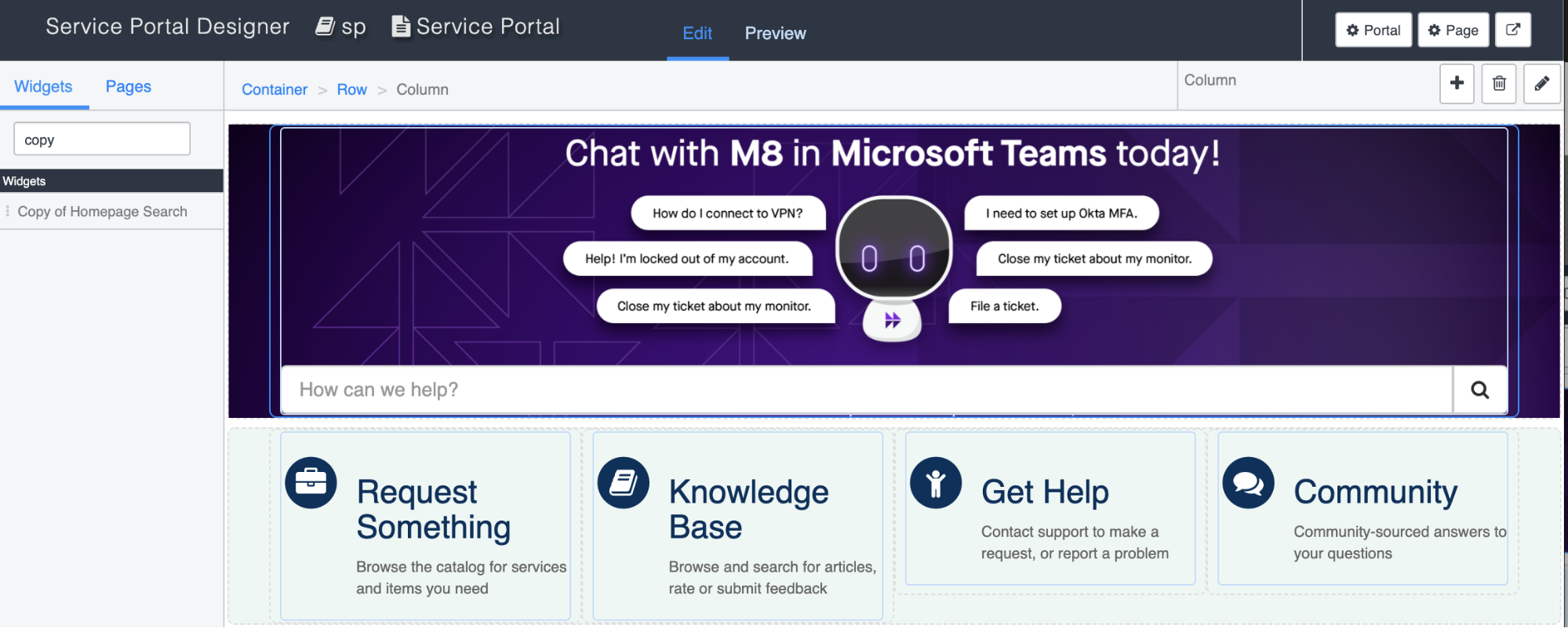
* Search for the new widget copy we made and drag it onto the banner.\
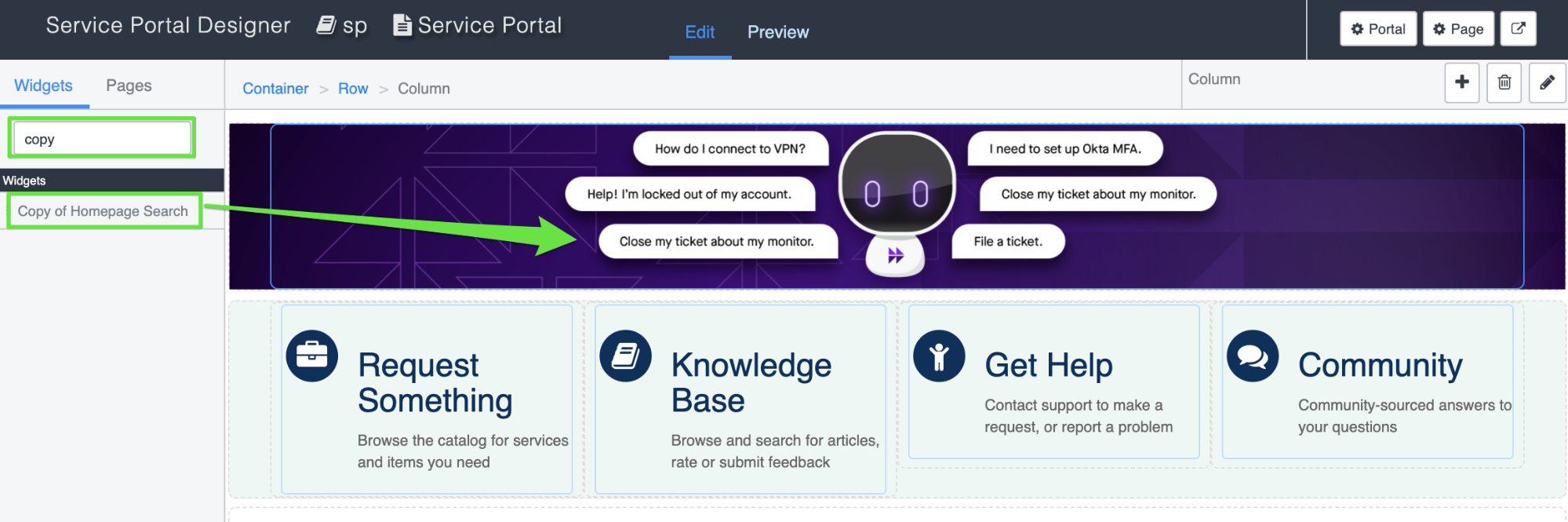
* If you did it right, it will look like this:\
* Everything will save automatically.
* Finally, open a new browser tab and navigate to your new and improved service portal.\

* Looking good! Now click the banner, and if you are directed to the bot, you are good to go!\
\