***
title: Release Notes 2024
excerpt: ''
deprecated: false
hidden: false
metadata:
title: ''
description: ''
robots: index
next:
description: ''
---------------
# December 2024 Product Release Notes
## New Releases
### **In-bot file attachment in Slack using Copilot**
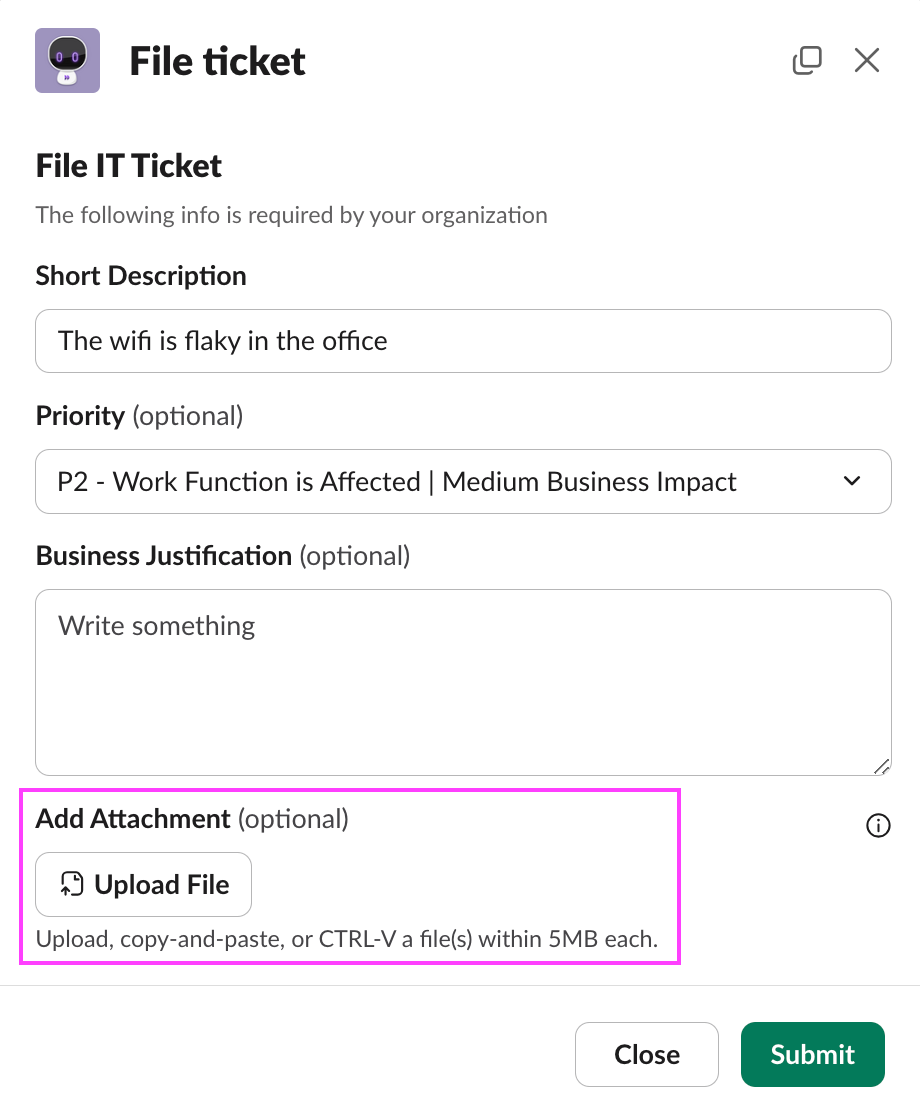
We’re happy to announce that Slack users can now add attachments to tickets in Slack itself! This is an optional configuration which applies to tickets filed via the Moveworks Copilot.
**Relevant Configurations**
This feature will require two configuration options: rich ticket filing with attachments enabled, and Slack file attachment enabled.
**Prerequisite Slack permissions**
Slack attachments require the file input block to be built on the Slack Modal, which requires a few permissions, notably `files:read` , which is used by the bot to construct the modal.
`files:read` ONLY grants the Moveworks Bot the ability **to read file attachments that the user sends to the bot, in channels the bot is added to,** and the ability to construct a modal that has file input as a field.
`files:read` Does **not** grant the Moveworks bot access to read file from your DM with others or any files that is shared in other channels channel.
*These permissions can be enabled directly in the App Manifest page of the bot’s config.*
### **Log Viewer Role for Logs in MyMoveworks**
In order to help you audit and limit access to the Moveworks Logs app, we added a new role to the Role & Permissions app in MyMoveworks. By default, users will NOT have this role enabled.
**Who does this affect?**
This only affects customers with access to Agentic Automation Engine. If you see a Plugins tab in your Creator Studio page then you have access to Agentic Automation Engine.

If you had Agentic Automation Engine enabled **before 12/13/2024**, then all of your developers that have access to Creator Studio **will have the role by default.**
If you have Agentic Automation Engine enabled **after 12/13/2024**, than all of your developers that have access to Creator Studio **will NOT have the role by defau**lt.
**What’s the Role?**
The Role is called **Creator Studio Logs Viewer**
**What does enabling this Role do?**
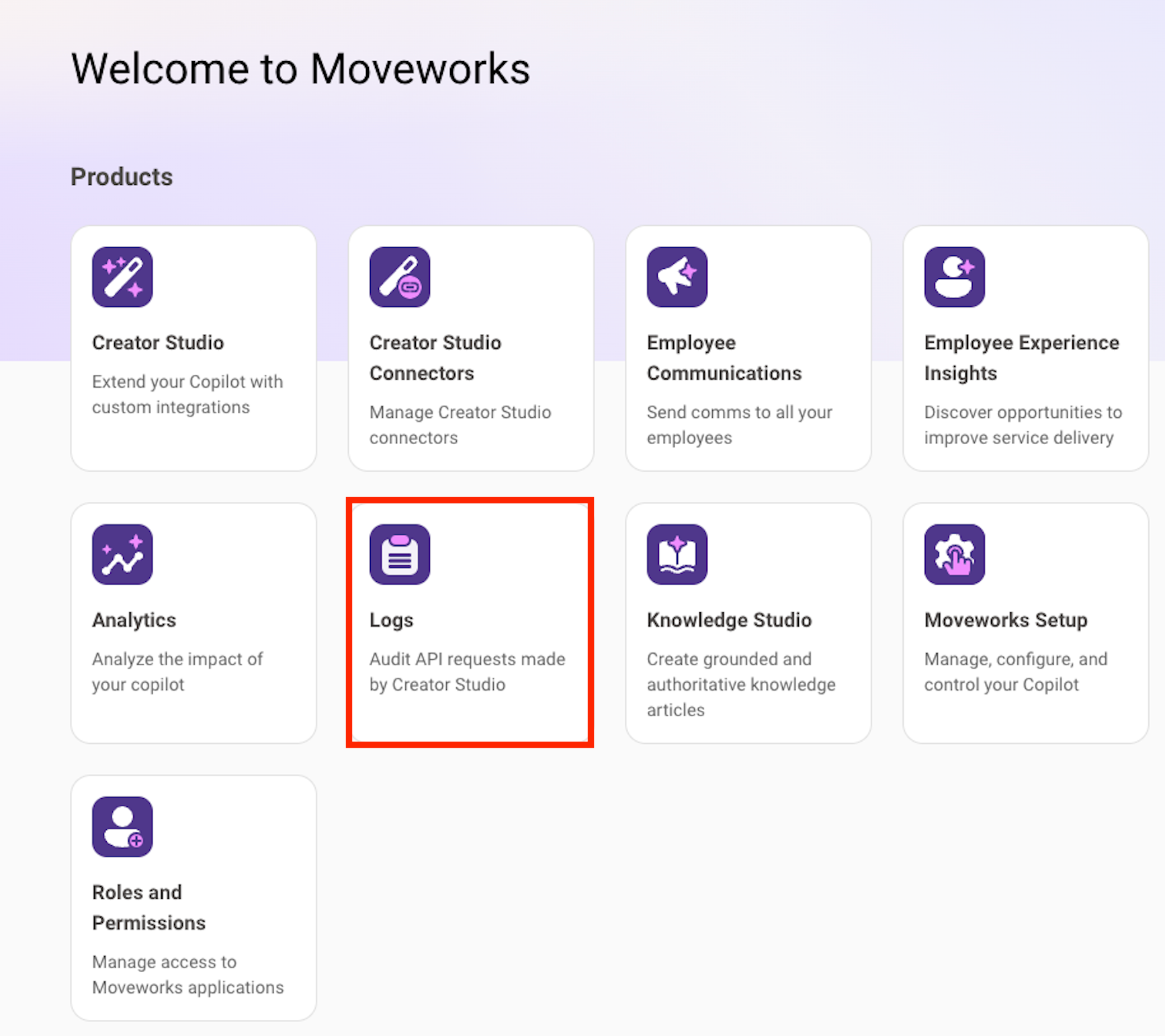
If a user is granted the **Creator Studio Logs Viewer role**, they will be able to see and access the Logs app tile in the MyMoveworks menu.
**What is the Logs app?**
The Logs app lets you view all of the logs needed to debug Plugins, Compound Actions, and Actions created in the Plugins tab in Creator Studio.
**How do I set Roles & Permissions?**
You can follow our [Roles & Permissions guide.](/service-management/administration/roles-permissions/overview)
### **Introducing User insights in copilot analytics**
We are excited to launch the all-new User insights report. This is a new report launched for Copilot Analytics and provides insights on adoption and copilot usage.
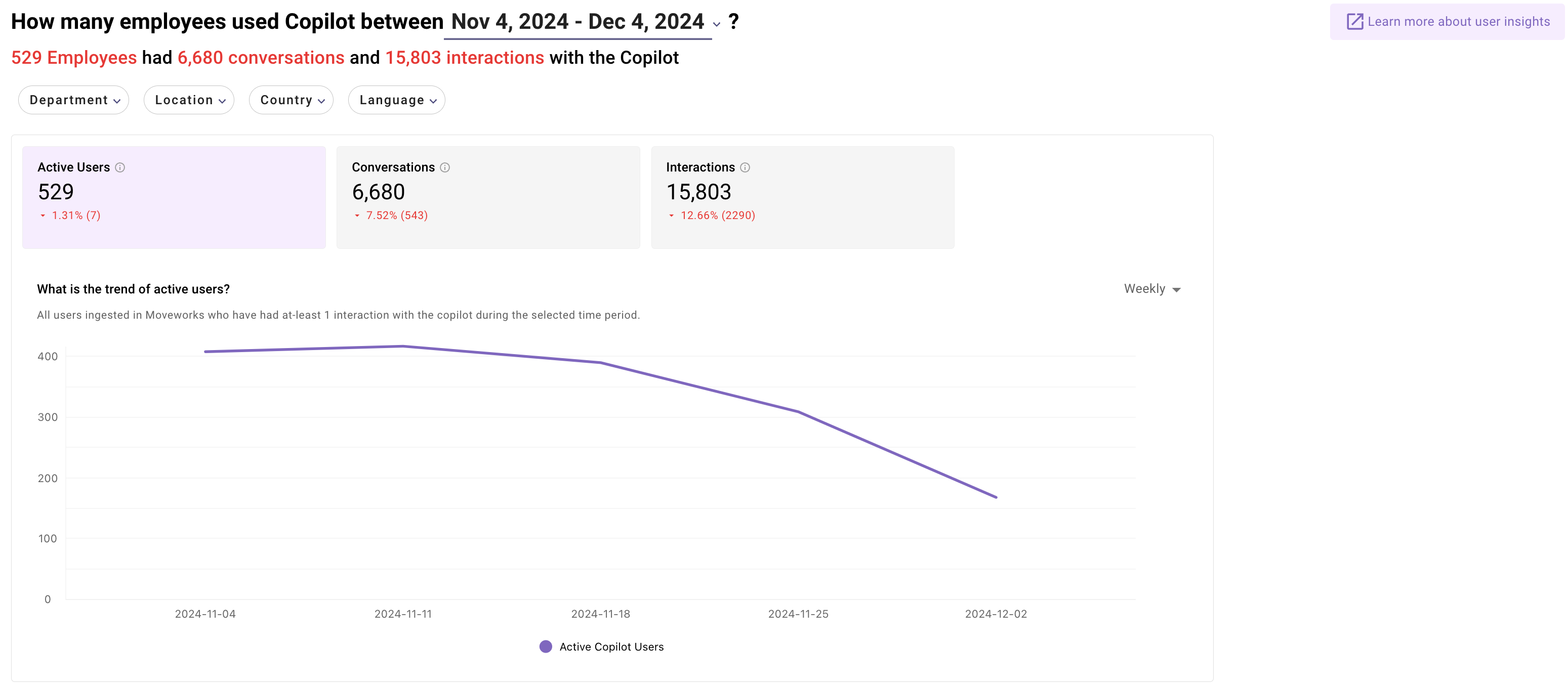
* You can now view adoption and engagement on the copilot by each department, and location and identify users who need more enablement on the copilot
* By reviewing enabled surfaces, you can now identify surfaces where users are not interacting with the copilot, such as service portals.
* By learning the user-preferred languages, you can now understand if new languages need to be enabled in Copilot to drive the adoption of users from a certain demographic
Learn more about the report [here](/ai-assistant/ai-assistant/analytics-performance/ai-assistant-insights/user-insights).
### **2 new Quick Start Guides: Employee Communications & Knowledge Studio**
We're thrilled to share the release of two new quick start guides designed to make onboarding and learning quick and easy. For each feature, all the steps should take about 2-4 hours in total and can be completed at your own pace.
👉 See the complete Employee Comms Quick Start Guide in Community [here](https://community.moveworks.com/employee-communications-75/employee-communications-quick-start-guide-your-complete-learning-path-1790).
👉 See the complete Knowledge Studio Quick Start Guide in Community [here](https://community.moveworks.com/knowledge-studio-81/knowledge-studio-quick-start-guide-your-complete-learning-path-1788).
# November 2024 Product Release Notes
## New Releases
### **Easier access to handoff options in Copilot**
This update is to enable users who are looking for handoff to a human to get to **file ticket** or **live agent** more easily, without going to Get Help (i.e. the reference popup).
**Background: How handoff works in the Copilot**
The Copilot offers a handoff option in chat based on two key factors:
1. Domain or category of the request.
2. The type of handoff (or “item”) that is being requested.
For example:
*“I need to file a ticket for my VPN issue”*
1. Domain: IT
2. Item: Ticket filing
*“Can I talk to an agent? I have a 401k question”*
1. Domain: HR
2. Item: Live agent
**Limitation of the current experience**
In some cases, the user may ask a question for which the Copilot is unable to predict the domain from the list of domains configured:
*“Create a ticket for an issue with the sidewalk outside the office”*
* Here, it’s possible that the Copilot might not have a configured domain that can be predicted.
*“Create a ticket for an issue”*
* Here, the user has not provided any details about the issue, so a domain cannot be predicted.
* In this case, the Copilot will prompt the user to offer more details to attempt to get information for the domain prediction, but the user may not offer the details.
Similar, in some cases, the user may ask a question where they don’t explicitly mention the way in which they need help:
*“I need assistance with an HR question”*
* Here, the item is not predicted
In both cases, since the Copilot was not able to predict both domain and item, it asked the user to click on Get Help to view more options and make their selection.
**Upcoming improvements and user experience**
With this update, the Copilot will offer easier access to handoff options even when either domain or item are not predicted.
If the **domain is not predicted but the item is predicted with confidence**, the Copilot will provide a list of all available items across different domains:
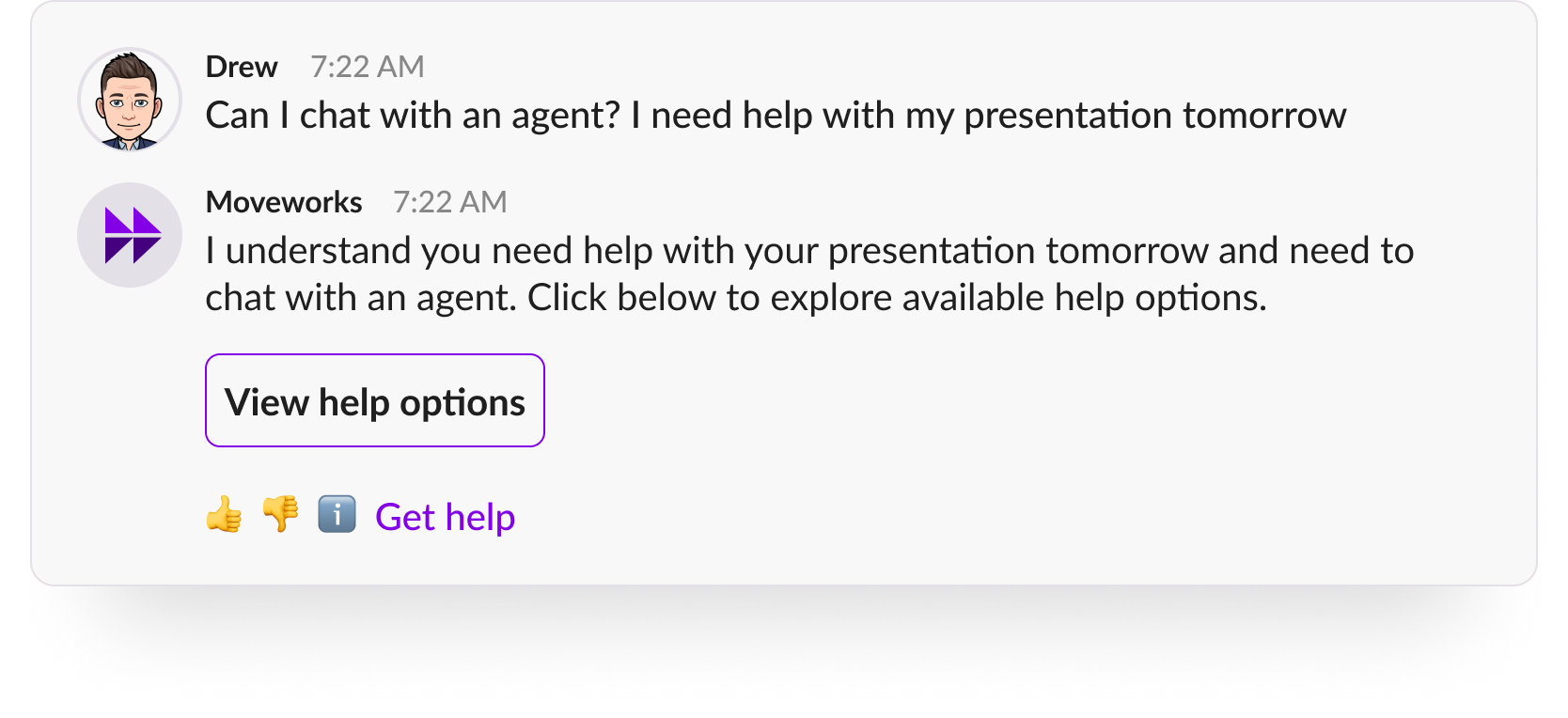
*Current experience*
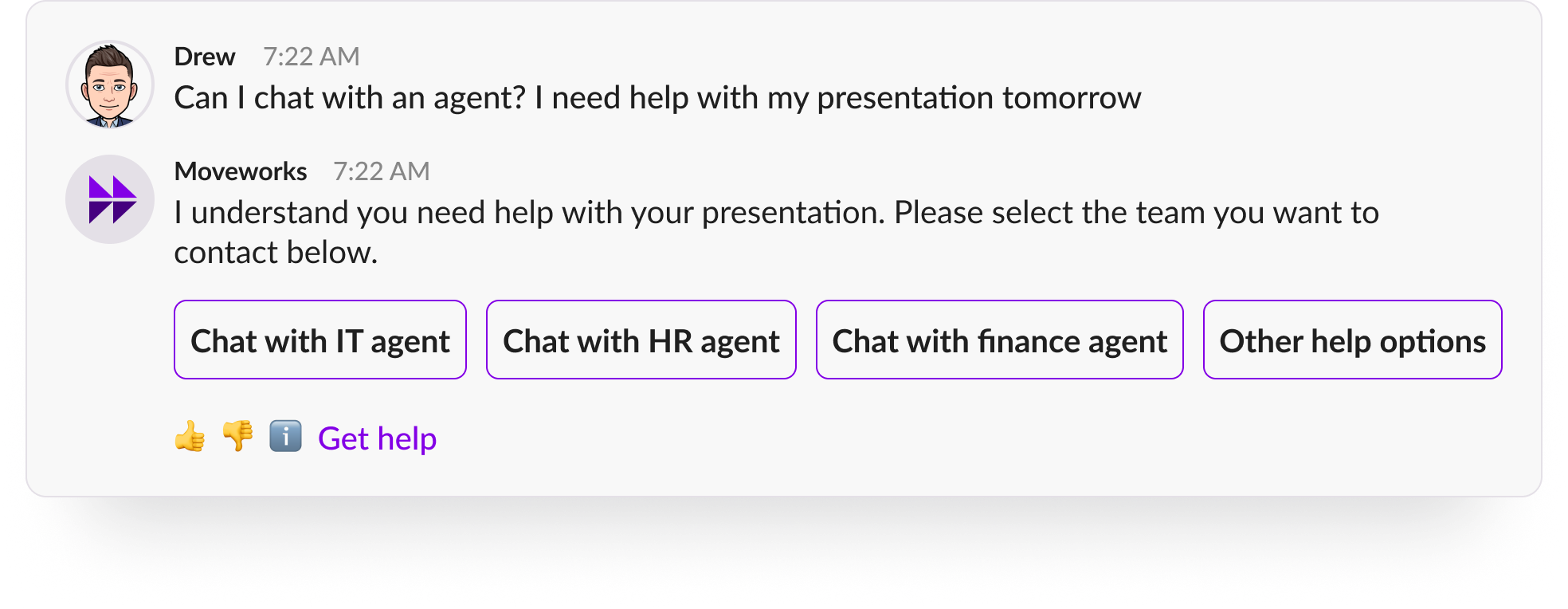
*New experience*
If the item is not predicted but the domain is predicted, the Copilot will offer a list of the items configured for that domain:
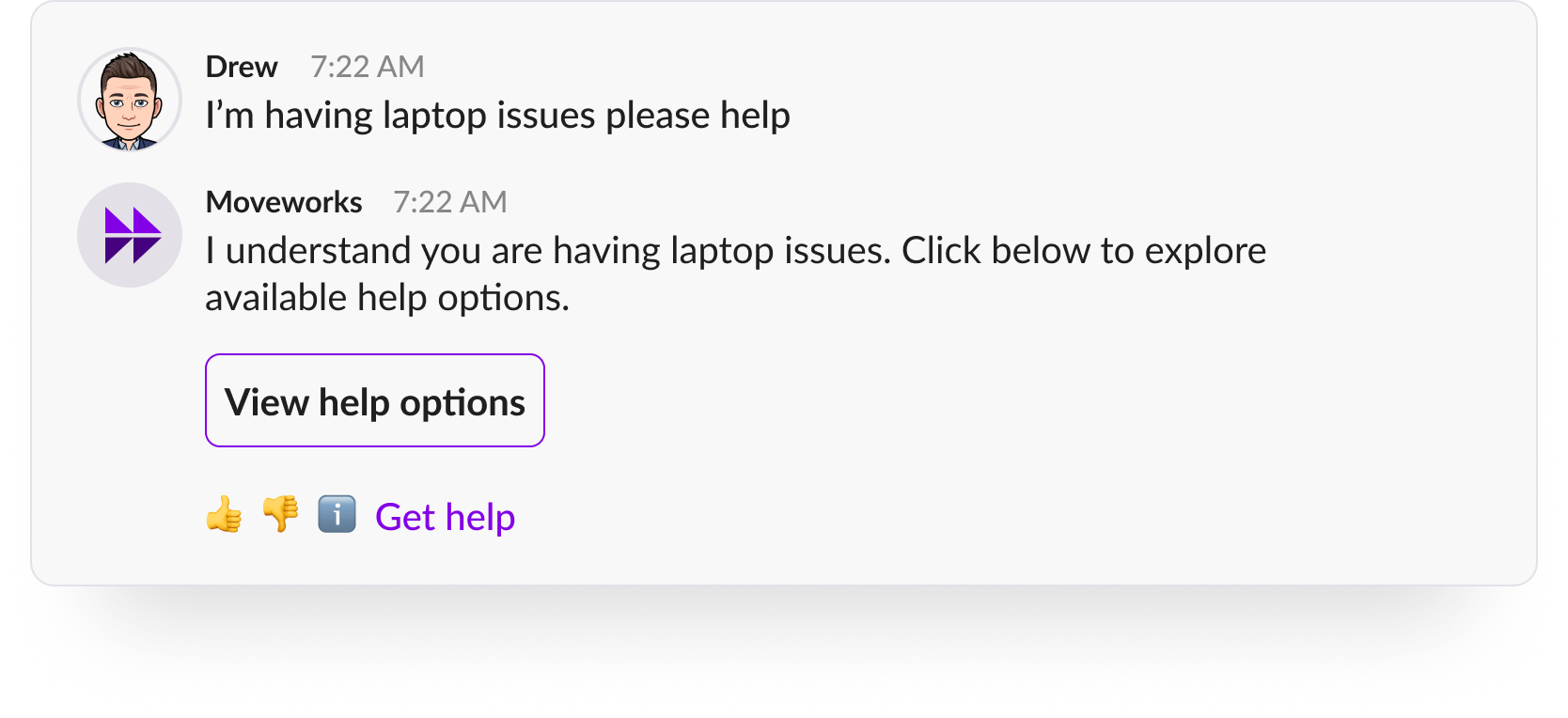
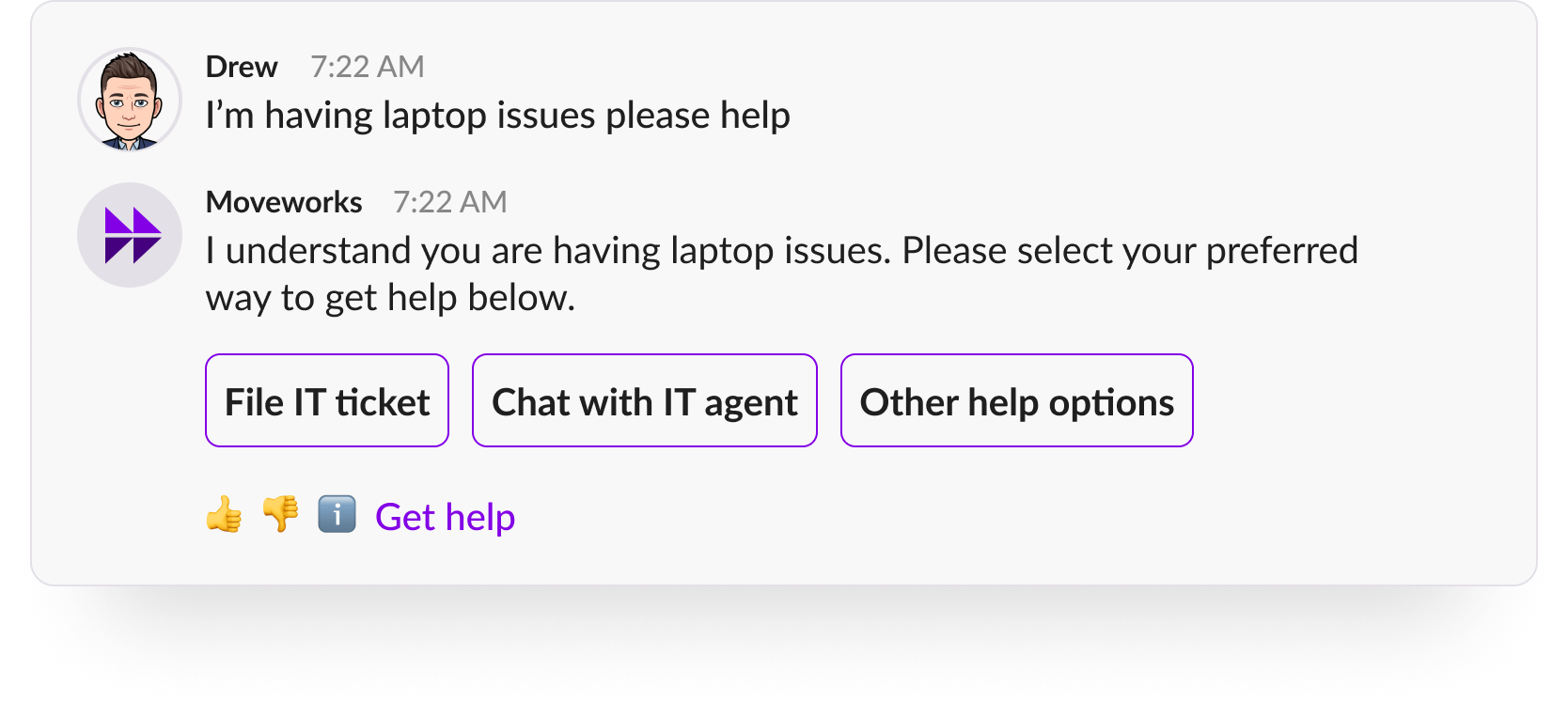
Note that if the user does not provide a description of the issue, the Copilot will still ask the user for more details before offering a handoff option:
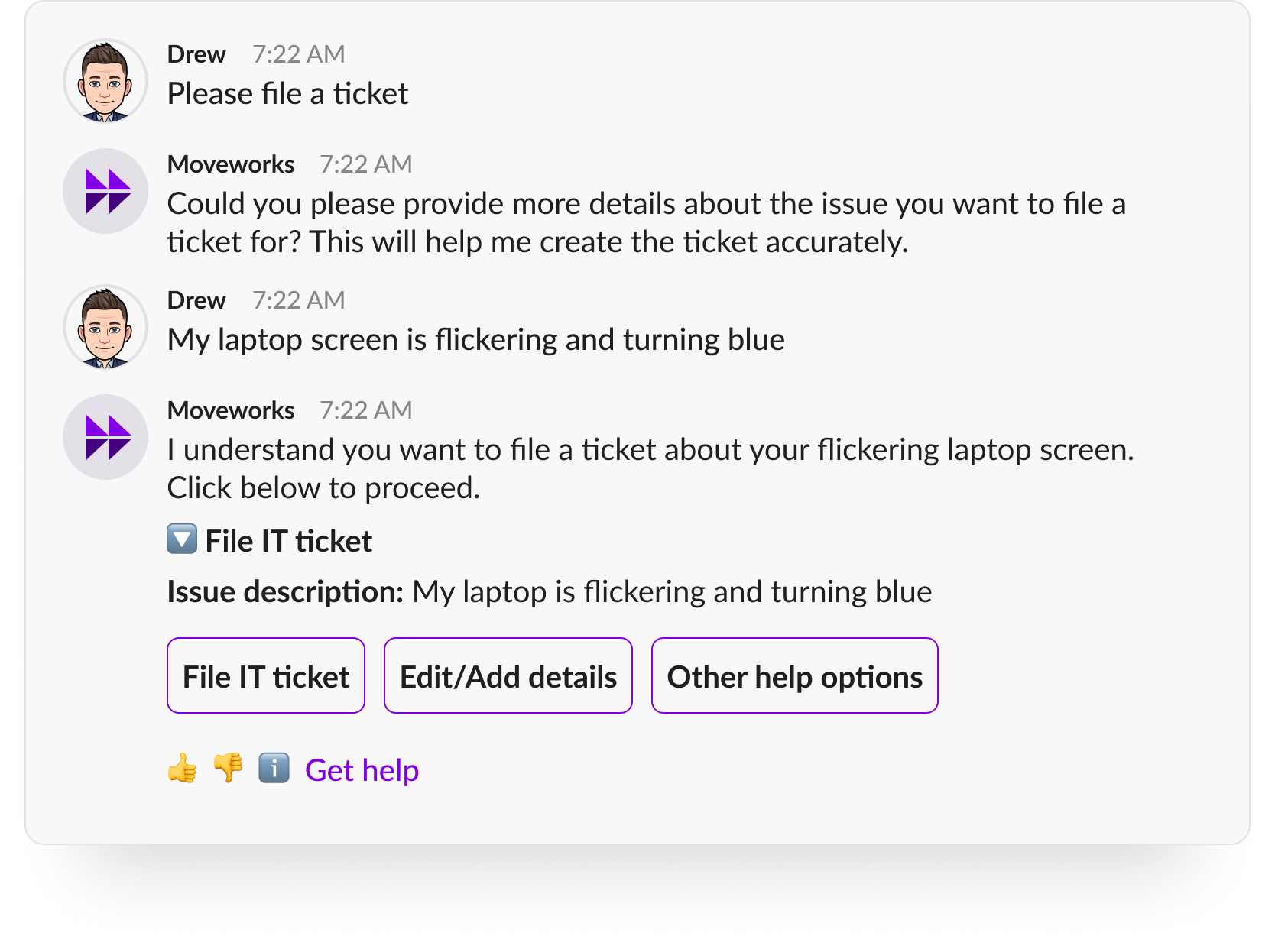
In case neither domain nor item could be predicted, the Copilot will ask the user to click on “Get Help”:
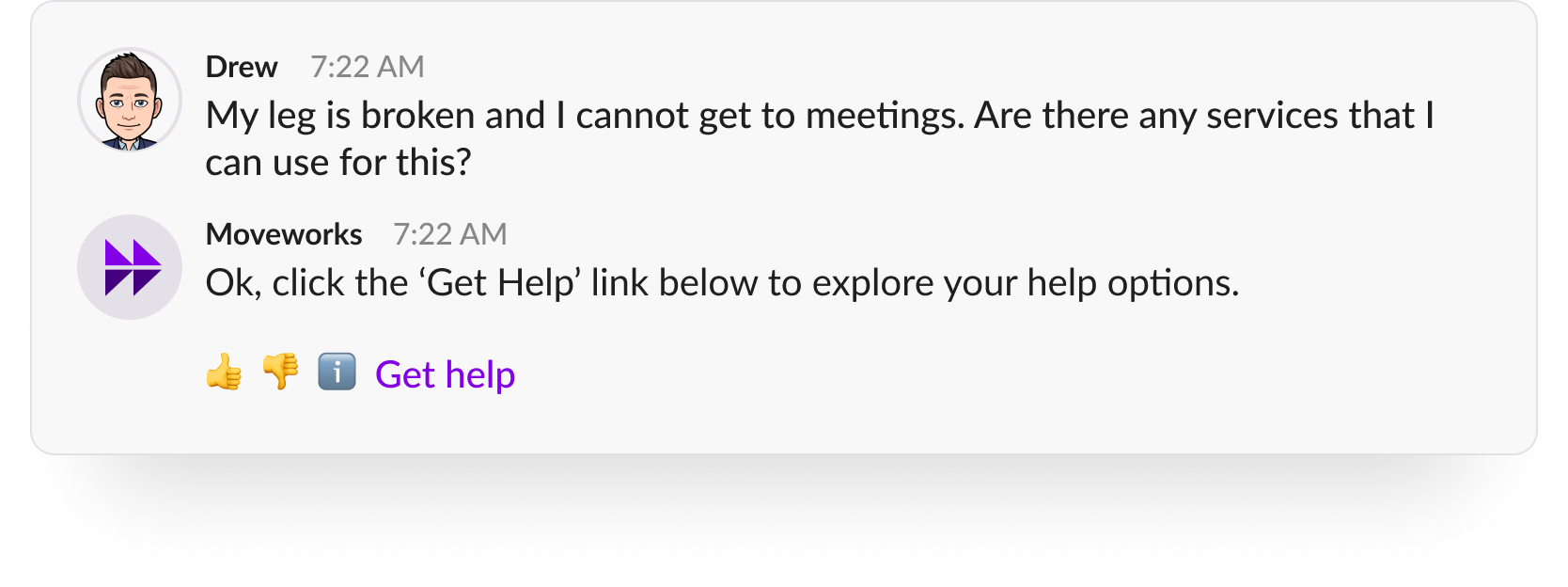
Also, note that all handoff options will continue to be available on the reference page, which the user can access via Get Help.
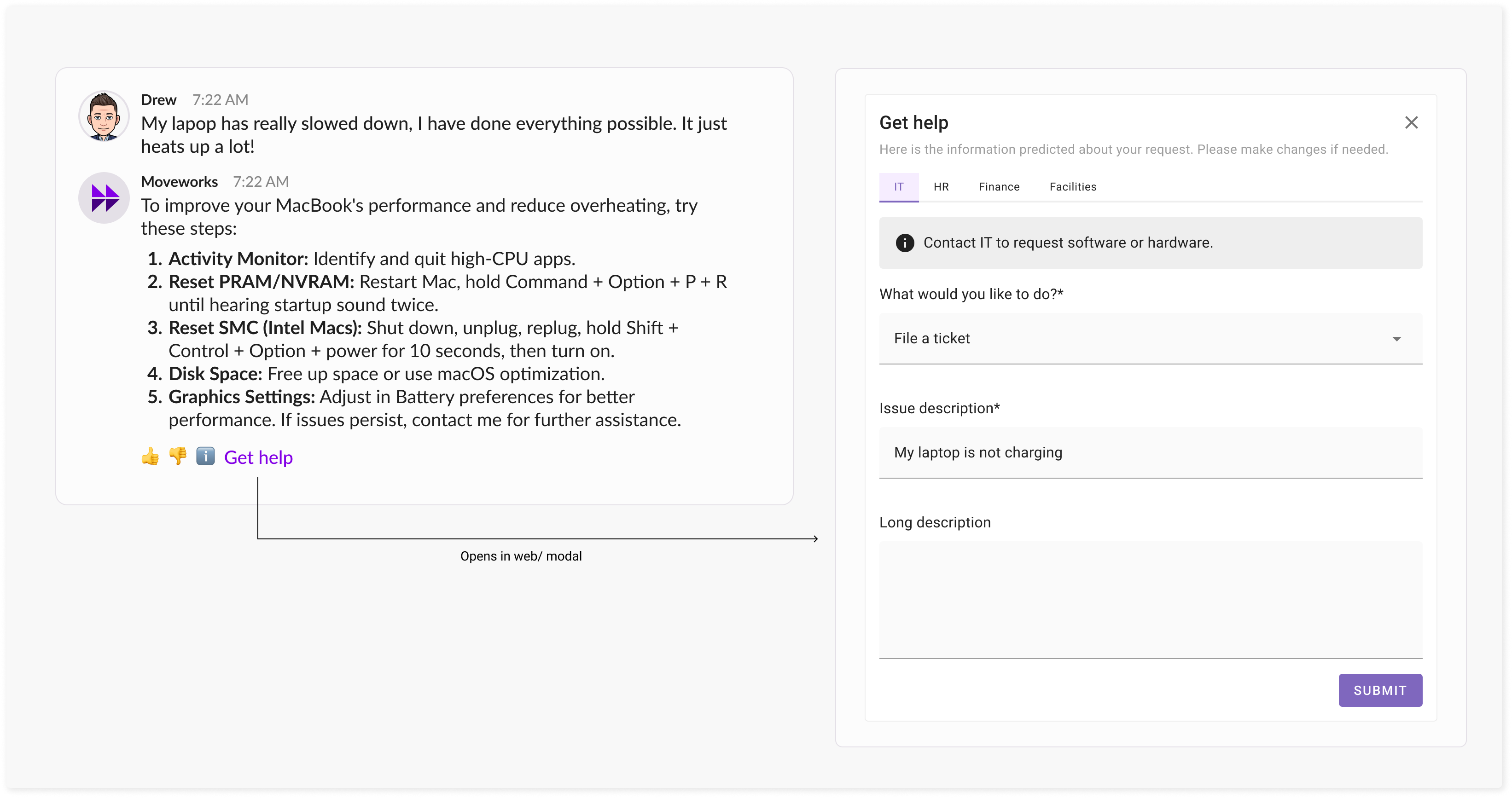
We expect that these updates will greatly reduce the effort from users in getting help and will get them to a solution to their issue faster!
**Required handoff configuration update (for some customers)**
* The required change below applies only to the customers who have multiple ticket filing or live agent options for different domains or categories.
* If you do not have this type of configuration, no changes are required.
As explained above, when the item is predicted but the domain is not, the Copilot will now present a list of all available types of that item.
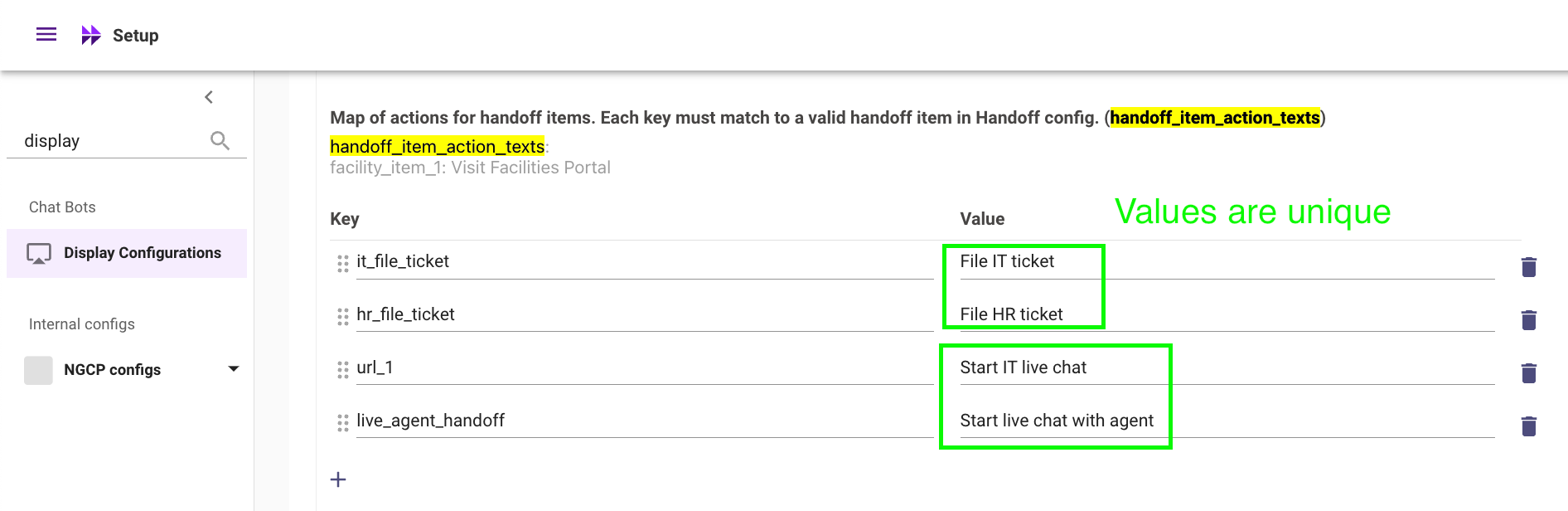
To enable users to select the most relevant type of file ticket or live agent handoff from the available domains, we will need to update the button labels for each of these from simply “File ticket” or “Live agent” to “File ticket - IT”, “File ticket - HR”, or “Live Agent - IT”, “Live Agent - Real Estate Services”.
This will be a small change enables users to more easily identify and access the best handoff option and gives them the control to make the selection. You can use Moveworks Setup to make this change as shown in this example:
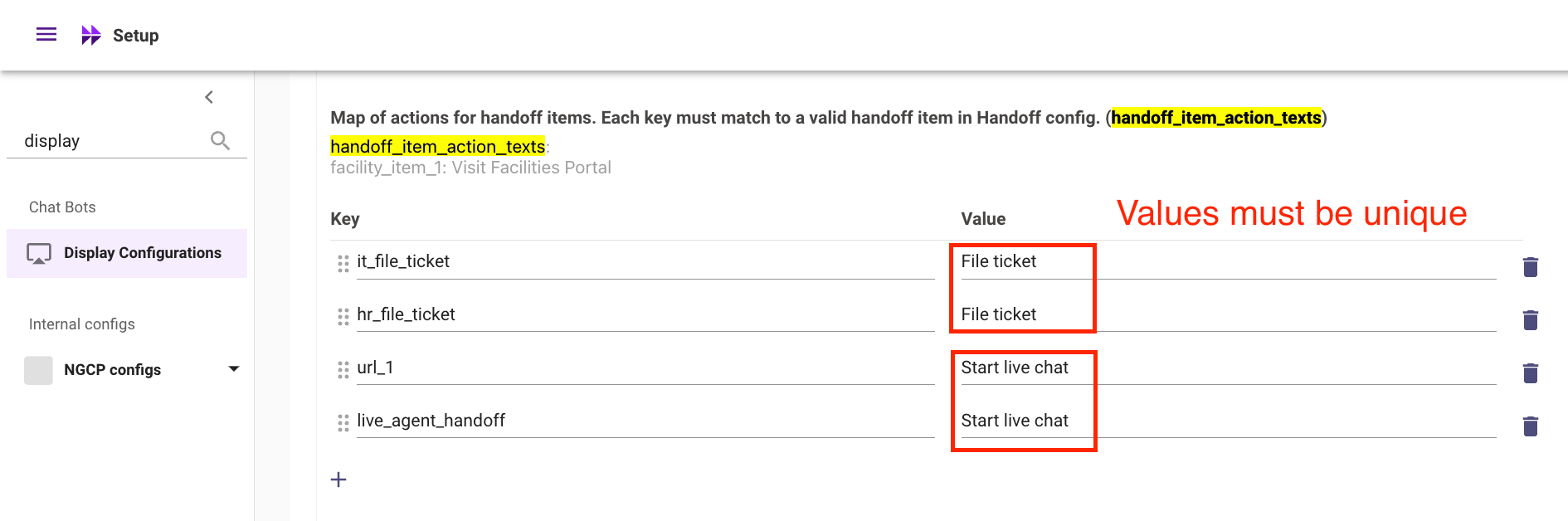
which should be changed to the following with unique values:
### **Simplified support ticket filing for Copilot with conversation IDs**
We are introducing an easier way for Moveworks admins and stakeholders to report issues. Previously, you had to rely on screenshots, user IDs and dates of the interaction to share a specific issue with Moveworks Support, which was both time consuming and error-prone.
You can now get the conversation ID for any Copilot interaction, for any user - simply by clicking on the ℹ️ emoji in chat. This is a unique ID shared by a small number of interactions that are grouped as a conversation by the Copilot’s topic prediction model.
Using the conversation ID makes it simpler to pinpoint specific interactions and share their IDs with Moveworks Support when filing tickets. It will also help reduce the time taken to provide help by eliminating the clarification process that adds multiple back-and-forts between you and the Support team.
How to file a ticket with Support:
1. For specific chat interactions for which you have a question, you can now click on the ℹ️ emoji below the bot response to open up the reference page.
2. You will see the Conversation ID on the bottom right of the top section of this page, right above the Citations section, as shown below:
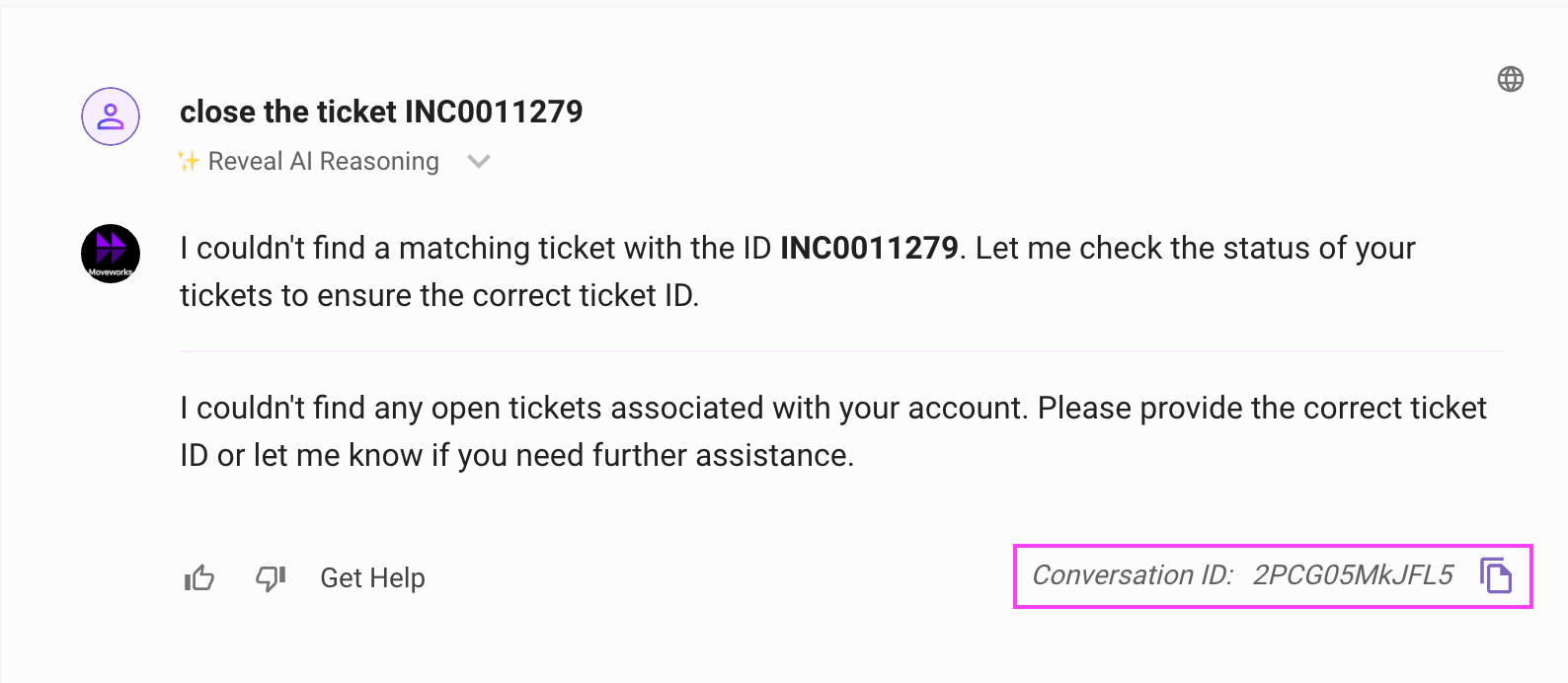
3. Click on the conversation ID to select it, and provide it when you file a ticket.\
If you are reporting an issue on another user’s behalf, you may ask them for this conversation ID - this will be available to all users!
4. Proceed to filing your support request. See this [guide](/ai-assistant/getting-started/support/overview#how-to-report-issues) on how to report issues.\
We still want to get your feedback on what part of the experience was unexpected, and what your expected response should have been - so please feel free to add screenshots and comments in addition to the conversation ID.
5. Submit your support request!
### **Small UX change for accessing software within Copilot**
We are making a slight experience change to the access software self-service messages.
For context, there are 2 types of software access workflows.
1. The software is set up to be automatically provisioned by the bot
2. The software is not set up for auto provision, but the bot serves instructions for user to self-serve.
This experience change only applies to the 2nd workflow type.
**What is changing?**
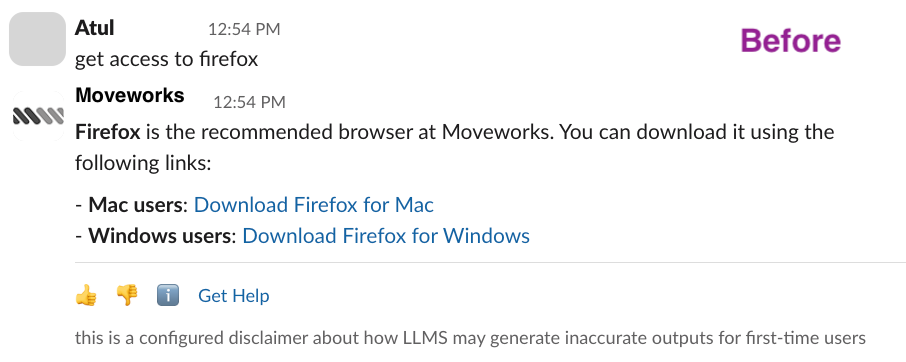
Before the change, the self-service message is sent to the user directly upon ask:
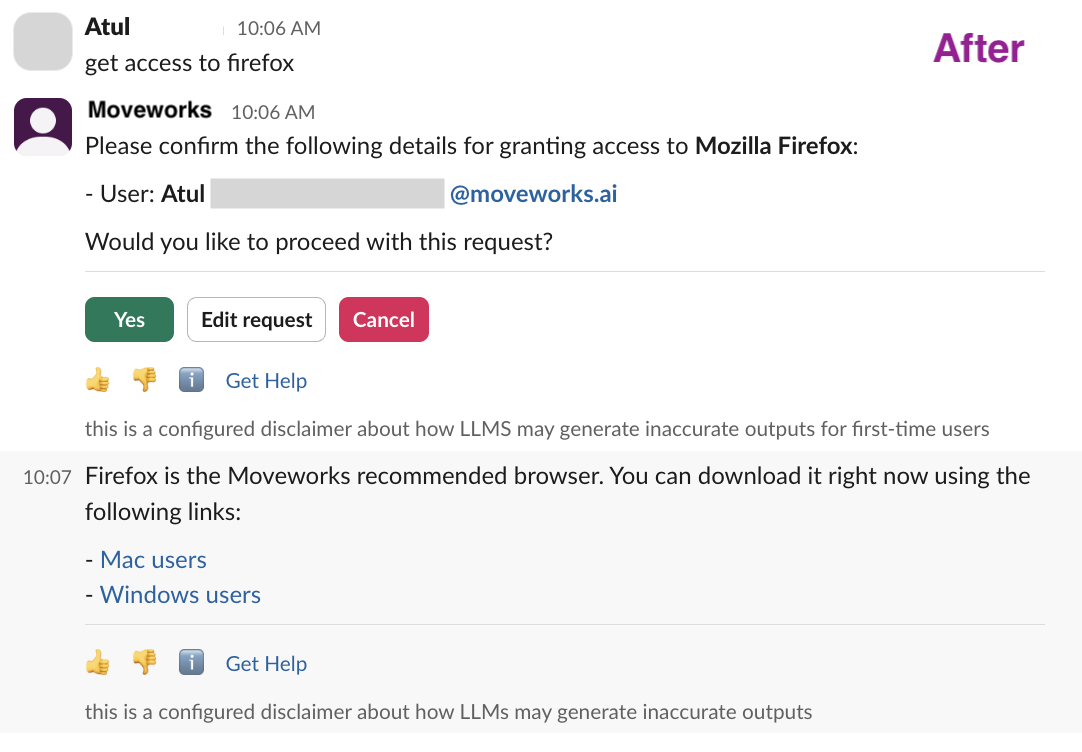
After the change, a confirmation step is added before the self-service message is shown to the user:
**Why did we make this change?**
1. The biggest unlock is for Copilot analytics. Before, self-serve softwares do not get captured as a successful interaction, which resulted in confusion in our analytics dashboards. With this change, we are able to count self-serve software as a success and capture the impact of the plugin appropriately.
2. We are closely evaluating the impact and friction of this UX change and continue to improve the end user experience.
### **Introducing Permission Change Logs in Moveworks Setup**
Permissions change audit logs allow Admins to get a real-time view of roles & permission changes done within their org's instance.
With Permissions change audit logs, Admins can:
1. Investigate any unintended revocations of app access for any employee
2. Track and audit any RBAC changes done by specific App Admins or any Moveworks employee.
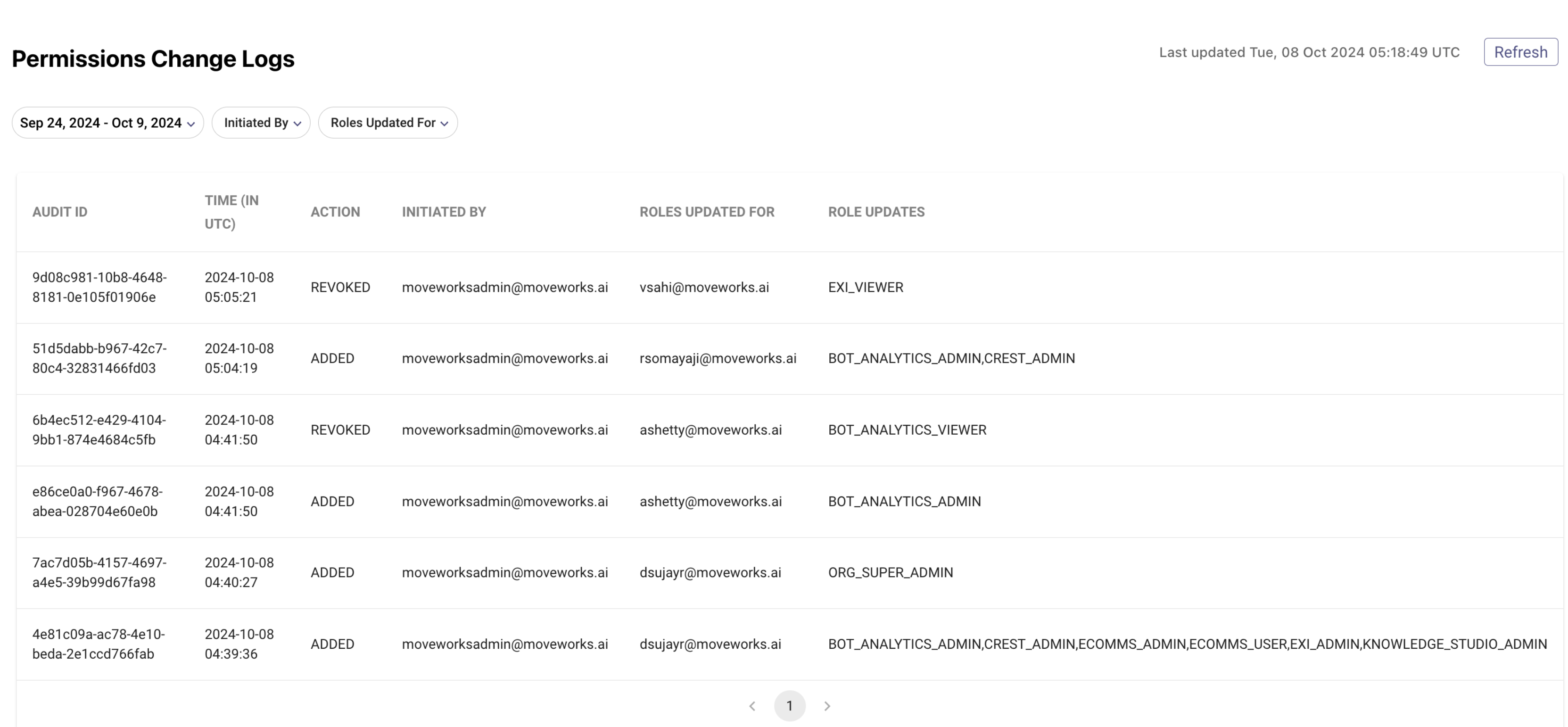
**How do I access Permissions Change Logs?**
1. Log in to Moveworks Setup
2. Navigate to Audit Logs in the left navigation menu
3. Select "Permissions Change Logs" from the sub-menu of Audit Logs
Learn more about the feature [here](/service-management/moveworks-setup/audit-logs/permissions-change-logs).
### **Re-introducing User Profile View in ingested users within Moveworks Setup**
User profile view provides a detailed view into ingested users and their corresponding attributes. The user profile view is an important screen within Moveworks Setup to conduct basic troubleshooting with regards to any bot access related issues for an employee.
**How to access User Profile View?**
1. Log in to Moveworks Setup
2. Navigate to User Identity > Ingested User
3. In the "Find User" widget, search for any employee
4. Click on "View Profile" to navigate to the user profile view
5. User profile view can also be accessed by clicking on required user in the All Users table
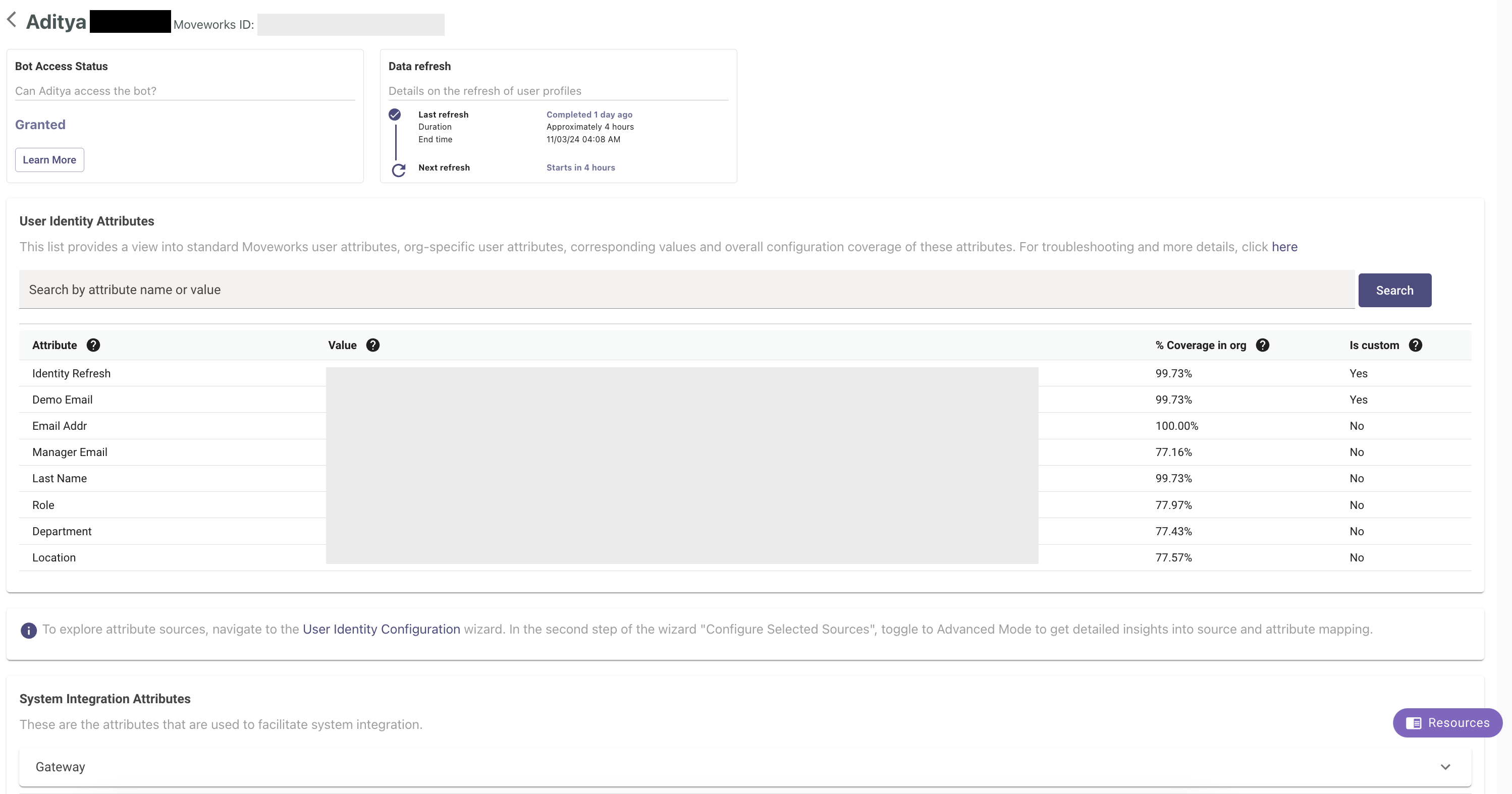
**What has changed with the experience?**
1. **User Identity Attributes Table will now surface all Moveworks-standard attributes alongside the organization's custom attributes.** Earlier, only configured attributes of an org were shown in the table. For admins to infer which attribute is configured for their org, they can leverage % coverage column - which indicates the percentage of all users within the organisation for whom this attribute is populated. 0% or closer to 0% value suggests the attribute may not be configured for their organisation.
2. **Source of attributes is no longer available in the table due to engineering limitations.** To support Admins in attributing which attribute is coming from which source, we created this [troubleshooting guide](/service-management/core-platform/user-identity/user-profile-view).
### **Control Access to Publishing Employee Comms Campaigns**
Users can now control the list of users who have the ability to publish campaigns within Employee Communications. To provide this access to specific users, simply enter their identifiers, in the Moveworks DSL rule format, within the "Access Control Publish Campaign Enabled" field under Additional Controls in the Notifications Module and save the configuration.
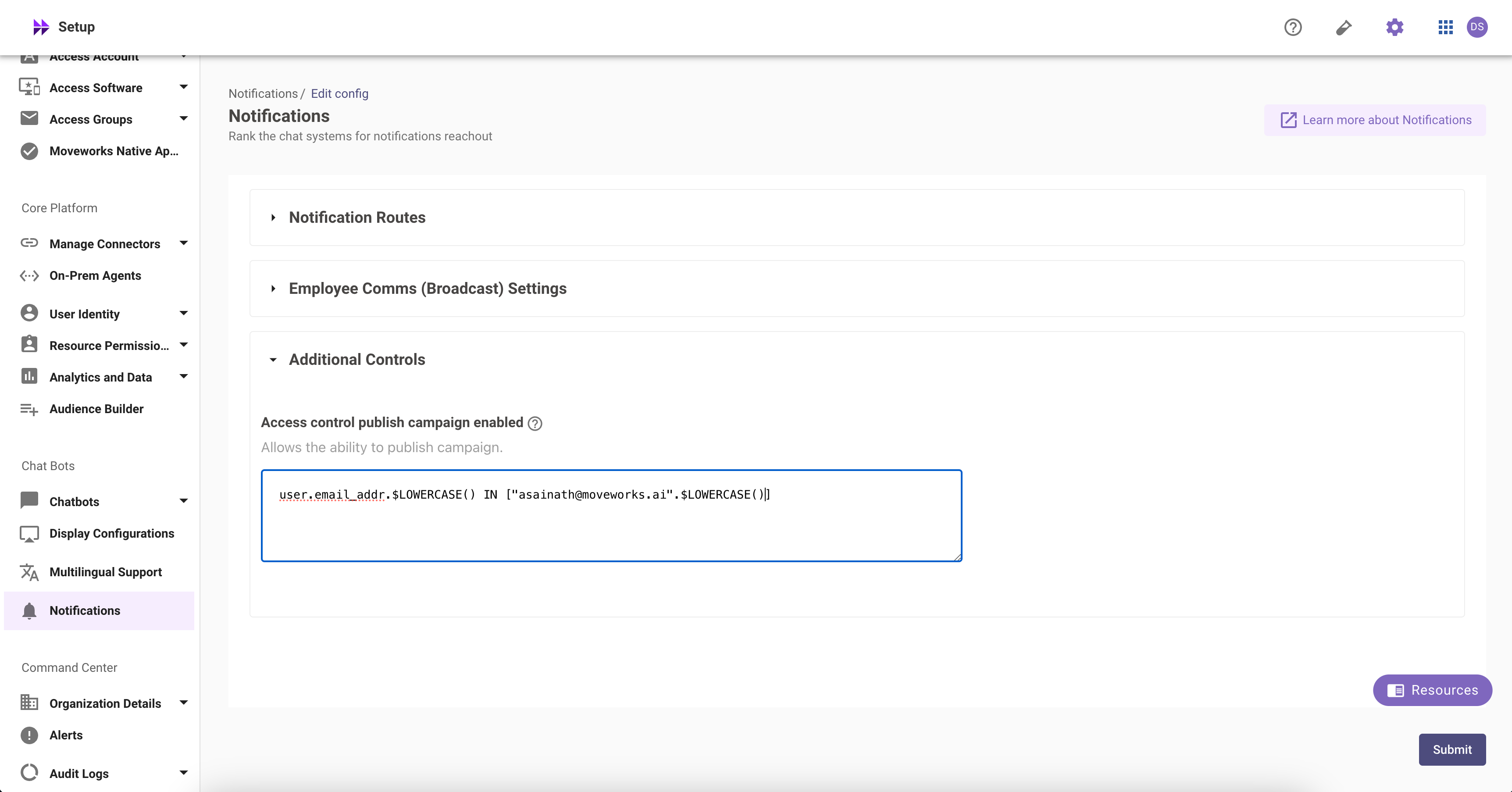
This feature ensures that not all users who have the ability to create a campaign can publish it, giving administrators the opportunity to review and make changes, if necessary.]
### **NEW course in Academy: EXI in Action - Use Cases and Workflows to Drive Impact**
We're thrilled to share the release of a new EXI enablement course!
👉 [EXI in Action - Use Cases and Workflows to Drive Impact](https://academy.moveworks.com/catalog/courses/4138401).
This new content builds on our foundational EXI certification and delves deeper into the practical application of EXI within essential business workflows. Additionally, it suggests focus areas and cadences for each workflow, as well as how to measure the impact of your efforts.
# October 2024 Product Release Notes
## New Releases
### **Moveworks Copilot can now summarize multiple plugin responses**
Moveworks Copilot can now call multiple plugins in parallel, review the responses from them, and combine their individual responses into a single, summarized response!
This feature is called **multi-plugin response** and it enhances the user experience and utility from the Copilot by
1. Surfacing all the relevant plugins to the user for every request
2. Providing a concise and easy to scan response
3. Enabling the user to quickly understand what their options are and allow them to follow up on the one they want to pursue
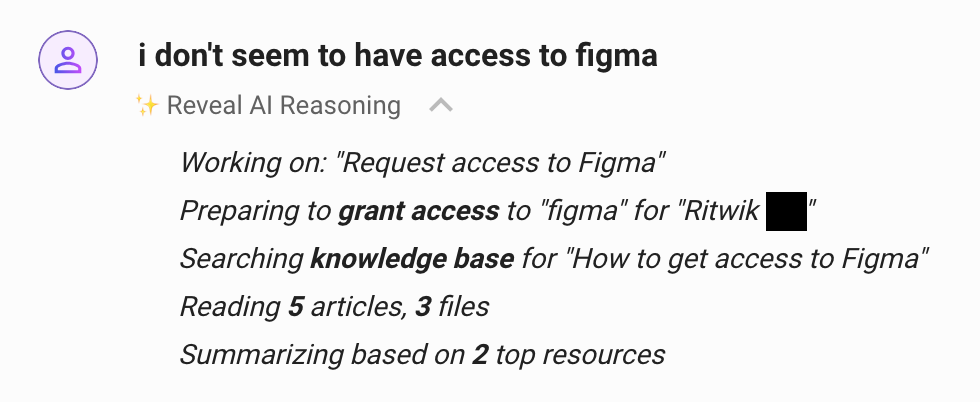
Here is an example of a multi-plugin response that combines information from Knowledge Search with Software Provisioning for Figma:
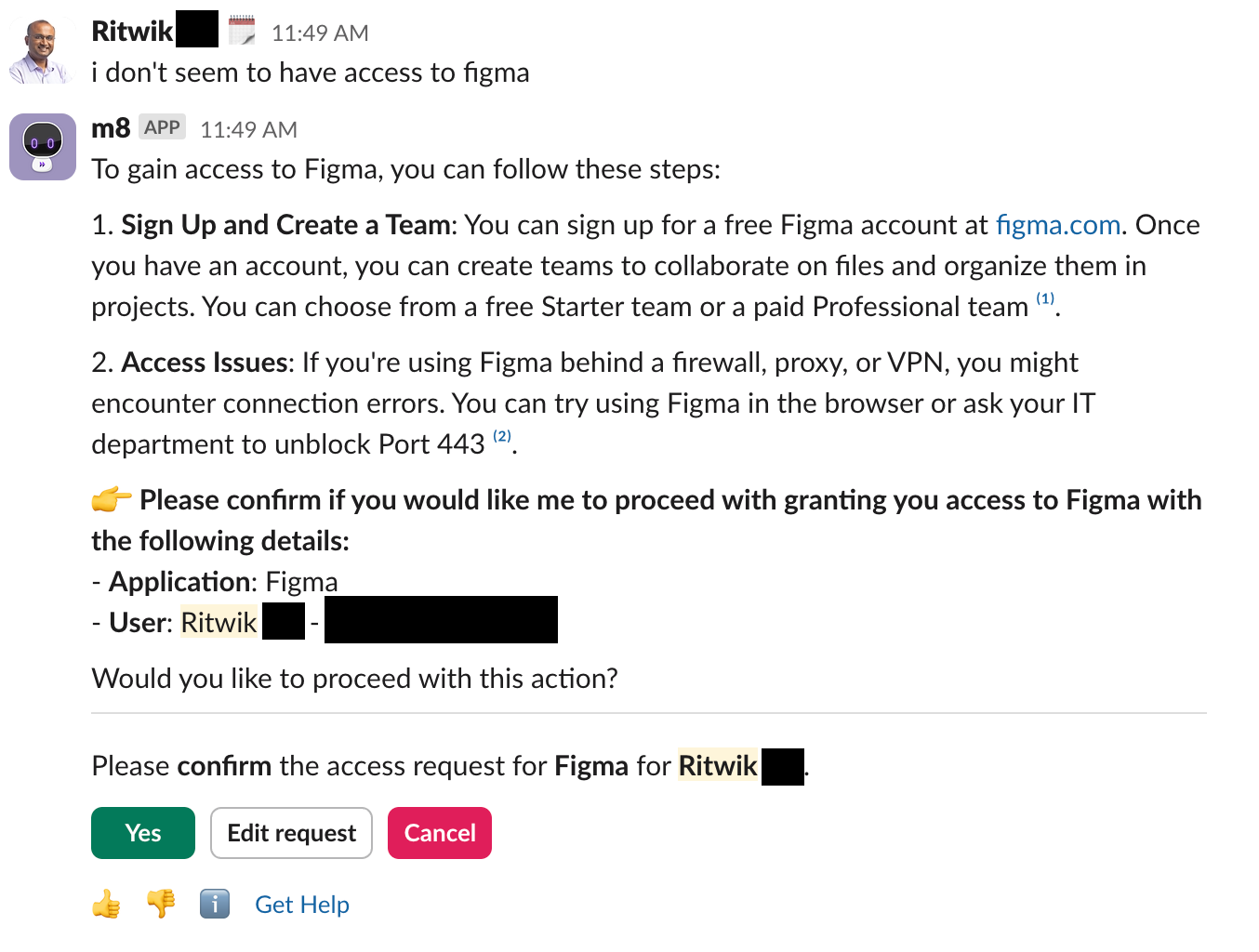
You can see from the AI reasoning what plugins were accessed:
**What does a multi-plugin response look like?**
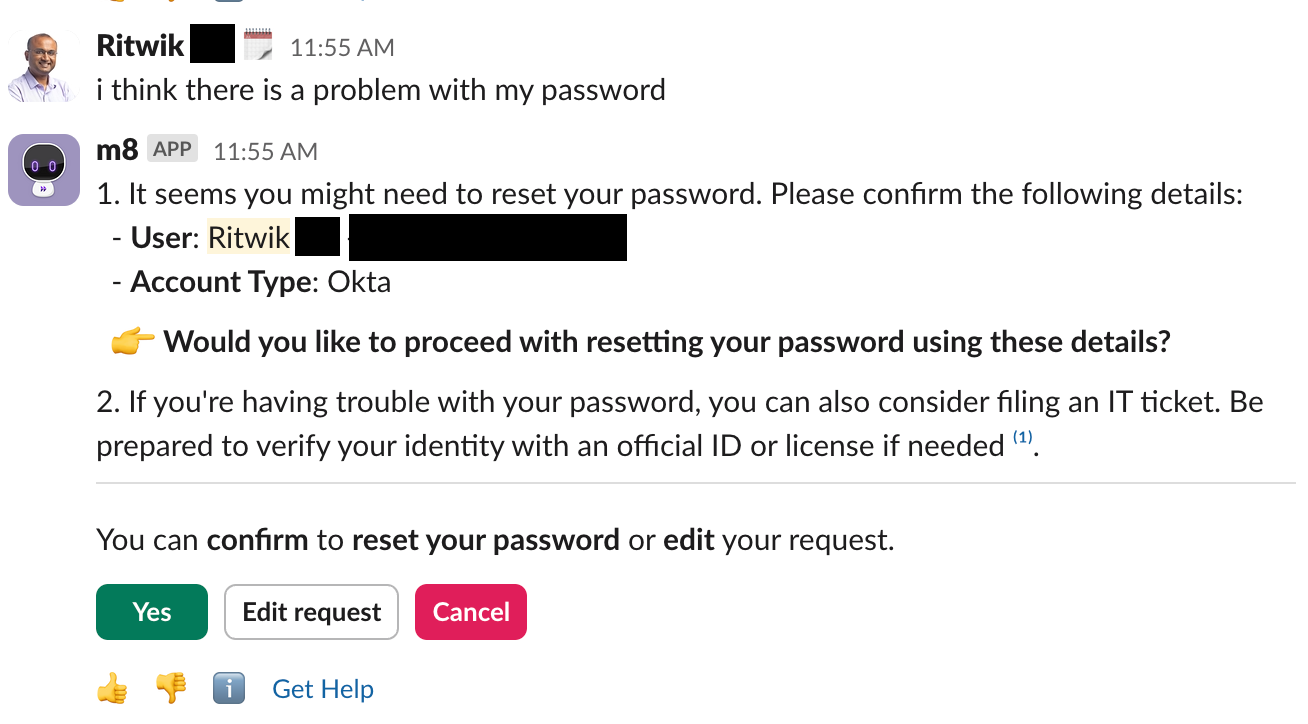
Here are the key characteristics:
1. The top part of the response will be a summarized response that lists available options
2. If there are any buttons the user can click to execute the actions offered, they will be provided at the bottom of the response
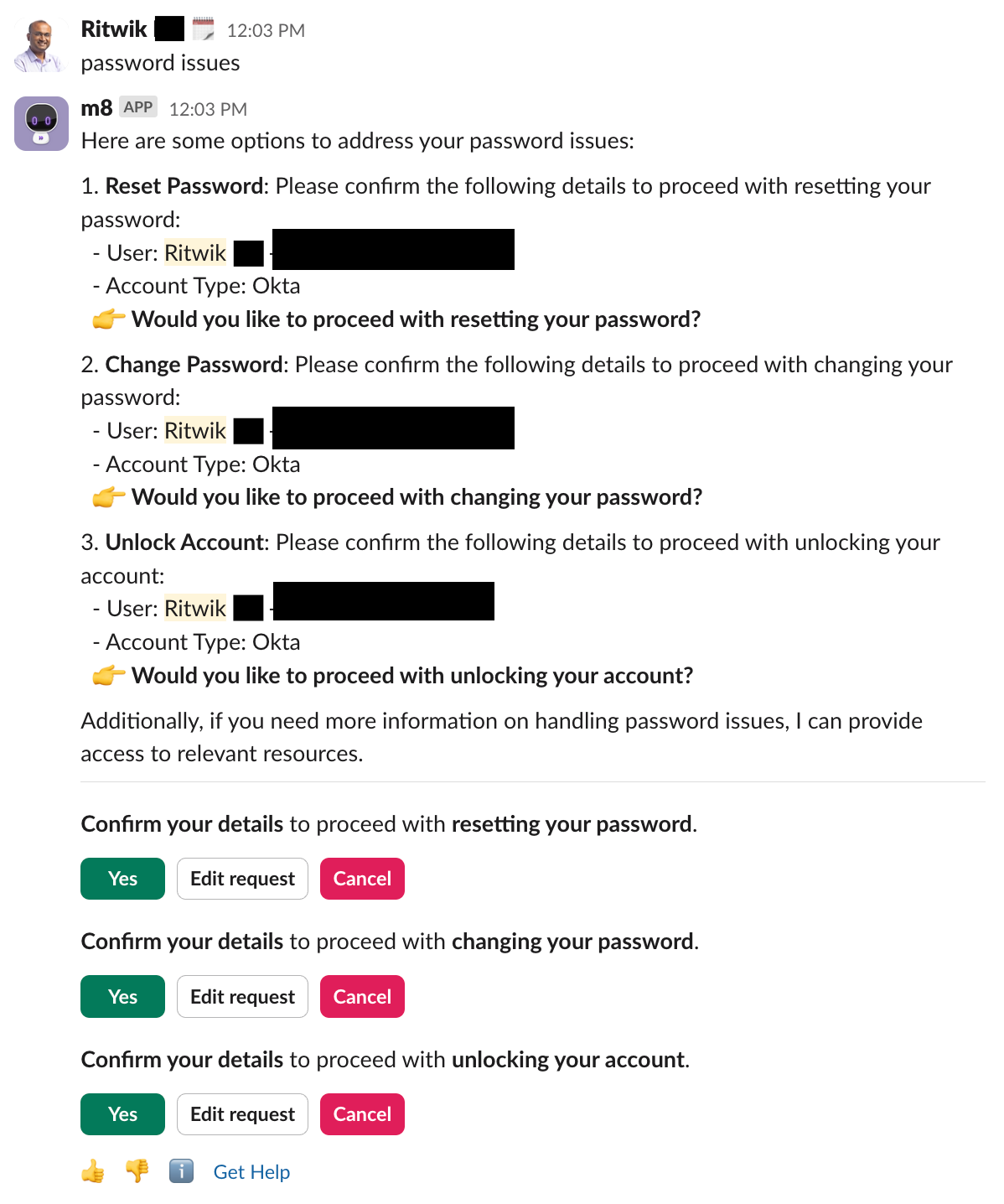
3. If there are multiple calls to action, you can see them at the bottom
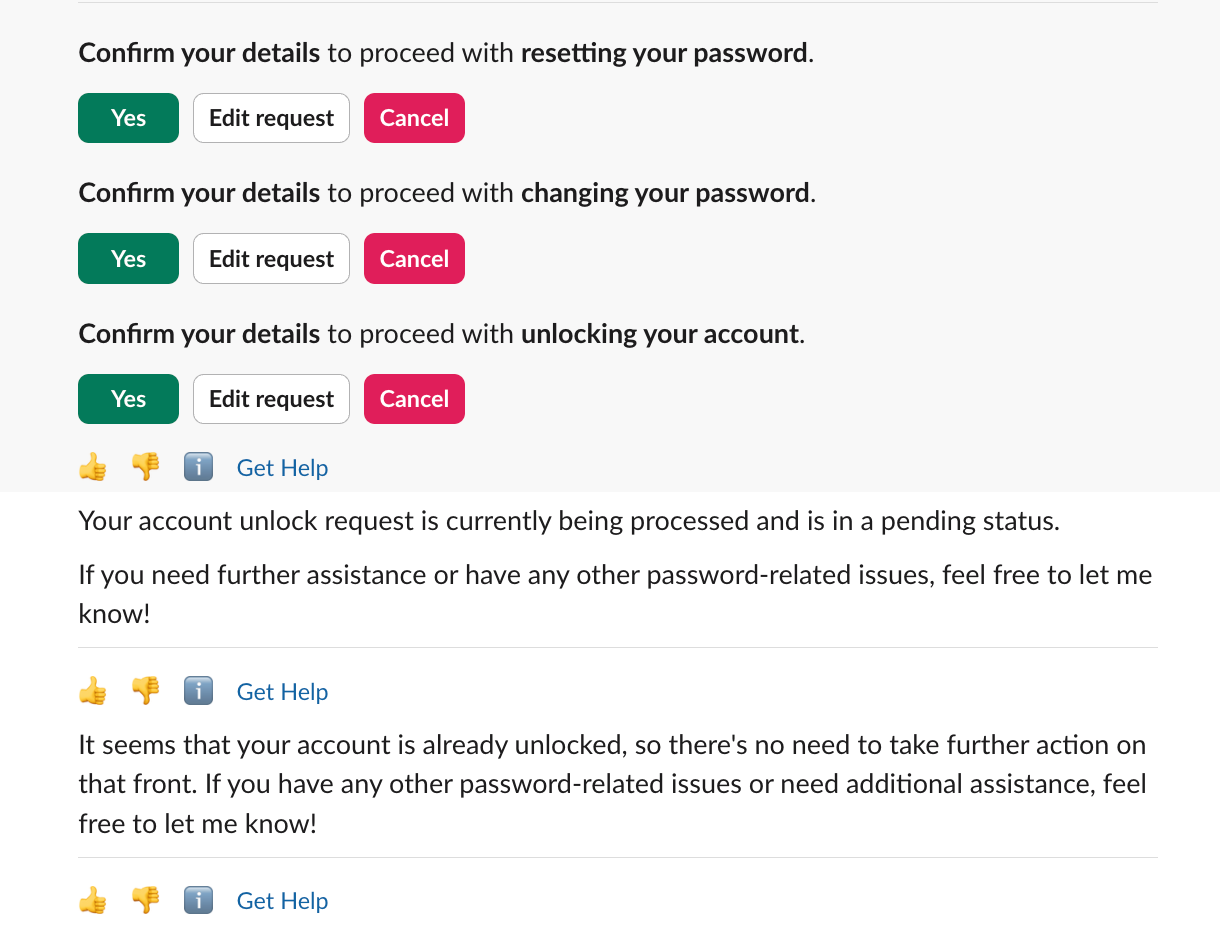
4. When you take action, e.g. clicking on `Yes` for **Unlock Account**, it proceeds with the selected action
**How does this feature work?**
Multi-plugin response comes with three key changes:
1. Tuning Copilot to call all relevant plugins simultaneously,
2. Executing plugins in parallel, and
3. Enhancing the response UX for calls to action (buttons).
**(1) Simultaneous Plugin Calls**
Before multi-plugin, Copilot almost always called one plugin to help with a request. The primary exception was multi-intent requests like “Do X AND help with Y,” which led to sequential plugin calls. Now, Copilot identifies and uses all helpful plugins.
**(2) Parallel Execution**
MultiPlugin executes plugins in parallel. For single intent requests, this ensures MultiPlugin latency is comparable to current performance; for multi-intent requests, this decreases latency as Copilot executes on all intents at the same time.
**(3) Improved Buttons UX**
With more plugins in use, calls to action have become more frequent. To improve this experience, we now include buttons for each separate call to action. Each group of buttons comes with a concise Copilot-generated description for button context.
**What are some known issues and limitations?**
These are some aspects of the first version of this experience that we are aware of, and will work on improving in future iterations:
* While the Copilot will call multiple plugins as frequently as possible, sometimes the plugin you are looking for may not appear in the list of plugins
* Duplicate call to action
* In cases where multiple plugins require input from the user, like missing arguments or confirmation, we want copilot to emphasize the call to action. This makes it much easier for a user to identify action required to resolve their issue. We also leverage generative LLMs to generate headers for button groups, which are related directly to these calls to action. Sometimes this can lead to some redundancy in the response.
* Occasional verbose updates and persistent calls to action
* If the Copilot offers multiple options with follow-up actions, and the user selects one, it may sometimes continue to provide the option to select the other.
* Free text inputs such as business justification are sometimes not recognized and the Moveworks Copilot may jump out to offer other plugins (sporadically occurred before the introduction of multi-plugin response also)
* Any instructions added to customize Copilot’s input may need to be modified with multi-plugin response since the format of the response could be different.
**How will this feature impact Copilot Insights?**
The main impact will be an increase in plugin calls - both successful and unsuccessful.
1. In the interaction table, you will see more plugins in each interaction row.
2. In the list of plugins on your Copilot Insights home page, you will see an increase in the number of plugin calls, particularly for the most common plugins such as Knowledge Search.
### Add attachments to ticket comments in your Moveworks Copilot
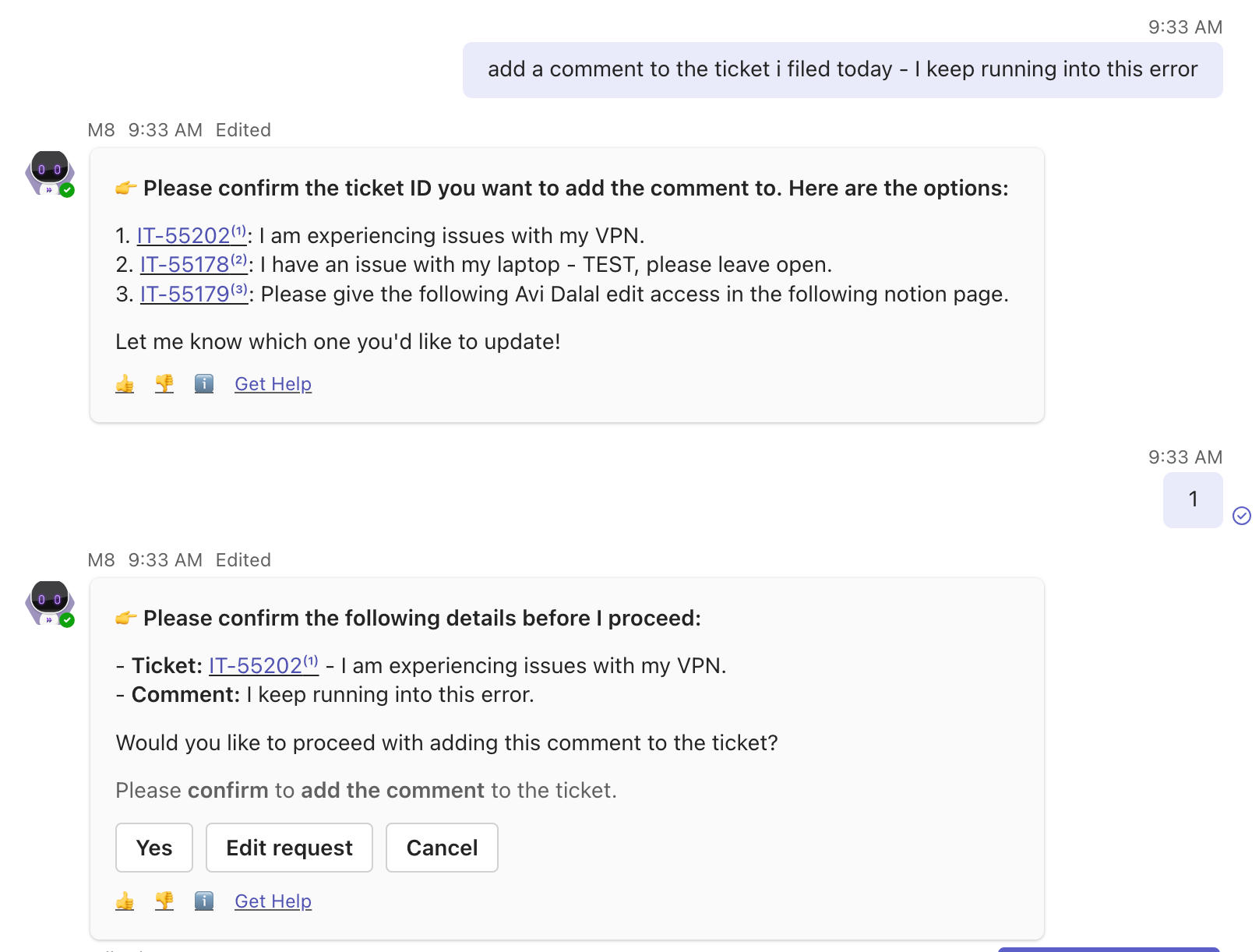
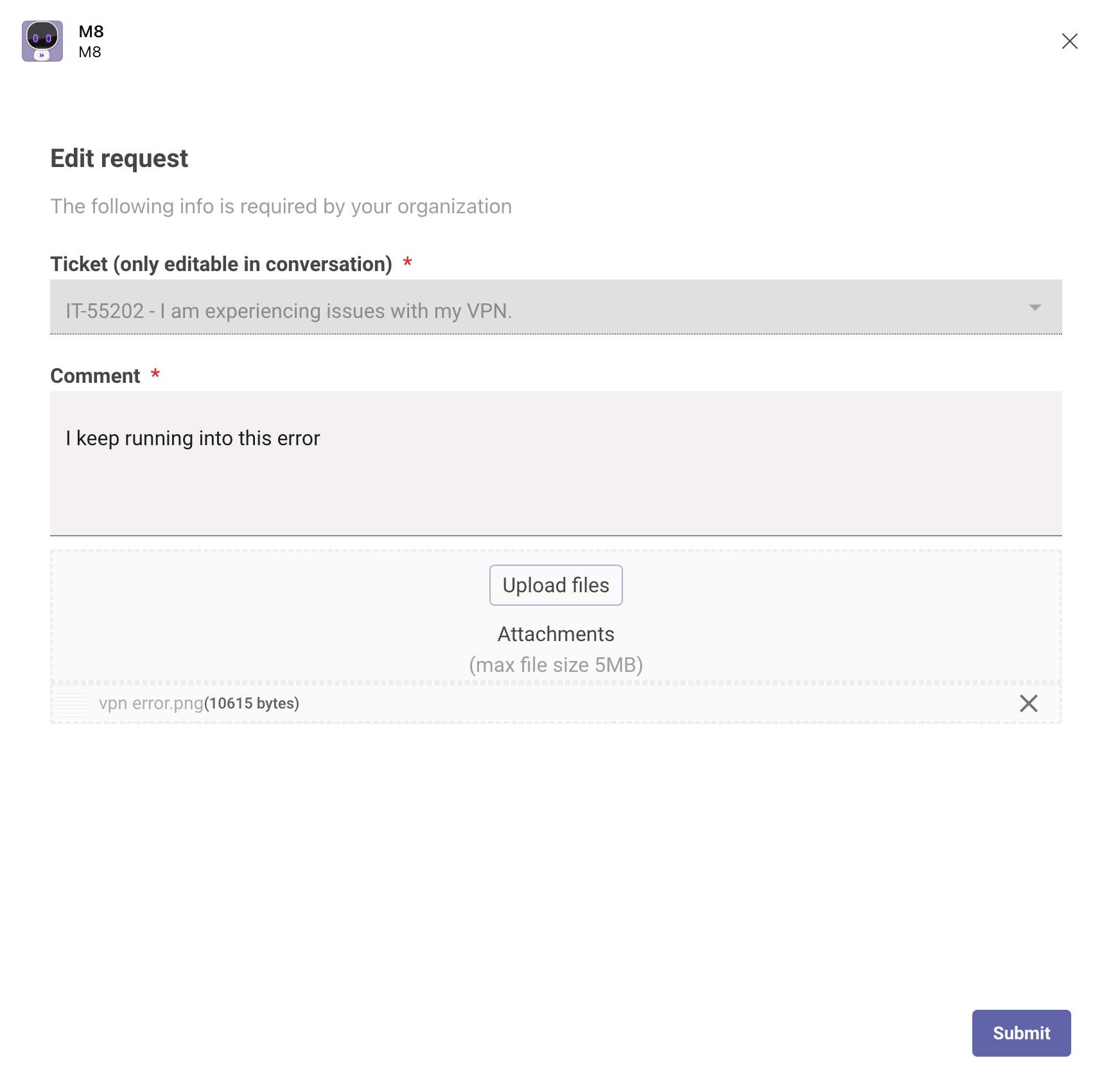
We’re happy to inform you that it is now possible to add file attachments to comments in tickets, when adding the comment to a ticket from the Copilot! This is in addition to being able to add an attachment while *filing* the ticket, which was already available.
Moveworks offers the option to enable adding attachments through a configuration, and this was a feature available in Moveworks Classic. It is now available in Copilot as well.
**How to use this feature**
Simply add a comment to the ticket as you would and then click on edit request to reach the popup to edit your comment. The option to add attachments will be available as shown below:
**What do you need to do?**
1. If you already had this option configured, you do not need to take any action. Your users will now be able to add attachments
2. If you would like to enable this option, please reach out to your CS team
**Upcoming enhancement**
For Slack customers, we are working on a completely Slack-based experience to enable adding comments through a modal within Slack itself. Users will no longer be directed to a browser to accomplish this. This update is coming soon!
### Brief Me now supports PowerPoint files
Brief Me within our Moveworks Copilot now supports **PDFs**, **Word docs**, and **Powerpoint files**! If you are already part of our limited preview program for Brief Me, your Copilot already has this update. Go to your Moveworks Copilot and start uploading any combination of these files — up to 5 files at a time, each file can be up to 25MB.
Here are some scenarios you can try with Brief Me:
* 💼 **Business Plan Insights**: Crafting or revising a business plan? Upload your document to get a concise overview and identify key sections that may need more focus or adjustments.
* 📊 **Deep Dive into Market Research**: Uncover critical insights by uploading your market research reports. Compare topics, such as product integrations across different files, to gain a comprehensive understanding of your market landscape.
* 🎤 **Catch Up on Missed Presentations**: Couldn’t make it to the last meeting? Upload the PowerPoint deck to Brief Me and quickly catch up on everything you missed.
**Want to get early access?**
Current customers, please fill out our Community [request form](https://community.moveworks.com/p/brief-me-limited-preview?) to be considered for our limited preview program.
**Did you attend our webinar?**
We took a deep dive into Copilot and Brief Me, including live demos and a technical overview. If you missed it or simply want a refresher, don't worry—the recording is now available for you.
### Introducing Moveworks Agentic Automation Engine
**What is the Agentic Automation Engine?**
The Agentic Automation Engine is the new heart of Creator Studio. It is designed from its core to build integrations for AI agents.
Traditional iPaaS and middleware platforms were designed for connecting systems to systems, so when they tried to use these tools to connect agents (which use language) to systems (which expect well-formed data), it was extremely difficult for developers to create the plugins that customers want. It’s like trying to connect your iPhone to wired internet without using an adapter.
Agentic Automation Engine changes the way that developers build integrations between AI agents & business systems. With the Agentic Automation Engine, technology teams can…
1. Deploy more powerful plugins that enable the copilot to accomplish more difficult tasks
2. Build new plugins faster and with less code
3. Reduce their license spend on third party iPaaS tools and streamline the number of tools involved to deploy experiences
**What are the key capabilities of Agentic Automation?**
The Agentic Automation Engine is built on 4 key pieces of technology
* **A Manifest Generator** - consistently helps the agent understand, distinguish, and select the right plugin
* **An Action Orchestrator** - helps the agent understand the workflow and keep the user informed.
* **Slot Resolvers** - helps the agent find system values for natural language inputs
* **\[Coming Early 2025] Policy Validators** - guardrails the agent’s behavior to deterministically comply with business rules
If you want the full breakdown of specific runtime capabilities that are available in the platform, see the [Agentic Automation Engine — Product FAQs](https://community.moveworks.com/creator-studio-6/agentic-automation-engine-product-faqs-1515) on Community.
**How do developers build on the Agentic Automation Engine?**
We have introduced a brand new Plugin Workspace in Creator Studio to make it easier to build plugins.
* We have consolidated the development experience into ONE tab (the “Plugins” tab)

* Developers can import actions directly from Postman or developer docs with our new cURL import for the HTTP editor
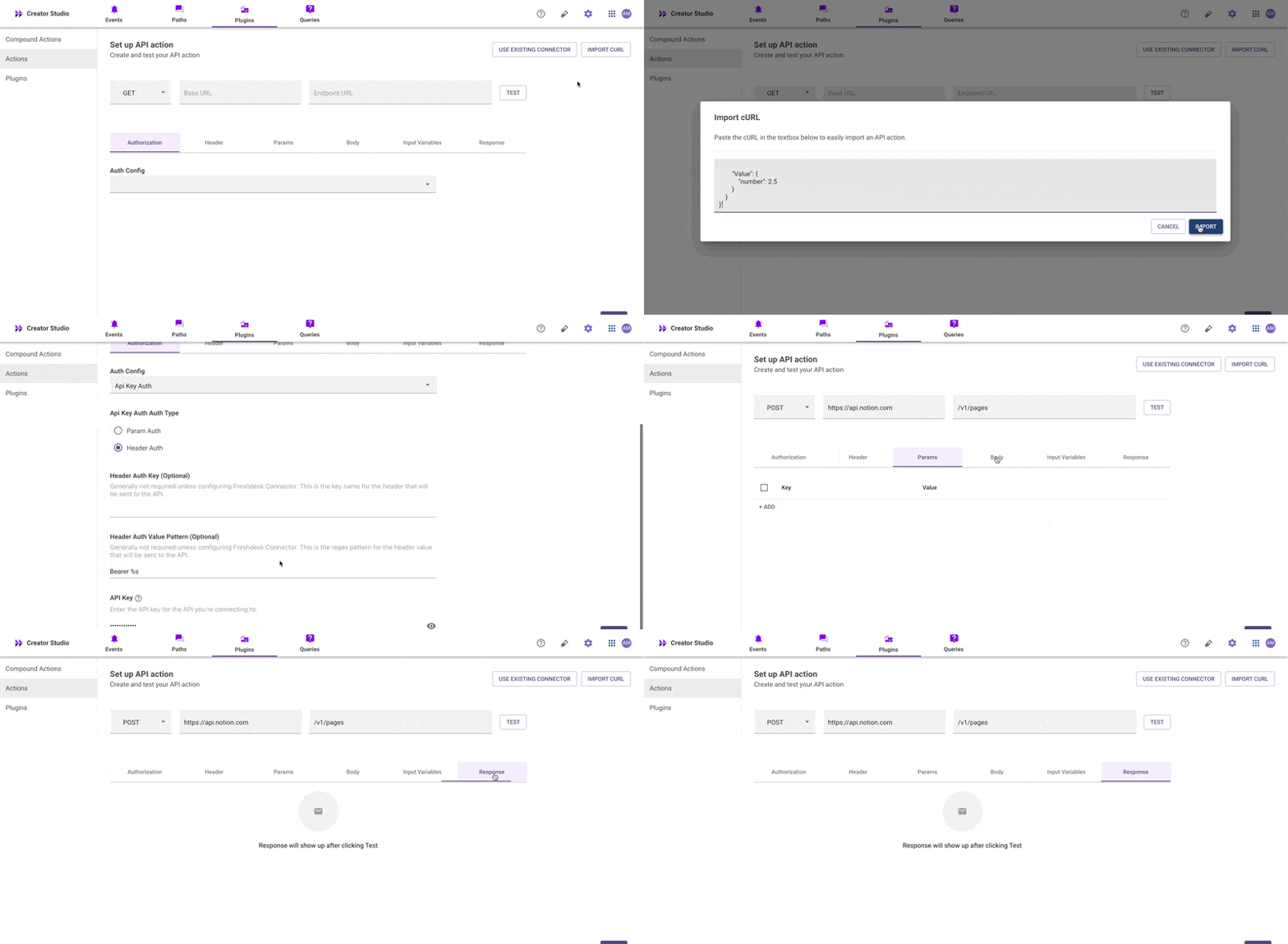
* We have a new pro-code editor for creating compound actions that has robust autocomplete & typeahead experiences for developers.
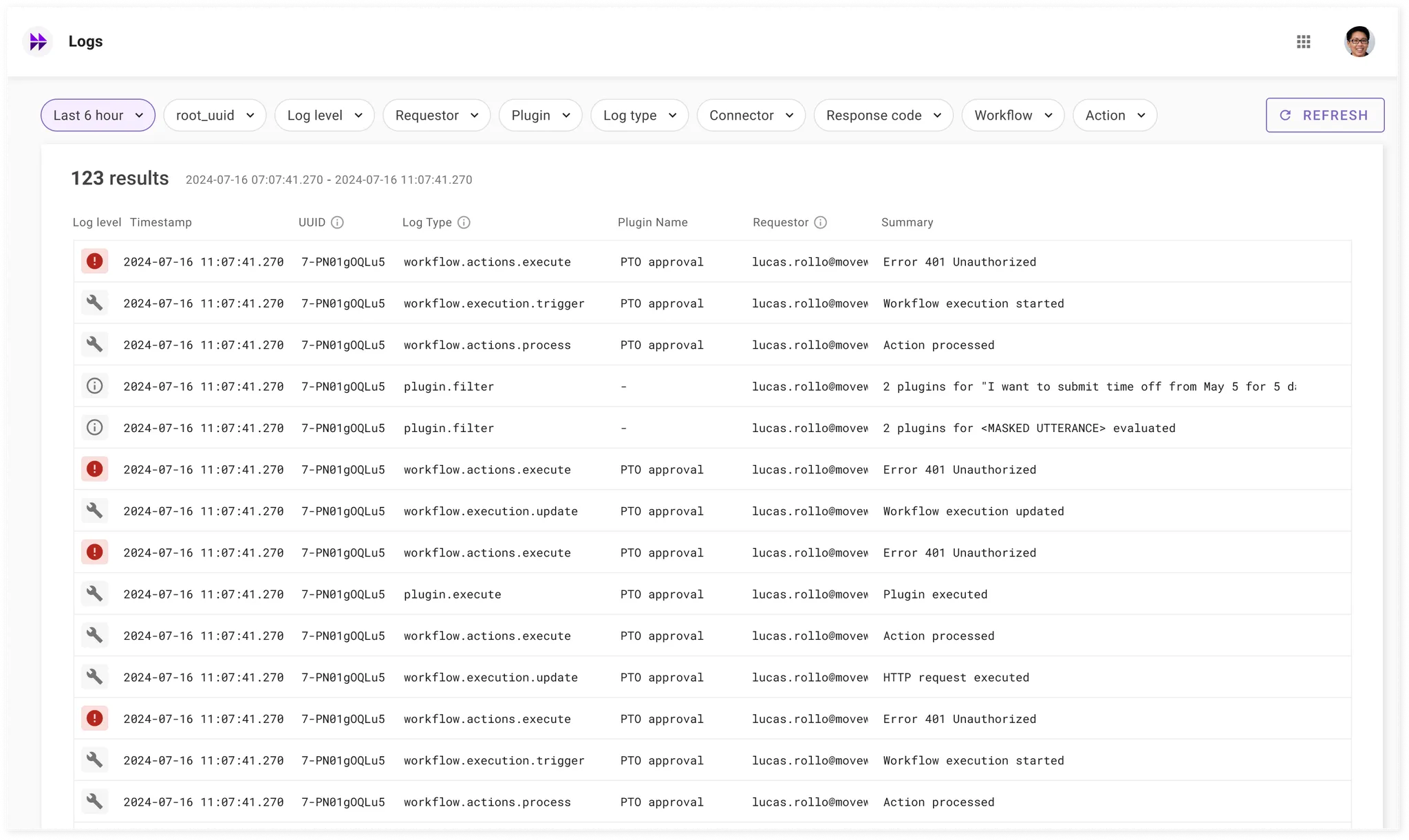
* We have a new unified log viewer with many more filters, better navigation, and nearly a dozen new log types to troubleshoot every issue
You can read more about the Agentic Automation Engine in our [**blog post**](https://www.moveworks.com/us/en/resources/blog/agentic-automation-is-next-step-in-ai-revolution), and get a full teardown in our [\*\*white paper](https://www.moveworks.com/us/en/resources/white-papers/unleash-ai-agents-with-agentic-automation-engine).\*\*
**How can I get access to the Agentic Automation Engine?**
See [Agentic Automation Engine — Access & Rollout FAQs](https://community.moveworks.com/creator-studio-6/agentic-automation-engine-access-rollout-faqs-1514) in Community for more info.
**Note:** The Agentic Automation Engine is only available on the Moveworks Copilot (not our Classic chatbot). See the [Agentic Automation Engine — Product FAQs](https://community.moveworks.com/creator-studio-6/agentic-automation-engine-product-faqs-1515) for more information.
### Plugin Promotion & Draft Mode in Creator Studio
We are excited to announce **Plugin Promotion**, which lets you move plugins between your sandboxes & your production instance, is now in Preview! In addition, to support Plugin Promotion, we are releasing **Draft Mode,** which lets developers save WIP work.
**What are the capabilities of this launch?**
1. **Import Keys.** Developers can generate an import key to move a plugin between two instances that belong to the same customer.
2. **Import Wizard.** Developers have a smart banner that explains what items need to be fixed before the plugin is published after it is imported.
3. **Draft Mode.** Developers can now save their WIP work for a Plugin for ANY workspace.
**How do I get access?**
You don’t need to do anything to get access! This feature is available for all customers.
**Where can I learn more about the Plugin Promotion?**
See our documentation [here](/agent-studio/agent-studio/development-and-testing/managing-plugins/plugin-promotion).
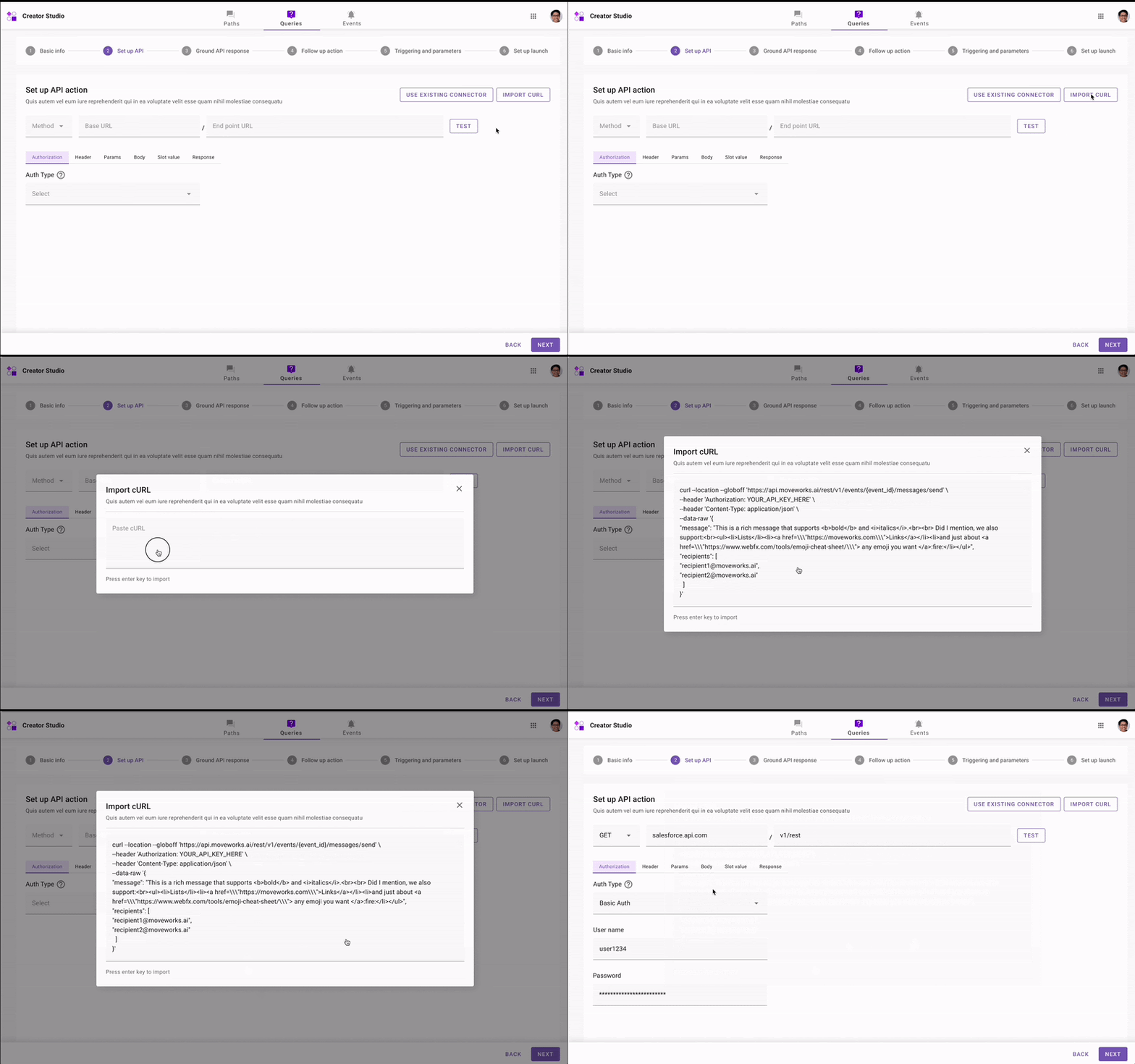
### Next-Gen HTTP Editor for Creator Studio
Quickly set up and test API actions with our revamped, one-step API editor.
* **Import API requests**: import cURL requests from API Documentation or Postman to instantly set up your API.
* **Test APIs**: Validate your API works by sending a test request.
### Permissions Change Audit Logs in Moveworks Setup
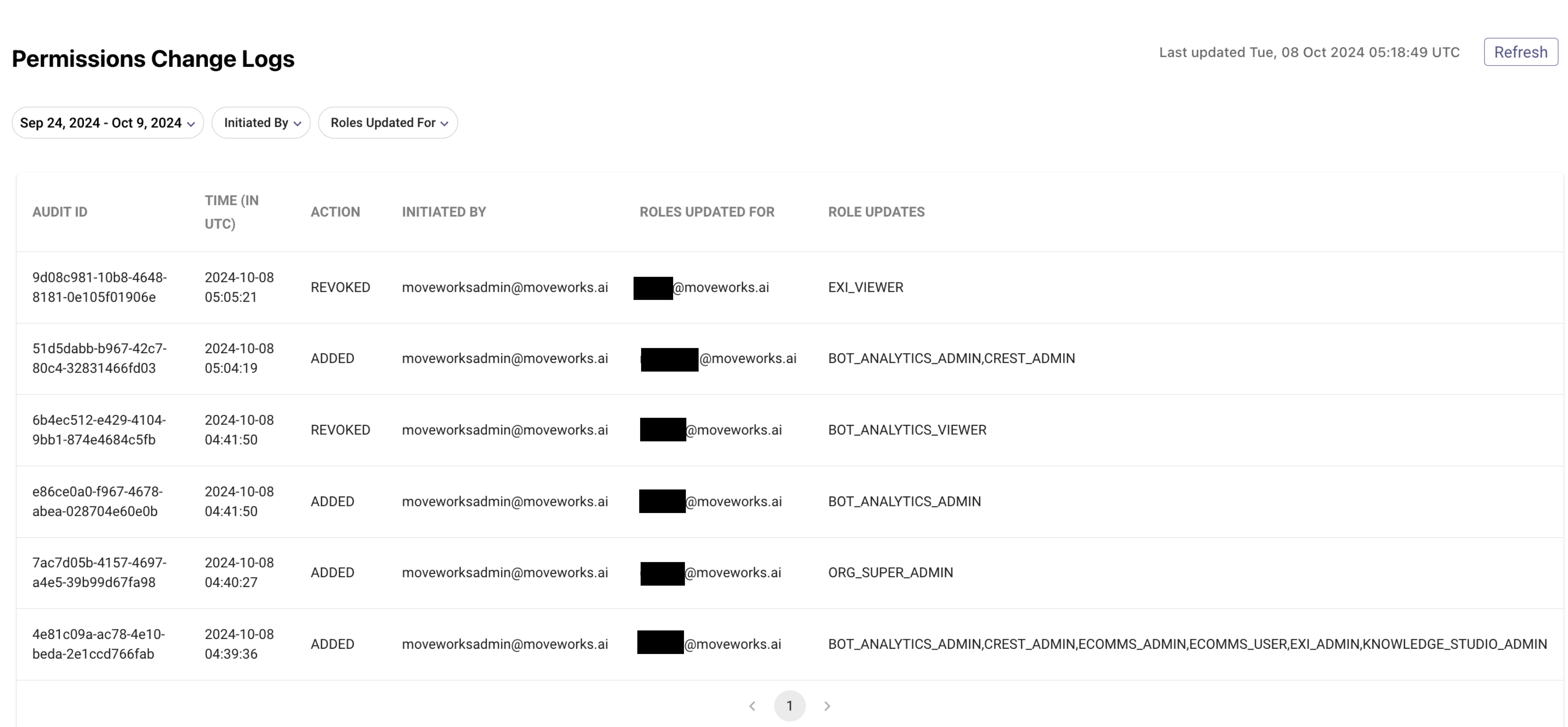
**Permissions Change Audit Logs** allows admins to get a real-time view of roles & permission changes done within their org's instance with Moveworks Setup.
With Permissions Change Audit Logs, admins can:
1. Investigate any unintended revocations of app access for any employee
2. Track and audit any RBAC changes done by specific App Admins or any Moveworks employee.
**How can users access Permissions Change Logs?**
1. Log in to Moveworks Setup
2. Navigate to Audit Logs in the left navigation menu
3. Select "Permissions Change Logs" from the sub-menu of Audit Logs
Learn more about the feature by reading our [help documentation.](/service-management/moveworks-setup/audit-logs/permissions-change-logs)
### Software Entity Search in Access Software
Choosing the right software entity for your software provisioning is important to ensure that your Moveworks Copilot responds with the correct software when a user asks for provisioning.
With entity search functionality, admins can now directly search and input the software entity name, while creating a new software provisioning configuration. This will reduce dependency on the Moveworks support team to get the exact entity name for configuring a new global software.

**Important information regarding Software Entity Search**
1. In v1, search will be applicable only on globally available software entities (i.e. Softwares/ Applications that are available for everyone) and not on their org specific entities. Ability to search org specific entities is on our Roadmap.
2. Users are encouraged to reach out to support to get their org-specific entities created and get their exact names.
Learn more about configuring new software [in our documentation](/service-management/provision-management/software-access/configure-software-access/software-catalog).
# September 2024 Product Release Notes
## New Releases
### **Approval Looping in the Moveworks Copilot**
We're thrilled to unveil the Approval Looping feature in the Moveworks Copilot Approvals. This new functionality enables users to systematically address each of their pending approvals sequentially.
The Moveworks Copilot already provides a flexible, conversational experience, allowing complete navigation via natural language. However, for tasks like Approvals—where daily volume can be high for power users—we understand the efficiency clickable buttons can bring. That's why we introduced Approval Looping, crafted to let you swiftly manage all pending approvals with just a few clicks.
**What's the experience like?**
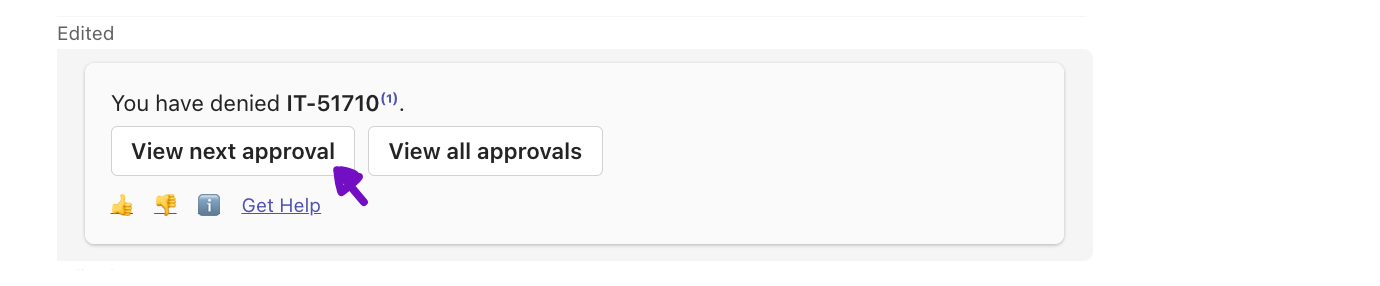
The Approval Looping feature attaches 2 buttons to the confirmation message of a processed approval request.
* `View next approval` button shows you full details of the next open approval request.
* `View all approvals` button shows you the list of all pending approvals.
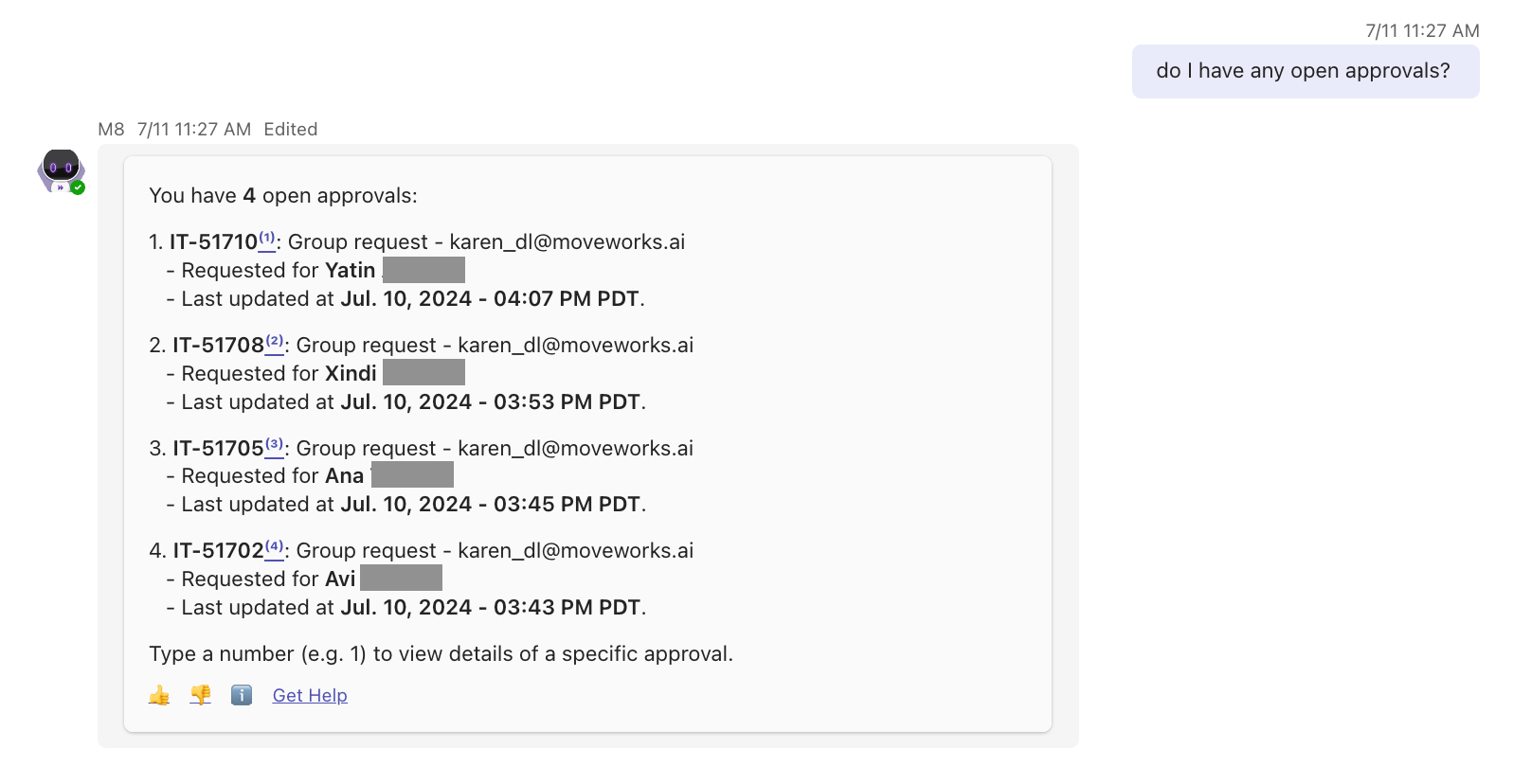
**Step 1: ask the Copilot for your pending approvals**
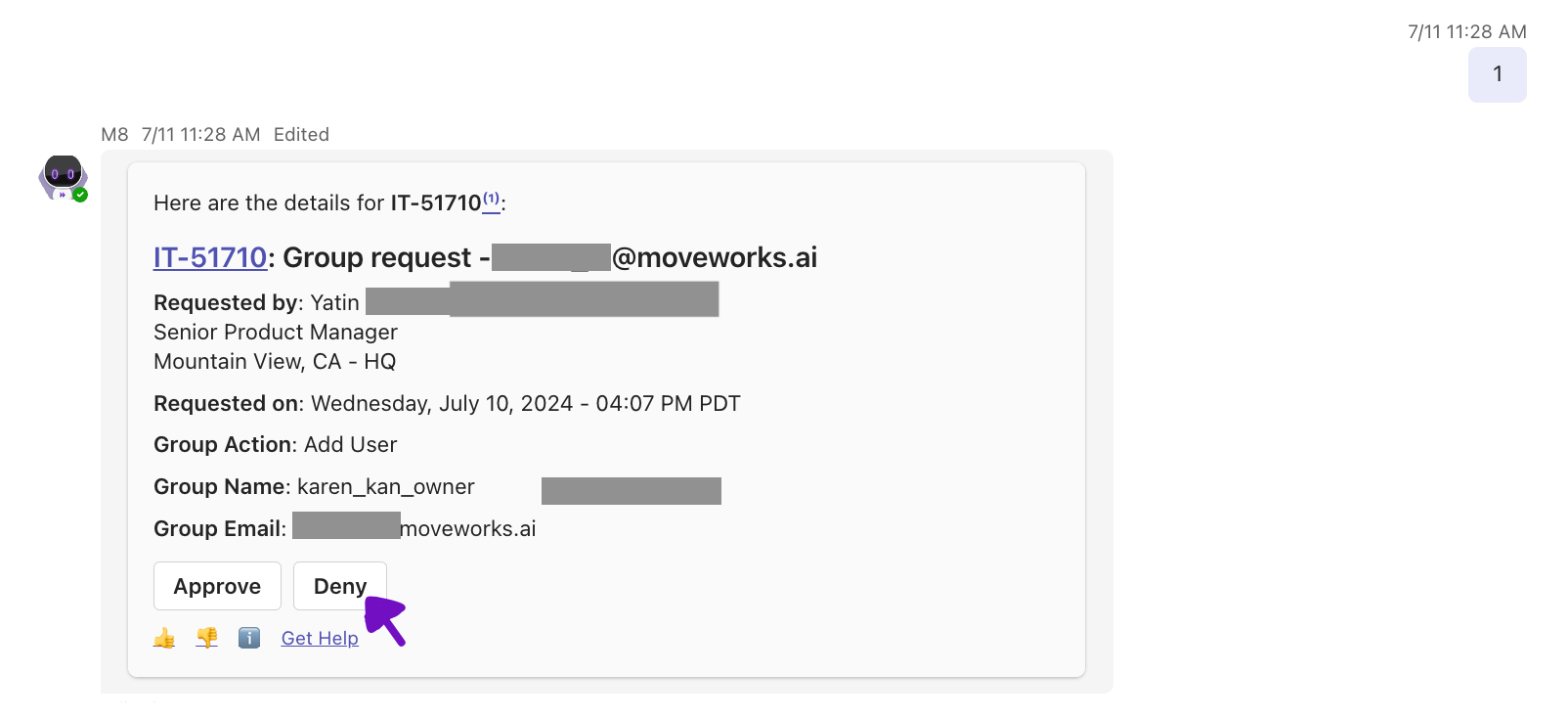
**Step 2: Type a number from the list to view more details, and take action.**
**Step 3: Click on “View next approval” to view the next open approval**
**Step 4: View the next approval details**
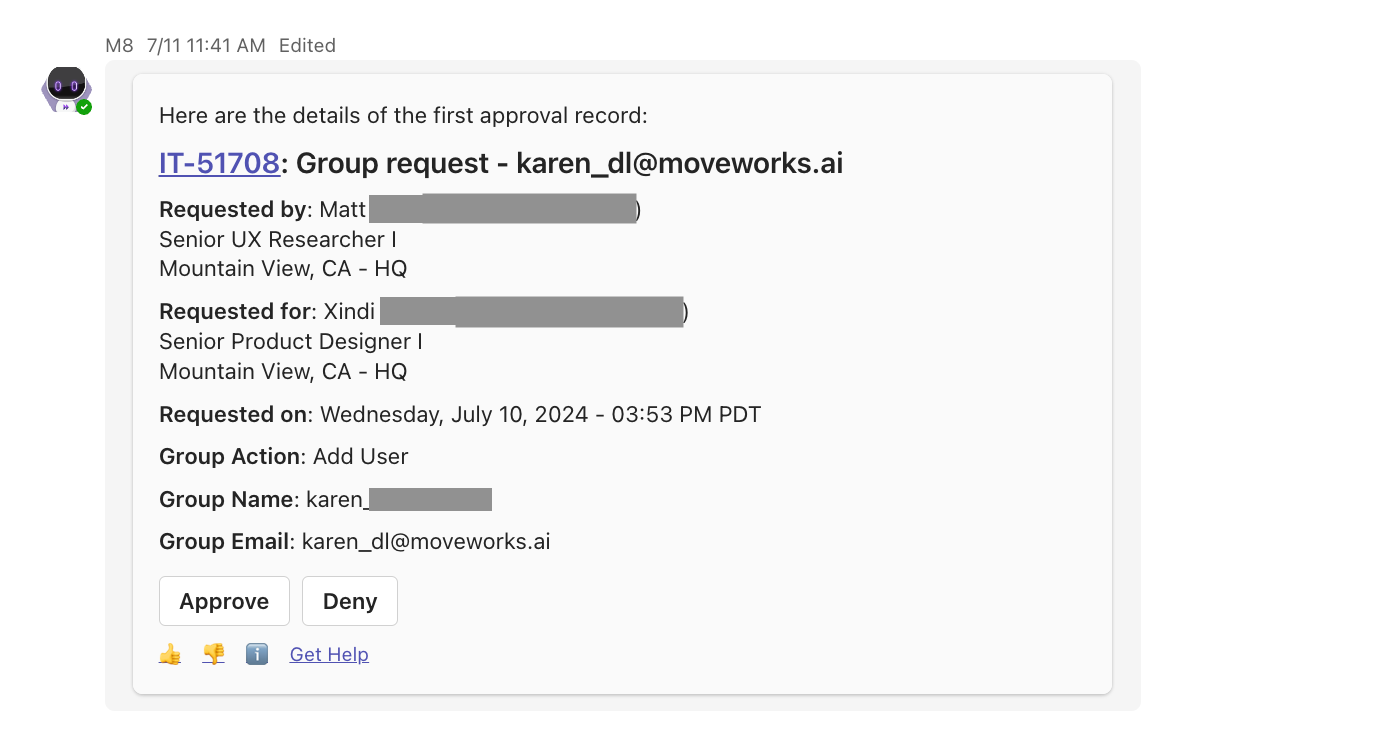
The `View next approval` and `View all approvals` buttons are attached to every approval action confirmation message. You can start a looping experience after approving a request from notifications too!
**What are some potential variations in this experience?**
As a feature built on a Gen-AI reasoning engine, you might see some variations in the experience from time to time. This includes
1. **Unable to find an approval request when clicking on`View next approvals`** . The LLM uses approval ID stored in context to help find the next approval from the system. While this is usually reliable, the LLM might make mistakes on the approval ID, resulting in it not being able to find the next approval. If you see this error, you can try again, or type “Show all my approvals” to start fresh.
2. **Variation in the approval list format.** While we have specifically instructed the Copilot to use a format when presenting the list, there is a small chance that the LLM does not follow the instructions and present a list with more/less information. If this happens, don’t worry! You can either try again, or simply type “Show all my approvals” to start over.
To combat these variations, we are putting together ML evals to capture any potential regression proactively. If you notice any variations, please let us know through our support team, or post directly in the community.
### **Edit Moveworks Native Approvals for customer administrators**
We are pleased to announce that the ability to edit Moveworks Native Approvals has been restored for customer administrators.
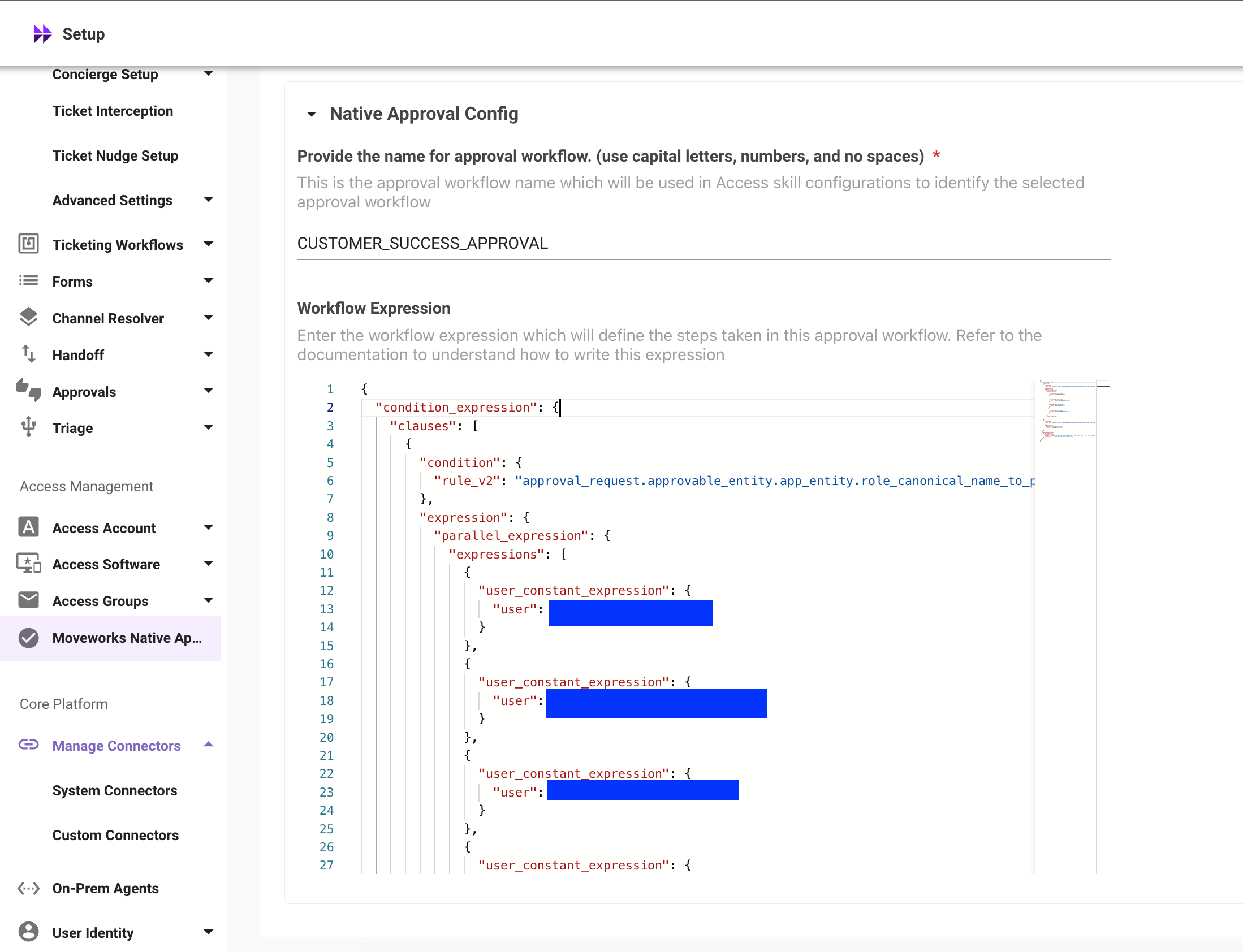
Please exercise caution when changing Moveworks Native Approvals settings. Consult your Customer Success Engineer (CSE) or contact our Support Team for advice before making any adjustments to avoid unintended impacts on software provisioning.
### **Check out our Plugin Library to accelerate your plugin development**
We've updated our offering to include the new [Plugin Library](https://developer.moveworks.com/creator-studio/plugin-library/), a comprehensive and expanding collection of plugins for various enterprise systems like Workday, Coupa, and Salesforce. This library offers everything from inspiration to detailed guides and videos for building specific plugins.
Here’s how to leverage the Plugin Library effectively:
* Use the search bar to find a particular plugin.
* Filter by system to explore what you can integrate, such as Workday, Coupa, and Salesforce.
* Search by solution to discover how the Moveworks Copilot can enhance teamwork across your organization.
* For detailed plugin creation guidance, look for step-by-step tutorials complete with videos.
We’re constantly enriching the library with more plugins, videos, and guides. Remember to bookmark the page and check back regularly to see the latest additions.
# August 2024 Product Release Notes
## New Releases
### **Introducing Channel Resolver for Moveworks Copilot**
We're excited to announce the launch of **Channel Resolver for Moveworks Copilot**. This latest update empowers employees to leverage the advanced Copilot experience not only through private direct messages (DMs) but now in public Slack channels as well. You can read about it within the [Help Site documentation](/ai-assistant/ai-assistant/capabilities/channel-resolver/overview).
* **Extend Copilot's Reach:** Users can now interact with the generative Moveworks Copilot experience directly in public Slack channels, alongside private DMs, broadening the scope of support.
* **Smart Resolution in Real-Time:** With Channel Resolver, questions posed in configured channels are swiftly addressed, providing users with summarized, actionable responses from Moveworks Copilot when it identifies a solution.
* **Enhanced User Experience:** This feature brings the best aspects of the Moveworks Classic version into the Moveworks Copilot interface, offering an upgraded experience with more advanced capabilities and customization options.
### **Increasing Copilot Insights with Channel Resolver & Triage Analytics**
We're delighted to unveil the latest enhancements to **Copilot Insights**—now including **Channel Resolver** and **Triage Analytics**. With the introduction of Channel Resolver, gain deeper insight into how effectively issues are being resolved within Slack channels. Meanwhile, Triage Analytics offers a comprehensive view of problem categorization and resolution efficiency, enabling more informed decision-making and optimization strategies.
### **Enhancing Clarity with Verified Entities in Copilot**
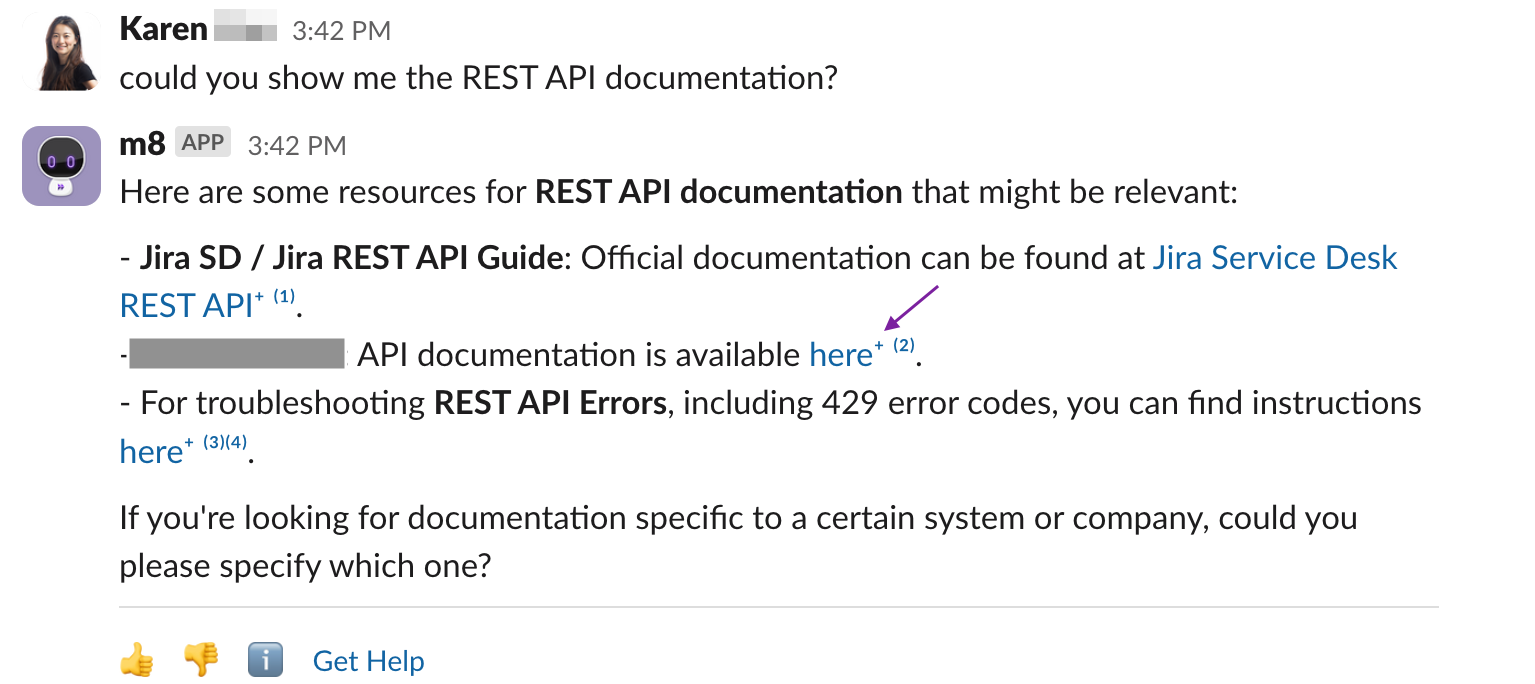
We're excited to introduce **verified entities** in Copilot responses, a breakthrough feature designed to enhance referenceability and trust in the information provided. With this enhancement, users will notice a significant improvement in how references are displayed. Verified names, email addresses, URLs, and executed actions are now distinctly marked with a “**+**” superscript. This visual cue not only increases visibility into the utilization of entities in Copilot's answers but also allows users to quickly navigate to a reference section for verification. Empower your interactions with Copilot through transparent and grounded responses, strengthening trust and efficiency in every exchange.

### **Introducing Structured Cards in Moveworks Copilot Lookups**
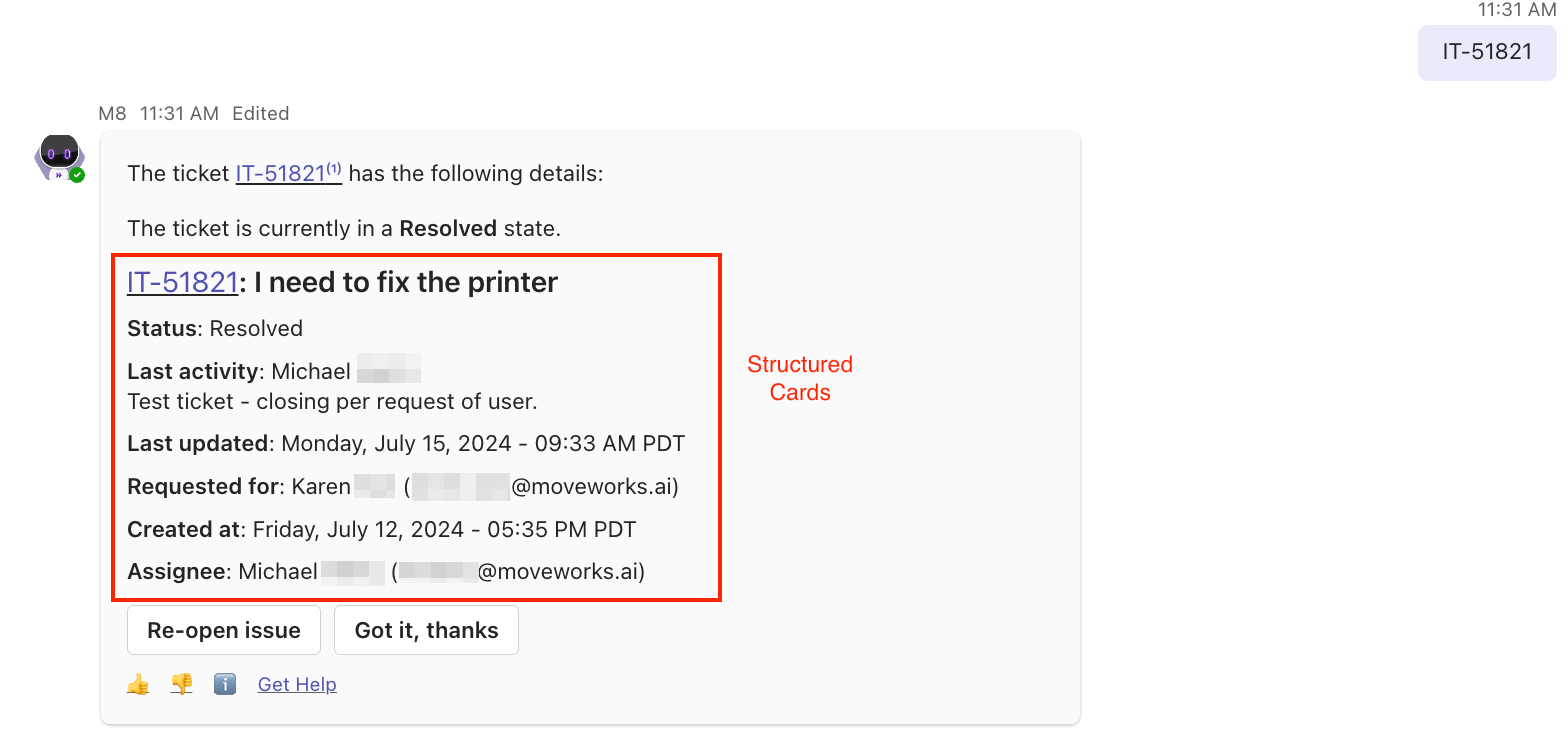
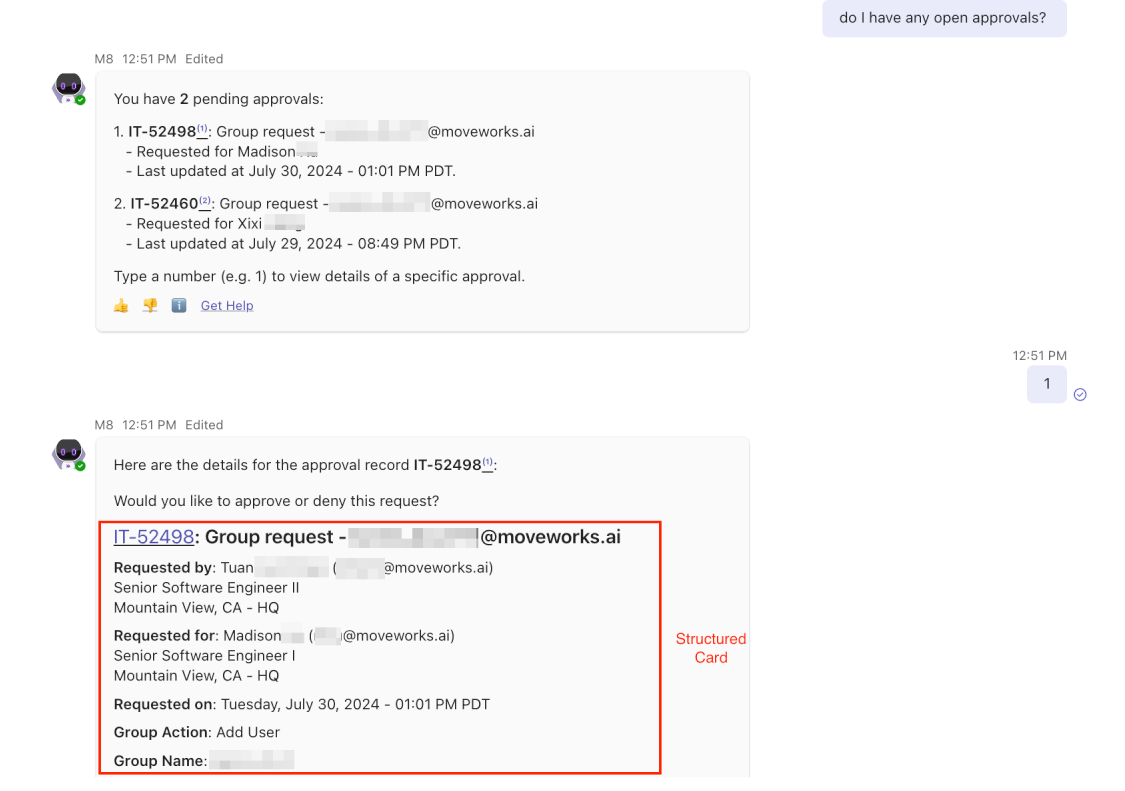
We're thrilled to announce a significant UX enhancement to **Ticket Details** and **Approval Records**—the integration of structured cards into Lookups for Moveworks Copilot. This update transforms how information is presented; whether you're retrieving ticket information or approval requests, each detail, from ticket ID and status to approval descriptions and involved parties, is neatly organized within a deterministic structured card format. This makes for a clearer, more accessible lookup experience, enabling faster, easier navigation and comprehension of crucial data.
### **Introducing GPT-4o to Moveworks Copilot**
Excited to announce Moveworks Copilot is now powered by **GPT-4o**, OpenAI's latest GPT model! This upgrade significantly enhances user interaction through faster response times, improved non-English text processing, and superior efficiency in handling requests. Rolled out to all customers, GPT-4o ensures more natural, concise conversations and broader global support. Discover the future of efficient, AI-driven user support with Moveworks Copilot. Learn more on our Product [blog](https://www.moveworks.com/us/en/resources/blog/moveworks-reasoning-engine-upgraded-to-gpt-4o).
### **Enhanced Error Messages & Trace IDs in Creator Studio**
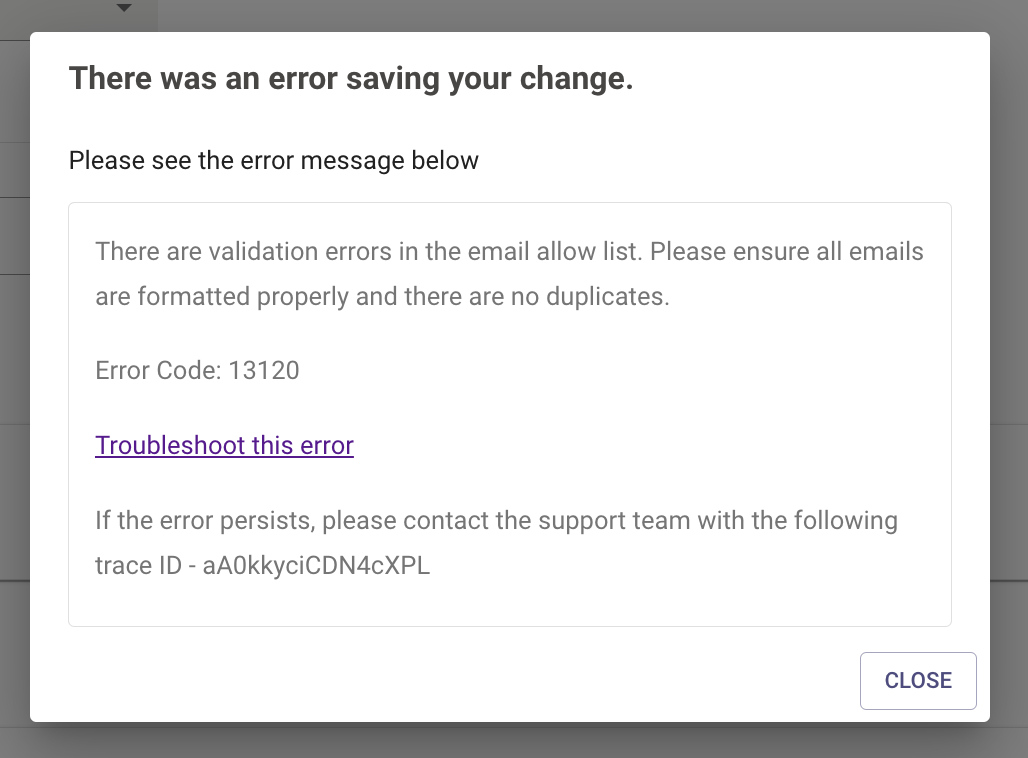
We're excited to announce the Preview release of our revamped Error Messages & Trace IDs for Creator Studio, designed to make debugging faster and more intuitive for all customers. After listening to your feedback, we've overhauled error messages across 14 different states to be clearer and more actionable, ensuring you can swiftly identify and resolve design-time errors. Each updated message now includes detailed descriptions, specific error codes for easy documentation reference, and Trace IDs for enhanced support assistance. Plus, for select errors, direct links to documentation are provided to streamline the troubleshooting process. Stay tuned for continuous enhancements as we aim to make your experience with Creator Studio increasingly seamless. [Link to troubleshooting documentation](https://developer.moveworks.com/creator-studio/troubleshooting/errors/workspace/)
### **Streamlining Access Management with Updated Worknotes for Approvers**
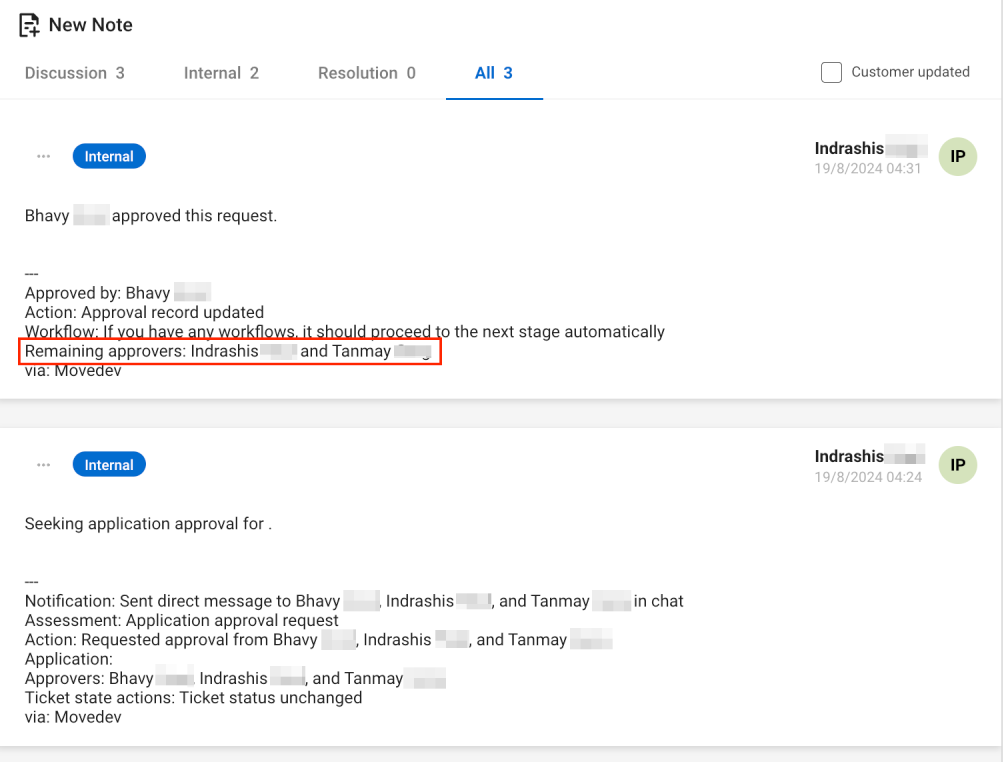
We're thrilled to introduce an essential update to our Native Approval Workflows: the ability to add a comprehensive list of required and pending approvers directly onto tickets for Access Management. This enhancement addresses a critical visibility gap previously identified by our customers. No longer will Service Agents be left wondering about the next steps in an approval chain, as detailed worknotes will clarify the exact Approval Workflow and approver at every stage. This update not only simplifies tracking progress but also significantly expedites stalled processes, ensuring smoother operational flows for everyone involved. Available to all our ticketing customers using Native Approval Workflows, this change marks a significant leap towards more efficient access governance and management.
# July 2024 Product Release Notes
## New Releases
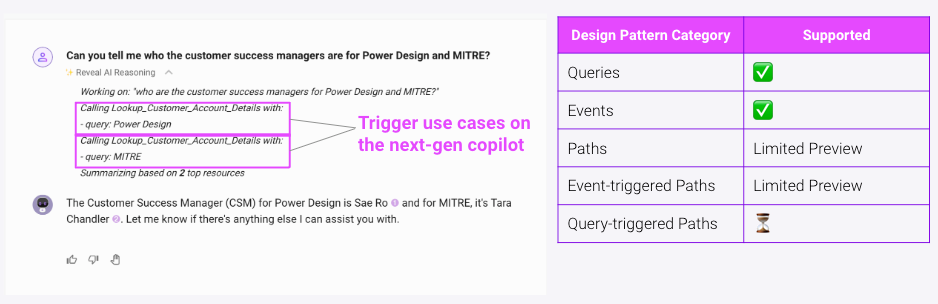
### Support use cases built in Paths, Queries, and Events on the Moveworks Copilot
We’ve published a Community post with details on the planned fixes & timelines for Paths in Copilot limitations [here](https://community.moveworks.com/ideas/support-use-cases-built-in-paths-queries-and-events-on-the-next-gen-copilot-648). Moveworks Copilot’s generative framework brings intelligent reasoning to your Creator Studio use cases. This means many out-of-the-box benefits (such as implicit slot filling, easy context switching & more). Check out our [documentation for examples & details](https://developer.moveworks.com/creator-studio/conversation-design/next-gen-copilot).
* Paths - Date slots
* Path - Markup support
* Paths - Form actions
* Queries - URL follow up actions
* Events - Event-triggered Paths
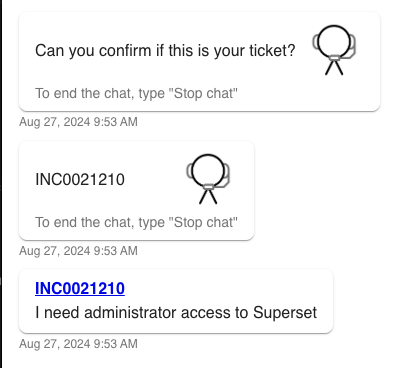
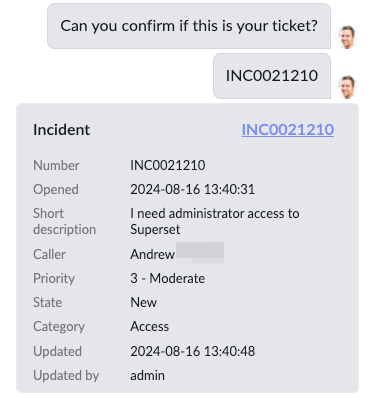
### ServiceNow KB and ticket links now unfurl during live agent Message Brokering
With this update, when an agent sends a KB number or ticket number (RITM, INC, etc.) during a live chat session, the message will first be passed immediately to the user, then it will be followed by a card containing a clickable direct link. If available, the resource’s short description will also be included. When the user clicks on the link, it will bring them to the resource in ServiceNow.
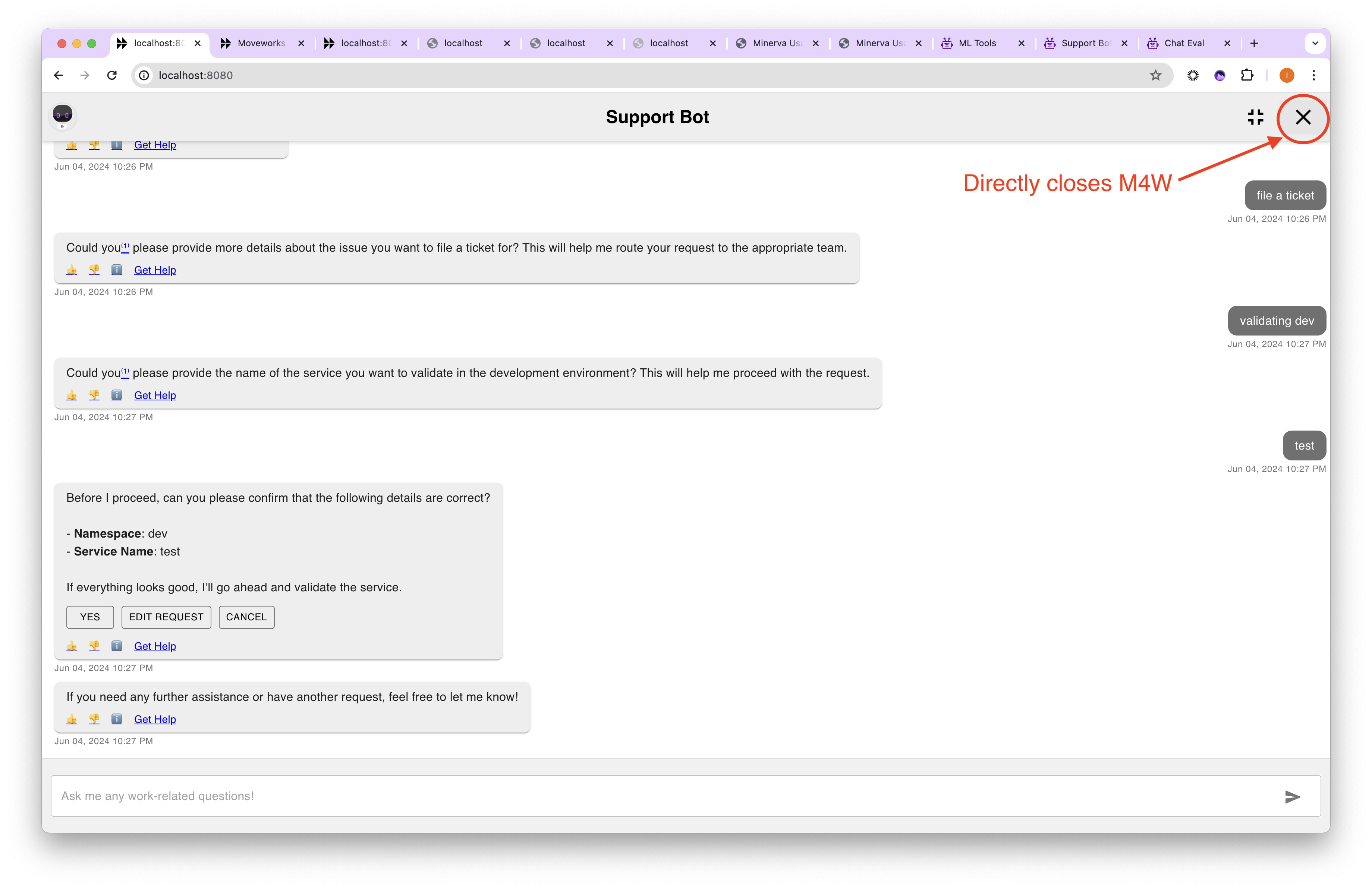
## Adding close button to maximize view in Moveworks 4 Web
A "Close" button is being added to the maximized view of M4W. This button will be in the top right of the view, in addition to the existing "Exit Full Screen." This "Close" button will directly close the M4W pop-up window and return to the "closed" state with the bot avatar icon in the lower right corner.
### Change to Other Fields within Rich Ticket Filing Flow
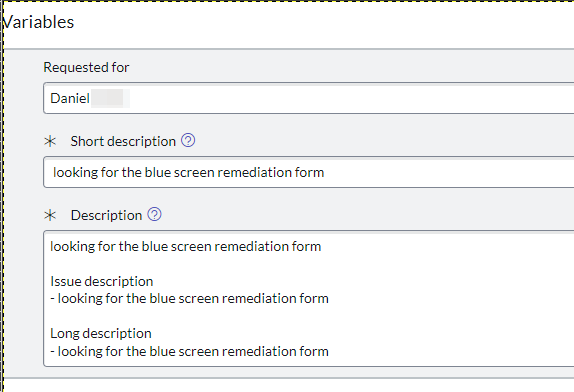
When a user fills out a Rich Ticket within chat, Moveworks would file the ticket with all custom fields, individually, in the ticketing system. Now, these custom fields will be consolidated into the ticket description. This is an additive change; we'll still keep the structured fields in their familiar location while adding more into the ticket description. In the example below, the `Short Description`, `Issue Description` and `Long Description` are all added into the Ticket Description
# June 2024 Product Release Notes
## The new Moveworks Academy is here!
[Moveworks Academy](https://em.moveworks.com/dc/mhteF767POONgH2efBWJnhKSDz354C9M3d6YBlrsZVUDMD3b9wX7A9hx0SWpbCWhQOJOXHM0LGlMegQnkhWkbBylqWPlGK_zMwXxbOgwUR3zdwMlVcEnXVQVL8dbHrP6qv0VAm3ZlomsNIrX3r7QWQ==/NzkwLVhSSS0wODgAAAGUQYgYq_gA7iZupgdKgx-KMZRaFCiNpg3Lx8VL6xy7oxOk0x5mN854zeVxK1mNTS8wF5e-uLQ=) is live this week on a brand new platform with a revamped user experience tailored to your learning needs. Whether you access Moveworks Academy from [academy.moveworks.com](http://academy.moveworks.com/) or from [my.moveworks.com](http://my.moveworks.com/), you'll be automatically redirected to the new platform.
Note: Your up-to-date course progress and certifications will carry over by July 17.
## New Releases
### Simplified experience for filing tickets and getting help in Copilot
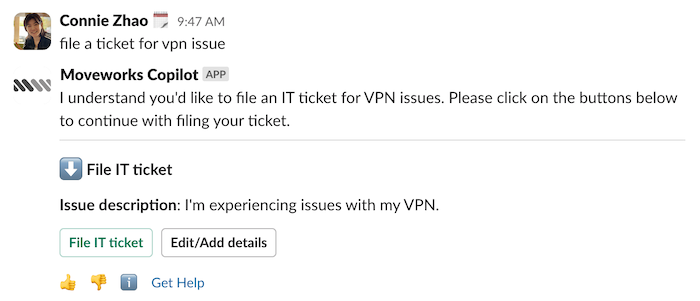
We're introducing the ability to file in-bot tickets for customers beginning with customers who have only one configured domain handoff and a single handoff destination (e.g., file an IT ticket, or URL handoff).
* **Copilot will pre-populate a predicted draft** of the ticket request so the user can simply submit
* Since customers have a basic handoff configuration (single domain, one handoff destination) we now **eliminate unnecessary decision-making** by showing the destination in chat
* There's now a **clearer call to action** for what the user should do at each step
See more [details](https://em.moveworks.com/dc/7lM4V2h3Ux1YIeo9OliDNa805GQXon1ITT9dXsBRFONjwi7GK-NlJAllMCAGIaCPmYHPaeaIzLPYT1iheze7gK5rVRNUSS2IKOCn1X9pH6fCrJOrBU3XX7CJ-OHqw5HmLoDQOUwZNB4wZOtoHKm0_iJIwI9E6REZg7C9-L7W2BQEpj61JLWf0dLxVbdeGV5iSL-9kKkxnl6bkQEdWiRELa-mJV6LpcT6VqMuccYdUGeRe8SpOVdrXiRMjfxOqtDHmKLd3pPOfSH_JVl_OAsFSPvg8nozMQ2lI8iByE2q06Q=/NzkwLVhSSS0wODgAAAGUQYgYq_gA7iZupgdKgx-KMZRaFCiNpg3Lx8VL6xy7oxOk0x5mN854zeVxK1mNTS8wF5e-uLQ=) on the Moveworks Community!
### Conversation context now available in live agent and ticket filing handoff
Copilot now passes prior conversation context in a live agent handoff, or when a ticket is filed through the bot.
* For live agent handoff, **the last two user utterances and the last two Copilot responses** are shared with the agent at the start of the session
* For ticket filing, **the last two Copilot responses** are included as a work note on the ticket
### Smart handoff in Chat: Multi-domain, multi-destination
We've enabled users to file tickets and kick off live agent sessions without going to the reference page for simple actions.
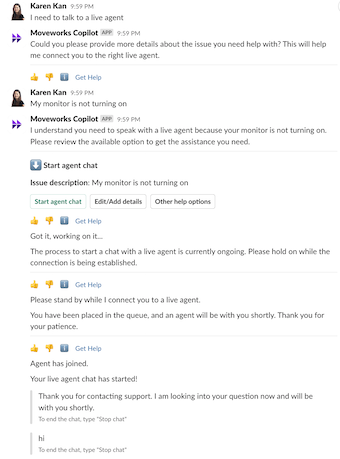
* **In-chat ticketing or a live agent session will be offered** if (1) user asks to file a ticket or (2) user asks to talk to a live agent
* Copilot will **pre-populate a predicted draft** of the ticket or live agent request so the user can simply submit
* Showing the handoff destination in chat **eliminates unnecessary decision-making**
* **Calls to action are clearer** at each step
* User no longer needs to select the domain in the reference page, saving a click
See more [details](https://em.moveworks.com/dc/7lM4V2h3Ux1YIeo9OliDNa805GQXon1ITT9dXsBRFONjwi7GK-NlJAllMCAGIaCPnyovLSYlG8I4mMEdg9DEbmKMkERTk-GOag6ATfRWfhWVzvl_aQtgXueqjvWZAo_bMjEtVd2Z2sRRvzEkw9pl4KDoQMiWVyWJj209HAkpPckQlhQTcB0TN1sbNnX8mwexeom_kG0VfnQ_wYRcpVajHeFuI039TC5_Nh9RglWgx_McYTyJ8GZGPaYKv23RSMey/NzkwLVhSSS0wODgAAAGUQYgYq_gA7iZupgdKgx-KMZRaFCiNpg3Lx8VL6xy7oxOk0x5mN854zeVxK1mNTS8wF5e-uLQ=) on the Moveworks Community!
### Multi-Language Support for the Moveworks Copilot
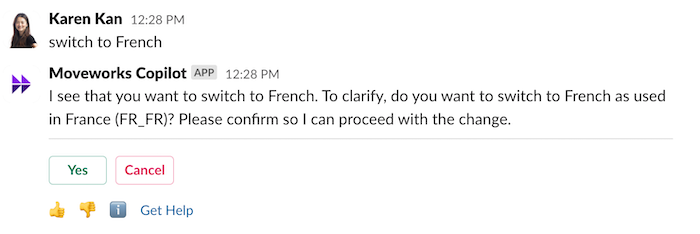
Multi-Language Support is available in the Moveworks Copilot! This update adds:
* Copilot experience in 100+ languages
* On-the-fly (OTF) translation (Including: Creator Studio use cases, citations, employee comms)
* Ticket filing and comment translation
* Dynamic Translation within Live Agent Message Brokering
See more [details](https://em.moveworks.com/dc/7lM4V2h3Ux1YIeo9OliDNa805GQXon1ITT9dXsBRFONjwi7GK-NlJAllMCAGIaCPWiYr40fkvt7boJyN_J0ij2jtoHHTbT0DmvezZpr324sfI8hCGvM23anL6tcp4h03hm8G53cWK-NbSB1Vq8kAq8VseR4GY6qPdji6BuvAi8yjsGA2zxeCQr9mK4CbXdlwCqdaVhTNYB2z-HE38pMxUlYxb_9l1f0C9iLsRy-XDh8ctrQDeJV16AIZNTHvUIKlDR1NOm1G-WGaNuQBUOH14L9bJcvwc-K3vjOz9iCdrqI=/NzkwLVhSSS0wODgAAAGUQYgYq_gA7iZupgdKgx-KMZRaFCiNpg3Lx8VL6xy7oxOk0x5mN854zeVxK1mNTS8wF5e-uLQ=) on the Moveworks Community!
### People and Room Lookups with Structured Cards
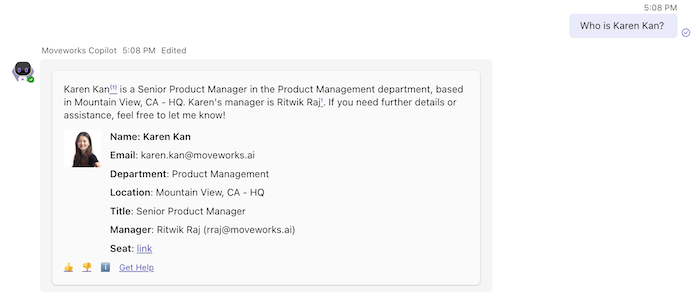
We've rolled out an update to people lookups that provides the best of both worlds to users — summarized and structured responses. Starting today the Copilot will present a structured card response for queries like "Who is Carl?" to make it easy for the user to review at a glance. We've also brought back floor plans, directly in chat.
See more [details](https://em.moveworks.com/dc/7lM4V2h3Ux1YIeo9OliDNa805GQXon1ITT9dXsBRFONjwi7GK-NlJAllMCAGIaCPWiYr40fkvt7boJyN_J0ij2jtoHHTbT0DmvezZpr324sfI8hCGvM23anL6tcp4h03hm8G53cWK-NbSB1Vq8kAq8VseR4GY6qPdji6BuvAi8yjsGA2zxeCQr9mK4CbXdlwCqdaVhTNYB2z-HE38pMxUlYxb_9l1f0C9iLsRy-XDh8ctrQDeJV16AIZNTHvUIKlDR1NOm1G-WGaNuQBUOH14L9bJcvwc-K3vjOz9iCdrqI=/NzkwLVhSSS0wODgAAAGUQYgYq_gA7iZupgdKgx-KMZRaFCiNpg3Lx8VL6xy7oxOk0x5mN854zeVxK1mNTS8wF5e-uLQ=) on the Moveworks Community!
### Employee Comms Analytics in Copilot
You can now track all user engagement with Employee Comms campaigns in the Moveworks Copilot, including:
* Number of users campaign delivered to
* Number of users engaged
* User engagement breakdown (buttons and links)
* User engagement trend over time
* Notifications and interactions downloadable report
See more [details](https://em.moveworks.com/dc/7lM4V2h3Ux1YIeo9OliDNa805GQXon1ITT9dXsBRFONjwi7GK-NlJAllMCAGIaCPU4roJe19oxcSR0pX2uS6-BKSiNaPxuvFCYItWl43R-N6lyJxYkyYMk1CnMQQN8sEITHFVj3sJStL_fu7fmiY4ysKSrDOltmUFG265ldoBXt119Lr8HNJ0Toe5T6XURJbdv0xxOpQimG5qm3PznKMRsNnR_PQPF__k8a3vOknUt_aCKRW3w_S72jX_A_QXOXmWaFwFK4i9KTQcrrmLkhSCw==/NzkwLVhSSS0wODgAAAGUQYgYq_gA7iZupgdKgx-KMZRaFCiNpg3Lx8VL6xy7oxOk0x5mN854zeVxK1mNTS8wF5e-uLQ=) on the Moveworks Community!
# May 2024 Product Release Notes
## New Releases
### "Knowledge Update" recommendations now reference your existing articles in Knowledge Studio
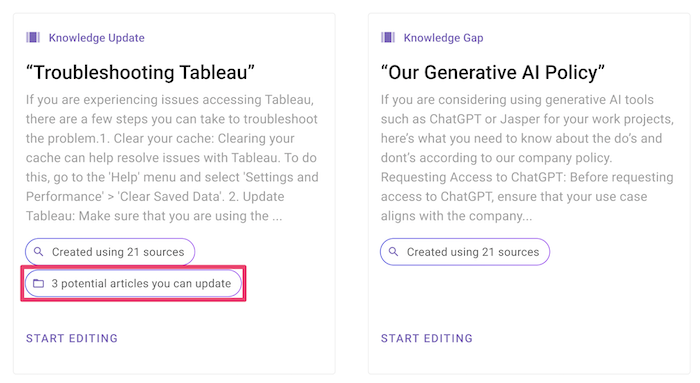
Now, for every "Knowledge Update" recommendation, you can easily see which one of your existing articles may need an update. We'll display relevant articles from your knowledge base to the topic at hand. For more, see our [AI Powered Recommendations](/service-management/knowledge-studio/ai-powered-recommendations?mkt_tok=NzkwLVhSSS0wODgAAAGTjUCIZxaQxK1xC2XMjZrENozkN7K2Mr_Hw8PqbeWGew8wLkCrXJ63TrJs4dlVElL_dPY5FEH3_ZIgD-xFVdldl4MseNCQarTEZn5M4dcAjCs#knowledge-update-recommendations-reference-your-existing-knowledge-articles?utm_source=promo\&utm_medium=eml\&utm_campaign=252gp-comm-roundup-0606) guide.
### Prevent writing duplicate articles when creating new articles in Knowledge Studio
When you begin drafting a new article, Knowledge Studio will now automatically search for any existing content related to your topic. If similar articles are found, a "View articles to update" button will appear within the generation. This feature helps ensure that the new article you're writing is unique and doesn't already exist in your knowledge base. For more, see our [Creating Knowledge Articles](/service-management/knowledge-studio/creating-knowledge-articles?mkt_tok=NzkwLVhSSS0wODgAAAGTjUCIZ-cthX5aVf5TkWnXPmwFwz_fIyWFKL0wMyiRrlH1BT_WJUnAaMWgzEXY_5vrVziYUclA8DDpXVflCa2GMNEnPe6kUBJf_brOujGdL1g#prevent-writing-duplicate-articles-when-creating-new-articles?utm_source=promo\&utm_medium=eml\&utm_campaign=252gp-comm-roundup-0606) guide.
### Visual refresh of the My Moveworks Homepage
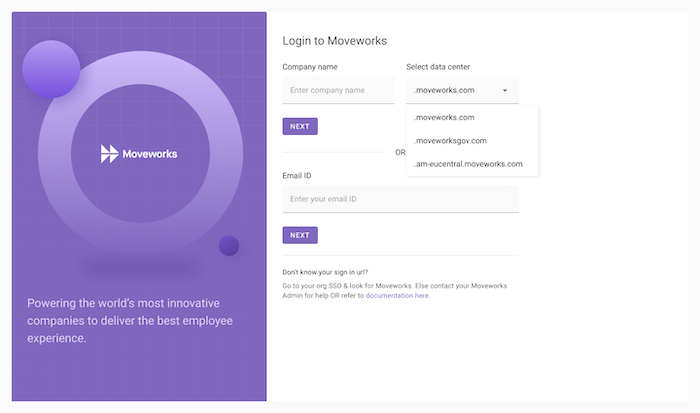
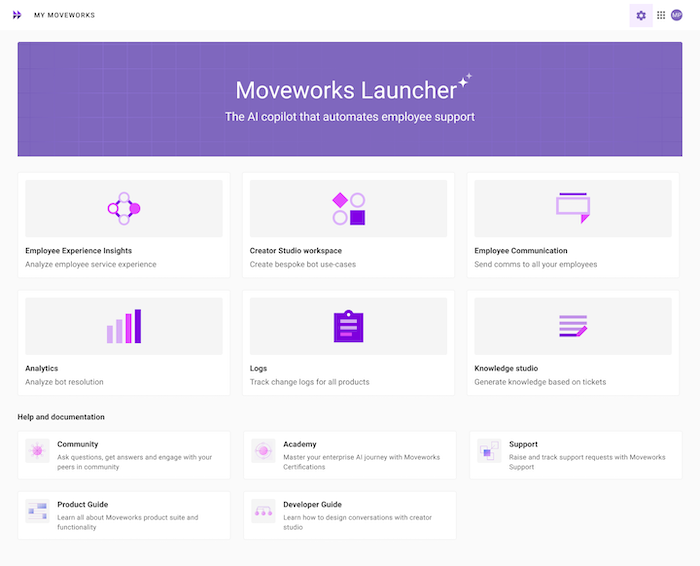
Access your Moveworks products and services like Community, Academy, and support from an easy-to-access interface featuring:
* Unified SSO and Homepage for all products (Moveworks apps and Trust Okta apps)
* Self-serve, role-based access control for all products
* Branded domains (e.g., "customer.moveworks.com") as standard part of SSO configuration
[My Moveworks Overview page ](https://em.moveworks.com/dc/eezAUiw79NvtoGkWBc9dyl7HipcUcjoK1PnMPSJqGZH6DMs0-4tOunhzpw7yIxpssZCnjlinJmn9KWHNdBNoVQSxd_FGopIgm3YG9UGVhIxl-_qc1QxqcBlQTzteMIsPJIryejL092FL6014zOD6osokUYh5SAAOKLHjlxlBgMyTnLpBXII97z-Nt7iHneZR/NzkwLVhSSS0wODgAAAGTjUCIZ9Zav7KHOHZc57OjJSZXufiSV6LDP_t7A_hf9M4snrjoZo5RjuZ7EQydd1ZunQabGCk=)
### Increased Query API timeout limits
We heard feedback that your API often takes longer than 15-20 seconds to respond. Your APIs contain valuable information that users are willing to wait for, and so we've increased the Query timeout limit to 1 minute. Changes you'll see:
* **Consistent 60 second timeouts**: All Paths & Queries APIs in both Classic and Copilot will only timeout when API response takes > 60 seconds.
* **Improved intermediate messages**: The Queries API response informs users that the task may take up to a minute, and that they should wait for it.
# March 2024 Product Release Notes
## The Moveworks Copilot is now leveraging GPT-4 Turbo!
GPT-4 Turbo is the latest generation model in the GPT series from Open AI, and Moveworks is leveraging it via both Open AI and Azure Open AI services.
GPT-4 Turbo brings a host of benefits to all Copilot users:
* **Better performance on knowledge-seeking queries**, due to Improved ability to identify knowledge resources most relevant to the user's query and omitting less relevant sources
* **Increased stability** and consistency in response times
* **Better performance at scale** with the ability to handle 2X more concurrent requests
* Reduced latency in the reasoning and planning step, providing an **improvement in overall response times**
See more [details](https://em.moveworks.com/NzkwLVhSSS0wODgAAAGSZ-0AcqSP_Cxi0VY_GwP9tjWDURq3mzicNlFcZBz5_mSahk4fExr7hyr3QRu42_dgeJZYWJw=) on the Moveworks Community!
## New Releases
### Generated implicit messages will accurately reflect user interactions & be concise
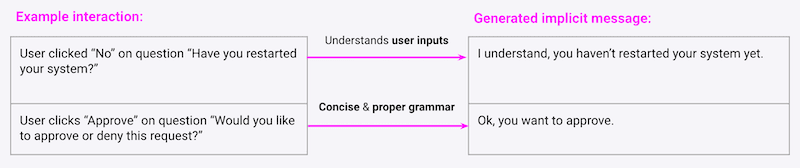
**Understand user inputs**: Generated implicit confirmations will modify based on user selections & capture their input more accurately.
**Concise & proper grammar**: The messages will use more straightforward and concise wording.
[Read more here.](https://em.moveworks.com/NzkwLVhSSS0wODgAAAGSZ-0AcvGdzIOWnJiwN0vsQTH1Iklmyfnp1QG4WOEDlY5lzojBYY9lMOiOCgwChg7vUPt3rus=)
### More control over which use case shows up in Analytics
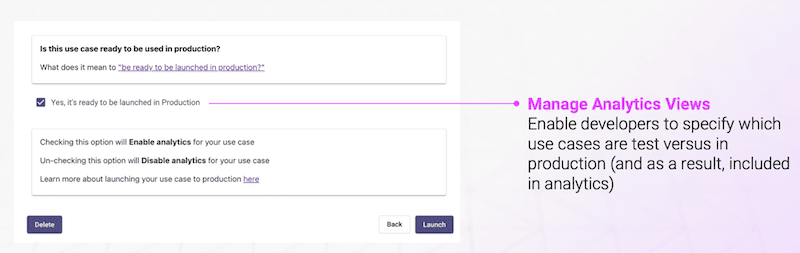
Manage Analytics Views: Enable developers to specify which use cases are in test versus in production, and as a result, included in analytics.
[Read more here.](https://em.moveworks.com/NzkwLVhSSS0wODgAAAGSZ-0AcgNGp6M-yrH1fMOZ4MgI4YyrKvisAI3hopr4kRpeEe35dPyjqQ2mBHJG7Ax4rBQKvrI=)
## UX Changes
### Small UI upgrade for Moveworks for Web
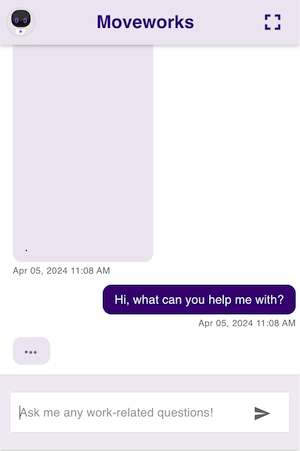
When a bot response is not yet received but in flight to a user, a typing bubble will be visible, similar to other chat experiences.
### Some UI changes for Moveworks for Web
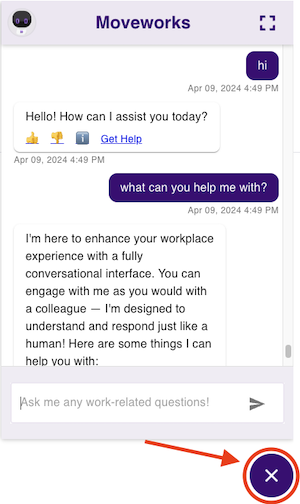
For Moveworks for Web users, we’ve moved the close button to be underneath the UI. Additionally, users have more options now in terms of sizing and color.
## New Integrations
### Workday content ingestion

Query and retrieve knowledge from your Workday Help Articles by using natural language within your bot.
[Read more here.](https://em.moveworks.com/NzkwLVhSSS0wODgAAAGSZ-0AcltX1IHR5VCZjb9-HcV0oOd1rrfoPJcBmQtYv-S83aBUafXk_uE9T_y0YRNhV3B52iQ=)
### Salesforce process approvals on opportunities

Take action on Approval Requests for your organization's Salesforce Opportunities — set up through Approval Process workflows — based on single approvals, group approvals, and multiple steps, directly from within your bot.
[Read more here. ](https://em.moveworks.com/NzkwLVhSSS0wODgAAAGSZ-0AcurK5a5GVyGelldlmKXXvzJyq-PTBzgwA9T1bqY8uDNX1c8drF1PcnMSsysc2eM9N1s=)
# February 2024 Product Release Notes
## New Releases
### Your Moveworks bot like never before, powered by Generative AI
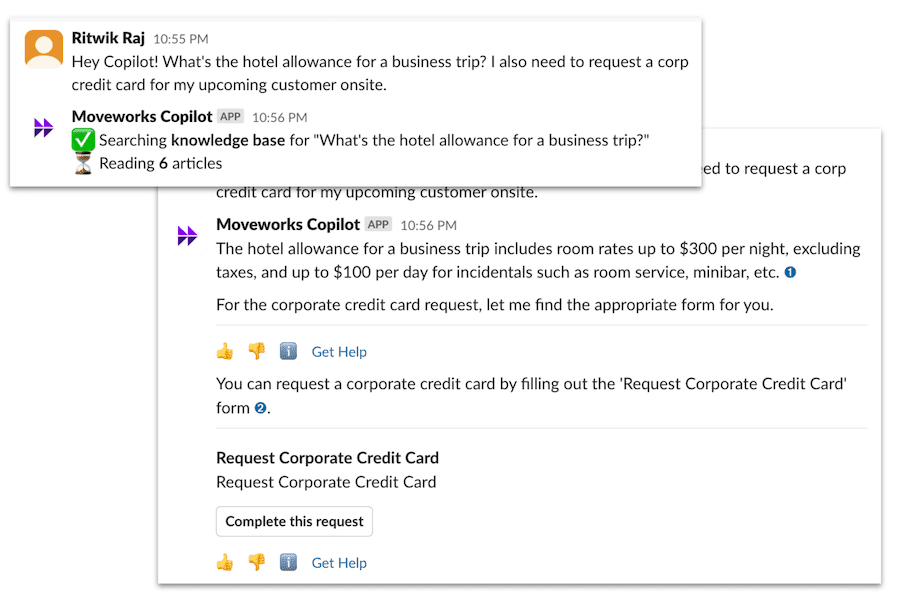
We’re excited to announce that the Moveworks Copilot is now available in Preview. The Copilot uses generative AI-powered reasoning to understand and resolve complex requests, providing direct, summarized responses drawn from your organization’s sources and integrations. It combines search and actions to provide a delightful, unified experience to users from across the company.
Contact your account team today to learn how you and your team can get started with the Moveworks Copilot, and experience the future of enterprise productivity!
### Supercharge your Moveworks Search capabilities with File Search
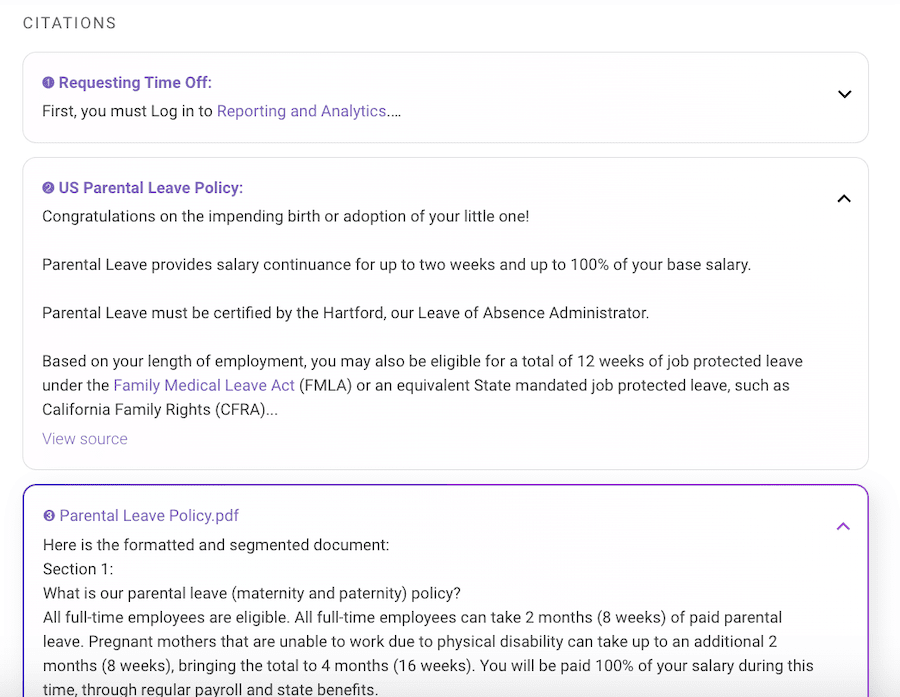
File Search superpowers your Moveworks Search capabilities, by now supporting PDFs, Word Documents, and Powerpoints.
Starting with Sharepoint, Google Drive, and Box, your source ACL permissions are also fully supported out-of-the-box, so your users can only Search for content in files that they already have access to.
Reach out to your account team today to get started.
Read more about this feature [here](https://community.moveworks.com/next-gen-copilot-78/new-feature-file-search-now-available-686?tid=686\&fid=78\&mkt_tok=NzkwLVhSSS0wODgAAAGRtFMY0LcE7XGZoUHOvfz8GMSMvdVjlneefqvt-kjNqxa4_pQXTiyFUXD3lNgQp8U8WQwb3G1GWIuKKeRKKpjX0mpbTtRJawHALhuNt-HF1a0).
### Generate employee facing knowledge in seconds

Interested in using generative AI to find and close gaps in your knowledge base? Then Moveworks Knowledge Studio is for you! Take a [look at our product resources](https://em.moveworks.com/dc/eezAUiw79NvtoGkWBc9dyl7HipcUcjoK1PnMPSJqGZF_huq3z8Cjuh9H_bLIGTxyWAbB1v8aSPuCBwM_RI24o136SpN_coYbA7fuuvz9GgWn3tZo6iGLsm37rRtZzbyyq_JCAyMfbFZgFPZAXzkSD_MJQ9FehwWzU_Loq_GrGII=/NzkwLVhSSS0wODgAAAGRtFMY0CAxkQMX0F_KTYfFlc7eUCHxegYbxTj1OP4O1qVmg0CFWzlcYvAW4Xuy9FB_v2qSpF8=) and reach out to your Moveworks account team to [see a demo](https://em.moveworks.com/dc/KnqZ0l0hMrg9Cnj0CMzYBZHzJd2Gf_fTcB_Z8L10gDQI27AZwueZx7-mbrbaWQhabNAS15I03EY73-3C9_nm2LEhar-oDzpjCAhaG2g-fVXTeF-LqW7XrirrKYTRykvp8weJePQPkUMfQQzB5sQ9FNSZNnKDDMs3VzGWdUnNuG8=/NzkwLVhSSS0wODgAAAGRtFMY0CAxkQMX0F_KTYfFlc7eUCHxegYbxTj1OP4O1qVmg0CFWzlcYvAW4Xuy9FB_v2qSpF8=) of Knowledge Studio in action.
### “Tutorials and Guides” Library for Creator Studio
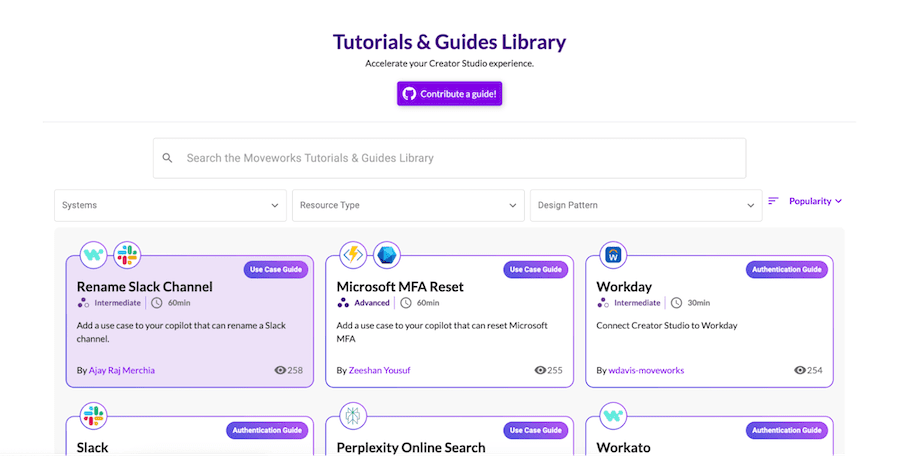
Leverage step-by-step tutorials for your Creator Studio projects.
Our library provides granular, easy-to-follow instructions that guide you through various use cases and functionalities.
View the library [here](https://em.moveworks.com/dc/YaB9AEmQPoKwP0sZ5nSiOBoJHwucM-ArCyVMAErTM3DxnyEoKRypET7gjbYtDZrxicWjmvA-t20El36iK5rzzqgI8ZUyxv_FRFexKjSt_Eo0tsLqNnSSFXTthwLrPoG-3-oM-iOViyVsbaKuEzhdZQyBQK55-F07NPOLjgIz1zSH-c4Vd4bVKzwIBRAUTKmjnj6eAhgLcDF-SEwY4-pfFw==/NzkwLVhSSS0wODgAAAGRtFMY0CAxkQMX0F_KTYfFlc7eUCHxegYbxTj1OP4O1qVmg0CFWzlcYvAW4Xuy9FB_v2qSpF8=).
### Control Roles and Permissions for your Moveworks applications
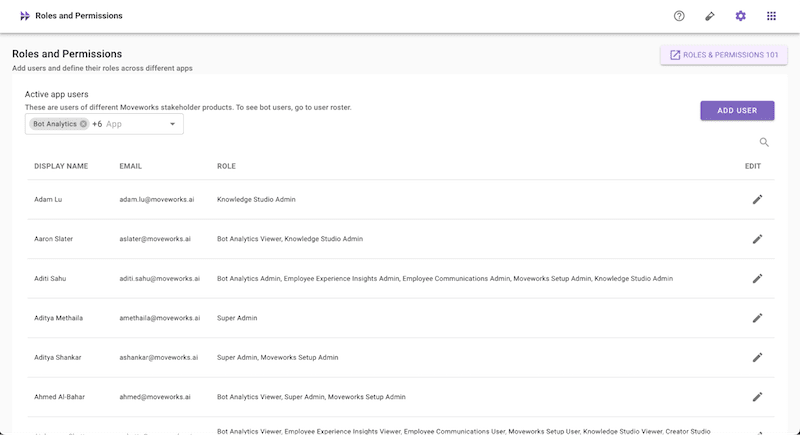
Control access to all your Moveworks applications with the help of Roles & Permissions! Administrators can now audit which users have access to Moveworks applications, and grant and revoke user access to these applications through My Moveworks.
Learn more about the three types of roles and how administrators can grant or revoke access to these roles through [reading our docs](https://em.moveworks.com/dc/eezAUiw79NvtoGkWBc9dyl7HipcUcjoK1PnMPSJqGZEjTvtamdS_ktoywtowzzmtY6PZBztUb5n4etDdtYXGDFMeB6Uwl-m4MMBUvGb9TiUVMpmPQ68UycoM_w4HM8cfoGCZBoLW1jWcxHOb87AvihQzWx8bI9a1qziESWEr363e46Z6Rlu7wpR7i-QDAbup1cce3wVDzO11frbpc47AivrOpyHF6DOz8Y15l4df7Ko=/NzkwLVhSSS0wODgAAAGRtFMY0CAxkQMX0F_KTYfFlc7eUCHxegYbxTj1OP4O1qVmg0CFWzlcYvAW4Xuy9FB_v2qSpF8=).
### Creator Studio Real-Time Logs for Paths & Queries

Please note
* Only APIs triggered from your bot are recorded in Creator Studio real-time logs
* APIs that are tested in Creator Studio do not show up in real-time logs
* Any errors other than API related errors are not logged in real-time logs
* We do not record other debug information other than API request / response
Read more about logs in Creator Studio [here](https://em.moveworks.com/dc/YaB9AEmQPoKwP0sZ5nSiOBoJHwucM-ArCyVMAErTM3DxnyEoKRypET7gjbYtDZrxerf0mtShpSdv1dL2oCp_oCXZ-XR6Lu8N_Wc8U5ZimAVZ2vFM-b53GJC3GIiQRFASSZcKFtNABbmJF6KQVhxUyY6PbEpQ6v09oB5m_1opKCs4eZmdRKKVIkd3k0tdo0bEfYtrGed2ioRKaDE8jDo8Sw==/NzkwLVhSSS0wODgAAAGRtFMY0CAxkQMX0F_KTYfFlc7eUCHxegYbxTj1OP4O1qVmg0CFWzlcYvAW4Xuy9FB_v2qSpF8=).
### Include more context in questions generated for slots in Creator Studio
**What is it**
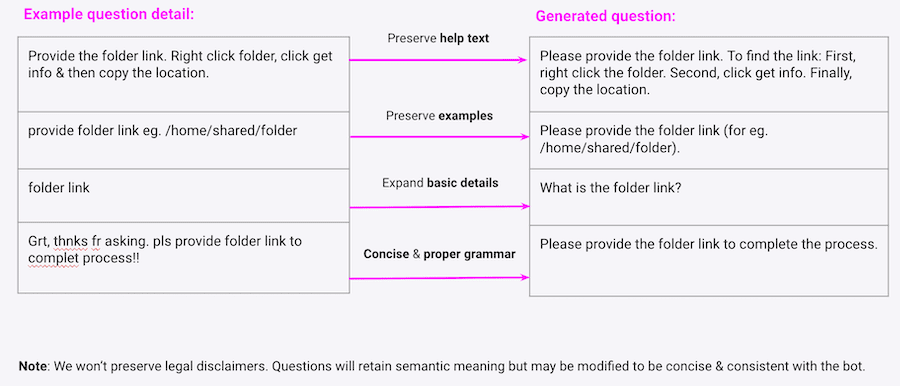
Generated questions retain semantic info from question details (Paths design patterns only). This is a Creator Studio slots enhancement.
**Features**
* **Retain semantic info**: Generated questions will preserve your question info such as help texts, slot examples, descriptions, etc.
* **Concise & proper grammar**: This will reduce your overhead to manage & review your exact question phrasings.
Read more about this feature [here](https://em.moveworks.com/dc/7lM4V2h3Ux1YIeo9OliDNa805GQXon1ITT9dXsBRFONEVPpi2qrwbF618YNq-IVcT6Was7SVuFvFZVMo2dXff7cd_F8ax-RrAixyk2buqDT4ukTv2jZCtrsCzbxB3hxIxq9PsCnMBdeXYVIiSUXuR7OLBnwkwXW1a-IVq6OyX0mhkUI4EA8CVor92ml3T78Fw2y_LIehvVFso_oI3J7bDJ8LAY4ZMax_TIlq3X3Lijg=/NzkwLVhSSS0wODgAAAGRtFMY0CAxkQMX0F_KTYfFlc7eUCHxegYbxTj1OP4O1qVmg0CFWzlcYvAW4Xuy9FB_v2qSpF8=).
### Creator Studio Support PUT, DELETE & PATCH request methods

**What Is It**
You can now configure PATCH, PUT, and DELETE Requests for APIs that leverage those methods!
**Examples**
* PUT: Updating objects in ServiceNow
* PATCH: Used in Microsoft Dynamics APIs
* DELETE: Used in Microsoft Dynamics APIs
Read more about this feature [here](https://em.moveworks.com/dc/7lM4V2h3Ux1YIeo9OliDNa805GQXon1ITT9dXsBRFOOlC4HDx36kuxJJKgGp1xGQotBwLVhNzo-qHGzK6fQqtCLCS2OP4FXxpoLQFXJ2hc7UE0AJYQPQoAk_XwMCXIY9qHFio47TWGFn2fOyaAfUXQn9FUtX4jOOhtFvRQrThihwGY4tGmg3x7yaX6mP5052KfRNSS6hTAaLheWGL4LTXg==/NzkwLVhSSS0wODgAAAGRtFMY0CAxkQMX0F_KTYfFlc7eUCHxegYbxTj1OP4O1qVmg0CFWzlcYvAW4Xuy9FB_v2qSpF8=).
### Audit how developers are using Creator Studio

**What Is It**
* Audit how your developers connect with your business systems and build conversational AI use cases with the help of audit logs
* Audit events are available through a new CSV file in our data dictionary
**Features**
* View when Creator Studio use cases are created, viewed, updated, or deleted
* View when Creator Studio connectors and Events API keys are created, viewed, deleted, or used in the bot
Read more about this feature [here](https://em.moveworks.com/dc/7lM4V2h3Ux1YIeo9OliDNa805GQXon1ITT9dXsBRFOMX5x94eR_4pv8H3Ipt366eXhj9-I9mQyYM9MPvtY8opo85rqWs-RL1RK1G5W9q00C2Sz7InfTW7PxRBv5-VfL3mNBvk5fZBnJoavo_G4uHdxikHUM4c_X_FDbVg8APE4VU7BJKvJcjPlG5eC1QHjKBnRfQMgYrSep9CItx38hJ_w==/NzkwLVhSSS0wODgAAAGRtFMY0CAxkQMX0F_KTYfFlc7eUCHxegYbxTj1OP4O1qVmg0CFWzlcYvAW4Xuy9FB_v2qSpF8=).
### MyMoveworks unified login and permissions
**What Is It**
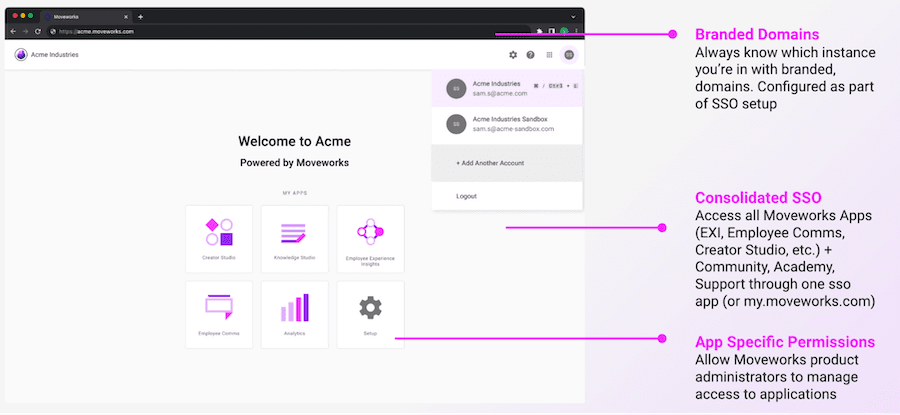
My Moveworks is your new unified portal for all your Moveworks products, documentation, community, academy, and support. It is a replacement for your Moveworks portal (trust.moveworks.com), which is being deprecated on Apr 30, 2024. It provides:
* Unified SSO + homepage for all your Moveworks products
* Self-serve role-based access control for all products
* Branded domains (configured as part of SSO setup)
* 1-click login for Community (from top navigation bar, under “?”)
* Feb 23: 1-click login for Academy
* Feb 23: 1-click login for Support
**Features**
* **Branded Domains**: Always know which instance you’re in with branded org-specific domains, configured as part of your SSO configuration
* **Consolidated SSO**: Access all Moveworks Apps (EXI, Employee Comms, Creator Studio, etc.) + Community, Academy, Support through one sso app (or my.moveworks.com)
* **App Specific Permissions**: Allow Moveworks product administrators to manage access to applications
Read more about this feature [here](https://em.moveworks.com/dc/7lM4V2h3Ux1YIeo9OliDNa805GQXon1ITT9dXsBRFOMgVX4TvmQTue7Su_GQG1EzXc3rQJL2EEIAlzwWsZDTAInMw0UyWOcySa8ZY-8H1BtVjiODBJ0DaYpjPyMawD-J5uehygCBKd5XI76D7ZZkj7o57hImA1c7fIorfaaR-ttoCKk-92gOIl7wj1z5hG-S8DFKeJYqj-w7nyg2WUPqHURmWGEdwtDosYLvbigSHeY=/NzkwLVhSSS0wODgAAAGRtFMY0CAxkQMX0F_KTYfFlc7eUCHxegYbxTj1OP4O1qVmg0CFWzlcYvAW4Xuy9FB_v2qSpF8=).
## UX Changes
### Creator Studio: Remove closing message after API actions

We removed the extra message “Let me know if you need something” after API action completions. (Paths design patterns only). This is a Creator Studio actions enhancement.
Read more about this feature [here](https://em.moveworks.com/dc/7lM4V2h3Ux1YIeo9OliDNa805GQXon1ITT9dXsBRFONoJoLmKWJZ6sugdbIT1UQF58ePqFzWwjTwOSRCl0Yzp292x1ZfJsqqD9vOIMxK4eNmv1NspSf3yufcihpA7m1EtudCcVxSSuHgBWPFPfLDweeKWrKdJ98TuqcCPdy3rDuTHsCSWwv42fCys41aYUzMfiN94g01qRBCE_F0G_DoUA==/NzkwLVhSSS0wODgAAAGRtFMY0CAxkQMX0F_KTYfFlc7eUCHxegYbxTj1OP4O1qVmg0CFWzlcYvAW4Xuy9FB_v2qSpF8=).
# January 2024 Product Release Notes
## New Releases
### Grant / revoke access to Moveworks products from one place, controlled by your administrators

Administrators can now add / revoke access to each licensed Moveworks product through the “Roles and Permissions” app in My Moveworks. You can now
1. View user permissions
2. Add a superadmin
3. Add an application admin
4. Remove an application admin
5. Add an application user
6. Remove an application user
Read more about roles and permissions in Moveworks Community [here](https://em.moveworks.com/dc/eezAUiw79NvtoGkWBc9dyl7HipcUcjoK1PnMPSJqGZEjTvtamdS_ktoywtowzzmtY6PZBztUb5n4etDdtYXGDFMeB6Uwl-m4MMBUvGb9TiUVMpmPQ68UycoM_w4HM8cfoGCZBoLW1jWcxHOb87AvihQzWx8bI9a1qziESWEr363e46Z6Rlu7wpR7i-QDAbup1cce3wVDzO11frbpc47AimtLhehV-l47eFvtgDePcbE=/NzkwLVhSSS0wODgAAAGRJC7egBcSOU3f_i8etwZ2xPQ4O-q-EoYN7WvRNLfVGJKEfSrnBj_okCF5xLWe9HXh1lsAJbg=).
### Audit when your Creator Studio use cases, connectors, and API keys are being used by your team and employees
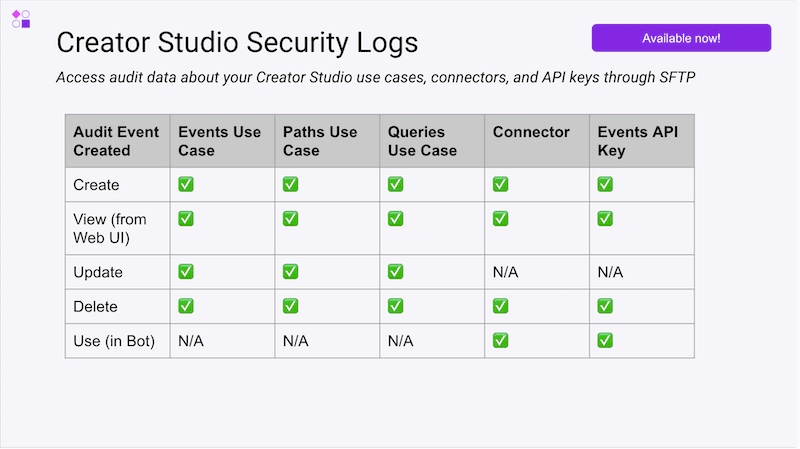
A new CSV file is available as part of your SFTP feed that share audit data about how Creator Studio is being used by your team and employees. It provides visibility over how your developers are connecting to external systems, and provides a way for security teams to audit and detect problematic access to systems.
Read more about details around SFTP Access [here](https://em.moveworks.com/dc/eezAUiw79NvtoGkWBc9dyl7HipcUcjoK1PnMPSJqGZGo1uWZrLFC_LgMl67qkH6FdN0z3zuGpG9sdCCEvAfcKQBGcgI83AC6q3IxeB78xHQk_qy9CXVDS86-A2yLwnbNJRfeaGVAxfnZa0U8btJ6Eg==/NzkwLVhSSS0wODgAAAGRJC7egBcSOU3f_i8etwZ2xPQ4O-q-EoYN7WvRNLfVGJKEfSrnBj_okCF5xLWe9HXh1lsAJbg=).
### Access all your Moveworks apps in one place. 1-click install for Okta customers! Microsoft Entra gallery listing coming February 15!
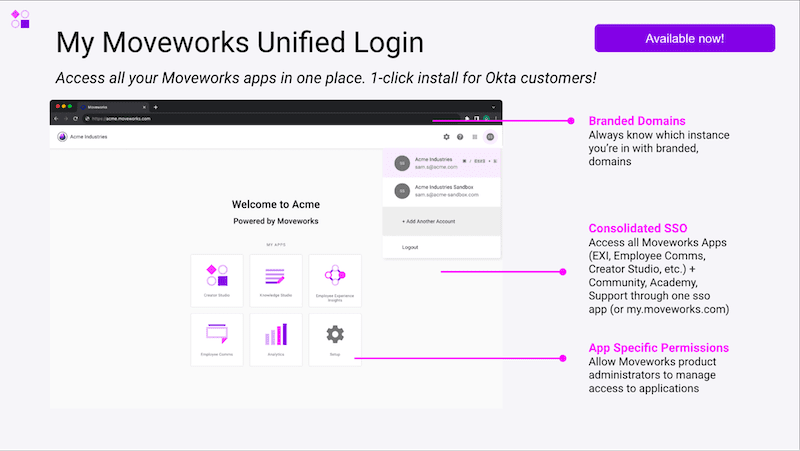
**My Moveworks** is your one-stop portal for accessing all your Moveworks products, documentation, community, academy, and support. It is a replacement for your Moveworks portal ([trust.moveworks.com](http://trust.moveworks.com/)), which is being deprecated on Apr 30, 2024. It provides
1. Unified SSO + homepage for all your Moveworks products
2. Self-serve role-based access control for all products
3. Branded domains (configured as part of SSO setup)
4. Feb 23: 1-click login for Academy
5. Feb 23: 1-click login for Support
My Moveworks has been enabled in your Creator Studio SSO app, if you have finished SSO setup. You can follow our resources below to learn more and configure SSO.
If you have not configured SSO, please follow our guides and resources below to configure My Moveworks:
* [My Moveworks Overview](https://em.moveworks.com/dc/eezAUiw79NvtoGkWBc9dyl7HipcUcjoK1PnMPSJqGZH6DMs0-4tOunhzpw7yIxpssZCnjlinJmn9KWHNdBNoVQSxd_FGopIgm3YG9UGVhIxl-_qc1QxqcBlQTzteMIsPlJeHJnCRDVoqrFybA8gajT4k5gRRM31dsIf8ldM2eyH3JcPrCxVOzGw8Nh_yN5iy/NzkwLVhSSS0wODgAAAGRJC7egBcSOU3f_i8etwZ2xPQ4O-q-EoYN7WvRNLfVGJKEfSrnBj_okCF5xLWe9HXh1lsAJbg=)
* [Academy Course for My Moveworks](https://em.moveworks.com/dc/ta8yGbs96Crejng_bxcE8zpGYurLCr1xKEtJeQLRTtz1Tv-SqjdTcDCbaZMgj4VzeXqTL-c8BuozE3O-joATFhSwe5TIv_fg3CRhuHVSRQ8xkcxpksnX2MpSOjpE3Ph63xmriV_ttz9Q44ep3ei96EaY2pww62-5winQhFfMy36rda4HspsR7gw1Vwnx0K4zQwYhF1stL5_zlMZxgdTLast3FfYW74adxIiVy1697I6GAyOhClUfKnGVibNDqjaV/NzkwLVhSSS0wODgAAAGRJC7egBcSOU3f_i8etwZ2xPQ4O-q-EoYN7WvRNLfVGJKEfSrnBj_okCF5xLWe9HXh1lsAJbg=)
**Configure My Moveworks for Okta**
* [Webinar: Configure My Moveworks for Okta](https://em.moveworks.com/dc/fFUo53mvSyj8ohSJ5WCl0zxfQnyYPP8cP_WRdGeB6SHwStPyt_xiKmbeBFDIaTlJV0KkXs8i0tupmWnztZu3ESPQvxpw63UFiBCIAf-bgTFBE_kbR97RWk0-sP6CHn0cuTyXjZOZyjMXXjfzVPZDDsz2oiC1mlpC2_aBRCFFYQWNkW311ts3nDSOuT90VeYo/NzkwLVhSSS0wODgAAAGRJC7egBcSOU3f_i8etwZ2xPQ4O-q-EoYN7WvRNLfVGJKEfSrnBj_okCF5xLWe9HXh1lsAJbg=)
* [Okta Configuration Guide (US Data Centers)](https://em.moveworks.com/dc/eezAUiw79NvtoGkWBc9dyl7HipcUcjoK1PnMPSJqGZGAfewfSXHhMM0-k6CLsDb-p0zRUTTjO48LGsOulq9_ZC_DLm3Y7JmMUjcveGWJWekIqOKIEGKgNdVpl8OdxvDa_h_qLlZdxBzQPtrdK0GGAd0nuH9wJXQ1g3l2CgNYffK8-svEyCyXmWC23qXHdQiN/NzkwLVhSSS0wODgAAAGRJC7egBcSOU3f_i8etwZ2xPQ4O-q-EoYN7WvRNLfVGJKEfSrnBj_okCF5xLWe9HXh1lsAJbg=)
* [Okta Configuration Guide (Other Data Centers)](https://em.moveworks.com/dc/eezAUiw79NvtoGkWBc9dyl7HipcUcjoK1PnMPSJqGZGAfewfSXHhMM0-k6CLsDb-zHdc5y3AwilMzm90TmQIMZmiUj6fqI7ofNW_0zSMvMorLe86Qks-tLa7ULDcA3kSkNFlbRVydJDNMYhUREQSvAKlyM08kcUdkPhfrC5RrLbwIgqOXGBYrYA1hcbFhEYPArOZCAh3TiygiA2mY0e2nQ==/NzkwLVhSSS0wODgAAAGRJC7egBcSOU3f_i8etwZ2xPQ4O-q-EoYN7WvRNLfVGJKEfSrnBj_okCF5xLWe9HXh1lsAJbg=)
**Configure My Moveworks for Microsoft Entra (Azure AD)**
* [Webinar: Configure My Moveworks for Microsoft Entra (Azure AD)](https://em.moveworks.com/dc/fFUo53mvSyj8ohSJ5WCl0zxfQnyYPP8cP_WRdGeB6SHwStPyt_xiKmbeBFDIaTlJwJkmsKSwXc8XJlmV5ngpk5FFEg1z-U4gdVWLDf7JOTZaX6QfIzGOJiQafY5MHvaok0GOq3eOC3TGPXm4yw1hJzDXFyDHVFOlXFZ5jSnSY1u1AeiJnvUicAKcInbgDbS5ej3kQN-cvhZDHgIgqaRTrQ==/NzkwLVhSSS0wODgAAAGRJC7egBcSOU3f_i8etwZ2xPQ4O-q-EoYN7WvRNLfVGJKEfSrnBj_okCF5xLWe9HXh1lsAJbg=)
* [Microsoft Entra Configuration Guide (SAML)](https://em.moveworks.com/dc/eezAUiw79NvtoGkWBc9dyl7HipcUcjoK1PnMPSJqGZFL7Cj18CmEljLgnR3JsYohACWoa6xzI6mQLqL95xALn183O_BwJOiSR6RFjC8gMAoQwxNsKJqe8UtLHlLKJQA1RLctDH8KY4I2LiRQaPHAf9tfqI1_dAIDJASz0u5kjCgNq3dUFUgsFl0VgOkNjrB3ZhuLlhS26o8FxZYkHdt83A==/NzkwLVhSSS0wODgAAAGRJC7egBcSOU3f_i8etwZ2xPQ4O-q-EoYN7WvRNLfVGJKEfSrnBj_okCF5xLWe9HXh1lsAJbg=)
**Configure My Moveworks for Other SSO Providers**
* [Webinar: Configure My Moveworks for Other SSO Providers](https://em.moveworks.com/dc/fFUo53mvSyj8ohSJ5WCl0zxfQnyYPP8cP_WRdGeB6SHwStPyt_xiKmbeBFDIaTlJRX9jQN5iYaMJqsE2UFDSffMc7ex88b2z_IjdC_xJLy2OQWC1wqfXo_lyM3Zg4rh9zN8G6uz5YuE-UlNI5ZX7H1EwnS6bFA99u-3iPE2bMJlo_KMxCPcOI0GAXPX3LfE7/NzkwLVhSSS0wODgAAAGRJC7egBcSOU3f_i8etwZ2xPQ4O-q-EoYN7WvRNLfVGJKEfSrnBj_okCF5xLWe9HXh1lsAJbg=)
* [SSO Configuration Guide (OIDC)](https://em.moveworks.com/dc/eezAUiw79NvtoGkWBc9dyl7HipcUcjoK1PnMPSJqGZF3TheSWbJWw1JFL8ICUTDmPlhCWy4-sc4B1B084EvRO7_zhqTBN9le6uQI5g0BBjbYabvjtAySP4pncfxt45RuA5wDUqSnz_zi-Et-t7K414GILab0DeK2JM05caQTJUKffnC8NY6t5wSeNXq1FHOY/NzkwLVhSSS0wODgAAAGRJC7egBcSOU3f_i8etwZ2xPQ4O-q-EoYN7WvRNLfVGJKEfSrnBj_okCF5xLWe9HXh1lsAJbg=)
* [SSO Configuration Guide (SAML)](https://em.moveworks.com/dc/eezAUiw79NvtoGkWBc9dyl7HipcUcjoK1PnMPSJqGZFOlm9vyOqFwfoax_H2rVdKzEqgsoYYYuc8pBExPZW9uh96D9NRY_Wjoc7Ey7itinkDiZdO9dyplQbLg0ukJPFk72bYjVjRMqHcMUjkX-B5ApCOeD6OXNblbWp7ef7t5vtprRe-y2ACHOQy1mzWmAQr/NzkwLVhSSS0wODgAAAGRJC7egBcSOU3f_i8etwZ2xPQ4O-q-EoYN7WvRNLfVGJKEfSrnBj_okCF5xLWe9HXh1lsAJbg=)
### Troubleshoot & debug API calls triggered by your use cases
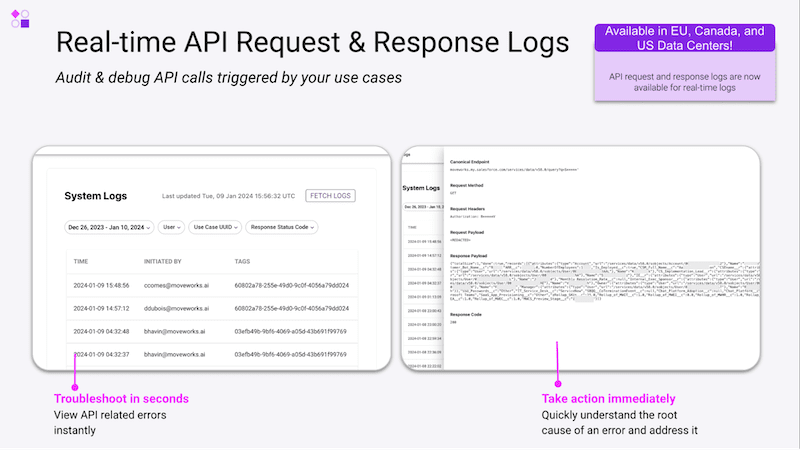
Your developers can now monitor API requests and responses made by your bot through Creator Studio logs. This allows them to troubleshoot any problematic API requests from your bot, and provides them tools to monitor your use case performance and launch more use cases. Please note: this applies to Paths and Queries use cases only.
Learn more about Logs [here](https://em.moveworks.com/dc/YaB9AEmQPoKwP0sZ5nSiOBoJHwucM-ArCyVMAErTM3DxnyEoKRypET7gjbYtDZrxerf0mtShpSdv1dL2oCp_oE9epfq4l9g0J8RiLzi21kVRdx-7P3dAKRNNrqadBhm-V72lDh7-rUKMHz_V6w_dhBtTLFyOjJWJDTr5GhUPTsD7usZj0lCq3mHFqKOgV44I/NzkwLVhSSS0wODgAAAGRJC7egBcSOU3f_i8etwZ2xPQ4O-q-EoYN7WvRNLfVGJKEfSrnBj_okCF5xLWe9HXh1lsAJbg=) and read documentation [here](https://em.moveworks.com/dc/YaB9AEmQPoKwP0sZ5nSiOBoJHwucM-ArCyVMAErTM3DxnyEoKRypET7gjbYtDZrxerf0mtShpSdv1dL2oCp_oE9epfq4l9g0J8RiLzi21kVRdx-7P3dAKRNNrqadBhm-V72lDh7-rUKMHz_V6w_dhBtTLFyOjJWJDTr5GhUPTsD7usZj0lCq3mHFqKOgV44I/NzkwLVhSSS0wODgAAAGRJC7egBcSOU3f_i8etwZ2xPQ4O-q-EoYN7WvRNLfVGJKEfSrnBj_okCF5xLWe9HXh1lsAJbg=).
### Share your feedback in our Product Ideas Portal
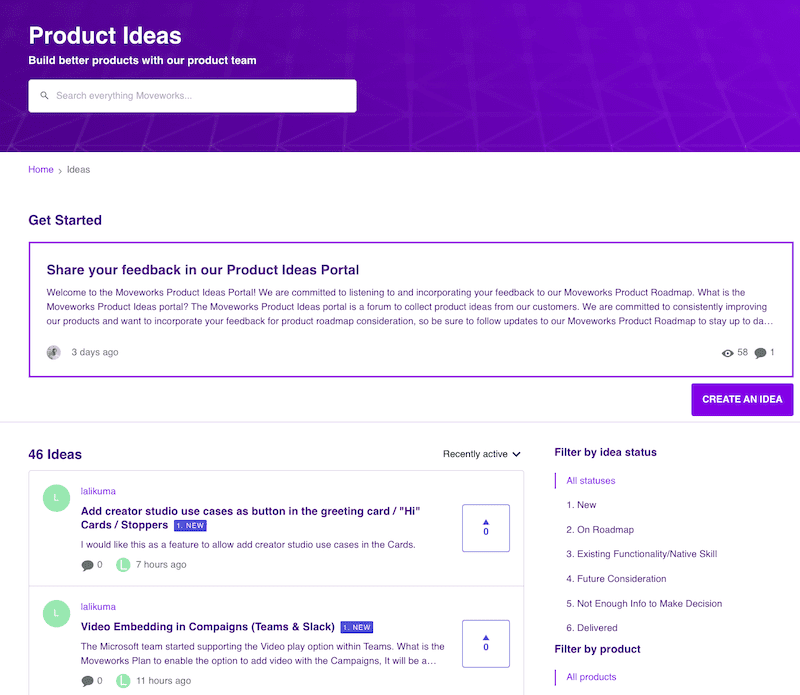
We are committed to listening to and incorporating your feedback to our Moveworks Product Roadmap. The Moveworks Product Ideas portal is a forum to collect product ideas from our customers.
To learn more about how the Product Ideas Portal works, click here (must be registered on Community).
Learn more about App Digests [here](https://em.moveworks.com/dc/eezAUiw79NvtoGkWBc9dyl7HipcUcjoK1PnMPSJqGZHGlbhA2-qkSw9a1faSPkvESA8RTsyWj1TiKrkNiWhwoug6UkU7Ny2iNnNAPoDq0QlxfBylLalW6Vt5cKNLjSnbHsr9JIEauZkfP0boqBvZnTnFp30sQQeSrBAJf8_fg6uu_FfHL9FUfq3e6fiE4_2r/NzkwLVhSSS0wODgAAAGRJC7egBcSOU3f_i8etwZ2xPQ4O-q-EoYN7WvRNLfVGJKEfSrnBj_okCF5xLWe9HXh1lsAJbg=).
## UX Changes
### Update to our ticketing URL display
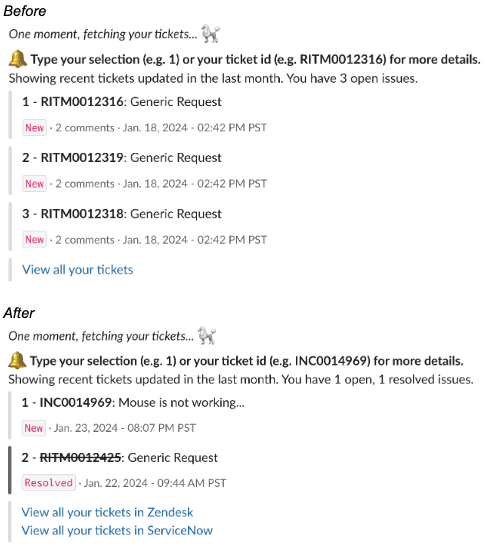
For organizations with multiple ITSMs, we will show a URL for each ITSM when users wish to see a list of all their tickets. We also changed the wording for viewing tickets from "Click here to see all your tickets" to "*View all your tickets*".
### A more consistent experience for Webex users

For Webex users, all plain text responses like button click messages such as “Okay, you clicked…” or system messages like “*Working on it…*” will now be rendered as adaptive card(s). This change will help us provide a more unified and consistent experience across our chat platforms.