
Permission Checker
What is Permission Checker?
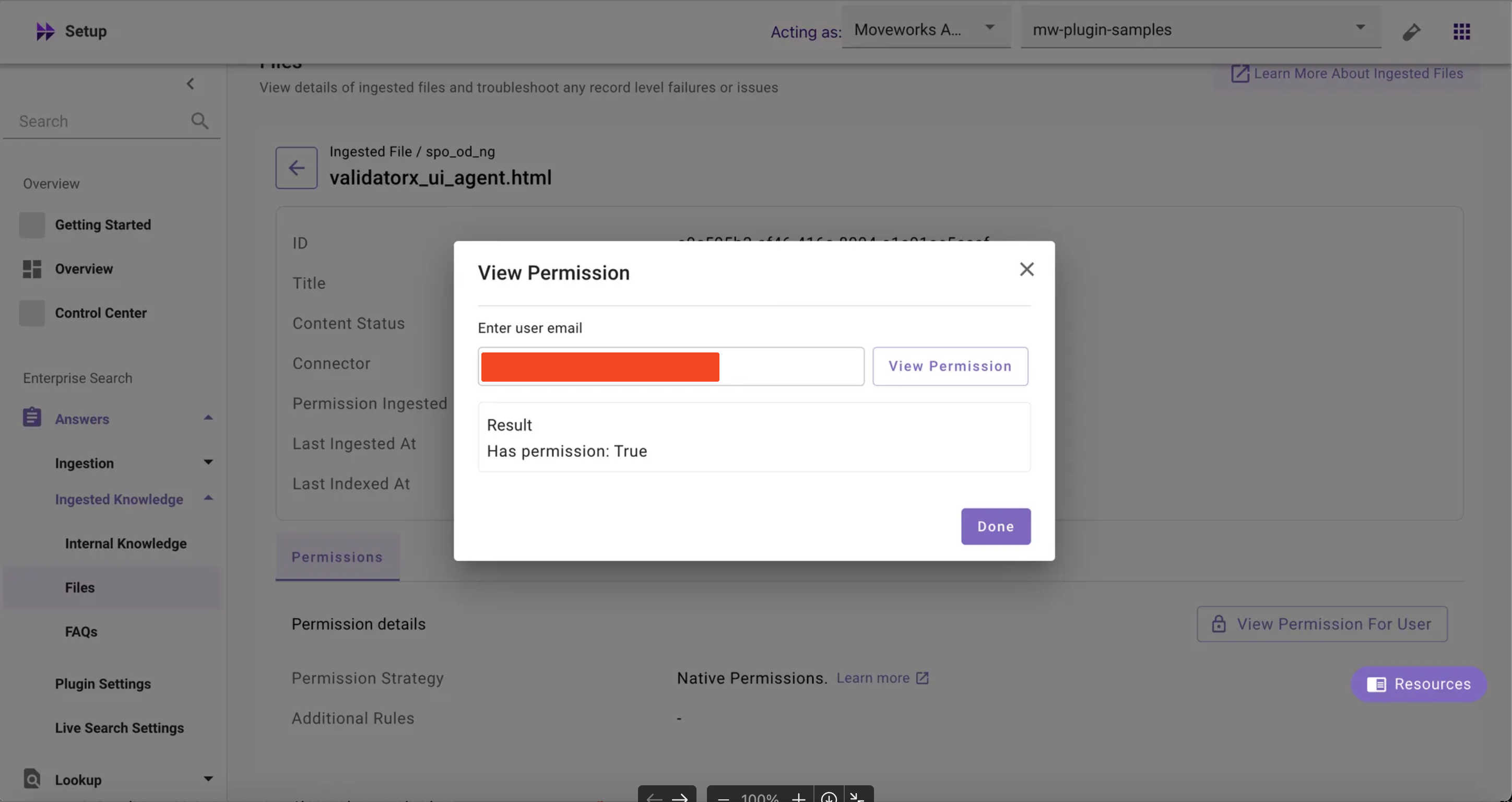
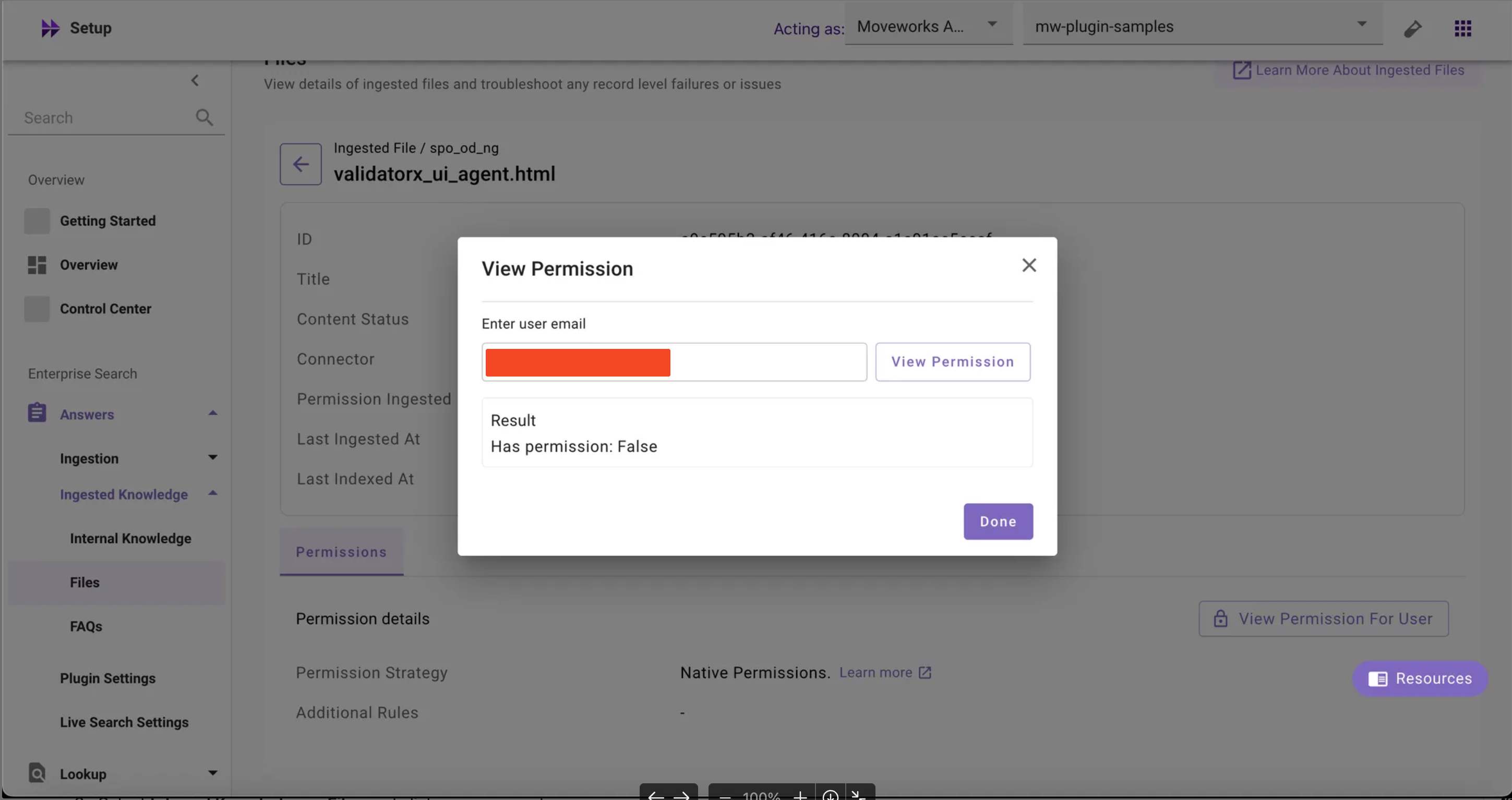
The Permission Checker tool is a new feature inside MW Setup that allows customer admins and partners to verify whether a specific user has access to specific knowledge base articles or files by entering the user’s email address. If the user has permissions, the result displays Has permission: True, otherwise Has permission: False.
The permission details section displays the following details:
- Permission Strategy: Shows the permission strategy configured in Core Platform > Resource Permissions > Permission Rules page > Strategy Config
- If the ReBAC is selected, it displays
Native Permissions - If ABAC/Public to all members of the organization is selected, it displays
Moveworks Enforced Permissions
- If the ReBAC is selected, it displays
- Additional Rules: ****Shows the DSL rules configured in Core Platform > Resource Permissions > Permission Rules page > Additional Restrictions (ReBAC only)
Troubleshooting Use Cases for Permission Checker Tool:
- A user complains that they cannot find specific documents or KB articles in their search results, even though they should have access
- After updating access controls, group memberships, or permission rules, you need to confirm that changes took effect correctly
- Need to verify that new employees/UAT users can access required knowledge base content
- After a configuration change, need to validate that content permissions are functioning correctly
How to Access and Use the Permission Checker in MW Setup?
To verify if a user has access to a specific KB article or file:
- Navigate to MW Setup > Enterprise Search > Answers > Ingested Knowledge
- Select Internal Knowledge or Files and click on any record
- Check the permission details to review the permission strategy (Native Permissions or Moveworks Enforced Permissions) and any additional restrictions (if any)
- Click ‘View Permission For User’ → Enter user’s email → Click ‘View Permission’
- Review the results
- If the user has permission: the result will show
Has permission: True - If the user doesn’t have permission: the result will show
Has permission: False - In case of any errors such as invalid user or user not present in the system, a
'Not able to fetch permissions'error will be displayed
- If the user has permission: the result will show
Note: If permissions are not ingested, it’ll display a '0 Permission Ingested' error.
FAQs
- When content has both Native Permissions and Additional Restrictions configured, how is access determined?
- Permission Checker applies Additional Restrictions on top of Native Permissions using AND logic - both the native source permissions AND the additional DSL rules must allow access for the result to show “True.”
- I see “Native Permissions” as the permission strategy but ‘-’ in the Additional Rules - does this mean no restrictions are applied?
- Correct, if Additional Rules shows ”-” or is empty, only the source system’s native permissions are being used without any additional Moveworks-defined restrictions
- Does Permission Checker work for ServiceNow content even though ACL permissions aren’t displayed in the UI?
- Yes, Permission Checker can evaluate ServiceNow content permissions, but we do not support showing ACL ingestion yet
- Why does ServiceNow content show
"Permission Ingested: False"and display"0 Permission Ingested"errors?- This is a known limitation that will be resolved in the upcoming ServiceNow-specific enhancements
- After updating permissions in the external system, how long should I wait before testing with Permission Checker?
- Wait for your next scheduled ingestion cycle to complete - Permission Checker reflects permissions as of the last successful ingestion, not real-time source system changes
- Can I use Permission Checker to bulk test multiple users against the same document?
- No, Permission Checker supports individual user testing only