
How to Configure Salesforce Knowledge Ingestion using Generic Adapter
Note:
While the Generic Adapter is designed to ingest content from any non-listed system, the configuration steps and examples in this specific guide are tailored for Salesforce integration.
Please reach out to the Moveworks Support about leveraging the Adapter for other non-listed systems
Pre-Requisites
Please ensure the required Salesforce Connector has been created with the necessary permissions. Please refer the Salesforce Access Requirements Doc for details.
Please ensure the API credentials being used for connecting to Salesforce have access to the Knowledge API and necessary objects.
Configuration
Start by creating a new Ingestion under Answers > Ingestion > Internal Knowledge Settings
First, select the Connector created for the ingestion and then provide a name for the ingestion under Ingestion Name.
Then, choose a Domain. The domain is the functional areas of employee service that is most related to the knowledge being ingested for this configuration.
Setup Knowledge Bases in Advanced Mode
In the Advanced mode, in order to ingest knowledge articles from Salesforce Knowledge, we need to select the System as Generic Config.
The Generic Config allows us to ingest content from an API response. This is done by mapping the Response to the Moveworks Internal Attributes.
With this, we are able to call a start URL, fetch the content details and map it internally.
Start URL Configuration
Configure the Start URL to point to your Salesforce Knowledge Article API endpoint:
Define the Type of content which will be received from the URL. In this case, the Content type being returned is an KNOWLEDGE_URL_TYPE_ARTICLE_LIST which includes the knowledge articles.
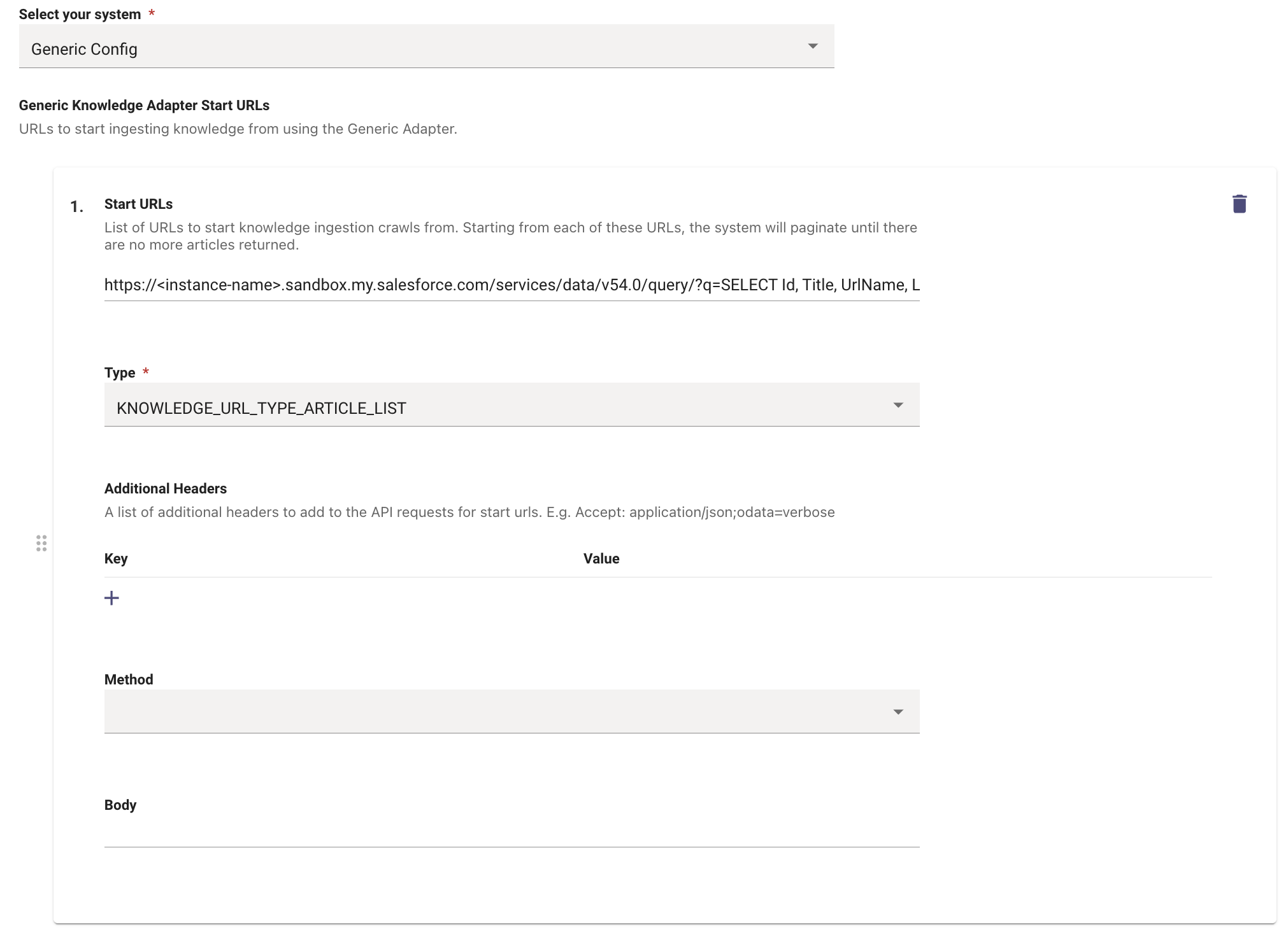
Now that we have configured the Start URL and the Type of Content Moveworks can expect, we now need to map the API response to the internal Moveworks Mapping Attributes in order to successfully process the content.
Response Mapper Configuration
Response Mapper for KNOWLEDGE_URL_TYPE_ARTICLE_LIST
Let’s start by mapping the KNOWLEDGE_URL_TYPE_ARTICLE_LIST. You would need to select this as the Type in Response Mapper.
This mapper handles pagination and extracts knowledge articles from the Salesforce response:
Explanation:
- The
knowledge_urlssection checks if there’s anextRecordsUrlin the response (indicating more pages of results) - If pagination exists, it constructs the next URL to fetch
- The
knowledge_articlessection extracts the actual article records from the response
Article Mapper Configuration
Once the Response Mapper has been configured, we need to define the final Article Mapper that transforms each Salesforce Knowledge Article into the Moveworks internal format:
Field Mapping Explanation:
- article_id: Maps to Salesforce’s
Idfield (unique identifier for the article version) - display_id: Maps to
ArticleNumber(user-friendly article number) - title: Maps to the
Titlefield - body: Maps to the
Summaryfield (or you can use custom fields likeDescription__c) - article_url: Constructs the Lightning Experience URL for the article
- article_hierarchies: Maps to
ArticleTypefor categorization - author_ids: Maps to
ArticleCreatedByIdfor author information - created_at/updated_at: Converts Salesforce timestamps to Moveworks format
Customizing for Your Salesforce Instance
You may need to customize the mappers based on your specific Salesforce configuration:
- Custom Fields: If you’re using custom fields in your Knowledge Articles (e.g.,
Custom_Body__c,Department__c), update the mapper accordingly:
- Multiple Languages: If you support multiple languages, adjust the SOQL query in the Start URL and add language mapping:
- Data Categories: If you use Salesforce Data Categories for organization, you can add them to
article_hierarchies:
Advanced Configuration: Filtering Articles
You can modify the Start URL SOQL query to filter which articles get ingested:
Filter by Article Type:
Filter by Date:
Filter by Custom Field:
Adding Permissions for the Salesforce Content
In order to serve ingested knowledge in the Assistant, we need to enable permissions for the Connector which is being used to ingest the Knowledge.
Navigate to Resource Permissions > Permissions Rules under the Core Platform module. Click on Create.
Here we need to define the following fields:
- Strategy Config: Public to all members of the organization
- Integration Id: Name of the connector for Salesforce
- Resource Type: kb
- Action: ACTION_VIEW
Validation
Once you have submitted the Knowledge ingestion configuration, it will kick off the Ingestion pipeline in the background. The status of the same can be tracked on the Ingested Knowledge View.
You can search for the Articles with their Titles here, and if they are listing on the Console, that means they have been ingested successfully.
Troubleshooting Common Issues
-
No Articles Ingested:
- Verify the Salesforce connector has proper API access
- Check that the SOQL query returns results when run directly in Salesforce
- Ensure the service account has “View All” permission on Knowledge Articles
-
Missing Fields:
- Verify all fields referenced in the Article Mapper exist in your Salesforce Knowledge Article object
- Check field-level security settings in Salesforce
-
Pagination Issues:
- Ensure the
nextRecordsUrlhandling in the Response Mapper is correct - Verify the base URL matches your Salesforce instance URL
- Ensure the
-
Permission Errors:
- Confirm the Resource Permission rule is properly configured
- Verify the Integration Id matches exactly with your connector name