---
title: Dropbox Content Access Requirements
excerpt: ''
deprecated: false
hidden: false
metadata:
title: ''
description: ''
robots: index
next:
description: ''
---
Moveworks' integration with Dropbox allows your Moveworks AI Assistant to fetch and index content from your Dropbox tenant, ensuring that users can search across documents where they have authorized view permissions.
## Prerequisites
* You must have Administrator Access in order to authorize the application on your Dropbox tenant.
* Access to an API Client like Postman to execute API calls.
# Access Setup
These instructions are based on OAuth2.0, the recommended mode of authentication that is used by Dropbox. Check out their [OAuth Guide](https://developers.dropbox.com/oauth-guide) to learn more.
## Create a service account
To authenticate with Dropbox, we use a service account created within your instance. Please create a service account (*eg:[svc-moveworks-dropbox@company.com](mailto:svc-moveworks-dropbox@company.com)*) and add this service account to all of the Folders in your Dropbox tenant from where you want Moveworks to ingest content.
## Implement OAuth
### Set up your App
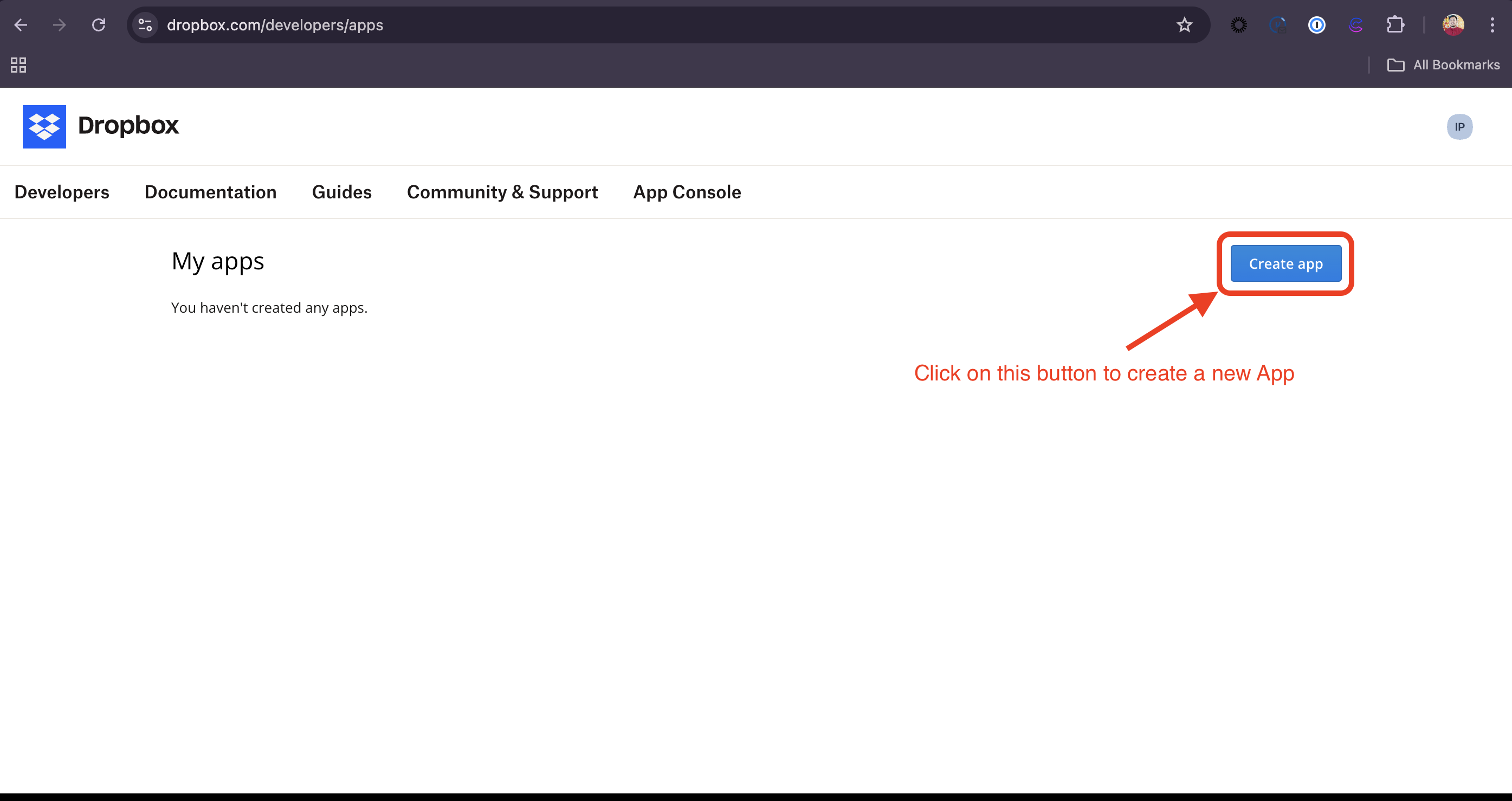
1. Register a new app with Dropbox by visiting the [App Console](https://www.dropbox.com/developers/apps).
2. Click on the **Create app** button.
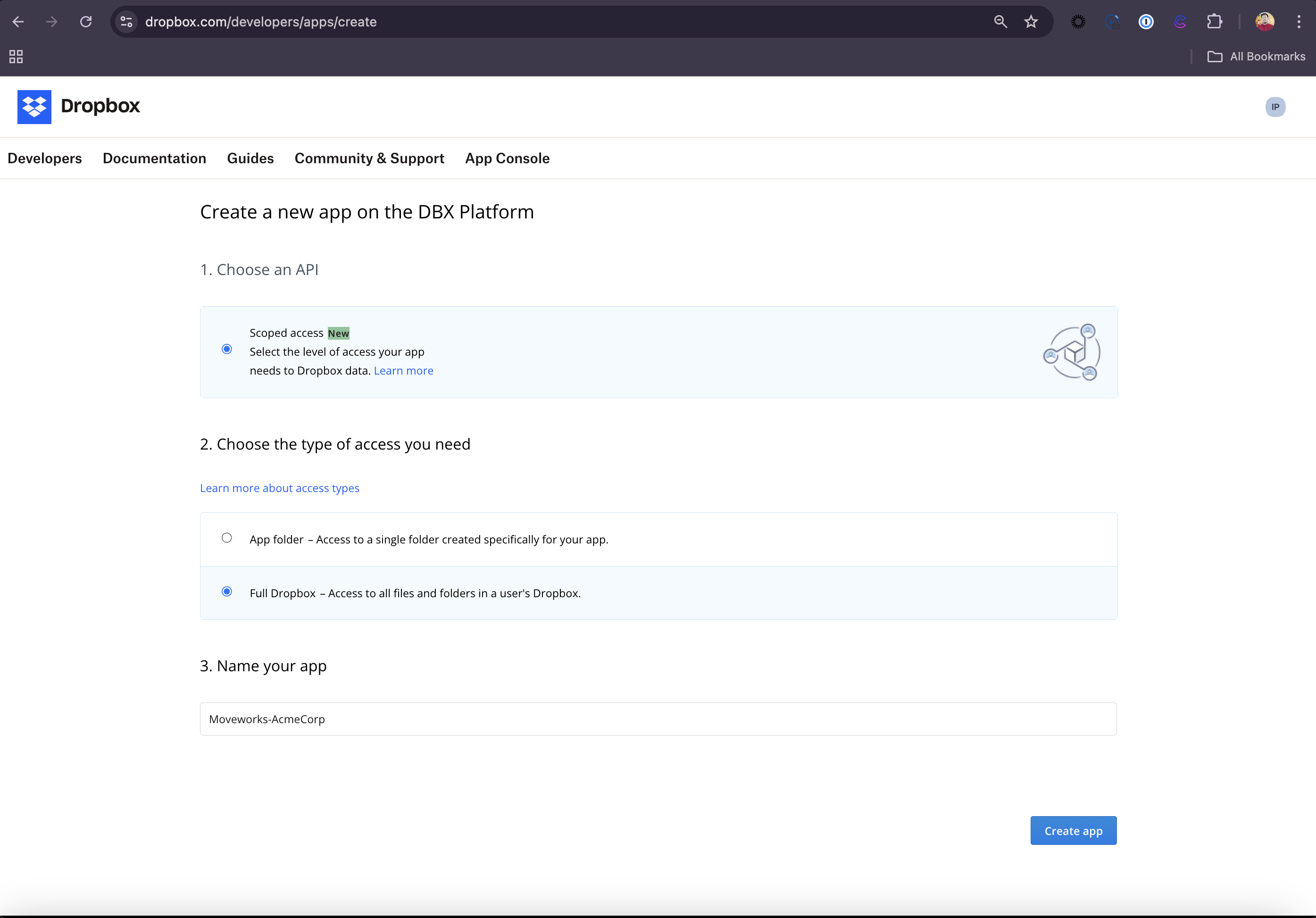
3. Select **Scoped access**, **Full Dropbox** access and provide a name to the App in the following format: `Moveworks-{CompanyName}`. Click on **Create app** to initialize your app.
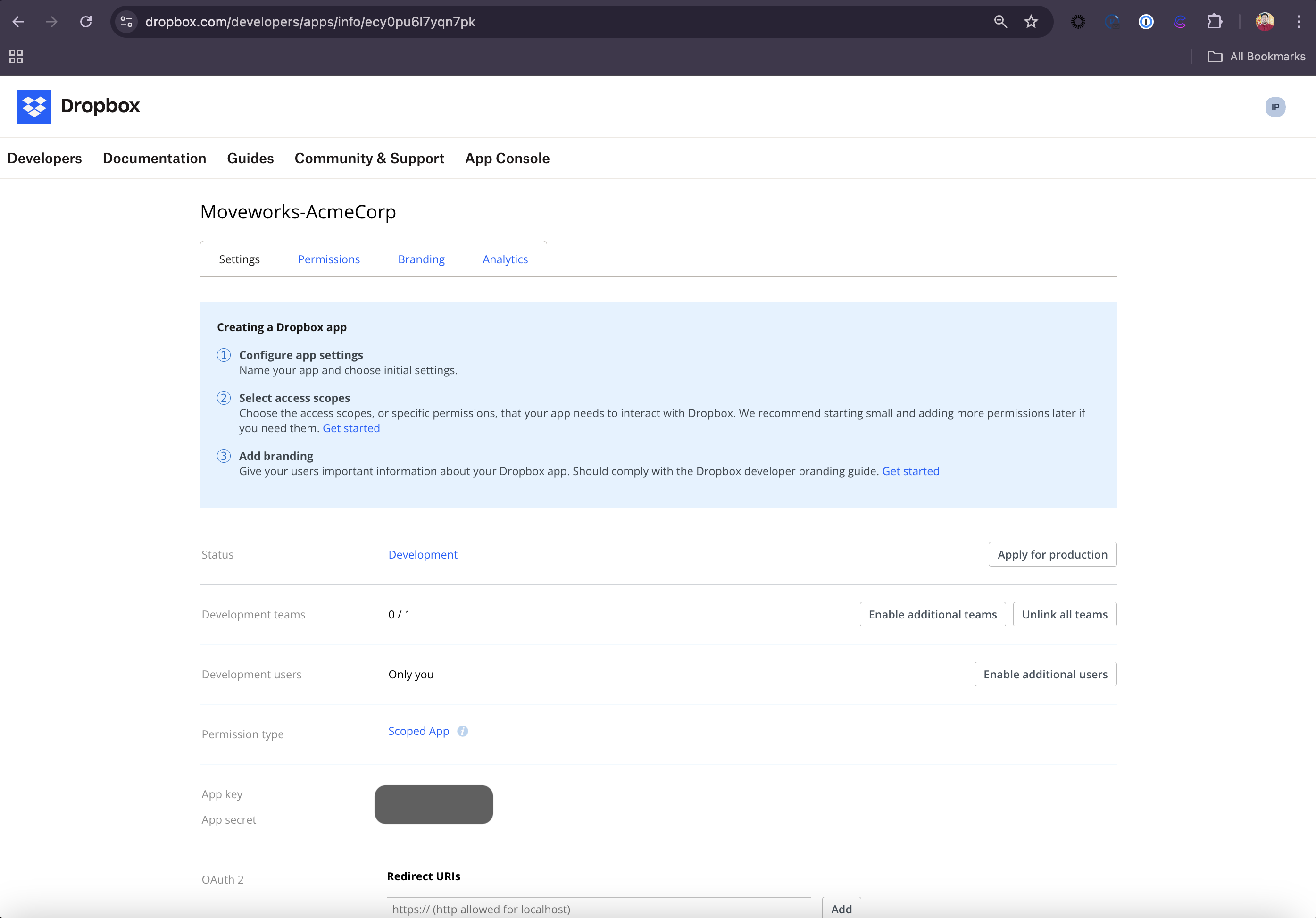
4. Now, the App has been created and you will be redirected to the App's **Settings** page.
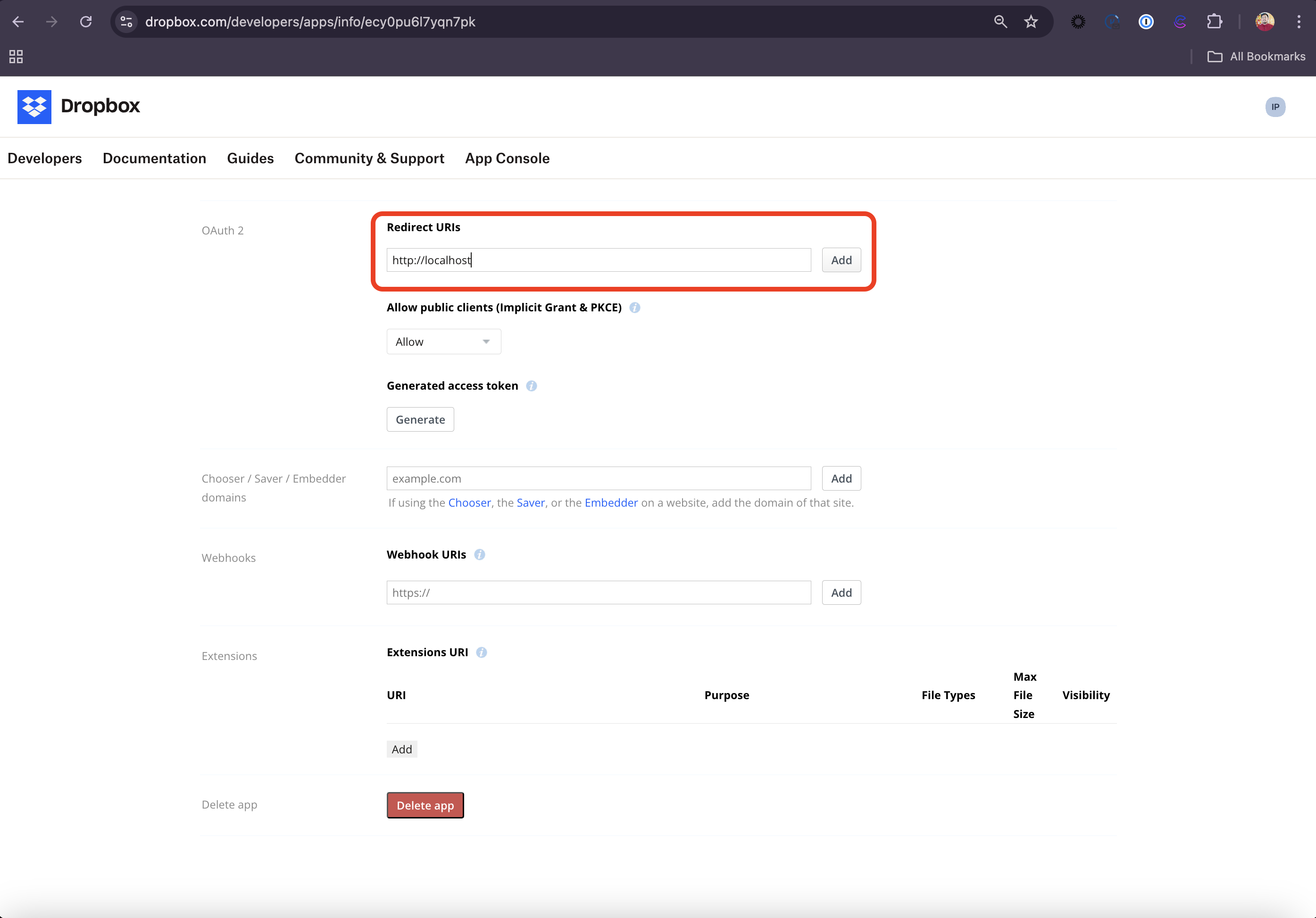
5. Navigate to the **OAuth 2** section in the Settings tab and set `http://localhost` as one of the **Redirect URIs**.
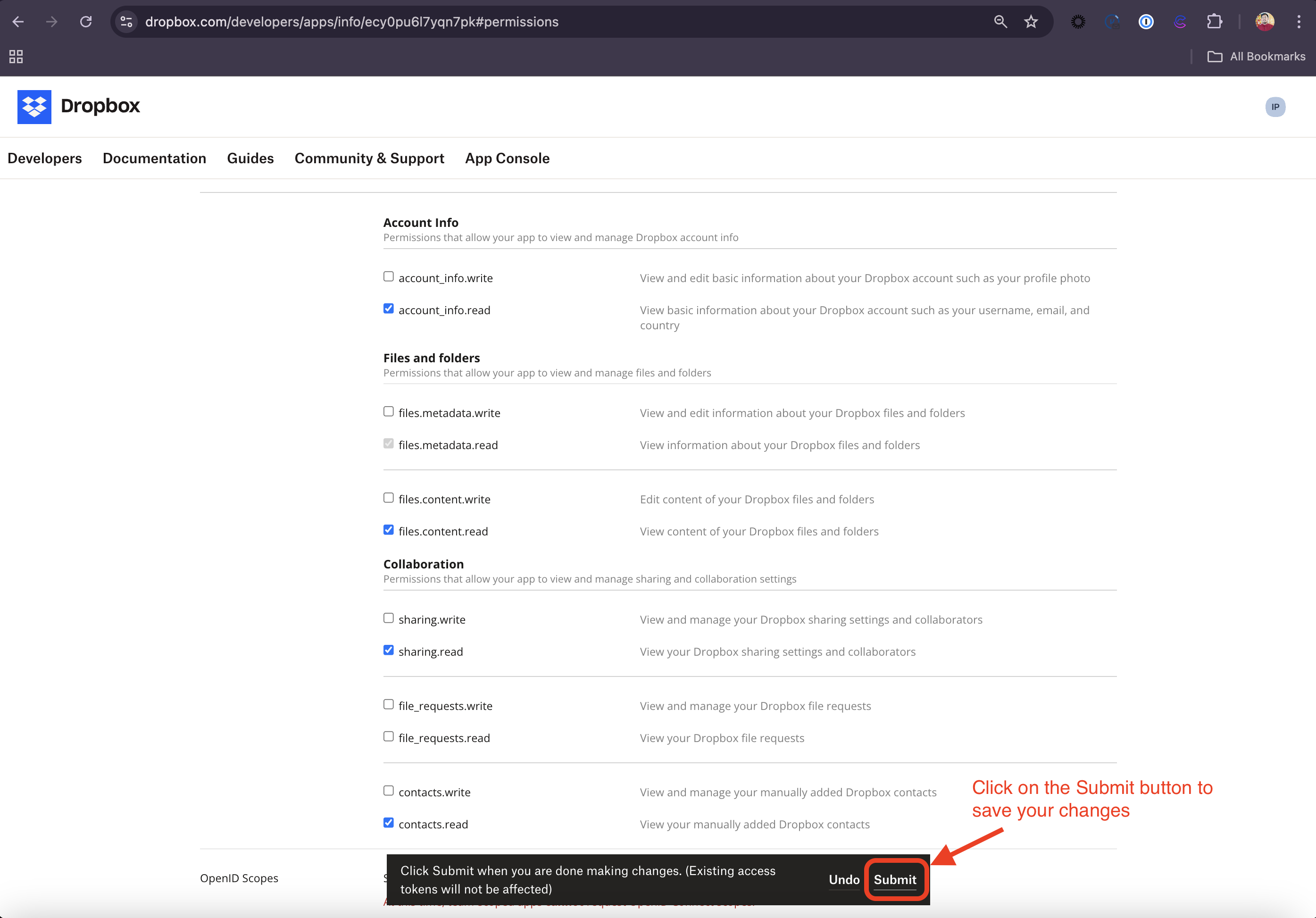
6. Head over to the **Permissions** tab and check the following scopes required for this integration:
| Scope | Description |
| :------------------------- | :----------------------------------------------------------------------------------------------------------------------------- |
| `account_info.read` | Required to view basic information about the service account, like username, email etc. |
| `files.metadata.read` | Required to view the information about your Dropbox files and folders |
| `files.content.read` | Required to view the content of your Dropbox files and folders |
| `sharing.read` | Required to view your Dropbox sharing settings and collaborators. This will help us in determining and respecting permissions. |
| `contacts.read` | Required to view your manually added Dropbox contacts. |
| `team_info.read` | Required to view basic information about your team including names, user count, and team settings |
| `team_data.member` | Required to view the structure of your team's and members' folders |
| `team_data.content.read` | Required to view the content of your team's files and folders |
| `files.team_metadata.read` | Required to view the information of your team's files and folders |
| `members.read` | Required to view your team membership |
| `groups.read` | Required to view your team group membership |
7. Click on **Submit** to make sure your **Permission** changes are saved
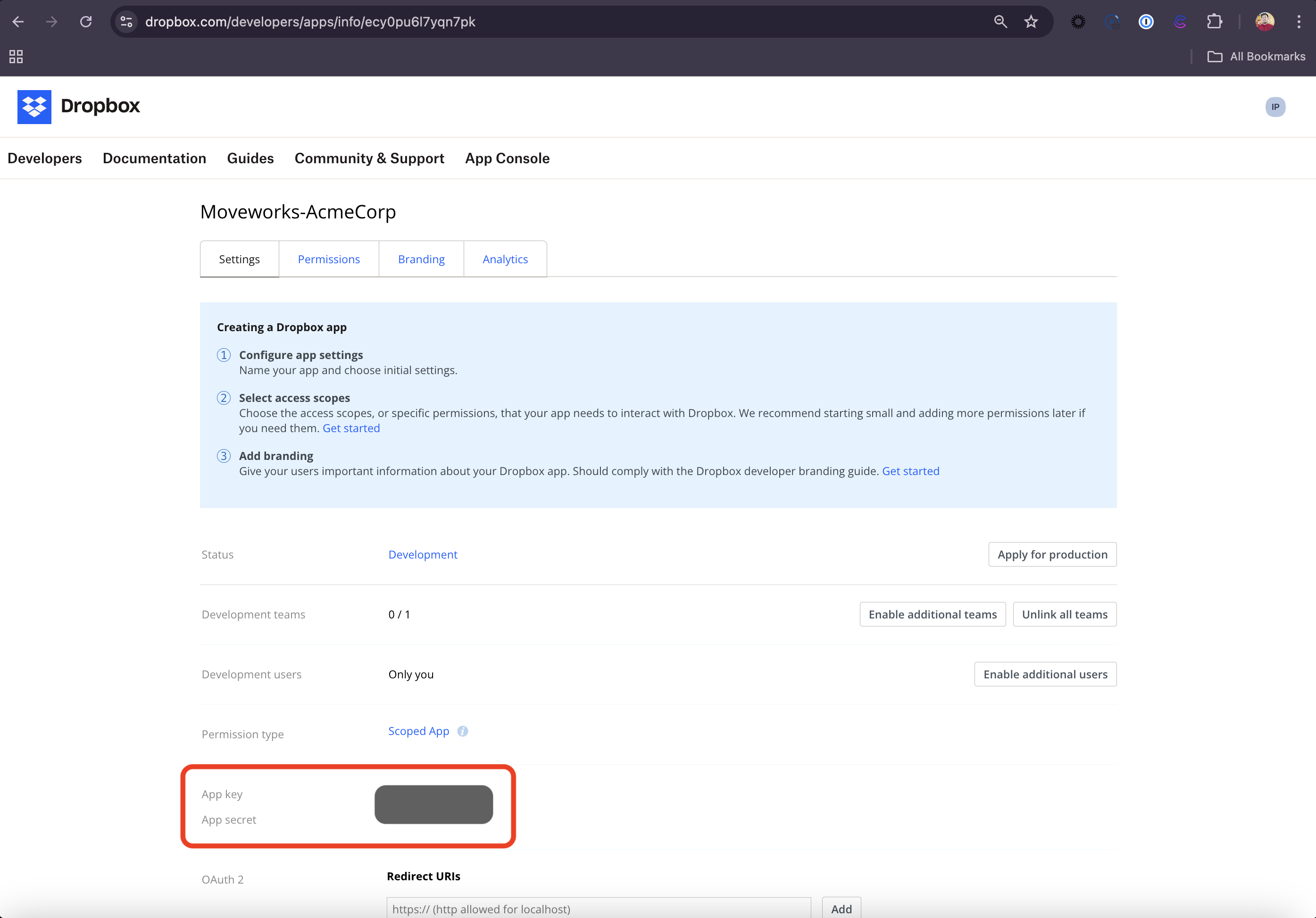
8. Go back to the **Settings** tab and check out the **App key** and **App secret**. Store these values in a safe storage since you will be needing this is the following steps to authenticate the APIs.
### Generate API Credentials
1. Replace the App key in the following URL with your App's App key and navigate to the URL in your preferred browser
1. `https://www.dropbox.com/oauth2/authorize?client_id=&redirect_uri=http://localhost&response_type=code&token_access_type=offline`
2. You must be a team administrator to authorize this app. Either login to a Dropbox for Business admin account, or contact an existing administrator for your team to authorize.
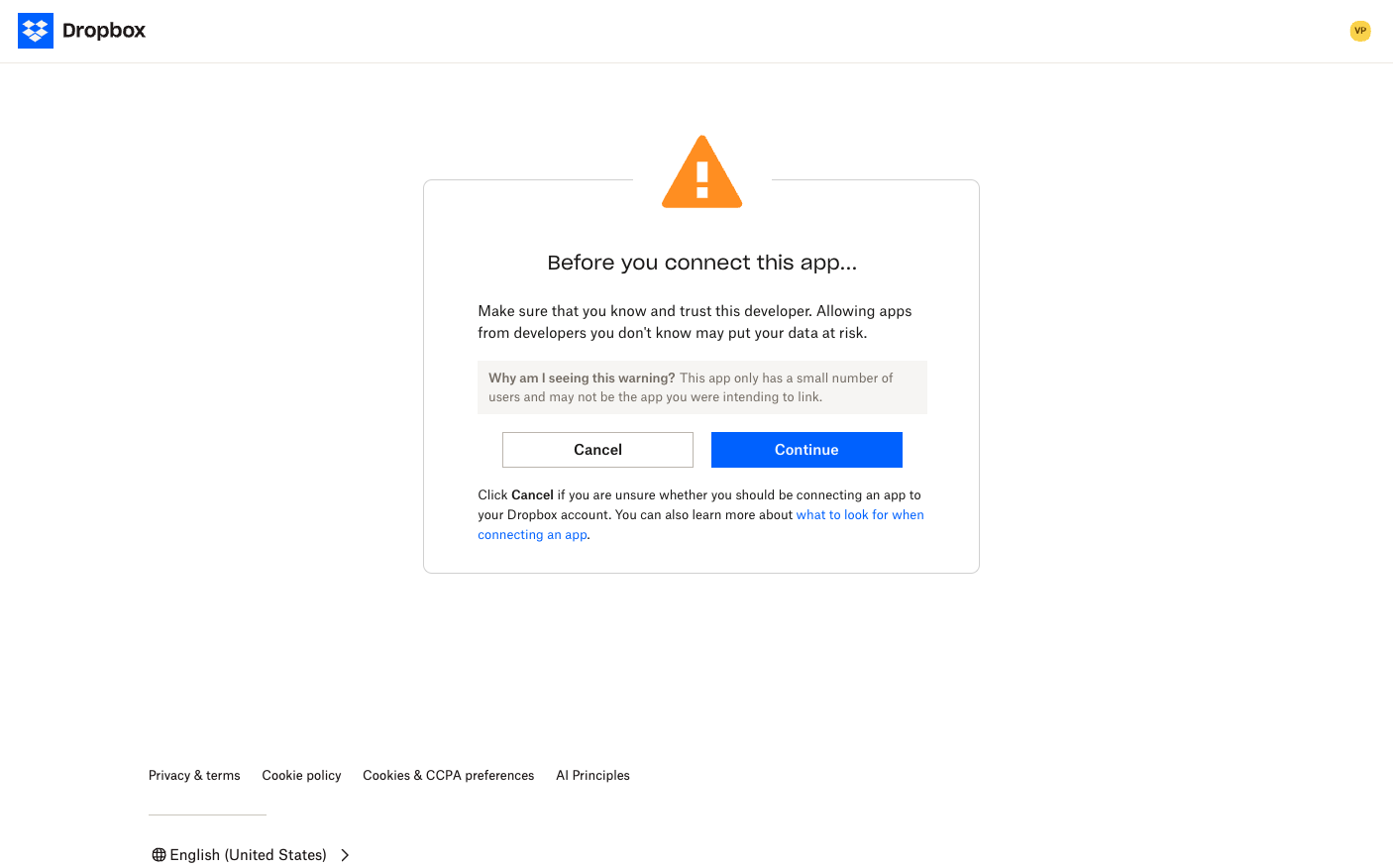
3. Once you login, you will see the following page. Click on **Continue**.
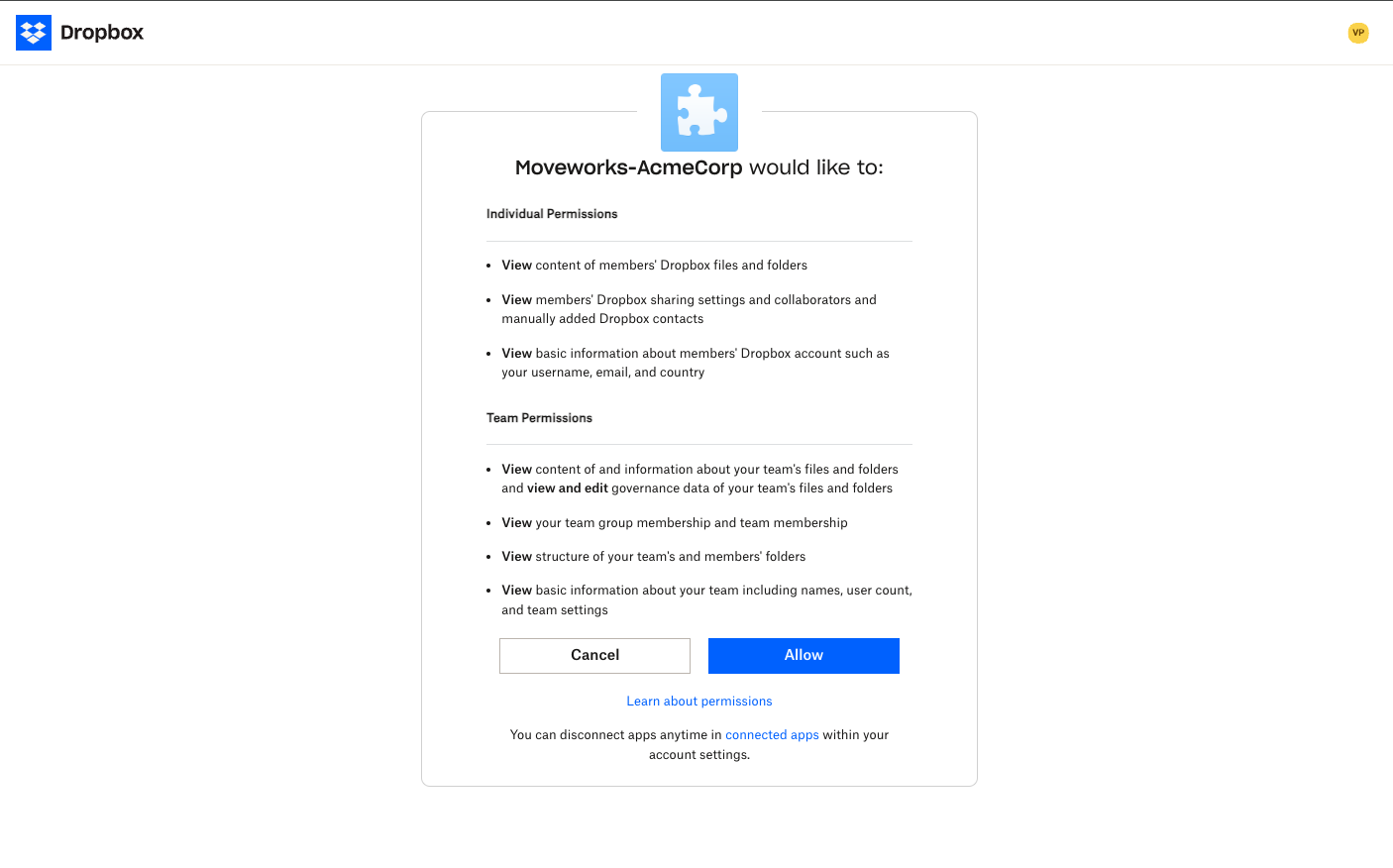
4. In the next page, review the permissions that the App will require to ingest Content and Permissions from your tenant and click on **Allow**.
5. You will be redirected to the localhost. In the URL section, you will see that the URL contains a code. This is your `authorization_code`.
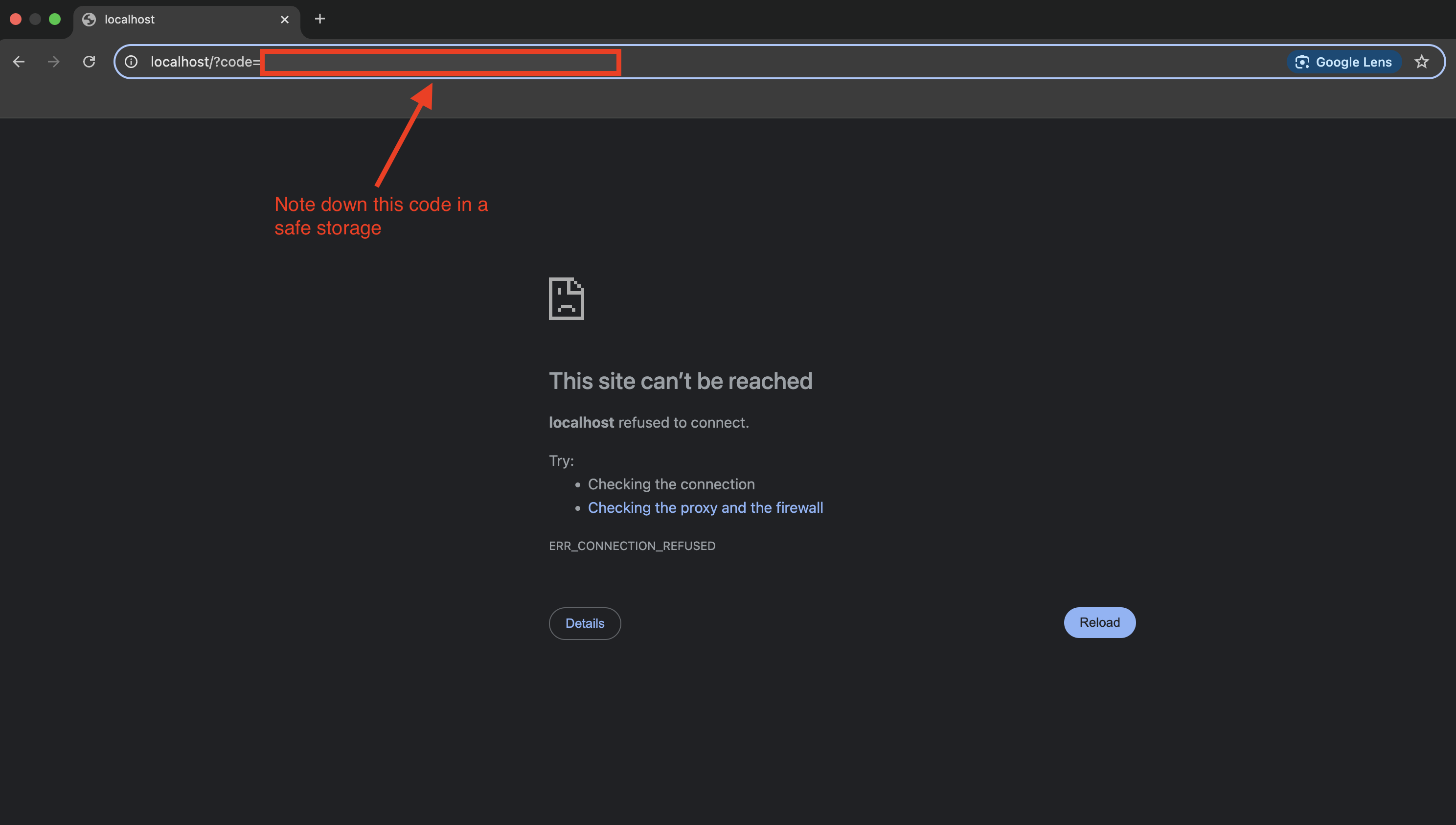
6. Use this `authorization_code` to hit the following API in Postman or any API Client. You will receive an `access_token` and a `refresh_token`. Note the `refresh_token` down. We will use this to configure the **Connector** in Moveworks Setup later.
```coffeescript bash
curl --location 'https://api.dropbox.com/oauth2/token' \
--header 'Content-Type: application/x-www-form-urlencoded' \
--data-urlencode 'grant_type=authorization_code' \
--data-urlencode 'code={{authorization_code}}' \
--data-urlencode 'client_id={{Dropbox_App_Key}}' \
--data-urlencode 'client_secret={{Dropbox_App_Secret}}' \
--data-urlencode 'redirect_uri=https://localhost'
```
7. Now, we have to use the generated `access_token` to hit the [/members/get\_info API](https://www.dropbox.com/developers/documentation/http/teams#team-members-get_info) to retrieve the **Account ID** and **Root Folder ID** of the [Service Account](/docs/dropbox-content-access-requirements#create-a-service-account) that we created above.
```coffeescript bash
curl --location 'https://api.dropboxapi.com/2/team/members/get_info_v2' \
--header 'Content-Type: application/json' \
--header 'Authorization: Bearer {{access_token}}' \
--data-raw '{
"members": [
{
".tag": "email",
"email": "{{email_id}}"
}
]
}'
```
Replace the `email_id` with the email ID of the service account. The API response would be of the following format:
```coffeescript JSON
{
"members_info": [
{
".tag": "member_info",
"profile": {
"team_member_id": "dbmid:...............",
"account_id": "dbid:.........................",
"email": "{{email_id of the service account}}",
"email_verified": true,
"secondary_emails": [],
"status": {
".tag": "active"
},
"name": {
"given_name": "..........",
"surname": "........",
"familiar_name": "...........",
"display_name": "...........",,
"abbreviated_name": "...........",
},
"membership_type": {
".tag": "full"
},
"joined_on": "2024-09-24T13:30:31Z",
"groups": [
"g:.............."
],
"member_folder_id": "...........",
"root_folder_id": "..........."
}
}
]
}
```
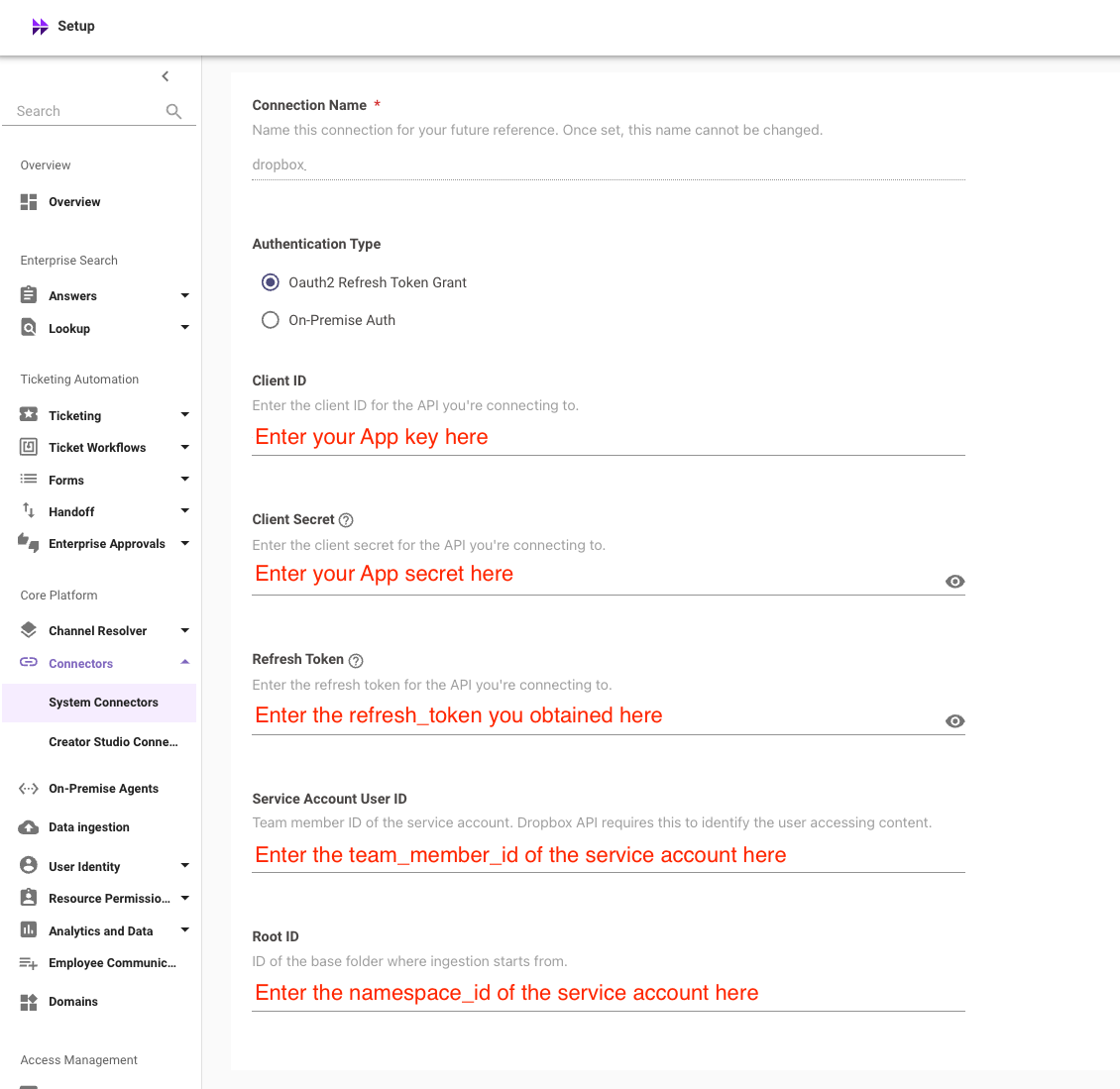
Note the `root_folder_id` and the `team_member_id`. We will use this to configure the **Connector** in Moveworks Setup in the next step.
## Configure the Connector in Moveworks Setup
Use the Connectors > System Connectors module in Moveworks Setup to create the connection between Moveworks and your Dropbox tenant.
Please follow the [connectors guide](/docs/moveworks-setup-connectors#how-to-create-a-connector) to add the credentials in Moveworks Setup.
1. Click on **CREATE NEW** to create a new connector and select **Dropbox** from the list of systems displayed.
2. Enter the name of the connection. (Eg: *Dropbox*)
3. Select **Oauth2 Refresh Token Grant** as the Authentication Type.
4. Enter your `App key`, `App secret`, `refresh_token`, `team_member_id` and `namespace_id` in the following manner.
5. Click on **Save** to complete the configuration.