---
title: Google Drive Access Requirements
excerpt: ''
deprecated: false
hidden: false
metadata:
title: ''
description: ''
robots: index
next:
description: >-
Next, follow the Gdrive file ingestion guide to configure user ingestion,
permissions, and file ingestion:
/docs/file-search-google-drive-setup-guide-service-account-with-custom-admin-role/
pages:
- slug: file-search-google-drive-configuration
title: File Search Google Drive Configuration
type: basic
---
**Note**: This document describes the option available to create a Service Account with Custom Admin privileges, dedicated for Moveworks to ingest your Google Drive files, users, and groups for permission-enforced File Search.
This guide outlines how to create a Service Account with Custom Admin privileges and is the recommended approach for Google Drive
Alternative Connector Options are supported but not recommended:
* [Google Drive Service Account With Domain Wide Delegation](/docs/file-search-google-drive-setup-guide-service-account-with-domain-wide-delegation)
* [Google Workspace User with Custom Admin Role ](/docs/file-search-google-drive-setup-guide-google-workspace-user-with-custom-admin-role)
# 1. Create Google Cloud Project and Grant Scopes to Moveworks Project
### 1. Create Google Cloud Project
1. Create a Google Cloud Project for Moveworks
1. Sign into [https://console.cloud.google.com/cloud-resource-manager](https://console.cloud.google.com/cloud-resource-manager) using an account with Google Workspace Super Admin privileges
2. Click **+Create Project**
3. Name the project Moveworks and select the top-level organization OU for your Google Workspace
4. Click **Create**
5. Once completed, click **Select Project** from Notifications or via Search
### 2) Grant SDK and API Scopes to Project
1. Turn on the Admin SDK and Google Drive APIs for your Google Cloud Project
1. From the top-left Navigation Menu, click **APIs & Services > Enabled APIs & Services**.
2. Click **+Enable APIs & Services**.
3. Search for each of the following APIs, and select **Enable**:
* **Admin SDK**
* **Google Drive API**
# 2) Create a Service Account and Save Service Account Key
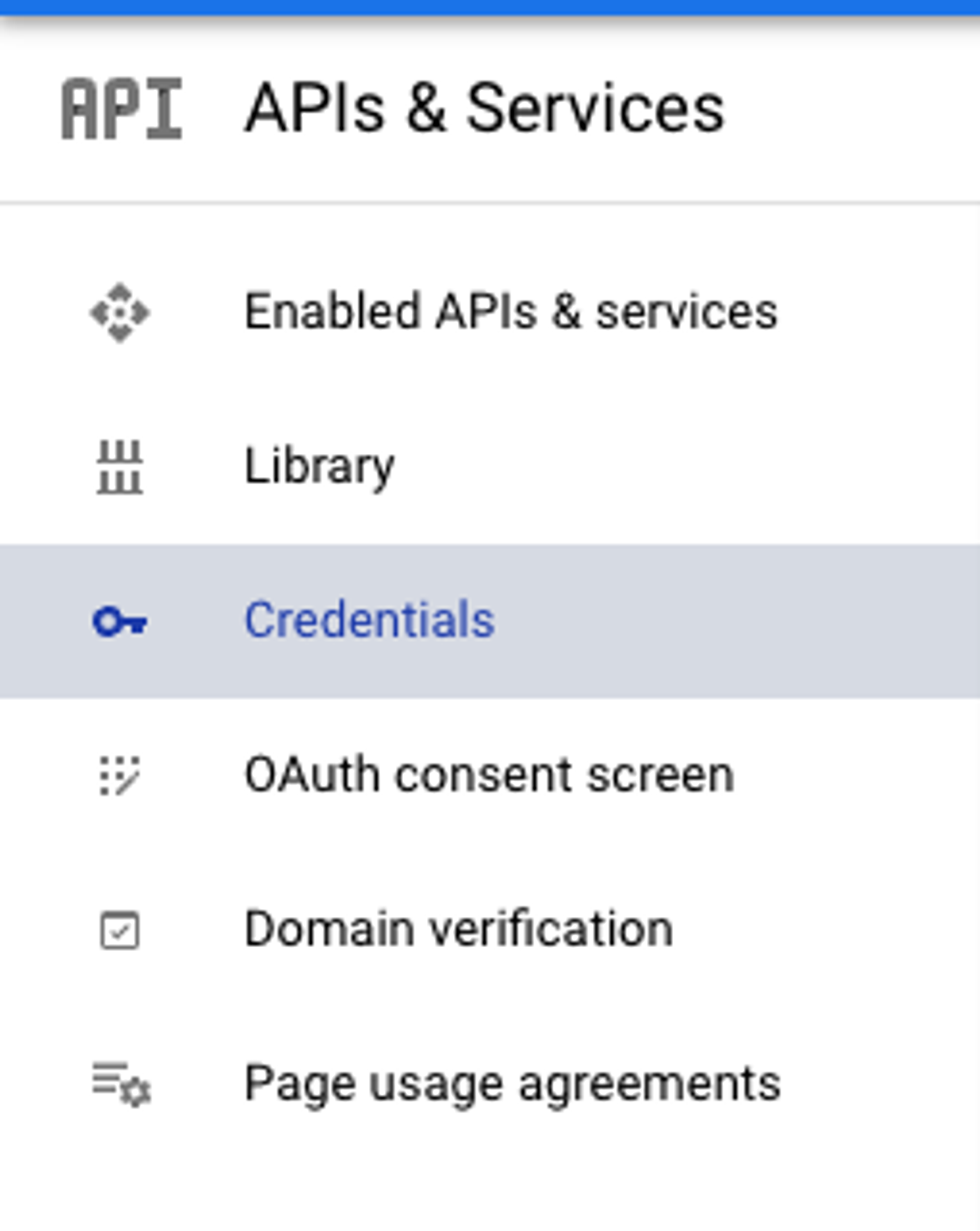
1. Navigate to **APIs & Services > Credentials**
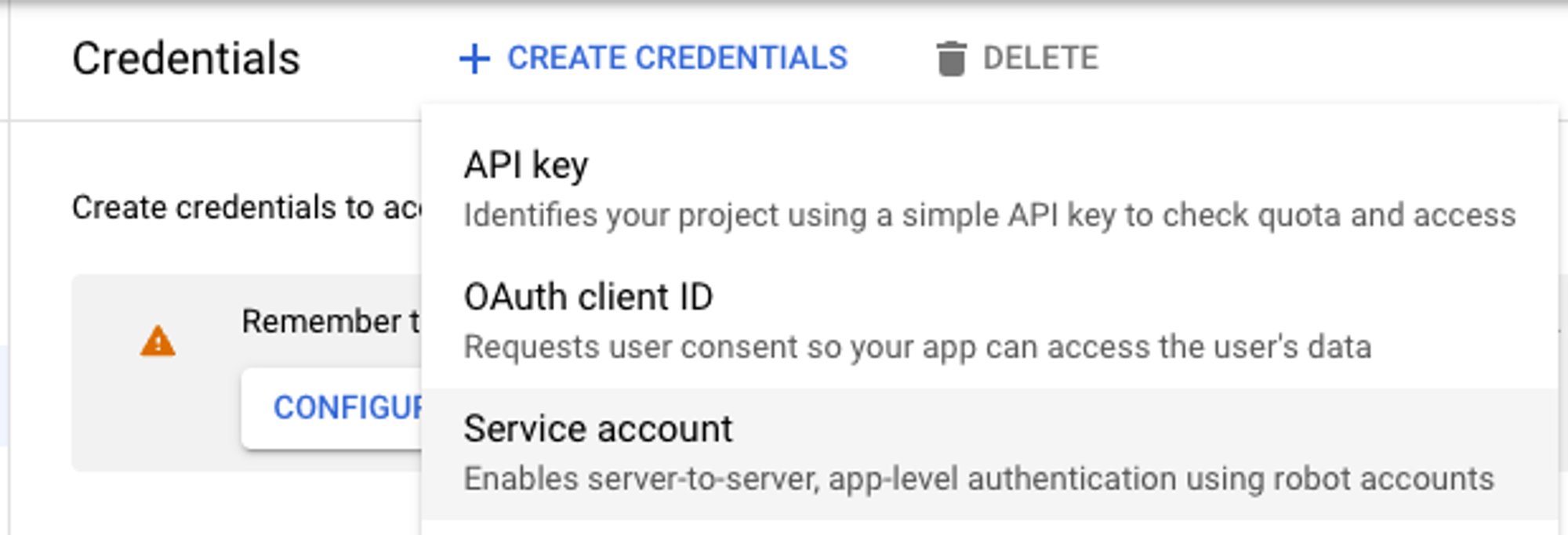
2. Select **Create Credentials > Service Account**
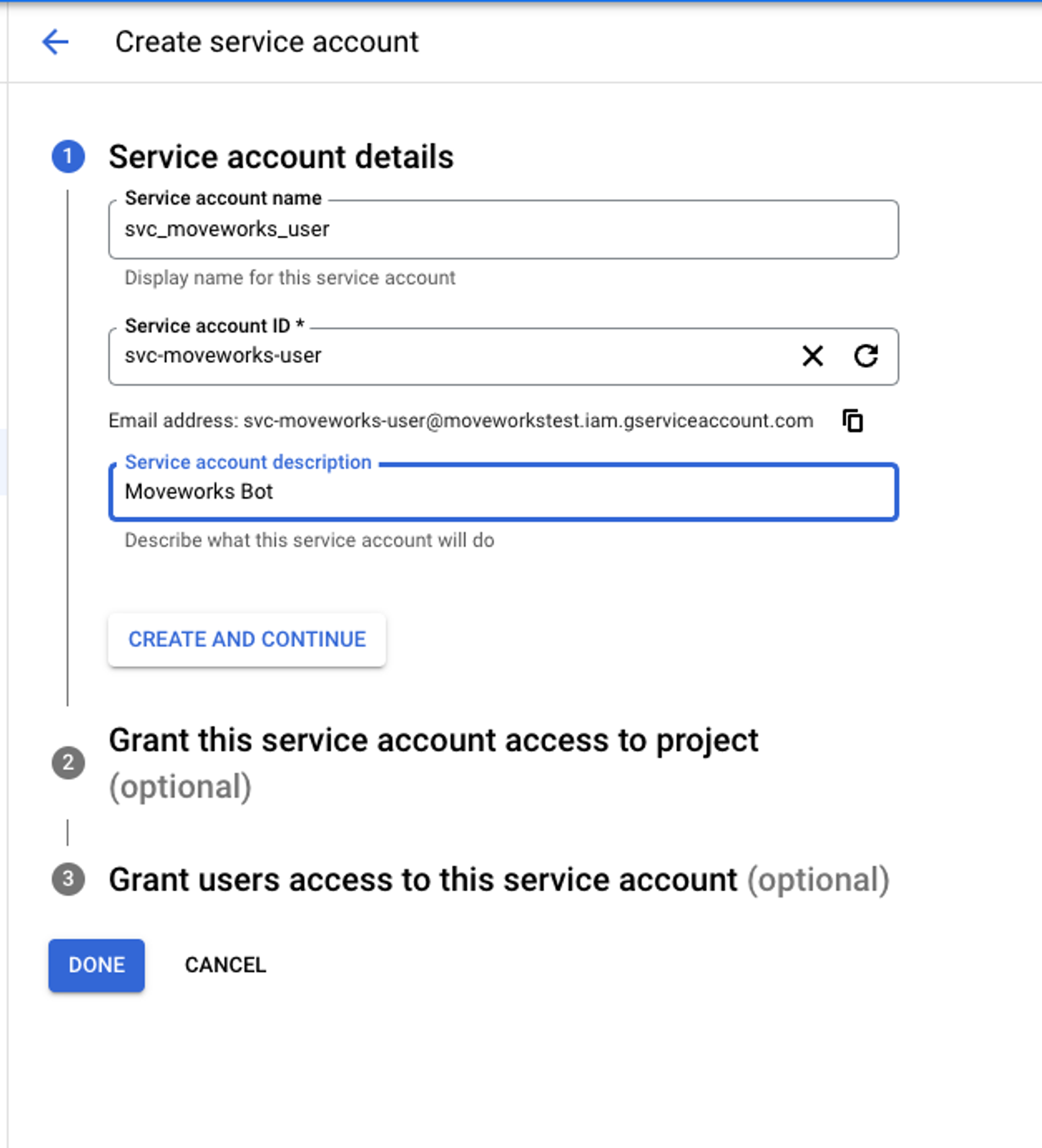
3. Create the Service account by adding the name, ID and description and select **Create and Continue** - _Note_: Granting access to a project or Granting users access to this service account is optional
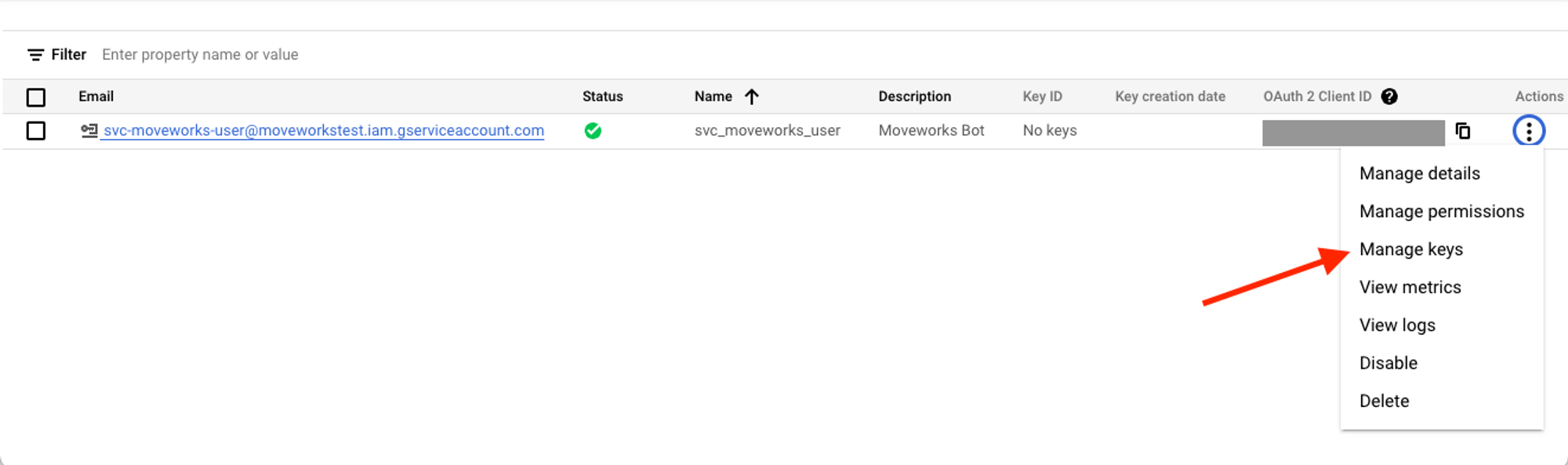
4. Click on **Actions > Manage keys**
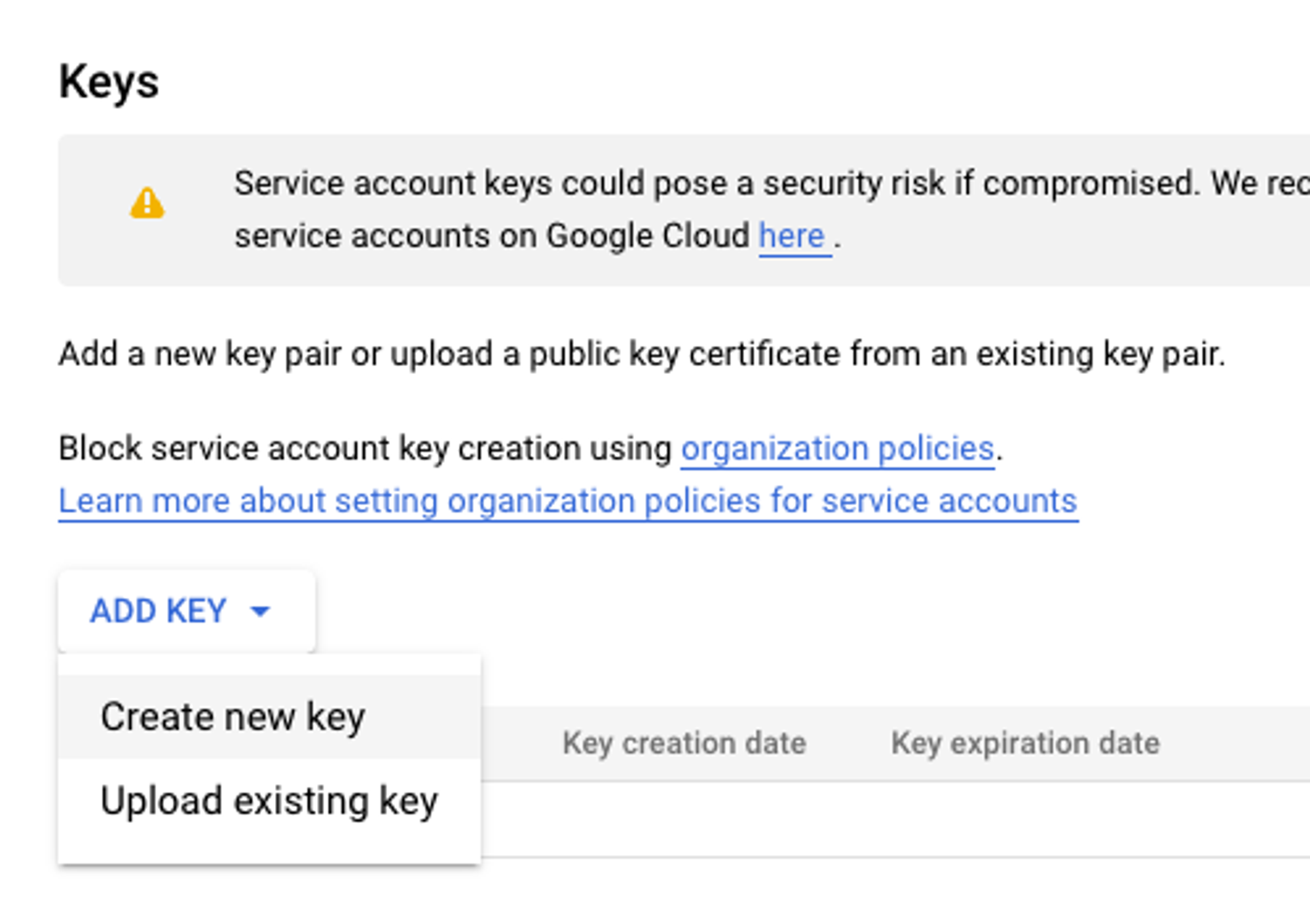
5. Select **Add Key > Create new key**
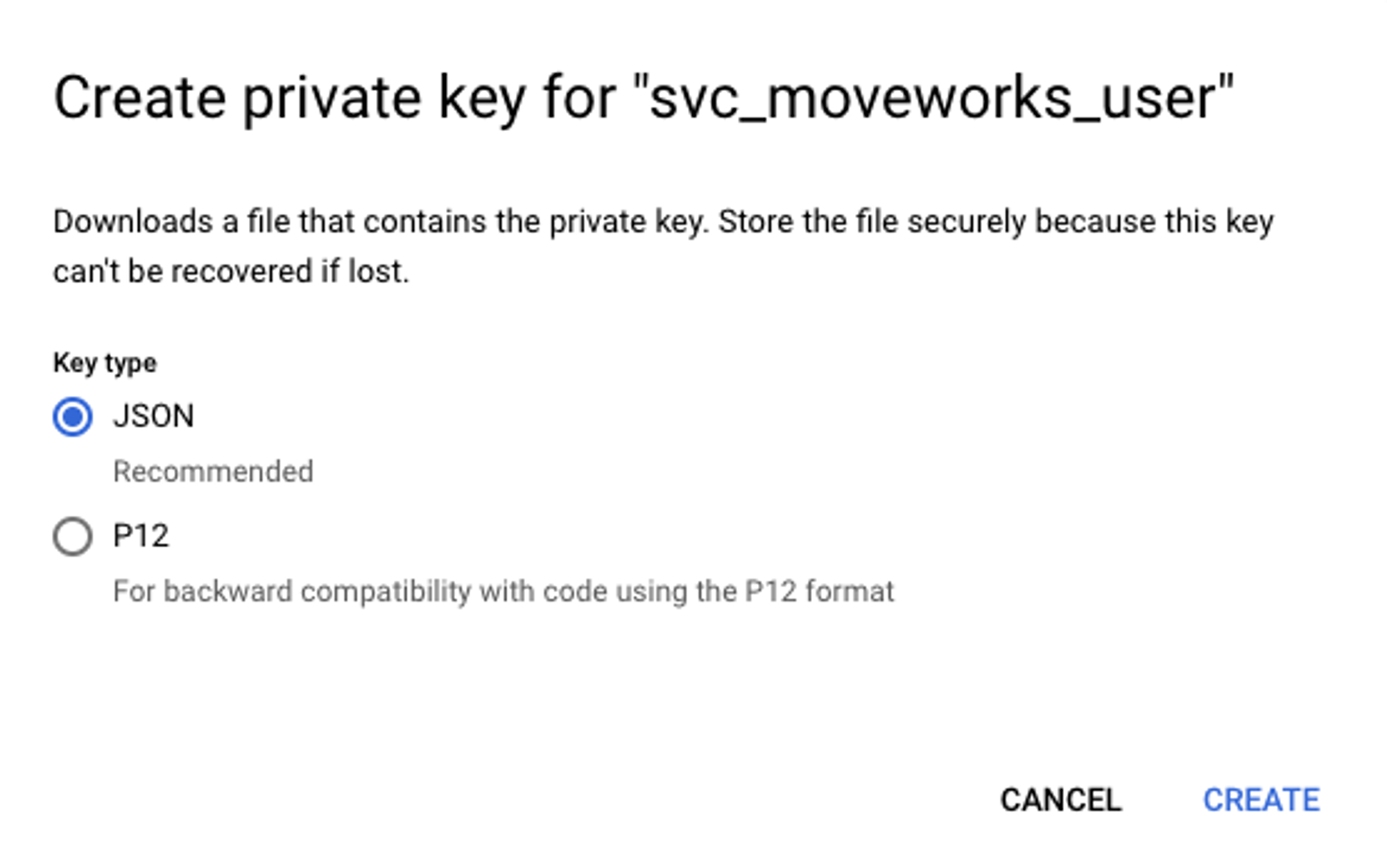
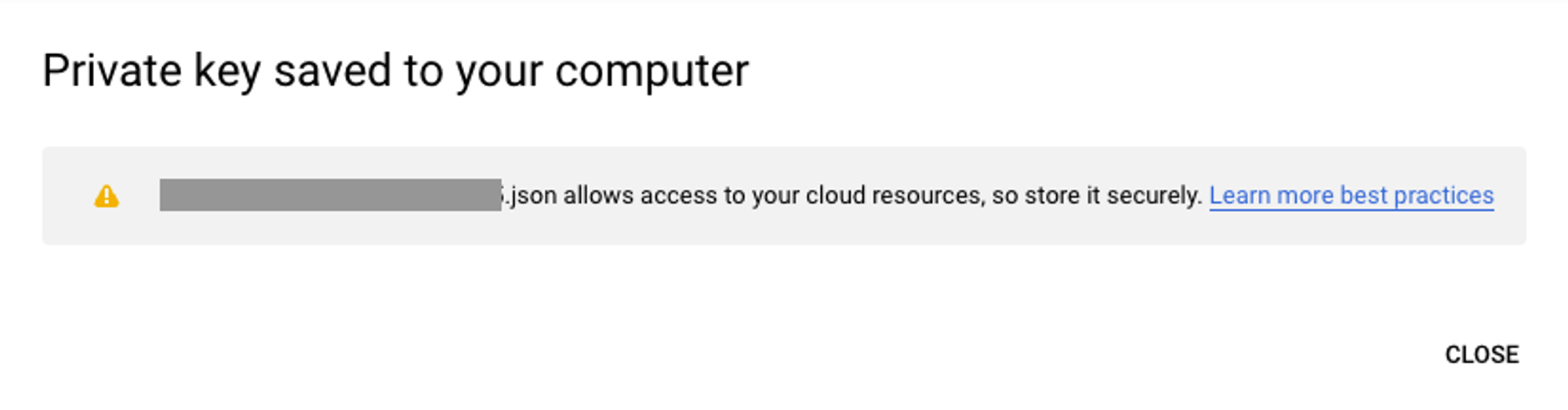
6. Select **JSON** as the **Key type** and click **Create**. You should see a notification that the service account JSON file has been downloaded and saved to your computer.
7. Save this **Service Account JSON Key**
**Get and Save Customer ID for your Google Workspace**
1. Follow the instructions here to grab the **Customer ID:**
1. Go to Admin Console, select **Account → Account Settings → Profile**
2. Save the **Customer ID**
3. Instructions here at: [https://support.google.com/a/answer/10070793?hl=en](https://support.google.com/a/answer/10070793?hl=en)
# 3) Create and Assign a Custom Admin Role for Reading Groups/Users
1. Create a Custom Admin Role, via these instructions [here from Google](https://support.google.com/a/answer/2406043?hl=en)
1. Navigate to Google Admin Console, and **create a new Admin Role**
2. Select the following **privileges** to assign to the Role
1. **Users → Read Users**
2. **Groups → Read Groups**
3. **Create the Role**
4. **Assign** the new custom admin role to the Service Account you created in **Step 2 Above,** by following [the steps here](https://support.google.com/a/answer/9807615?sjid=5929400915881778717-NC#zippy=%2Cassign-roles-to-one-user%2Cassign-a-role-to-a-service-account).
# 4) Share Desired Google Drive Folders with Service Account
1. In this step, make sure that each Google Drive Folder you wish to ingest as well as it's parent shared drive has been shared with the new Service Account with Custom Admin privileges that you have built in previous steps.
1. 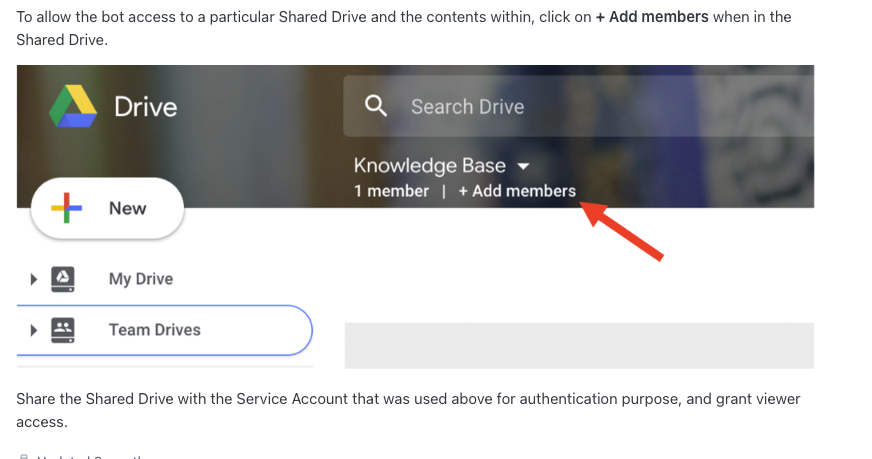
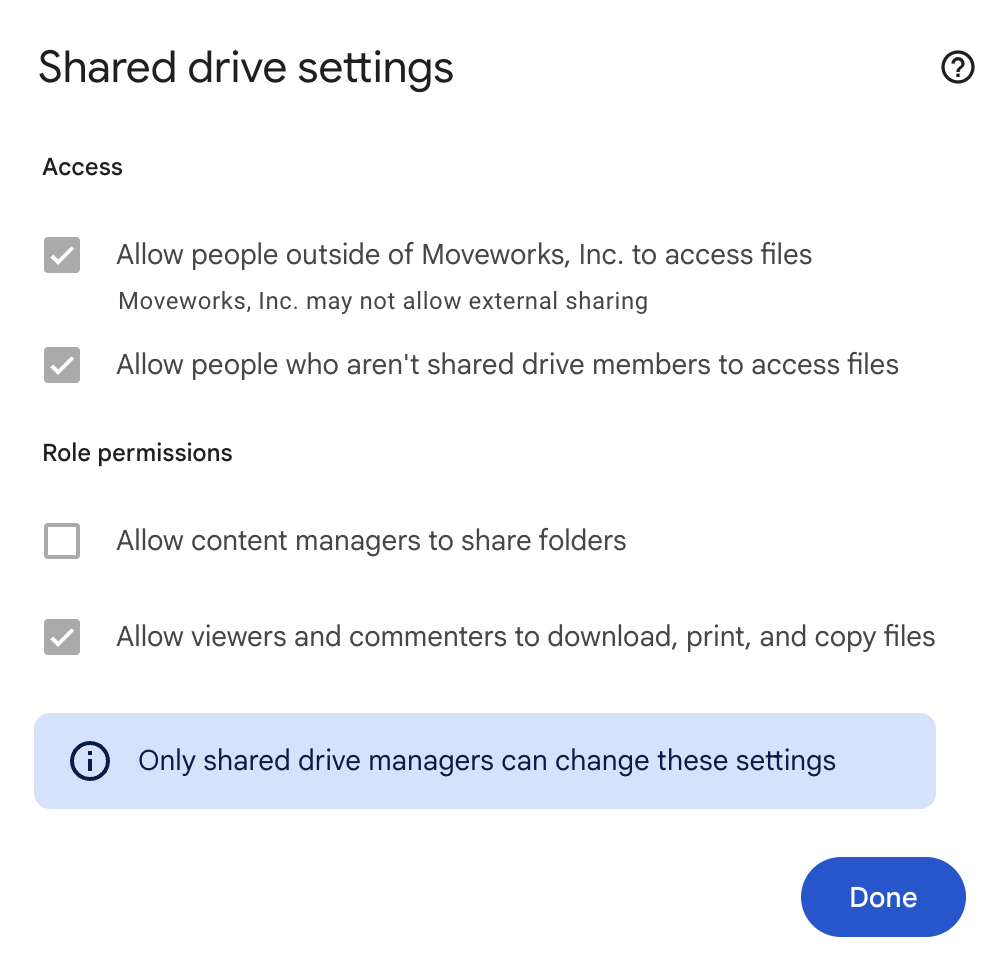
2. Add the Service Account as **Content Manager**. If your preference is to only grant **Viewer** access, please make sure that you have edited the following **Shared Drive setting**, allowing Viewers to download files:
# 5) Configure The Google Drive Connector in Moveworks Setup
1. Navigate to Moveworks Setup and click on "Built in connectors"
2. Create a new **Google Drive connector**
3. Select **Service Account Auth**
4. Open the **JSON Key** text file from **Step 2** and copy the content of the "private_key"
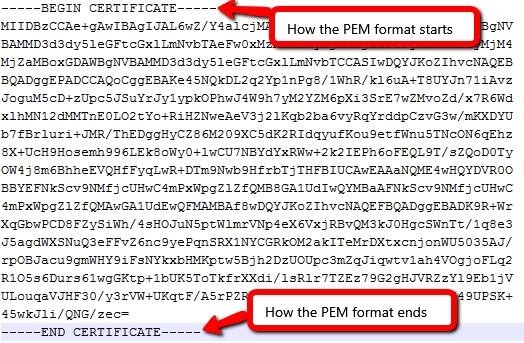
5. Open a new text file and paste the private key. Make sure new line characters, if applicable, are replaced with new lines. Once formatted correctly save the file as a .pem file type.
1. The formatting show look similar to the below:
6. Upload the .pem file from the previous step in the **Gdrive Service Account Auth Private Key** field.
7. Leave “Impersonated User” as blank, given there is no Domain Wide Delegation
###