---
title: ServiceNow Access Requirements
excerpt: ''
deprecated: false
hidden: false
metadata:
title: ''
description: ''
robots: index
next:
description: ''
---
The Moveworks bot will directly perform actions in ServiceNow to create, update, and query information about tickets, catalog items, and knowledge base articles.
## Prerequisites
> 📘 Note
>
> 1. Make sure you have the admin access since it’s necessary for creating a Service Account and an OAuth client application
> 2. [Install Postman](https://www.postman.com/downloads/)
## Actions taken in your ServiceNow instance (ITIL and Workflow)
The Moveworks service interacts with your ServiceNow platform so that the bot can:
* monitor tickets for autonomous resolution;
* reach out to an employee when a ServiceNow ticket needs the employee's attention;
* create tickets to log issues the bot has resolved autonomously;
* create tickets for issues that require an agent's attention;
* triage incoming tickets;
* load ServiceNow Catalog Items and knowledge base articles so that the bot can serve them to employees; and
* read the ServiceNow user table so that the bot can log and assign issues appropriately.
## Service account in Production Instance
To perform the actions listed above, Moveworks needs one account for the bot on your ServiceNow Production instance.
### What is this account used for
A dedicated **service account** in ServiceNow allows the Moveworks service to read and update tickets, and read users, Catalog Items, and KB articles. Create a service account dedicated to Moveworks and share the credentials of this account with your Moveworks Implementation team. This account must have the following permissions and settings.
### How to create a Service Account
**Step 1: Create a Service Account**
The steps below are for a local service account, but you may also use an account synced from your directory system.
1. Go to your **ServiceNow instance**; the URL of the instance should look like `https://dev{{instance_name}}.service-now.com`
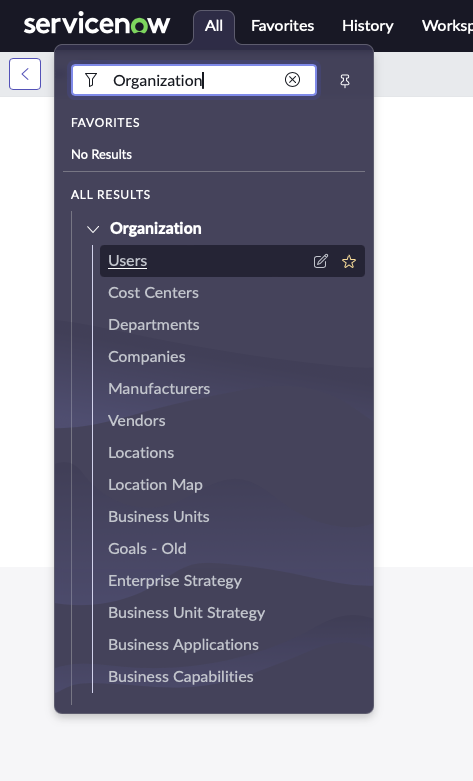
2. Click on **‘All’**, Search for **‘Organization’** in the search bar, and then Click on **‘Users’**
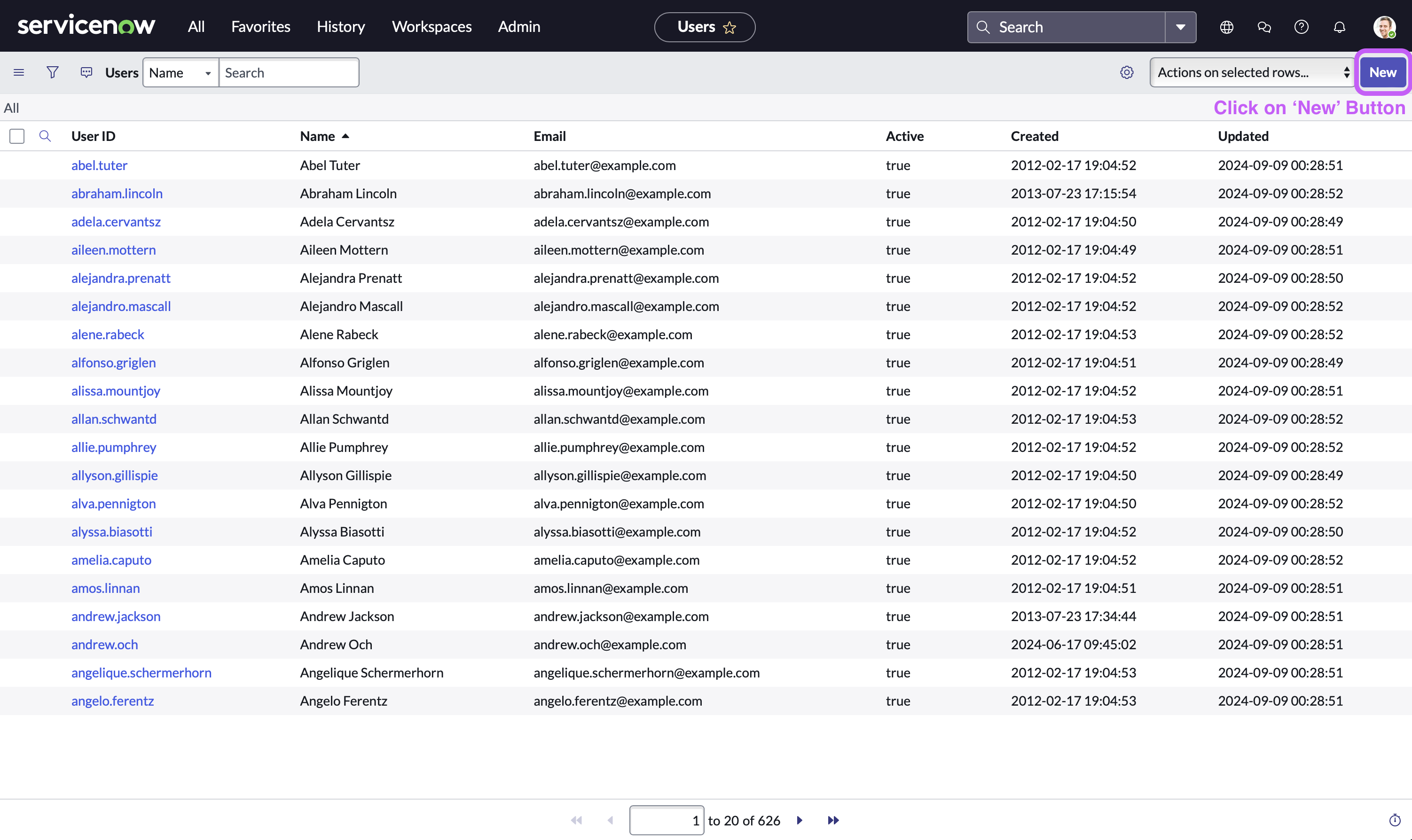
3. Now, in the user table view, Click on the **‘New’** button located at the top right side of navigation bar
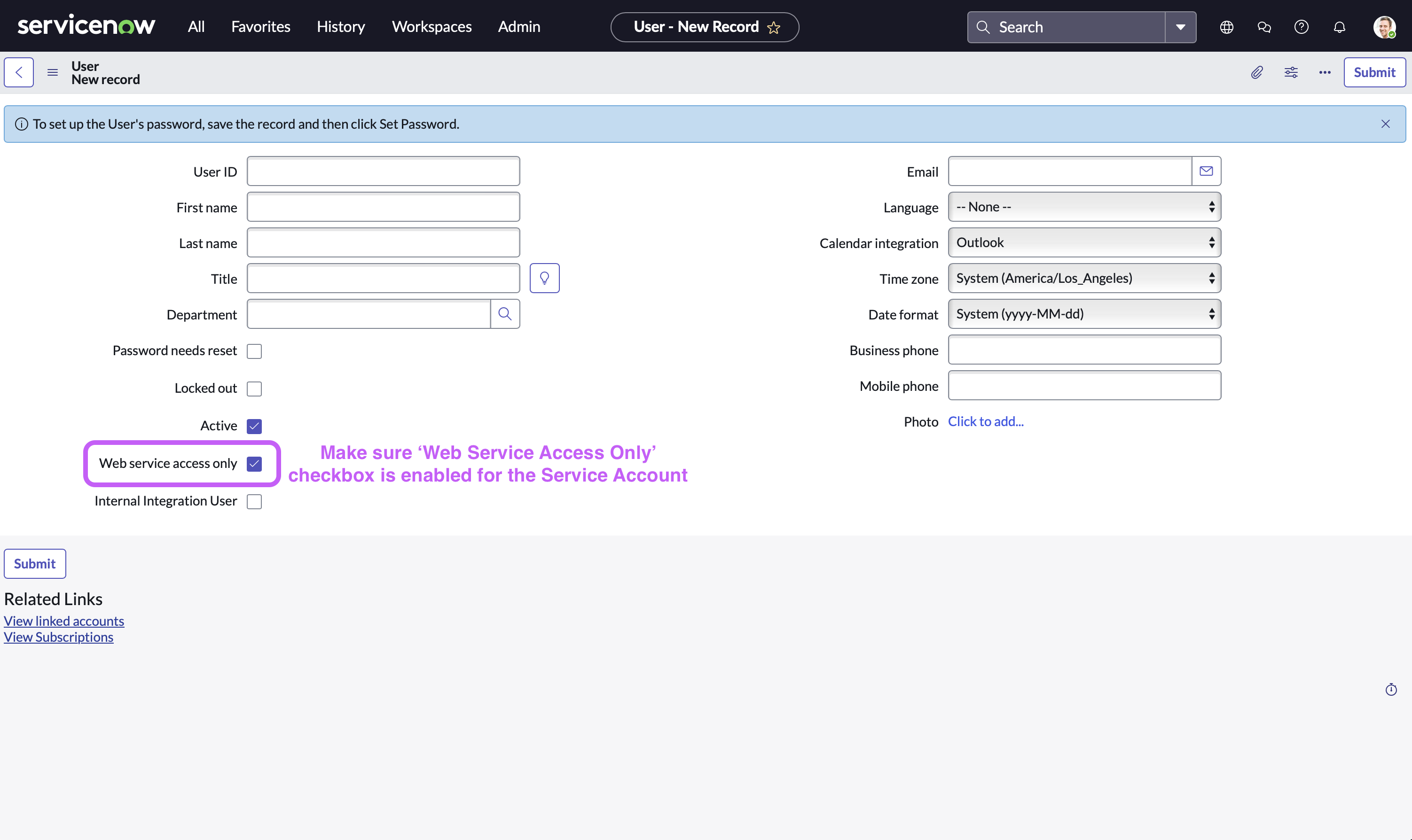
4. Fill in the service account details. Make sure that **‘Web Service Access Only’** checkbox is enabled
1. First Name/Last Name = `Your Moveworks bot name` (otherwise use `“Moveworks”`)
2. Time zone = `GMT`
Please ensure that both the **Display Value** and **Value** are set to **GMT**. If **Display Value** is set to _GMT_, but **Value** is set to _Greenwich/Universal_, then polling will fail. This can be verified on the _sys_choice_ table
3. Date format = `yyyy-MM-dd`
4. Email (Optional - required for OAuth2.0 with JWT) = `Service account email ID of your choice` (otherwise use `svc_snow_mw@your_org.com`)
5. Click on **‘Submit’**
**Step 2: Grant Permissions to Service Account**
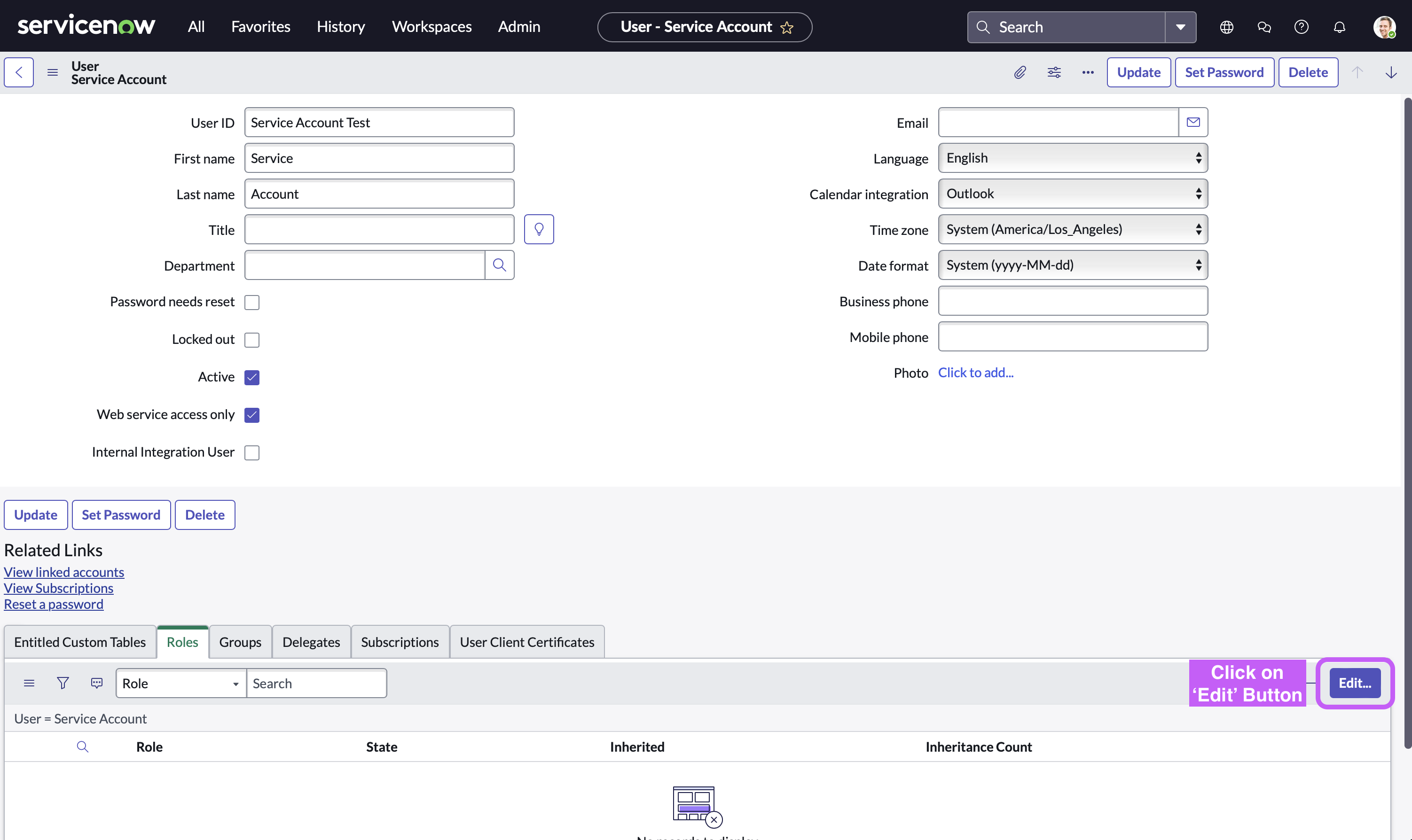
1. Click on **‘All’,** Search for **‘Organization’** in the search bar, and then Click on **‘Users’** (As shown in the previous step)
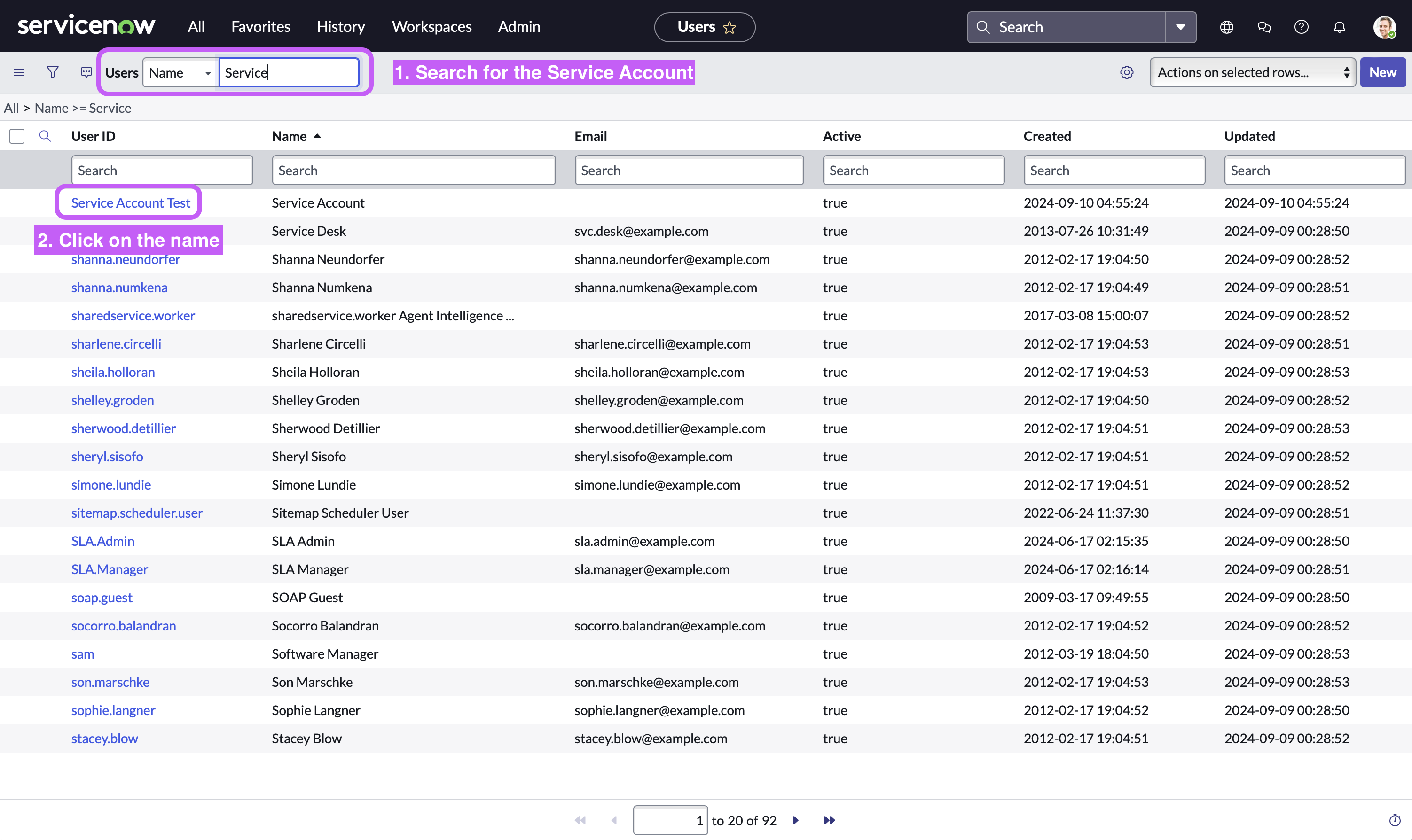
2. Now, in the user table view, Search for the Service Account you just created and then Click on it
3. Click on the **‘Edit’** button located at the bottom right side
4. Click on the **Permission**, Click on the **‘Right Arrow’** button to assign (**’Left Arrow’** button removes that permission), and then Click on **‘Save’** button.
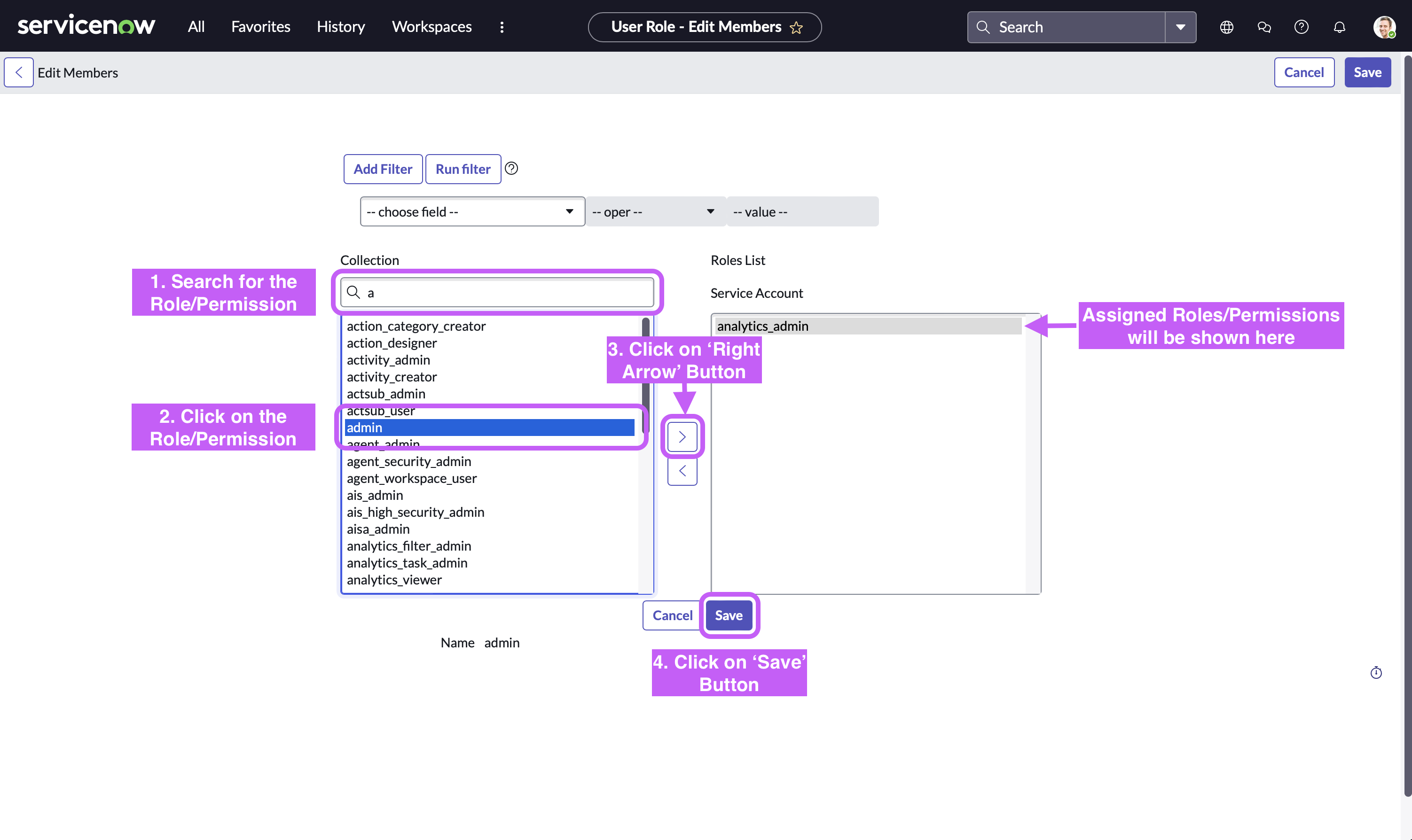
The next section provides recommendation on specific roles & permissions for the Moveworks Service Account.
### Service Account Requirements & Permissions
* **Account Timezone:** `GMT` time zone (no offset)
* **Account Date Format**: `YYYY-MM-DD`
* **Account Time Format**: `HH:mm:ss`or `hh:mm:ss a`
* **Roles/Permissions:**
* **Option 1:** Use ServiceNow Out of the Box/Standard roles
* _ITIL_ - Used for ticket CRUD operations (file ticket, add comment, close ticket, etc.)
* _Approval Admin -_ Used to read approvals, notify users on ServiceNow Approvals, and allow users to approve/deny approval
* _Flow Operator_ - Used to view flows, flow contexts and its logs
* _Catalog Admin_ - Used to read ServiceNow Catalog Items system definition and UI policies
* _Ui Policy Admin_ - Used to read ServiceNow Catalog Items system definition and UI policies
* _Personalize Dictionary_ - Used to read ServiceNow Catalog Items system definition and UI policies
* _interaction_agent_ - **Optional**: Used only for Message Brokering Live Agent Chat functionality
* **Option 2:** Use a custom role & Approval Admin role
* _Approval Admin_ Used to read approvals, notify users on ServiceNow Approvals, and allow users to approve/deny approval
* _Custom Role_ with access to the following tables:
* _Read/Write access:_
* **incident**
* **sc_request**
* **sc_req_item**
* **sc_task**
* **sys_journal_field** - used for comments
* **interaction** (if interaction tickets are used)
* **new_call** (if call tickets are used)
* _Read-Only access:_
* **sys_user** - used to import user sys_id to take action on their behalf
* **kb_knowledge** - used to import knowledge
* **kb_knowledge_block** - used to import knowledge
* **kb_template_how_to** - used to import knowledge
* **kb_template_kcs_article** - used to import knowledge
* **kb_template_faq** - used to import knowledge
* **kb_template_what_is** - used to import knowledge
* **kb_template_known_error_article** - used to import knowledge
* **sc_cat_item_content** - used to import knowledge
* **sys_user_group** - used for the bot to understand assignment groups
* **sys_choice** - used to understand choice options
* **sc_cat_item** - used to understand options that appear in choice lists
* **sc_cat_item_producer** - used to import record producers
* **sc_catalog** - used to import catalog items for Form Finding & skilling
* **sc_category** - used to understand Service portal structure and properly filter catalog items
* **sc_cat_item_category** - used to understand Service portal structure and properly filter catalog items
* **sc_cat_item_user_criteria_no_mtom** - used to understand who cannot access a given catalog item
* **catalog_ui_policy** - used to replicate the behavior of catalog item forms when presented to your users in Moveworks
* **catalog_ui_policy_action** - used to replicate the behavior of catalog item forms when presented to your users in Moveworks for in-bot form filling
* **catalog_script_client** - used to understand forms that have scripts associated with them for in-bot form filling qualification.
* **sys_ui_policy** - used to replicate simple UI policies for for in-bot form filling
* **sys_dictionary**- used to get display values for column drop downs for in-bot form filling
* **question_choice**- used to pull a question and its choices for in-bot form filling
* **item_option_new**- used to understand variable and variable set definition of a form for in-bot form filling
* **item_option_new_set**- used to understand variable and variable set definition of a form for in-bot form filling
* **sc_item_produced_record** - used to understand which tickets were submitted by a form.
* **sys_script_include** - used to understand script definition to recommend alternative approaches
Along with the core needs mentioned above, provide the Moveworks service account read access for all tables used in reference field types in catalog items (Reference, Lookup Select Box, List Collector, Lookup Multiple Choice, Select Box).
**Note: It is recommended to create a user criteria for the service account that gets assigned to all catalog items.** Moveworks will be able to respect user criteria for individuals using the bot, so they can only see resources that they have access to in the service portal. See [below](/docs/servicenow-access-requirements#installing-update-sets) for more information.
## Install Update Sets
The Moveworks Assistant can respect user criteria for knowledge articles and catalog items present on the ServiceNow end.
* In order to learn what these update sets do, you can read through the Document [here](/docs/update-set-modules).
* [Click here](/docs/servicenow-update-sets) to download and install the Moveworks ServiceNow update sets.
To set this up, please install the Moveworks update sets into your ServiceNow non-production and production instances.
After installing the update sets, a new role called `moveworks_user` is added to your instance. This role will need to be assigned to the Moveworks service account.
For more information on what the update sets contain, see [this document](/docs/update-set-modules).
**Note: In order for the bot to respect user criteria across all catalog items and knowledge articles, it is recommended to create a user criteria for the service account that gets assigned to all resources.**
## Service account in Non-Production Instance
A dedicated **service account** in ServiceNow will need to be created with the same permissions as for the Production service account in the closest clone of the Production instance. Typically this is a non-production Staging or Test instance. This Service account should be a clone of the account in production and have the same sys_id and same name. Ideally, the service account name should resemble the bot name.
**Please clone the following tables from your Production to the Non-Production instances to ensure accurate configuration and testing:**
* sc_cat_item
* kb_knowledge
### What is this account used for
This account is used when the bot is being configured during the IT Testing phase. After launch to all employees, this account is used for testing purposes. The Moveworks Team tests all changes in our platform using this account against the Test/Staging instance before they are deployed.
# Setting Up OAuth Access
## Setting up OAuth 2.0 with Password Grant
**Step 1: Register OAuth 2.0 API Client**
1. Create a service account user (username & password), and note down the credentials. Your instance name is the prefix of your URL: `https://{{instance_name}}.service-now.com`
2. Access your ServiceNow instance by navigating to the URL provided in the previous step
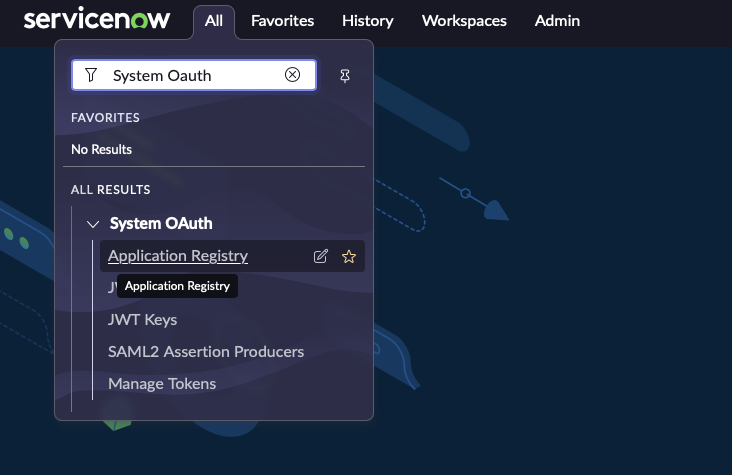
3. In the top left side of navigation bar, Click on **‘All’**, search for **‘System OAuth’** option in the search bar and then Click on **‘Application Registry’** under it
4. Now, in the top right side of navigation bar, Click on the **‘New’** button

5. Click on **‘Create an OAuth API endpoint for external clients’**
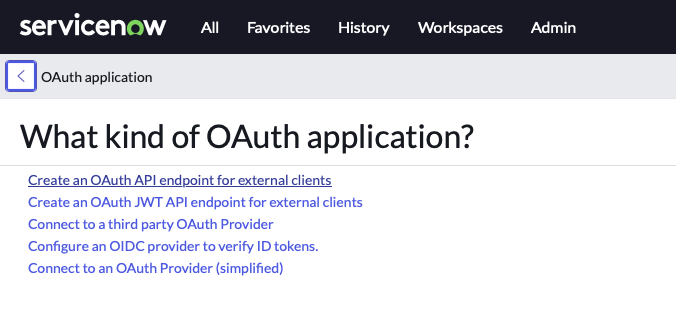
6. **Fill in the necessary details** and Click **‘Submit’**
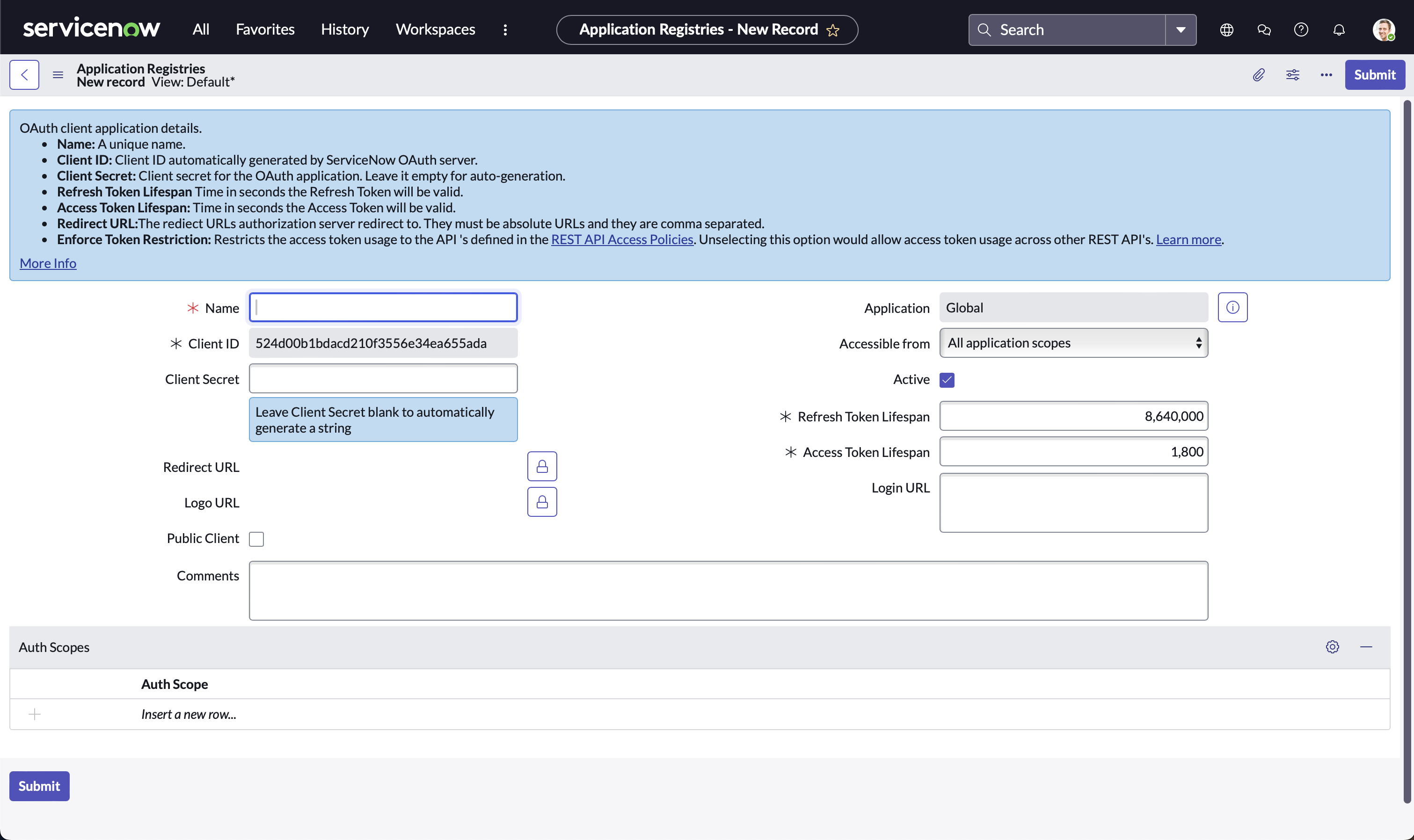
7. Note down **Client ID** and **Client Secret** for later use in **Step 3**
**Step 2: Test with Postman (or any other API client)**
Choose one of the following options to configure a request in Postman
1. Setup through a new HTTP request
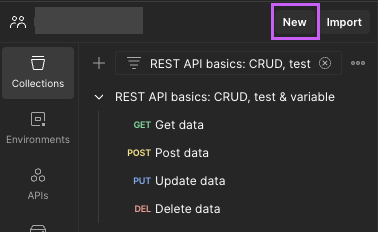
1. Open Postman, Click on **‘New’**
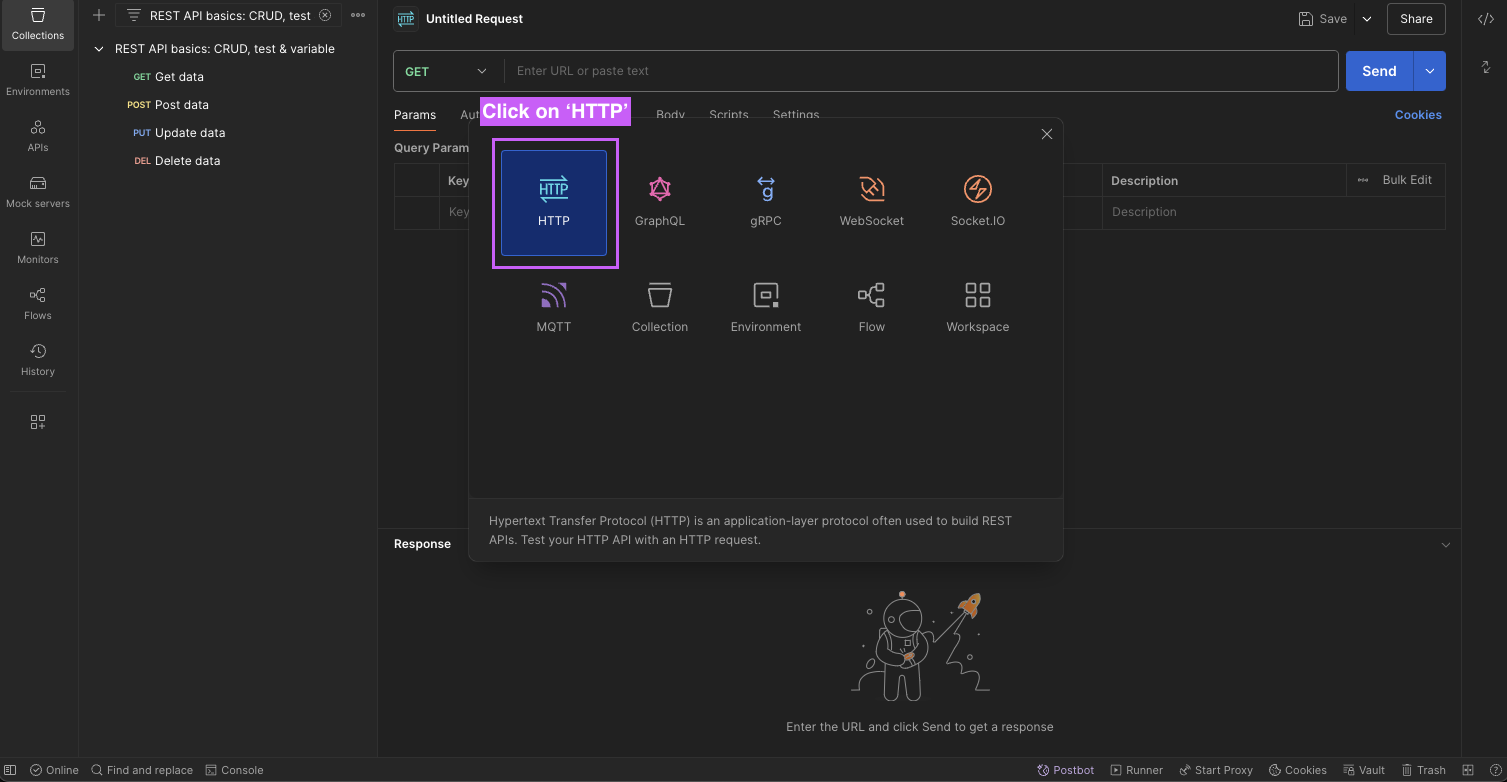
2. Click on **‘HTTP’**
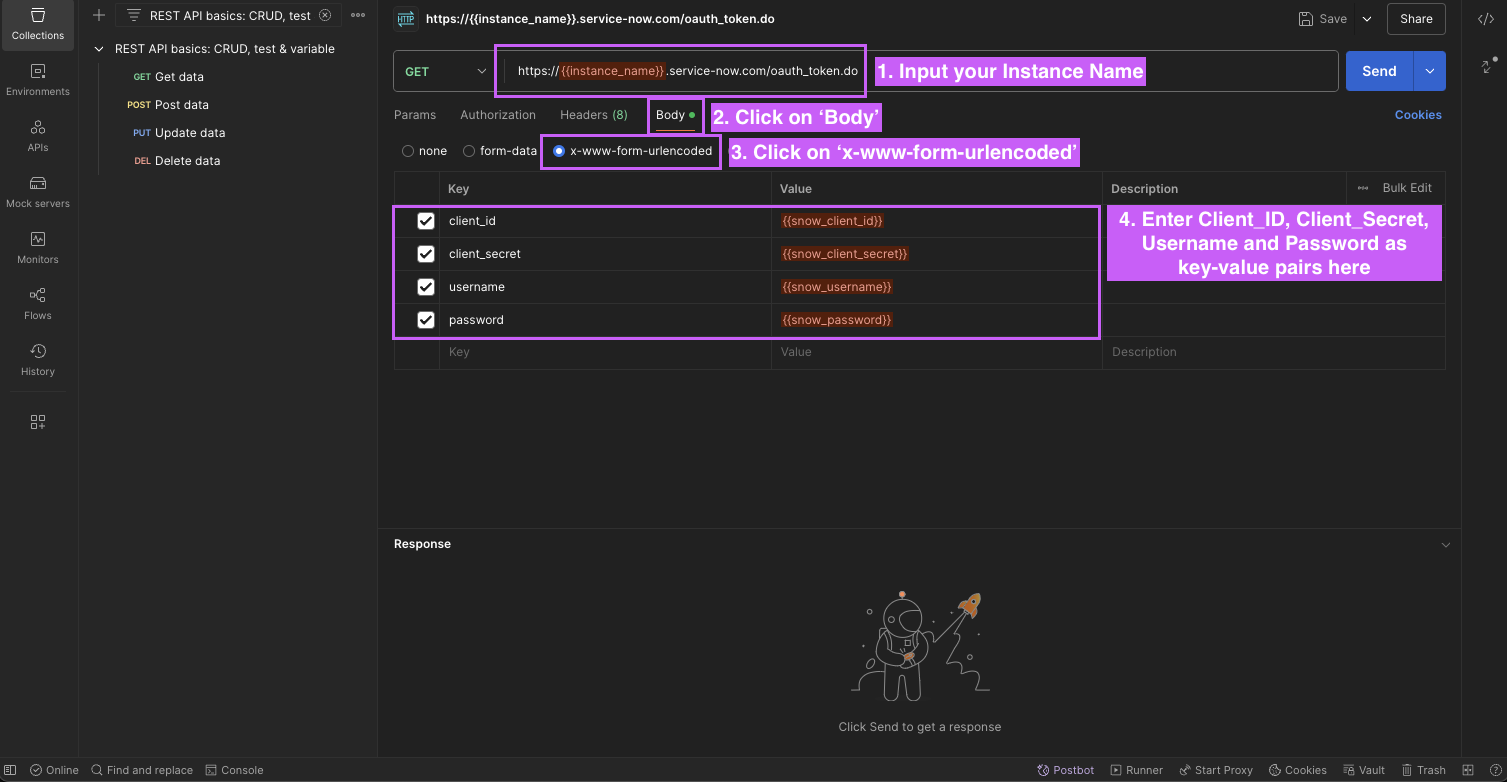
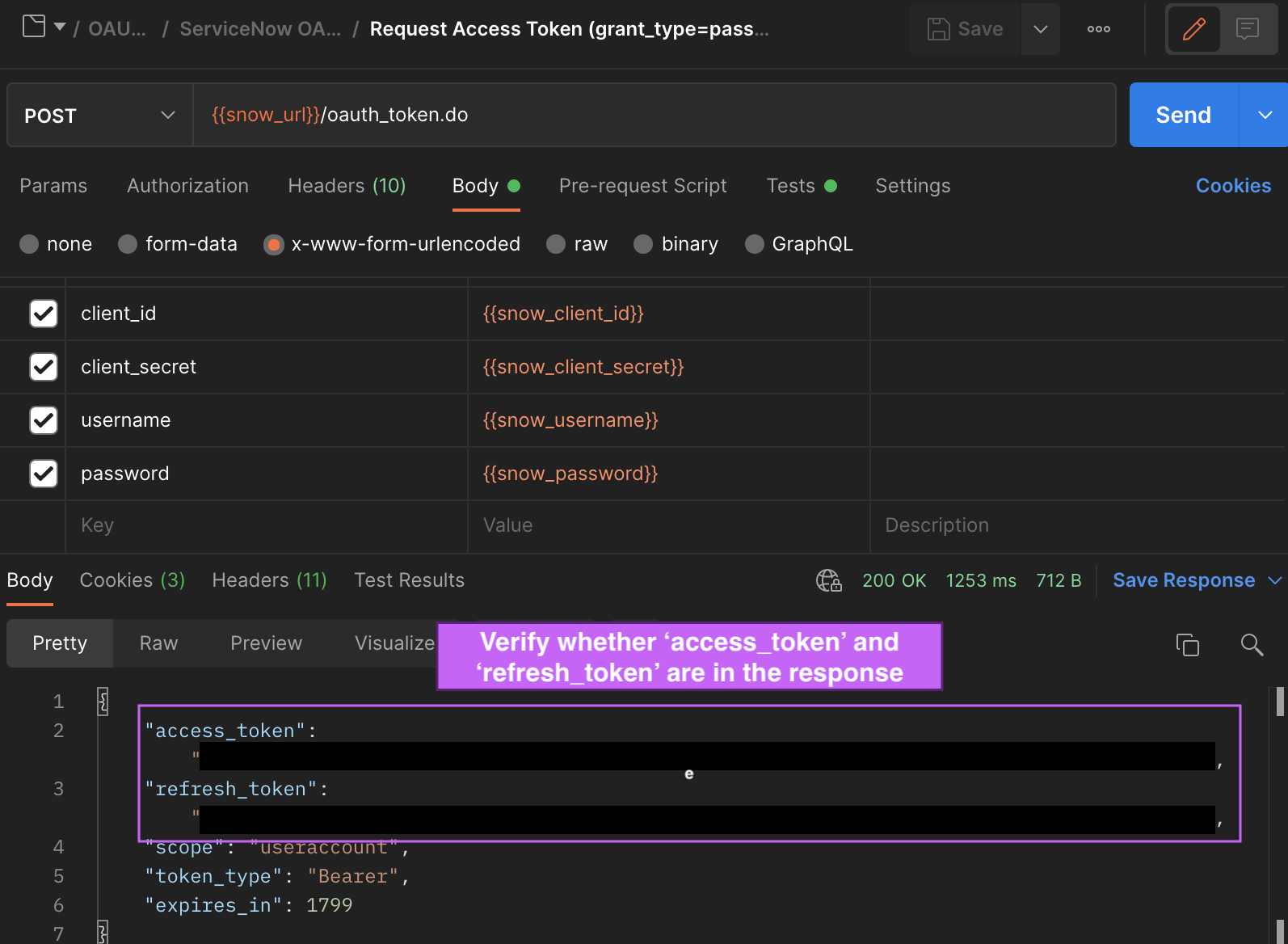
3. Input your `Instance Name` in the URL bar and `Username`, `Password`, `Client_ID`, and `Client_Secret` in the **Body** using **x-www-form-urlencoded** option
2. Setup through cURL command method
1. **Copy** the following cURL command
```c javascript
curl --location 'https://{{instance_name}}.service-now.com/oauth_token.do' \
--header 'Content-Type: application/x-www-form-urlencoded' \
--user '{{username}}':'{{password}}'
--data-urlencode 'grant_type=password' \
--data-urlencode 'client_id={{client_id}}' \
--data-urlencode 'client_secret={{client_secret}}' \
--data-urlencode 'username={{username}}' \
--data-urlencode 'password={{password}}'
```
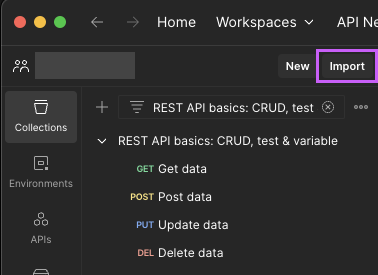
2. Open Postman, Click on **‘Import’**
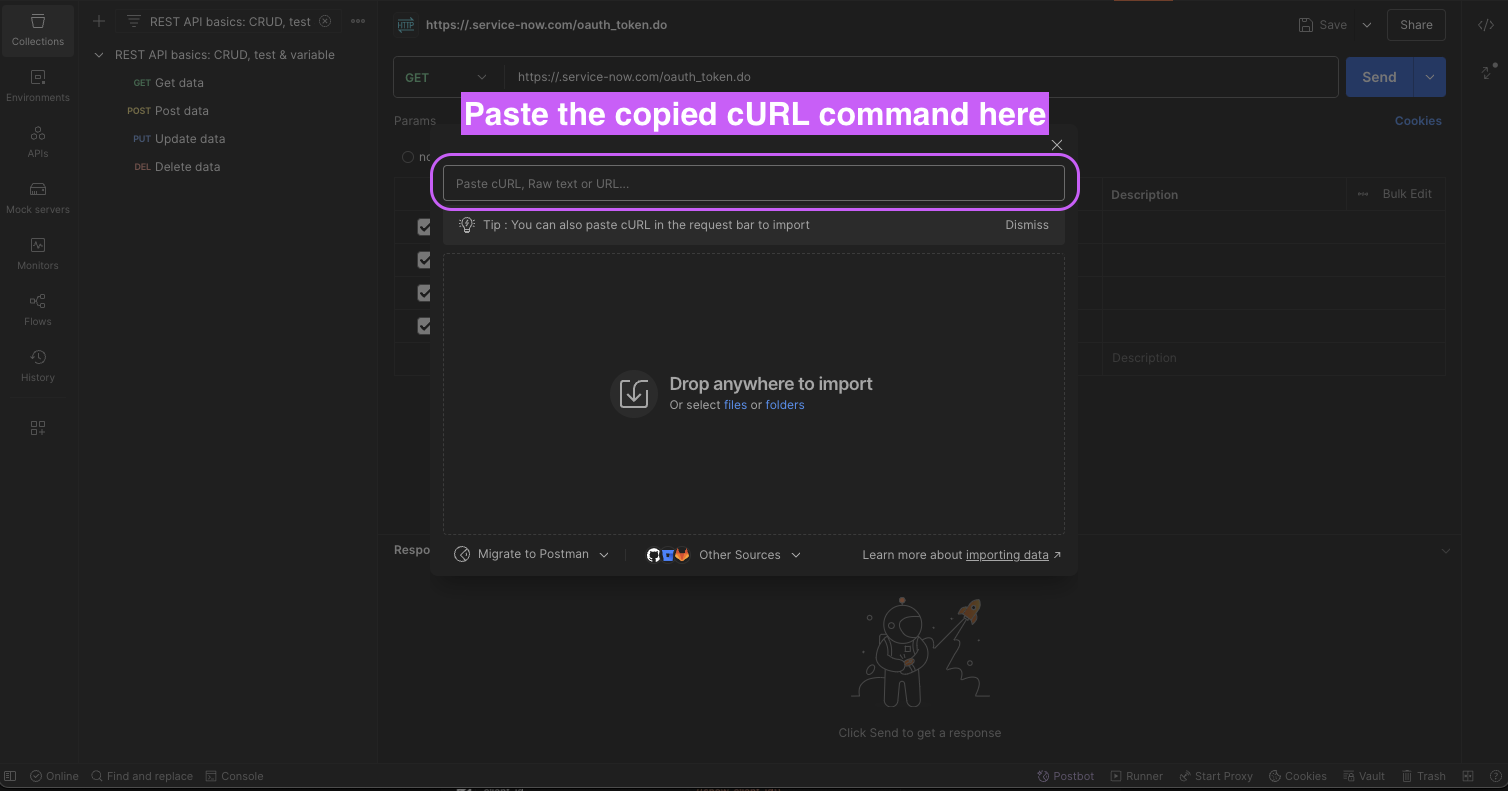
3. **Paste** the cURL command
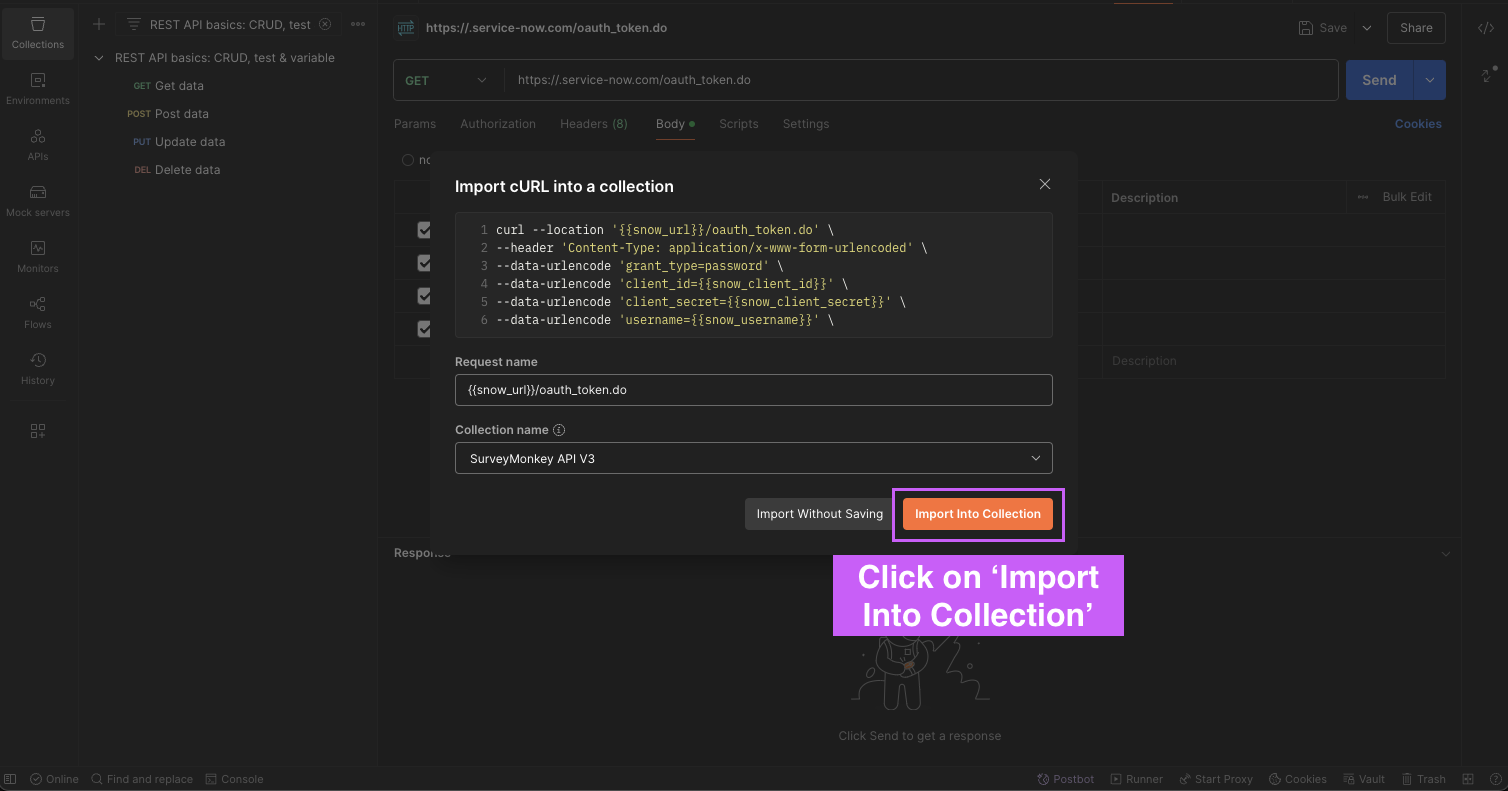
4. Click on **‘Import Into Collection‘**
5. **Substitute** the saved values from previous steps and Click on **‘Send’**
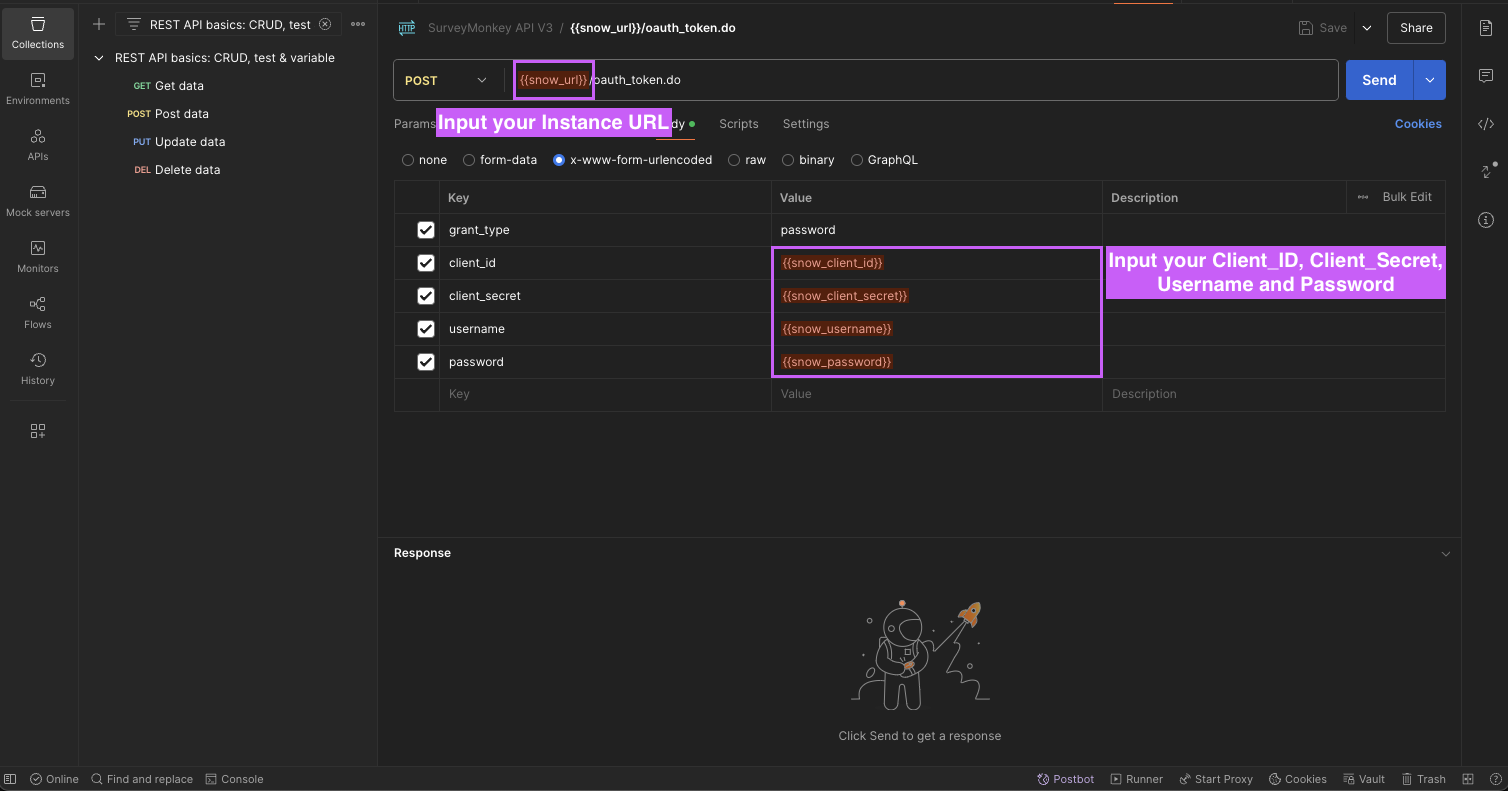
**Verify** whether the response includes **access_token** and **refresh_token** _(Applicable to both methods listed above)_
**Step 3: Configure in Moveworks Setup**
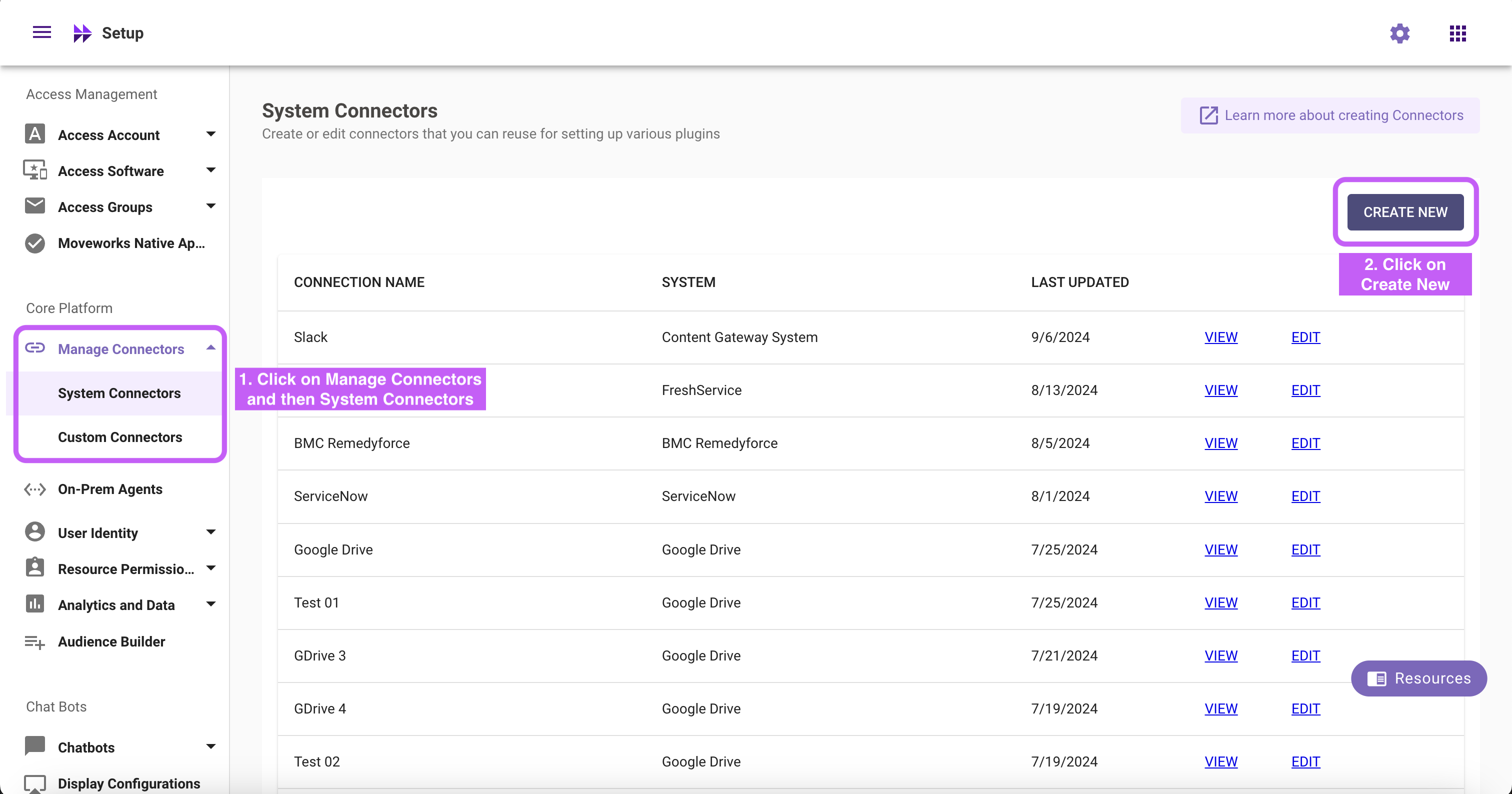
1. Go to **Manage Connectors** > **System Connectors**, then click on **‘CREATE NEW’**
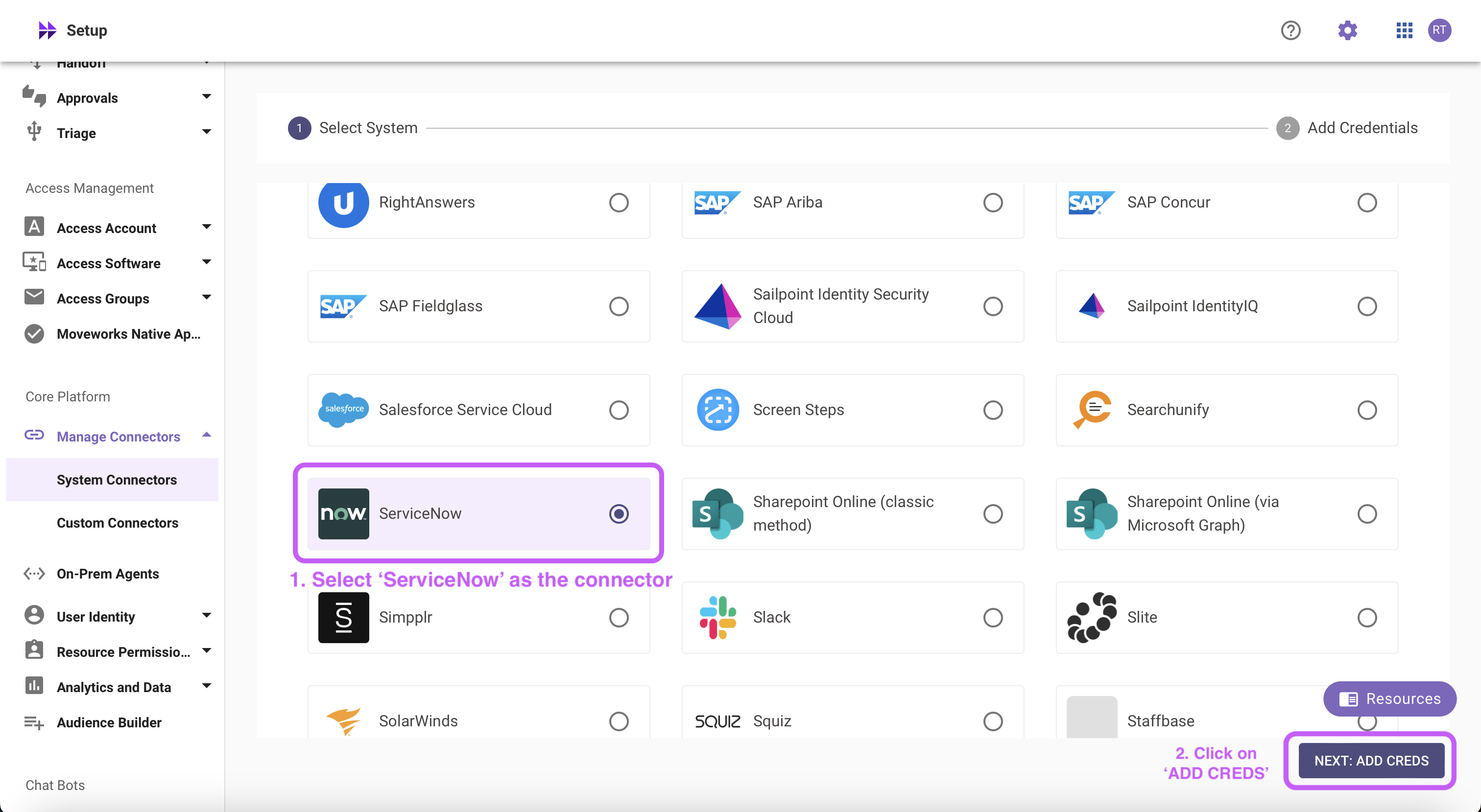
2. Click on **‘ServiceNow’** Connector, then click on **‘Next ADD CREDS’**
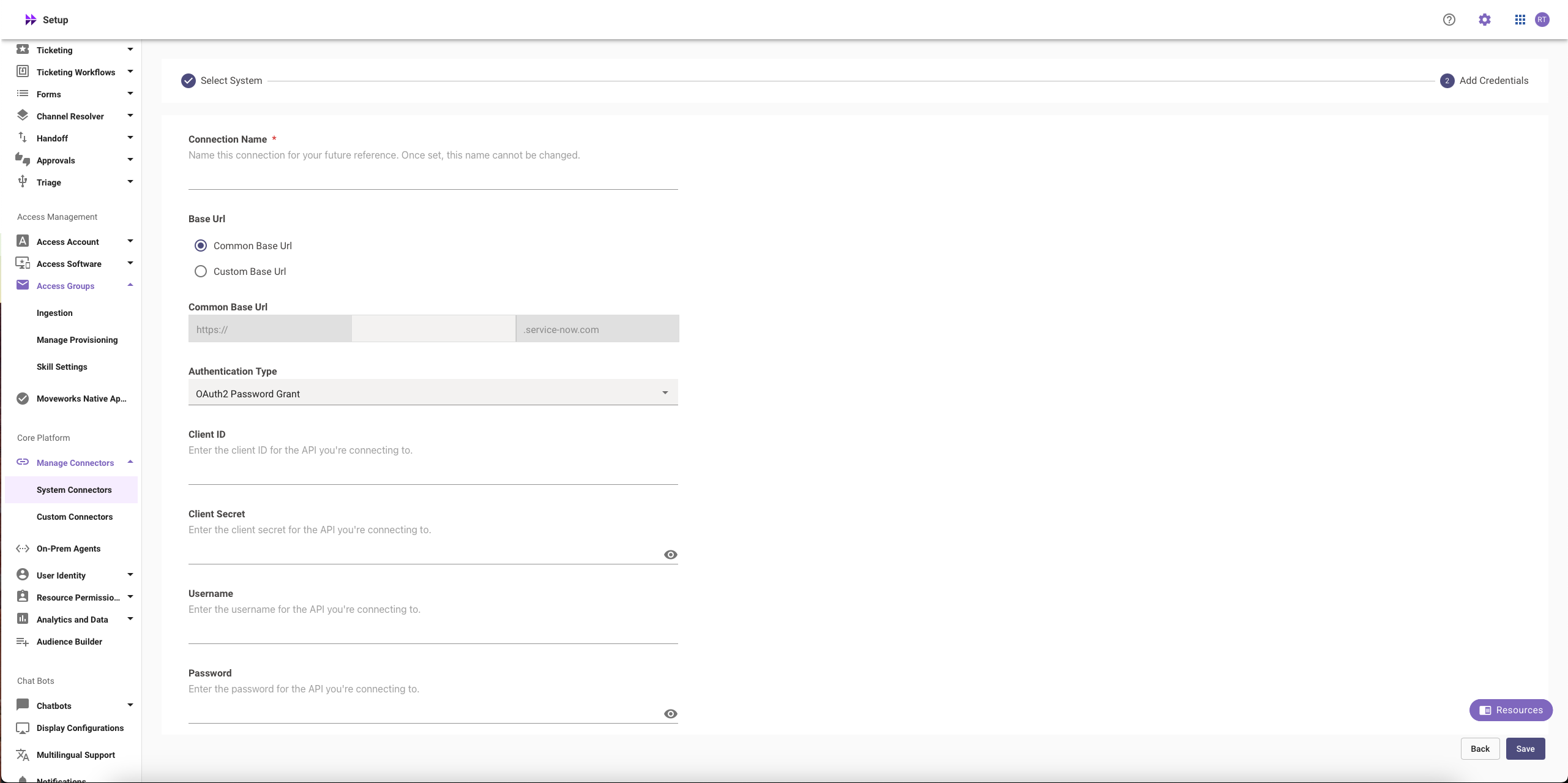
3. Fill in the `Instance Name`, `Client ID`, `Client Secret`, `Username`, and `Password` obtained in **Step 1**
1. Instance:
1. If **‘Common Base URL’** option is selected, just enter `instance_name` that appears in `https://{{instance_name}}.service-now.com`
2. If **‘Custom Base URL’** option is selected, enter the Instance URL after ‘https://’
2. Authentication Type: Select **'Oauth2 with Password Grant'** from the dropdown
3. Client ID: `Client ID`
4. Client Secret: `Client Secret`
5. Username: `Username`
6. Password: `Password`
4. Click on **‘Save’**
## Setting up OAuth 2.0 with Refresh Token Grant
**Step 1: Register OAuth 2.0 API Client**
1. Create a service account user (`username` & `password`), note them down. Your instance name is the prefix of your URL: `https://{{instance_name}}.service-now.com`
2. Access your ServiceNow instance by navigating to the URL provided in the previous step
3. In the top left side of navigation bar, Click on **‘All’**, search for **‘System OAuth’** option in the search bar and then Click on **‘Application Registry’** under it
4. Now, in the top right side of navigation bar, Click on the **‘New’** button
5. Click on **'Create an OAuth API endpoint for external clients'**
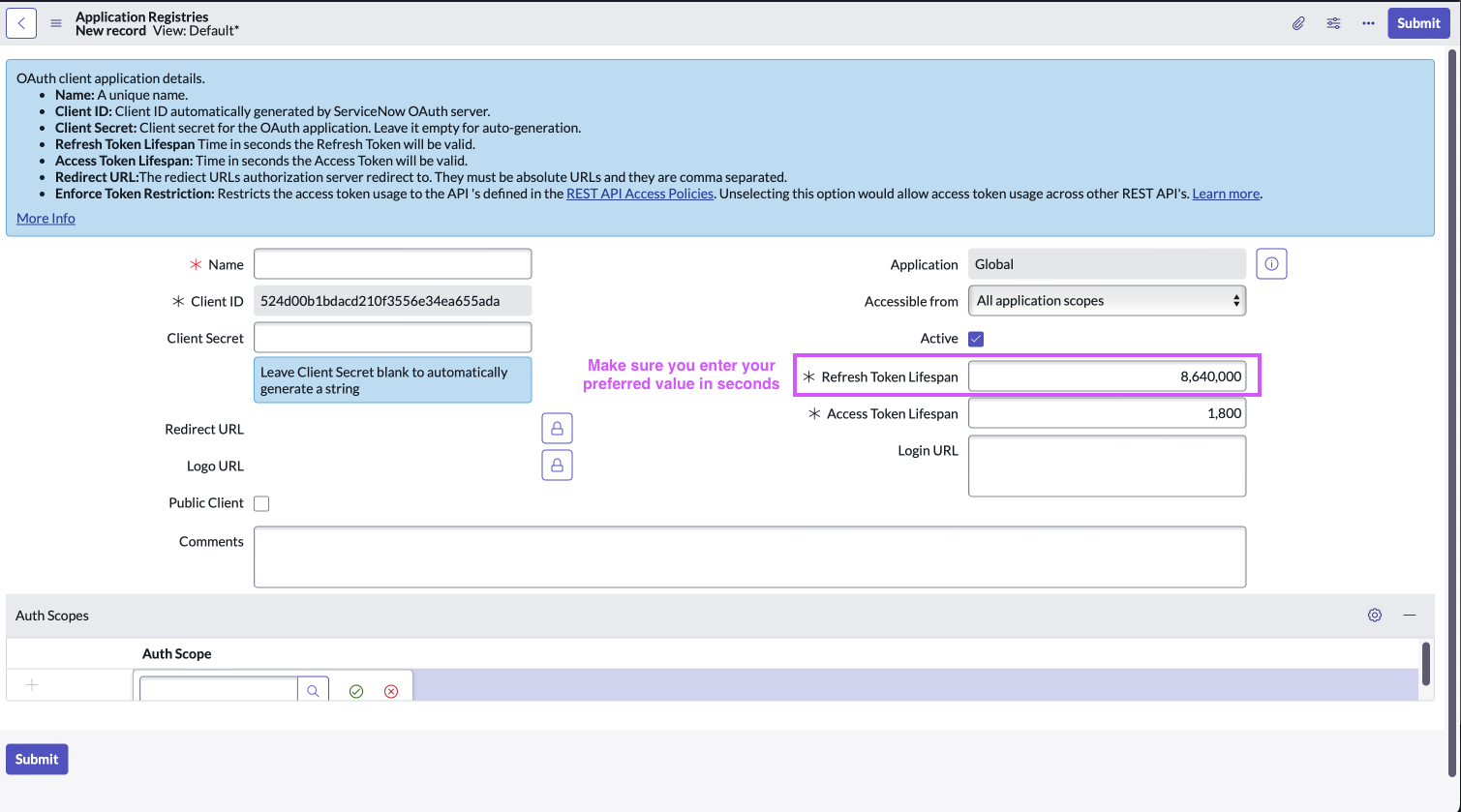
6. Fill in the necessary details
> 🚧 Note
>
> Refresh token is only provided if the "Refresh Token Lifespan" field is set to a value greater than 0
7. Click **‘Submit’**
**Step 2: Generate Refresh Token**
The steps to generate a Refresh Token are similar to the ones mentioned in **Step 2** of **Setting up OAuth 2.0 with Password Grant**
1. Setup through a new HTTP request
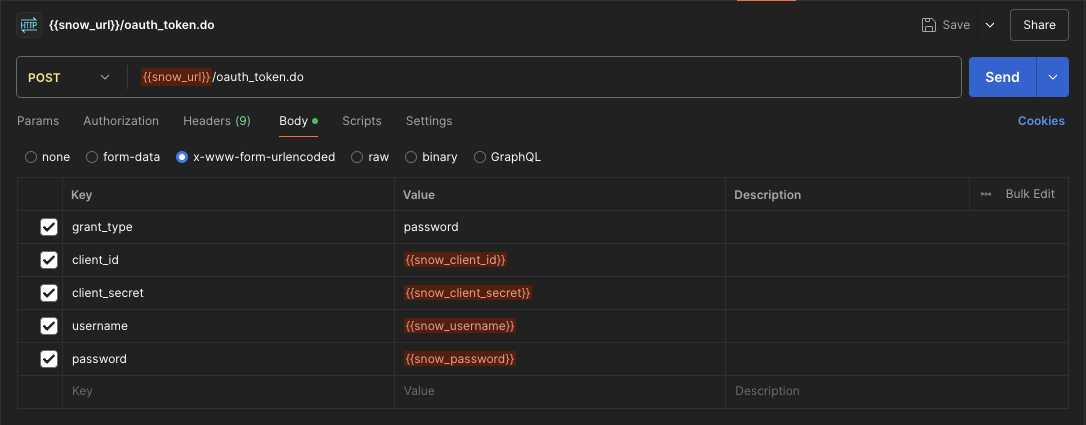
2. Setup through cURL command method
```javascript Javascript
curl --location '{{snow_url}}/oauth_token.do' \
--header 'Content-Type: application/x-www-form-urlencoded' \
--data-urlencode 'grant_type=password' \
--data-urlencode 'client_id={{snow_client_id}}' \
--data-urlencode 'client_secret={{snow_client_secret}}' \
--data-urlencode 'username={{snow_username}}' \
--data-urlencode 'password={{snow_password}}'
```
> 📘 Note
>
> You can use the refresh token to get a new access token when the current one expires
**Step 3: Configure in Moveworks Setup**
1. Go to **Manage Connectors** > **System Connectors**, then click on **‘CREATE NEW’** (As shown in **Step 3** of **Setting up OAuth 2.0 with Password Grant**)
2. Click on ‘ServiceNow’ Connector, then click on **‘Next ADD CREDS’** (As shown in **Step 3** of **Setting up OAuth 2.0 with Password Grant**)
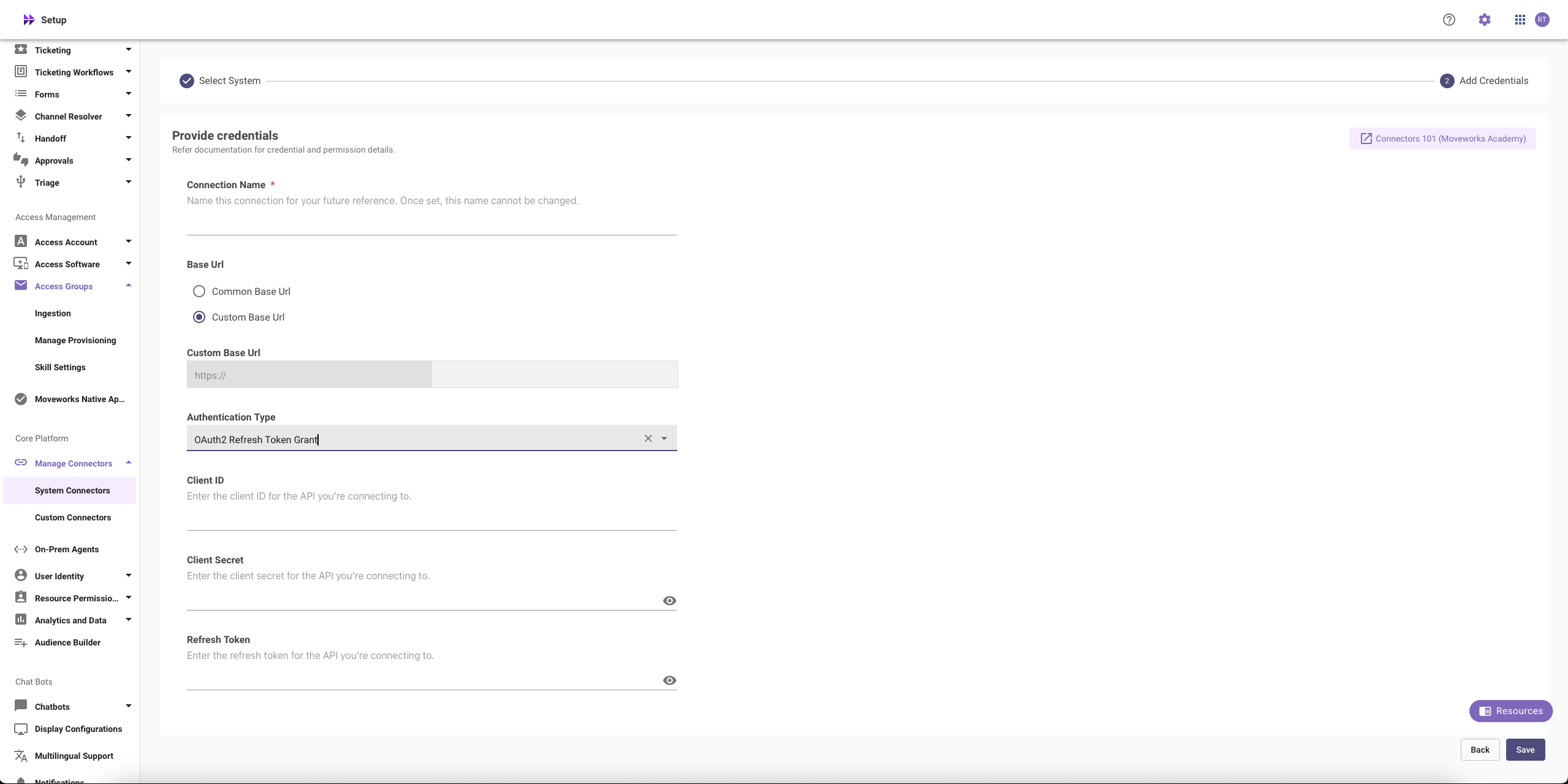
3. Fill in the `Instance`, `Client ID`, `Client Secret`, and `Refresh Token` obtained in the previous steps
1. Instance:
* If **‘Common Base URL’** option is selected, just enter `instance_name` that appears in `https://{{instance_name}}.service-now.com`
* If **‘Custom Base URL’** option is selected, enter the Instance URL after ‘https://’
2. Authentication Type: Select **'Oauth2 with Refresh Token Grant'** from the dropdown
3. Client ID: `Client ID`
4. Client Secret: `Client Secret`
5. Refresh Token: `Refresh Token`
4. Click on **‘Save’**
## Setting up OAuth 2.0 with JWT
Moveworks will send you an encrypted email containing the **Java KeyStore, certificate and password** required to configure the next steps.
**Step 1: Create a Service Account**
1. Create a service account user (`username` , `email`(required) & `password`), note them down. Your instance name is the prefix of your URL: `https://{{instance_name}}.service-now.com`
2. Access your ServiceNow instance by navigating to the URL provided in the previous step
3. Assign the required permissions to this service account by following the process mentioned above.
**Step 2: Install the certificate and create the JWT provider**
First, we will create a JWT provider in your instance that will be responsible for generating authentication tokens for our services to verify that the service account is properly authenticated into ServiceNow. The following steps will walk you through creating the records below:
* MW Java Key Store
* MW JKS Certificate
* JWT Key
* JWT Provider
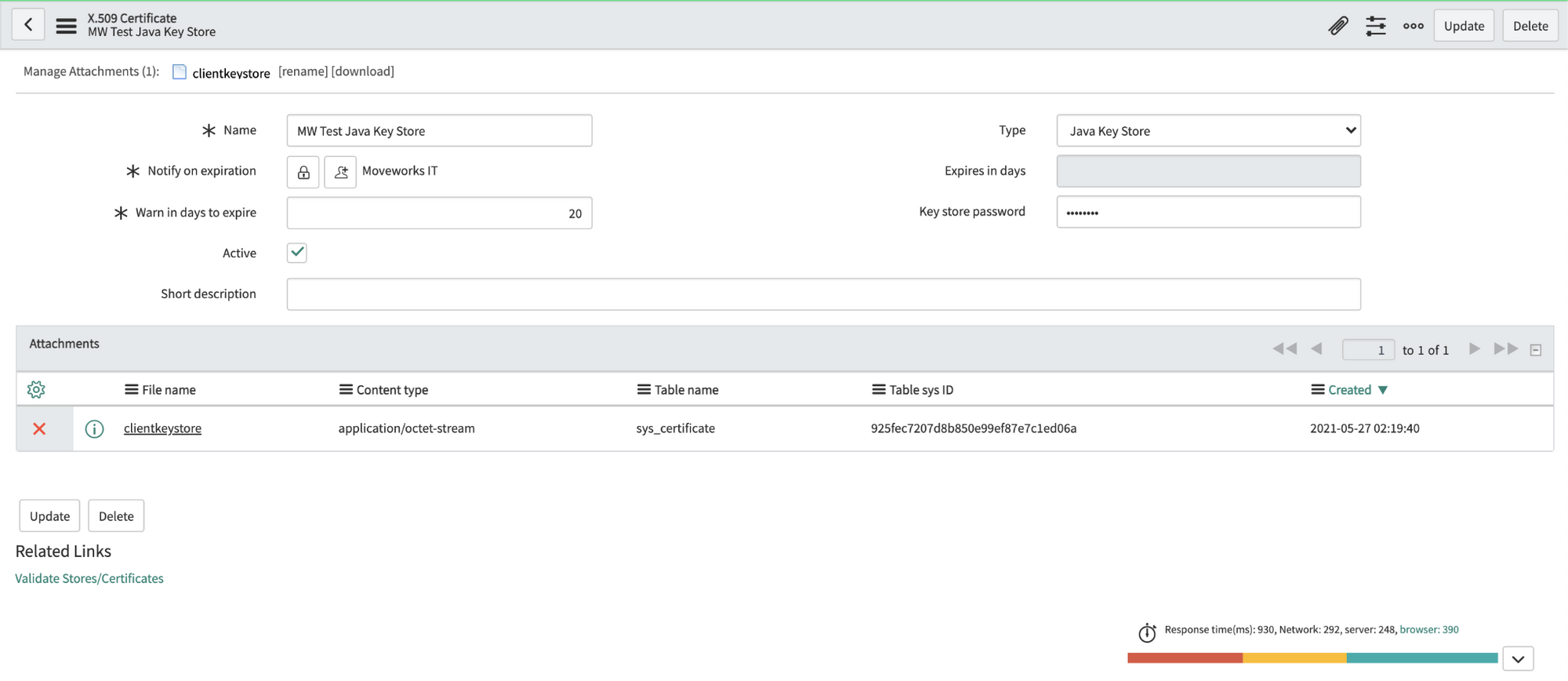
1. Navigate to the **X.509 Certificate** table in SNOW (search for "Certificates" to find it), create a new record as follows:
**Name**: MW Java Key Store
**Type**: Java Key Store
2. Click on the paperclip in the upper right to attach the JKS file. The file will have a `.jks` extension.
3. Enter the password provided by Moveworks. Right click the top gray bar, click save.
**Important**: If you save before entering the password, it may seem to auto populate the Key-store password. This doesn't always work correctly, so **always enter the password manually**.
4. Click **"Validate Stores/Certificates"** under Related Links to ensure the record was configured properly.
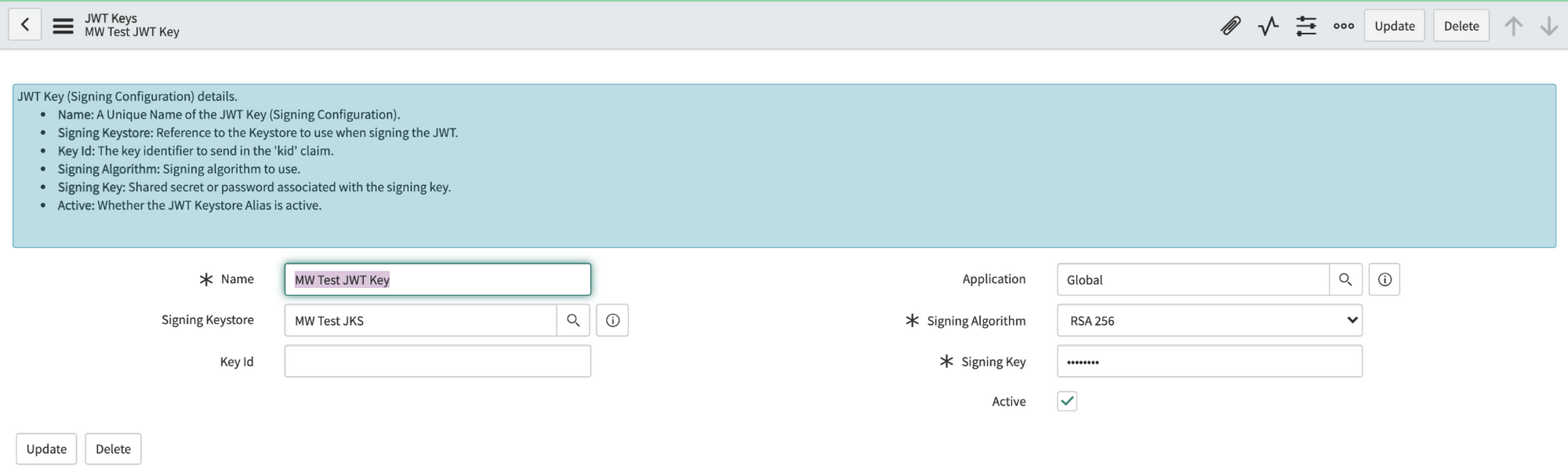
5. Navigate to the **JWT Keys** table (under **System Oauth**). Create a new record and set its Signing Key Store to the certificate record you made in the previous step. Enter the same password Moveworks provided in the Signing Key field. Save this record.
6. Navigate to the **JWT Provider** table. Create a new record and set its Signing Configuration to the key record you made in the previous step. Update the Expiry Interval from 60 sec to **3600 sec** (1 hour).

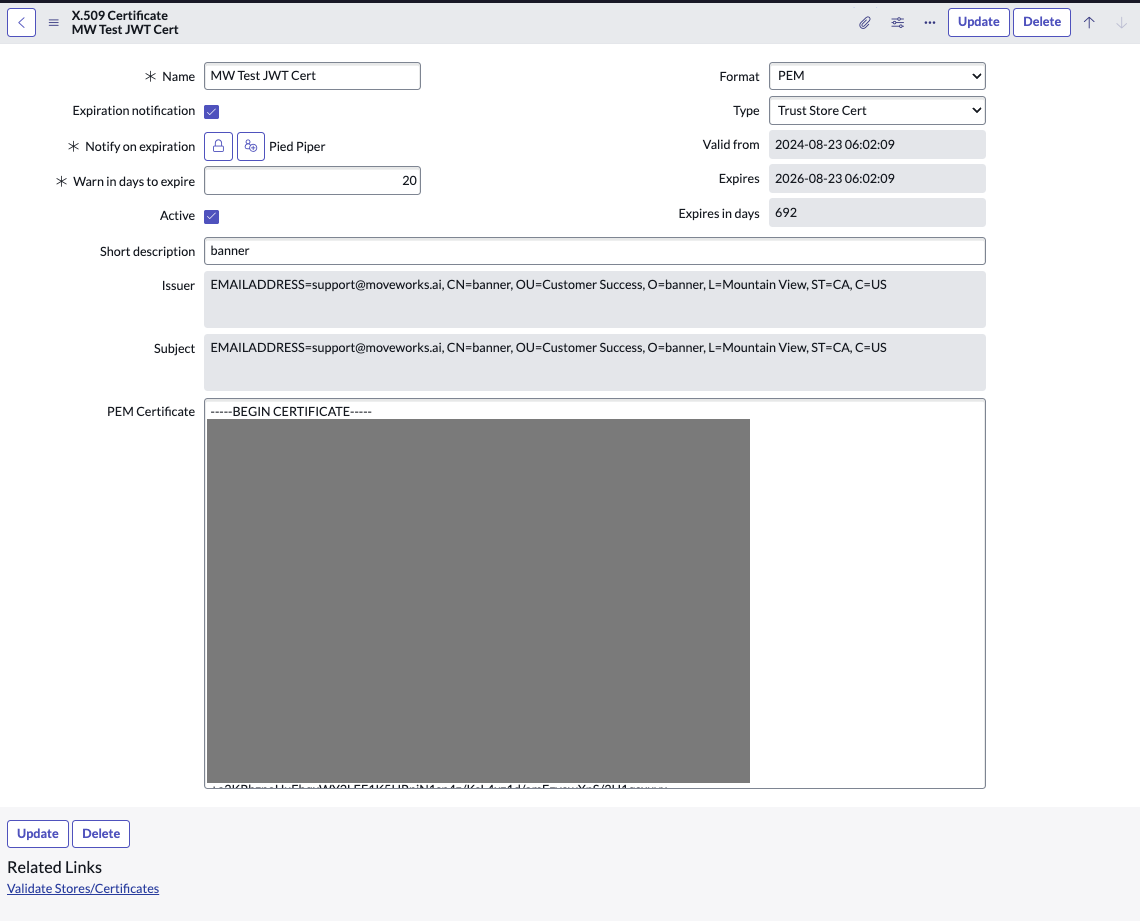
7. Navigate to the **X.509 Certificate** table again and create a new record as follows:
Name: MW JKS Certificate
Format: PEM
Type: Trust Store Cert
8. Extract the contents of the JKS Certificate and paste it in the PEM Certificate section. The Certificate file will have a `.crt` extension. You can either use your terminal / command prompt or a text editor to view and copy the contents of this file.
9. Click **"Validate Stores/Certificates"** under Related Links to ensure the record was configured properly.
**Step 3: Register OAuth 2.0 API Client**
1. In the top left side of navigation bar, Click on **‘All’**, search for **‘System OAuth’** option in the search bar and then Click on **‘Application Registry’** under it
2. Now, in the top right side of navigation bar, Click on the **‘New’** button
3. Click on **'Create an OAuth JWT API endpoint for external clients'**
4. Fill in the necessary details and click on **‘Submit’**
> 📘 Note
>
> * Set Access Token Lifespan to 3600
> * Disable JTI Verification
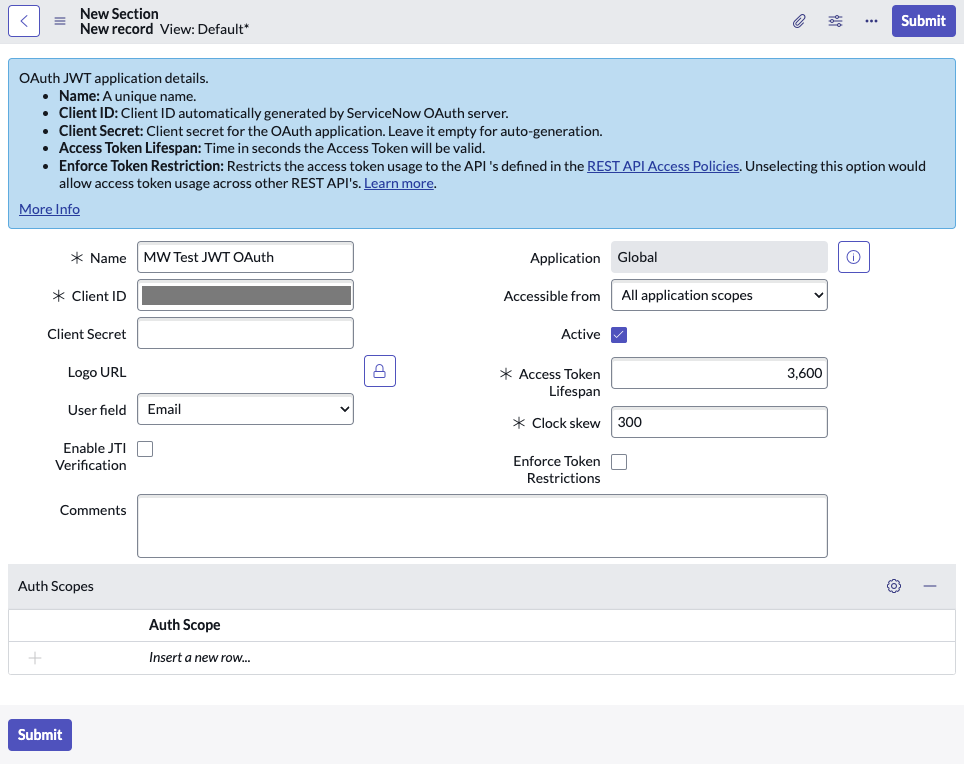
5. Copy the **Client ID** and **Client Secret** and store it in a safe storage to use it in the next step.
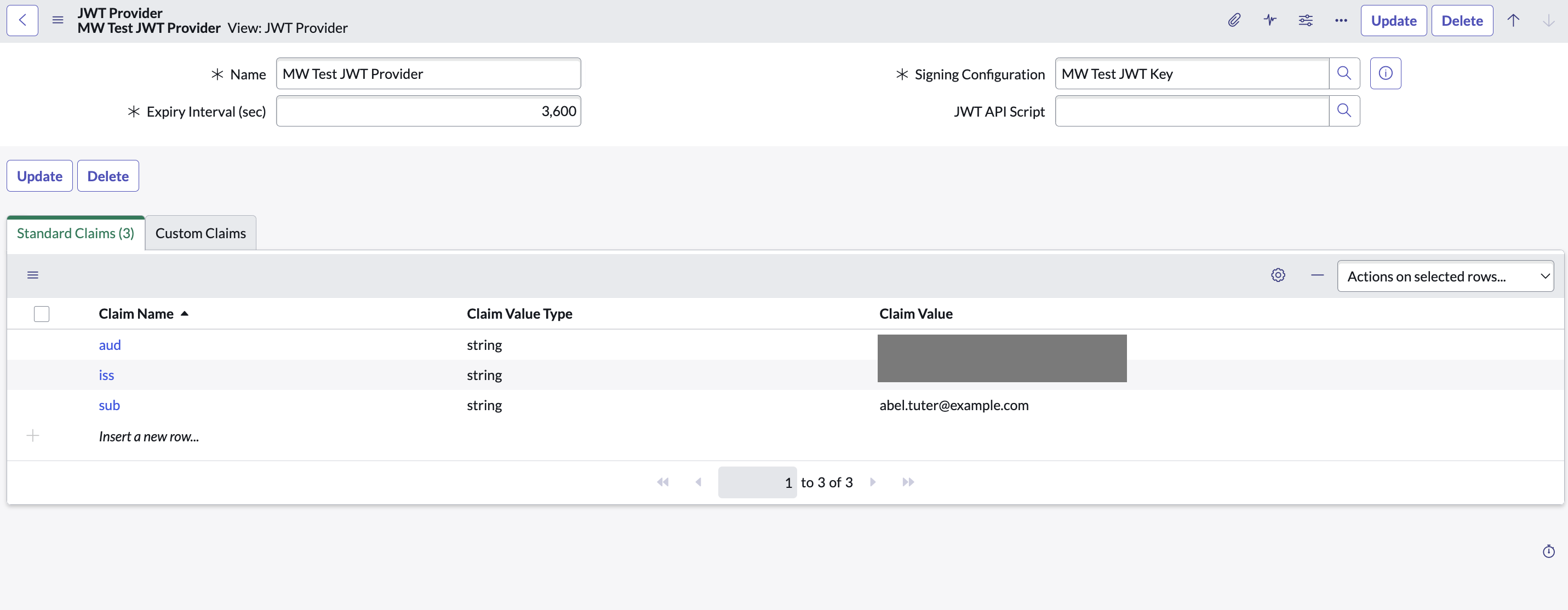
6. Navigate to **JWT Providers**(under **System OAuth**) and update the JWT Provider that you created above with the following claim values:
**aud**: Client ID of the App Registry record created
**iss**: Client ID of the App Registry record created
**sub**: Email ID of the service account user that you created above
7. Click on the OAuth Client to open it again
8. In the related Lists under **Jwt Verifier Maps**, click on **New** to create a new JWT verifier map.
1. Make sure to set the Shared Key value to the same password shared by Moveworks.
9. For **Sys certificate**, click on the search icon and select the **MW JKS Certificate** that you created before and click on **Submit**.
10. Copy the **Kid** of the newly created **Jwt Verifier Map**.
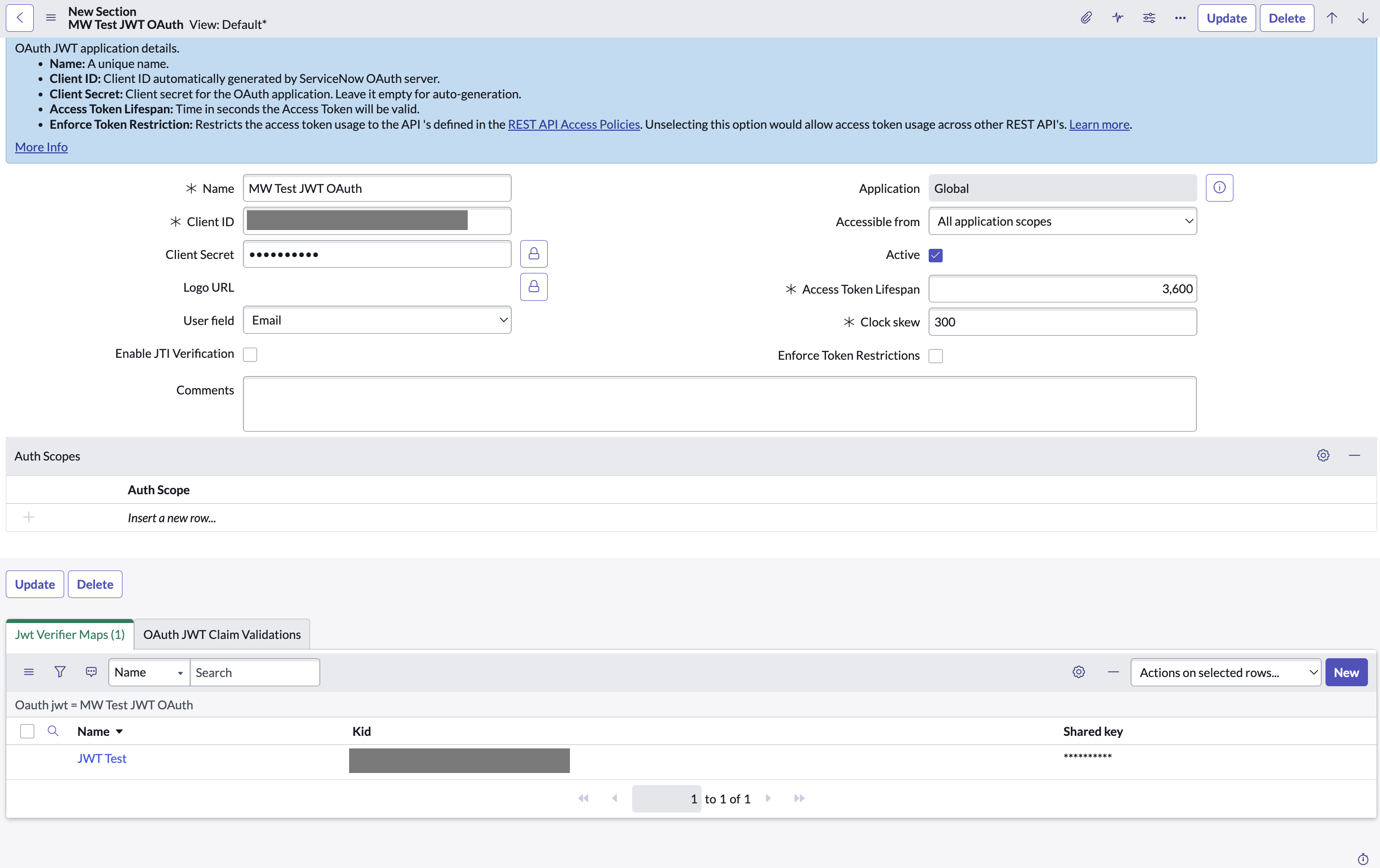
11. Navigate to **JWT Keys** (under **System OAuth**) and select the JWT Key you created above. Update the **Key ID** with the **Kid** that was auto-generated in the previous step.
**Step 4: Generate the Private Key file**
In this step, you will generate the Private Key file from the Java KeyStore file (**`.jks`** file) shared with you. This is crucial for configuring the Connector in subsequent steps.
**Requirements:**
* **Java KeyTool**: Available with the Java Development Kit (JDK).
* **OpenSSL**: Ensure OpenSSL is installed on your system. It's available by default in most Unix/Linux systems and MacOS, but may need to be installed separately on Windows.
**Procedure:**
1. **Open Your Terminal/Command Prompt**
* **Windows**: Search for **`cmd`** or **`Command Prompt`** in Start and open it.
* **MacOS/Linux**: Open **`Terminal`** from Applications or your preferred method.
2. **Navigate to the Directory Holding Your`.jks` File**
Use the **`cd`** command followed by the path to the directory:
```bash shell
cd path/to/directory
```
3. **Convert`.jks` to `.p12` File**
Replace **`liveCERT.jks`** with your **`.jks`** file name and **`your-dest-file-name.p12`** with your desired **`.p12`** file name.
```bash shell
keytool -importkeystore -srckeystore liveCERT.jks -destkeystore your-dest-file-name.p12 -srcstoretype JKS -deststoretype PKCS12
```
* Input the source keystore password when prompted. This password should have been shared with you along with the **`.jks`** file.
4. **Extract the Private Key to a PEM File**
Ensure OpenSSL is accessible in your system's command line or terminal. Run:
```bash shell
openssl pkcs12 -in your-dest-file-name.p12 -nocerts -out your-private-key-file-name.pem -nodes
```
Replace **`your-dest-file-name.p12`** with your **`.p12`** file name and **`your-private-key-file-name.pem`** with your desired output filename for the PEM.
Now, you will have **`your-private-key-file-name.pem`**, which will be utilized in configuring the Connector in the following steps.
> 📘 Notes
>
> * **Windows Users**: If OpenSSL isn't installed, you can download it from [**OpenSSL's official page**](https://www.openssl.org/source/) or use a third-party distribution like Cygwin or Git Bash that includes OpenSSL.
> * **MacOS/Linux Users**: OpenSSL should be pre-installed. If not, you can install it via Homebrew (Mac) or your Linux distribution’s package manager (**`apt`** for Ubuntu, **`yum`** for CentOS, etc.)
> * Make sure to replace placeholders (like **`liveCERT.jks`**, **`your-dest-file-name.p12`**, and **`your-private-key-file-name.pem`**) with actual file names specific to your scenario.
**Step 5: Configure in Moveworks Setup**
1. Go to **Manage Connectors** > **System Connectors**, then click on **‘CREATE NEW’** (As shown in **Step 3** of **Setting up OAuth 2.0 with Password Grant**)
2. Click on ‘ServiceNow’ Connector, then click on **‘Next ADD CREDS’** (As shown in **Step 3** of **Setting up OAuth 2.0 with Password Grant**)
3. Fill in the `Instance`, `Client ID`, `Client Secret`, `Service account email ID`, `Key id` and `Private Key file` obtained in the previous steps
1. Instance:
* If **‘Common Base URL’** option is selected, just enter `instance_name` that appears in `https://{{instance_name}}.service-now.com`
* If **‘Custom Base URL’** option is selected, enter the Instance URL after ‘https://’
2. **Authentication Type**: Select **'OAuth2 JWT Grant'** from the dropdown
3. **Client ID**: `Client ID`
4. **Client Secret**: `Client Secret`
5. **Service account email ID**: Email ID of the service account that you created above
6. **Private Key**: Upload the `.pem` Private Key file that you generated in the previous step
7. **Key id**: Enter the **Key ID** that was generated at Step 3.11
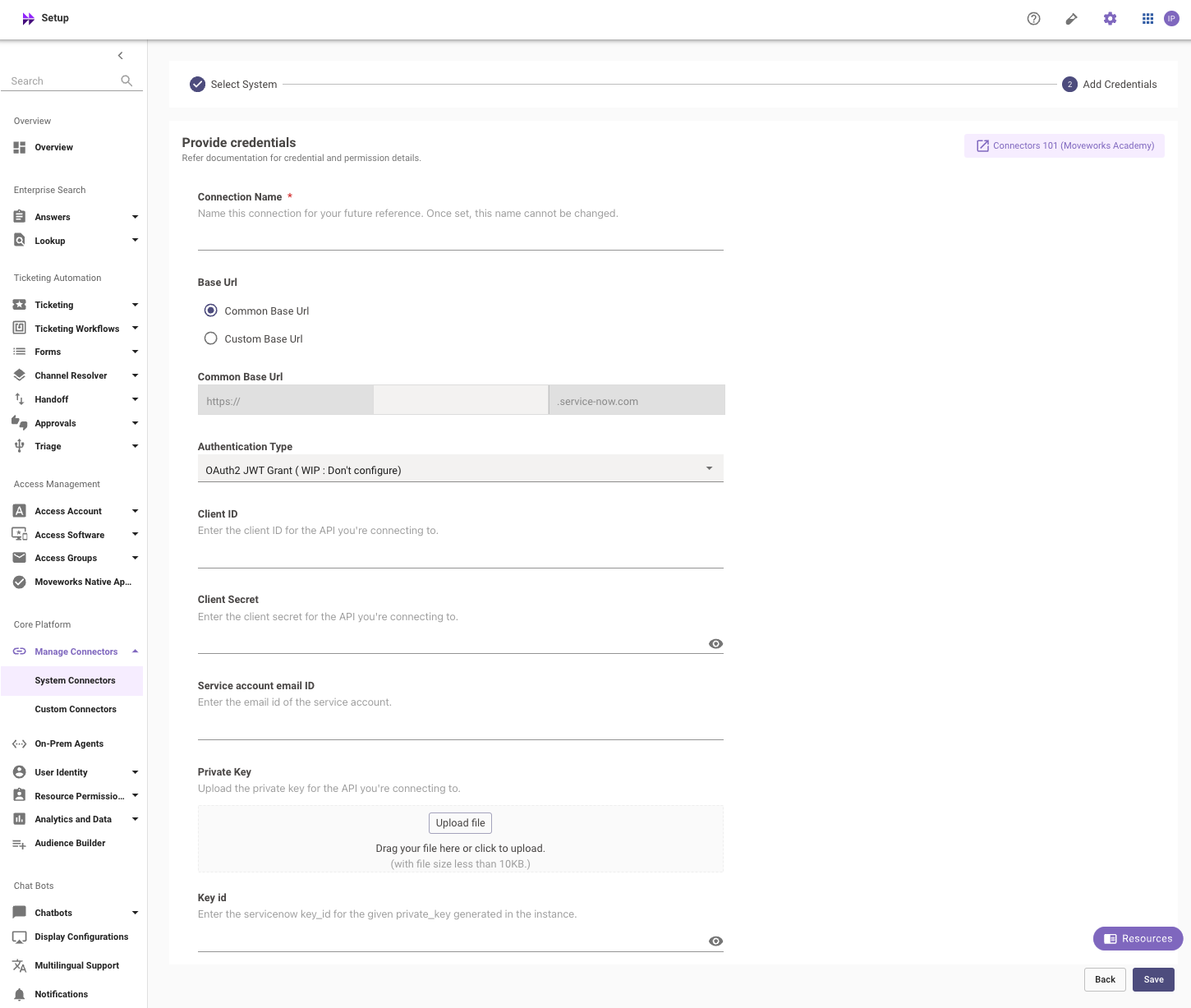
4. Click on **‘Save’**
### Appendix A: APIs Accessed
**Read-Only API Accessed**
Access to these APIs will allow the Moveworks bot to support filling of Catalog Items within the Moveworks bot and/or Moveworks Web interface.
* `/api/sn_sc/v1/servicecatalog/items/`
* Attributes needed: sys_id, variables, picture, categories, catalogs, visible_standalone, sys_class_name, ui_policy, client_script, title, name, short_description, description
* `/api/now/v2/table/sc_cat_item`
* Attributes needed: sys_id, active, hide_sp
* `/api/now/v2/table/item_option_new`
* Attributes needed: default_value, sys_id, question_text, description, mandatory, active, type, choices, lookup_table, lookup_value, reference_qual_condition, variable_set
* `/api/now/v2/table/sc_catalog`
* Attributes needed: sys_id, active, title
* `/api/now/v2/table/sc_category`
* Attributes needed: sys_id, active, title
* `/api/now/v2/table/sys_dictionary`
* Attributes needed: element, display, name
* `/api/now/v2/table/catalog_ui_policy`
* Attributes needed: sys_id, active, catalog_item, variable_set, catalog_conditions, reverse_if_false, order, applies_catalog, global
* `/api/now/v2/table/catalog_ui_policy_action`
* Attributes needed: sys_id, catalog_item, variable_set, mandatory, cleared, disabled, visible, order, ui_policy
* `/api/now/v2/table/sys_db_object`
* Attributes needed: sys_id, name, super_class
### Additional Access Required for ServiceNow Message Brokering (Optional)
The APIs below allow the Moveworks bot to support Message Brokering for Live Agent Chat within the Moveworks bot and/or Moveworks Web interface.
**Pre-requisites: The Virtual Agent API plugin should be installed.**
* `/api/now/table/awa_agent_presence_capacity`
* READ Permission needed to get the number of Live Agents available in a queue
* Tables to grant READ access to:
* `awa_agent_presence`
* `awa_agent_capacity`
* `/api/now/table/interaction`
* Permission needed to be able to transfer attachments between an agent and a user.
* The service account needs to have the `virtual_agent_admin` and `interaction_agent` roles.
* Install the [Live Agent Update Set](/docs/servicenow-update-sets#moveworksliveagentawa120xml).
## Appendix B: Moveworks Contact Type
It’s recommended to add a Moveworks-specific contact type so all Incident tickets created by the bot will have the same contact type. This can be called “Moveworks” and later on renamed to be the finalized bot name.