---
title: Access and Login Guide
deprecated: false
hidden: false
metadata:
robots: index
---
# Moveworks Labs Okta
1. Open your preferred browser to [https://labs.moveworks.com](https://labs.moveworks.com)
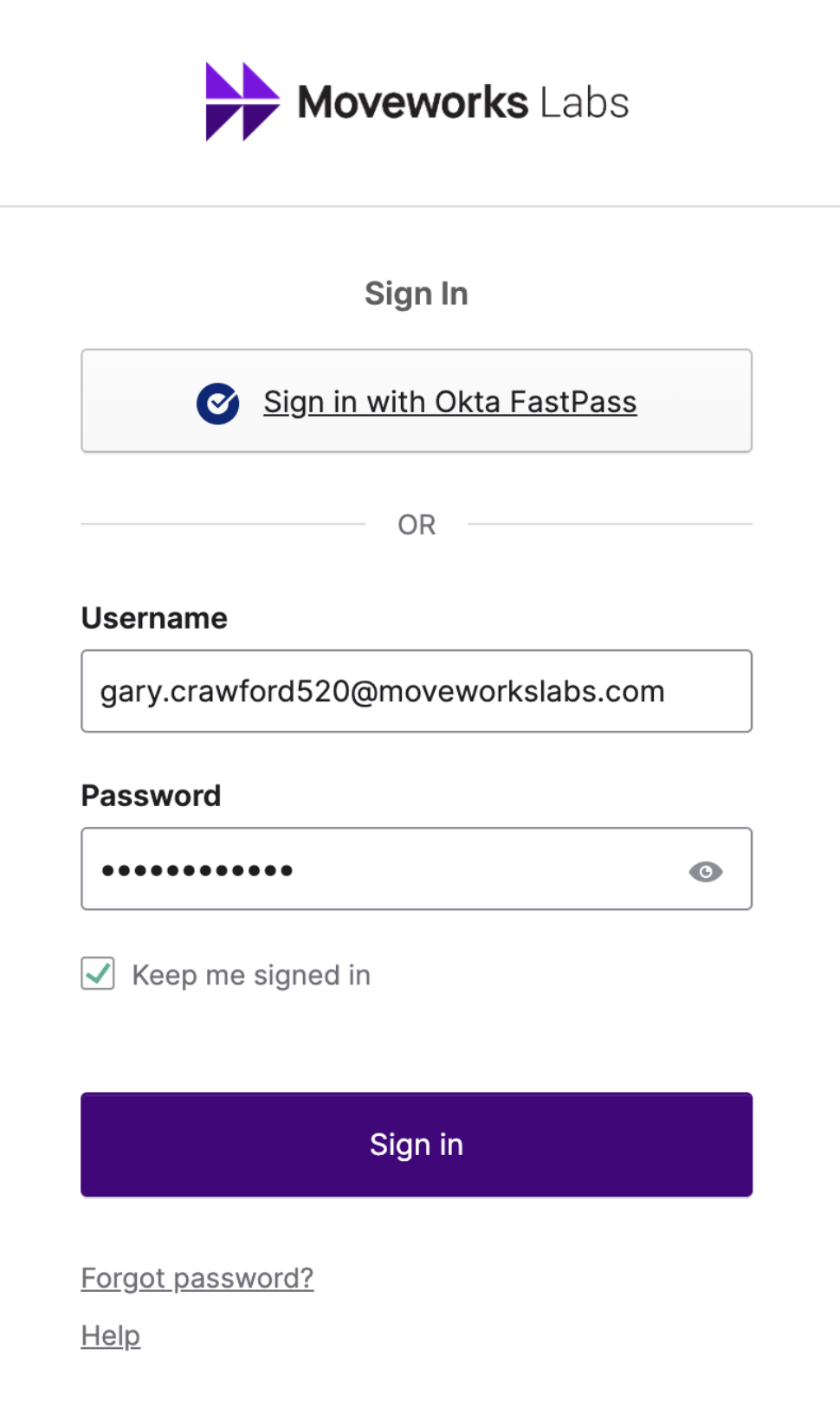
2. Sign in using your assigned credentials\
Example: `first.last123@moveworkslabs.com`
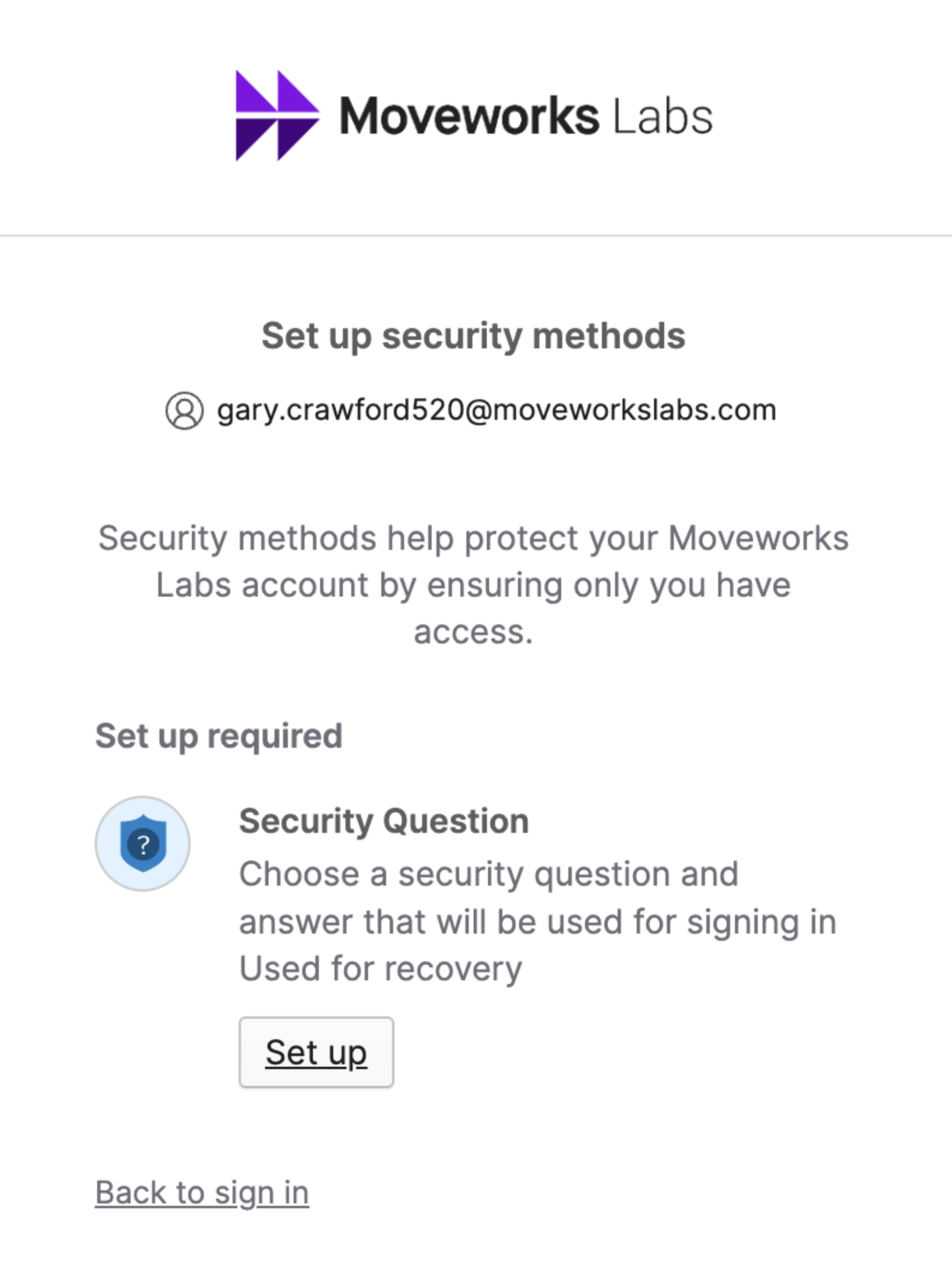
3. Setup a Security Question if you have not yet
4. Select Your Collaboration Platform of **Microsoft Teams** or **Slack**
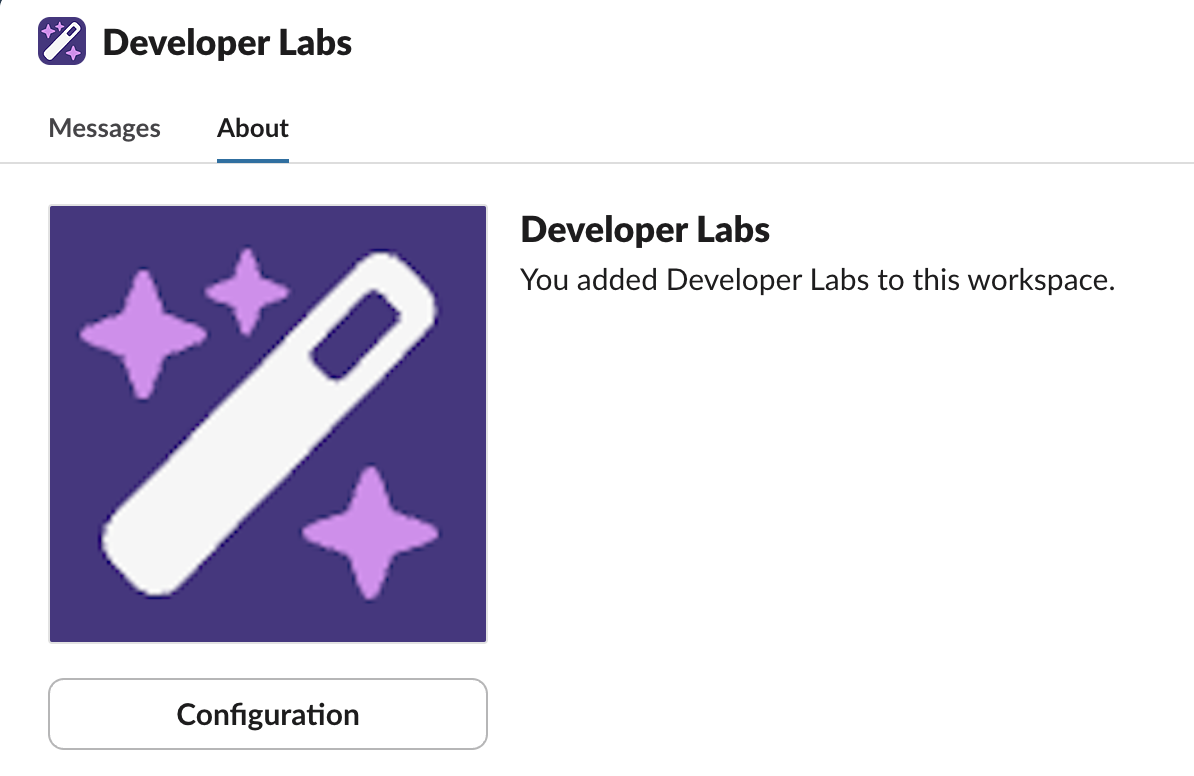
5. Add and/or Message the **Developer Labs** App

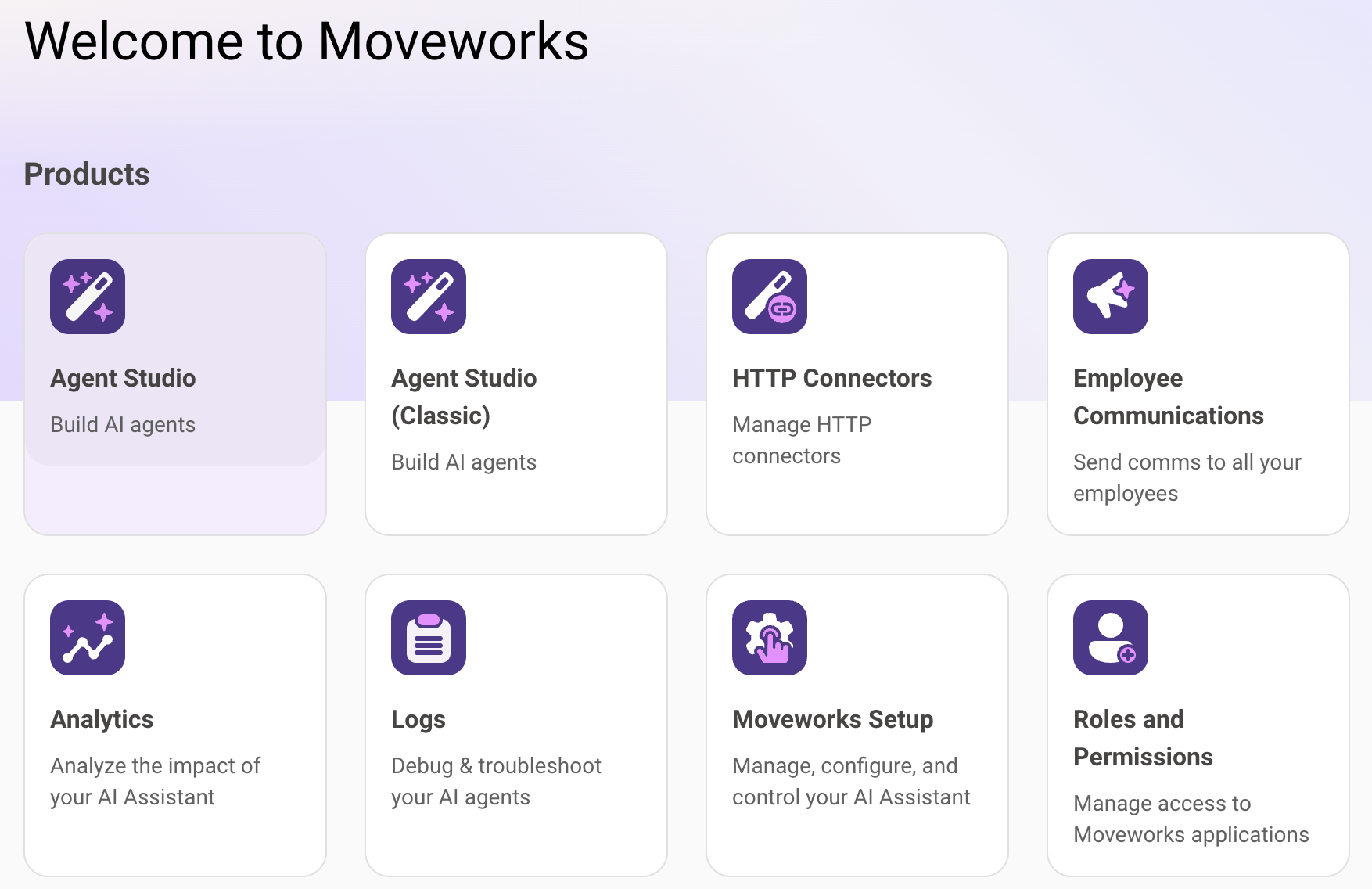
6. From [**labs.moveworks.com**](https://labs.moveworks.com), click on the the tile called “**Agent Studio (Developer Labs)**”
7. You should now be logged into the Developer Console and it should look like this: