***
title: 'SharePoint Online Access Requirements \[Legacy]'
excerpt: ''
deprecated: false
hidden: false
metadata:
title: ''
description: ''
robots: index
next:
description: ''
---------------
If you want to setup access based on the new Azure AD method, follow [these steps](/ai-assistant/moveworks-classic/classic-search/file-search/self-serve-config-guides/sharepoint-online-azure-ad-auth-new#1-grant-access-to-sharepoint-rest-api-via-azure-ad-app-only-authentication-method).
# SharePoint Online Access Needs
## Sharepoint Access (per-Site basis)
The following steps will allow Moveworks to be **granted read access to the specific site(s) that need to be ingested,** you can do so with the following steps.
You will need an **Azure App (Microsoft Entra ID)** to assign the access. If you do not have one, please follow the instructions [here](https://learn.microsoft.com/en-us/entra/identity/enterprise-apps/add-application-portal) to create one. Make sure to add the **Sites.Read.All** permission and set it to **Application** type.
If you are also deploying Moveworks to Microsoft Teams (either via the [App Store](/ai-assistant/ai-assistant/chat-platform-experiences/microsoft-teams/access-requirements), [Non-App Store](/ai-assistant/ai-assistant/chat-platform-experiences/microsoft-teams/non-app-store-setup) or [GCCH](/ai-assistant/ai-assistant/chat-platform-experiences/microsoft-teams/govcloud-access-requirements) methods) the same application can be used.
**Note**: In order to add this permission appropriately, you must be an administrator of both the Azure App and the SharePoint Site.
1. Follow the powershell commands below to set `SiteOwnerManageLegacyServicePrincipalEnabled` to true.
Please ensure you are using the **SharePoint Online Management Shell**.
```
Install-Module -Name Microsoft.Online.SharePoint.PowerShell -Scope CurrentUser
Update-Module -Name Microsoft.Online.SharePoint.PowerShell # Make sure the module is on version 16.0.23710.12000 or later
Connect-SPOService -Url https://-admin.sharepoint.com # Replace domain with your Sharepoint domain
Set-SPOTenant -SiteOwnerManageLegacyServicePrincipalEnabled $true
```
2. For each sub-site the bot should have access to, navigate to: `https://****.sharepoint.com/sites/****/_layouts/15/appinv.aspx`
3. Put in the App Id of your App created in Azure and then click the *Lookup* button -- the *Title* field should auto populate.
4. For *App Domain* enter `localhost`, and for *RedirectURL* enter `https://localhost.com` as shown in the screenshot below
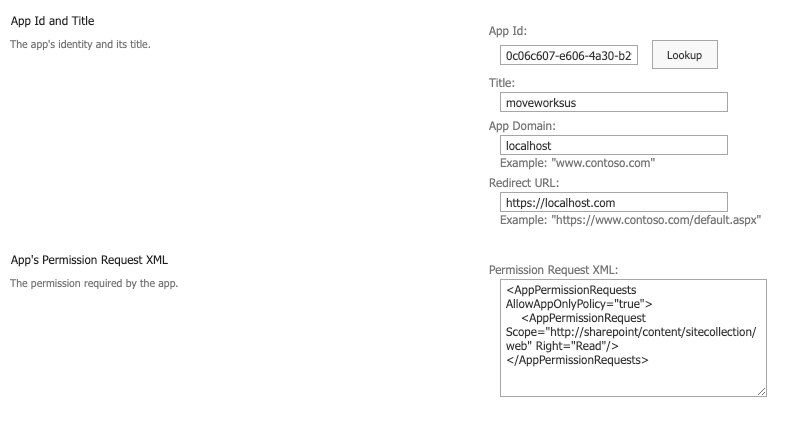
5. Enter the following XML as Permission Requests -- this grants Read Only access to the specific sub site.
```xml
```
6. After clicking *Create*, you will be prompted to authenticate & confirm the install. Select **Trust.**
7. You will need to do this for each sub site the bot should have access to and provide the list of sites you have authorized to your Moveworks Customer Success team.
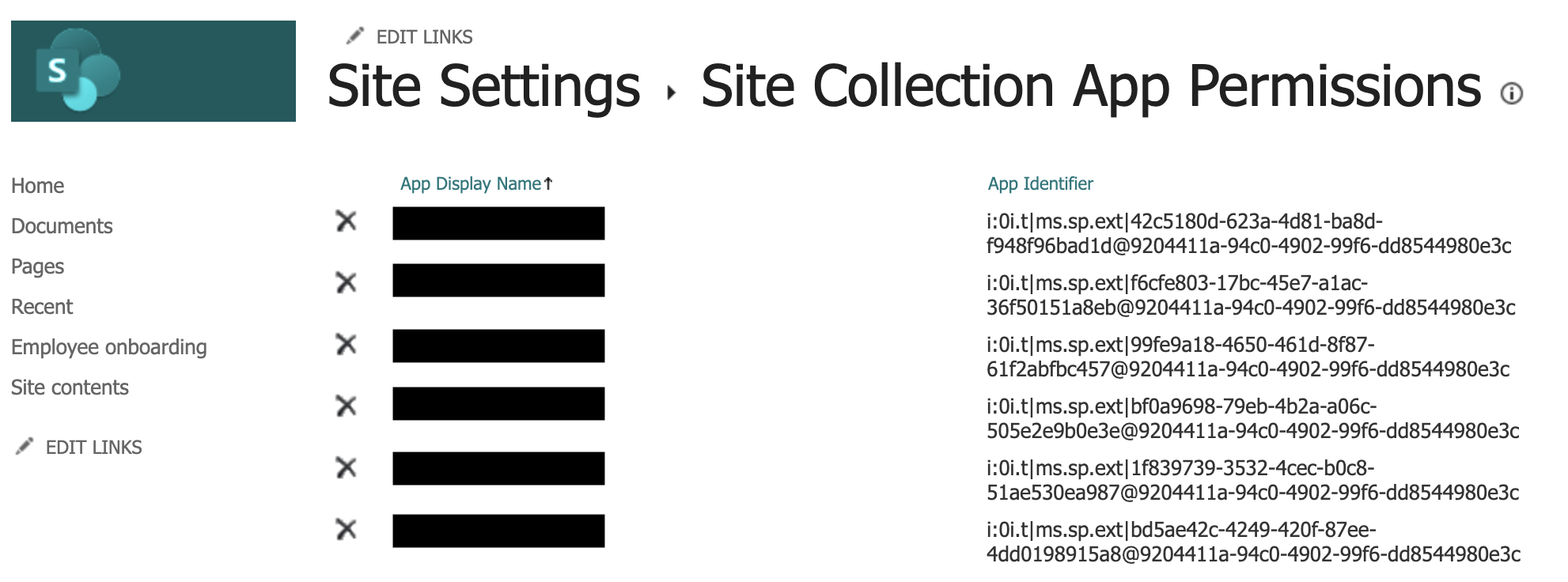
**Note**: At any point in the future, a SharePoint Site Admin can visit https\://\.sharepoint.com/sites/\/\_layouts/15/appprincipals.aspx to validate if Moveworks has access to the site.
If the permissions were granted correctly, you should see the Azure app listed like this.
## FAQ
**Q:** I am seeing the following error:
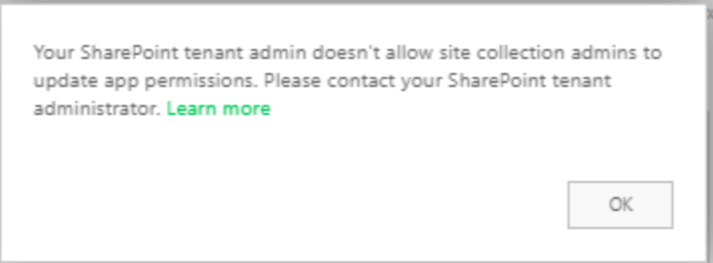
**A:** Recently, Microsoft implemented some enhanced security settings for better governance of the Sharepoint platform ([Details here](https://learn.microsoft.com/en-us/sharepoint/troubleshoot/apps/cannot-register-app-update-permissions)). If you see the error above, run the powershell the commands below to resolve the issue, and properly grant permissions to Sharepoint:
```Text powershell
Install-Module -Name Microsoft.Online.SharePoint.PowerShell -Scope CurrentUser
Update-Module -Name Microsoft.Online.SharePoint.PowerShell # Make sure the module is on version 16.0.23710.12000 or later
Connect-SPOService -Url https://-admin.sharepoint.com # Replace domain with your Sharepoint domain
Set-SPOTenant -SiteOwnerManageLegacyServicePrincipalEnabled $true
```
Once the commands above are run and the `SiteOwnerManageLegacyServicePrincipalEnabled` property is set to true, your Sharepoint admin can proceed forward with the steps outlined above.