***
title: OIDC Setup (General)
excerpt: ''
deprecated: false
hidden: false
metadata:
title: ''
description: ''
robots: index
next:
description: ''
---------------
# Prerequisites
Before you edit your SSO configuration, make sure you are logged into MyMoveworks. Otherwise, you will not be able to log in and update your SSO configuration details.
**SSO Prerequisites**
* Have sufficient privileges to create & configure an OIDC application.
**Moveworks SSO Prerequisites**
* Your Moveworks Environment should be initialized in order to continue. (Verify with your Account Team if this has been completed)
* Note the following values.
* `data_center_domain` - the data center where your organization is hosted (see table below).
| Data Center | data\_center\_domain |
| :----------------------- | :---------------------------- |
| United States (default) | moveworks.com |
| Canada | am-ca-central.moveworks.com |
| EU | am-eu-central.moveworks.com |
| Australia / Asia Pacific | am-ap-southeast.moveworks.com |
| Government Secure Cloud | moveworksgov.com |
* `subdomain` - your organization's login subdomain. This should match your `customer_id`, which can be[verified from the General Information Page](/service-management/administration/organization-information).
Make sure to use the unique subdomain. For example, if you're organization's login subdomain is **acme.moveworks.com**, then your `subdomain` is **acme** and your `data_center_domain` is **moveworks.com** which is part of the US Data center.
* `customer_id` - The unique identifier for your organization . This is stored as **Org Name** under **Organization Details > General Information**
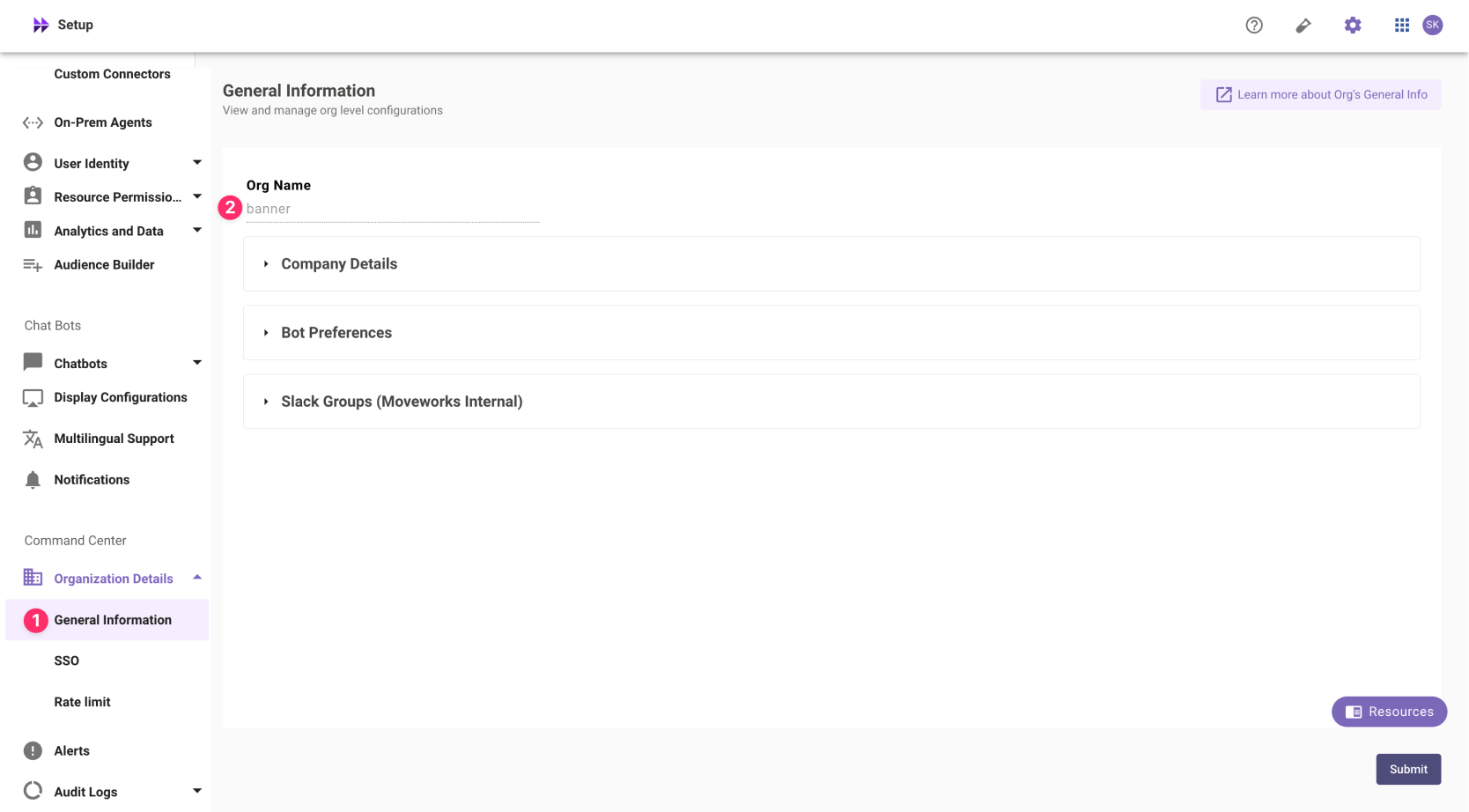
In exceptional cases where you would like Moveworks to support your organisation with a different subdomain value. Please reach out to Moveworks Support.
# Configuration Steps
## Create OIDC Application
Go to your SSO Admin Portal & create a new OpenID Connect (OIDC) application. Please configure your redirect and login urls based on your Moveworks SSO properties.
1. **App Name**: `Moveworks`.
2. **Sign-in Method**: `OpenID Connect` as the sign in method.
3. **Login URL (aka Home Page URL)**: `https://{{subdomain}}.{{data_center_domain}}`
4. **Redirect URL**: `https://{{subdomain}}.{{data_center_domain}}/login/sso/oidc`
5. **Application Icon**:

## Add OIDC Configuration in MyMoveworks
1. Note your OIDC Configuration variables from your SSO platform
* Issuer URL: (called `idp_issuer`)
* Client ID: (called `idp_client_id`)
* Client Secret (called `idp_client_secret`)
2. Navigate to SSO Settings in MyMoveworks
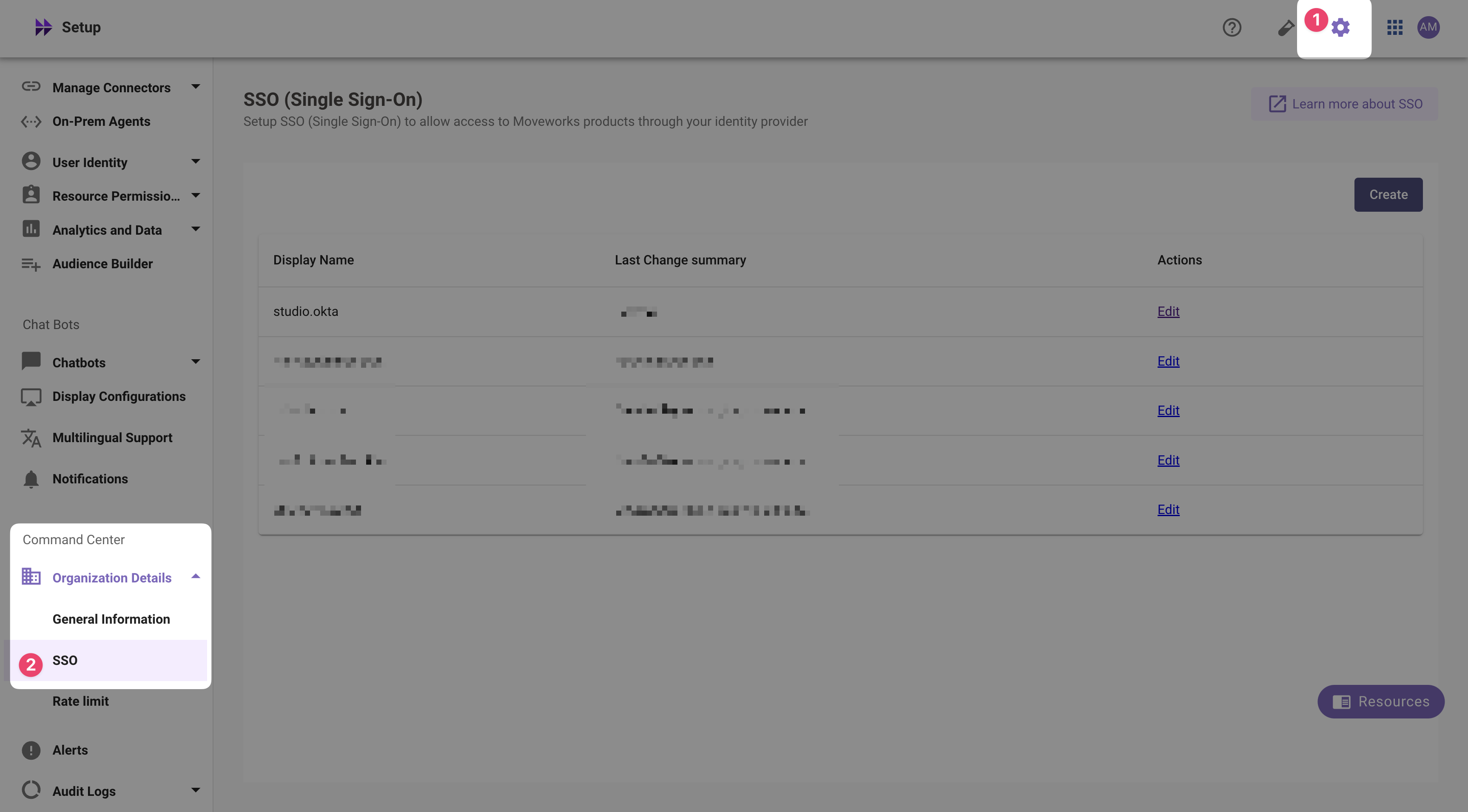
3. If you already see a `studio` config, edit it. Otherwise, choose **Create**.
4. Add your configuration using the values you've noted above
* **Moveworks Product**: `studio`
* **Select Connector**: `moveworks` or `{{your_idp}}`
* **Authentication Protocol**: `OIDC`
* **IDP Redirect URL**: `https://{{subdomain}}.{{data_center_domain}}/login/sso/oidc`
* e.g. [https://acme.am-eu-central.moveworks.com/login/sso/oidc](https://acme.am-eu-central.moveworks.com/login/sso/oidc)
* **IDP Issuer**: `idp_issuer`(from Step 1)
* e.g. [https://login.microsoftonline.com/9ed5798c-9bbe-471c-8005-7658c9846400/v2.0](https://login.microsoftonline.com/9ed5798c-9bbe-471c-8005-7658c9846400/v2.0)
* **IDP Client Id**: `idp_client_id` (from Step 1)
* **IDP Client Secret**: `idp_client_secret` (from Step 1)
5. Click **Submit**.
6. Wait a few minutes, then attempt to log into your instance at `https://{{subdomain}}.{{data_center_domain}}`