***
title: SAML Setup (General)
excerpt: ''
deprecated: false
hidden: false
metadata:
title: ''
description: ''
robots: index
next:
description: ''
---------------
# Prerequisites
Before you edit your SSO configuration, make sure you are logged into MyMoveworks. Otherwise, you will not be able to log in and update your SSO configuration details.
**SSO Prerequisites**
* Have sufficient privileges to create & configure a SAML application.
**Moveworks SSO Prerequisites**
* Your Moveworks Environment should be initialized in order to continue. (Verify with your Account Team if this has been completed)
* Note the following values.
* `data_center_domain` - the data center where your organization is hosted (see table below).
| Data Center | data\_center\_domain |
| :----------------------- | :---------------------------- |
| United States (default) | moveworks.com |
| Canada | am-ca-central.moveworks.com |
| EU | am-eu-central.moveworks.com |
| Australia / Asia Pacific | am-ap-southeast.moveworks.com |
| Government Secure Cloud | moveworksgov.com |
* `subdomain` - your organization's login subdomain. This should match your `customer_id`, which can be[verified from the General Information Page](/service-management/administration/organization-information).
Make sure to use the unique subdomain. For example, if you're organization's login subdomain is **acme.moveworks.com**, then your `subdomain` is **acme** and your `data_center_domain` is **moveworks.com** which is part of the US Data center.
* `customer_id` - The unique identifier for your organization . This is stored as **Org Name** under **Organization Details > General Information**
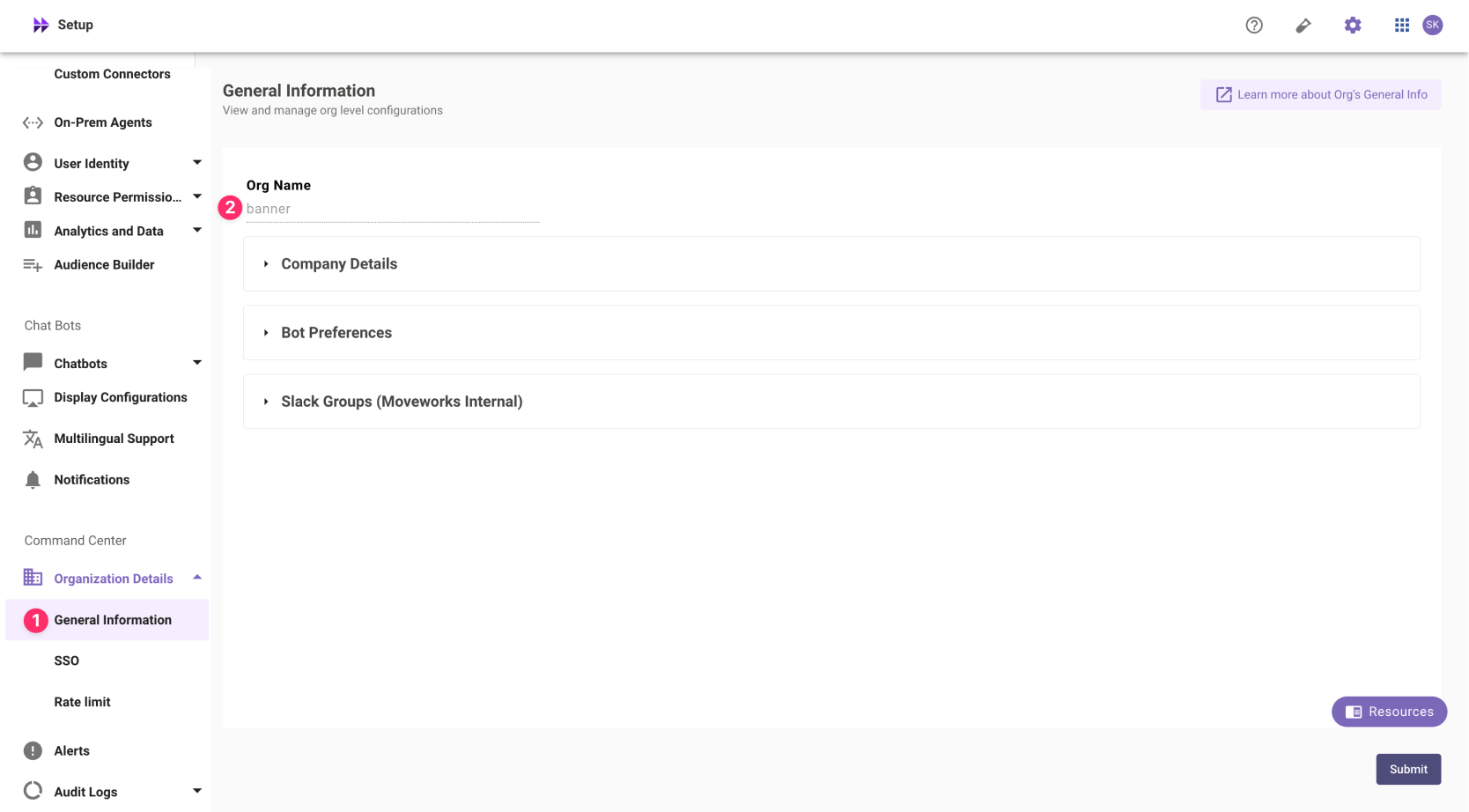
In exceptional cases where you would like Moveworks to support your organisation with a different subdomain value. Please reach out to Moveworks Support.
# Configuration Steps
## Create SAML Application
Go to your SSO Admin Portal & create a new "Security Assertion Markup Language" (SAML) application. Please configure your urls based on your Moveworks SSO properties.
1. **App Name**: `Moveworks`.
2. **Sign-in Method**: `SAML 2.0` as the sign in method.
3. **SAML ACS URL**: `https://{{subdomain}}.{{data_center_domain}}/login/sso/saml`
Moveworks uses the same url for sending and receiving SAML Assertions. So you can use this SAML ACS URL for the following URLs
* Single-sign on URL
* Destination URL
* Recipient URL.
4. **Audience URI (also called SP Entity ID)**: `https://www.moveworks.com`.
5. **Relay State**: `customer_id`
6. **Application Icon**:

## Add SAML Configuration in MyMoveworks
1. Note your SAML Configuration variables from your SSO platform
* **Identity Provider SSO URL**`idp_url`
* **Identity Provider Issuer**: `idp_issuer`
* **X.509 Certification**: `x509_certificate`
To actually set the config most SSO tools will have an XML output. Using this you should be able to get everything you need.
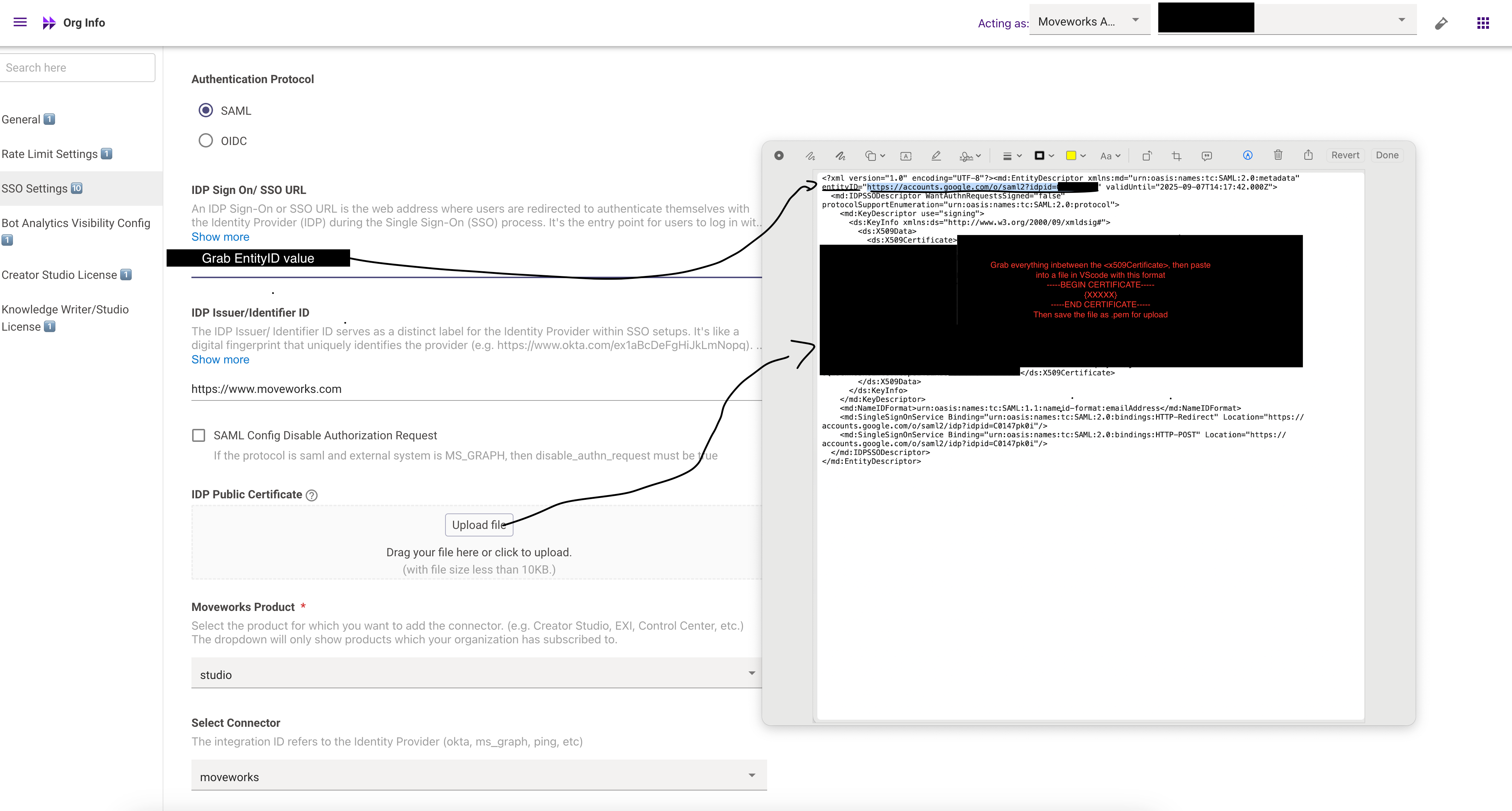
Follow this screenshot — your main tasks:
**entityID**
1. Use the Identity Provider (IdP) Sign-On URL as the entityID.
2. You can capture it during the redirect to your SSO service and validate that it matches the URL
**x509 Certificate**
1. Format the certificate per standard: include the header -----BEGIN CERTIFICATE-----, the footer -----END CERTIFICATE-----, and wrap lines at 64 characters each (except the final line). For example, you can use the tool at SAMLTool.com: Format X.509 Cert
2. We recommend using VS Code (or similar) to format and then save the certificate as a .cert or .pem file.
**IdP Issuer**
Use the same URL you assigned for the Audience URL (in this case: [https://www.moveworks.com](https://www.moveworks.com)) as the IdP issuer.
**Email Address Consistency**
Ensure that the email address sent in the SSO assertion from the IdP matches the email address that the user is ingested under in the system
2. Navigate to SSO Settings in MyMoveworks
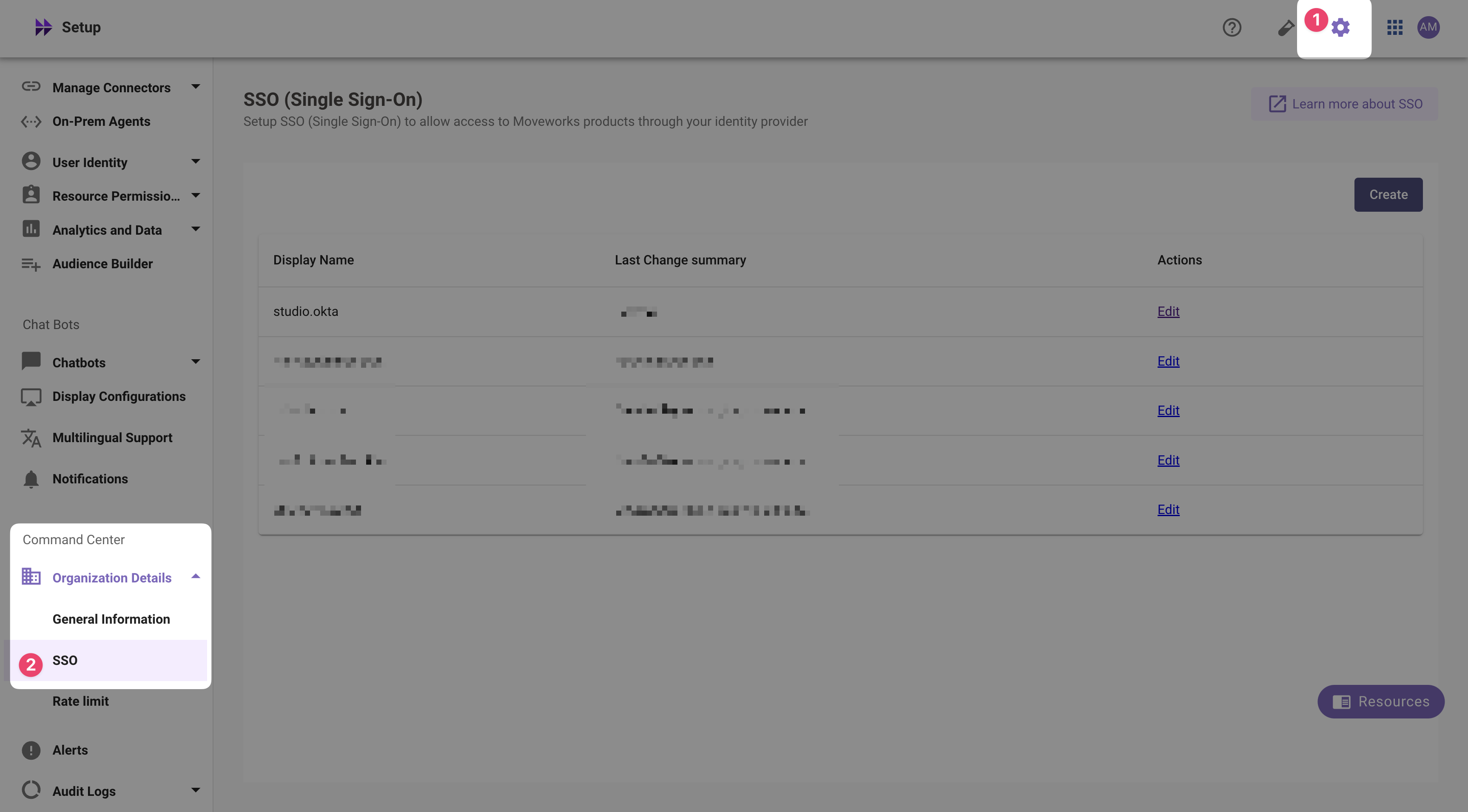
3. If you already see a `studio` config, edit it. Otherwise, choose **Create**.
4. Add your configuration using the values you've noted above
* **Moveworks Product**: `studio`
* **Select Connector**: `moveworks` or `{{your_idp}}`
* **Authentication Protocol**: `SAML`
* **IDP Sign On / SSO URL**: `{{idp_url}}` (From Step 1)
* **IDP Issuer**: `{{idp_url}}`(From Step 1)
* **IDP Public Certificate**: `x509_certificate` (From Step 1)
5. Click **Submit**.
6. Wait a few minutes, then attempt to log into your instance at `https://{{subdomain}}.{{data_center_domain}}`