***
title: Okta Installation Guide (OIDC)
excerpt: ''
deprecated: false
hidden: false
metadata:
title: ''
description: ''
robots: index
next:
description: ''
---------------
# Prerequisites
Before you edit your SSO configuration, make sure you are logged into MyMoveworks. Otherwise, you will not be able to log in and update your SSO configuration details.
**Okta SSO Prerequisites**
* Have access to an Okta tenant
* Be an Okta administrator to that tenant
**Moveworks SSO Prerequisites**
* Your Moveworks Environment should be initialized in order to continue. (Verify with your Account Team if this has been completed)
* Note the following values.
* `data_center_domain` - the data center where your organization is hosted (see table below).
| Data Center | data\_center\_domain |
| :----------------------- | :---------------------------- |
| United States (default) | moveworks.com |
| Canada | am-ca-central.moveworks.com |
| EU | am-eu-central.moveworks.com |
| Australia / Asia Pacific | am-ap-southeast.moveworks.com |
| Government Secure Cloud | moveworksgov.com |
* `subdomain` - your organization's login subdomain. This should match your `customer_id`, which can be[verified from the General Information Page](/service-management/administration/organization-information).
Make sure to use the unique subdomain. For example, if you're organization's login subdomain is **acme.moveworks.com**, then your `subdomain` is **acme** and your `data_center_domain` is **moveworks.com** which is part of the US Data center.
* `customer_id` - The unique identifier for your organization . This is stored as **Org Name** under **Organization Details > General Information**
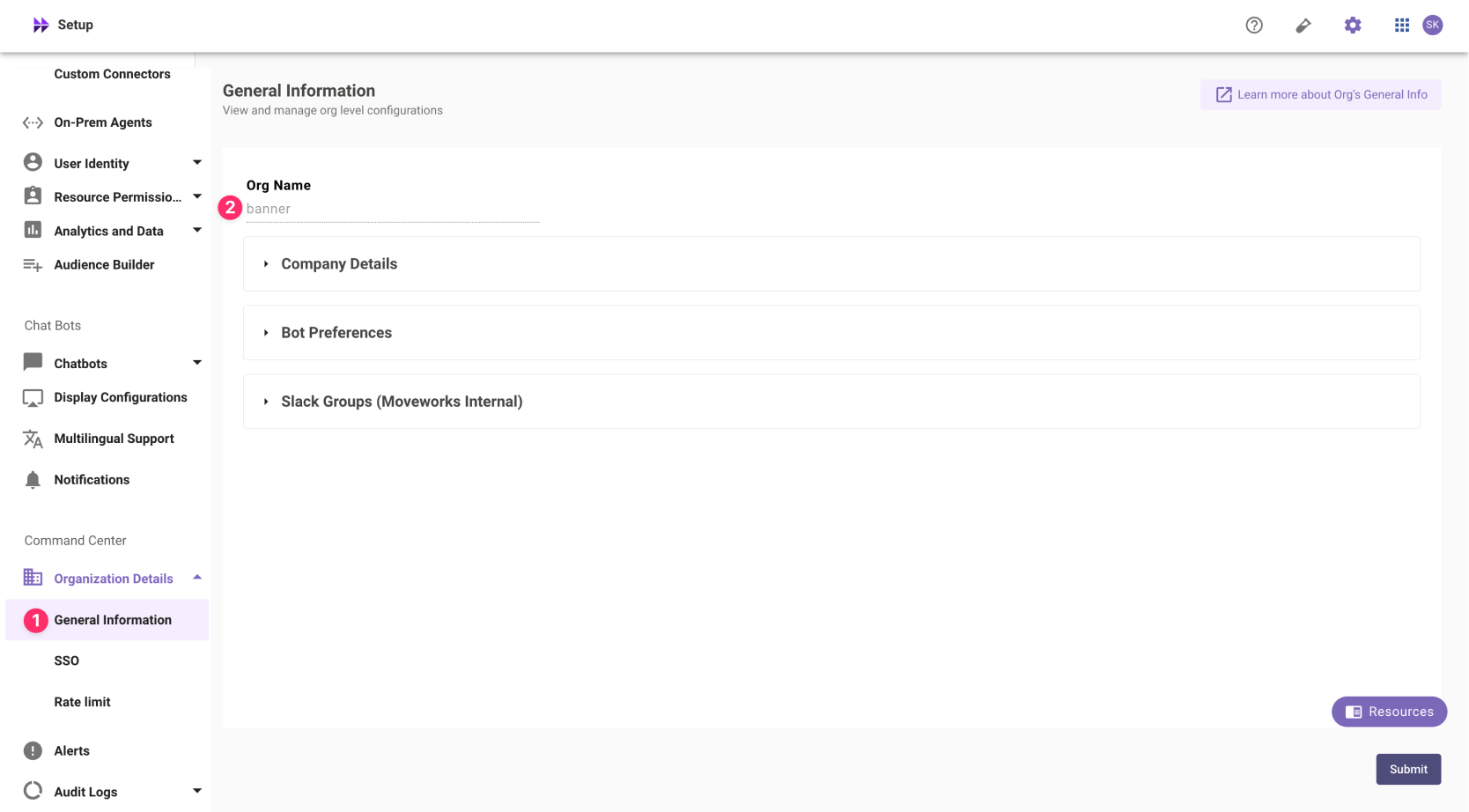
In exceptional cases where you would like Moveworks to support your organisation with a different subdomain value. Please reach out to Moveworks Support.
# Configuration Steps
## Install Application
1. Go to the Okta Admin screen that lets you create Applications.
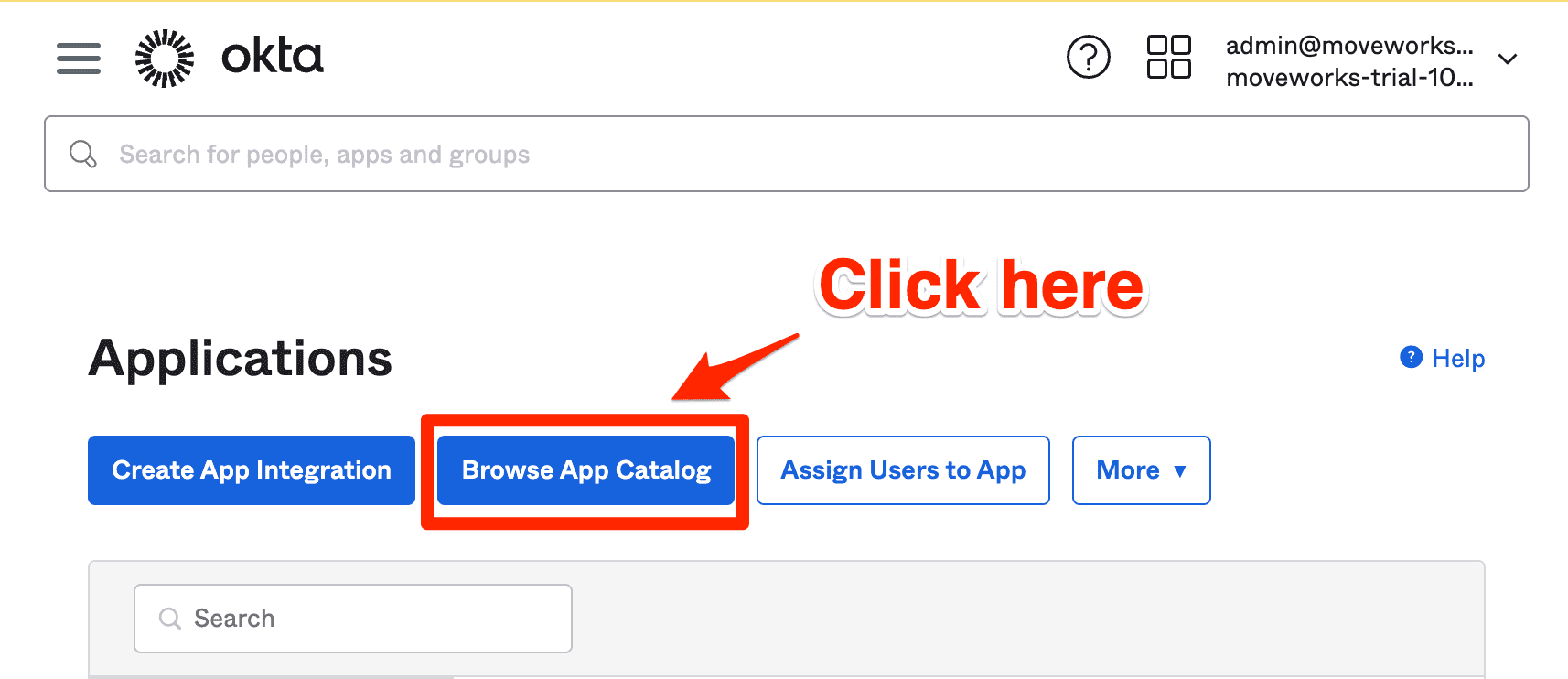
2. Click on **Browse App Catalog**.
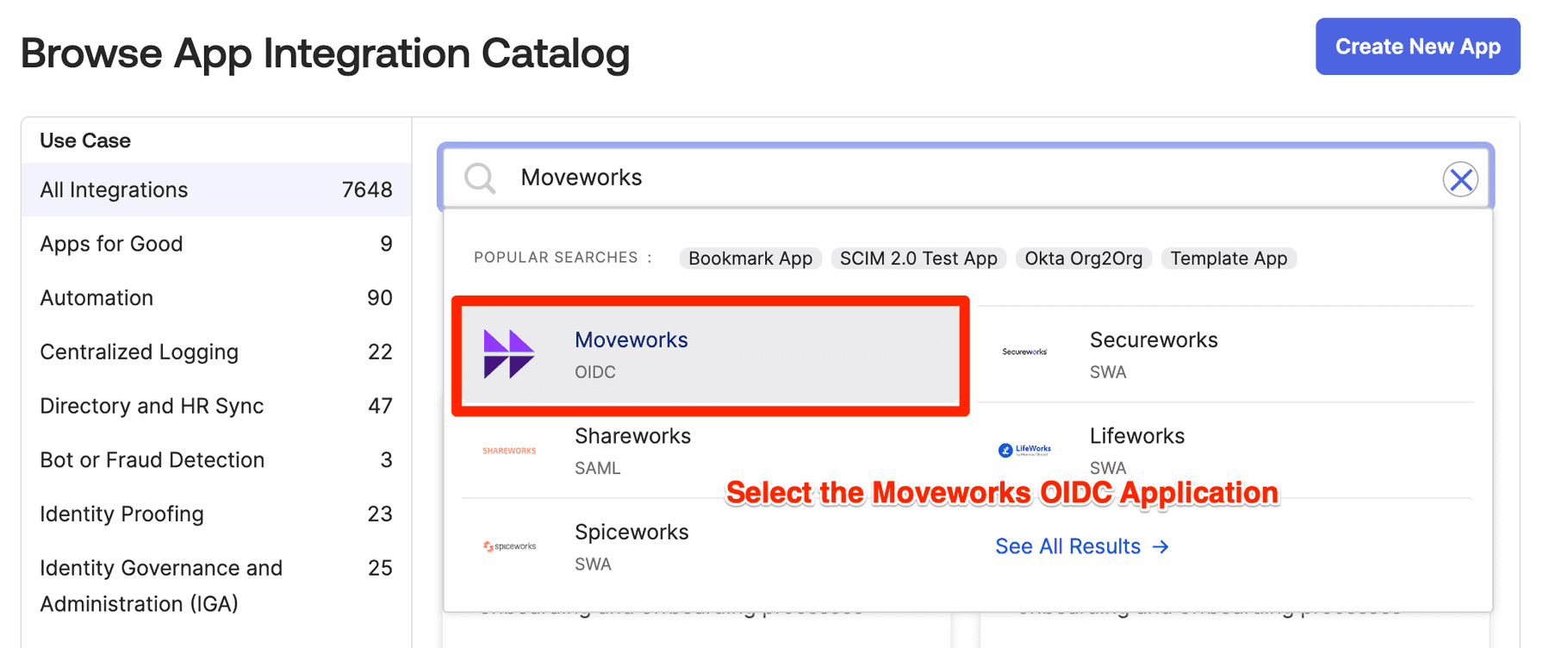
3. Search and select **Moveworks**.
4. Add a logo for the Moveworks application:

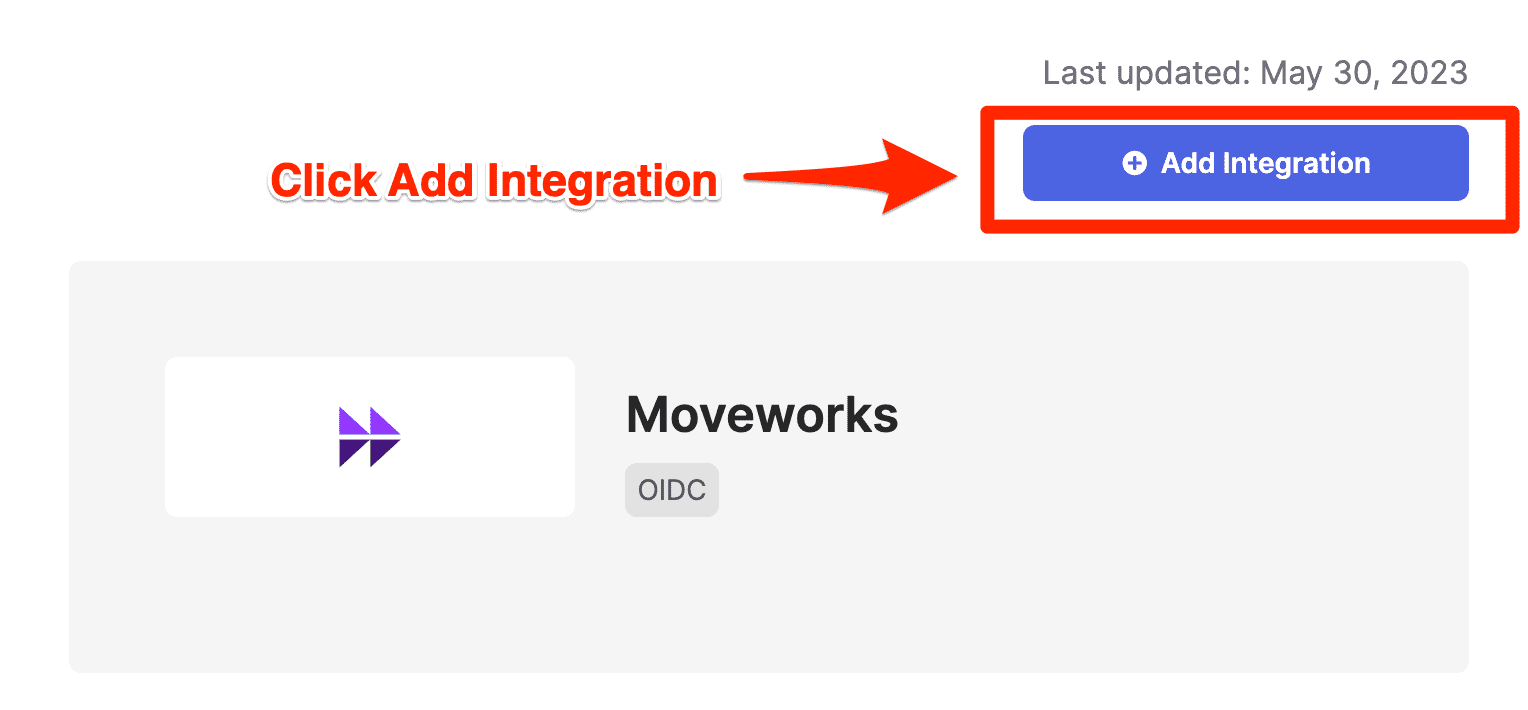
5. Click **Add integration**.
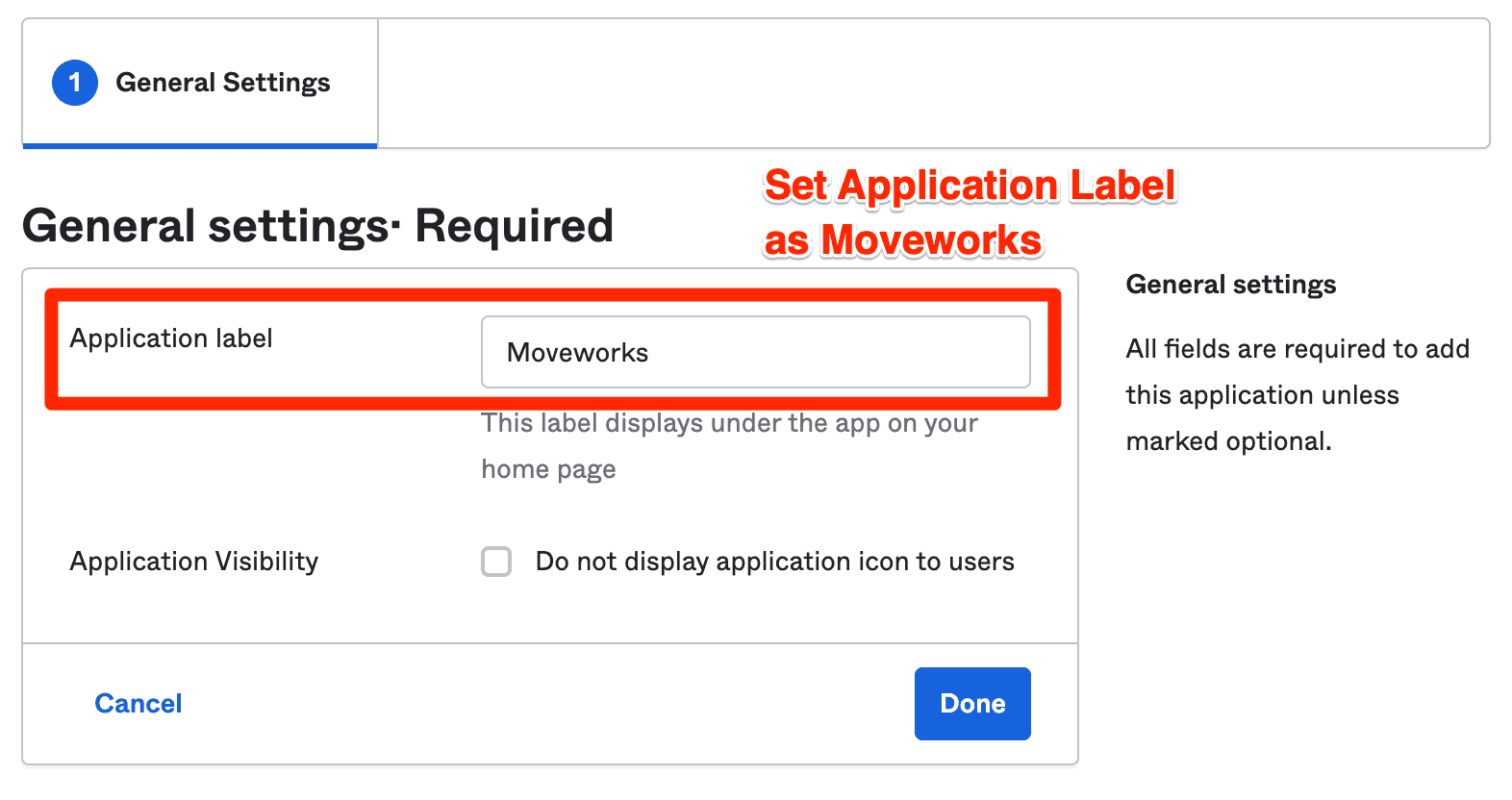
6. Set the *Application Label* as Moveworks and click **Done**.
**Note**: Make sure you get your `Customer ID` from your Customer Success Team before this next step.
## Configure Moveworks Settings
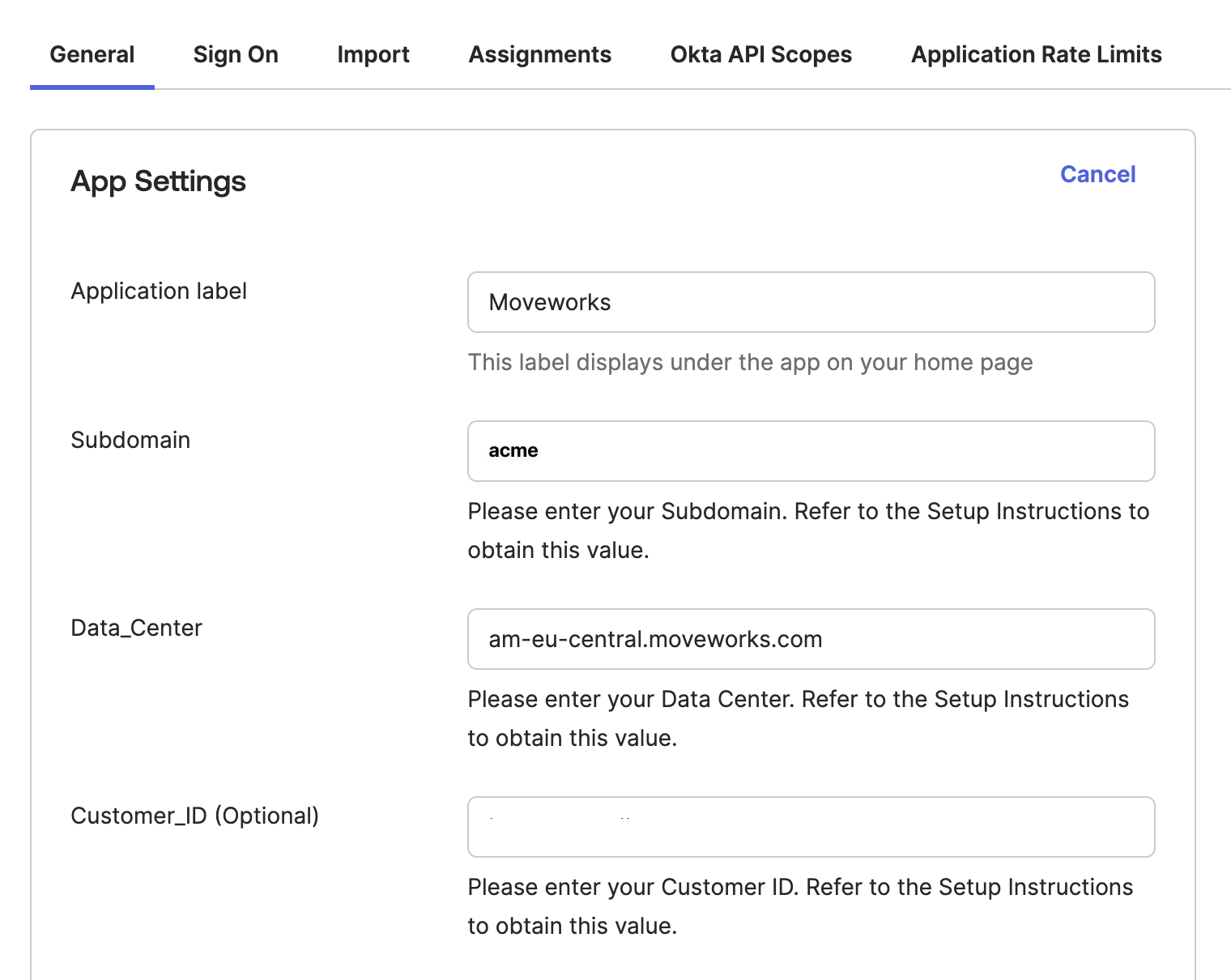
1. On the **General** tab., add your `subdomain`, `data_center_domain`, and optionally your `customer_id`
You can leave `data_center_domain` blank if it is just`moveworks.com`
In this example, my `data_center_domain` was **am-eu-central.moveworks.com** and my `subdomain` was **acme**.
## Add OIDC Configuration in MyMoveworks
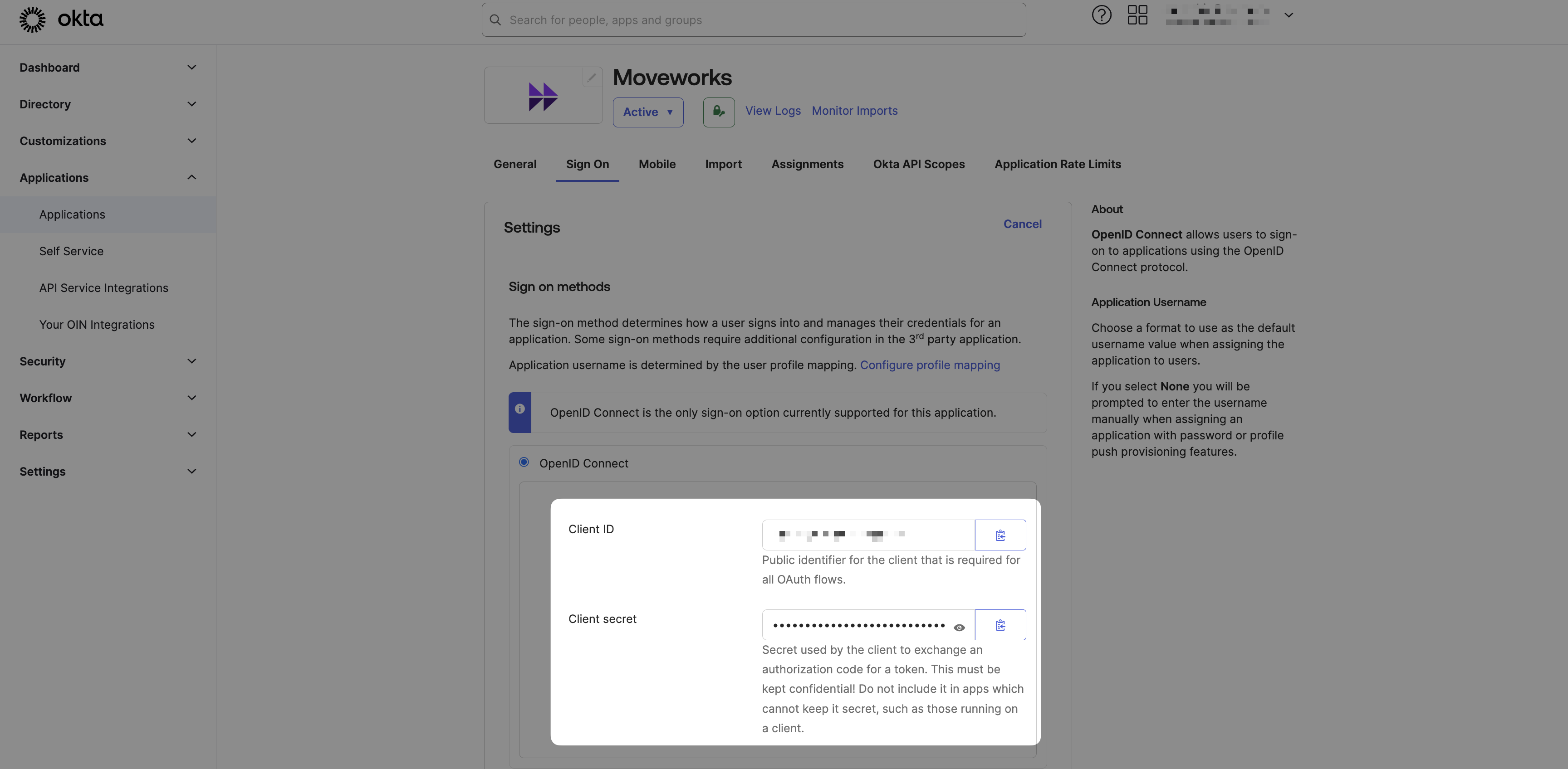
1. Copy the `Client ID` , `Client secret` from the Sign On tab
2. Copy the `idp_issuer`. This is not in the Okta settings, but it should be based on your Okta instance name (e.g. If you login at `https://acme.okta.com`, then your `idp_issuer` is `https://acme.okta.com`
3. Navigate to SSO Settings in MyMoveworks
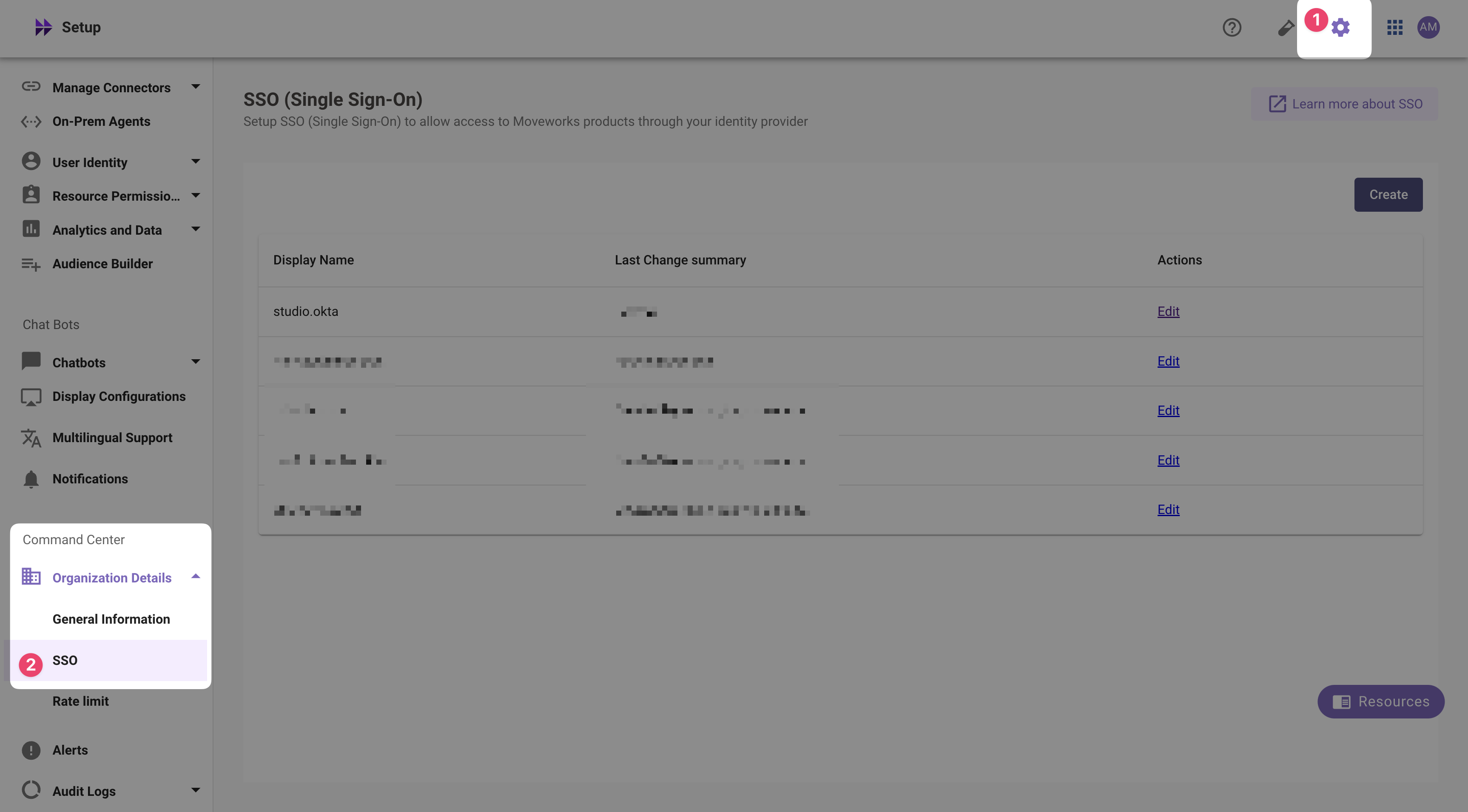
4. If you already see a `studio` config, edit it. Otherwise, choose **Create**.
5. Add your configuration using the values you've noted above
* **Moveworks Product**: `studio`
* **Select Connector**: `okta` or `moveworks`
* **Authentication Protocol**: `OIDC`
* **IDP Redirect URL**: `https://{{subdomain}}.{{data_center_domain}}/login/sso/oidc`
* e.g. `https://acme.am-eu-central.moveworks.com/login/sso/oidc`
* **IDP Issuer**: `idp_issuer`
* e.g. `https://acme.okta.com`
* **IDP Client Id**: `idp_client_id` (from Step 1)
* **IDP Client Secret**: `idp_client_secret` (from Step 1)
6. Click **Submit**.
7. Wait a few minutes, then attempt to log into your instance at `https://{{subdomain}}.{{data_center_domain}}`