***
title: Okta Installation Guide (SAML)
excerpt: ''
deprecated: false
hidden: false
metadata:
title: ''
description: ''
robots: index
next:
description: ''
---------------
Moveworks recommends that you set up your Okta apps via OIDC. Our OIDC installation will provide a better experience. You can follow the instructions [here (🔗)](/service-management/administration/sso-configuration/okta-sso/okta-oidc).
This document describes the steps required to set up the Moveworks as a SAML application in Okta. Doing this will allow employees in your organization to access the Moveworks Control Center through their Okta dashboard, in the same way as they use single sign-on to access other apps they use.
# Prerequisites
Before you edit your SSO configuration, make sure you are logged into MyMoveworks. Otherwise, you will not be able to log in and update your SSO configuration details.
**Okta SSO Prerequisites**
* Have access to an Okta tenant
* Be an Okta administrator to that tenant
**Moveworks SSO Prerequisites**
* Your Moveworks Environment should be initialized in order to continue. (Verify with your Account Team if this has been completed)
* Note the following values.
* `data_center_domain` - the data center where your organization is hosted (see table below).
| Data Center | data\_center\_domain |
| :----------------------- | :---------------------------- |
| United States (default) | moveworks.com |
| Canada | am-ca-central.moveworks.com |
| EU | am-eu-central.moveworks.com |
| Australia / Asia Pacific | am-ap-southeast.moveworks.com |
| Government Secure Cloud | moveworksgov.com |
* `subdomain` - your organization's login subdomain. The value for **subdomain** should match your `customer_id`, which can be [verified from the General Information Page](/service-management/administration/organization-information).
Make sure to use the unique subdomain. For example, if you're organization's login subdomain is **acme.moveworks.com**, then your `subdomain` is **acme** and your `data_center_domain` is **moveworks.com** which is part of the US Data center.
* `customer_id` - The unique identifier for your organization . This is stored as **Org Name** under **Organization Details > General Information**
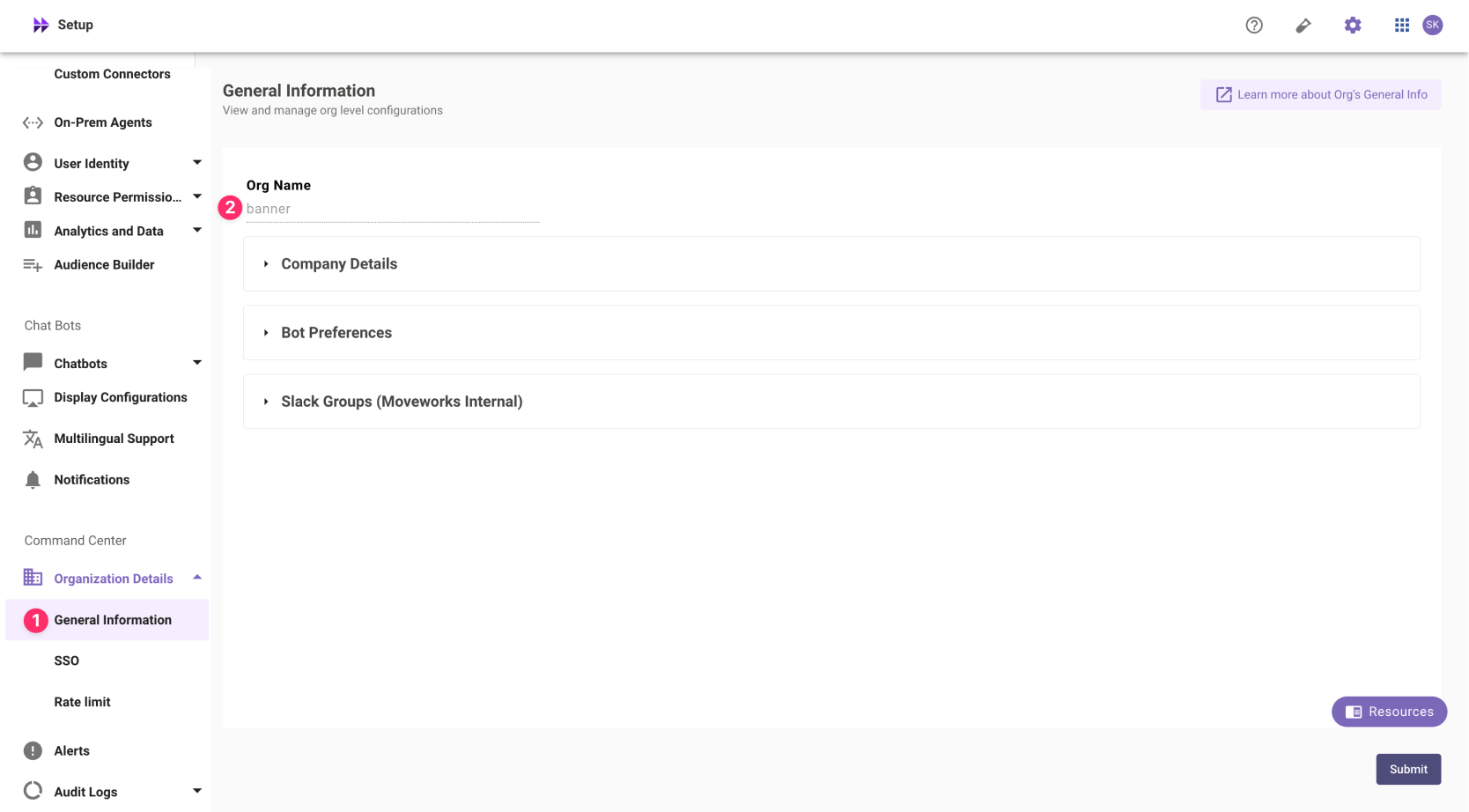
In exceptional cases where you would like Moveworks to support your organisation with a different subdomain value. Please reach out to Moveworks Support.
# Configuration Steps
## Create SAML Application
1. Log in to your Okta org and navigate to the Admin user interface
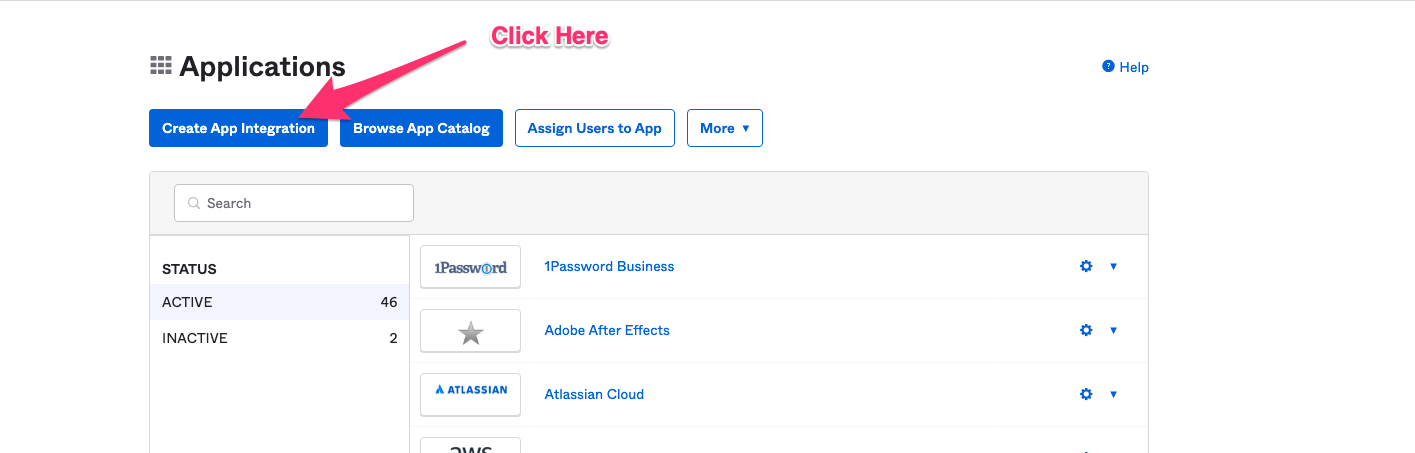
2. Navigate to **Applications > Applications.**
3. Navigate to the Applications section of Okta, and click on **Create App Integration**.\
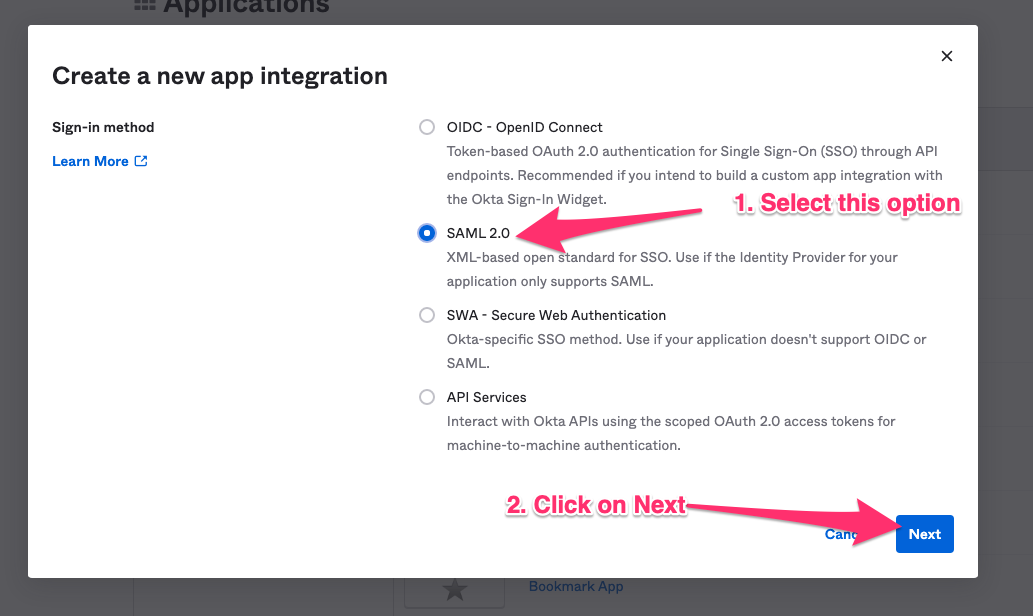
4. Select SAML 2.0 in the next screen.\
5. Define General Settings
1. **App Name:** `Moveworks`
2. **App Logo**: Download the following image

3. **App Visibility**: Leave unchecked
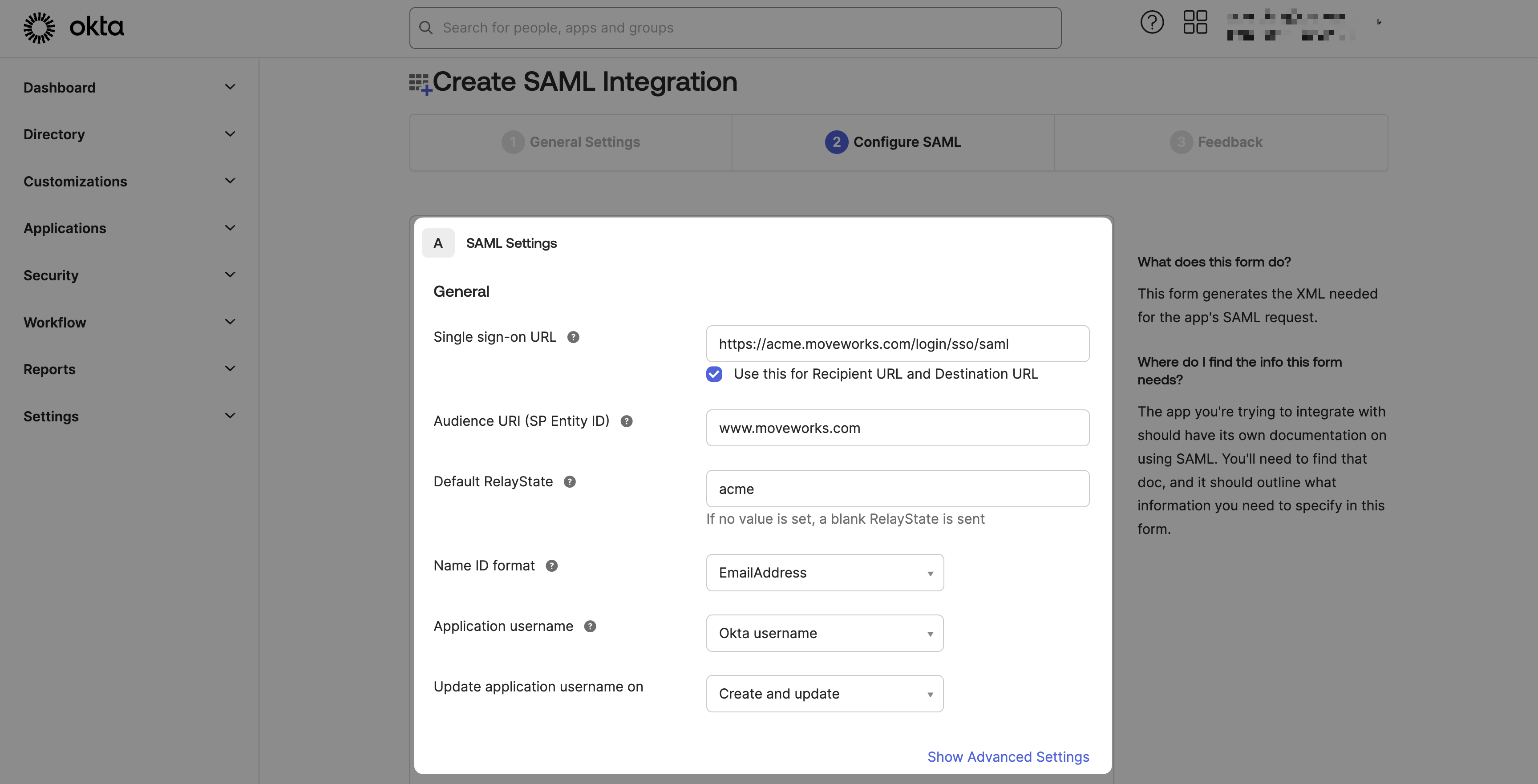
6. Configure SAML using the values you've noted above
1. **Single sign on URL:** `https://{{subdomain}}.{{data_center_domain}}/login/sso/saml`
1. e.g. `https://acme.am-eu-central.moveworks.com/login/sso/saml`
2. Leave `Use this for Recipient URL and Destination URL` selected
2. **Audience URI:** `www.moveworks.com`
3. **Default Relay State:** `customer_id`
4. **Name ID format:** `EmailAddress`
5. **Application username:** `Okta username`
6. **Update application username on:** `Create and update`
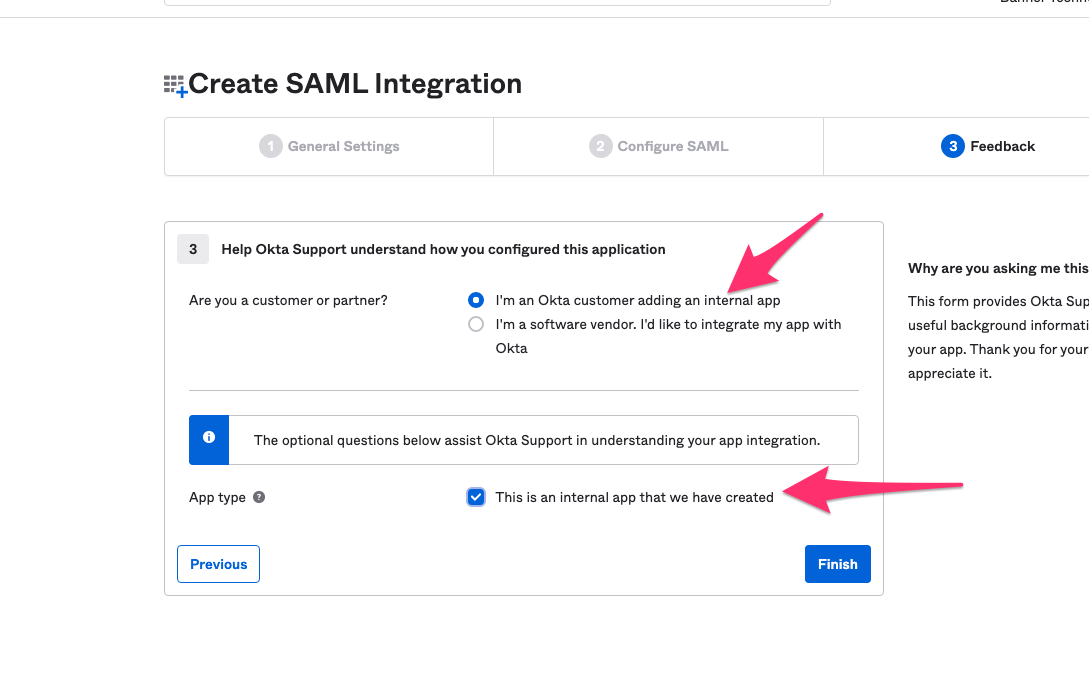
7. Submit **Feedback** & **Finish**
1. **Are you a customer or partner?** `I’m an Okta customer adding an internal app`
2. **App type**: `This is an internal app that we have created`\
## Add SAML Configuration in MyMoveworks
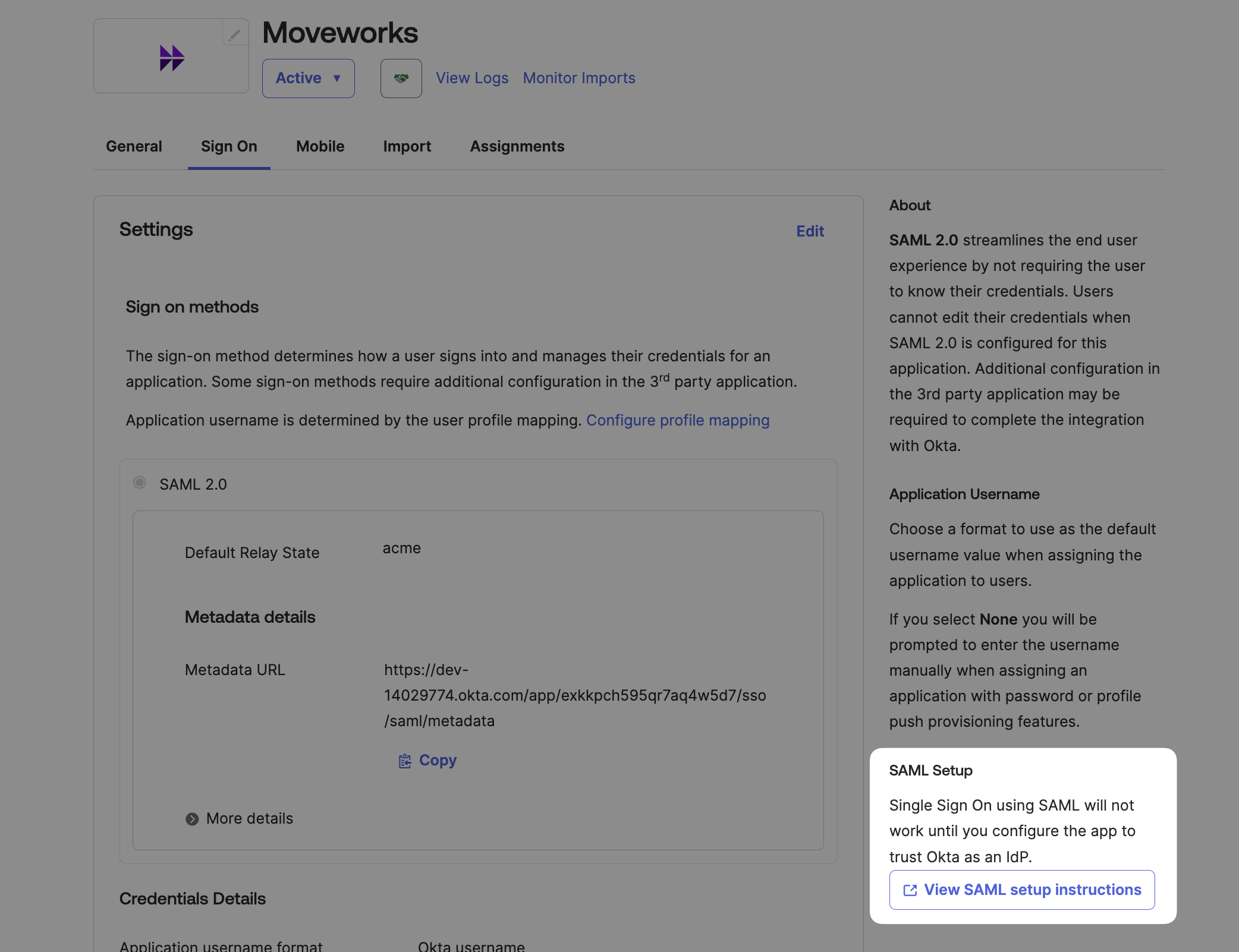
1. On the **Sign On** tab select **View SAML setup instructions**
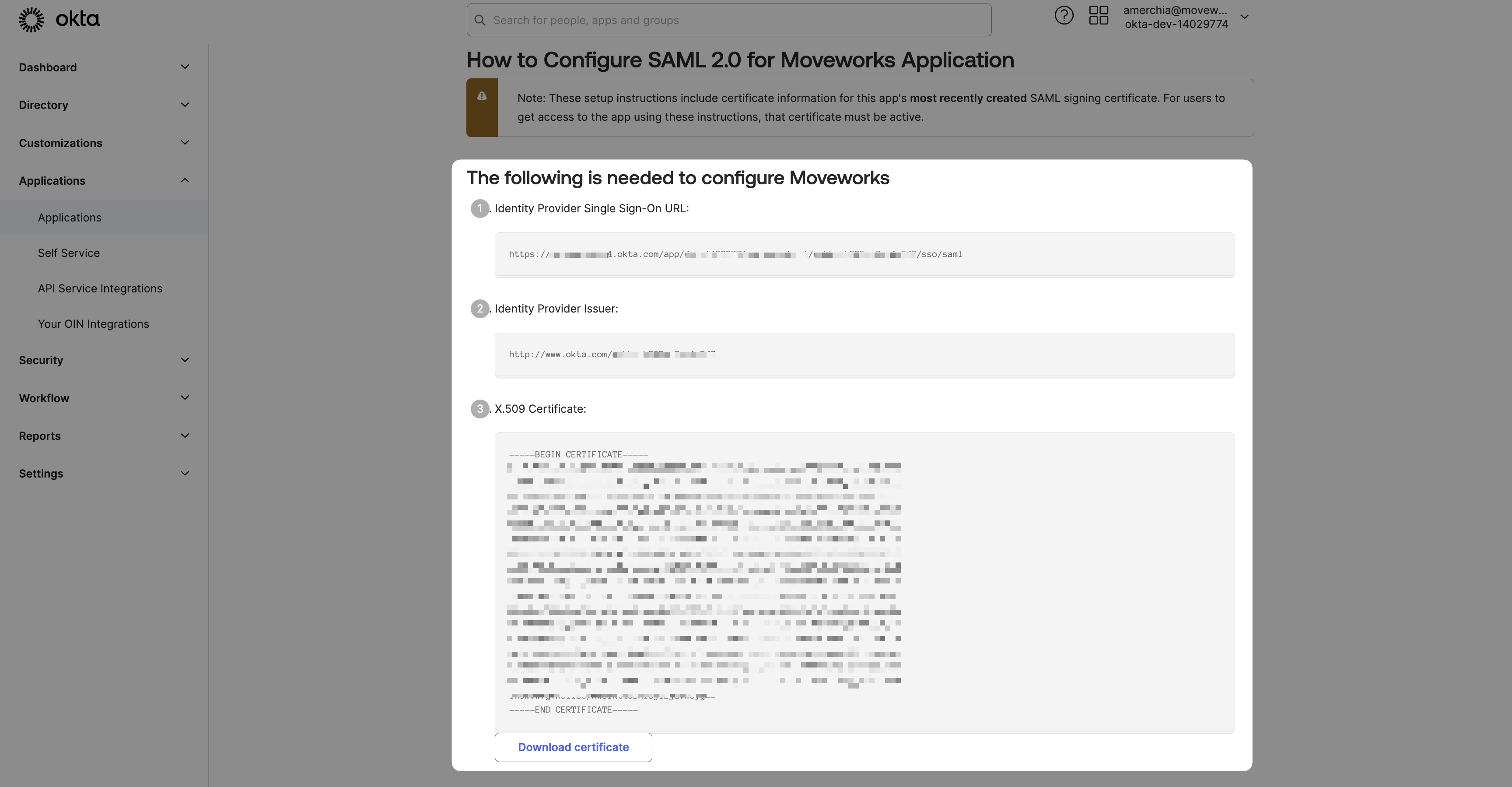
2. Copy / Download the provided information
* **Identity Provider SSO URL**`idp_url`
* **Identity Provider Issuer**: `idp_issuer`
* **X.509 Certification**: `x509_certificate`
3. Navigate to SSO Settings in MyMoveworks
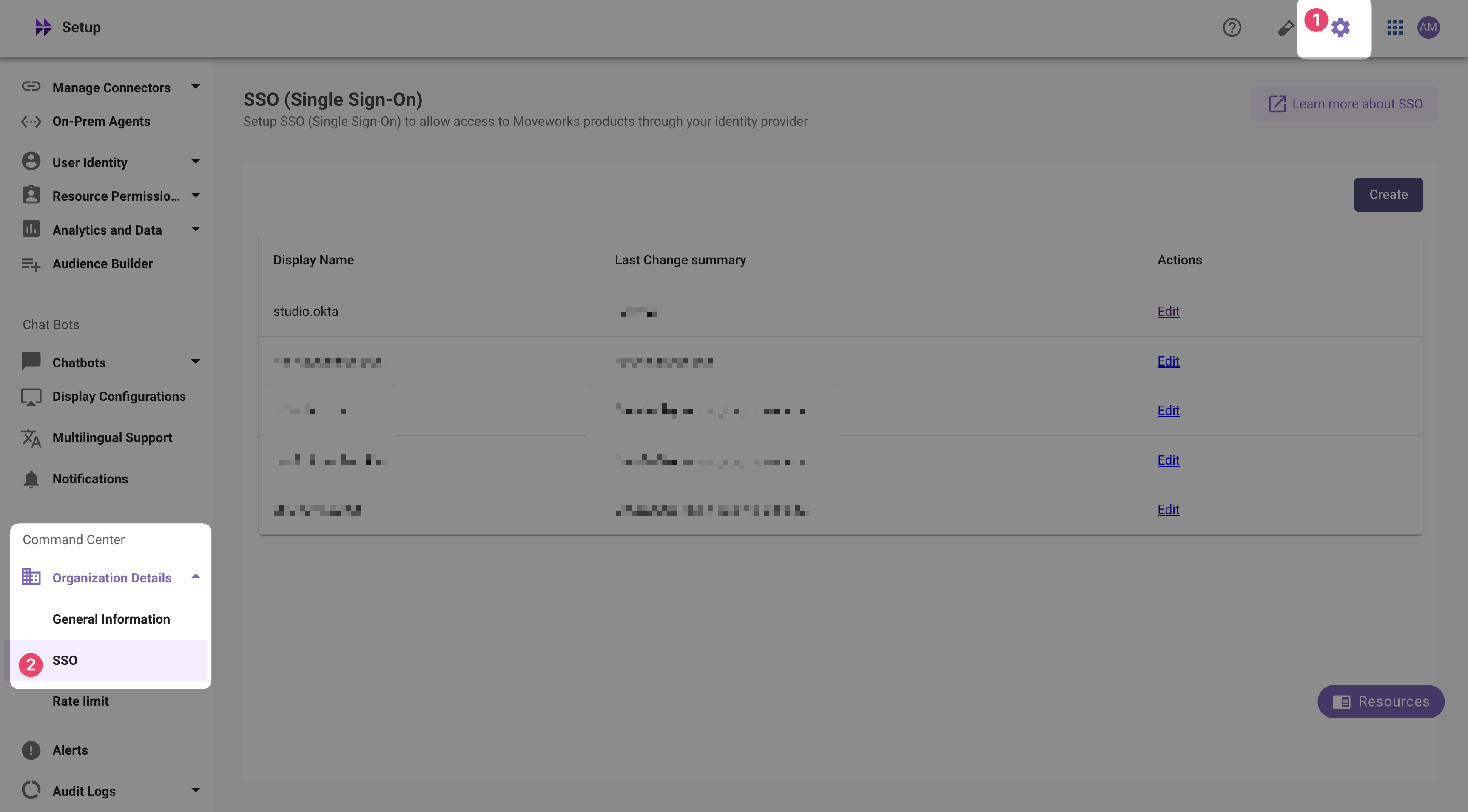
4. If you already see a `studio` config, edit it. Otherwise, choose Create.
5. Add your configuration using the values you've noted above
* **Moveworks Product**: `studio`
* **Select Connector**: `okta` or `moveworks`
* **Authentication Protocol**: `SAML`
* **IDP Sign On / SSO URL**: `{{idp_url}}` (From Step 2)
* e.g. `https://acme.okta.com/app/acme_moveworks_1/d4f567gd8s9sdfgds/sso/saml`
* **IDP Issuer**: `{{idp_url}}`(From Step 2)
* e.g. `http://www.okta.com/d4f567gd8s9sdfgds`
* **IDP Public Certificate**: `x509_certificate` (From Step 2)
6. Click **Submit**.
7. Wait a few minutes, then attempt to log into your instance at `https://{{subdomain}}.{{data_center_domain}}`