***
title: Configuring Conditional Subfields in RTF
position: 2
excerpt: >-
Use Update Rules to show, hide, or require fields dynamically based on a
user's earlier selections.
deprecated: false
hidden: false
metadata:
robots: index
-------------
**What this covers:** How to configure Update Rules on a Rich Ticket Filing (RTF) form so that fields show, hide, or become required/optional dynamically — based on values the user has already entered.
***
## How It Works
Update Rules evaluate a **condition** against the current field values in the form. When that condition is met (or not met), Moveworks applies a set of **field updates** — toggling visibility or required state — in real time as the user fills out the form.
Each rule has three parts:
| Part | Description |
| ---------------------- | -------------------------------------------------------------------------------------------------------------- |
| **Condition** | A boolean expression evaluated against the current field values (use the `field_` prefix for field references) |
| **Updates when True** | What to do to other fields when the condition passes |
| **Updates when False** | What to do to other fields when the condition fails |
**Supported update types:** Only `REQUIRED` / `NOT REQUIRED` and `VISIBLE` / `NOT VISIBLE` are currently supported for dynamic field updates.
**Rule execution order matters.** Rules are executed in the order they are defined. If two rules target the same field, the last rule wins. Design your rules accordingly.
***
## When to Use Update Rules
Use Update Rules when the answers a user gives earlier in a form should change what fields they see or are required to fill out next. Common scenarios include:
* **Conditional fields:** Only show a "Manager Approval Required" field when the request cost exceeds a threshold
* **Mutually exclusive options:** Show different dropdown options depending on a prior selection (e.g., different software tiers based on department)
* **Progressive disclosure:** Keep the form simple by hiding fields that are irrelevant given the user's earlier choices
### The Key RTF Pattern
RTF Update Rules work by toggling the visibility and required state of **named fields**. This means that to present a user with *different options for the same question*, you need to model it as **two separate fields** — one per option set — and show only the relevant one at a time.
For example: if users in different departments should see different priority options, you'd create `priority_it` and `priority_hr` as separate fields (both labeled "Priority"), and use an Update Rule to show only the one that matches the user's department. The user sees a single "Priority" question; the form handles the branching behind the scenes.
***
## Worked Example: Shirt Order Form
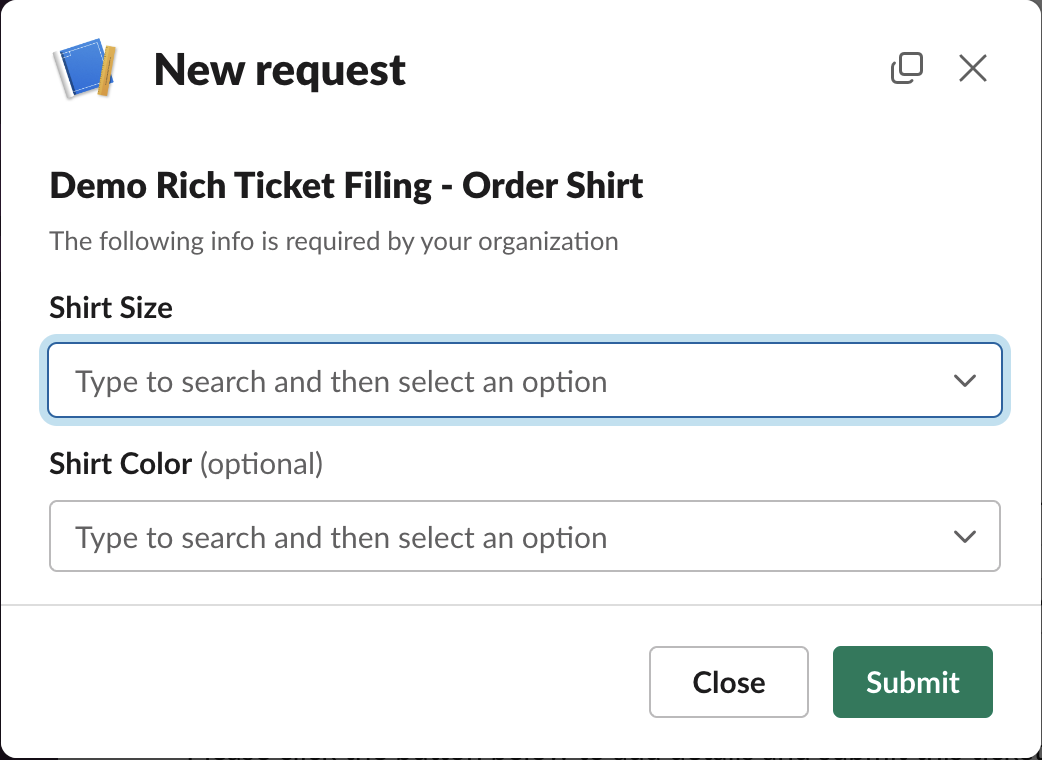
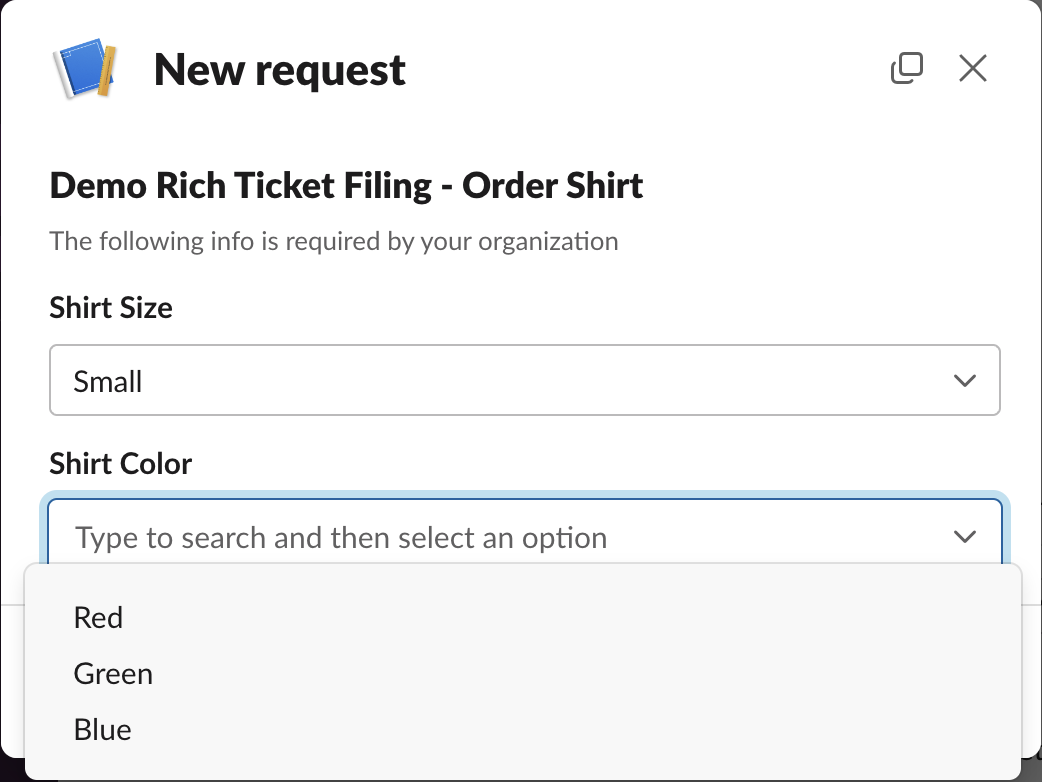
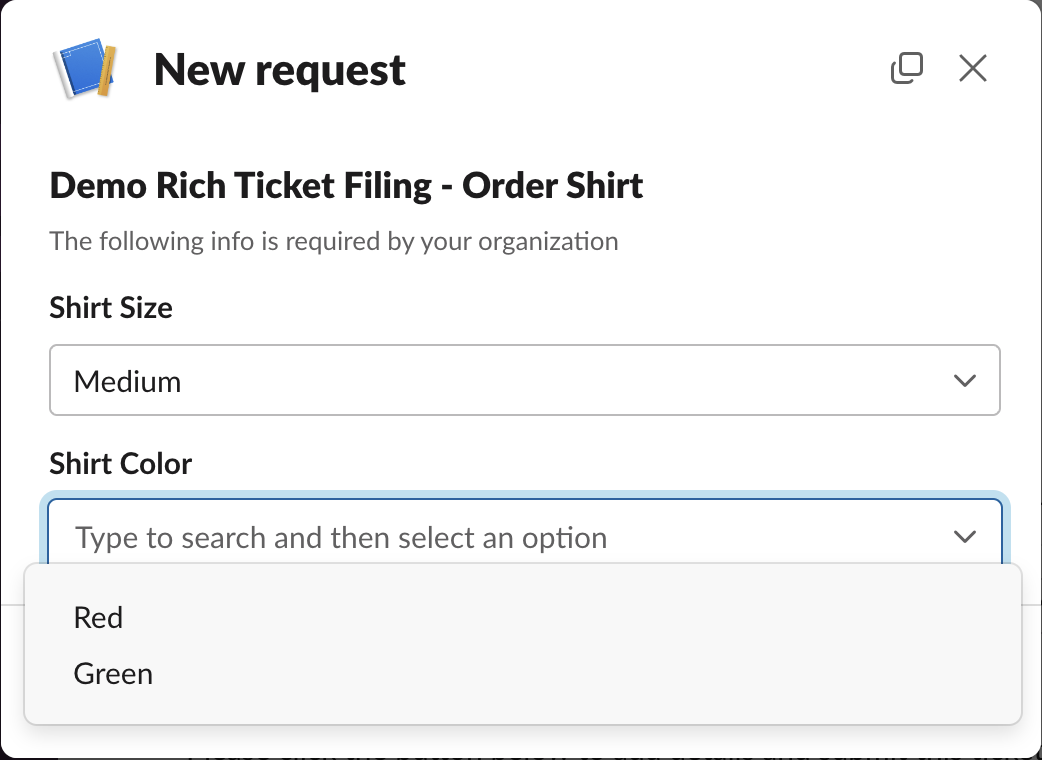
This example walks through a form where a user orders a shirt by selecting a **Size** (Small, Medium, or Large) and a **Color**. The business constraint: **Medium Blue and Large Blue shirts are not available**, so the color options must change based on the size selected.
### The Scenario
The form presents two visible labels — **Shirt Size** and **Shirt Color** — but the color field is actually implemented as **two separate fields** with different option sets:
| Field Name | Label | When to Show |
| ------------------------------------ | ----------- | -------------------------------- |
| `size` | Shirt Size | Always |
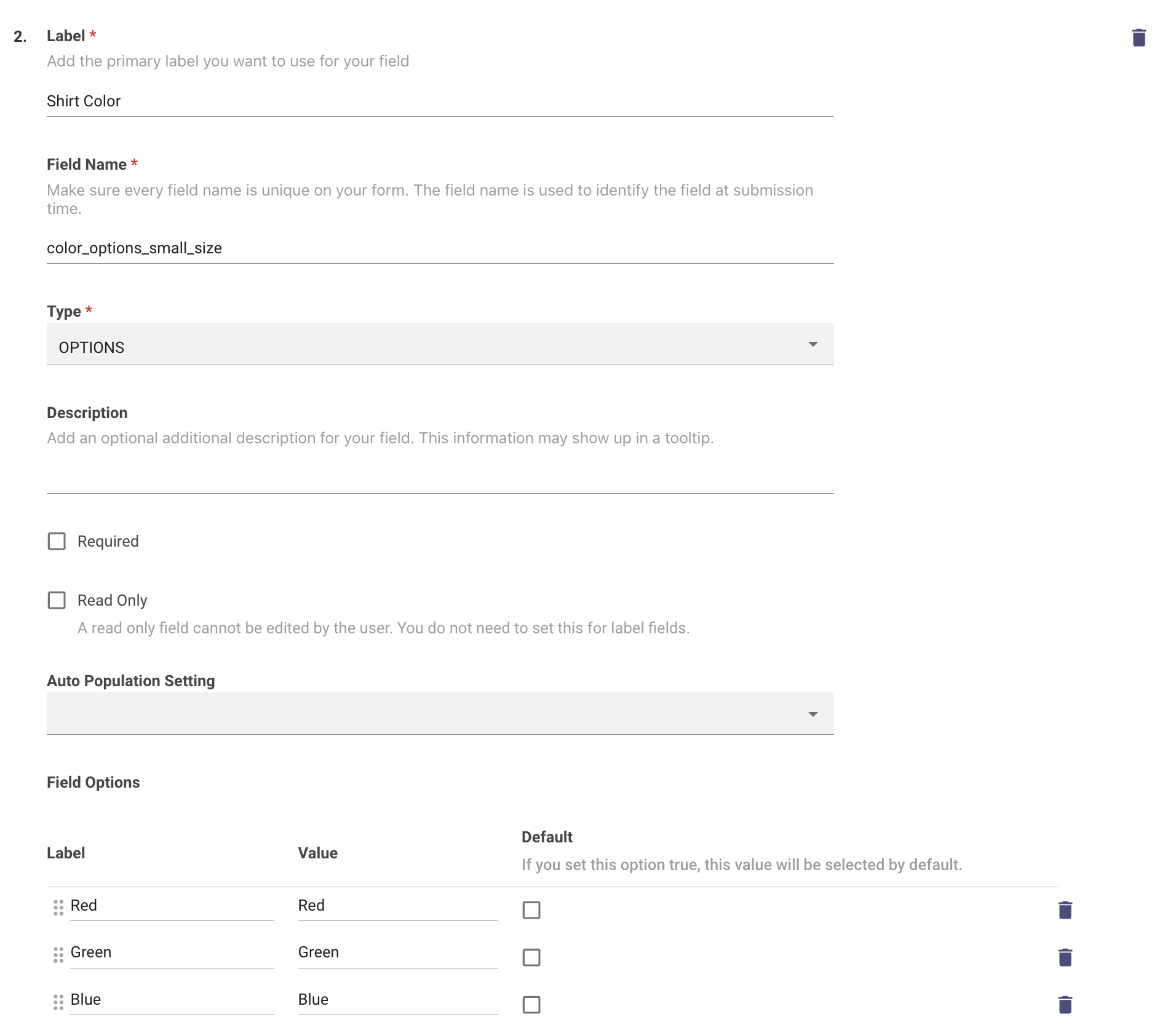
| `color_options_small_size` | Shirt Color | Only when size = Small |
| `color_options_medium_or_large_size` | Shirt Color | Only when size = Medium or Large |
This lets you offer Red/Green/Blue for Small, but only Red/Green for Medium and Large.
**The form as the user sees it — initial state:**
**Depending on which size is selected, the correct color field appears:**
***
## Step 1: Identify Your Field Names
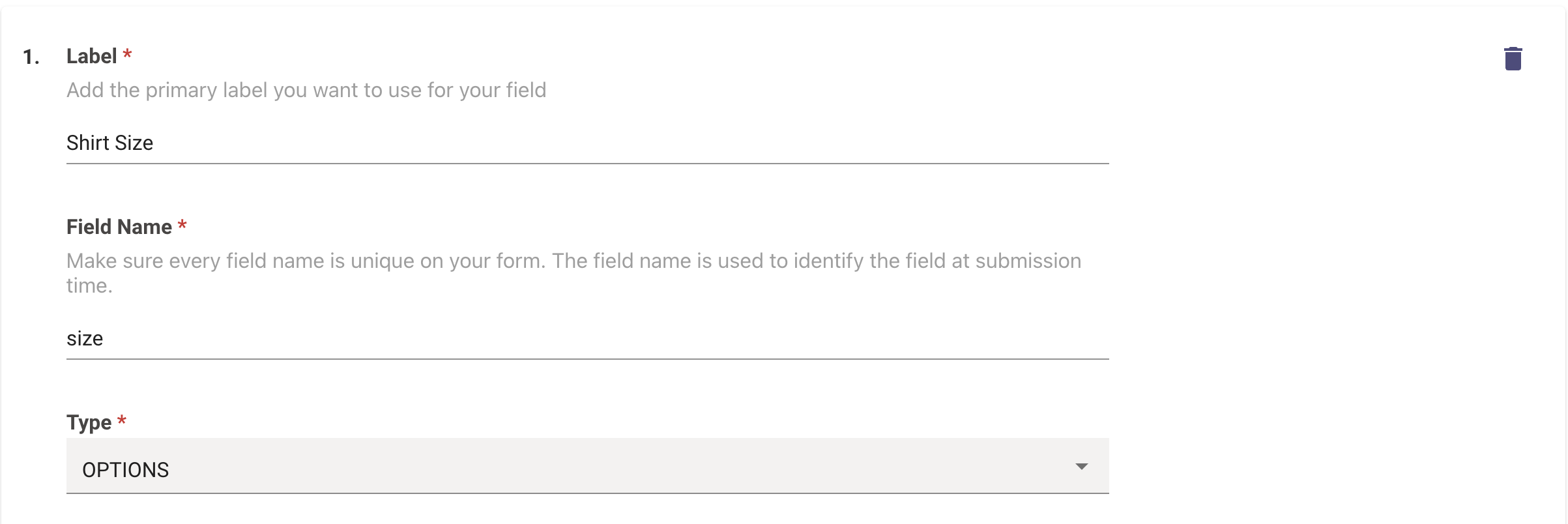
Before opening Moveworks Setup, confirm the exact field names for every field involved — both the field driving the condition and the fields being updated.
**`size` field:**
**`color_options_small_size` field:**
**`color_options_medium_or_large_size` field:**
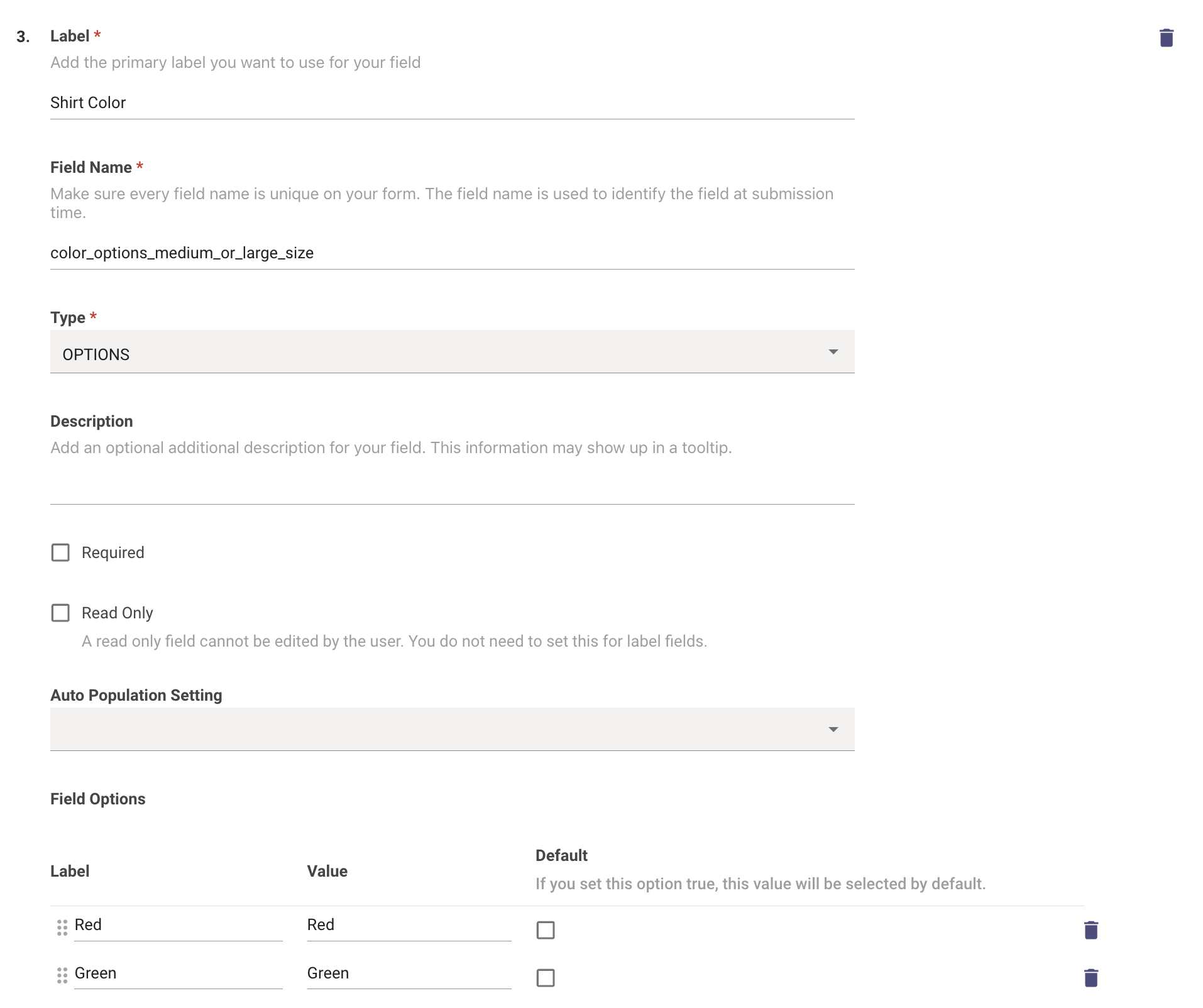
The field **label** (what the user sees) and the field **name** (used in rules) are different. Always use the field name — not the label — in your condition expressions and update targets.
***
## Step 2: Define the Logic
Before touching the UI, write out the intended behavior. For this example:
```
if size == 'Small':
color_options_small_size → VISIBLE, REQUIRED
color_options_medium_or_large_size → NOT VISIBLE, NOT REQUIRED
elif size == 'Medium' or size == 'Large':
color_options_medium_or_large_size → VISIBLE, REQUIRED
color_options_small_size → NOT VISIBLE, NOT REQUIRED
```
In Moveworks, this becomes **two Update Rules** — one for each condition branch.
***
## Step 3: Locate the Update Rules Section
1. Navigate to **Moveworks Setup**
2. Search for **Rich Ticket Filing**
3. Select **Edit** on the form you want to configure
4. Scroll down to the **Update Rules** section

***
## Step 4: Configure Rule 1 — "If Small"
### 4.1 Add the condition
Enter the condition expression. **Always prefix field names with `field_`** when referencing them in expressions.
* **Condition:** `field_size == 'Small'`
* **Policy Field IDs:** add any fields referenced in the condition (e.g., `size`)
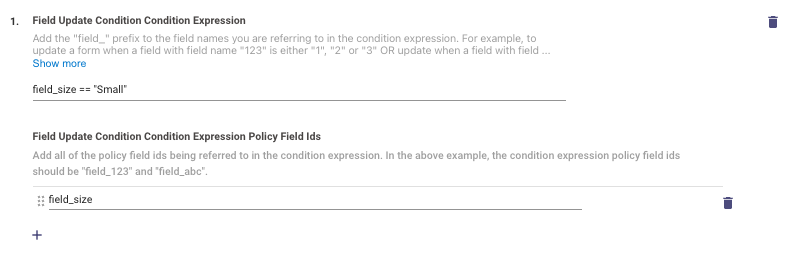
Always use the `field_` prefix in condition expressions. To reference the `size` field, write `field_size` — not `size`.
### 4.2 Add updates when the condition is True
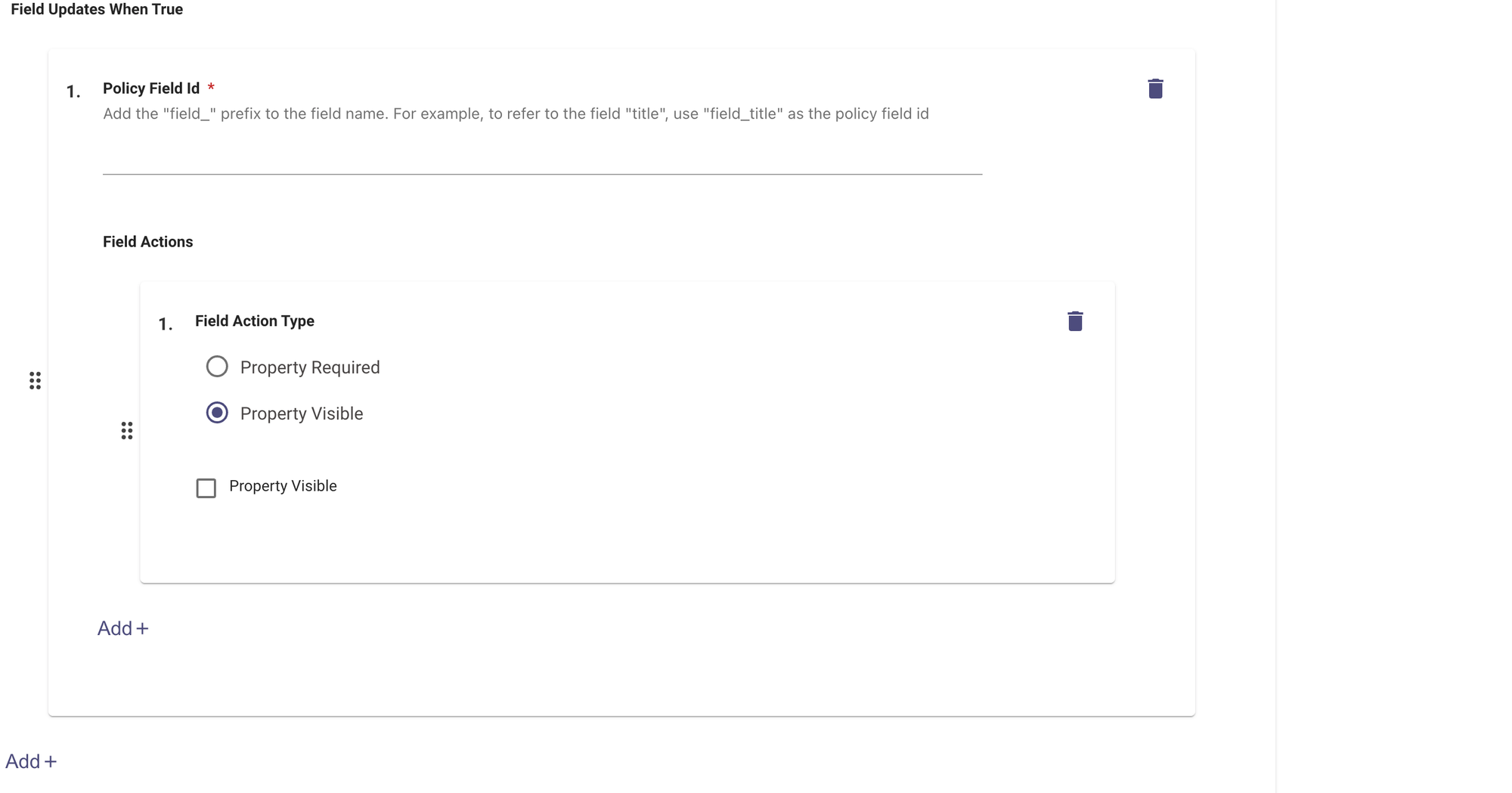
Each field update entry in the UI has two parts:
* **Policy Field Id** — the field to update, using the `field_` prefix (e.g., `field_color_options_small_size`)
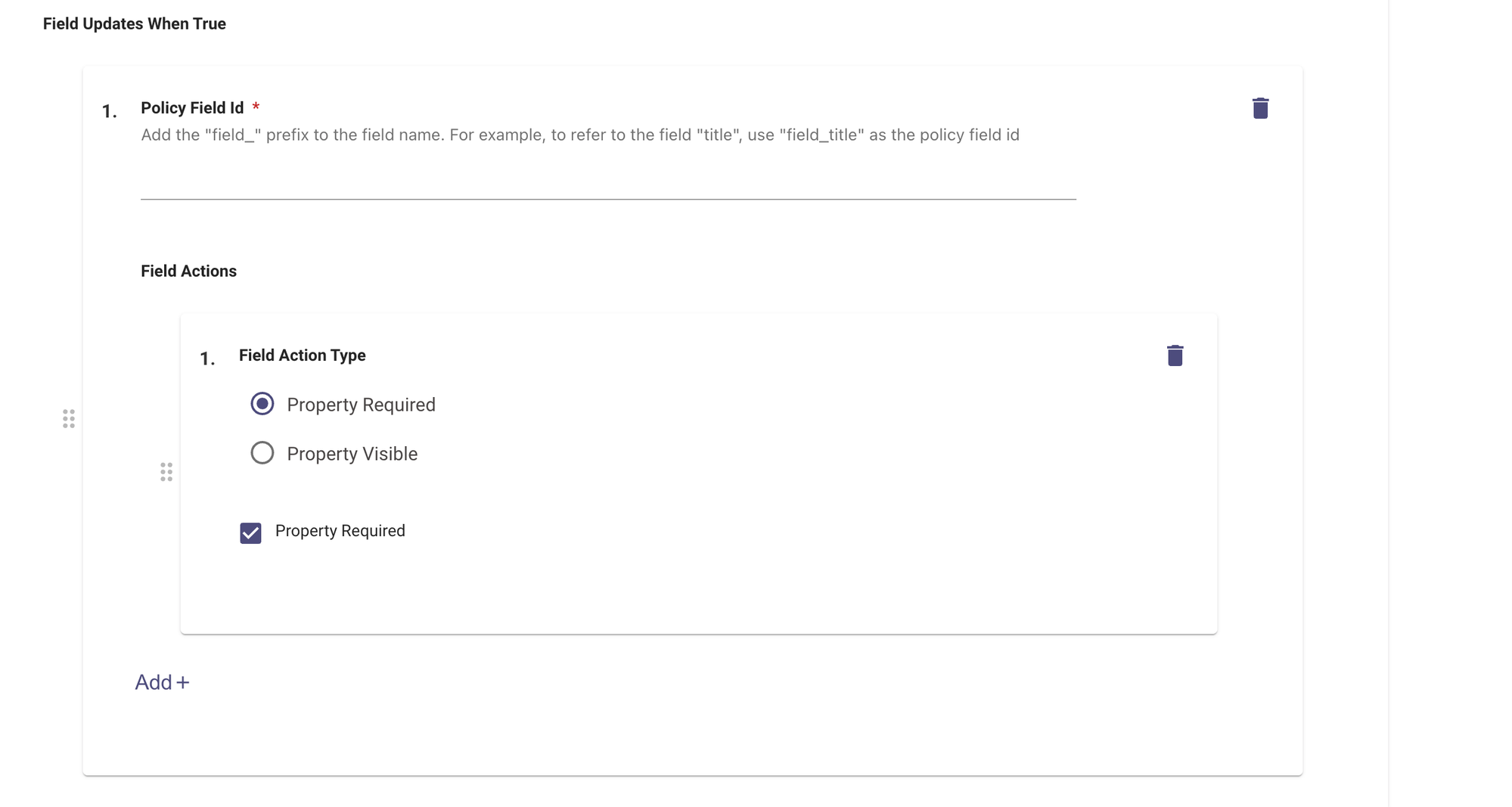
* **Field Action Type** — a radio button selecting which property to change (`Property Required` or `Property Visible`), followed by a checkbox that sets the value: **checked = true, unchecked = false**
When size is Small, add four entries — two per field:
| Policy Field Id | Field Action Type | Checkbox |
| ------------------------------------------ | ----------------- | ------------------------ |
| `field_color_options_small_size` | Property Required | Checked (Required) |
| `field_color_options_small_size` | Property Visible | Checked (Visible) |
| `field_color_options_medium_or_large_size` | Property Required | Unchecked (Not Required) |
| `field_color_options_medium_or_large_size` | Property Visible | Unchecked (Not Visible) |
**Setting a field to Required (checkbox checked):**
**Setting a field to Not Visible (checkbox unchecked):**
### 4.3 Add updates when the condition is False
When size is not Small, reverse the visibility and required state:
| Policy Field Id | Field Action Type | Checkbox |
| ------------------------------------------ | ----------------- | ------------------------ |
| `field_color_options_medium_or_large_size` | Property Required | Checked (Required) |
| `field_color_options_medium_or_large_size` | Property Visible | Checked (Visible) |
| `field_color_options_small_size` | Property Required | Unchecked (Not Required) |
| `field_color_options_small_size` | Property Visible | Unchecked (Not Visible) |
### 4.4 (Optional) Add a description
Adding a description helps future editors understand what the rule is doing at a glance.

***
## Step 5: Add Rule 2 — "If Medium or Large"
Follow the same steps to create a second rule for the `Medium` and `Large` case:
* **Condition:** `field_size == 'Medium' or field_size == 'Large'`
* **Updates when True:** set `color_options_medium_or_large_size` to `VISIBLE` + `REQUIRED`, set `color_options_small_size` to `NOT VISIBLE` + `NOT REQUIRED`
* **Updates when False:** reverse of the above
In this example, Rule 1's "when False" branch already handles the Medium/Large case. Whether you add a second explicit rule or rely on the False branch is a design choice — either works. Adding the explicit rule makes the intent clearer and is recommended for maintainability.
***
## Key Rules to Remember
| Rule | Detail |
| ---------------------- | ------------------------------------------------------------------------------------------------- |
| Use `field_` prefix | All field references in condition expressions must be prefixed with `field_` (e.g., `field_size`) |
| Supported update types | Only `REQUIRED` / `NOT REQUIRED` and `VISIBLE` / `NOT VISIBLE` are supported |
| Execution order | Rules run top-to-bottom; the last rule to target a field wins |
| Field names vs. labels | Use the field's system name, not its display label, in rules |