***
title: Security and Privacy Settings
excerpt: >-
Use this page in **Moveworks Setup → Security & Privacy** to configure
powerful, **org-wide** controls for Agent Studio. These settings are intended
for **Super Admins**.
deprecated: false
hidden: false
metadata:
robots: index
-------------
**Changes take effect immediately.** Because these settings can block plugins or expose systems if misconfigured, each section below explains the behavior and risk tradeoffs.
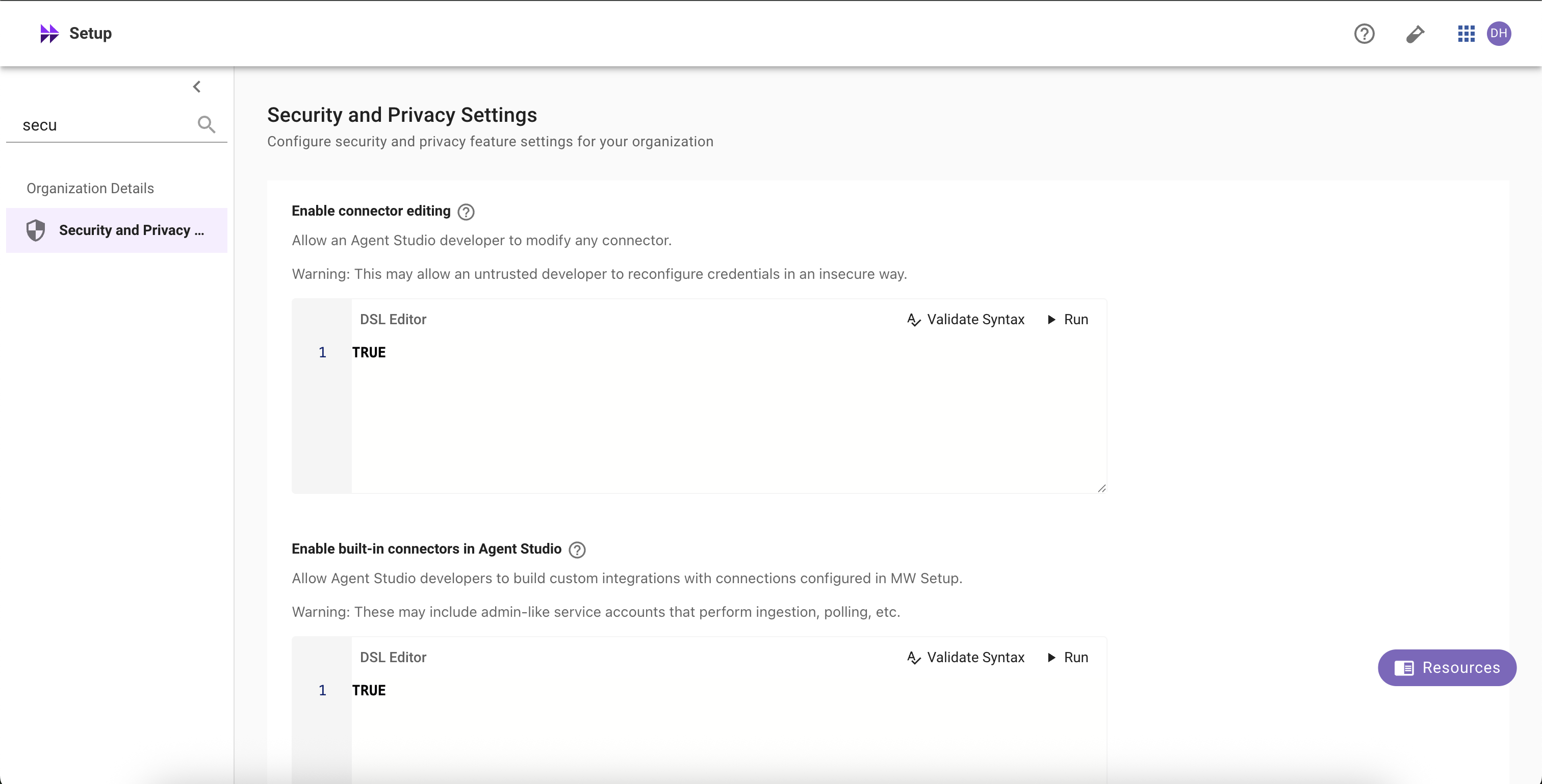
## Enable connector editing
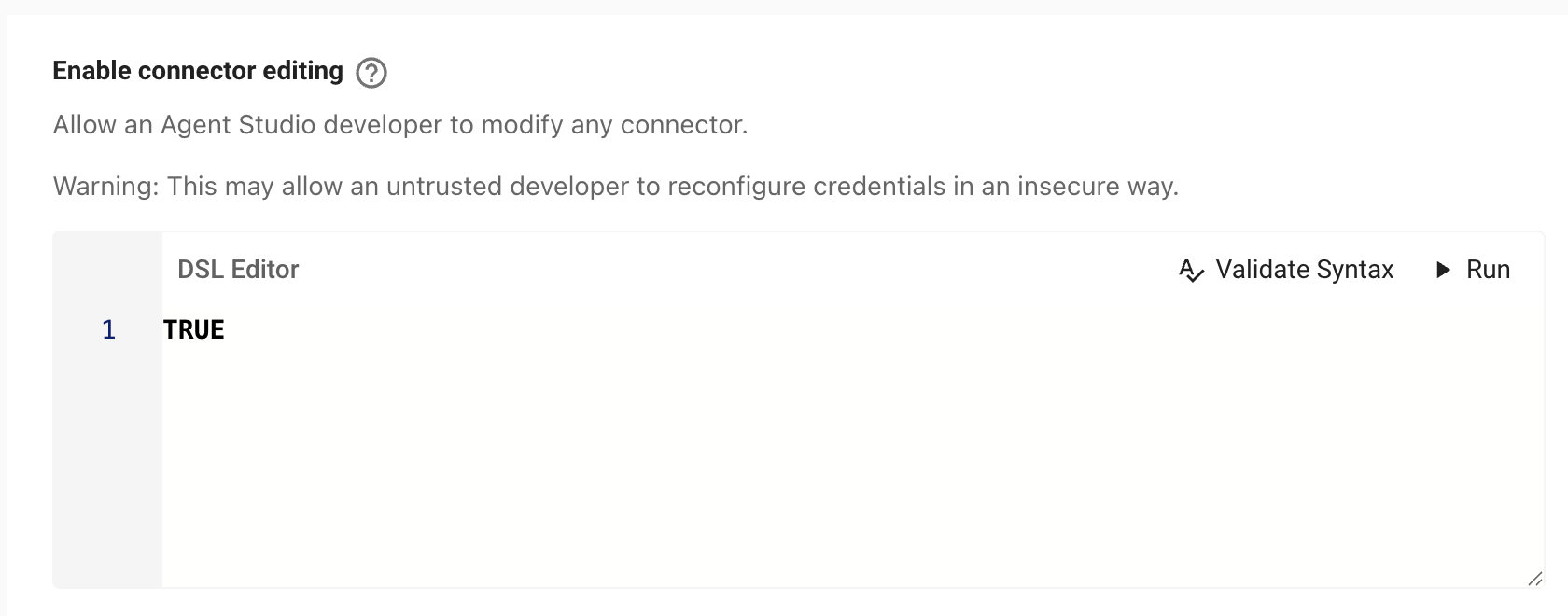
Allow selected Agent Studio developers (per **DSL rule**) to **edit HTTP connectors** (e.g., URLs, headers, auth config).
**What it does**
* When the DSL rule evaluates to **TRUE** for a user, they can edit **any HTTP connector** referenced by their work in Agent Studio.
* When **FALSE**, connectors are **read-only** in Agent Studio.
**Risks**
* **Outage risk:** editing a connector used by production plugins can break workflows instantly.
* **Security risk:** misconfiguration can leak or weaken **credentials**, redirect traffic, or expand data access.
**Recommendations**
* Keep the DSL rule **narrow** (specific teams or roles).
* Prefer enabling in **sandbox tenants**; require change control before enabling in prod.
**How to configure**
1. Go to **Setup → Security & Privacy Settings → Enable connector editing**.
2. Define the **DSL rule** (who is allowed). Click **Validate Syntax** and **Submit**.
3. Changes apply immediately and are logged.
### Tip
Set the rule to `FALSE` to disable editing for everyone, or to `TRUE` to allow for all developers. See the [DSL](/service-management/core-platform/configuration-languages/dsl-reference/overview) and [User Attribute](/service-management/core-platform/user-identity/user-attribute-reference) references for available fields.
## Enable built-in connectors in Agent Studio
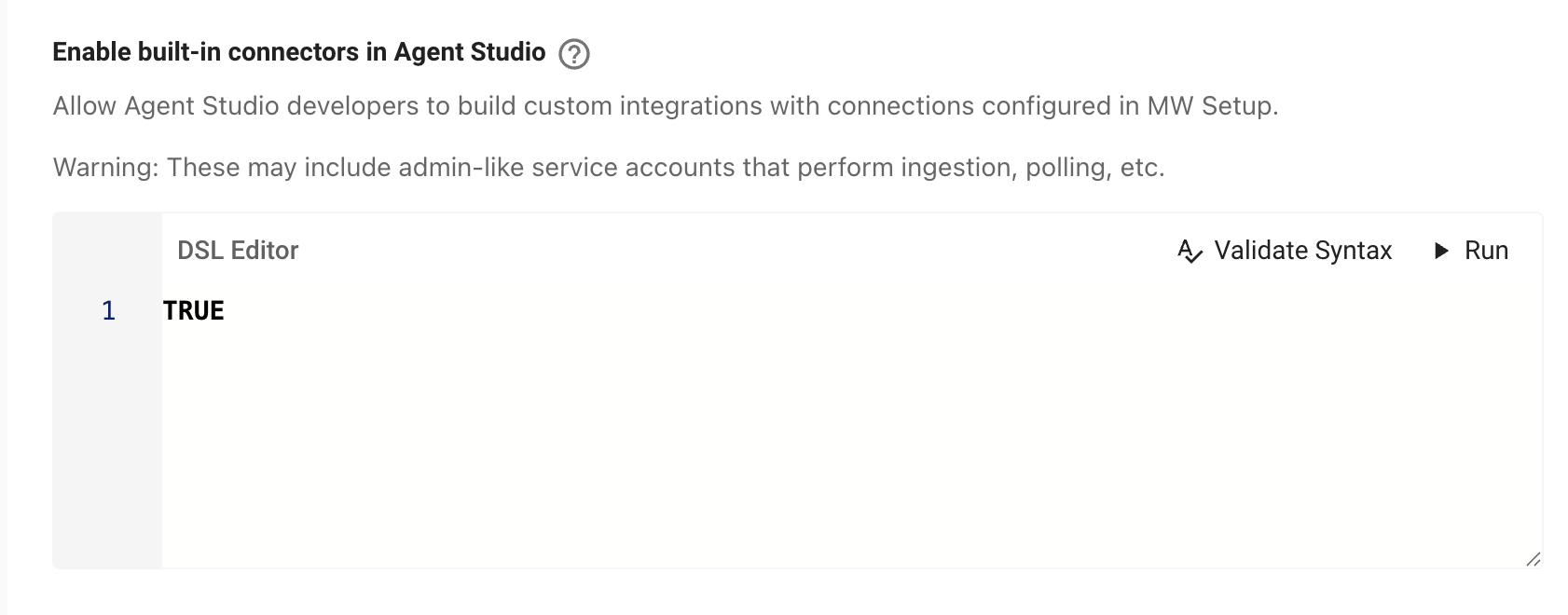
Allow selected Agent Studio developers (per **DSL rule**) to **use Moveworks built-in connectors** (ticketing, search, identity, etc.) inside Agent Studio.
**What it does**
* When the DSL rule is **TRUE** for a user, built-in connectors become selectable in Agent Studio.
* Editing those connectors still requires the **connector editing** rule to be TRUE **and** appropriate Setup access.
* When **FALSE**, built-in connectors are hidden/unavailable in Agent Studio for that user.
**Risks**
* Built-ins often use **service accounts** with broad privileges (ingestion, polling, write actions).
* May expose **sensitive data** (tickets, HR data, knowledge content) to plugins authored by users matching the rule.
* Expands what developers can do—ensure this aligns with your internal data-access policy.
**Recommendations**
* Keep the DSL rule **strict** (trusted groups only).
* Start in **sandbox**; roll out to production gradually.
**How to configure**
1. Go to **Setup → Security & Privacy Settings → Enable built-in connectors in Agent Studio**.
2. Define the **DSL rule** (who can use built-ins). **Validate Syntax** and **Save**.
3. If users should also **edit** built-ins, enable **Enable connector editing** with its own (usually narrower) DSL rule.
s on DSL targeting (applies to both settings above)
These settings are **not** “any developer.” Access is granted only when the **DSL rule evaluates to TRUE** for the user. Use your org’s attributes (role, department, location, team, groups).
## Strict log redaction
Control whether developers can see raw user content in logs for **publicly launched** plugins.

**What it does**
When enabled, Moveworks **redacts user content** (utterances, message text, personal identifiers, and sensitive payload fields) from developer-visible logs. Metadata needed to operate still appears (timestamps, status codes, event IDs, step names, error classes).
**When it triggers**
Strict redaction is automatically applied to any plugin that is:
* Launched to **10+ users**, or
* Using **Launch to everyone** (org-wide), or
* Using an **Advanced DSL audience** that resolves to **10+ users**.
**Why enable it? (recommended for production)**
* Prevents exposure of private/user data to developers.
* Reduces privacy/compliance risk (e.g., PII appearing in logs).
* Enforces a consistent privacy posture as plugins scale beyond small test groups.
**Risks if OFF**
* Developers can view **all** user interactions for broadly launched plugins including responses as well as user utterances and other potentially sensitive attributes.
* Higher likelihood of inadvertent data exposure in logs, screenshots, exports, or shared tickets.
## Webhook Listener Security
Choose how to handle **unsecured** webhook listeners in Agent Studio. Secured listeners ensure only authorized providers can send requests and prevent unauthorized access. [Learn more](/agent-studio/agent-studio/system-triggers/webhook-triggers/webhooks-listener#/verification-options) about supported methods to verify incoming requests like Signature Verification (HMAC).
**Changes take effect immediately and may block existing unsecured listeners.** *Blocked* listeners stop receiving events until secured or exempted. \[[Learn more about webhook listeners](/agent-studio/agent-studio/system-triggers/webhook-triggers/webhooks-listener#/) ]\(/agent-studio/agent-studio/system-triggers/webhook-triggers/webhooks-listener)
### Options
**(Default) Allow only exempt unsecured listeners**
Only listeners listed in **Listener Exemptions** may receive events without being secured. **All other unsecured listeners will Blocked**, and any plugins that reference them will not run.
* **Listener Exemptions**
Add specific listeners that you want to allow. All other unsecured listeners will be **Blocked**.
*Field:* “Listener ID or name” (searchable).
**Allow all unsecured listeners**
Any listener can receive events without verification or credentials. **Not recommended for production.** Unsecured listeners are heavily rate-limited and more vulnerable to abuse.
*Note:* You also need to check “Allow all unsecured listeners” to confirm this override.
### Behavior & impact
* When a listener is **Blocked**:
* The listener stays visible in Agent Studio but **stops receiving events** until secured or exempted.
* Plugins that reference it **won’t run**.
* The listener appears with a **Blocked** badge and an in-product banner linking to “Secure this listener.”
* Securing a listener (e.g., **HMAC** or **credential verification**) immediately restores events.
* Unsecured listeners (even when allowed) run under **strict throttles** suitable for testing, not production.
### Recommended practices
* Prefer **HMAC (signature verification)** or **credential verification** for production.
* Use exemptions sparingly to support sandbox/dev or vendors that can’t sign payloads.
## Troubleshooting & FAQs
**Q: Who can change these settings?**
**Super Admins** (or designated security admins). Changes are audited and apply org-wide.
**Q: Some listeners now show as “Blocked.” What now?**
Secure the listener (HMAC or credentials) or add it to **Listener Exemptions**. Once secured, events resume immediately.
**Q: Some plugins now show as blocked. Why?**
They reference **unsecured** listeners while the security requirement is in effect. Secure the listeners, or adjust the setting/exemptions.