
Quickstart #6: Expense Approval Ambient Agent
What You’ll Build
You’ll create a smart expense approval agent that:
- Auto-approves expenses under $500
- Routes expenses $500+ to the right manager with a chat-based approval request
- Updates your expense system (via Purple API) with approved/denied
The result is a streamlined process for everyone. For expenses over $500, managers receive a simple, direct approval request right in their chat client, allowing them to take action in seconds.
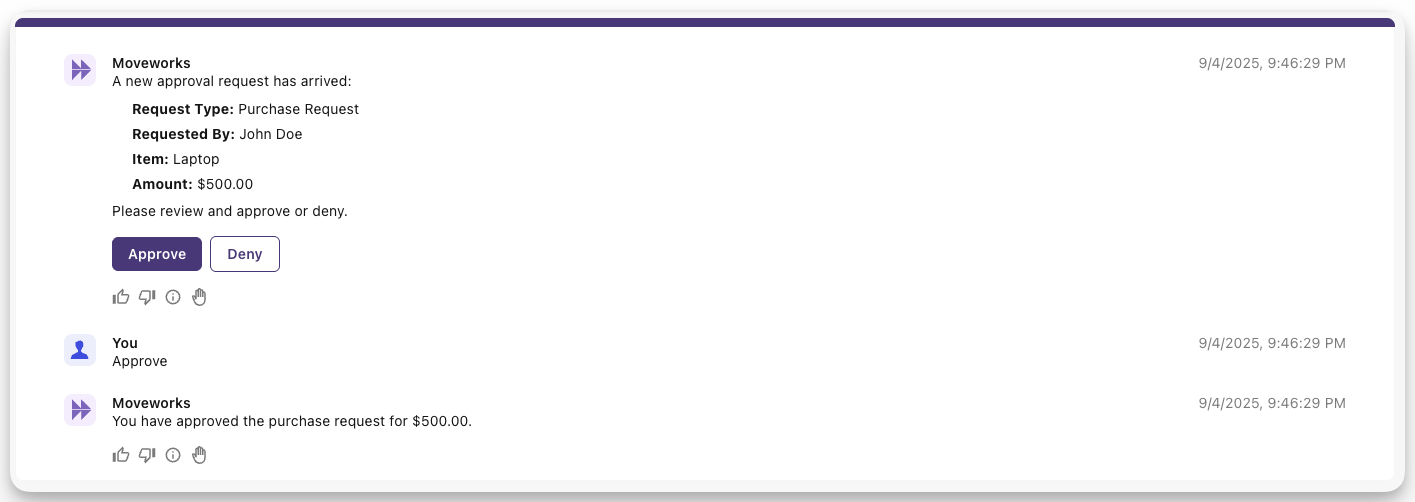
While the user-facing interaction is intentionally simple, the real power is the automation happening behind the scenes. The plugin processes every request from your expense system, and for the majority of expenses (those under $500), no manual action is needed at all — they are approved instantly.
Learning Objectives
- Build a Listener to receive expense webhooks
- Create a Compound Action with conditional logic (
switch) - Implement an automated approval branch for expenses under a set threshold.
- Use built-in actions:
batch_get_users,generate_text,create_generic_approval_request - Wire everything in a Plugin with input mapping
- Update the source system to reflect the final “approved” or “rejected” status.
Prerequisites
- Access to the “Agent Studio” App
- Completed Quickstart #5: Notification Ambient Agent
Architecture Overview
The plugin’s logic is built around a central Compound Action that is triggered by a Listener. This Compound Action ingests data from the expense system, such as the approver, the requester, and the expense details, and then follows a conditional path based on the expense amount.
Let’s get started!
Phase 0: Set Up the Purple Suite
If you’ve already completed the Purple Suite Setup and have your connector configured, skip to Phase 1.
Follow the Purple Suite Setup guide to:
- Create a Purple Suite instance at marketplace.moveworks.com/purple-suite
- Get your Instance ID and API Token (PAT)
- Set up a connector in Agent Studio with API Key auth
Phase 1: Set up your “Update Approval Status” Action
Let’s set up an Action to update the status of the approval that is being provided by the source system. This action will require two dynamic inputs: approval_id and status.
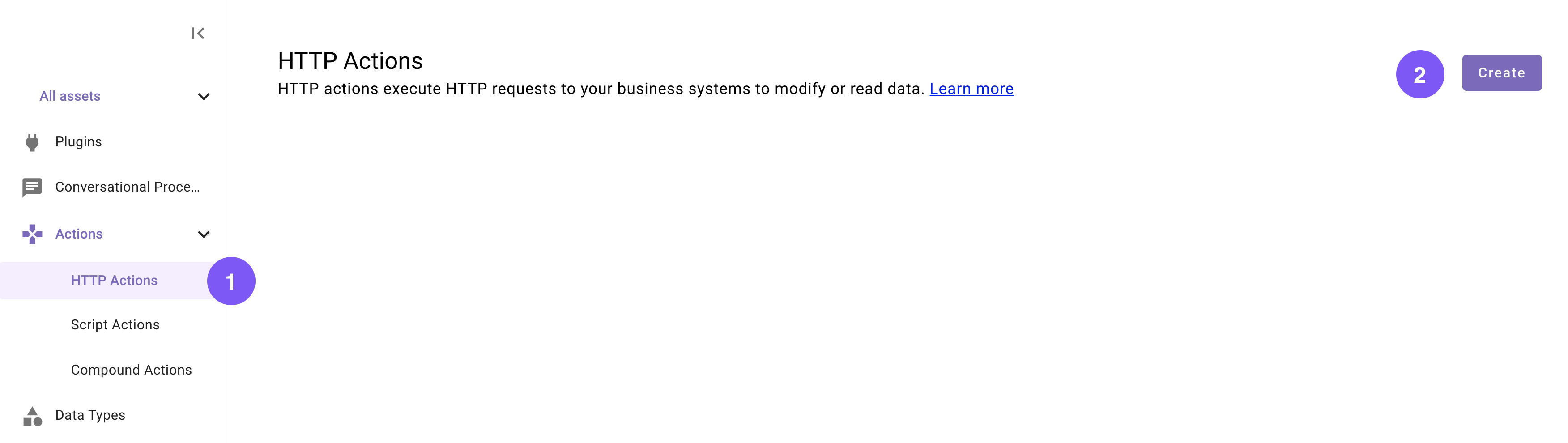
Set the title and description
Set the following title and description for your Action (be sure to replace “first” and “last” with your corresponding information).
Import the API details
Enter the details of your API:
-
Click on the “Import” icon to the right of the “TEST” button.
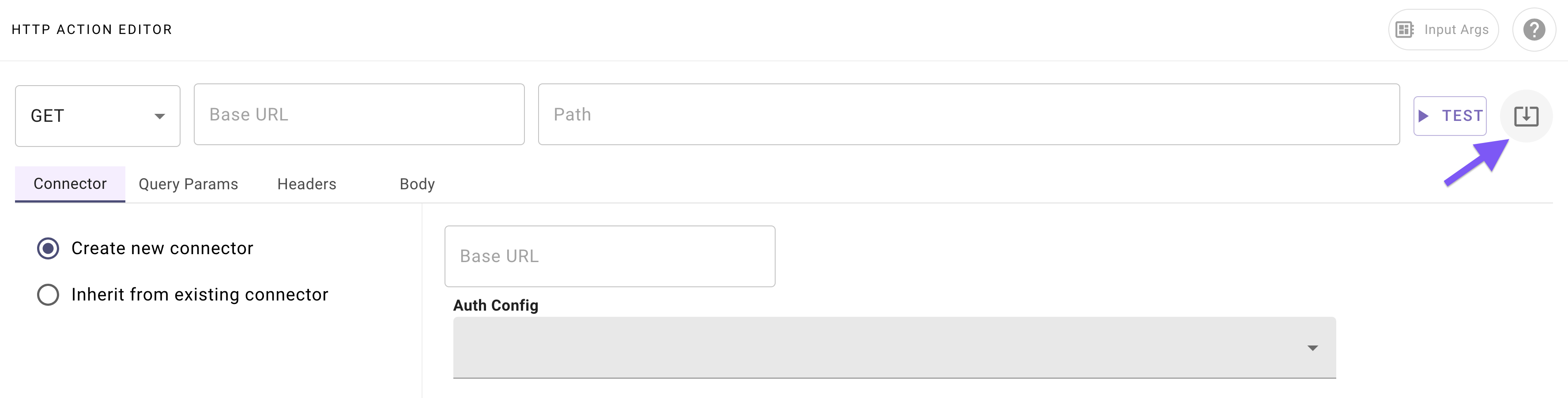
-
Paste the following cURL command:
-
Click “Import” (your Action should now be auto-populated with details).
Add your connector
Navigate to the “Connector” tab, and select your existing Moveworks Purple Connector (set up in Phase 0).
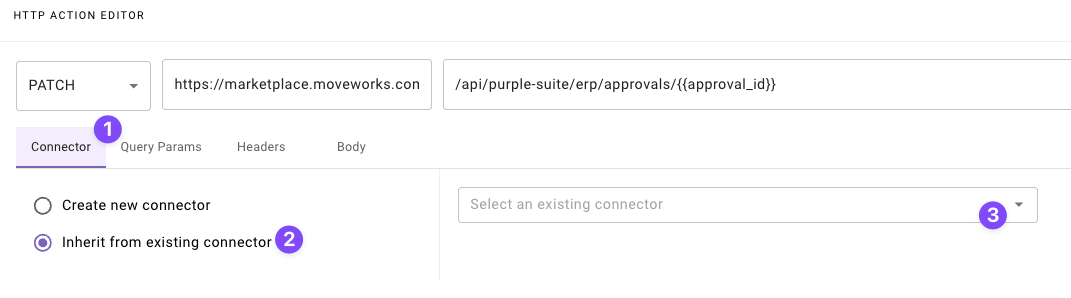
Define input arguments
Define 2 formal input arguments to represent the “approval ID” and “status” inputs that this Action requires:
-
Click on the “Input Args” button near the top right corner.
-
Click “Create New” in the “Input Arguments” pop up.
-
Fill out the following details for your
approval_idargument: -
Hit “Save”.
-
Click “Create New” again in the “Input Arguments” pop up.
-
Fill out the following details for your
statusargument: -
Hit “Save” and hit the “X” icon to close this “Input Arguments” pop up.
Time to construct your Compound Action.
Phase 2: Create Your Compound Action
You will now create a compound action to handle the incoming webhook routed by the listener.
In this phase you will build a compound action with 1) approver, business_justification, requested_by, payload as input arguments, 2) three actions to resolve the users by email, create a Moveworks approval request, and update the approval in the source system, and 3) switch expressions to conditionally route the expense approval requests. Here’s a reminder of the bird’s-eye view for our Compound Action:
Create a new Compound Action
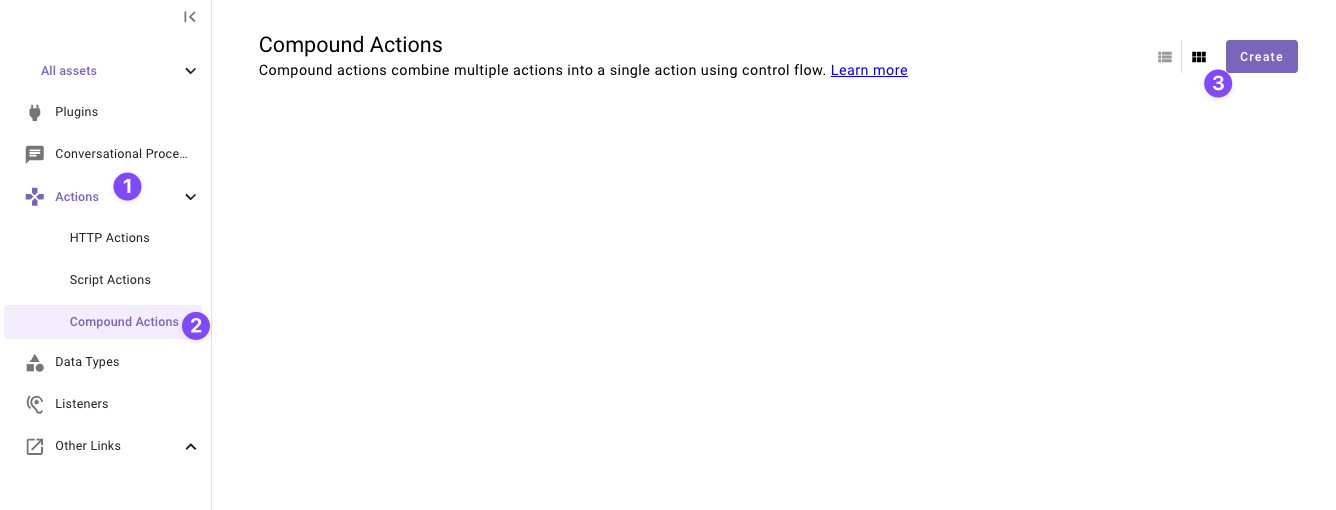
Navigate to a new “Compound Action” in the left nav and then click “Create”.
Set the title and description
Set the following title and description for your Compound Action (be sure to replace “firstname” and “lastname” with your corresponding information).
Configure the Compound Action expression
Copy the following expression into the Compound Action Editor:
Make sure to replace the action name’s with your action name!
Understanding the Compound Action (Guide #6)
This Compound Action routes an expense-approval flow. It can early-approve low-risk requests, then (for everything else) fetches users, summarizes the request with an LLM, creates an approval, and finally updates the source system based on the approver’s decision.
switch(early decision) (Syntax)- Purpose: Short-circuit the workflow for small requests.
- Process: If
data.payload.amount < 500, call your custom actionquickstart_first_last_update_approval_requestto approve immediately, thenreturnwith anearly_return_messageand stop the flow. - Otherwise, fall through to the default branch (do nothing here) and continue.
- mw.batch_get_users_by_email` (Built-in Action)
- Purpose: Resolve both the approver and the requester to Moveworks user objects.
- Inputs:
user_emails: [data.approver, data.requested_by](provided by your trigger mapping). - Output:
data.target_users.user_records[0].user(approver) and[1].user(requester).
mw.generate_text_action(Built-in Action)- Purpose: Create a crisp summary for the approver.
- Process:
system_promptasks the LLM to produce an approver-ready summary.- user_input
usesRENDER()to pass both the **business justification** and the **raw webhook payload** (stringified via$STRINGIFY_JSON(data.payload)`).
- Output:
data.llm_summary_result.generated_output(the formatted approval details).
mw.create_generic_approval_request(Built-in Action)- Purpose: Open an approval with the resolved participants and LLM summary.
- Inputs:
approvers:[ data.target_users.user_records[0].user ]users_requested_for:[ data.target_users.user_records[1].user ]approval_details:data.llm_summary_result.generated_output
- Output:
data.approval_request_result.statusindicates if the approver Approved or Denied.
switch(post-decision update) (Syntax)- Purpose: Sync the final decision back to your source system.
- Process:
- If
data.approval_request_result.status == "DENIED", call your custom actionquickstart_first_last_update_approval_requestwithstatus: 'denied'.
- If
- Default: Call the same custom action with
status: 'approved'. - Inputs to custom action:
approval_id: data.payload.approval_id(from the incoming webhook),status: 'approved' | 'denied'.
- Process:
- Purpose: Sync the final decision back to your source system.
Define input arguments
Define 4 formal input arguments to represent the approver, requested_by, payload, and business_justification inputs that this Compound Action requires.
-
Click on the “Input Args” button near the top right corner.

-
Click “Create New” in the “Input Arguments” pop up.
-
Fill out the following details for your
approverargument: -
Hit “Save”.
-
Click “Create New” again to the “Input Arguments” pop up.
-
Fill out the following details for your
requested_byargument: -
Click “Create New” again to the “Input Arguments” pop up.
-
Fill out the following details for your
payloadargument: -
Click “Create New” again to the “Input Arguments” pop up.
-
Fill out the following details for your
business_justificationargument: -
Hit “Save” and hit the “X” icon to close this “Input Arguments” pop up.
You’re ready to move on — time to create your webhook listener.
Phase 3: Set Up Your Webhook Listener
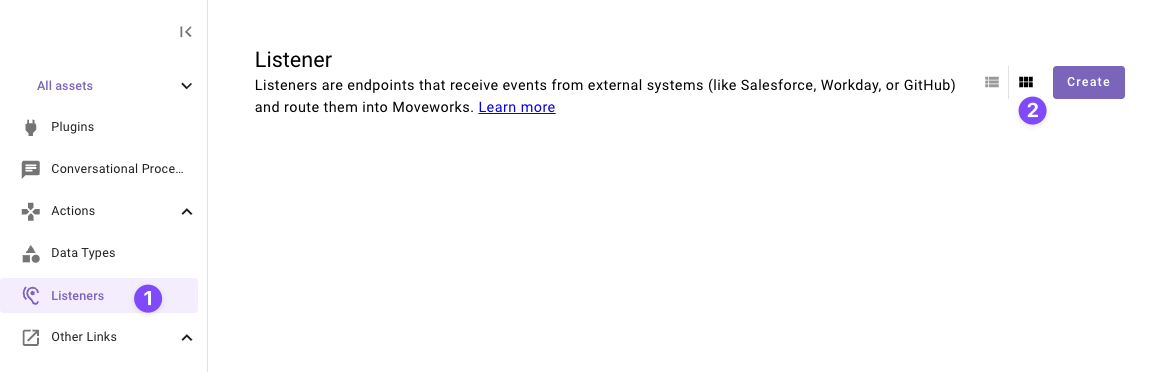
Set the title and description
Set the following Title and Description for your listener (be sure to replace firstname and lastname with your corresponding information).

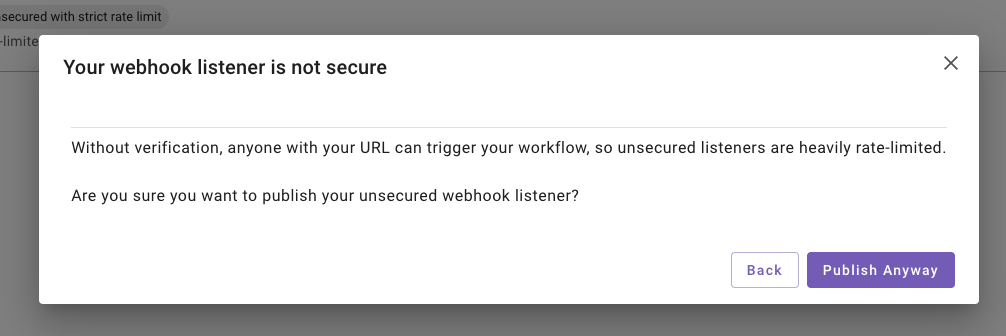
Note: Unsecured listeners are intended for testing only. For production environments, always enable signature verification to secure your webhook listener.
Phase 4: Configure and Launch Your Plugin
This section guides you through adding your Listener and Compound Action to a Plugin. A key step will be configuring the data flow, where you’ll specify exactly which fields from the webhook you want to forward to your action.
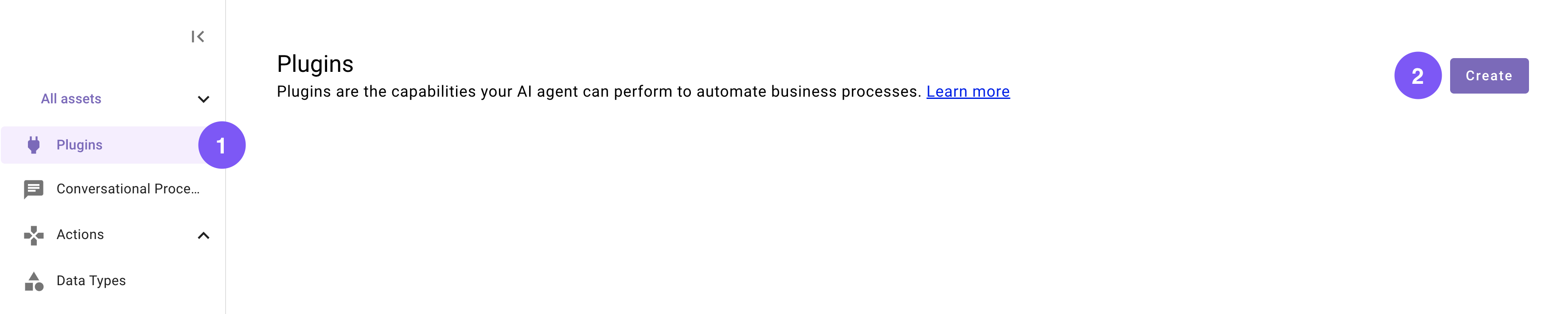
Set the title and description
Set the following title and description for your Plugin (be sure to replace “first” and “last” with your corresponding information).
Configure the trigger and body
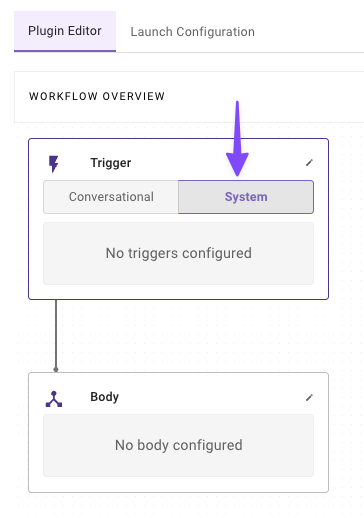
In the “Workflow Overview” section click “System” in the Trigger box.
-
Configure your system trigger to connect your Listener in the slide-out pop up with:
-
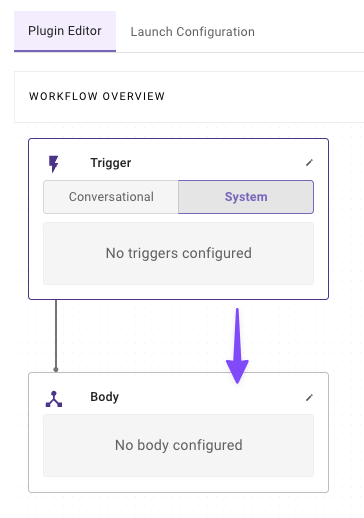
Click on the “Body” in the “Workflow Overview
-
Configure your system body to connect your compound action to the plugin
- Select Type - System body
- Select an Action - quickstart_first_last_expense_approval_ca (Select your Action)
- Input Mapping - Copy the below values
- approver: parsed_body.approver
- payload: parsed_body.data
- requested_by: parsed_body.requested_by
- business_justification: parsed_body.details
Understanding the Input Mapping
When the listener receives a webhook, we expect a JSON payload structured like this:
The listener automatically parses this JSON payload into a
parsed_bodyobject. To access the data you need, you simply use dot notation to reference the keys:parsed_body.emailparsed_body.data
This method gives you the flexibility to extract only the specific data your compound action requires, even if the webhook sends a much larger payload.
Note: While this mapping is currently a manual process, we are developing an “Auto Configure” feature to streamline this setup in the future.
Congrats! You are now ready to test your plugin. In the next section, you will be provided with required tools to help you test it.
Phase 5: Testing
This section guides you through the Moveworks Purple API tool to help you test your plugin by sending webhooks to your listener.
Open the Webhooks tab
- Go back to the tab where your Moveworks Purple API Tool is open.
- Click on the Webhooks Tab.

Excellent work! You have successfully tested your plugin. Depending on the amount you set, your approval request may have gotten automatically approved or you may have gotten an approval request! You can click on the Refresh Approvals button in the Purple API Tool to see the status updates on the approvals!
Next step: Test your plugin. See our Testing & Error Handling guide for how to test, debug, and handle errors in production.