
Quickstart #5: Notification Ambient Agent
What You’ll Build
You’ll create an Ambient Agent that receives a webhook (e.g., from HR system), finds the right user by email, generates a smart notification, and sends it directly in chat.
The plugin you will build solves a common, practical problem: notifying users about specific updates or action items.
Before starting to build, we always recommend that you first map out the desired end user experience and the overall building blocks of an Ambient Agent.
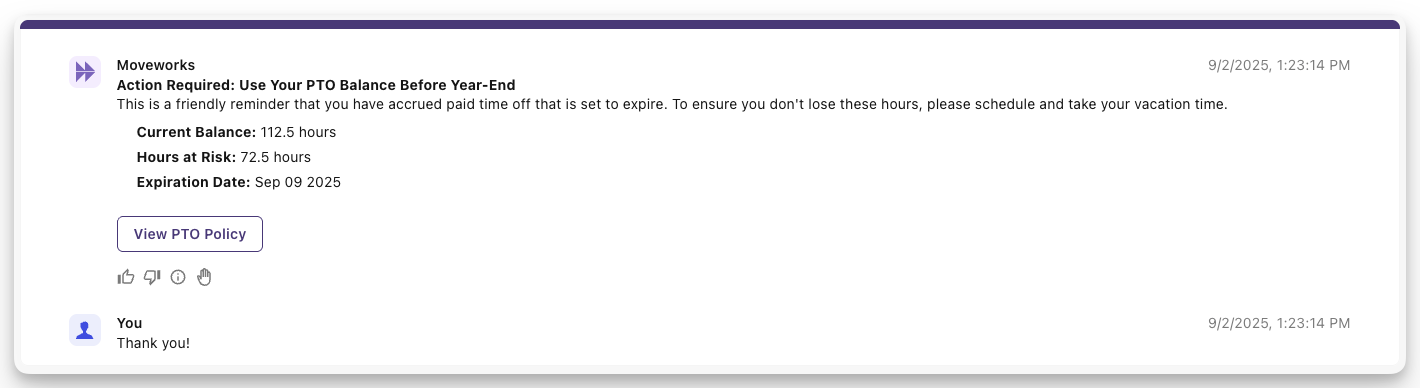
Here is an example of the end-user experience we hope to enable:
Learning Objectives
- Build a Listener to receive webhooks
- Create a Compound Action to process payload → message
- Wire everything in a Plugin
- Test your webhooks using our Purple Suite tool.
Architecture Overview
To get to this experience, the Ambient Agent will consist of one Compound Action and two input arguments: the user’s email and the payload of the webhook.
Let’s get started!
Plan Your Data Flow
Let’s map the data journey to understand how the data travels from the external systems to the user’s chat.
1. Expected sample payload from external system
2. Listener -> parsed_body
When the Listener receives the request:
3. Plugin Input Mapping → Compound Action Arguments
In the Plugin editor you map fields from parsed_body to the input arguments of your Compound Action:
4. Compound Action runs the logic
Your Compound Action receives:
It then:
mw.get_user_by_email→ resolves to a user IDmw.generate_text_action→ turnspayloadinto a polished messagenotify→ sends the message to that user ID
Now you know exactly where every piece of data lives.
Phase 1: Create Your Compound Action
You will now create a compound action to handle the incoming webhook routed by the listener.
In this phase you will build a compound action with 1) user_email and payload input arguments, and 2) two actions to resolve the user by email and then notify them with the message. Here’s a reminder of the bird’s-eye view for our Compound Action
Create a new Compound Action
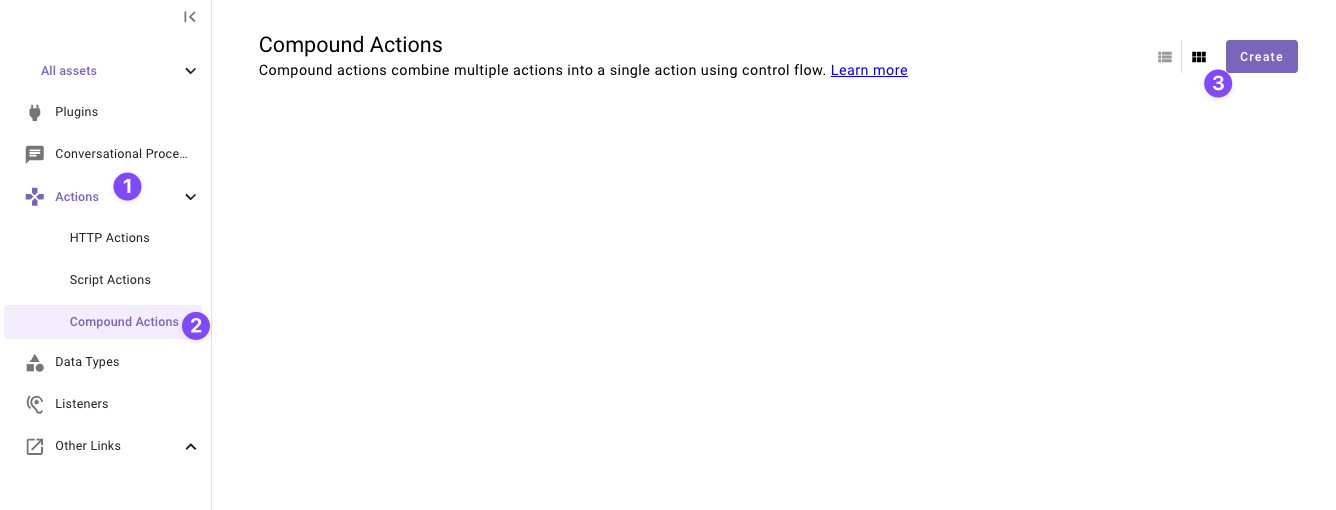
Navigate to a new “Compound Action” in the left nav and then click “Create”.
Set the title and description
Set the following title and description for your Compound Action (be sure to replace “first” and “last” with your corresponding information).
Copy the Compound Action expression
Copy the following expression into the Compound Action Editor
Understanding the Compound Action
This Compound Action executes three actions in sequence, with the output of one step feeding into the next:
mw.get_user_by_email(Built-in Action)- Purpose: To identify the notification recipient.
- Process: It takes a user’s email address (from the webhook) as its input and retrieves that user’s unique Moveworks profile ID.
mw.generate_text_action(Built-in Action)- Purpose: To create a polished message for the user.
- Process: This action uses an LLM to interpret the raw data in the webhook payload and generate a structured, readable message.
notify(Compound Action Expression)- Purpose: To send the final notification.
- Process: This action takes two inputs from the previous steps:
- Recipient ID: It uses the user ID that was retrieved by the
mw.get_user_by_emailaction. - Message: It uses the formatted text that was generated by the
mw.generate_text_actionaction.
- Recipient ID: It uses the user ID that was retrieved by the
Define input arguments
Define two formal input arguments to represent the user_email and payload inputs that this Compound Action Requires
-
Click on the “Input Args” button near the top right corner

-
Click “Create New” in the “Input Arguments” pop up.
-
Fill out the following details for your
user_emailargument: -
Hit “Save”
-
Click “Create New” again to the “Input Arguments” pop up.
-
Fill out the following details for your
payloadargument:Known Issue: The Example Value field is optional but currently if left empty, you may see a red validation message (“Must be a valid object”) and a warning icon next to the argument name after saving. This is a known issue (currently expected behavior) and will not block publishing — you can safely ignore it.
-
Hit “Save” and hit the “X” icon to close this “Input Arguments” pop up.
You’re ready to move on — time to create your Listener to start listening to webhooks.
Phase 2: Set Up Your Webhook Listener
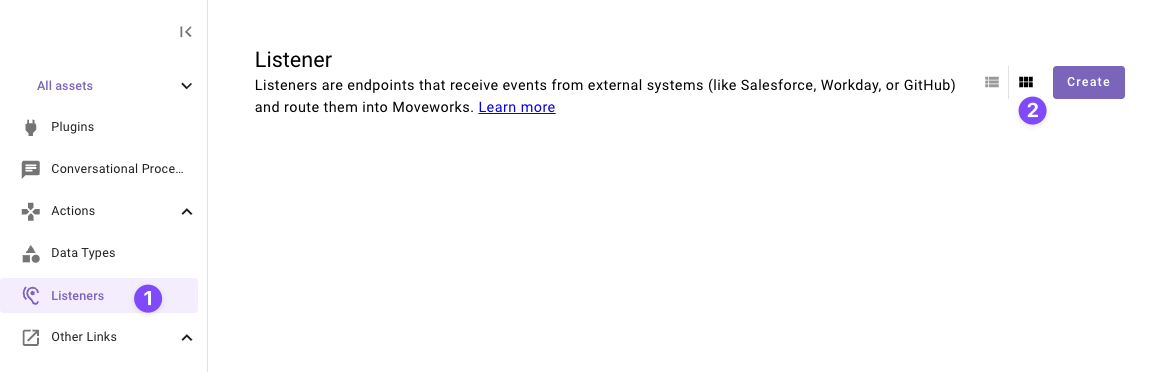
Set the title and description
Set the following Title and Description for your listener (be sure to replace firstand lastn with your corresponding information).

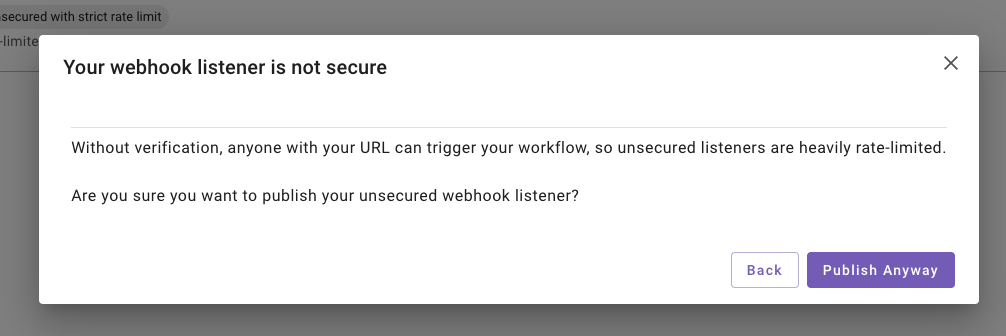
Note: Unsecured listeners are intended for testing only. For production environments, always enable signature verification to secure your webhook listener.
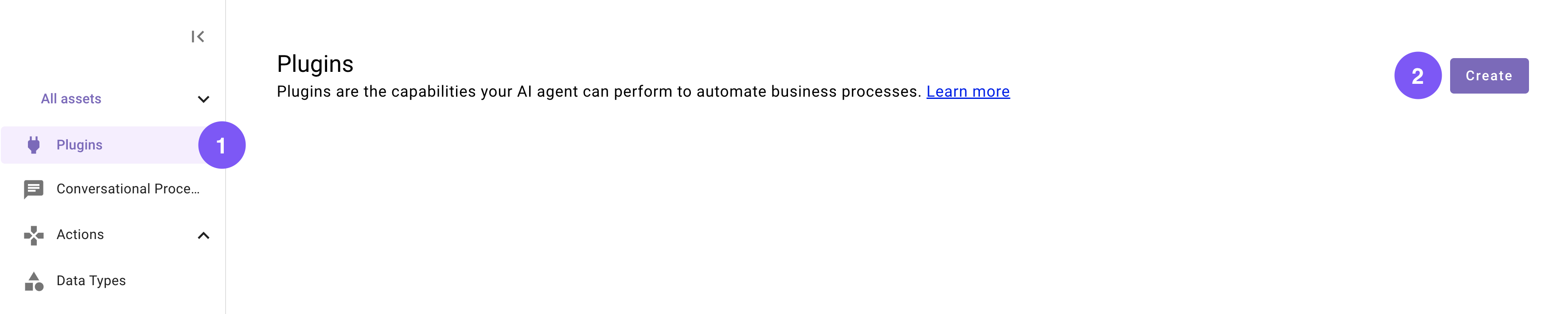
Phase 3: Configure and Launch Your Plugin
This section guides you through adding your Listener and Compound Action to a Plugin. A key step will be configuring the data flow, where you’ll specify exactly which fields from the webhook you want to forward to your action.
Set the title and description
Set the following title and description for your Plugin (be sure to replace “first” and “last” with your corresponding information).
Configure the trigger and body
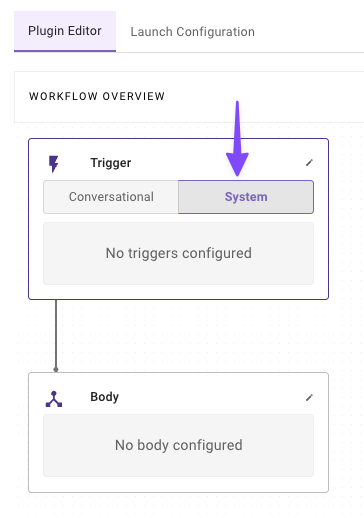
In the “Workflow Overview” section click “System” in the Trigger box.
-
Configure your system trigger to connect your Listener in the slide-out pop up with:
-
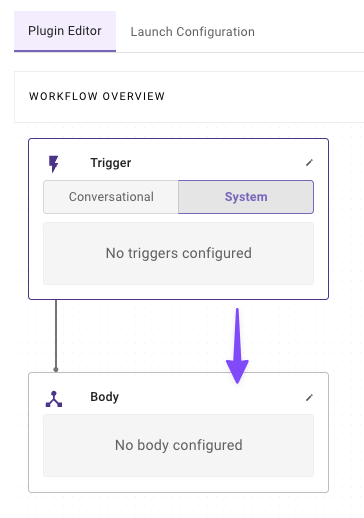
Click on the “Body” in the “Workflow Overview
-
Configure your system body to connect your compound action to the plugin
Understanding the Input Mapping
When the listener receives a webhook, we expect a JSON payload structured like this:
The listener automatically parses this JSON payload into a
parsed_bodyobject. To access the data you need, you simply use dot notation to reference the keys:parsed_body.emailparsed_body.data
This method gives you the flexibility to extract only the specific data your compound action requires, even if the webhook sends a much larger payload.
Note: While this mapping is currently a manual process, we are developing an “Auto Configure” feature to streamline this setup in the future.
Congrats! You are now ready to test your plugin. In the next section, you will be provided with required tools to help you test it.
Phase 4: Testing
This section guides you through the Moveworks Purple API tool to help you test your plugin by sending webhooks to your listener.

Excellent work! You have successfully tested your plugin. Check your chat, where you should now see a notification from the AI Assistant containing the message from your webhook payload.
Reflecting on this Plugin
The plugin you just created uses several key Agent Studio concepts, from Webhook Listeners to Compound Actions. You’ve successfully built a plugin that:
- Listens for webhooks from other apps.
- Grabs only the specific data it needs from the webhook payload.
- Processes that data to find the right user and send them a direct message.
Awesome work sticking with it! Your plugin is now ready to notify users of important messages and updates.
Next step: Test your plugin. See our Testing & Error Handling guide for how to test, debug, and handle errors in production.