Quickstart #4: Structured Data Analysis (SDA)

View as Markdown

Background & Objectives

This guide will walk you through how to build Agent Studio plugins that return large volumes of data to the AI Assistant.

In this quickstart guide, you will

  • Build a plugin that fetches 500 accounts from a mock CRM
  • Set up the plugin to work alongside our Code Interpreter plugin

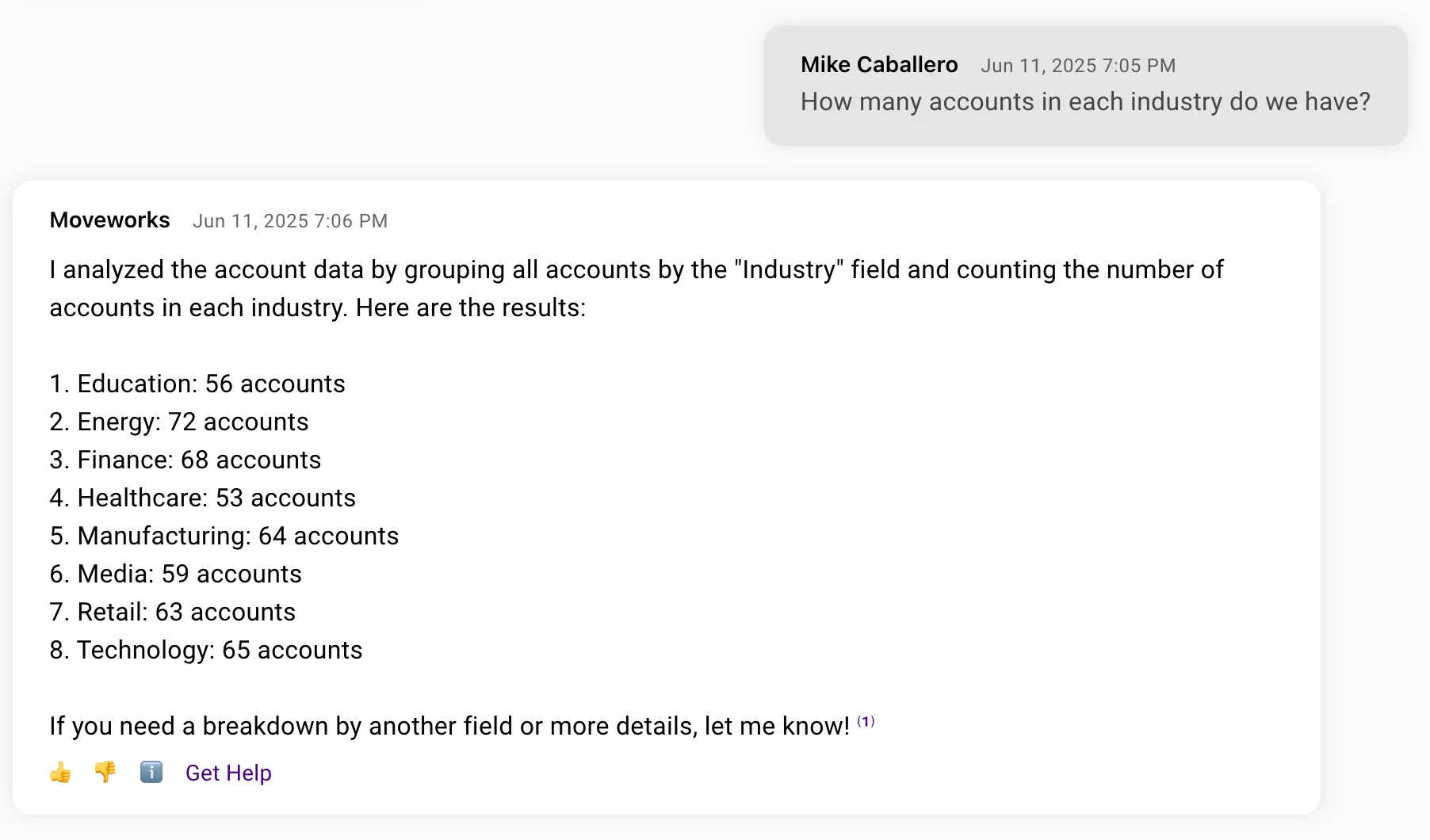
At the end, your AI Assistant will be able to handle requests like this
Prerequisites

Define your plugin

  1. Go to Agent Studio. In the Plugins tab, select Create

  2. Define your plugin.

    📘 SDA Tip!

    It’s important to be descriptive about the data that an SDA plugin returns.

    AttributeValue
    Plugin TitleFetch Accounts
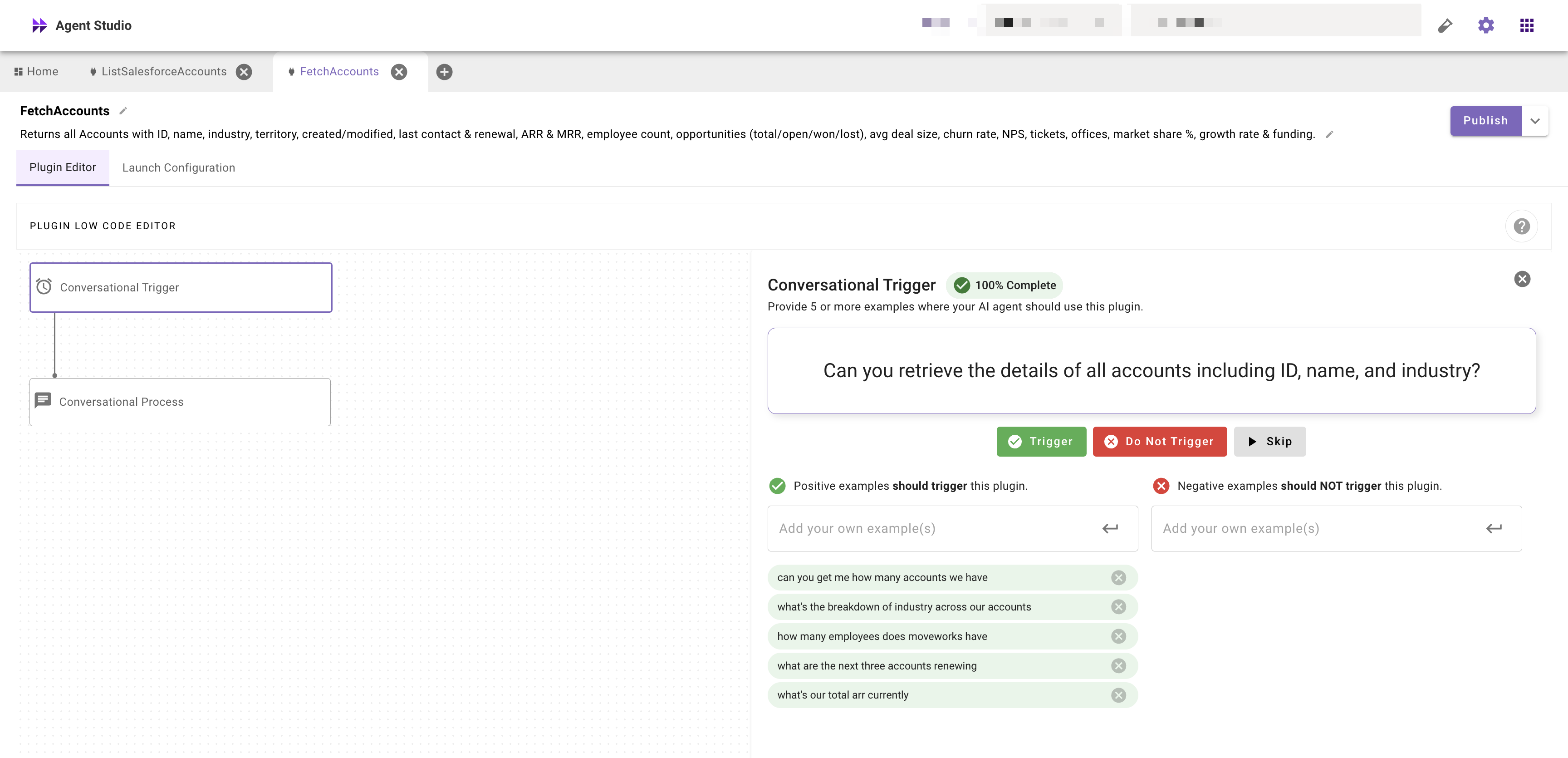
    Plugin DescriptionReturns all Accounts with ID, name, industry, territory, created/modified, last contact & renewal, ARR & MRR, employee count, opportunities (total/open/won/lost), avg deal size, churn rate, NPS, tickets, offices, market share %, growth rate & funding.

Create a trigger

  1. In the Plugin Editor, add a Conversational Trigger and fill it out


Build your process

Connect to the mock CRM

We need an HTTP action that will fetch the large volume of data from the external system.
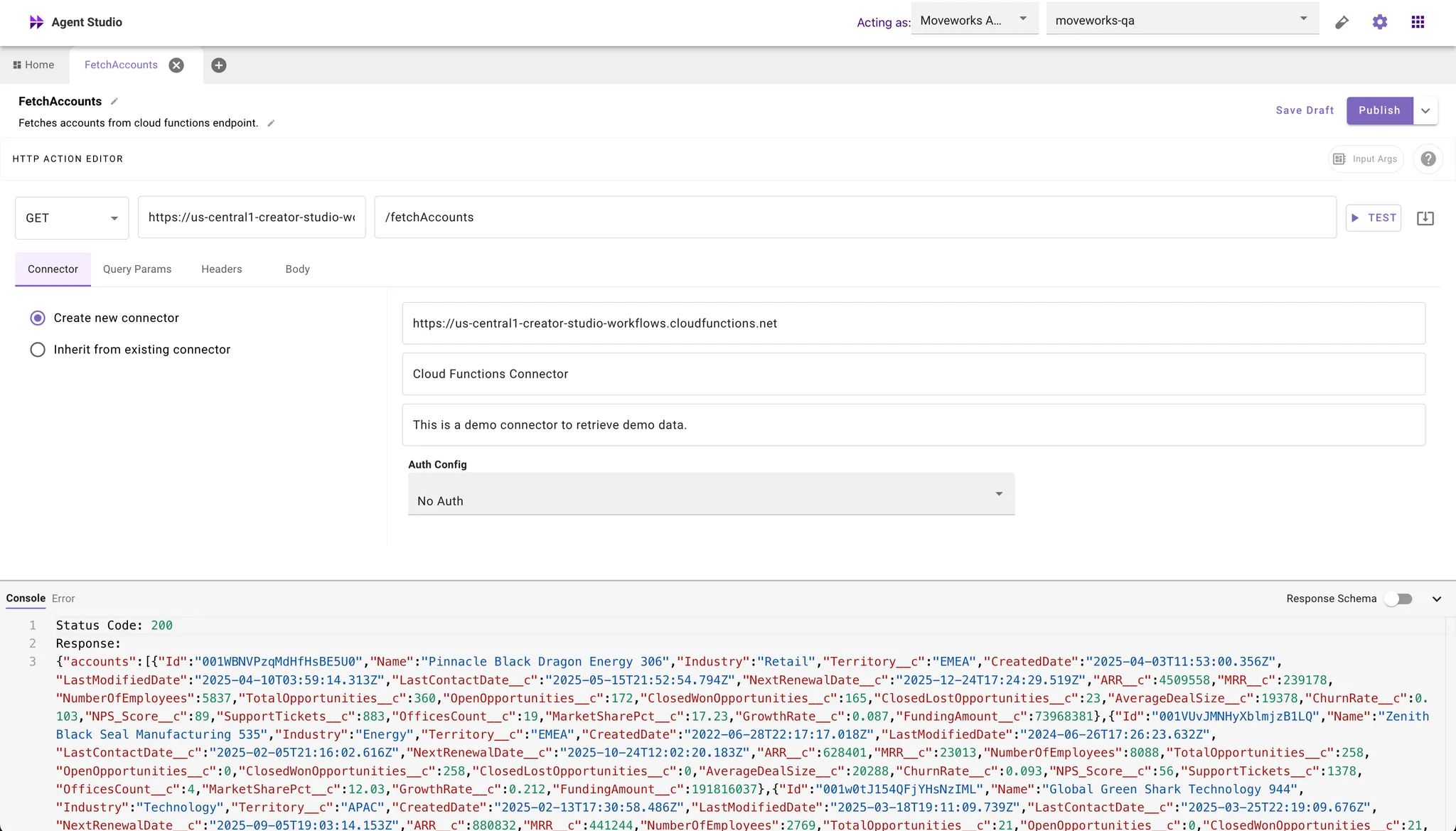
  1. Click in the tab bar and create a new HTTP Action

  2. Select the Import option (next to the Test button)

  3. Import the following API call

    $curl --location 'https://marketplace.moveworks.com/api/purple-suite/crm/accounts?count=500'
  4. Hit Test

  5. Name your HTTP Action. It should look something like this.


  6. Save your HTTP action

Attach a Conversational Process

Now let’s connect the HTTP action to your plugin & prepare it for analysis

  1. In the Plugin Editor, add a Conversational Process & create a new one.
  2. In the Conversational Process Editor add an action-based activity.
  3. Choose the HTTP Action you just built.
  4. In the activity configuration, under Output Mapper, we will rename the fields to make them more friendly for SDA.

    📘 SDA Tip!

    It’s important to name fields succinctly & clearly to maximize the performance of SDA against various queries.

    1MAP():
    2 items: response.accounts
    3 converter:
    4 AccountID: item.Id
    5 AccountName: item.Name
    6 AnnualRecurringRevenue: item.ARR__c
    7 AverageDealSize: item.AverageDealSize__c
    8 ChurnRate: item.ChurnRate__c
    9 ClosedLostOpportunities: item.ClosedLostOpportunities__c
    10 ClosedWonOpportunities: item.ClosedWonOpportunities__c
    11 DateCreated: item.CreatedDate
    12 DateLastModified: item.LastModifiedDate
    13 Employees: item.NumberOfEmployees
    14 FundingAmount: item.FundingAmount__c
    15 GrowthRate: item.GrowthRate__c
    16 Industry: item.Industry
    17 LastContactDate: item.LastContactDate__c
    18 MarketShare: item.MarketSharePct__c
    19 MonthlyRecurringRevenue: item.MRR__c
    20 NetPromoterScore: item.NPS_Score__c
    21 NextRenewalDate: item.NextRenewalDate__c
    22 OfficeCount: item.OfficesCount__c
    23 OpenOpportunities: item.OpenOpportunities__c
    24 SupportTickets: item.SupportTickets__c
    25 Territory: item.Territory__c
    26 TotalOpportunities: item.TotalOpportunities__c

Launch it

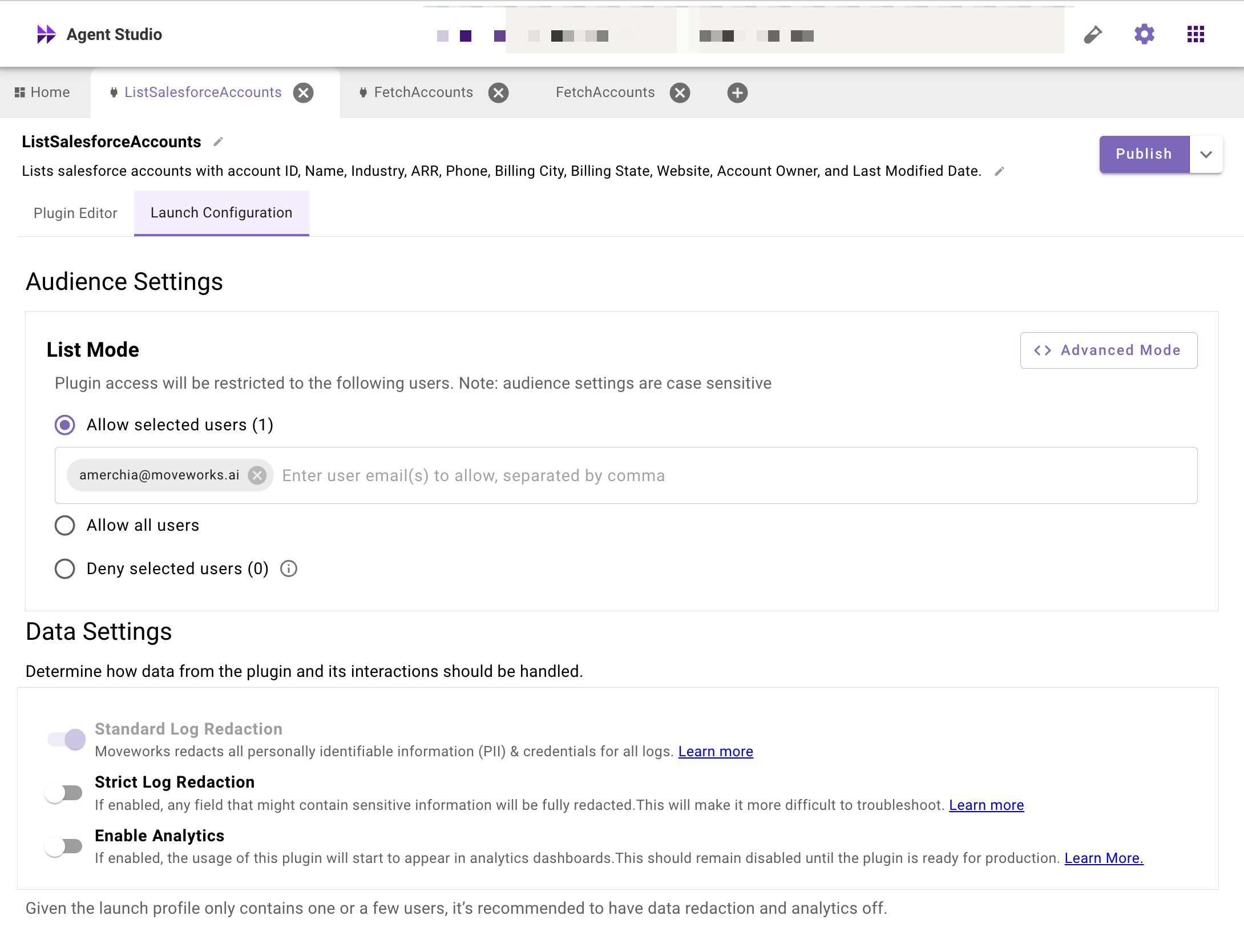
Under Audience Settings you can launch it to yourself for testing.

Test it!

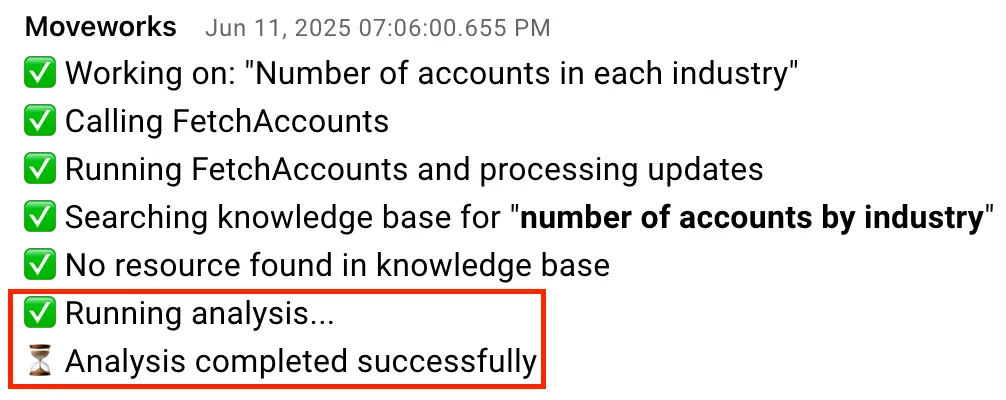
Try it out! You should see something like the following.

🚧 Not seeing the right results?

Verify that SDA is running by checking for the Running analysis progress update
Here are some other questions you could try:

  • What’s the total ARR of customers in the Tech industry?
  • Which industry is performing best in Europe?
  • Which accounts have the most support tickets are are up for renewal soon?

Next Steps

Start building your own plugins for Structured Data Analysis!