Setup Configuration
📘 Content Gateway Configuration Steps
After creating Content Gateway APIs, follow this guide to configure them in Moveworks Setup.
Setup instructions
Create a Content Gateway Connector
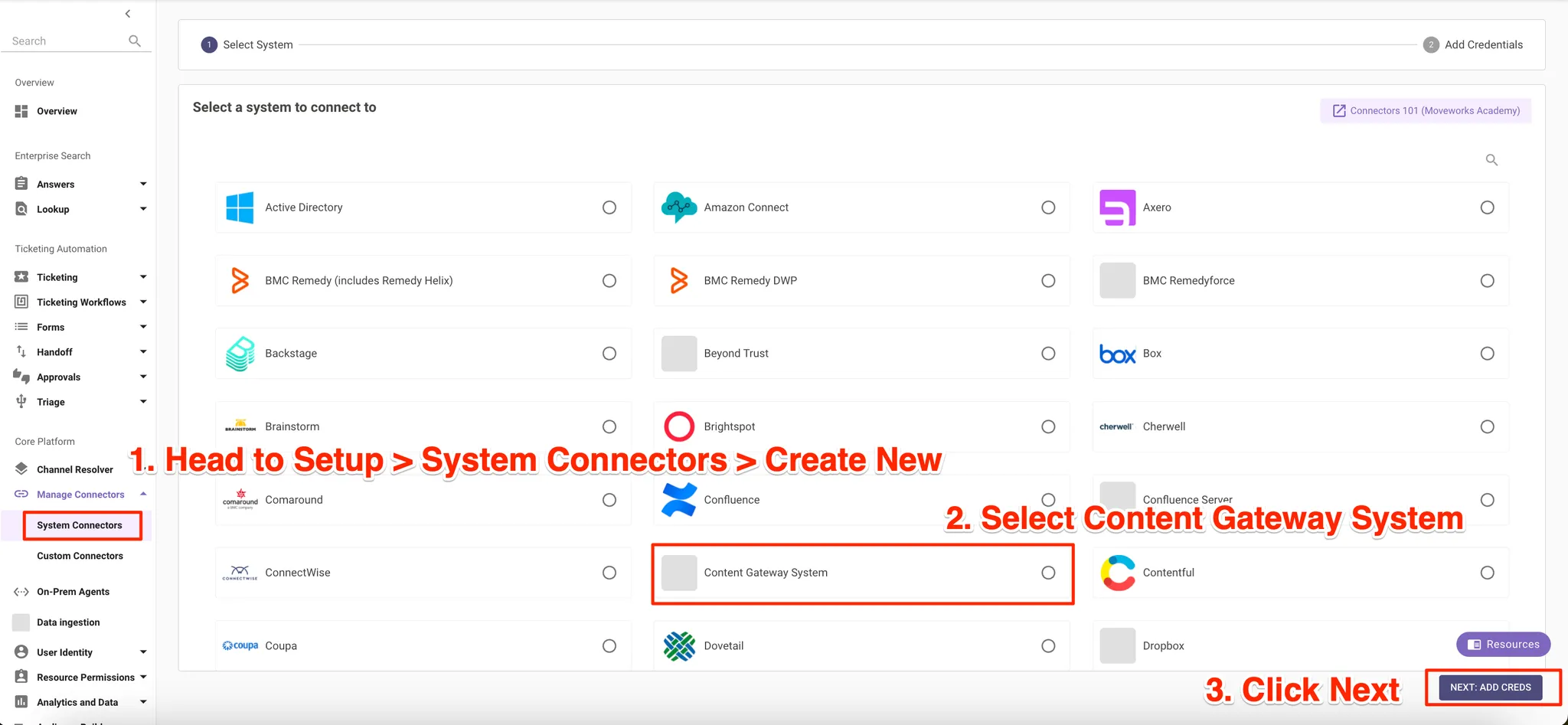
- Head to Moveworks Setup > System Connectors > Create New
- Select Content Gateway System
- Click Next to add Connector Credentials
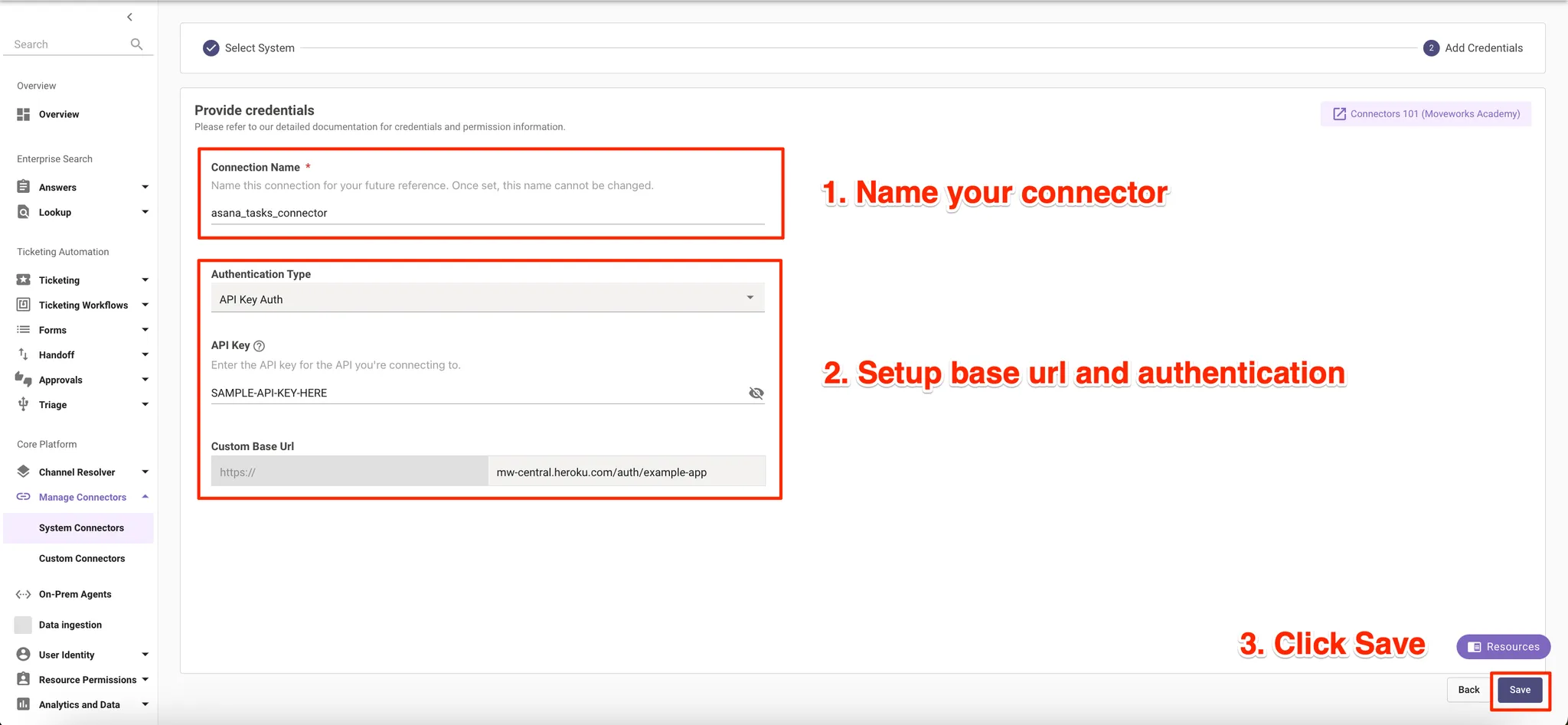
Add Connector Credentials
- Name your connector. You will use this connector in step 3.
- Select an Authentication Type. View supported authentication types here.
- Add the gateway’s base Url and credentials
- Click Save to finish creating your connector
Setup File ingestion flow for connector
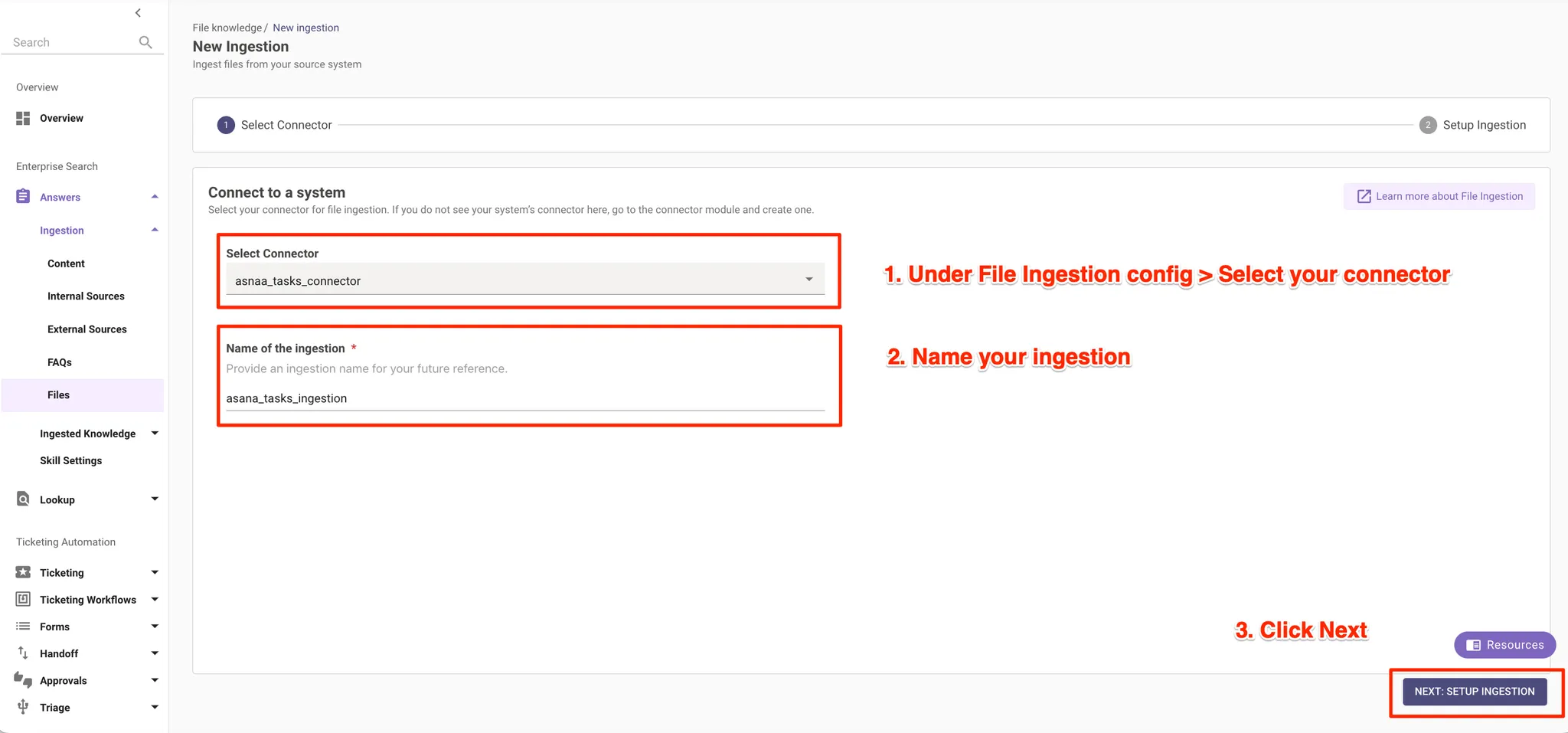
- Now head to Moveworks Setup > Answers > Ingestion > Files > Create
- Select your connector
- Name your ingestion
- Click Next to Setup ingestion
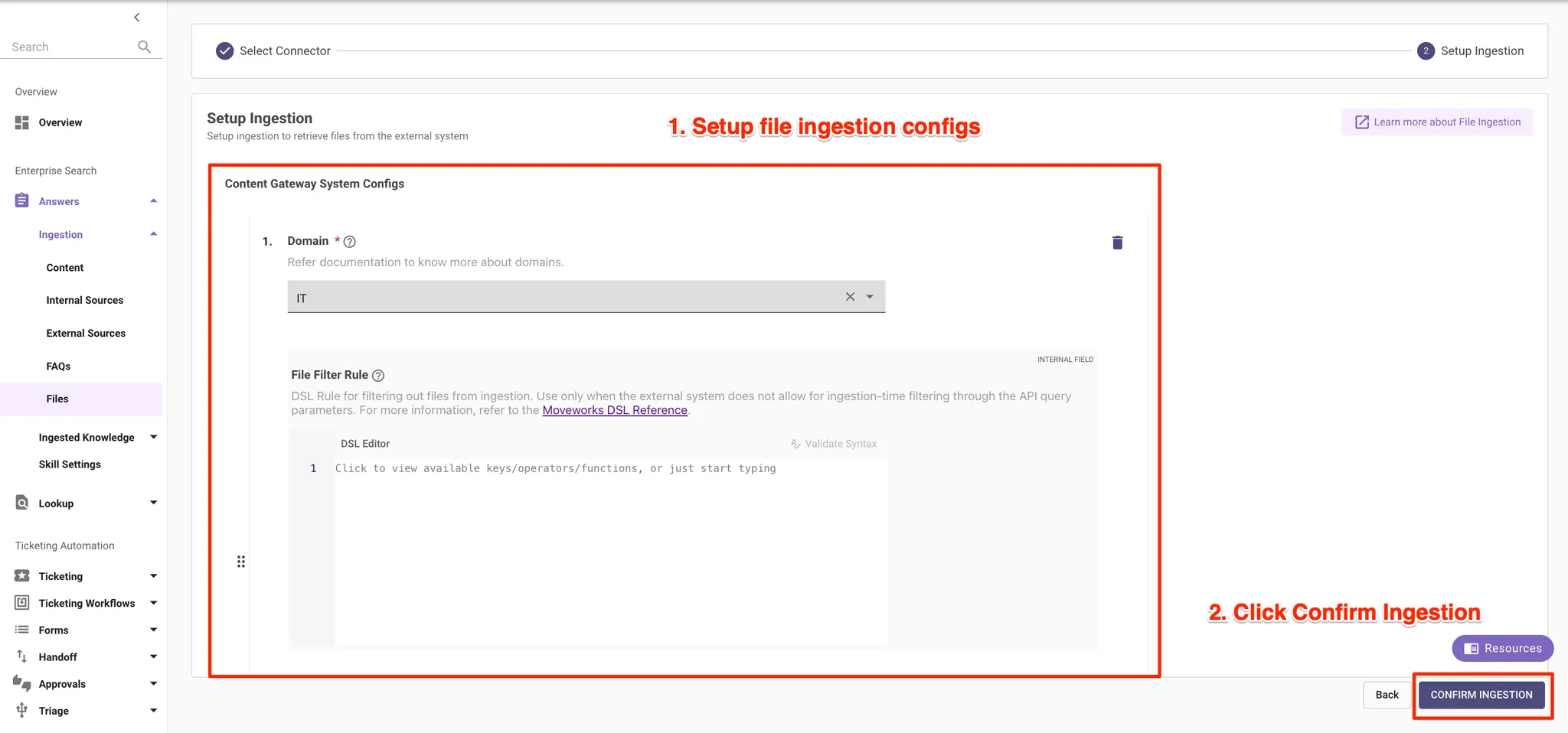
Customize File ingestion
- You have a few options to add a domain, setup DSL filter rules, select caching options for your Content Gateway File ingestion. For details refer to docs.
- Once setup, click Confirm ingestion.
Your integration is now complete, let’s test it! ✅
Testing instructions
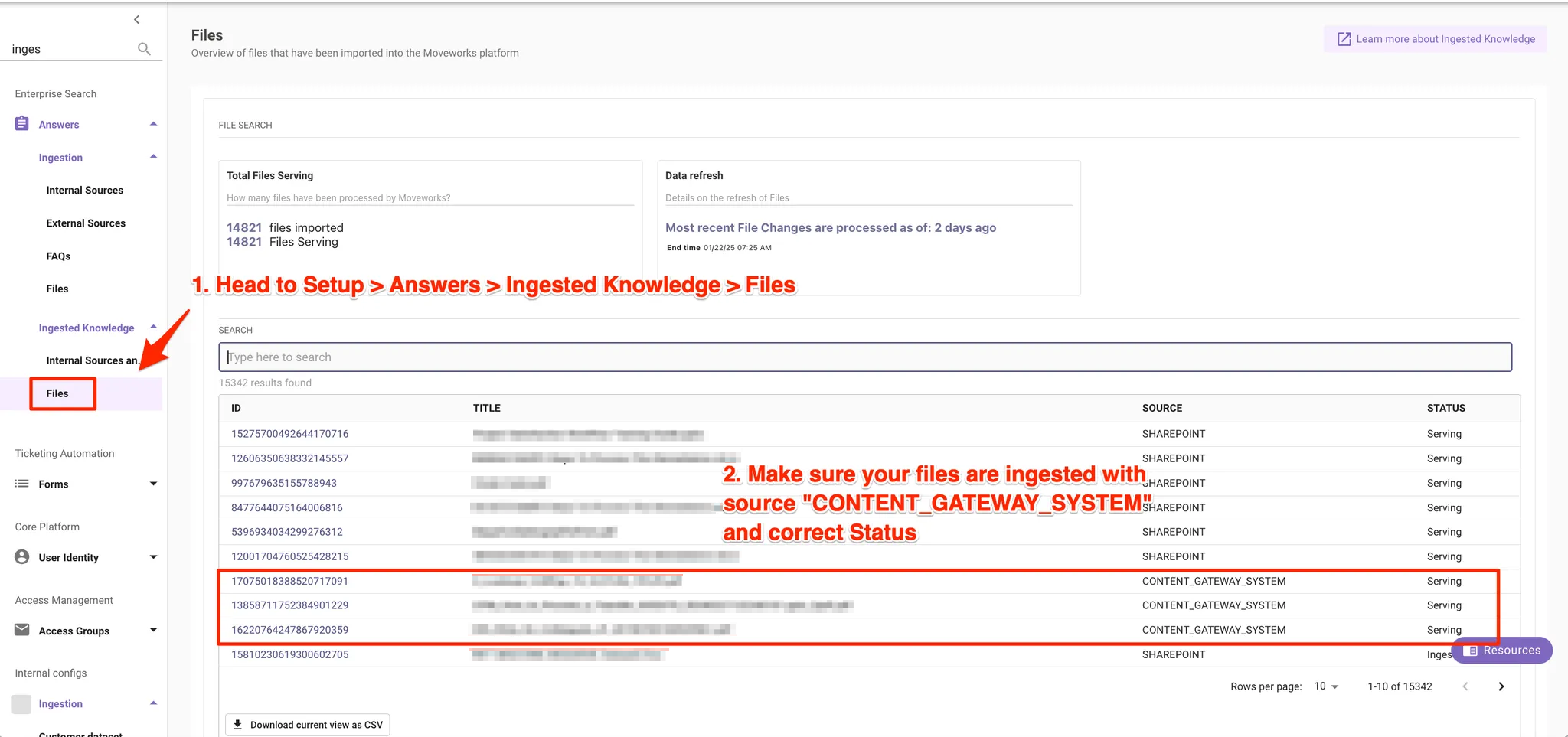
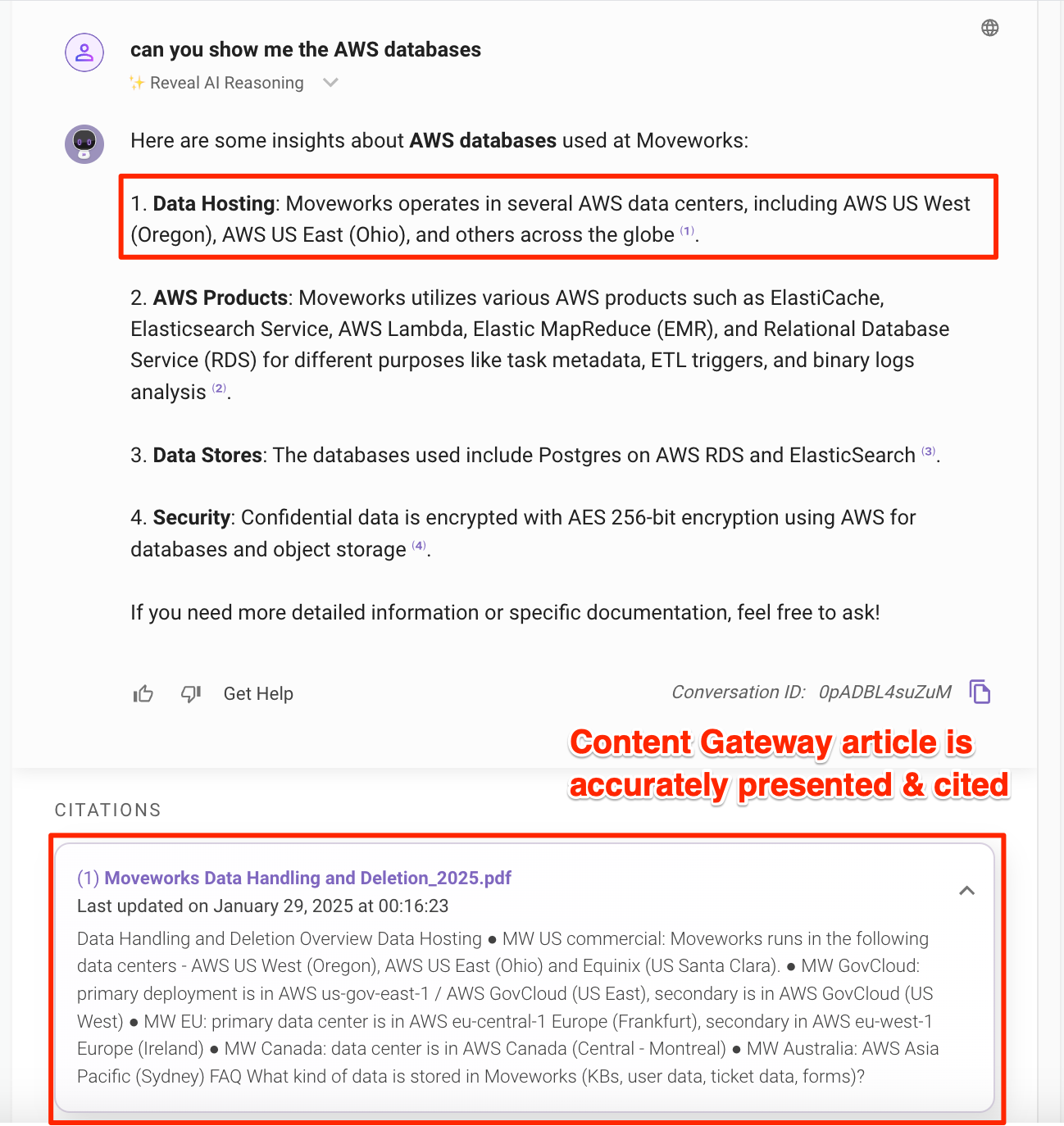
Check Moveworks Setup
- Head to Moveworks Setup > Answers > Ingested Knowledge > Files
- Once your files are ingested, all your ingested files should be listed on this dashboard with the “Source” marked as
CONTENT_GATEWAY_SYSTEM - If they are being served in the bot, their “Status” will be marked as
Serving