
Vetted Content: Setup
Mark documents and Knowledge Base (KB) articles as Vetted
Before you begin, you’ll need access to the Moveworks setup portal. In the left hand menu, navigate to “Answers” -> “Content curation”.
Steps
-
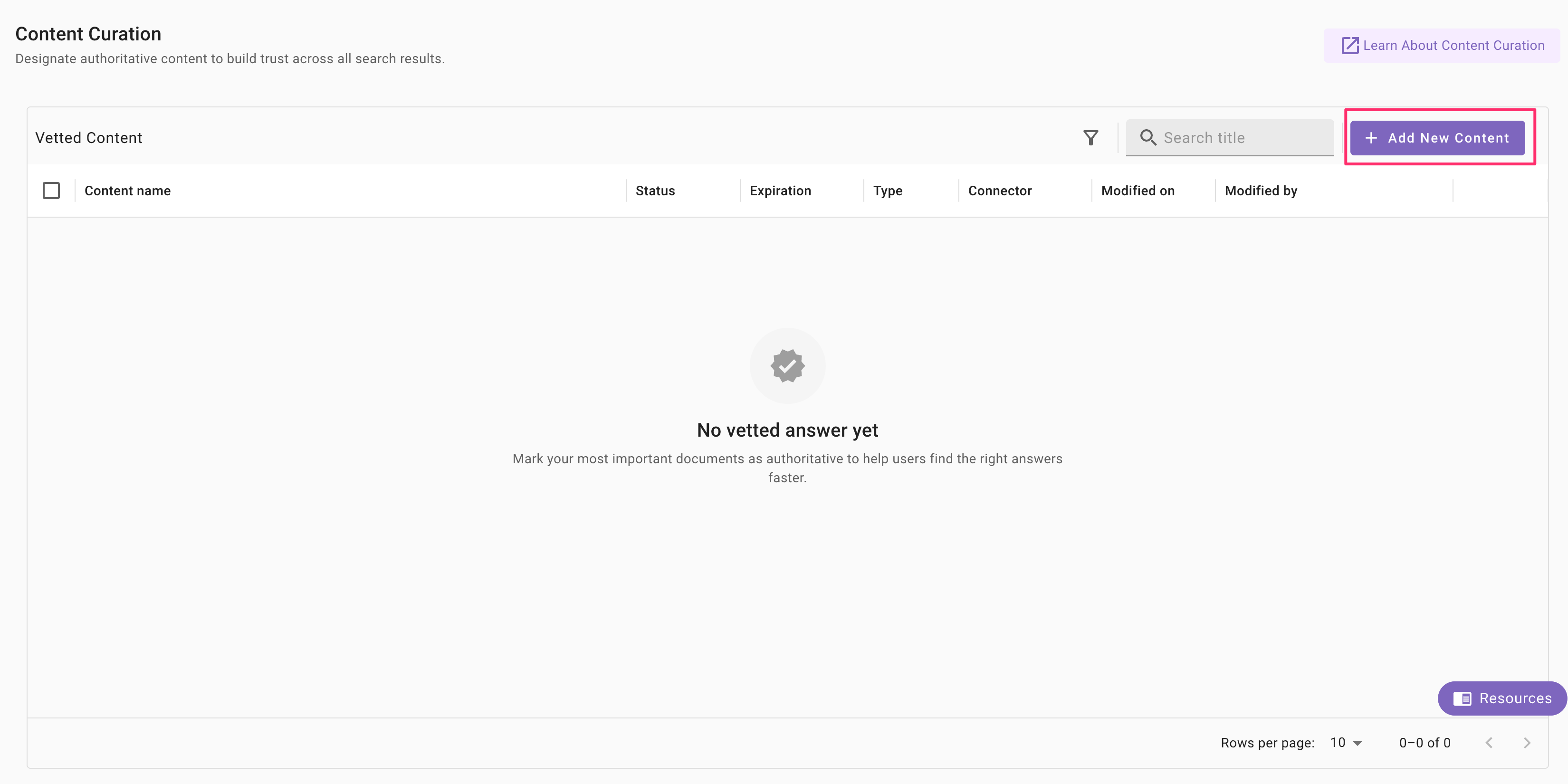
Start adding vetted content.
Click + Add New Content (top-right). 
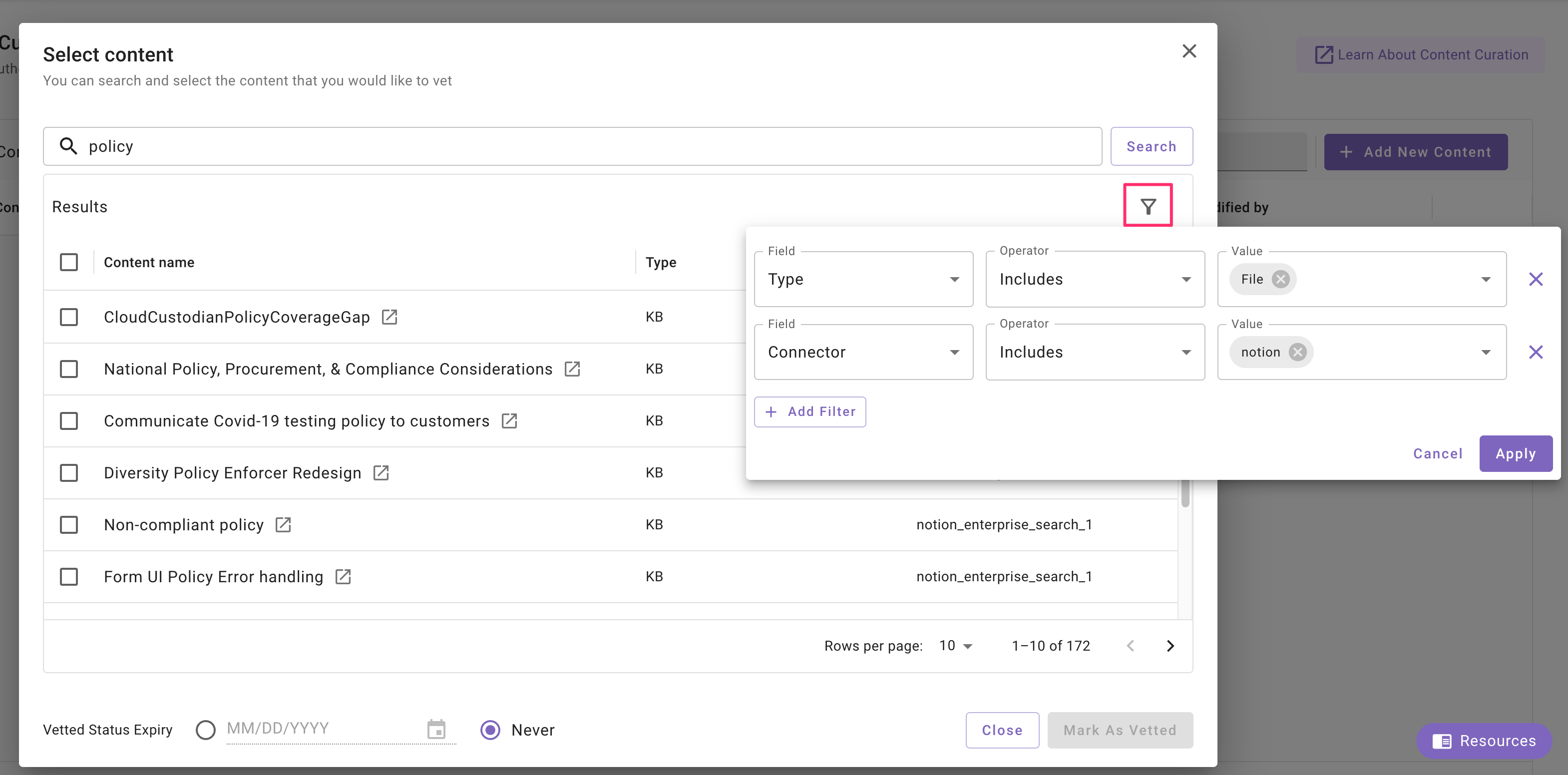
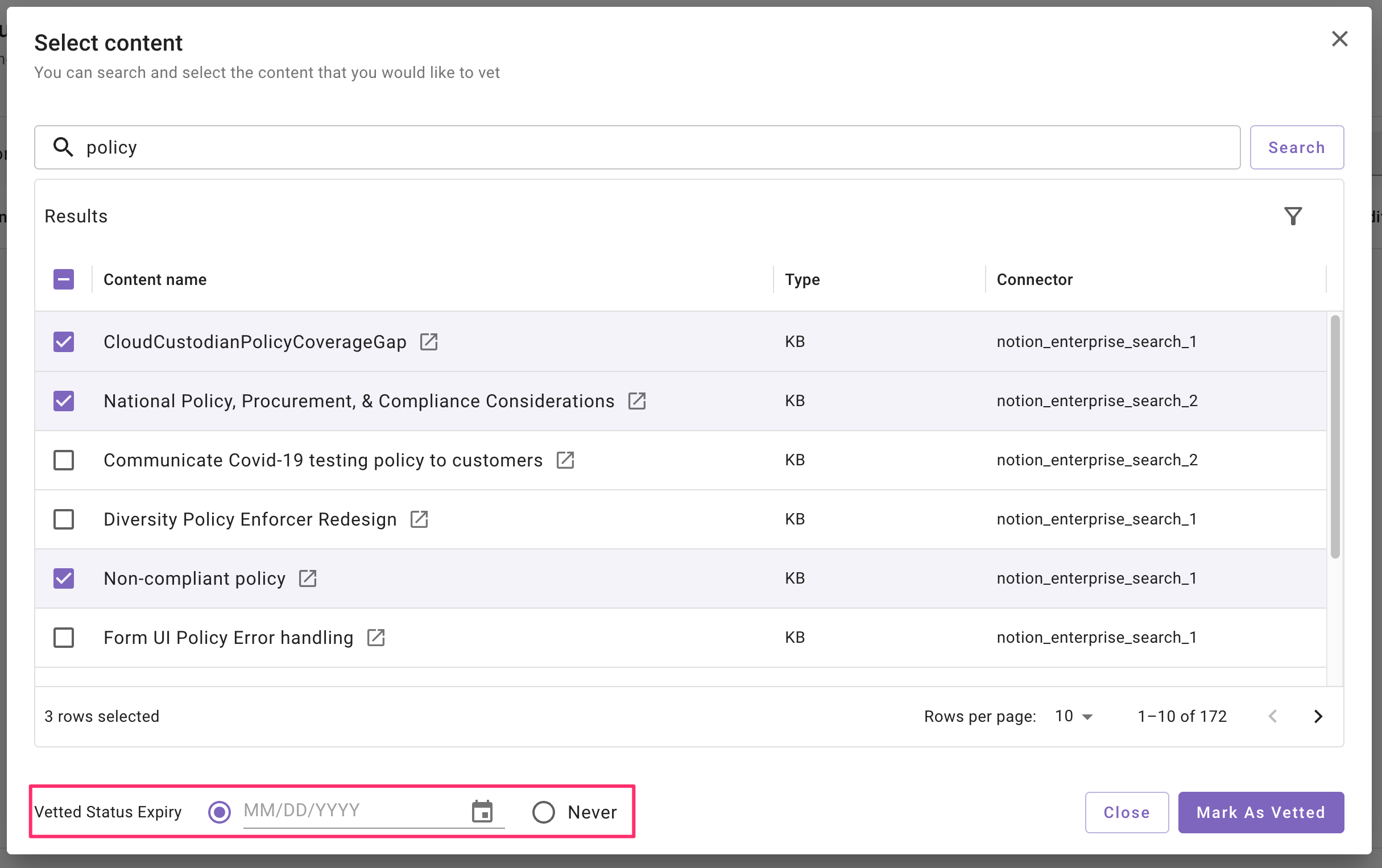
In the Select content modal, use the search box to find the ingested files or KB articles you want. You can search by Title, File ID, or URL to find content easier. To narrow down the file or KB article you’re looking for, click the filter icon and filter by:
- Type: File or KB article, or
- Connector: the source system where the content lives (for example, Notion)
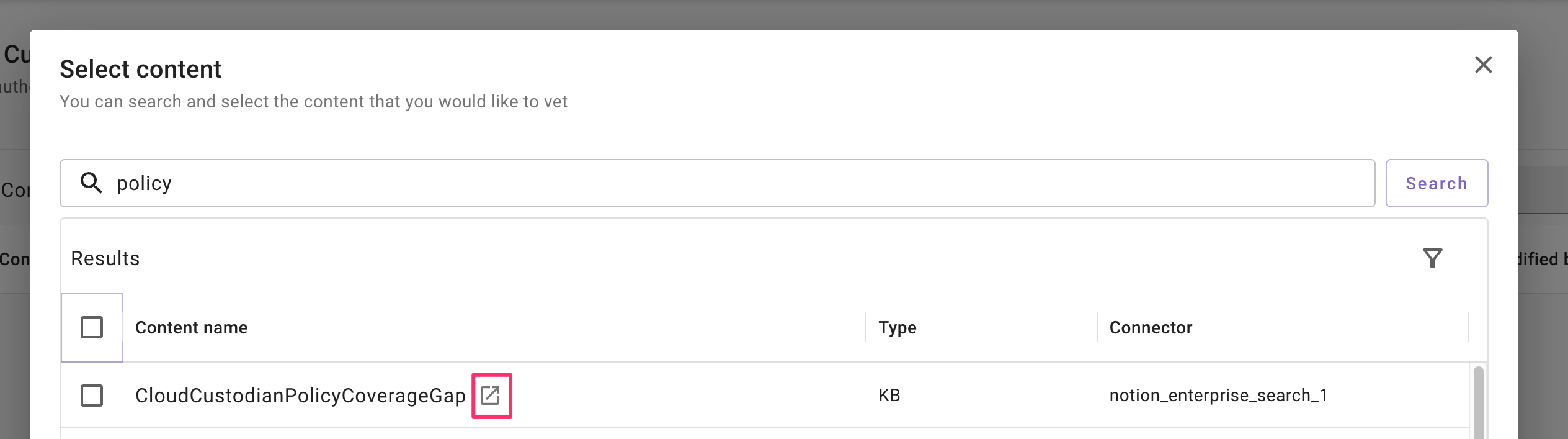
To open the content of the file or KB, click on the link icon next to the content name.
-
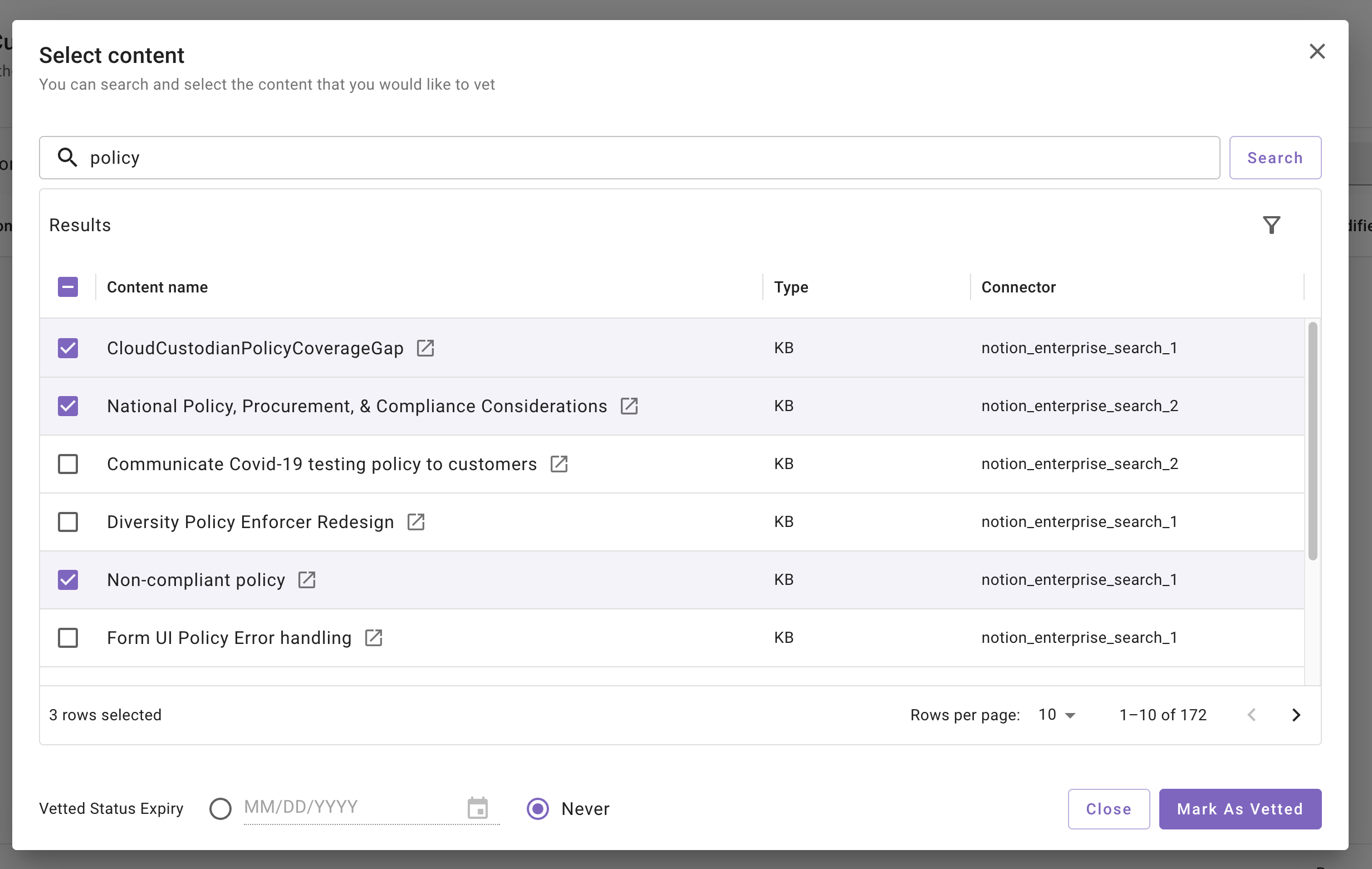
Select items and mark as vetted. Select one or more items from results.
-
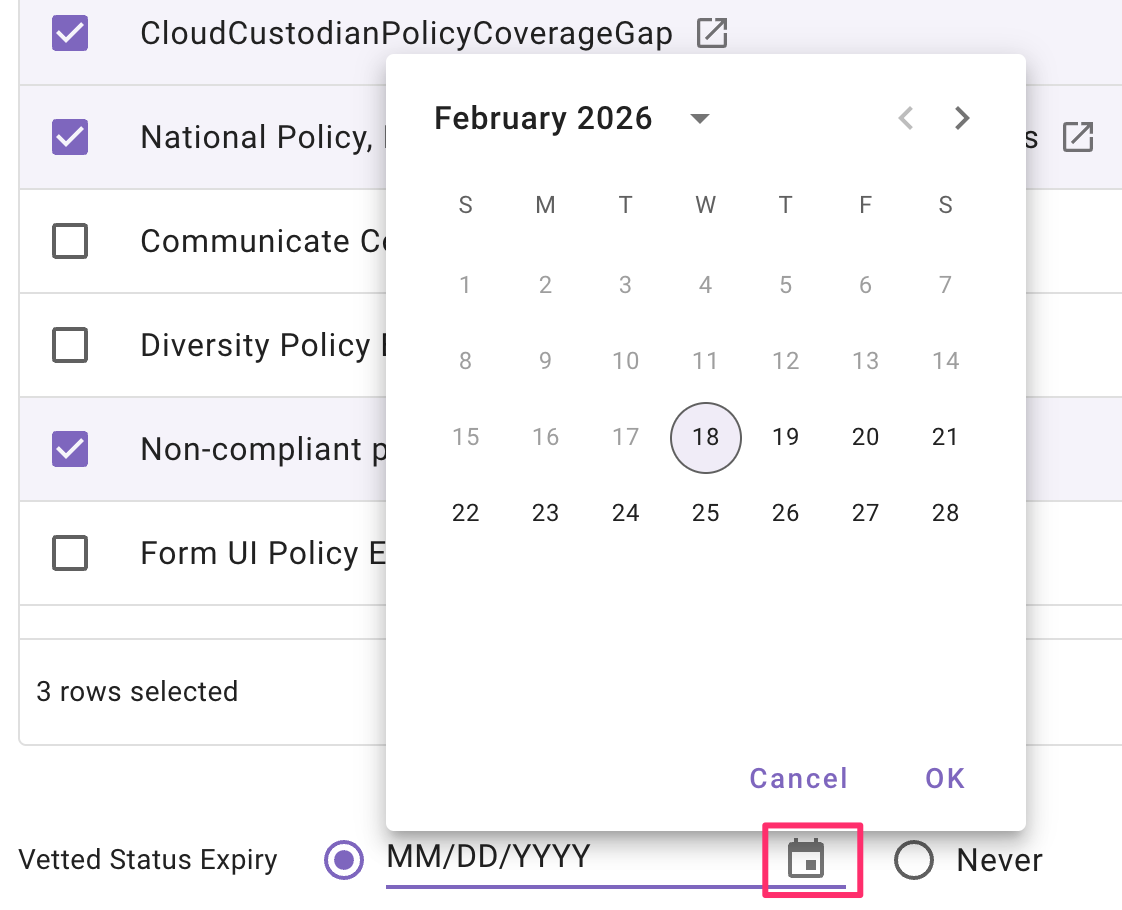
The default expiration for vetted status is Never. To set an expiration date, click the calendar icon and choose a date. If you select multiple items, the same expiration date will be applied to all selected items.
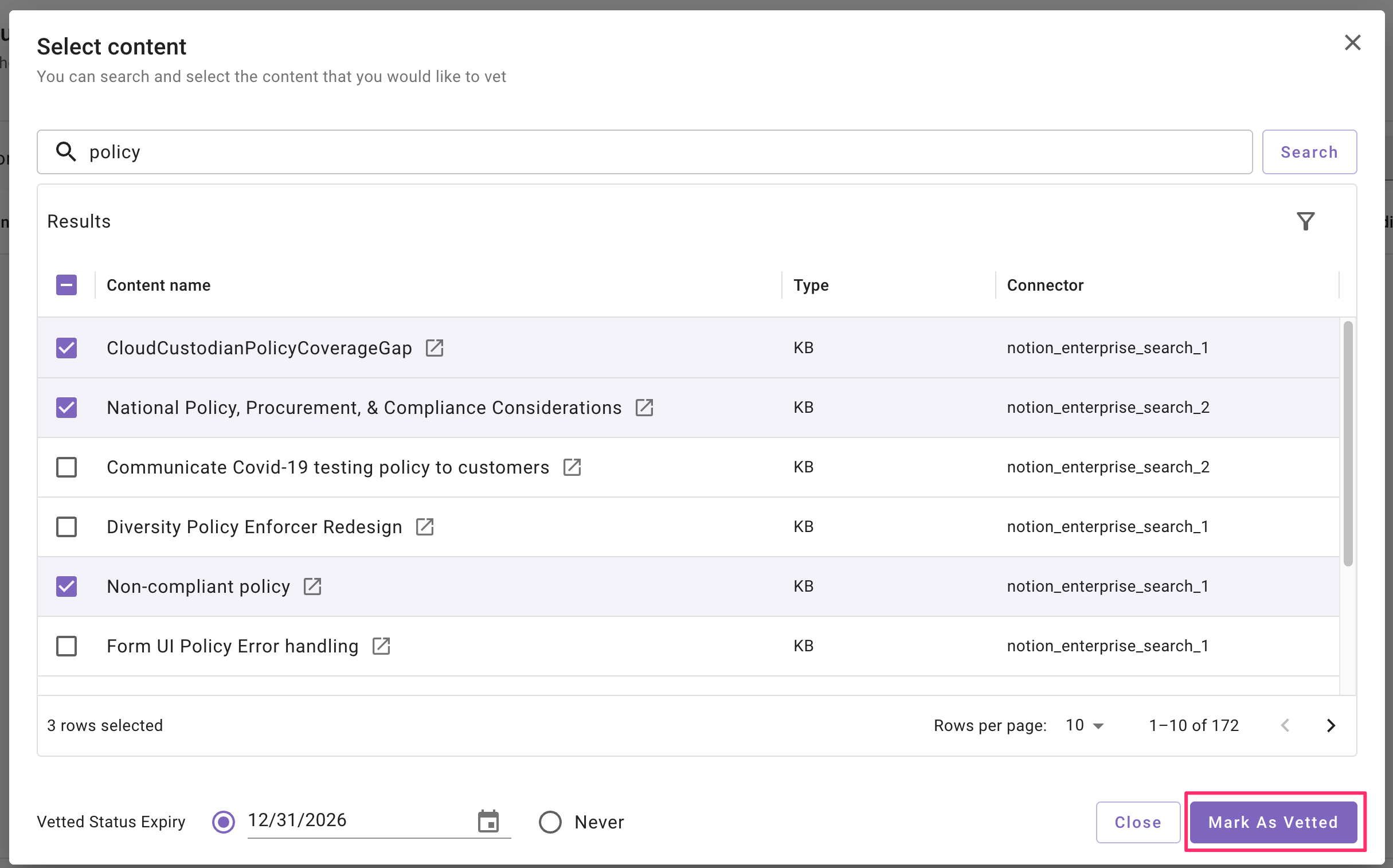
Once you have the items selected and expiration dates set, click on “Mark as Vetted”
You will see a confirmation that they have been vetted at the bottom of your screen.

-
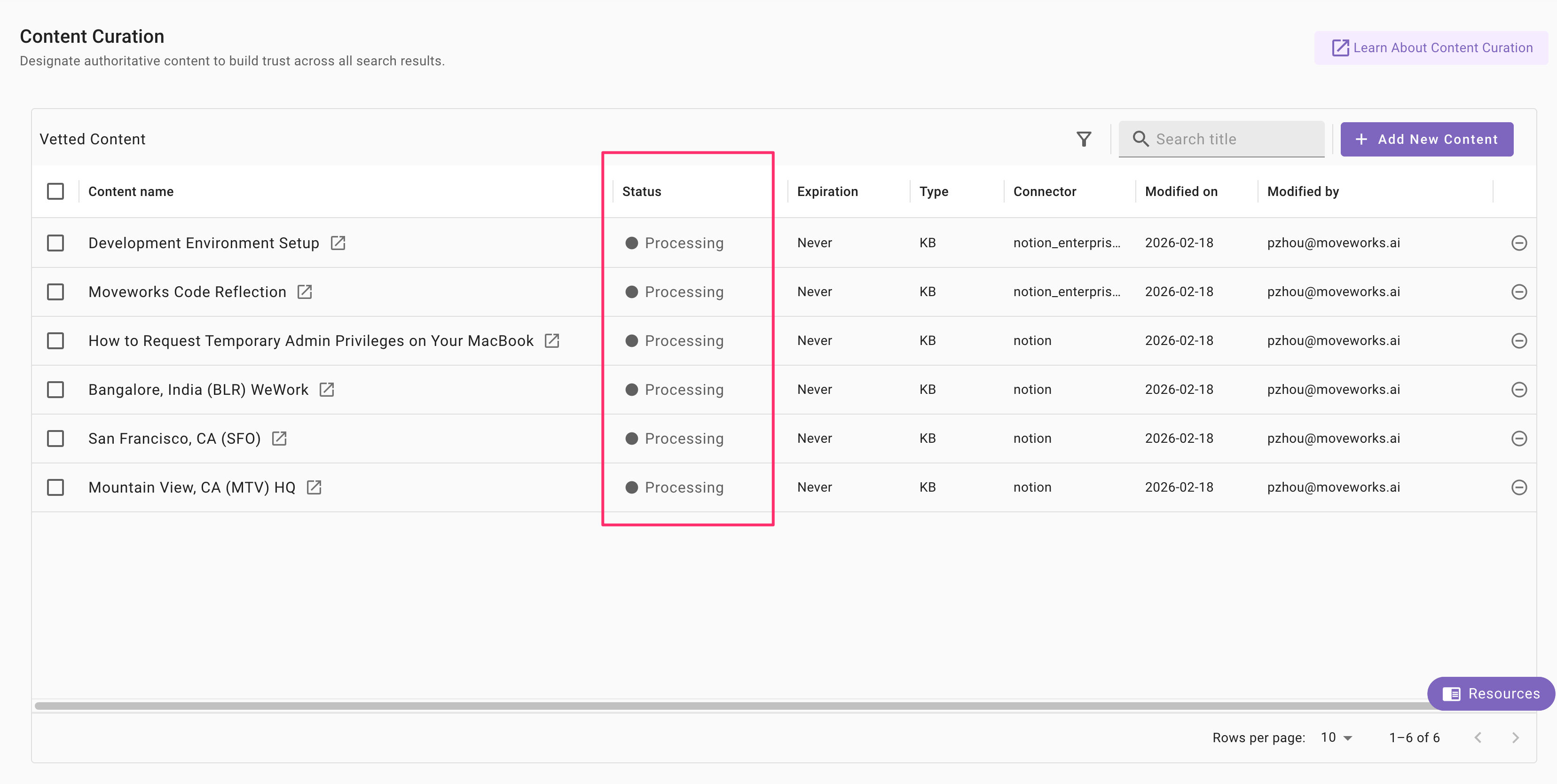
On the Content Curation page, you will see the status of these items as “Processing”. It will take up to 15 minutes for the vetted status to be reflected to the end user, once that’s done, the status will update to “Active”. You must refresh or revisit the page to see the update.
-
-

- You should now see the item(s) appear in the Vetted answers list. 
- [image]
- Set the expiration date
- In the Update expiration date modal, choose the new date (or select Never). If not date is selected, expiry date is defaulted to Never.
- After saving, confirm the Expiration column updates. Items may show states like Active, Expiring, or Expired in the list. 
- Now your content has been successfully vetted. The system will take up to 15 minutes to reflect the vetted status.
FAQs
- I have many ingested documents with similar names, how do I find the specific one I’m looking for?
- XXX
- How long does it take for vetted status to take place?
- It will take up to 15 minutes for the vetted status to be reflected in the end user experience.
- How do I confirm that the vetting has worked?
- Make sure the content now appears in the Vetted answers table. After 15 minutes, you can also test out the end user experience by making a query related to the vetted content to see the experience for yourself.
- What kind of content should I vet?
- XXX