
Configure a maintainer account for MyMoveworks
A maintainer account lets a Moveworks employee sign in to your MyMoveworks instance using their own work email. You add the employee as a user and choose which applications they can access.
The employee signs in through a link sent to their email. You do not need to create an account for them in your organization’s single sign-on (SSO) system.
Before you begin
- Confirm the employee’s name and work email, which instance they need to access, what work they will do, and when access should end.
- Sign in with an administrator account that can add users through Manual User Management and assign application roles through Roles and Permissions. See Roles and Permissions.
- Confirm that the applications the employee needs are available in your instance.
- In Moveworks Setup > Tenant Settings > General Information, confirm that Disable Magic Link login is unchecked. If your organization has disabled email login, open a case in Now Support for help with access options.
How email login works: The login link, also called a magic link, lets the employee sign in through their work email. Your organization’s SSO sign-in requirements do not apply to this login method. Users who sign in through SSO continue to use your existing configuration. Changing Disable Magic Link login affects email login for all users in your organization.

Add the employee as a user
- In Moveworks Setup > Core Platform > User Identity > Imported Users, search for the employee’s exact work email. If the employee is already listed with the correct email, continue to Assign application roles.
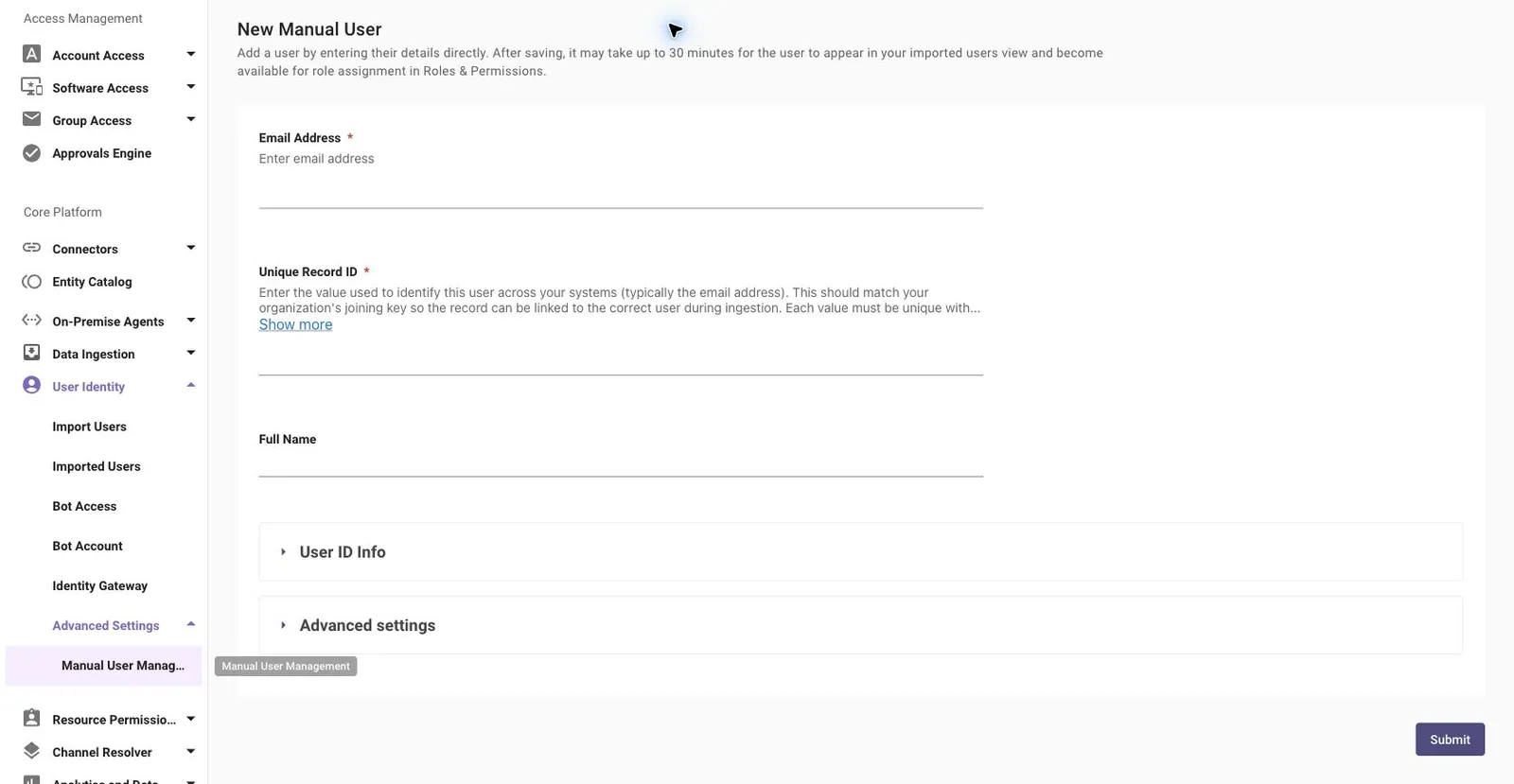
- Otherwise, open User Identity > Advanced Settings > Manual User Management and check for an existing entry. If one is awaiting import, wait for it to appear in Imported Users. If no entry exists, select Create.
- Enter the employee’s Email Address and Unique Record ID. Follow your organization’s existing convention for the record ID, and do not reuse another person’s ID. If you are unsure which value to enter, check with the administrator who manages user imports. See Bot Account and Manual User Management for details about these fields.
- Enter the employee’s name in Full Name, then select Submit.
- User imports run every 30 minutes. Wait at least one hour after submitting the entry, then check Imported Users and confirm the employee’s name and email. Assign roles only after the employee appears in this list.
Adding the employee does not give them application access. Assign roles next. Add the user and assign roles separately in each instance they need to access.
Assign application roles
- In MyMoveworks, open Roles and Permissions.
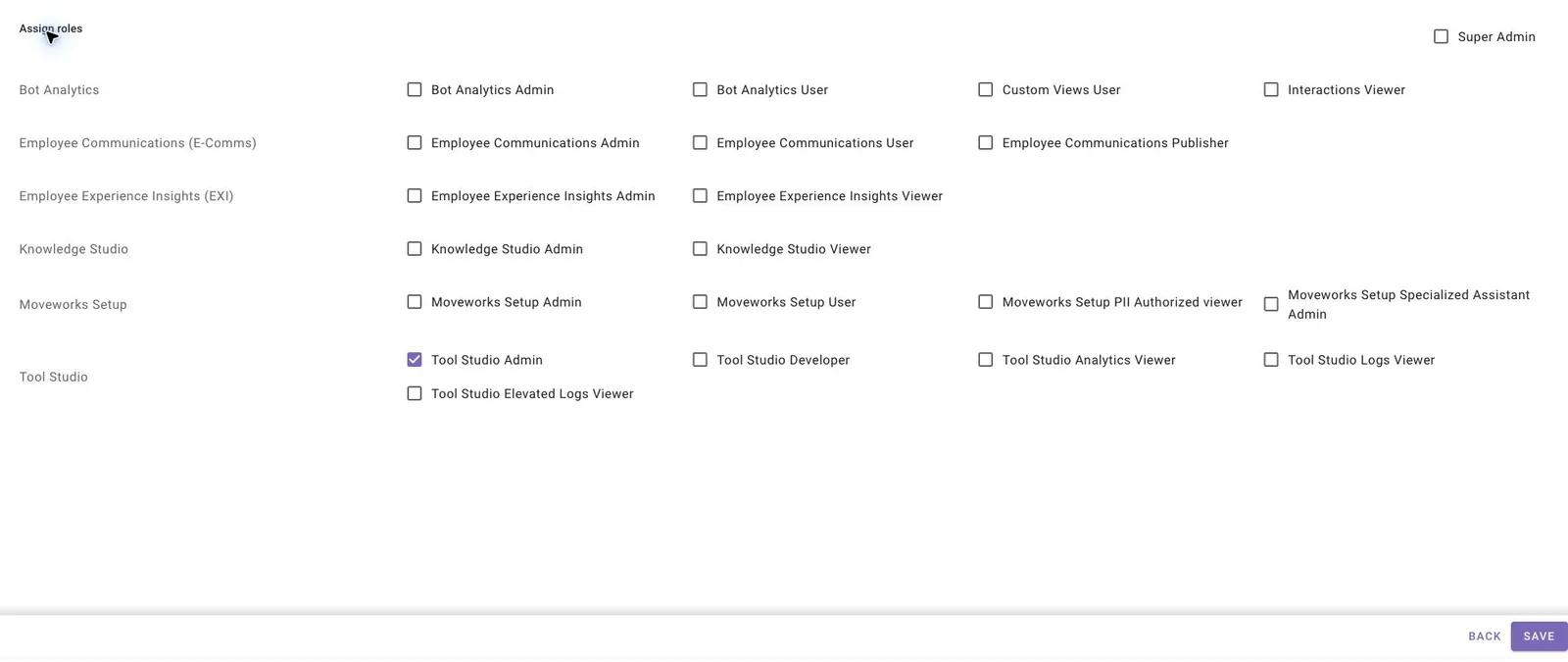
- If the employee already appears on the Roles and Permissions page, select the pencil icon in the Edit column. Otherwise, select Add User and search for their work email.
- Select the roles needed for the approved work. For ToolSmith access, select Tool Studio Admin.
- Select Save and review the assigned roles.
The roles you select determine which applications and features the employee can use. Add only the roles needed for the work you have approved.
Help the employee sign in
- Give the employee your instance’s welcome page URL and organization name. Use the exact URL for your instance and region, ending in
/welcome. See the welcome URLs by region. - Ask the employee to follow the magic-link login steps using the same work email you added. The link arrives from
noreply@moveworks.ai. Each link is for one use and expires after 15 minutes.
Ask the employee to use their own work email and keep login links private. They can request a new link for each sign-in while email login is enabled and you have not removed their access.
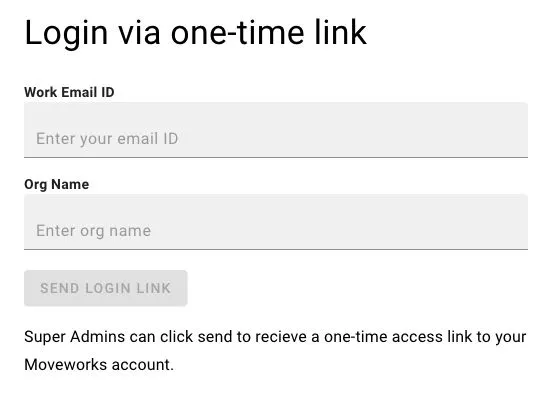
The login page mentions Super Admins. For ToolSmith access, Tool Studio Admin is sufficient; you do not need to assign Super Admin.
Verify access
Ask the employee to confirm they can sign in to the correct instance and open the applications they need. For ToolSmith access, they open Tool Studio, then ToolSmith.
Review and remove access
When the work is complete or the agreed access period ends:
- In Roles and Permissions, find the employee and select the pencil icon in the Edit column.
- Clear the roles that are no longer required, then select Save. Confirm that Role changes saved appears.
- If the employee has an entry in Manual User Management and no longer needs the account for other approved work, open the entry’s three-dot menu and select Delete. Check the email in the confirmation dialog, then select Delete to remove the entry.
Access does not expire automatically on the agreed end date. You must remove it manually using the steps above. A login link’s 15-minute expiry does not remove access or sign out an employee who has already used the link. If you need to sign out an employee immediately, open a case in Now Support for help.