Workday Access Requirements (Knowledge)
As Moveworks has integrated with Workday Knowledge, we would need the following details to connect our services with your Workday instance. Our systems fetch the knowledge articles stored in your system and serve the user with relevant answers.
Prerequisites
You will need to provide the following to Moveworks.
- Integration System User (ISU) Credentials
- Username
- Password
- API Client for Integrations Credentials
- Client ID
- Client Secret
- API Client Refresh Token
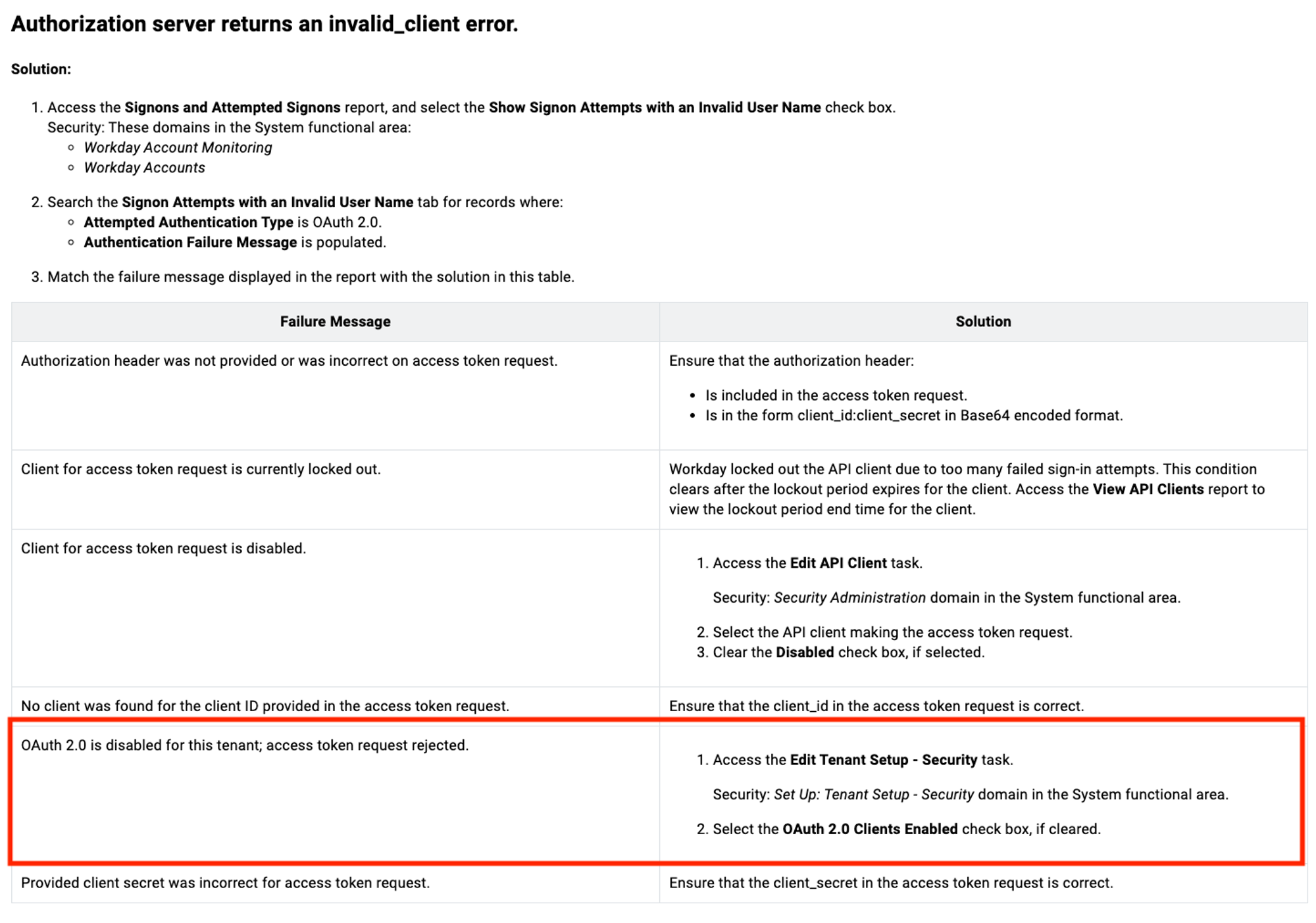
- Enable OAuth 2.0 Clients Enabled
- Edit Tenant Setup
- URLs
- Token Endpoint
- Workday REST API Endpoint
👉 Please provide ALL of the above to your Moveworks Implementation team via an encrypted email.
Grant ISU Domain Security Permissions
Please create an Integration System User (ISU) and Integration System Security Group (ISSG).
How to Create an ISU with Domain Security Permissions
Create the ISU
-
Use the universal search to find the
Create Integration System User(ISU) Workday Task.
-
Use the
Create Integration System User(ISU) Workday Task to create a user following these settings. Write down the username and password that you use.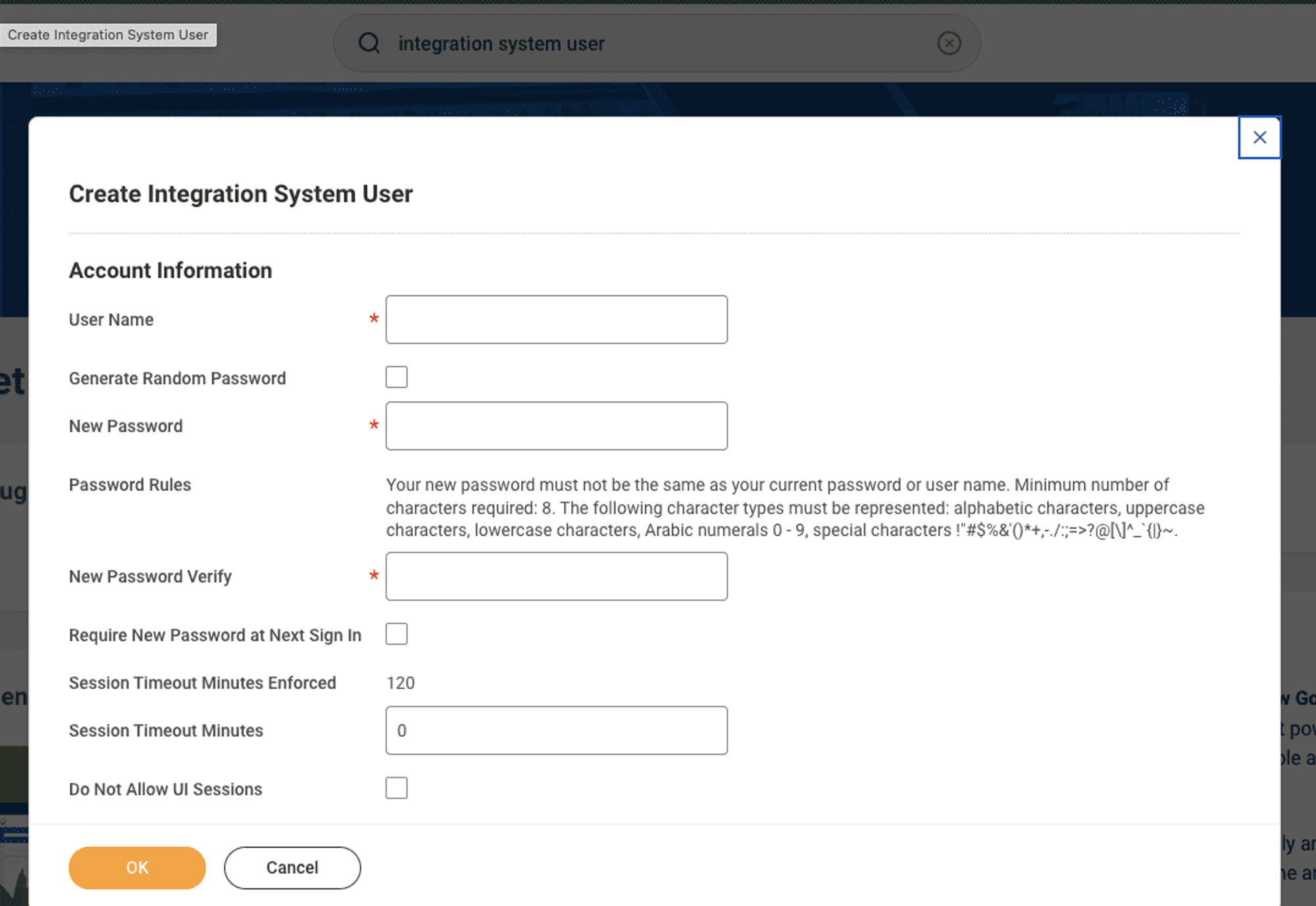
-
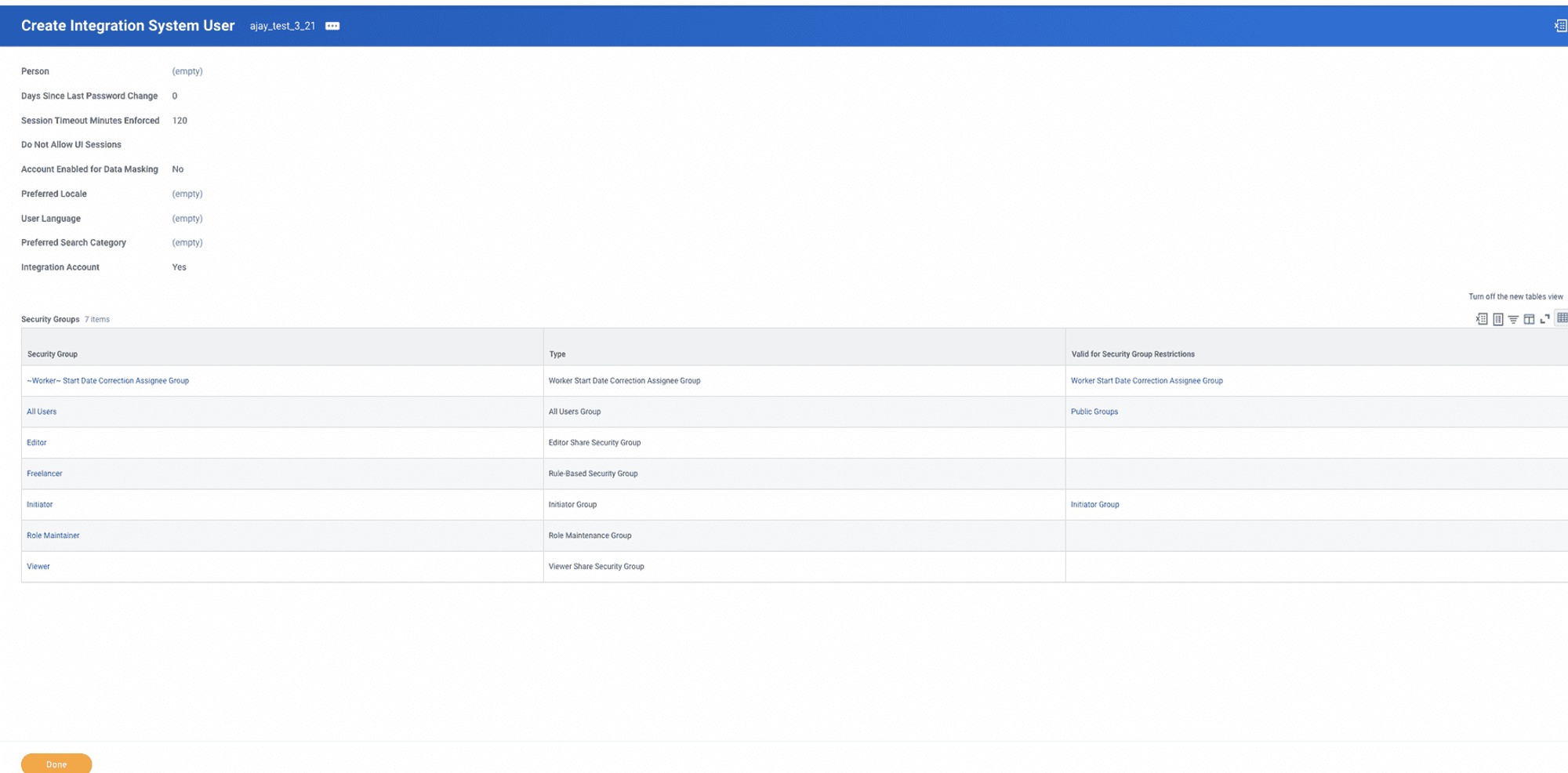
Validate that the ISU has these default permissions after creation.
Create an ISSG and add the ISU to it
-
Find the
Create Security Grouptask.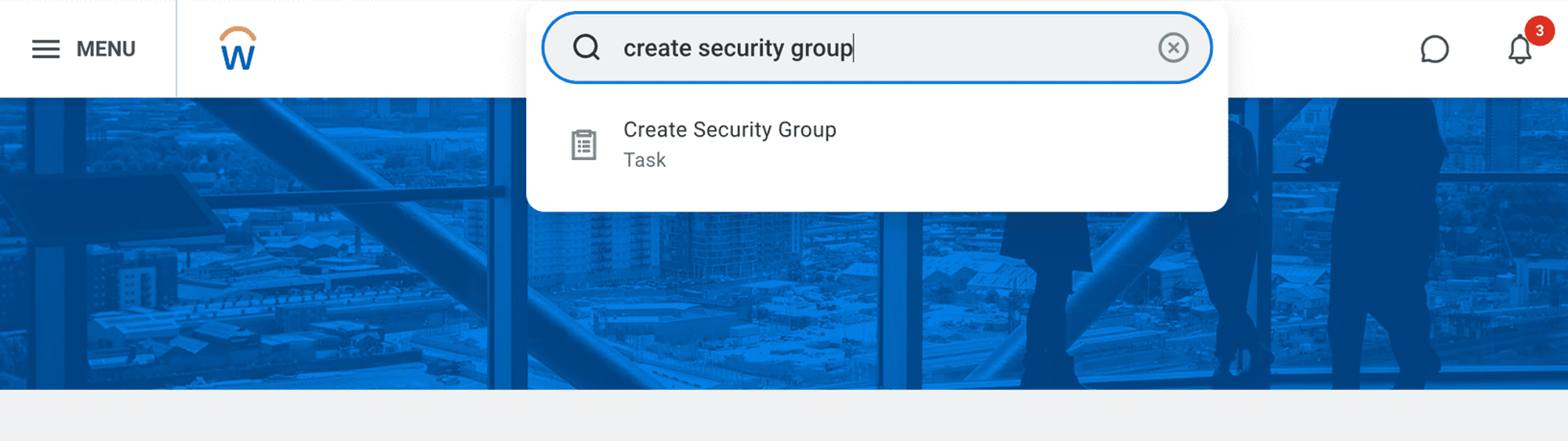
-
Create an
Integration System Security Group (Unconstrained)(ISSG). Title it “ISSG_Moveworks” for best practices.
-
Use the
All Workday Accountsreport to find the account again.
-
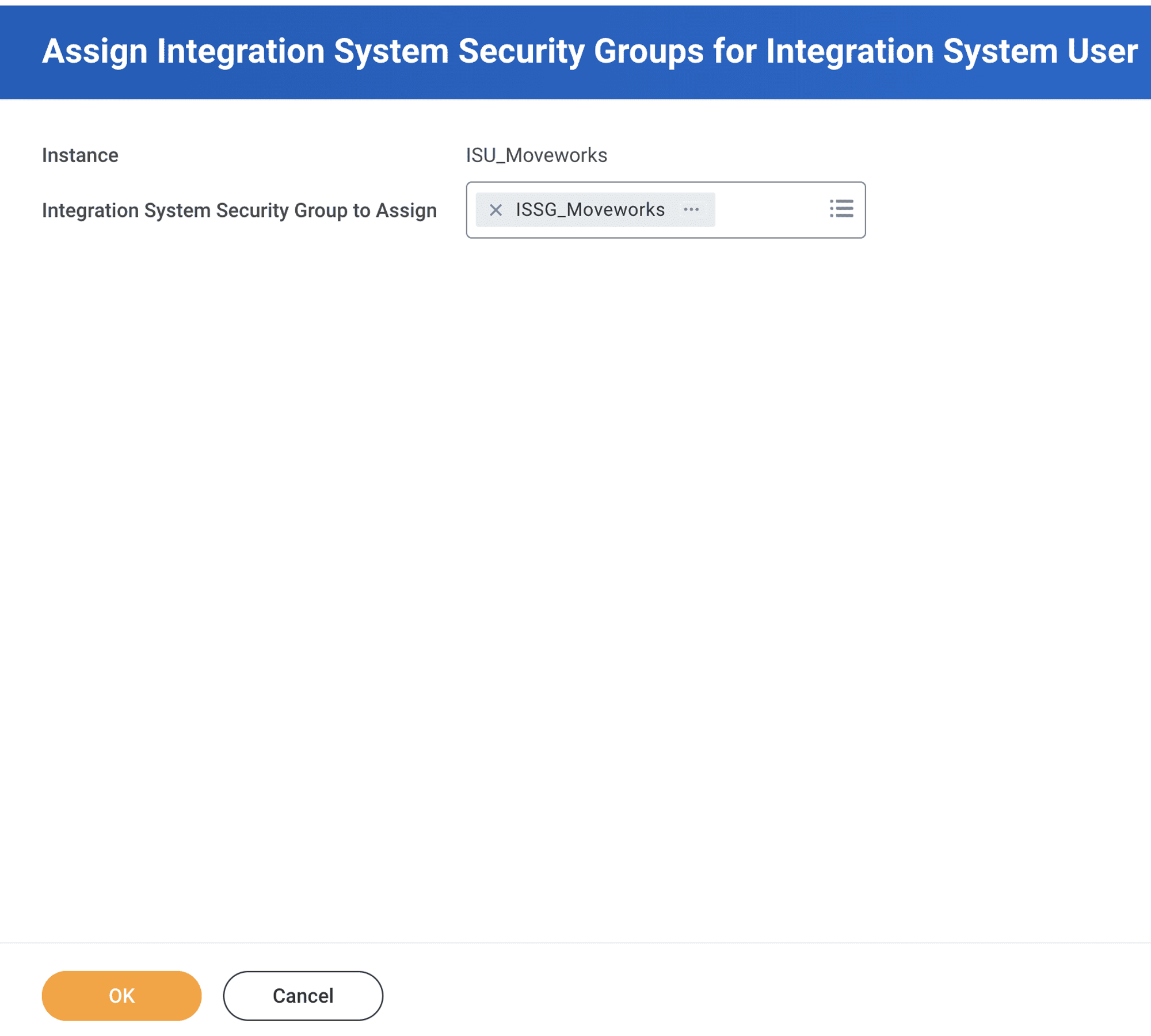
Use the action menu to select
Assign Integration System Security Groups.
-
Add the ISU to the ISSG.
Add Domain Security Policies to the ISSG
-
Navigate to the ISSG using the
View Security GroupReport.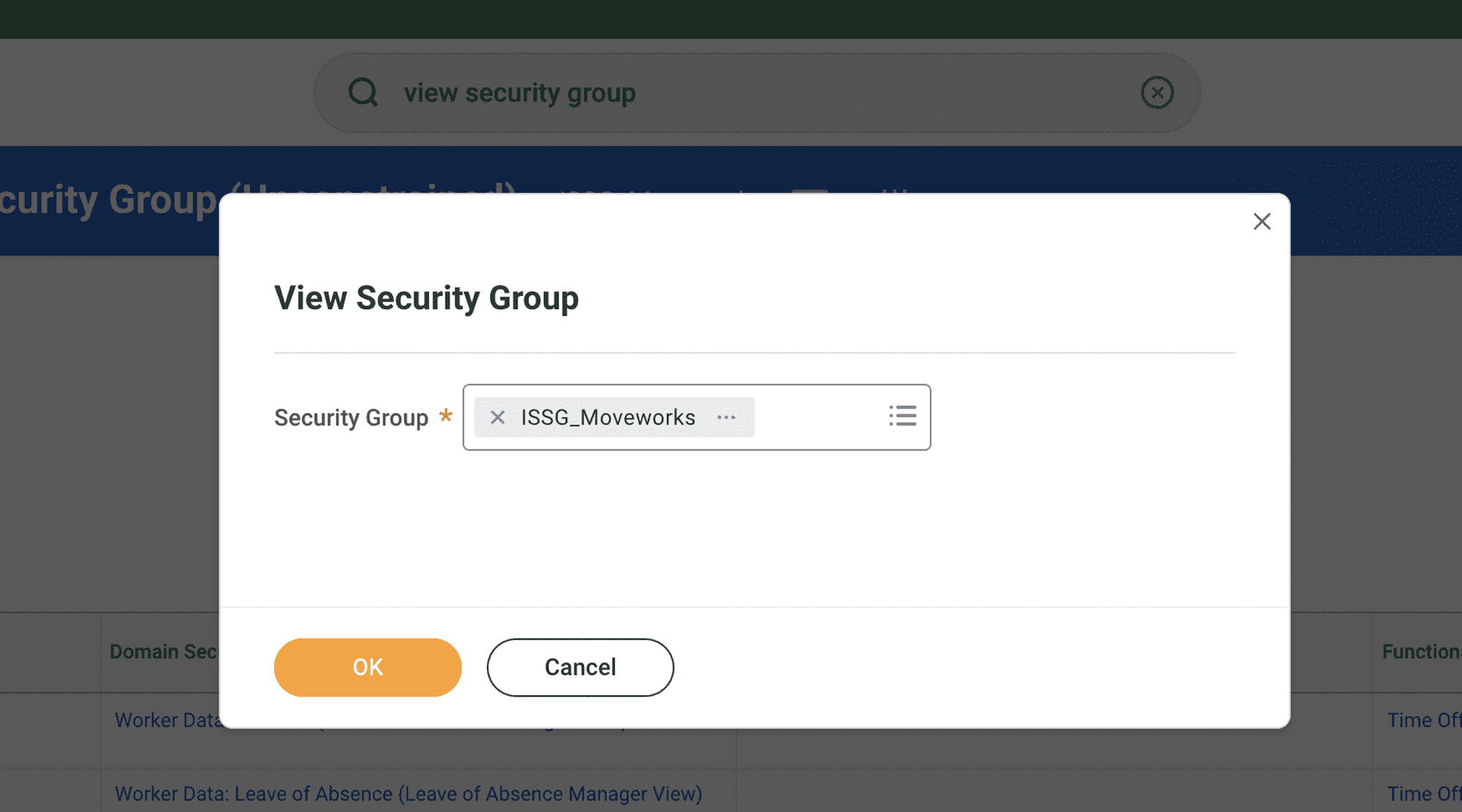
-
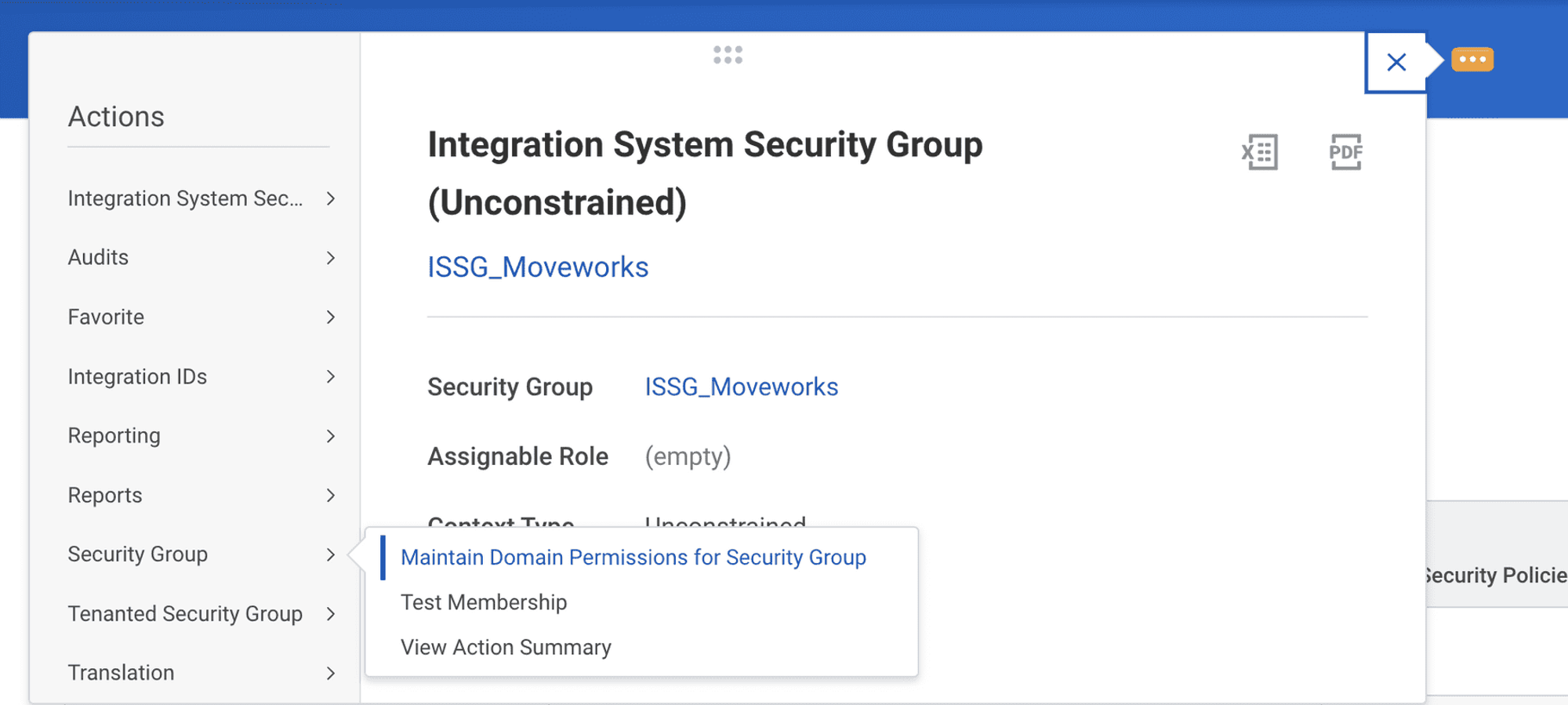
Use the menu item for Maintain Domain Permissions for Security Group.
-
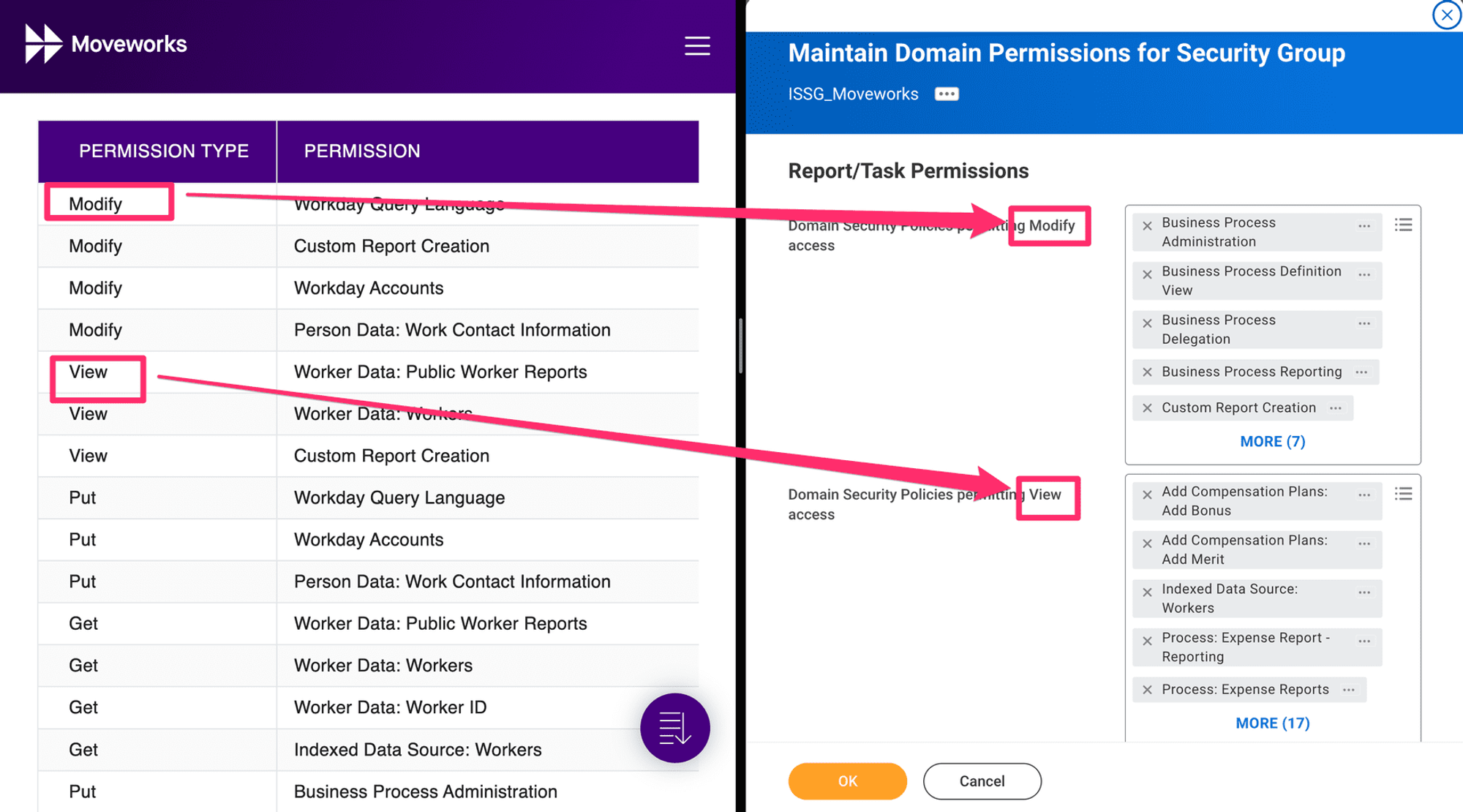
Add any permissions that are needed for your Moveworks bot. You can find the full list of permissions here.
-
Activate your permissions with the Activate Pending Security Policy Changes task.
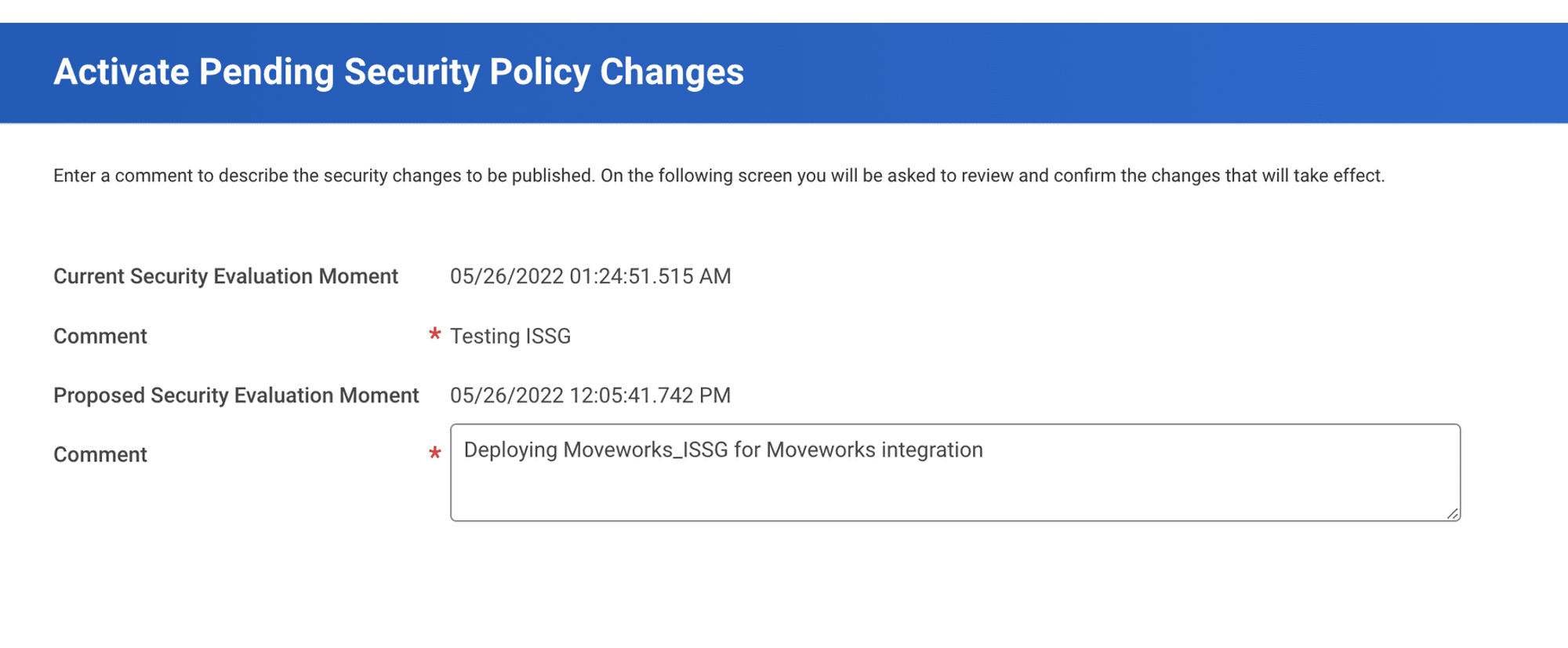
Permissions
Create API Client for Integrations
Please create an API Client for Integrations and provide the following function areas (scopes). Then create a refresh token for the ISU you created earlier.
How to Create an API Client for Integrations
Create API Client
-
Search for
Register API Client for Integrations.
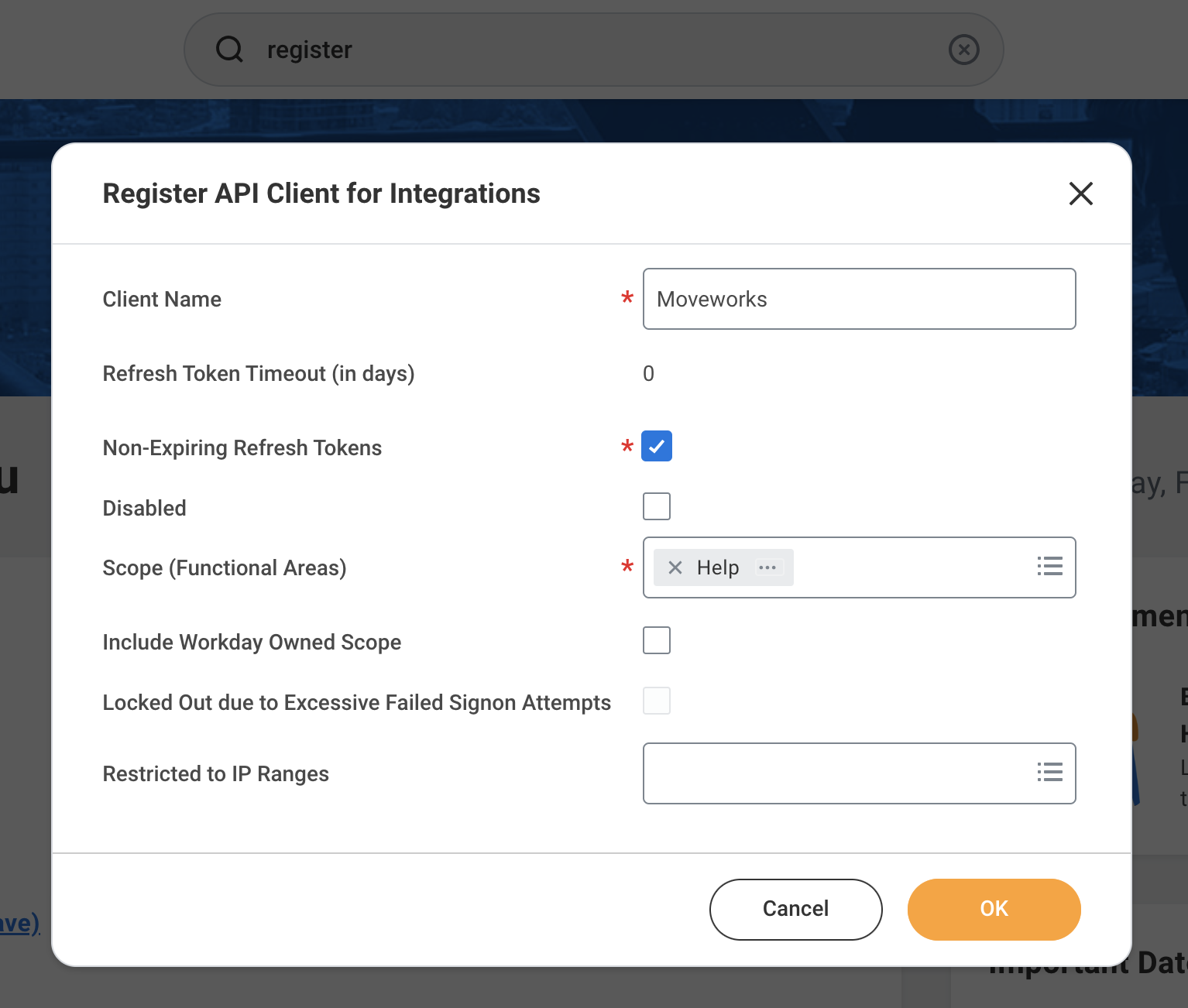
-
Set the name to Moveworks and add the scopes required. You can find the full list of scopes here.
-
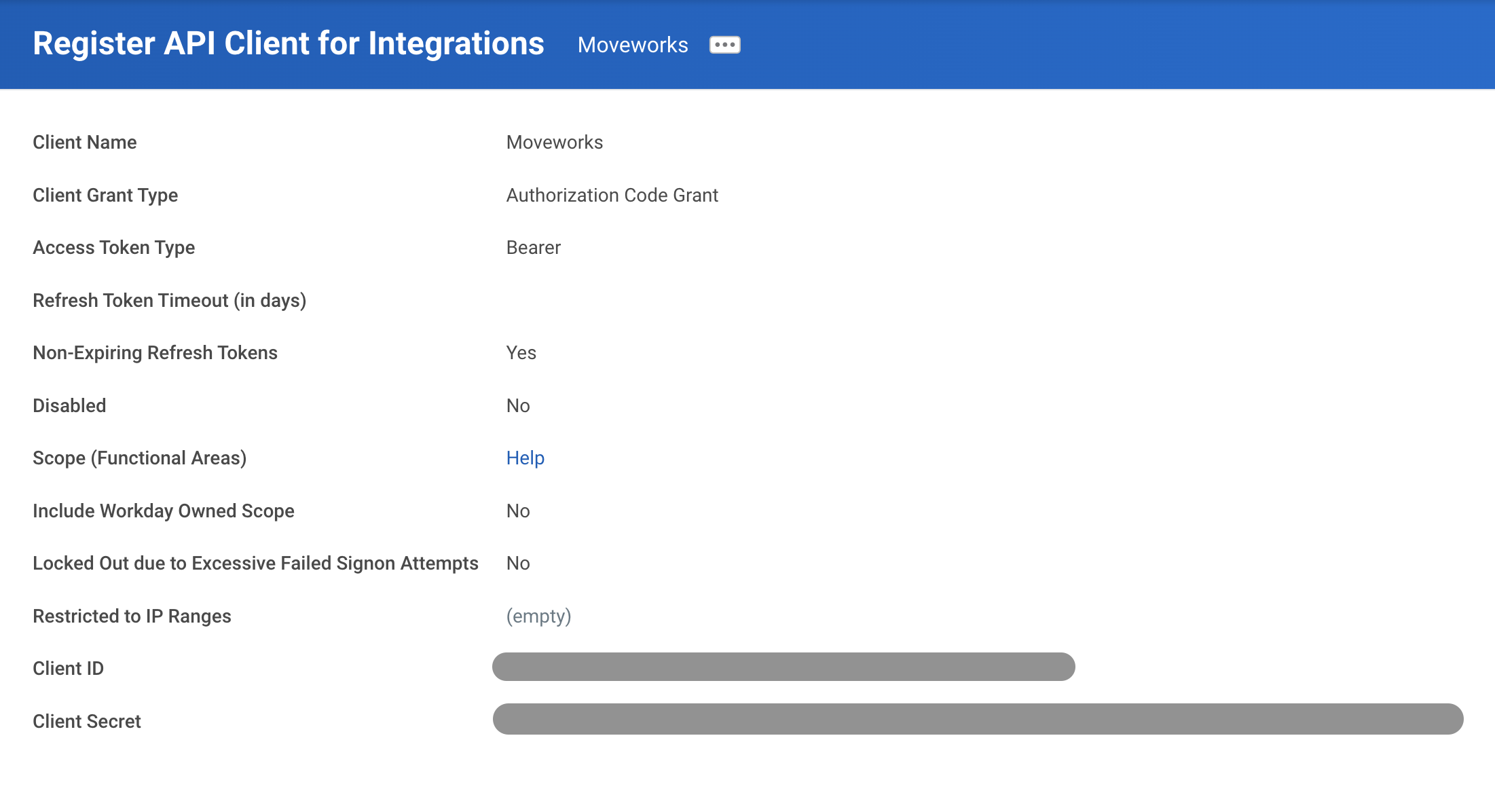
Write down your Client ID and Client Secret.
-
Navigate to
View API Clients. Write down the Token Endpoint and Workday REST API Endpoint.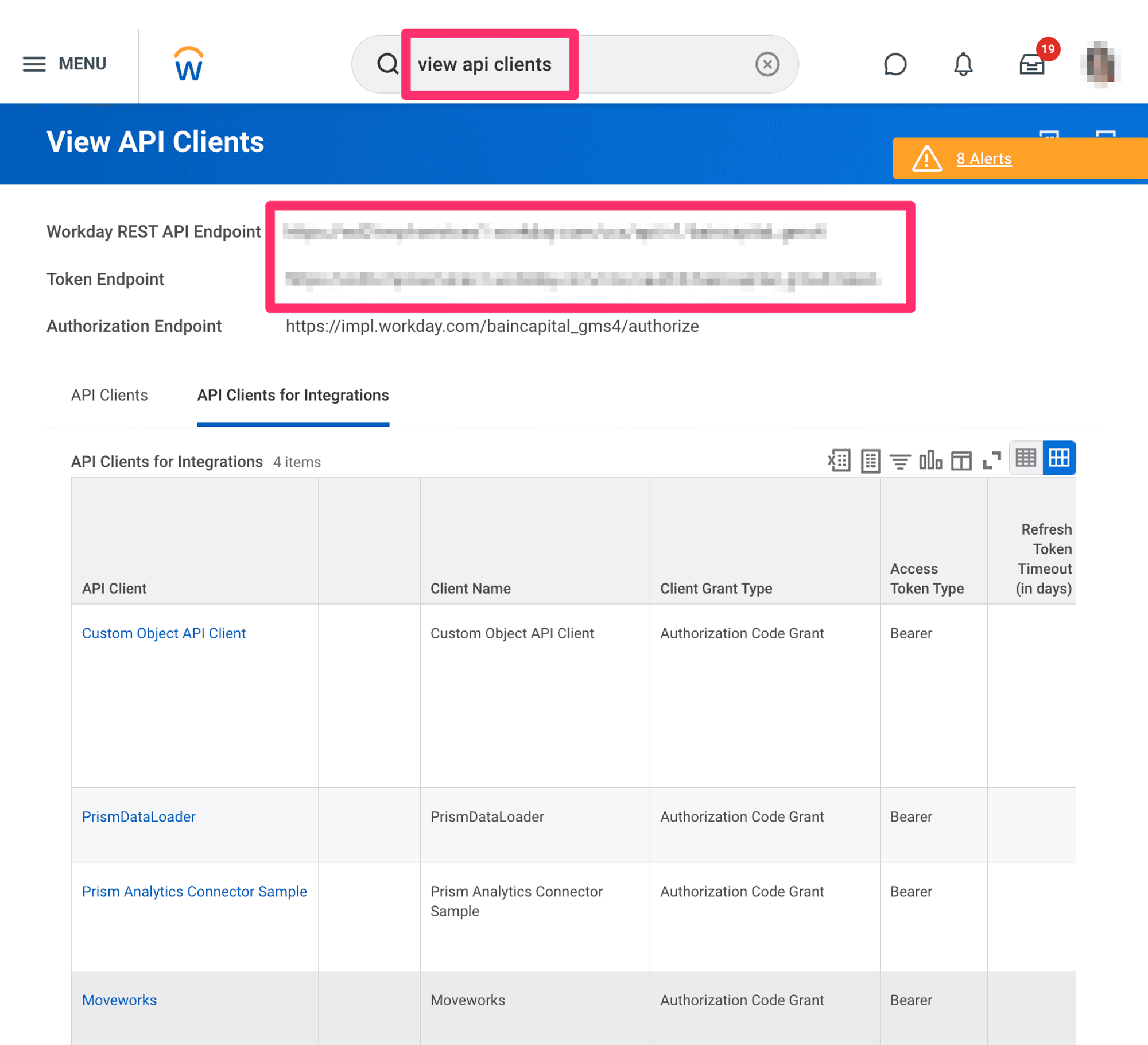
Provision a Refresh Token for the ISU
-
From the
View API Clientsview, click on theAPI Clients for Integrationstab. Click on the API Client you just created.
-
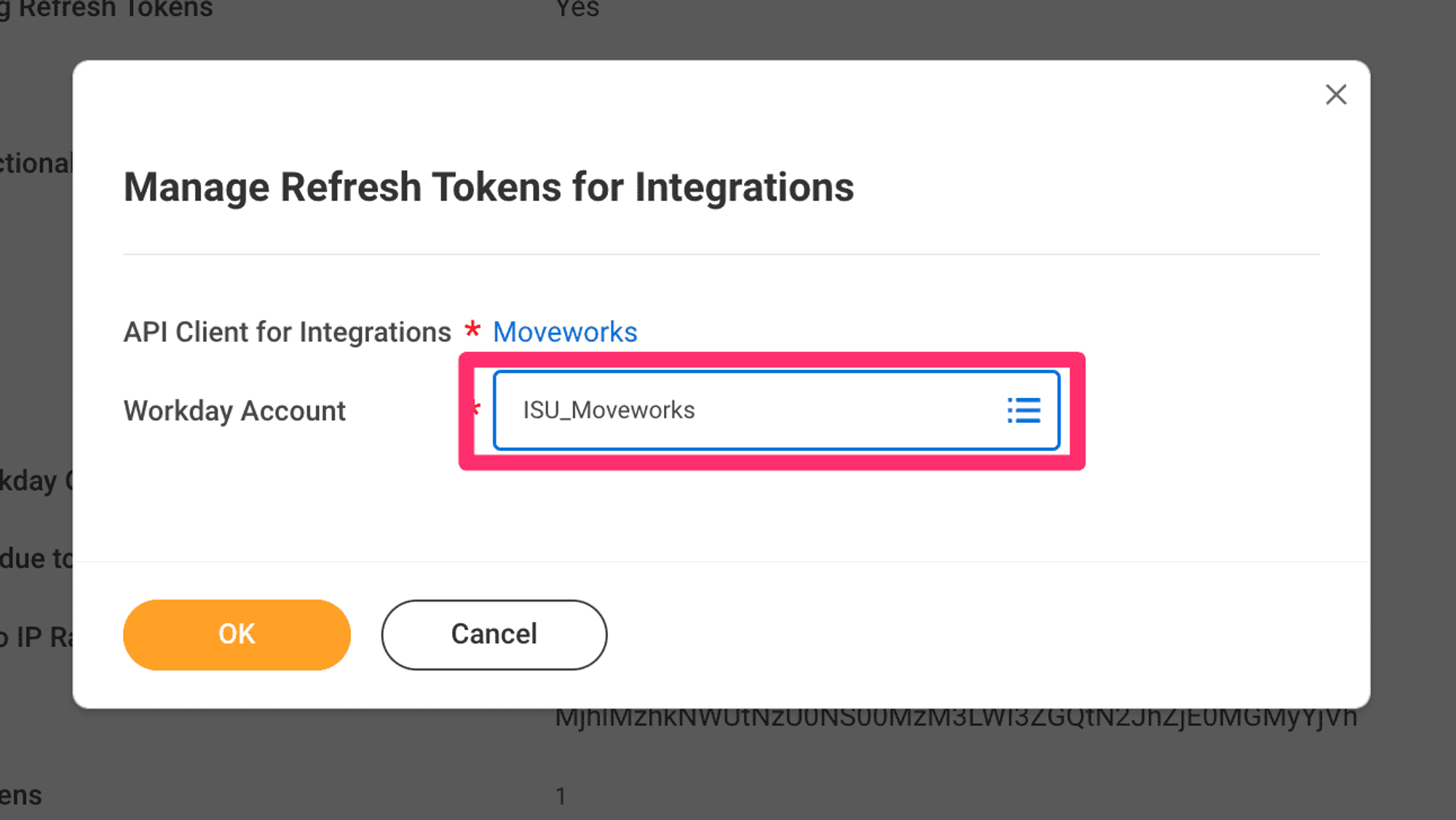
From the related actions menu, select
Manage Refresh Tokens for Integrations.
-
Add the ISU Account you created earlier to the API Client.
-
Select
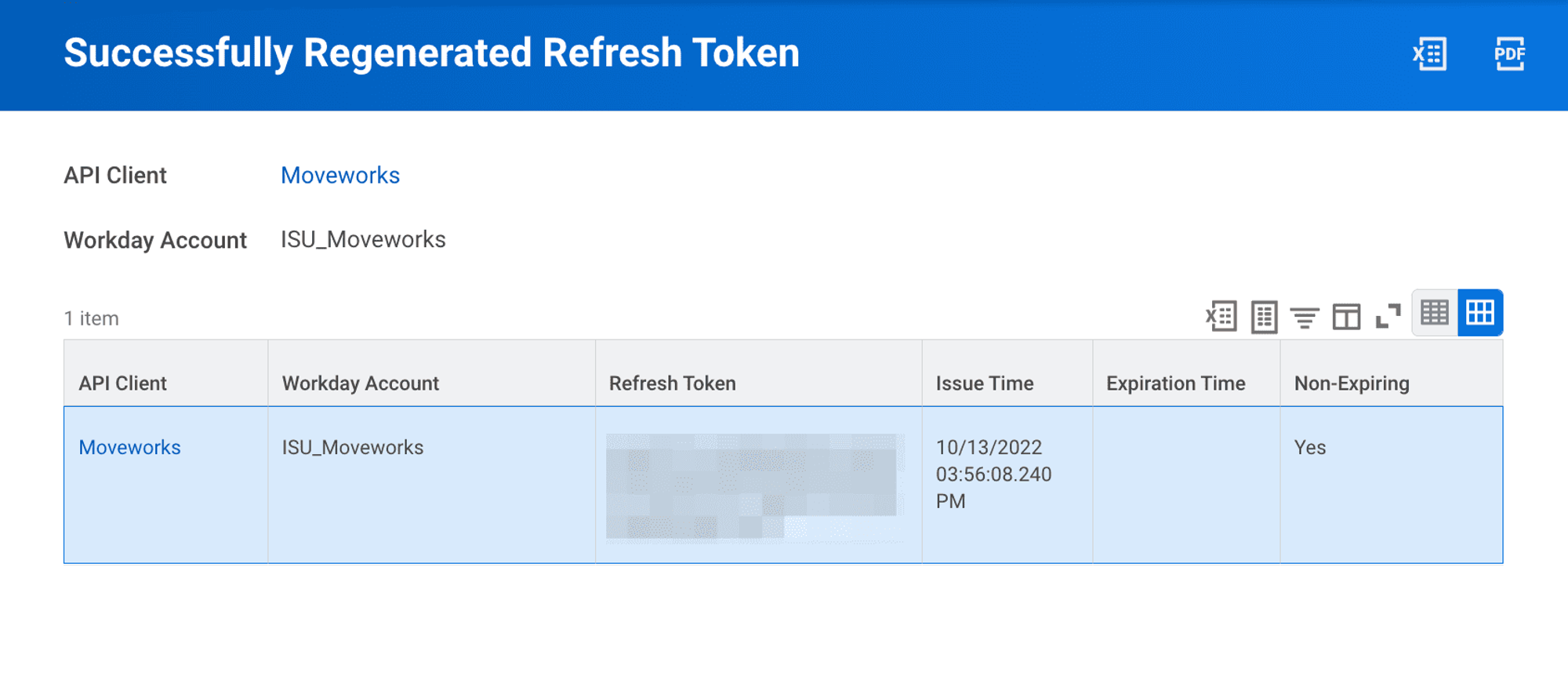
Generate Refresh Token.
-
Write down your new refresh token.
Enable OAuth 2.0 Clients Enabled
👍 Check the box for OAuth 2.0 Clients Enabled
Access the Edit Teams Setup – Security task and select the checkbox for OAuth 2.0 Clients Enabled
📘 Follow the above step with the help of this screenshot and box in red