
Slack Access Needs
Creating a new Slack Application
We will need you to create a new Application within your enterprise Slack tenant. This application will require the following in OAuth & Permissions:
- Redirect URI —
https://{org}.moveworks.com/auth/oauthCallback- This will allow Moveworks to complete the requisite oAuth2 flow and make requests on behalf of authorizing users.
- User Token Scope —
search.read- This scope is required for Moveworks to make a search request to Slack on behalf of authorizing users.
To do so, you can navigate to api.slack.com, navigate to Your Apps and Create New App.
Select the “From a manifest” option
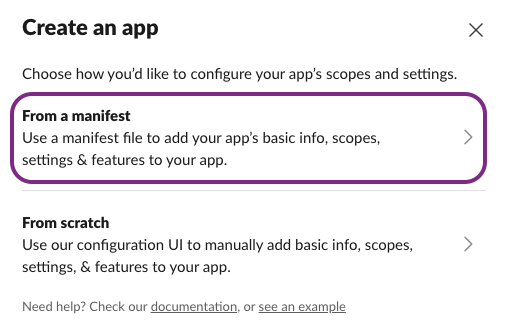
And then paste the following manifest, ensuring that you replace the{org} with your Moveworks organization name. (e.g.https://acme.moveworks.com/auth/oauthCallback )
Navigate to OAuth & Permissions and make sure the Redirect URLs and Scopes are as specified above. Then, Install the application to your Workspace.
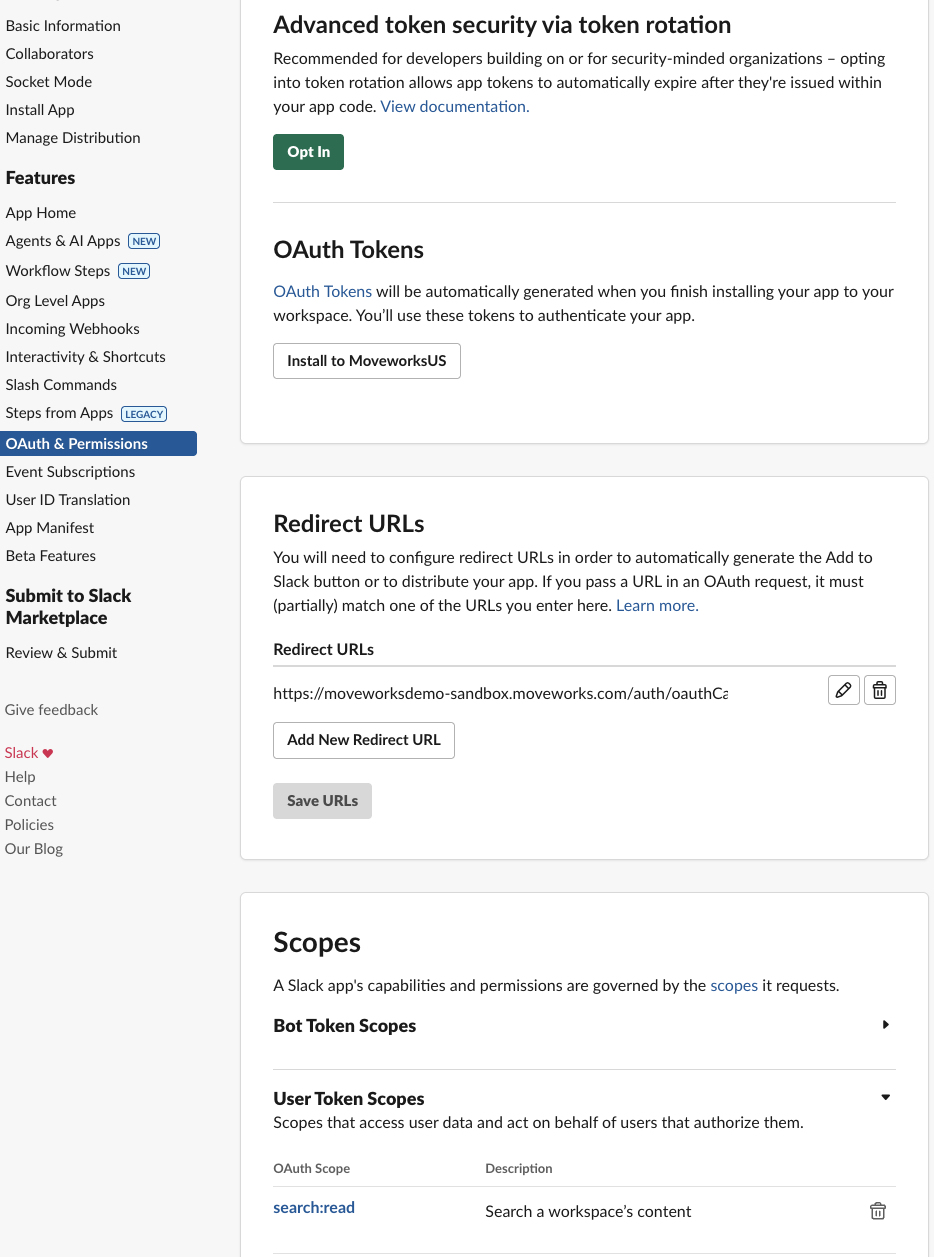
Finally, navigate back to the Basic Information. Moveworks will need the Client ID and Client Secret for the application to configure your Live Search connection.
Creating an HTTP Connector in Moveworks Setup
Within Moveworks Set Up, we need to create a new HTTP Connector to enable the connection, with the details from the previous step, and the fields present in the screenshot(s) below:
- Base Url —
https://slack.com/ - Auth Config —
Oauth2 - Oauth2 Grant Type —
Authorization Code Grant - Authorization URL —
https://slack.com/oauth/v2/authorize - Client ID — From the previous step
- Client Secret — From the previous step
- Authorization Request Query Parameters
user_scope|search:read
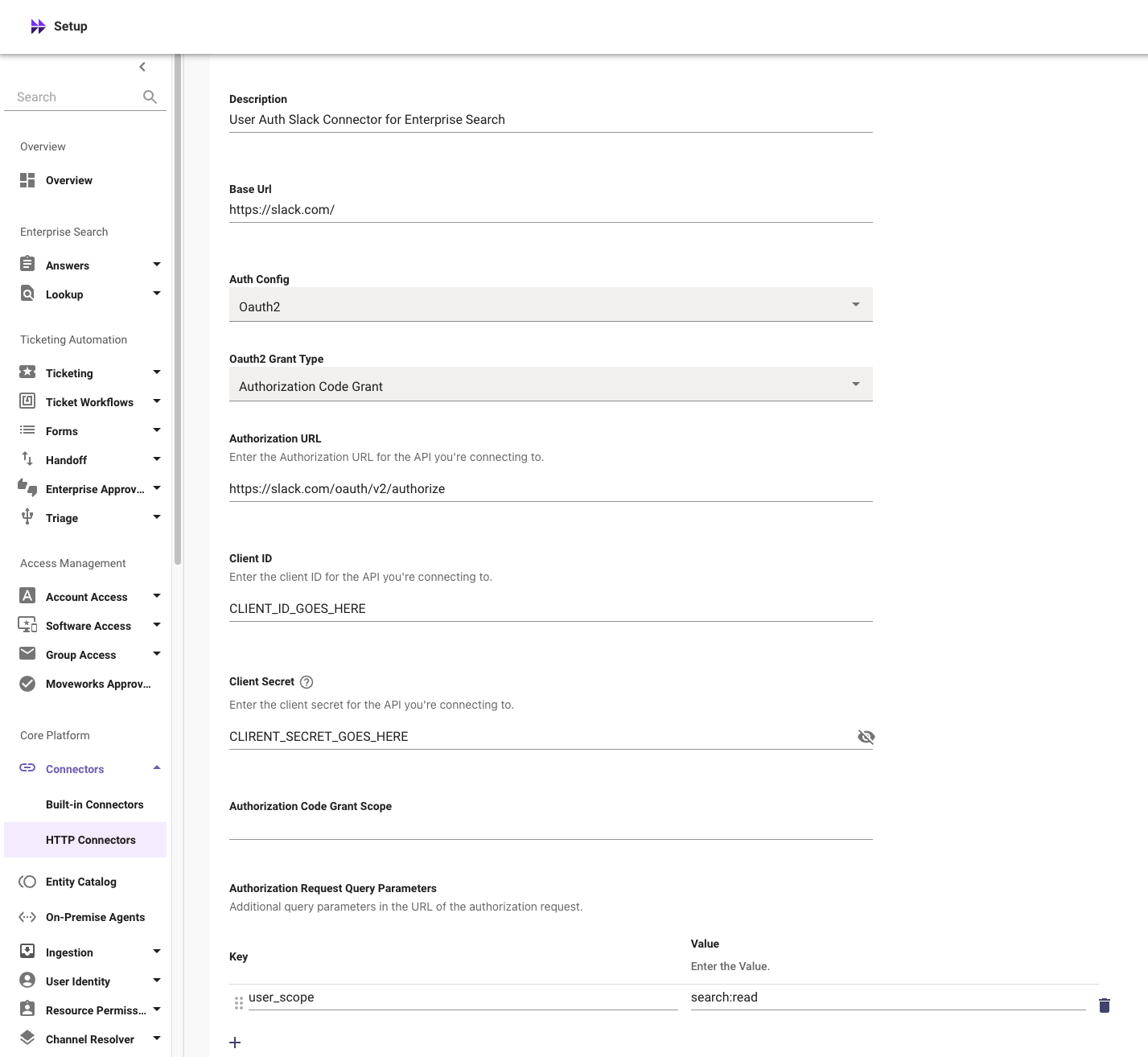
Scrolling down:
- Revoke URL —
https://slack.com/api/auth.revoke - Revoke Access Token Options —
Revoke access token with Request Body - Oauth2 Token URL —
https://slack.com/api/oauth.v2.access - Oauth Response Type —
JSON - Access Token Key —
authed_user.access_token
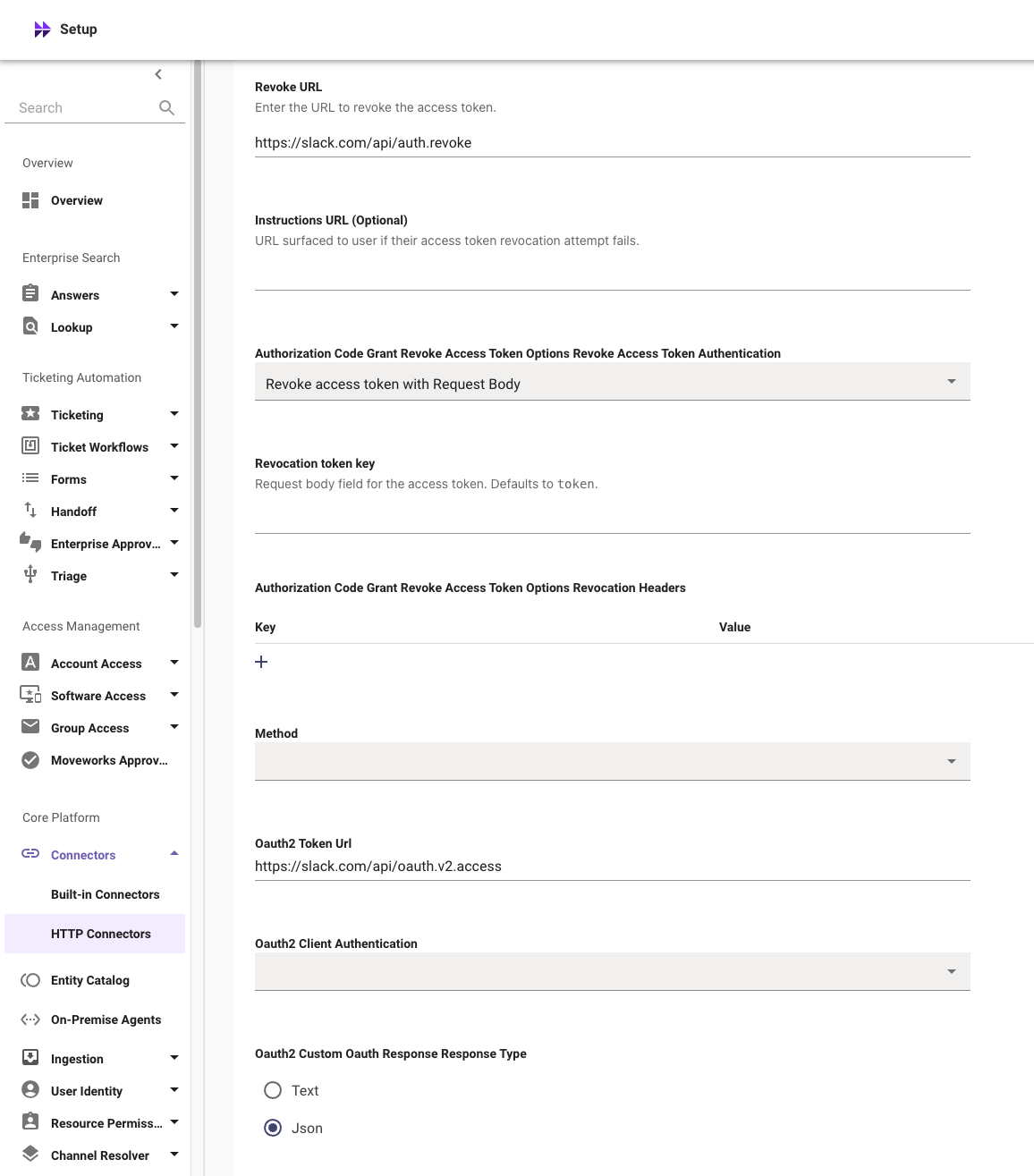

Save the configuration — we recommend using a name like enterprise_search_slack to keep things neat!