Workday Access Requirements - HR Cases
Setup Overview
You will need to provide the following to Moveworks.
- Integration System User (ISU) Credentials
- Username
- Password
- API Client for Integrations Credentials
- Client ID
- Client Secret
- API Client Refresh Token for the ISU
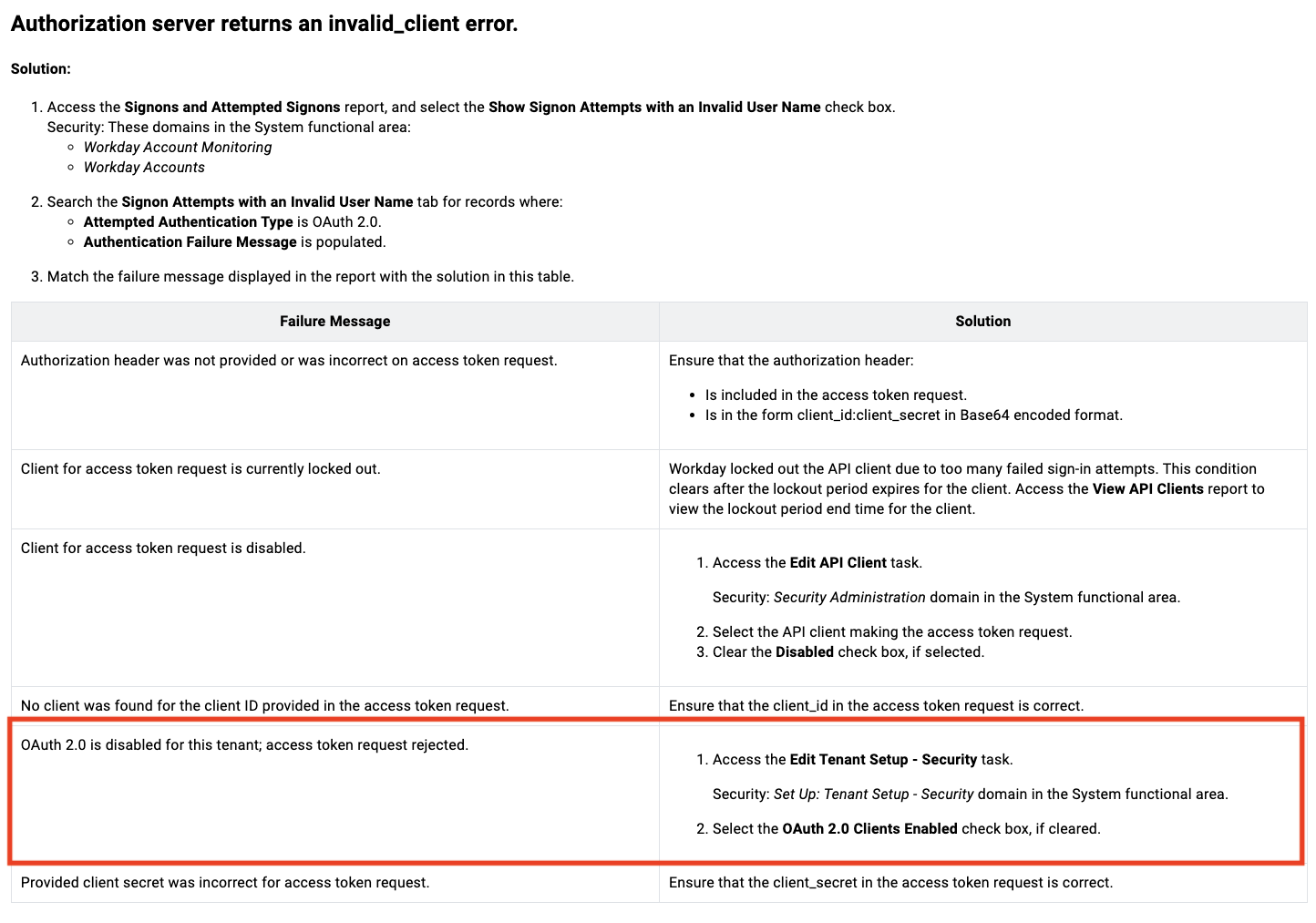
- Enable OAuth 2.0 Clients Enabled
- Edit Tenant Setup
- URLs
- The following RaaS-Enabled Report URLs
- Cases Retrieval
- Case Type Details
- Token Endpoint
- Workday REST API Endpoint
- End User URLs
- Workday Help - Cases Page
- The following RaaS-Enabled Report URLs
👉 Provide provide ALL of the above to your Moveworks Customer Success team via encrypted email.
Grant ISU Domain Security Permissions
Please create an Integration System User (ISU) and Integration System Security Group (ISSG).
How to Create an ISU with Domain Security Permissions
Create the ISU
- Use the universal search to find the
Create Integration System User(ISU) Workday Task.

- Use the
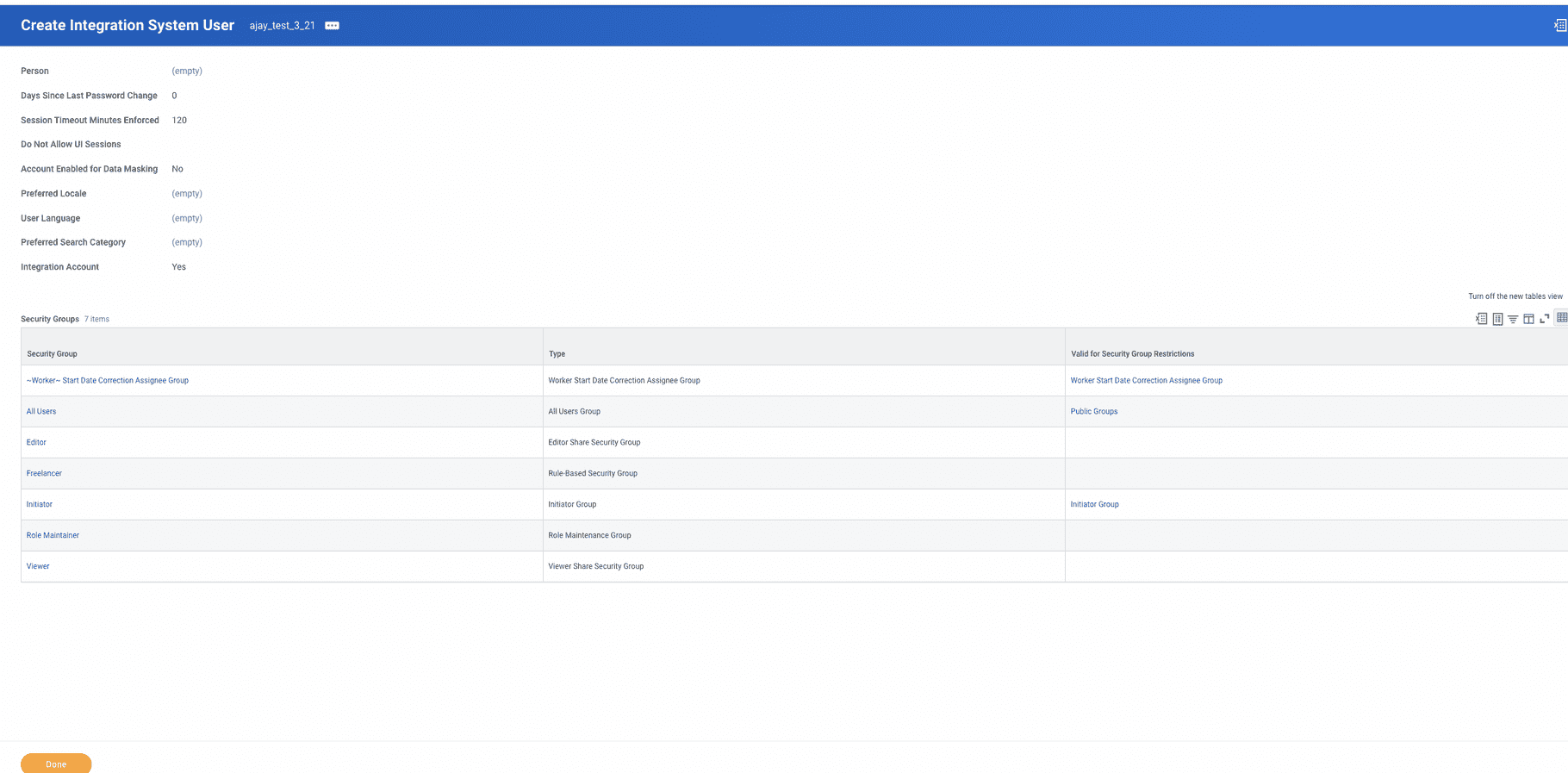
Create Integration System User(ISU) Workday Task to create a user following these settings. Write down the username and password that you use.

- Validate that the ISU has these default permissions after creation.
Create an ISSG and add the ISU to it
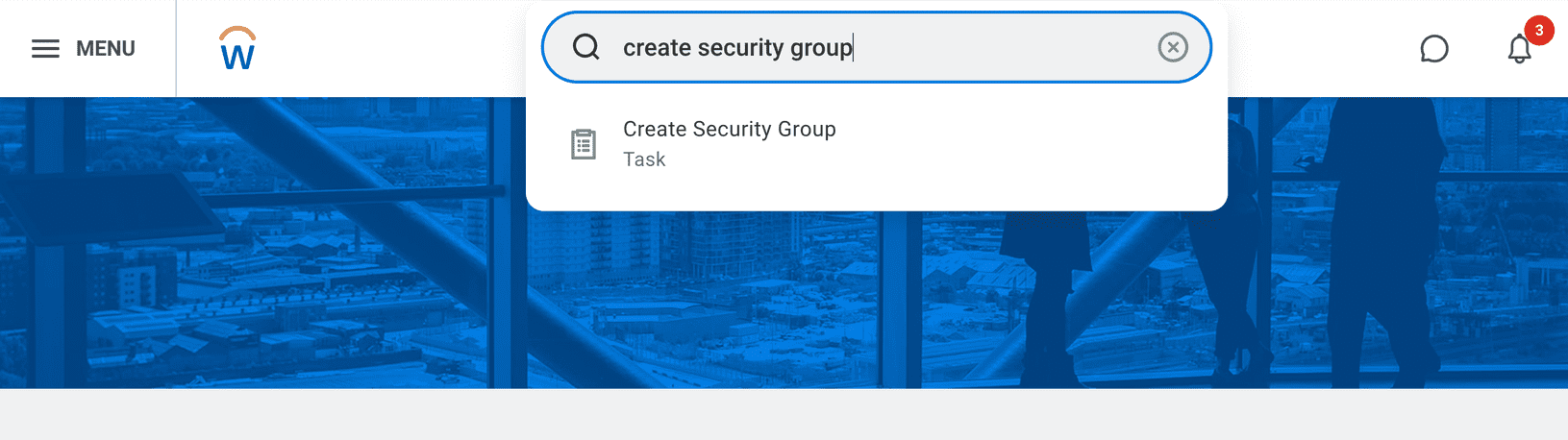
- Find the
Create Security Grouptask.
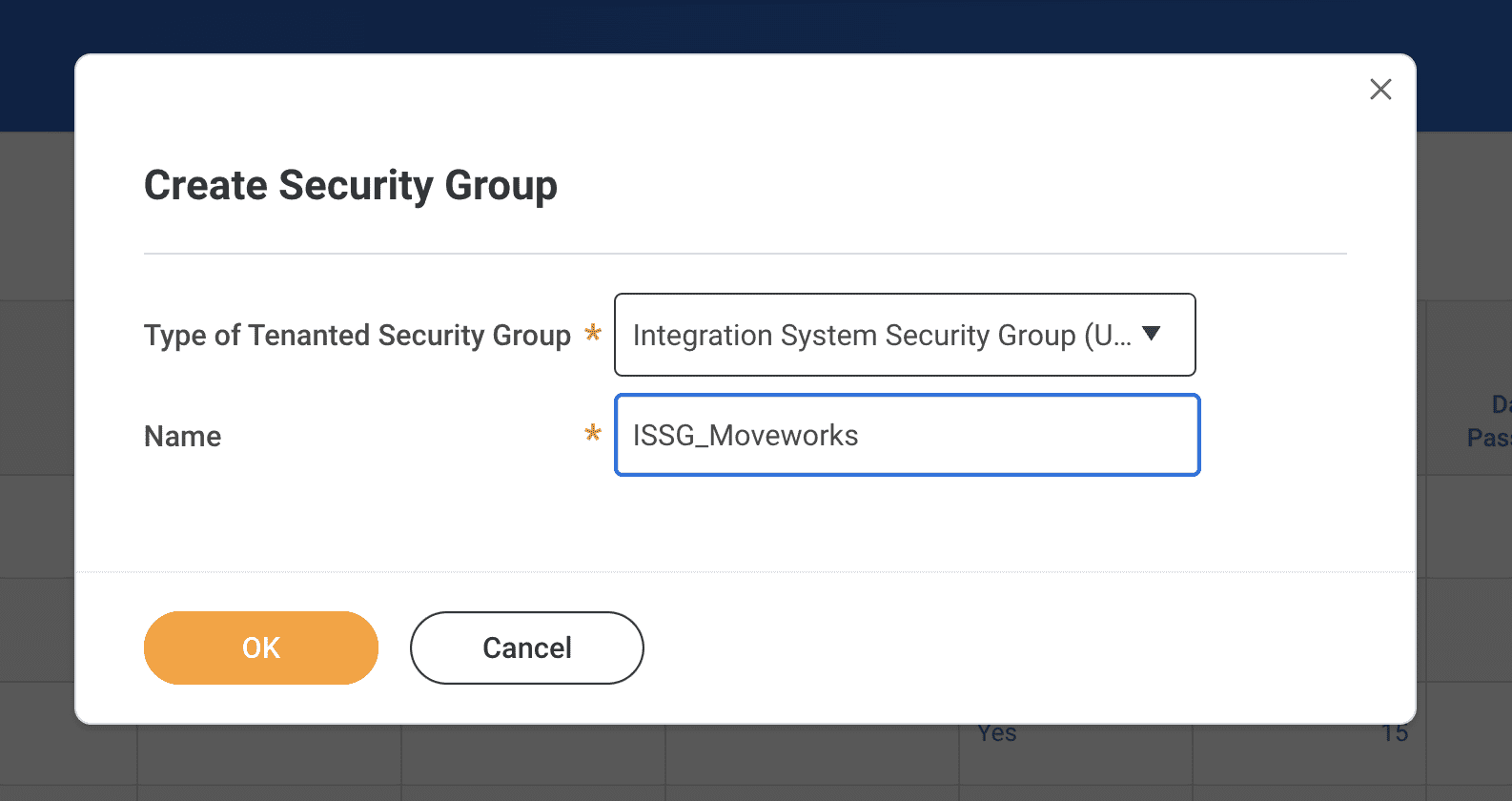
- Create an
Integration System Security Group (Unconstrained)(ISSG). Title it “ISSG_Moveworks” for best practices.
- Use the
All Workday Accountsreport to find the account again.

- Use the action menu to select
Assign Integration System Security Groups.
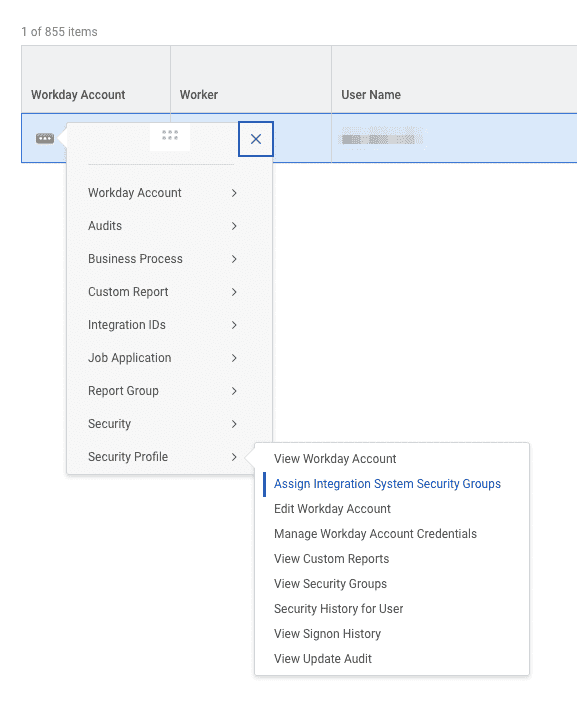
- Add the ISU to the ISSG.

Add Domain Security Policies to the ISSG
- Navigate to the ISSG using the
View Security GroupReport.
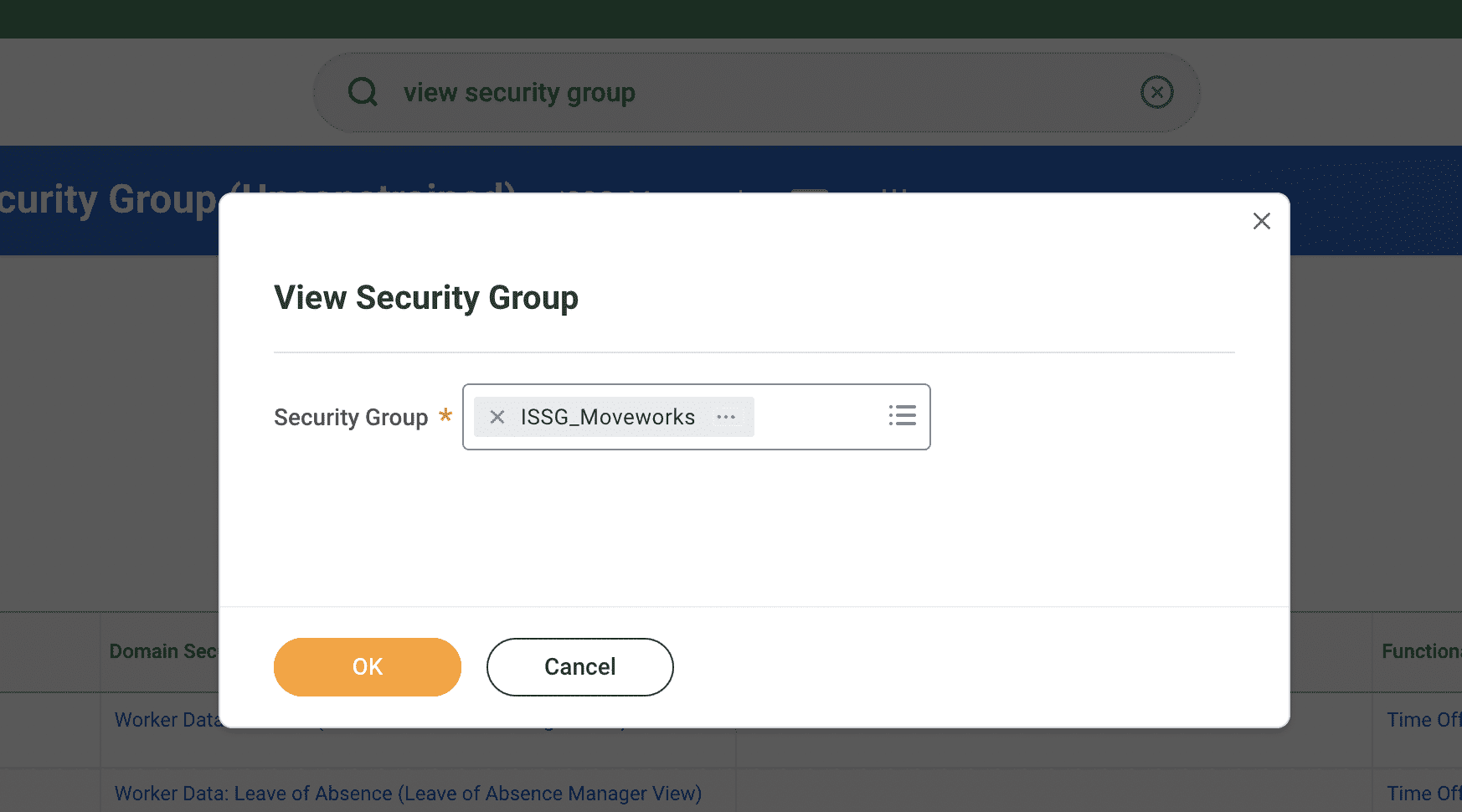
- Use the menu item for Maintain Domain Permissions for Security Group.
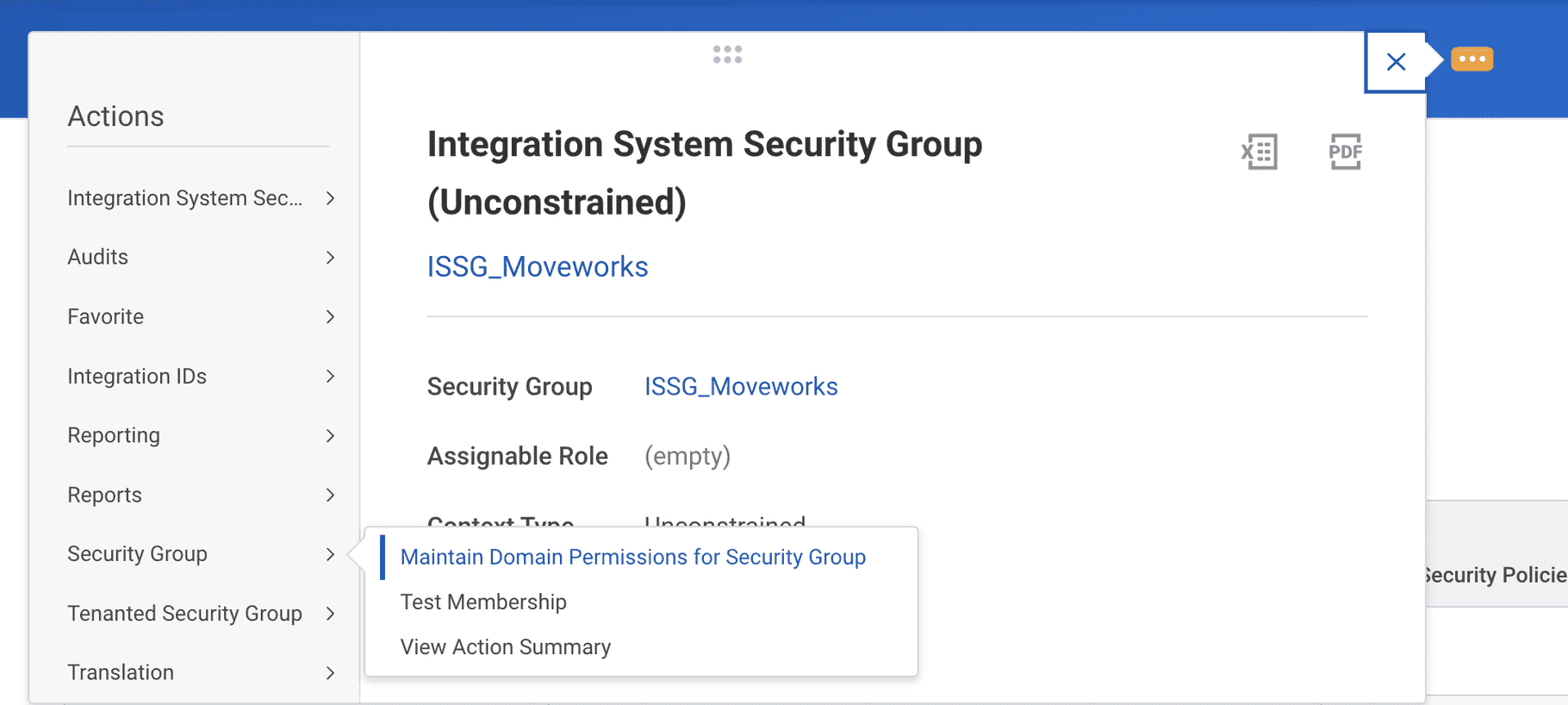
- Add any permissions that are needed for your Moveworks bot. You can find the full list of permissions here.

- Activate your permissions with the
Activate Pending Security Policy Changestask.
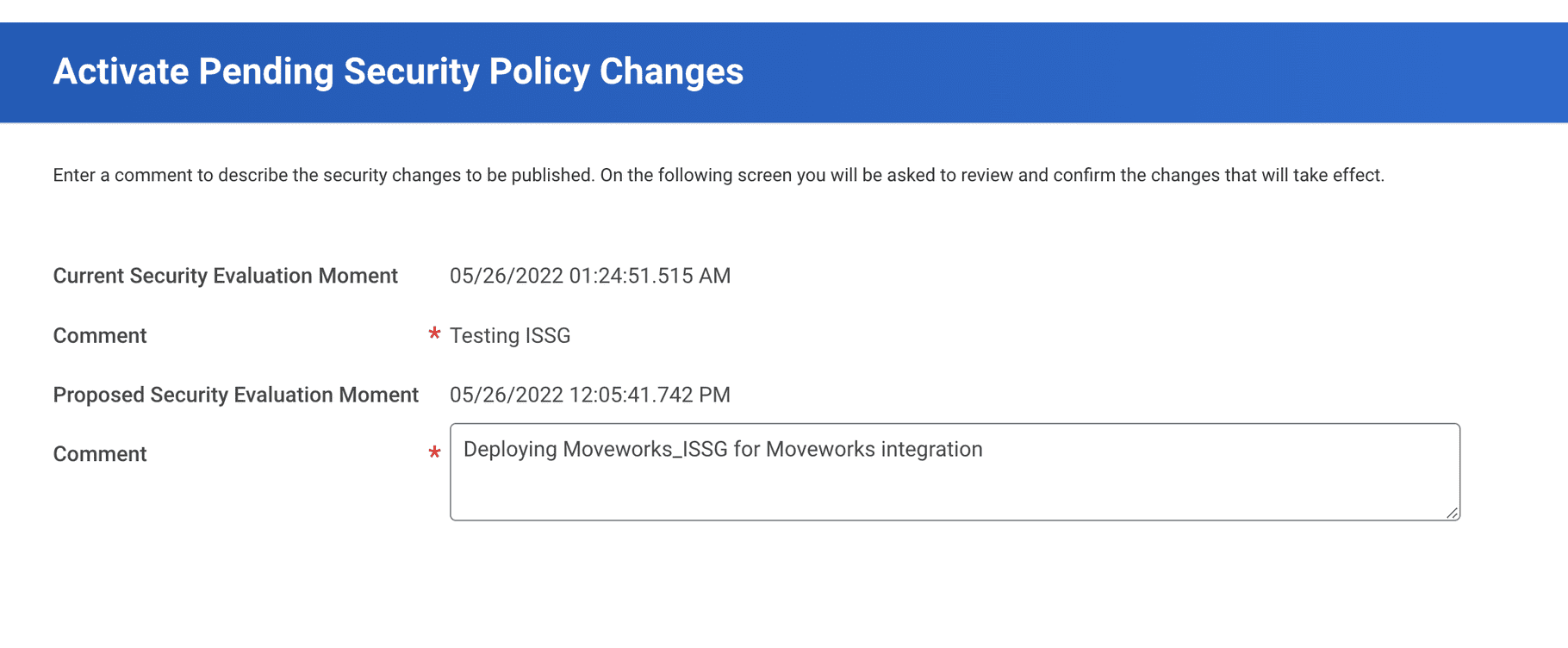
Permissions
💡
Note: The Modify and Put permissions are not necessarily required to identify users. The View and Get permissions should be enough for the use case. However, we might need to explore those permissions too if we fail to fetch users using just the View and Get permission types.
Create API Client for Integrations
Please create an API Client for Integrations and provide the following function areas (scopes). Then create a refresh token for the ISU you created earlier.
How to Create an API Client for Integrations
Create API Client
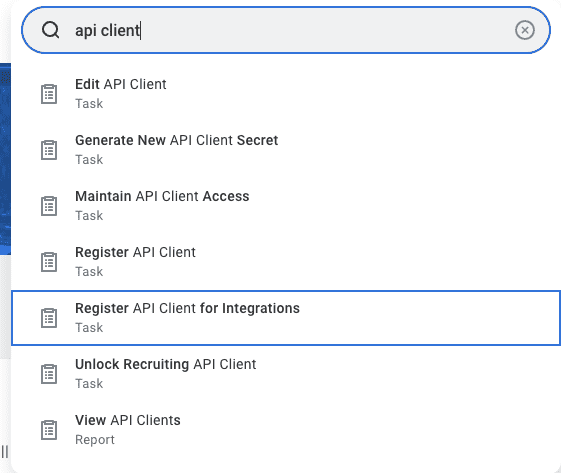
- Search for
Register API Client for Integrations.
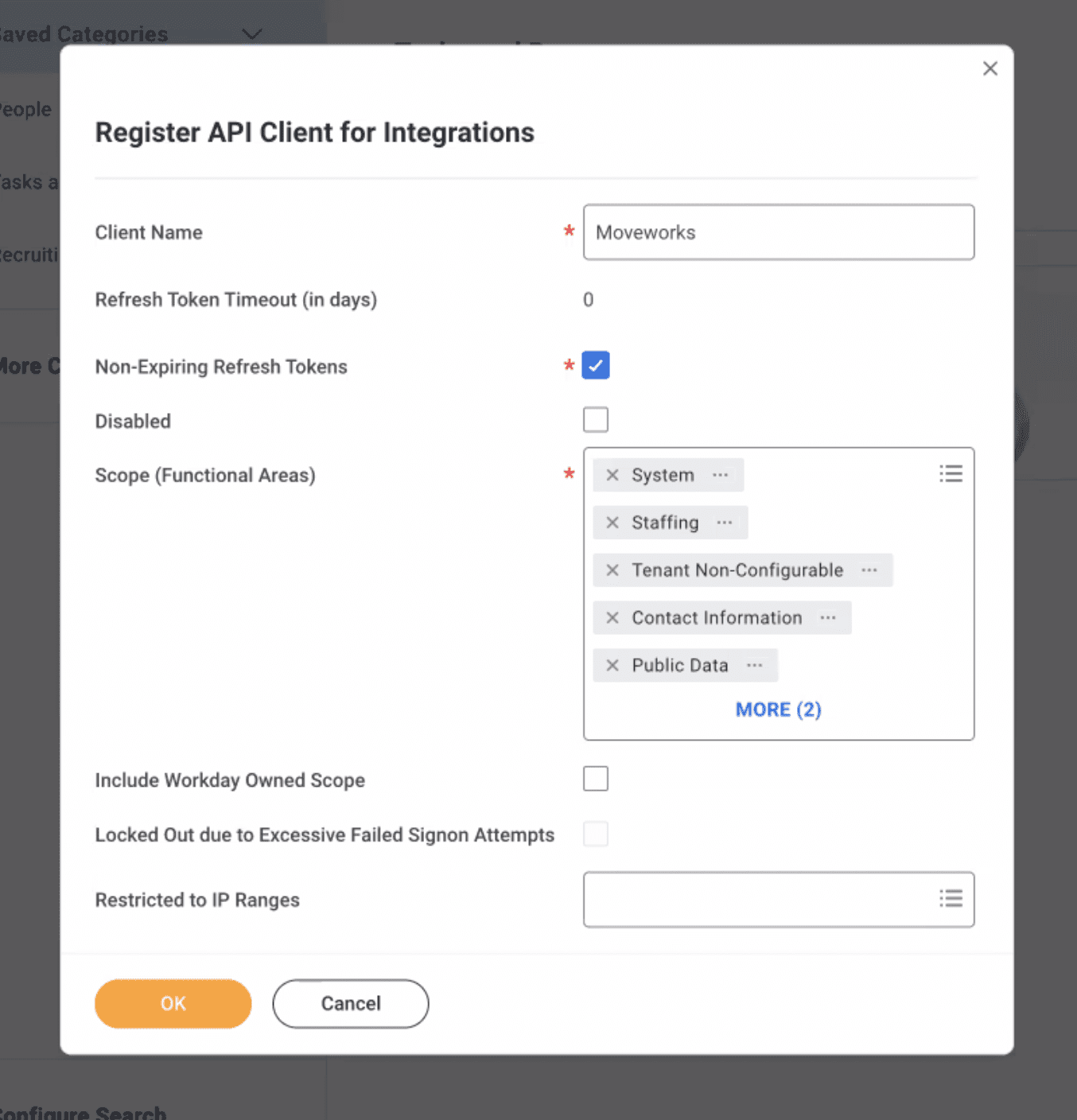
- Set the name to Moveworks and add the scopes required. You can find the full list of scopes here.
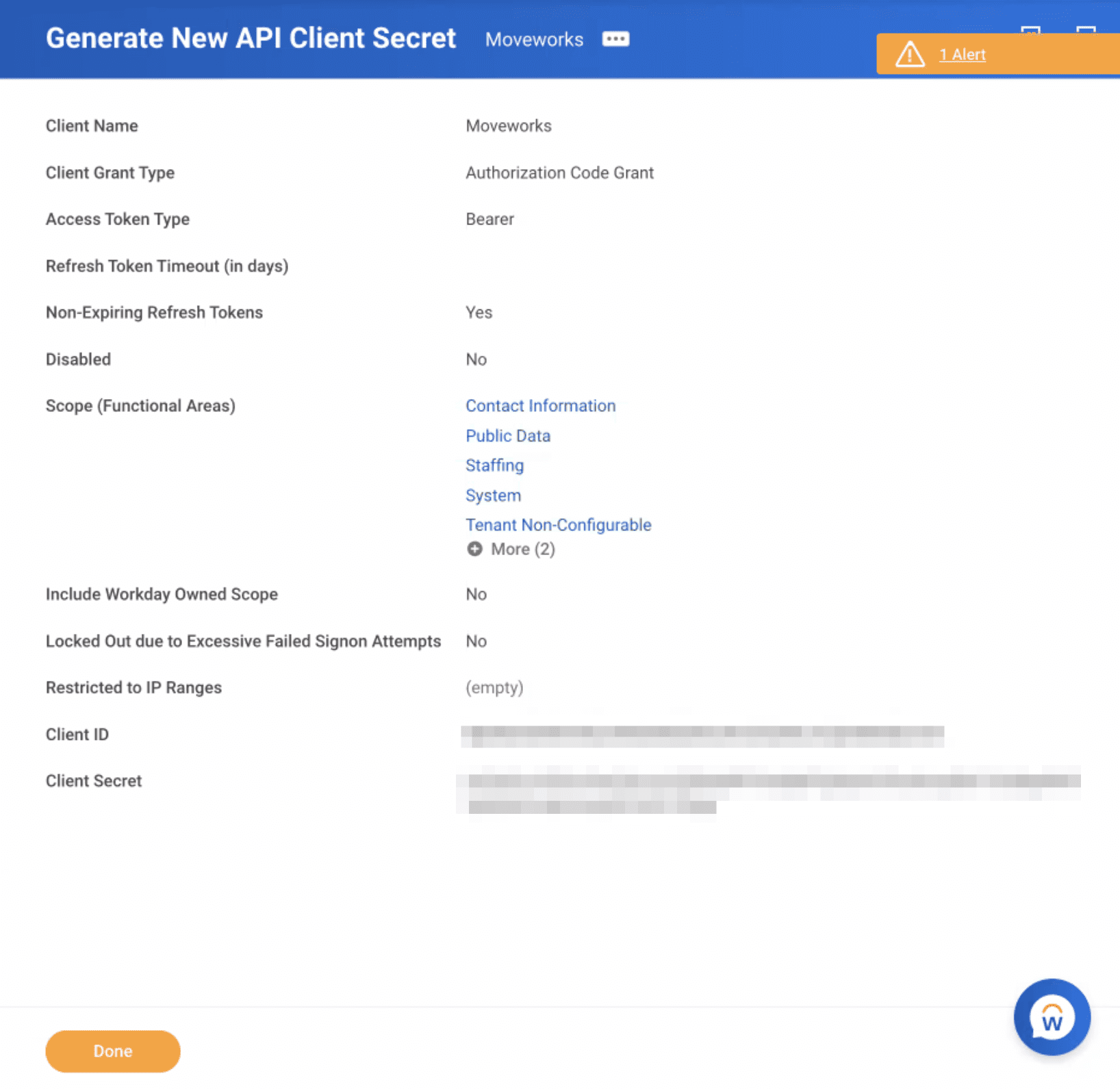
- Write down your Client ID and Client Secret.
- Navigate to
View API Clients. Write down the Token Endpoint and Workday REST API Endpoint.

Provision a Refresh Token for the ISU
- From the
View API Clientsview, click on theAPI Clients for Integrationstab. Click on the API Client you just created.

- From the related actions menu, select
Manage Refresh Tokens for Integrations.

- Add the ISU Account you created earlier to the API Client.

- Select
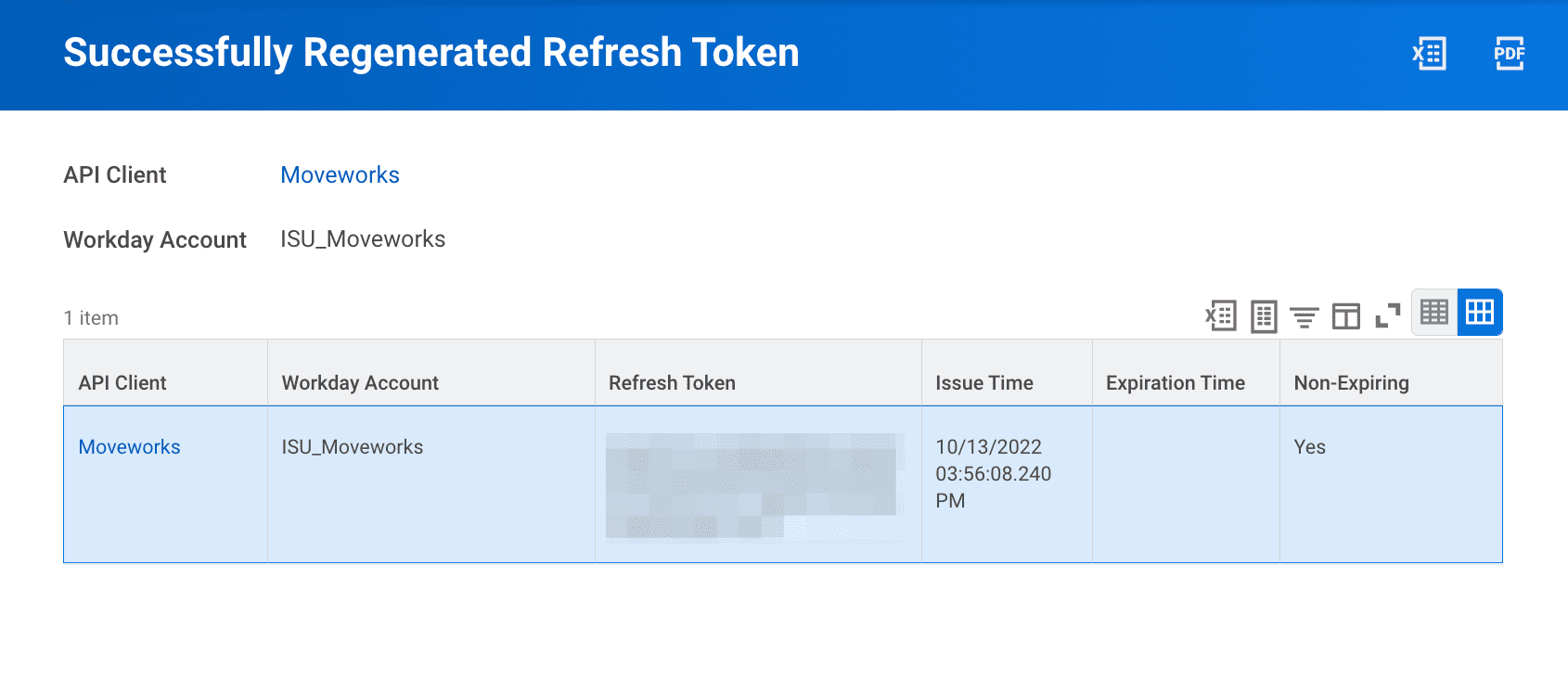
Generate Refresh Token.

- Write down your new refresh token.
Enable OAuth 2.0 Clients Enabled
👍 Check the box for OAuth 2.0 Clients Enabled
Access the Edit Teams Setup – Security task and select the checkbox for OAuth 2.0 Clients Enabled
📘 Follow the above step with the help of this screenshot and box in red
Scopes
Create RaaS-Enabled Reports
Create each of the following reports into your Workday instance. Transfer ownership to our ISU, then share the JSON URL with your Moveworks Customer Success team.
Case Retrieval Report
Moveworks Cases Retrieval.xlsx
How it is used
We use this report to detect when new cases are created or previously created cases are updated in your Workday instance.
Prompt Instructions
Please provide all the prompts (default and additional) as mentioned in the file above since they are crucial for the integration to function.
Case Type Details Retrieval Report
Moveworks Case Types Retrieval.xlsx
❗️ Important!
Please ensure your Workday instance has a description (
Case Type Description) attached to each of your Case Types. If you don’t have a description field, please create descriptions for your Case Types.This is important because both the title and the description of the Case Type are required by our Machine Learning models to determine the correct Case Type based on the query that the user has raised.
How it is used
We use this report to get the list of Case Type and their details from your Workday instance.
Prompt Instructions
Please provide all the prompts (default and additional) as mentioned in the file above since they are crucial for the integration to function.
How to Create & Transfer a Workday Report
Repeat the steps below for EACH report you need to create, which are the Case Retrieval Report and the Case Type Details Report.
Create the Report
- Download the reports listed above by clicking on the files link under Case Retrieval Report and Case Type Details Retrieval Report.
- Navigate to the
Create Custom Reporttask.

- Setup the initial report settings.
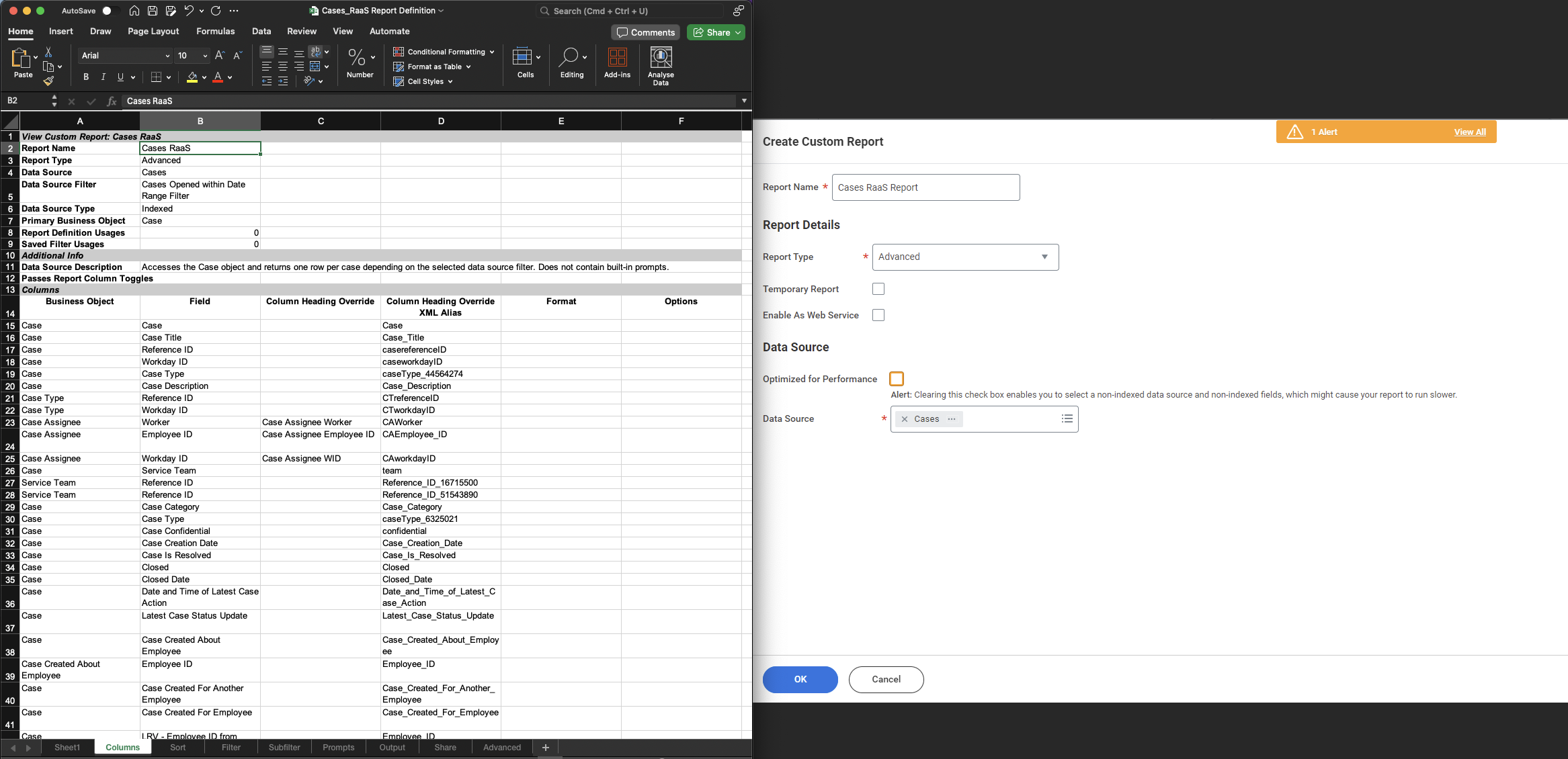
- Copy over the tabs for Columns, Filter, Prompts, Advanced EXACTLY as shown in the Excel template.
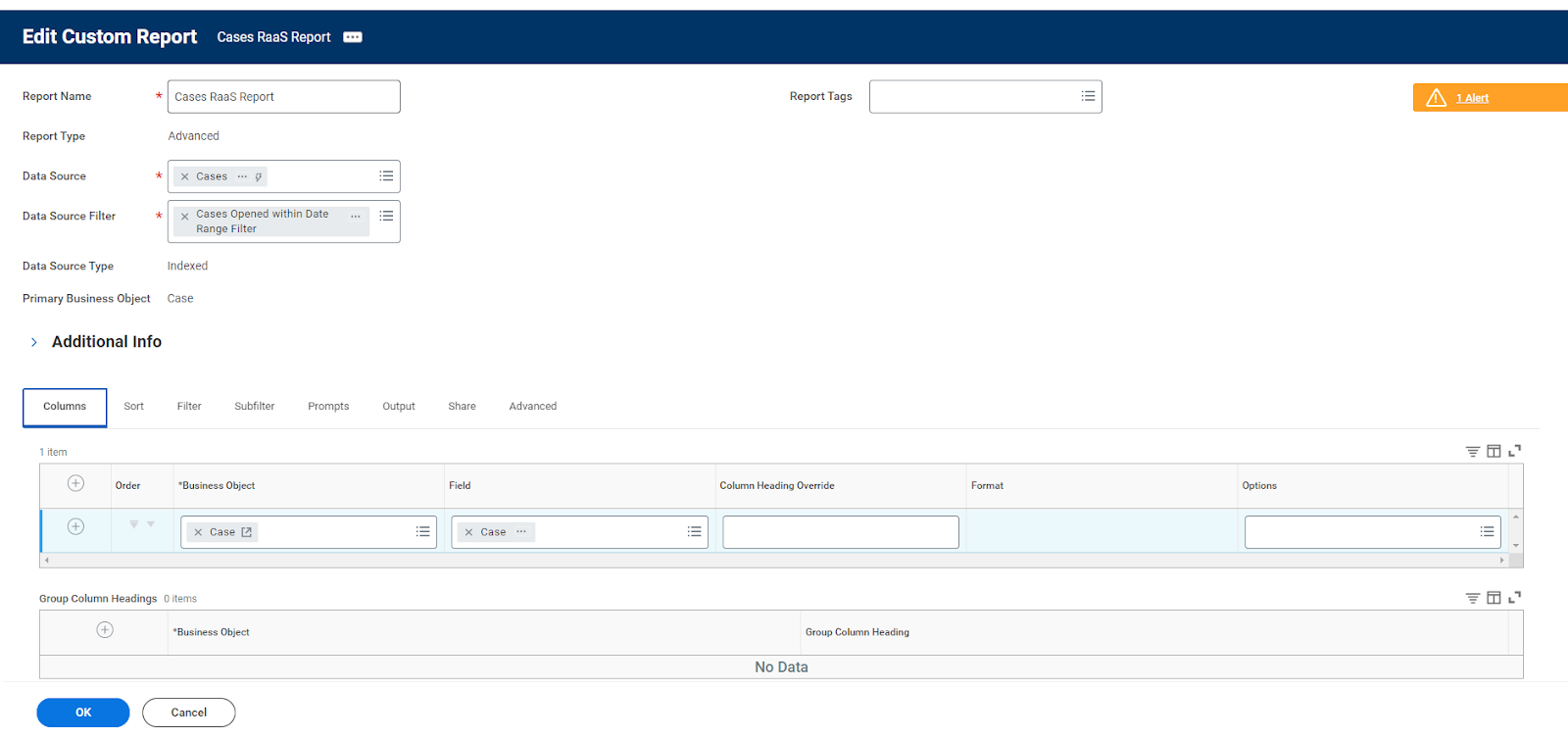
🚧 Warning!
Make sure to copy over all tabs EXACTLY. The naming and capitalization are both important.
Authorize & share the report definition
-
Authorize the ISU you created earlier to run the report from the Share tab.
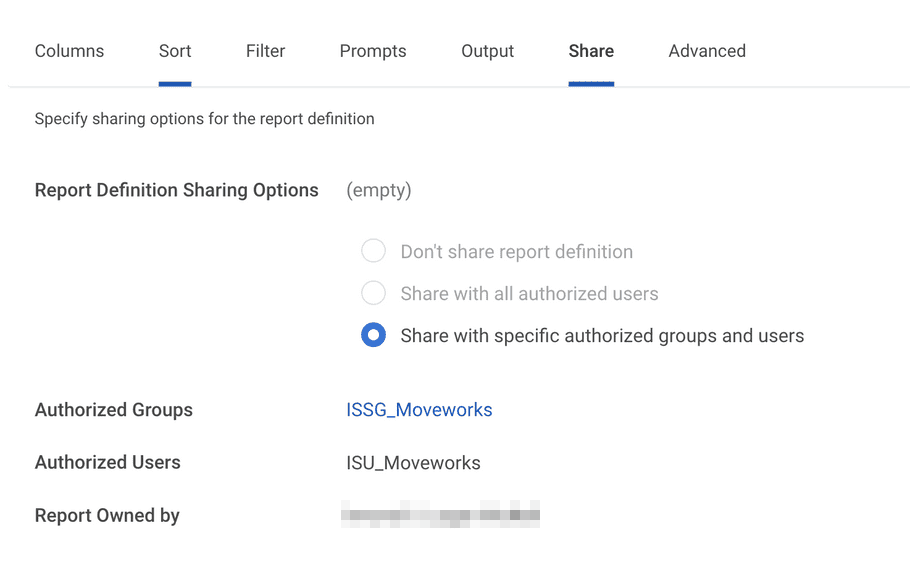
-
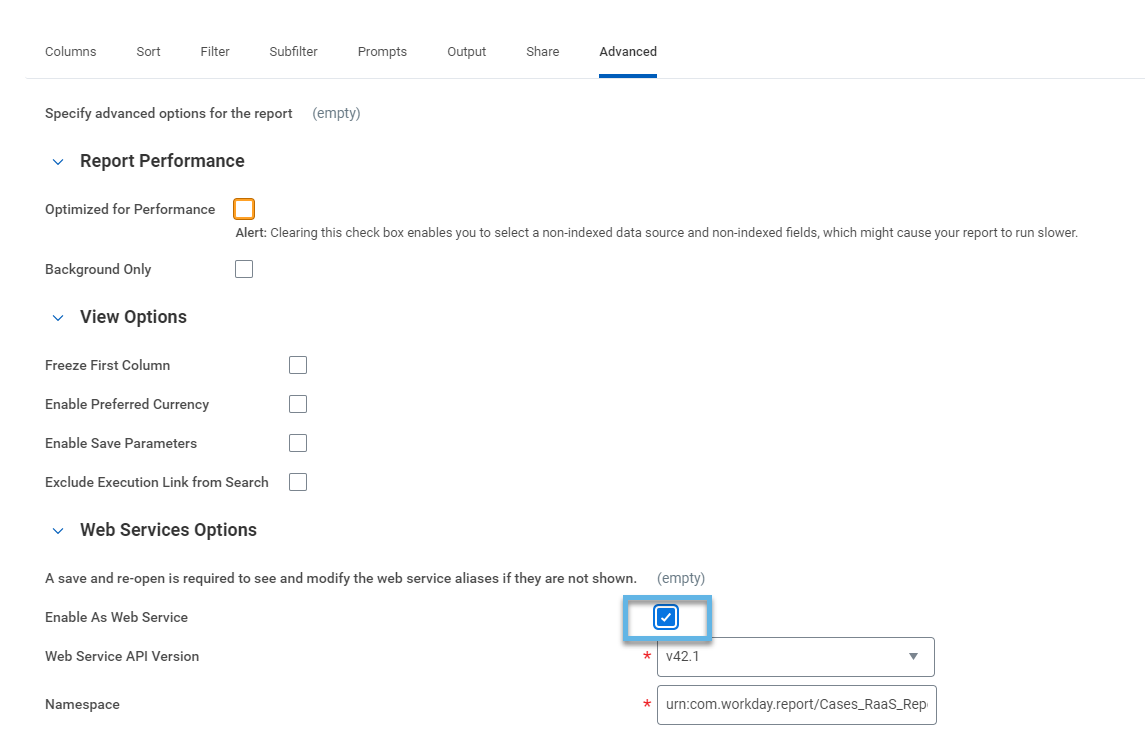
On the Advanced tab, select the enable as a web service box to enable it for API consumption
-
Save the report.
-
From the related actions of the custom report, select
Web Service->View URLs: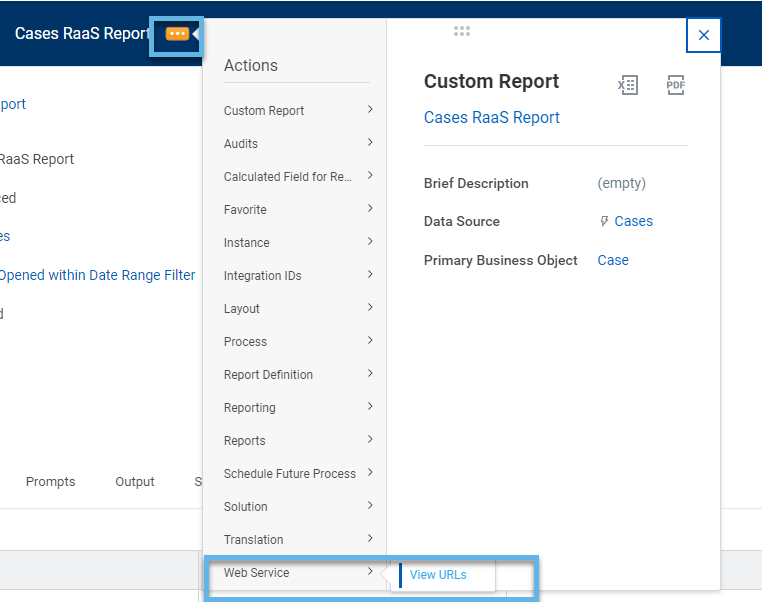
-
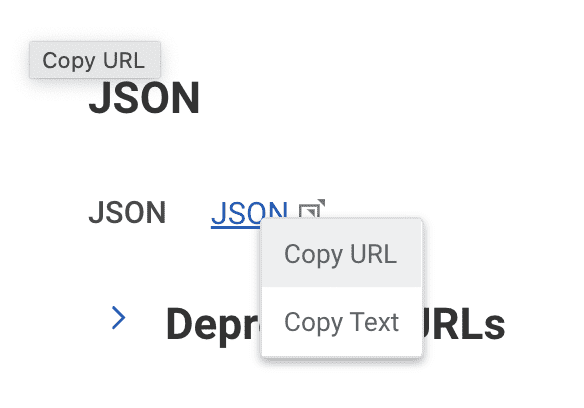
Scroll down to
JSONand right click on the hyperlink to select “Copy URL”. Share this URL with your Moveworks Customer Success team.
(Optional) Transfer Ownership of the Report to the ISU
We recommend doing this so that our ISU has access to report even if a member of your Workday Reports team leaves the company.
- Ensure that the ISU has the domain permissions needed to access the business objects referenced & through their data sources. If you need assistance with this, we recommend getting support from your Workday security team.
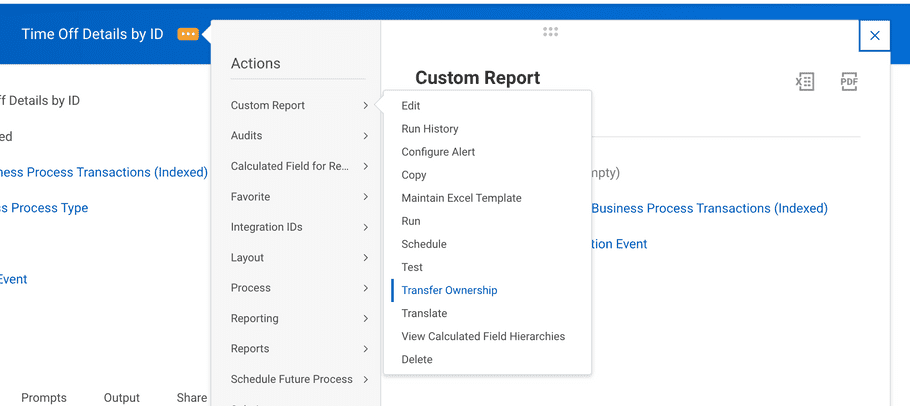
- Transfer the ownership using related actions on the report definition.