
Dropbox Content Access Requirements
Moveworks’ integration with Dropbox allows your Moveworks AI Assistant to fetch and index content from your Dropbox tenant, ensuring that users can search across documents where they have authorized view permissions.
Prerequisites
- You must have Administrator Access in order to authorize the application on your Dropbox tenant.
- Access to an API Client like Postman to execute API calls.
Access Setup
These instructions are based on OAuth2.0, the recommended mode of authentication that is used by Dropbox. Check out their OAuth Guide to learn more.
Create a service account
To authenticate with Dropbox, we use a service account created within your instance. Please create a service account (eg:svc-moveworks-dropbox@company.com) and add this service account to all of the Folders in your Dropbox tenant from where you want Moveworks to ingest content.
Implement OAuth
Set up your App
-
Register a new app with Dropbox by visiting the App Console.
-
Click on the Create app button.
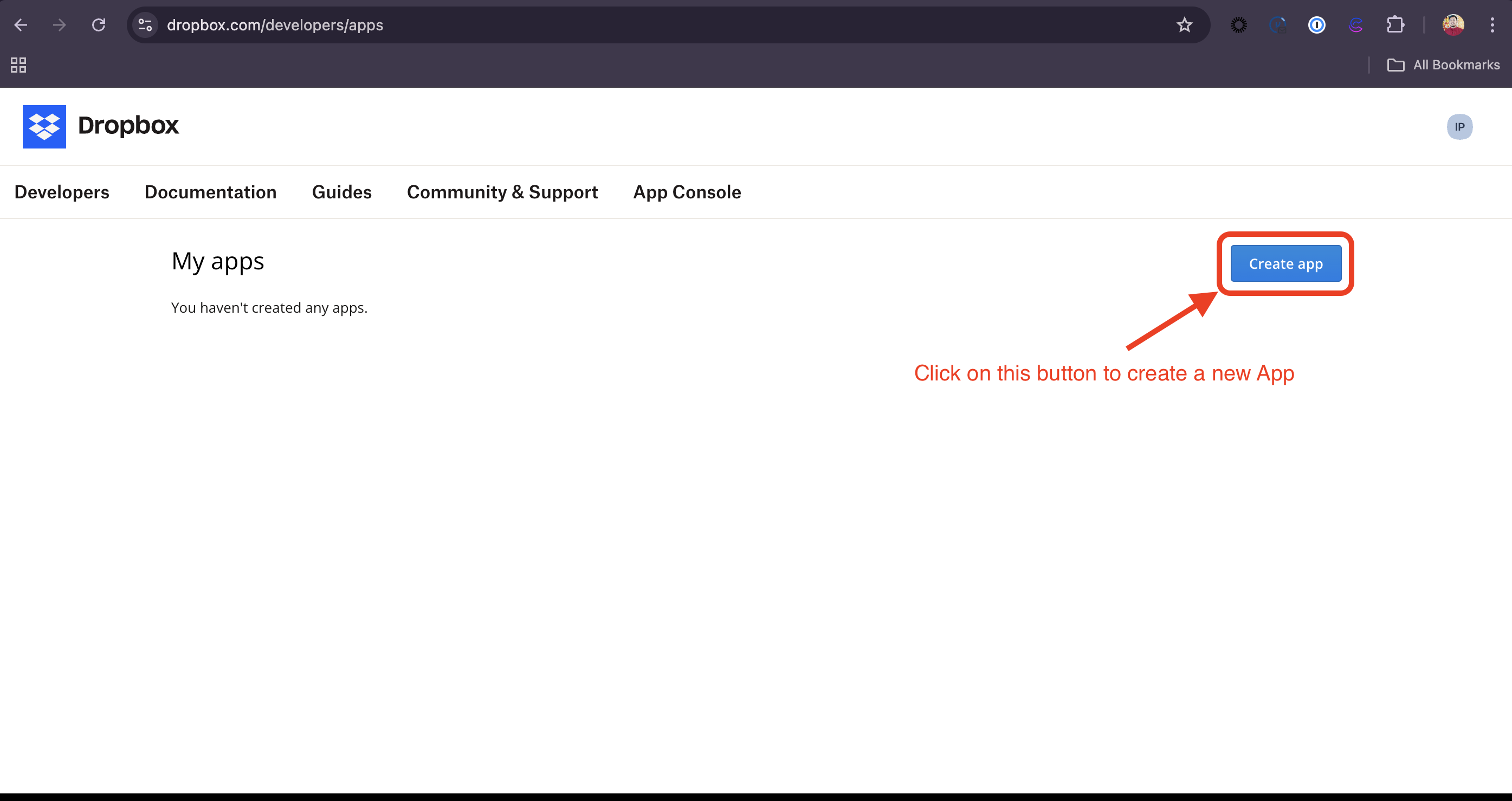
-
Select Scoped access, Full Dropbox access and provide a name to the App in the following format:
Moveworks-{CompanyName}. Click on Create app to initialize your app.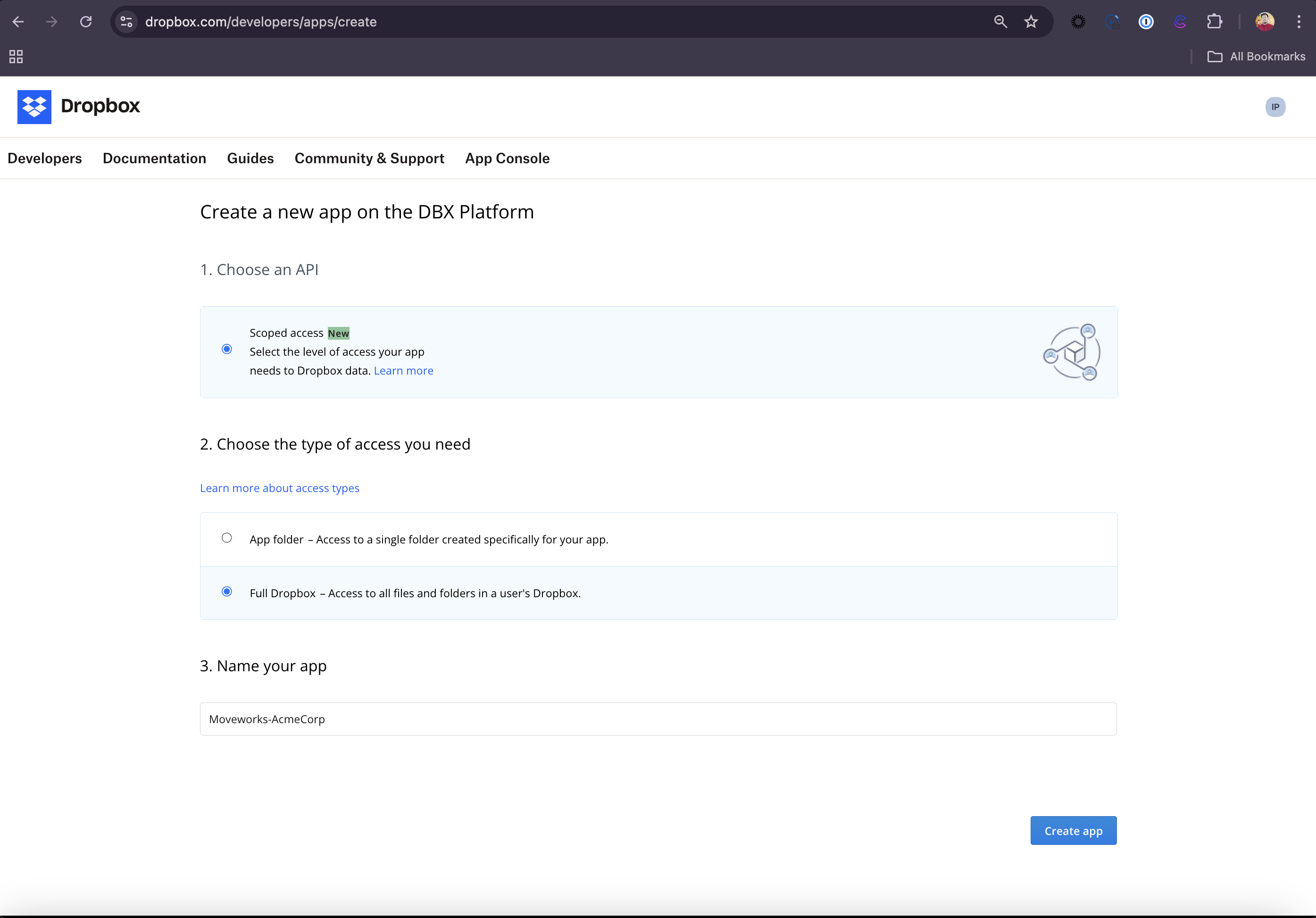
-
Now, the App has been created and you will be redirected to the App’s Settings page.
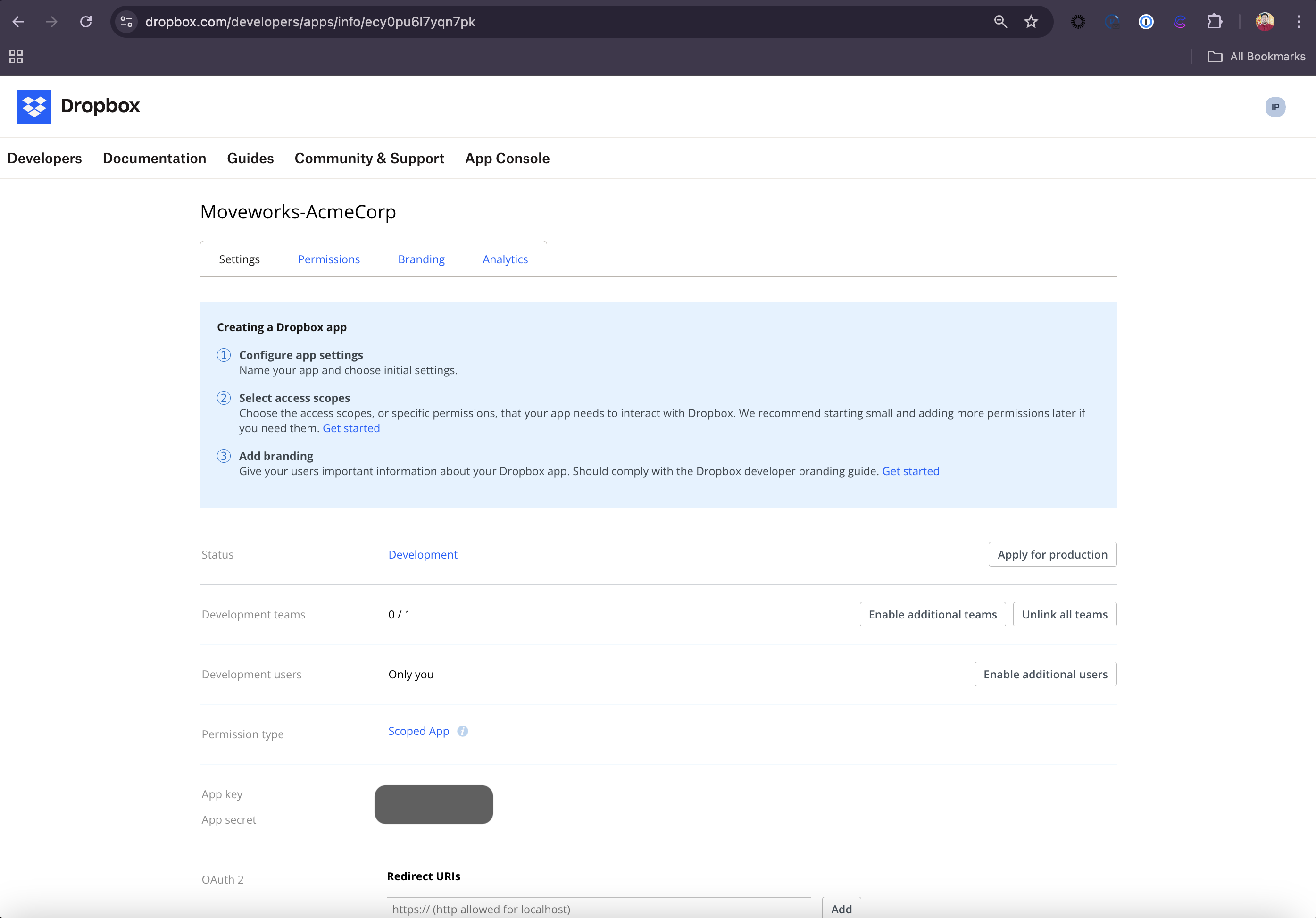
-
Navigate to the OAuth 2 section in the Settings tab and set
http://localhostas one of the Redirect URIs.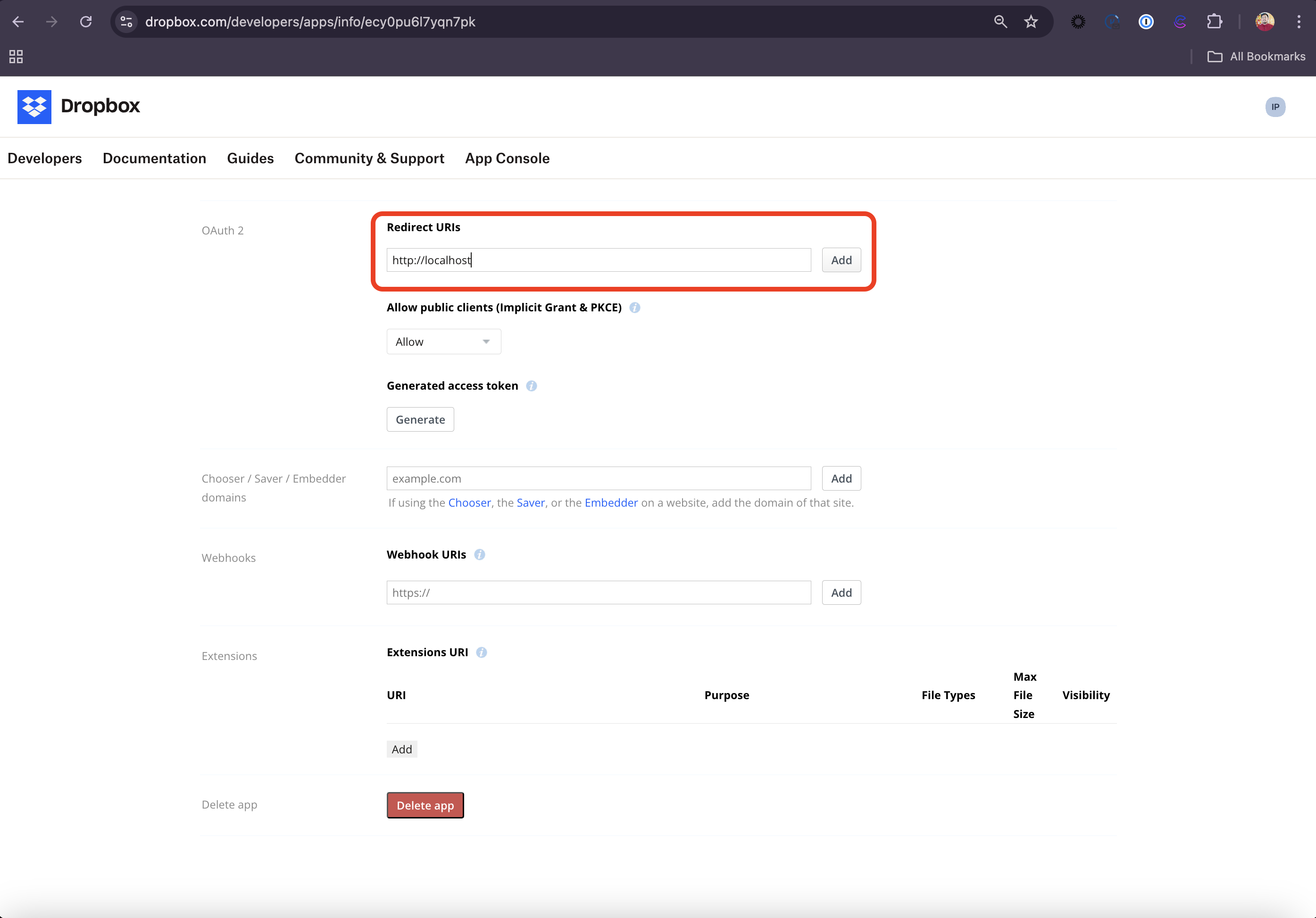
-
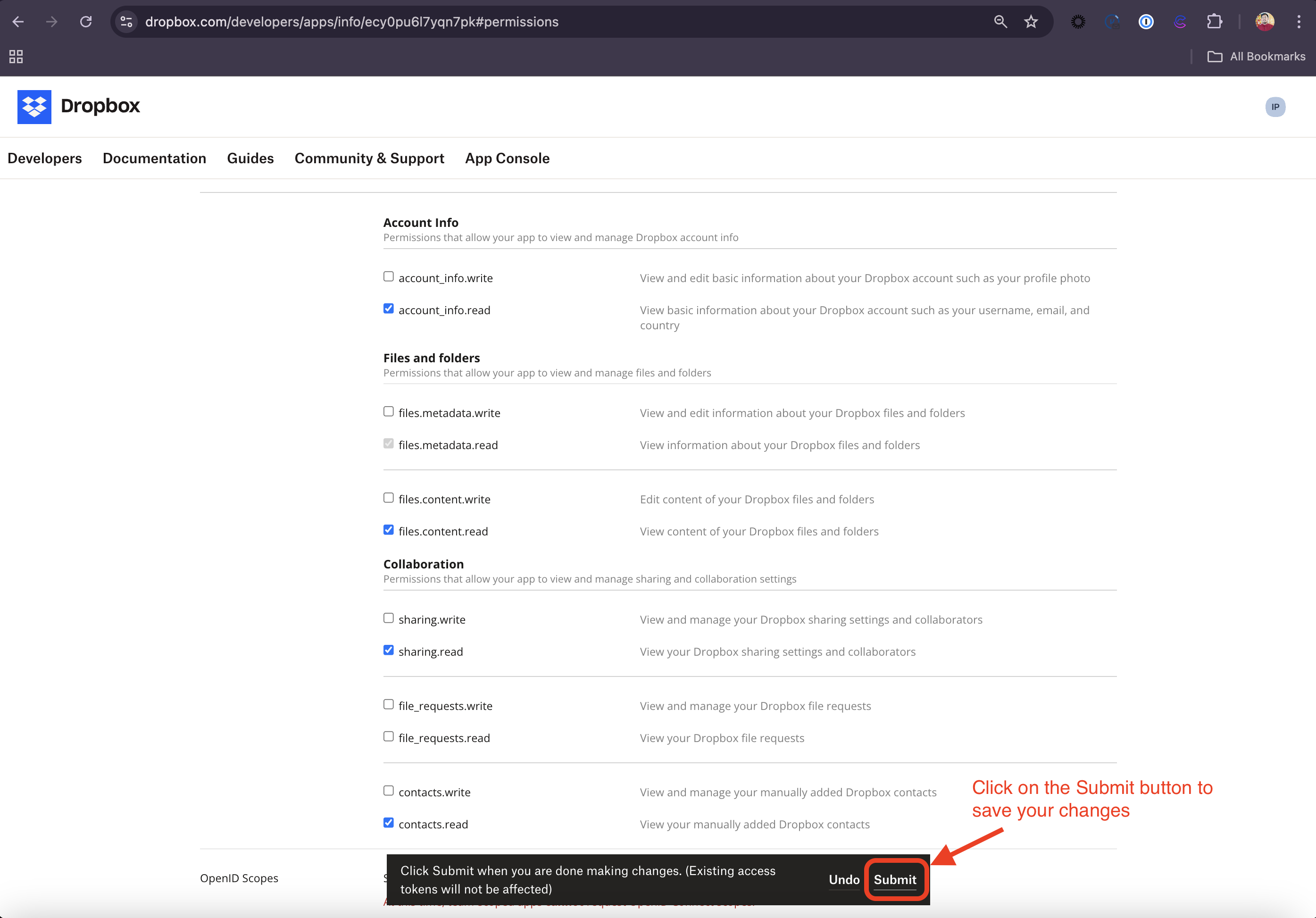
Head over to the Permissions tab and check the following scopes required for this integration:
-
Click on Submit to make sure your Permission changes are saved
-
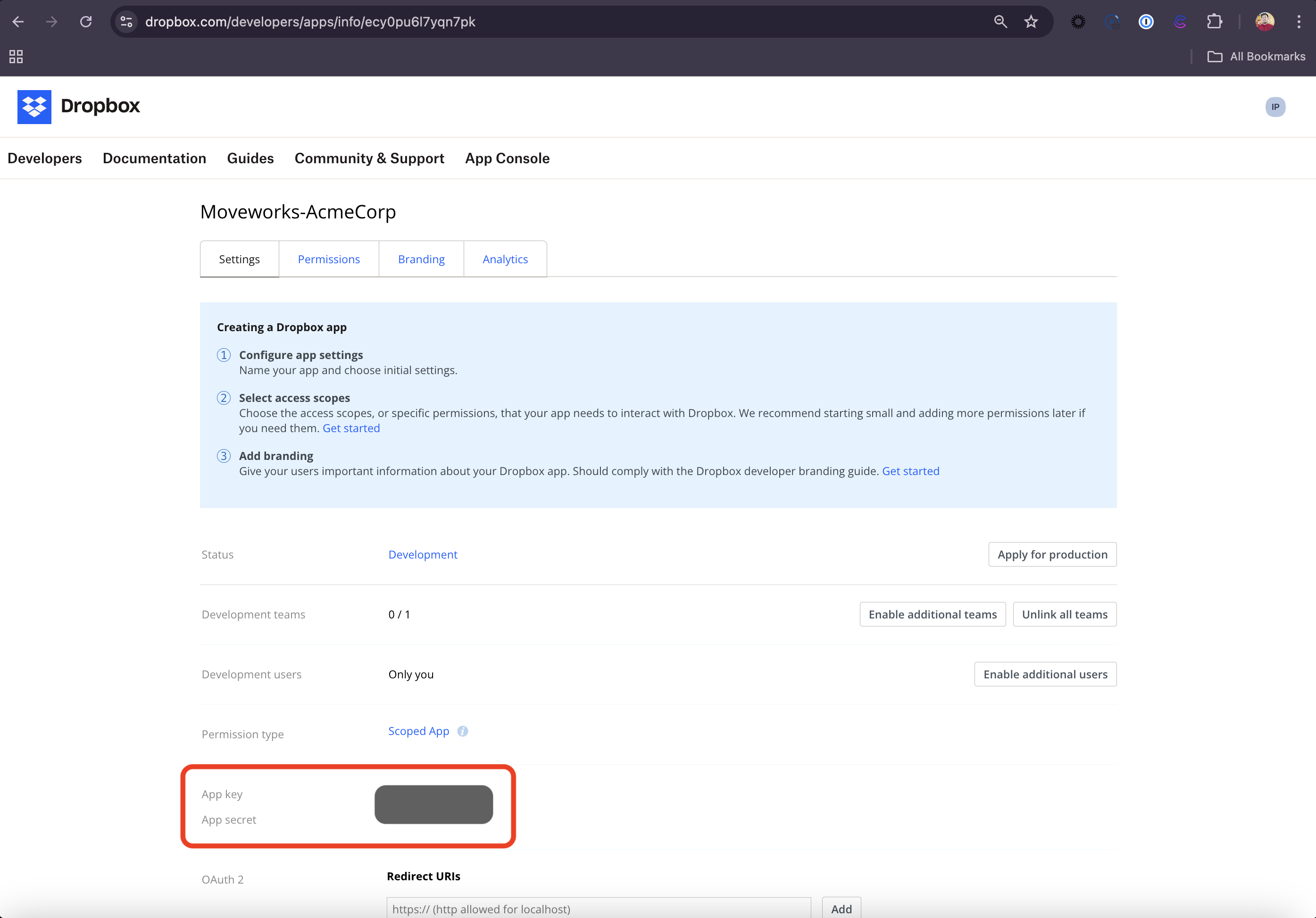
Go back to the Settings tab and check out the App key and App secret. Store these values in a safe storage since you will be needing this is the following steps to authenticate the APIs.
Generate API Credentials
-
Replace the App key in the following URL with your App’s App key and navigate to the URL in your preferred browser
https://www.dropbox.com/oauth2/authorize?client_id=<your_App_Key>&redirect_uri=http://localhost&response_type=code&token_access_type=offline
-
You must be a team administrator to authorize this app. Either login to a Dropbox for Business admin account, or contact an existing administrator for your team to authorize.
-
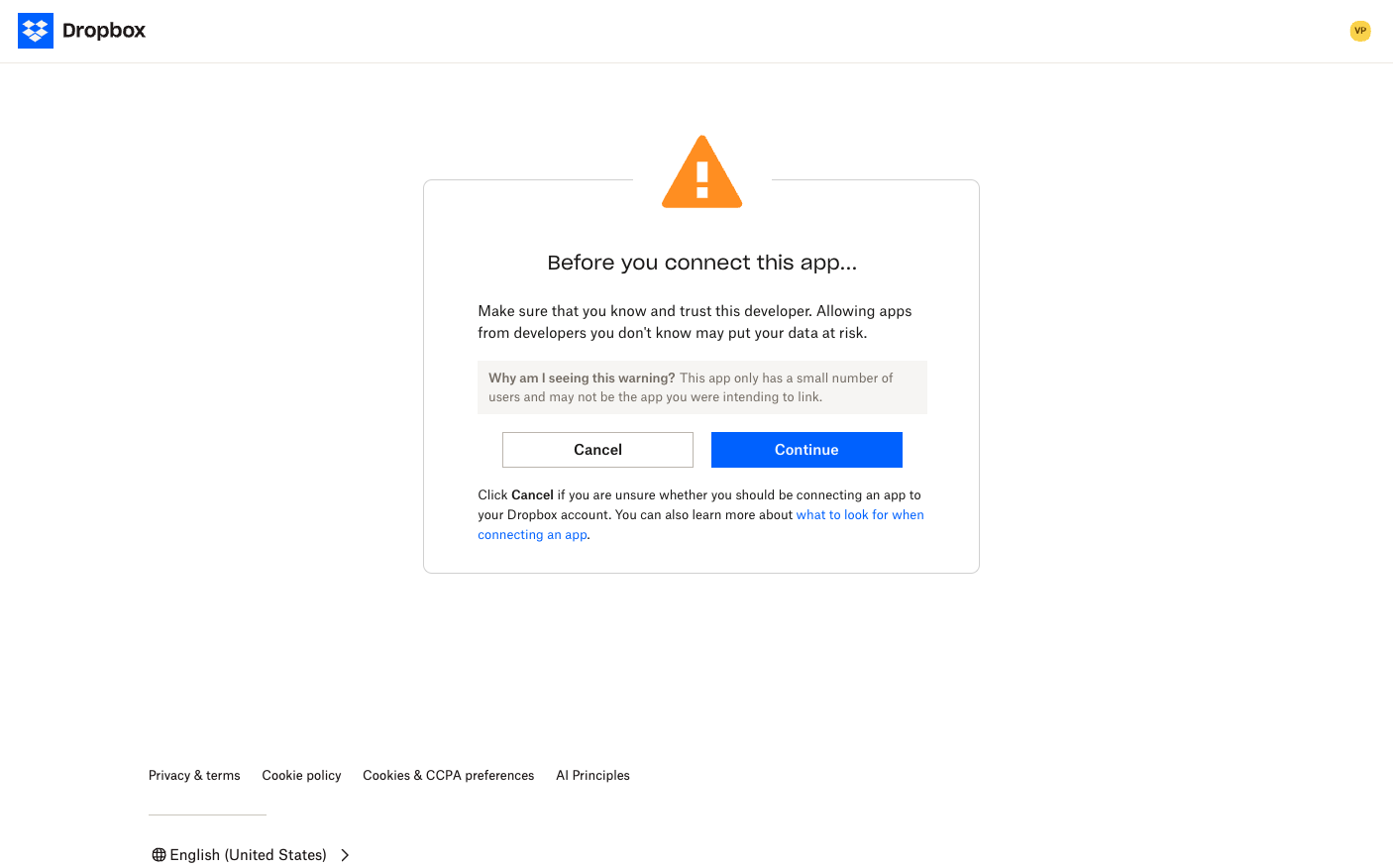
Once you login, you will see the following page. Click on Continue.
-
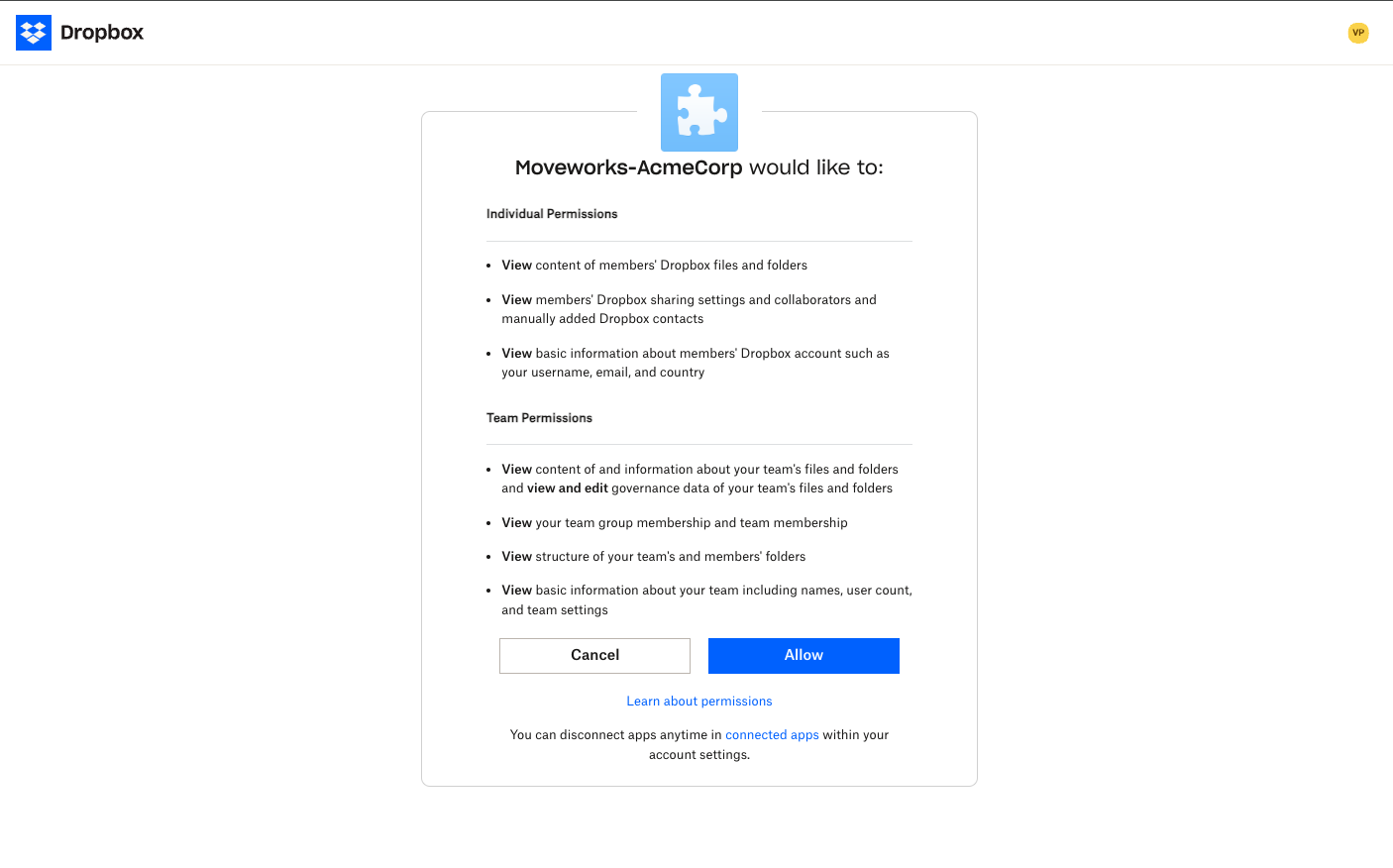
In the next page, review the permissions that the App will require to ingest Content and Permissions from your tenant and click on Allow.
-
You will be redirected to the localhost. In the URL section, you will see that the URL contains a code. This is your
authorization_code.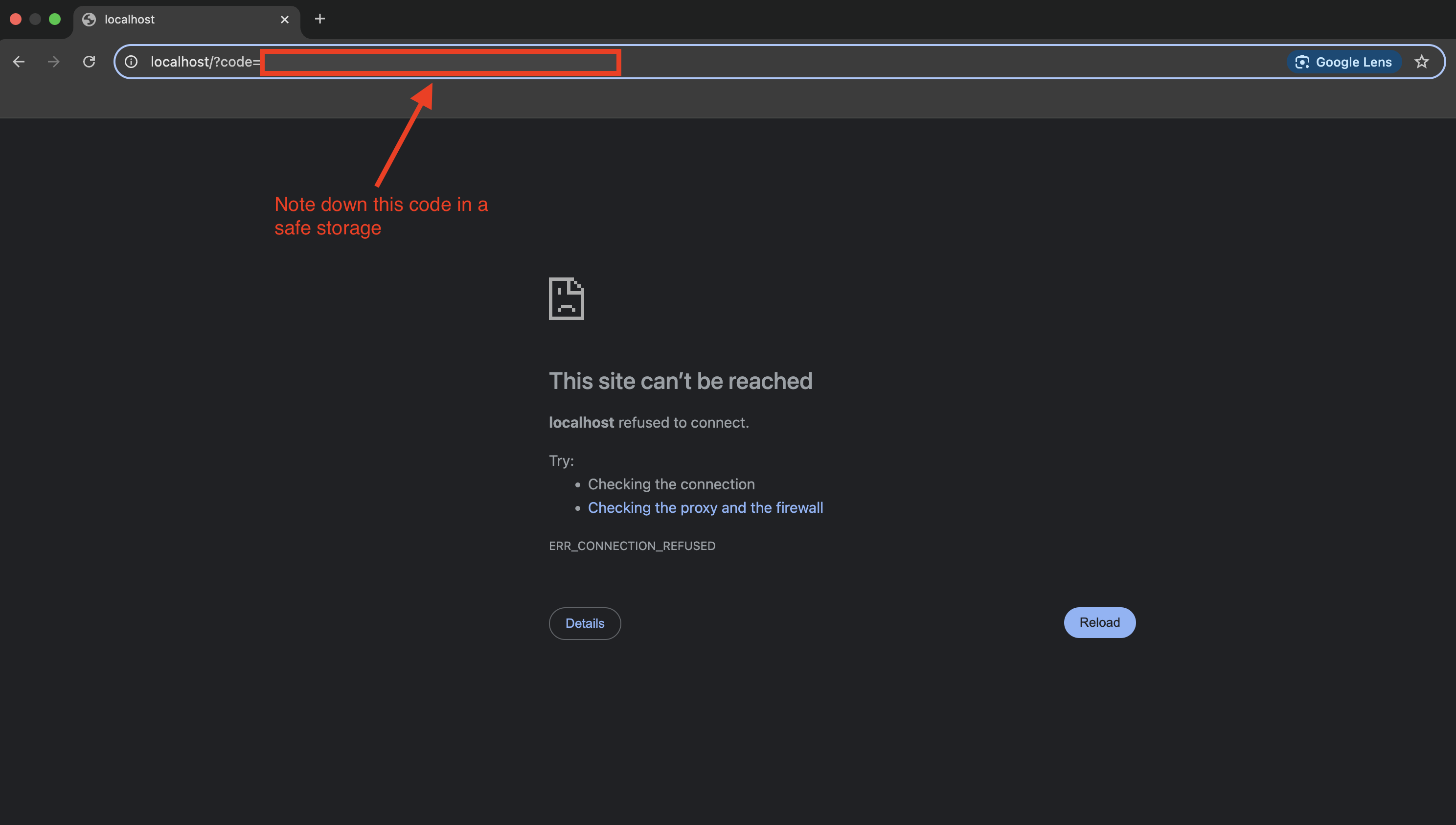
-
Use this
authorization_codeto hit the following API in Postman or any API Client. You will receive anaccess_tokenand arefresh_token. Note therefresh_tokendown. We will use this to configure the Connector in Moveworks Setup later.bash -
Now, we have to use the generated
access_tokento hit the /members/get_info API to retrieve the Account ID and Root Folder ID of the Service Account that we created above.bashReplace the
email_idwith the email ID of the service account. The API response would be of the following format:JSONNote the
root_folder_idand theteam_member_id. We will use this to configure the Connector in Moveworks Setup in the next step.
Configure the Connector in Moveworks Setup
Use the Connectors > System Connectors module in Moveworks Setup to create the connection between Moveworks and your Dropbox tenant.
Please follow the connectors guide to add the credentials in Moveworks Setup.
-
Click on CREATE NEW to create a new connector and select Dropbox from the list of systems displayed.
-
Enter the name of the connection. (Eg: Dropbox)
-
Select Oauth2 Refresh Token Grant as the Authentication Type.
-
Enter your
App key,App secret,refresh_token,team_member_idandnamespace_idin the following manner.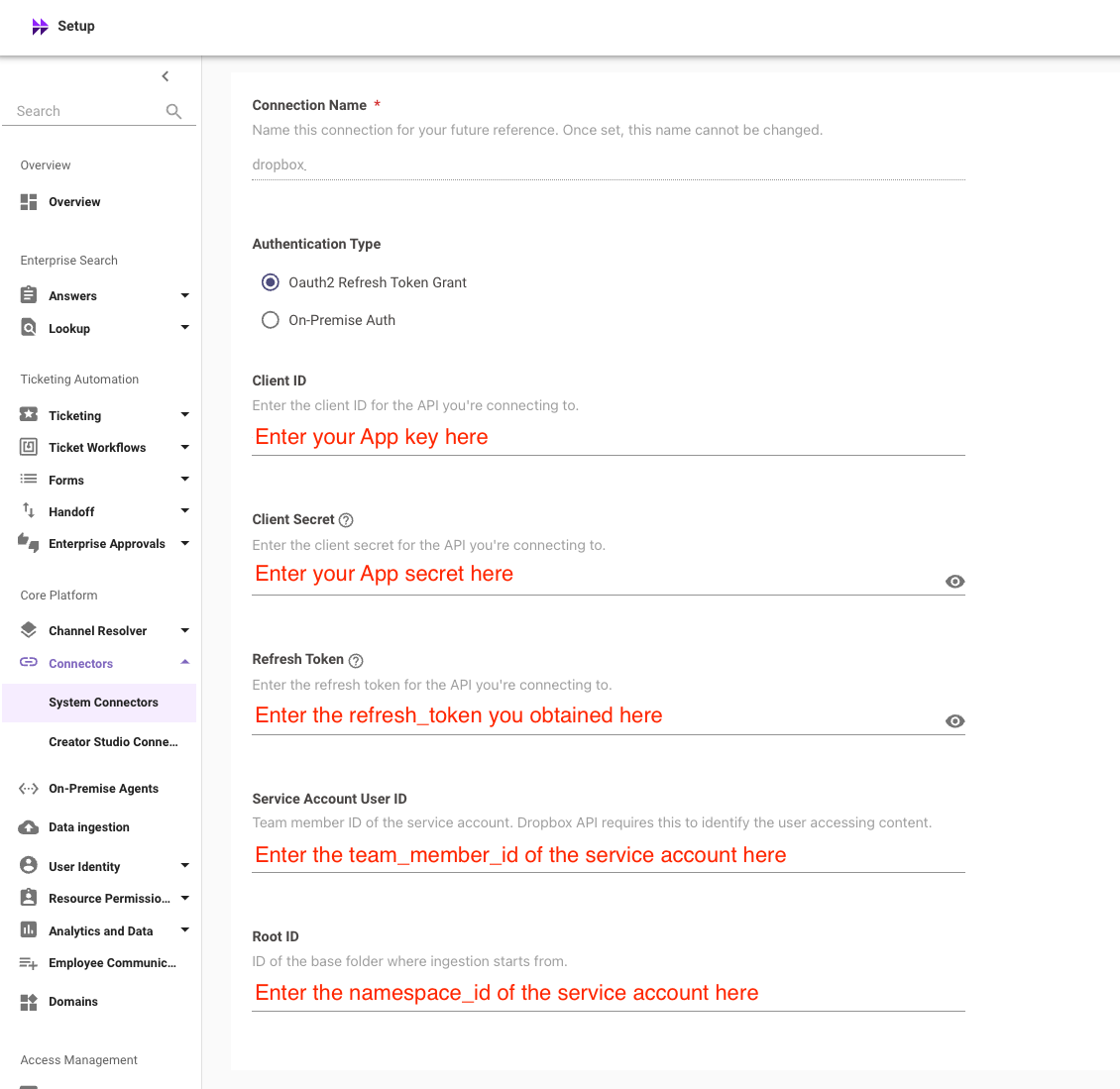
-
Click on Save to complete the configuration.