
How To Guide for Entity Catalog
How to create a custom software entity
-
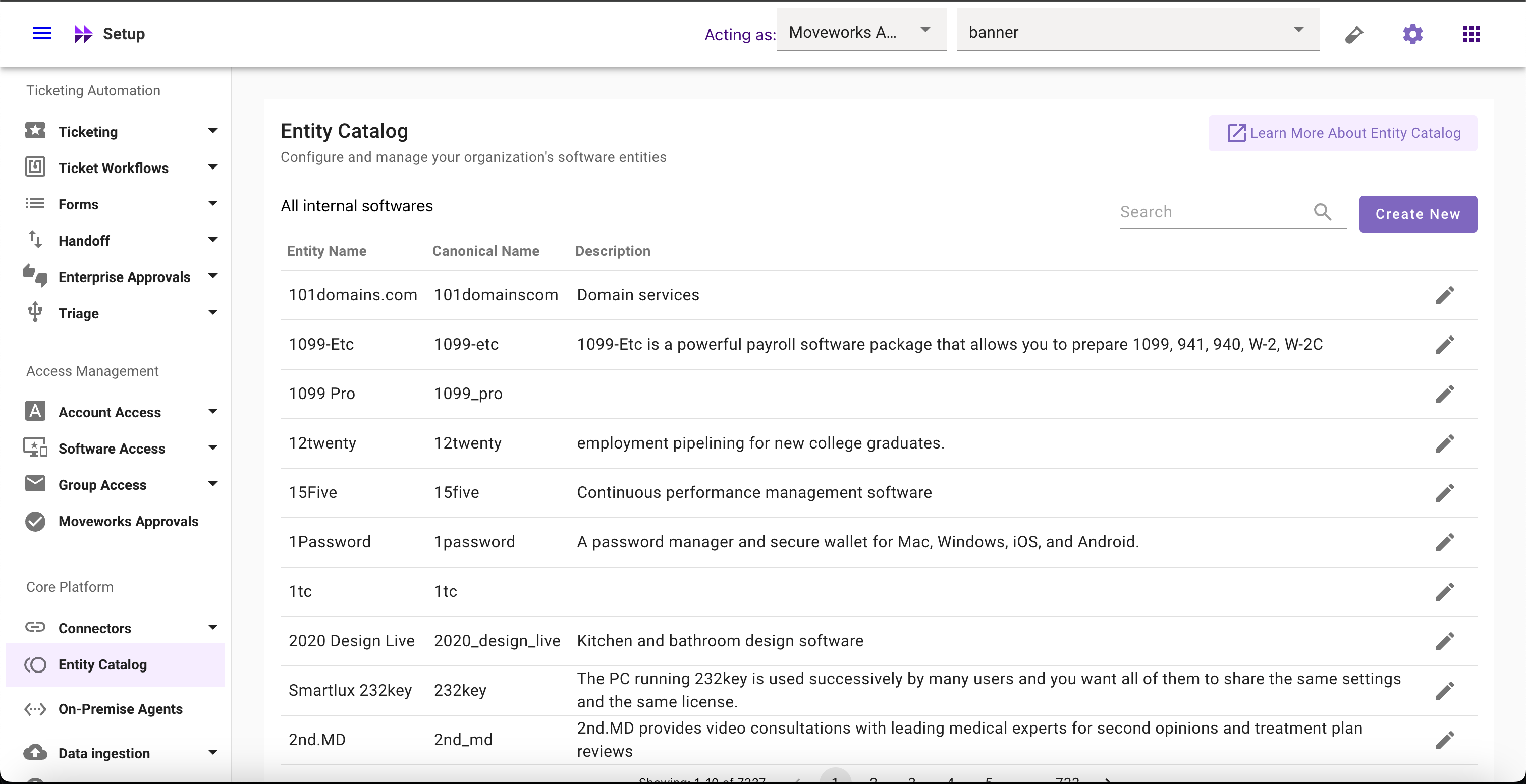
Navigate to Moveworks Setup > Core Platform section > Entity Catalog screen
-
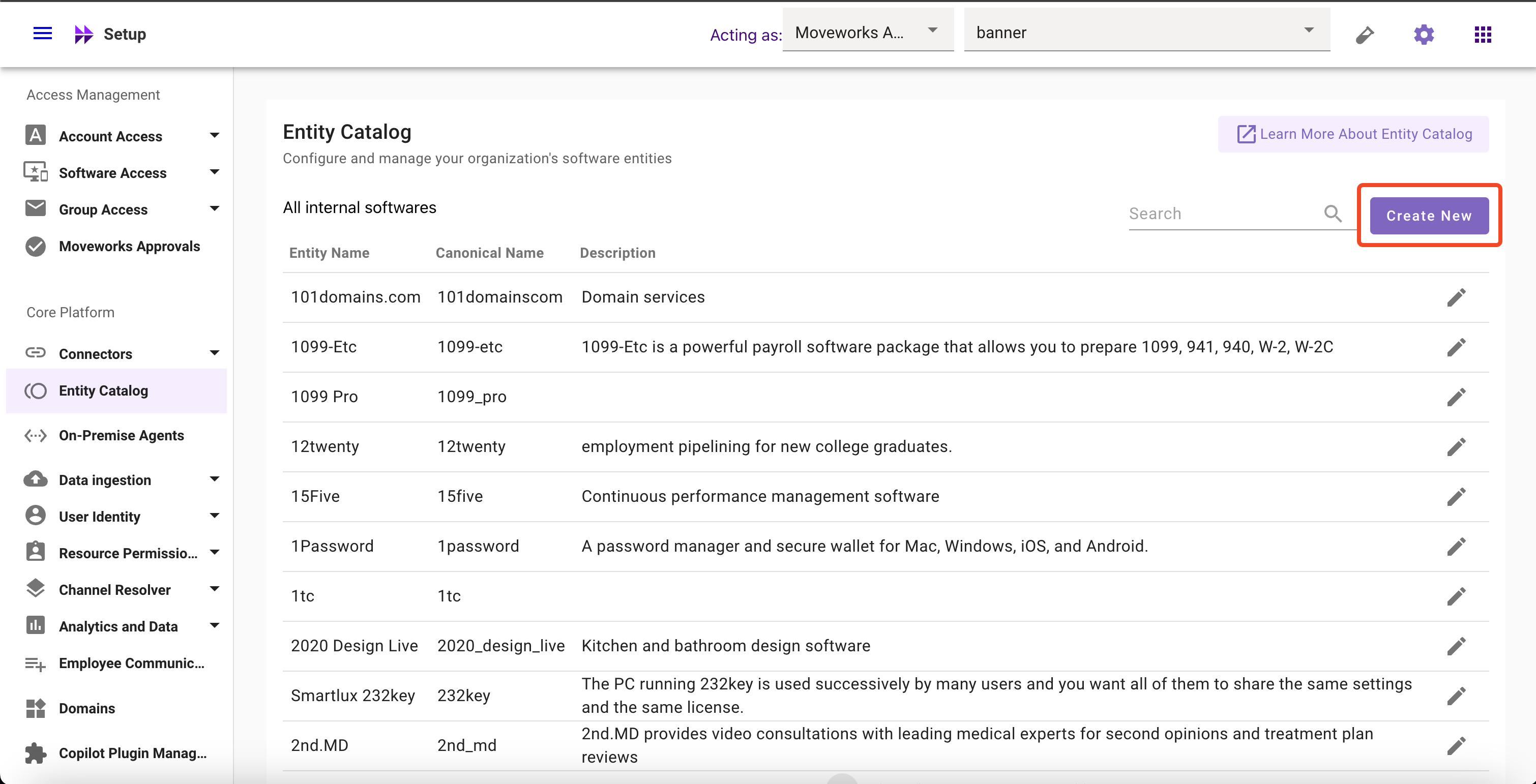
Click on Create New button
-
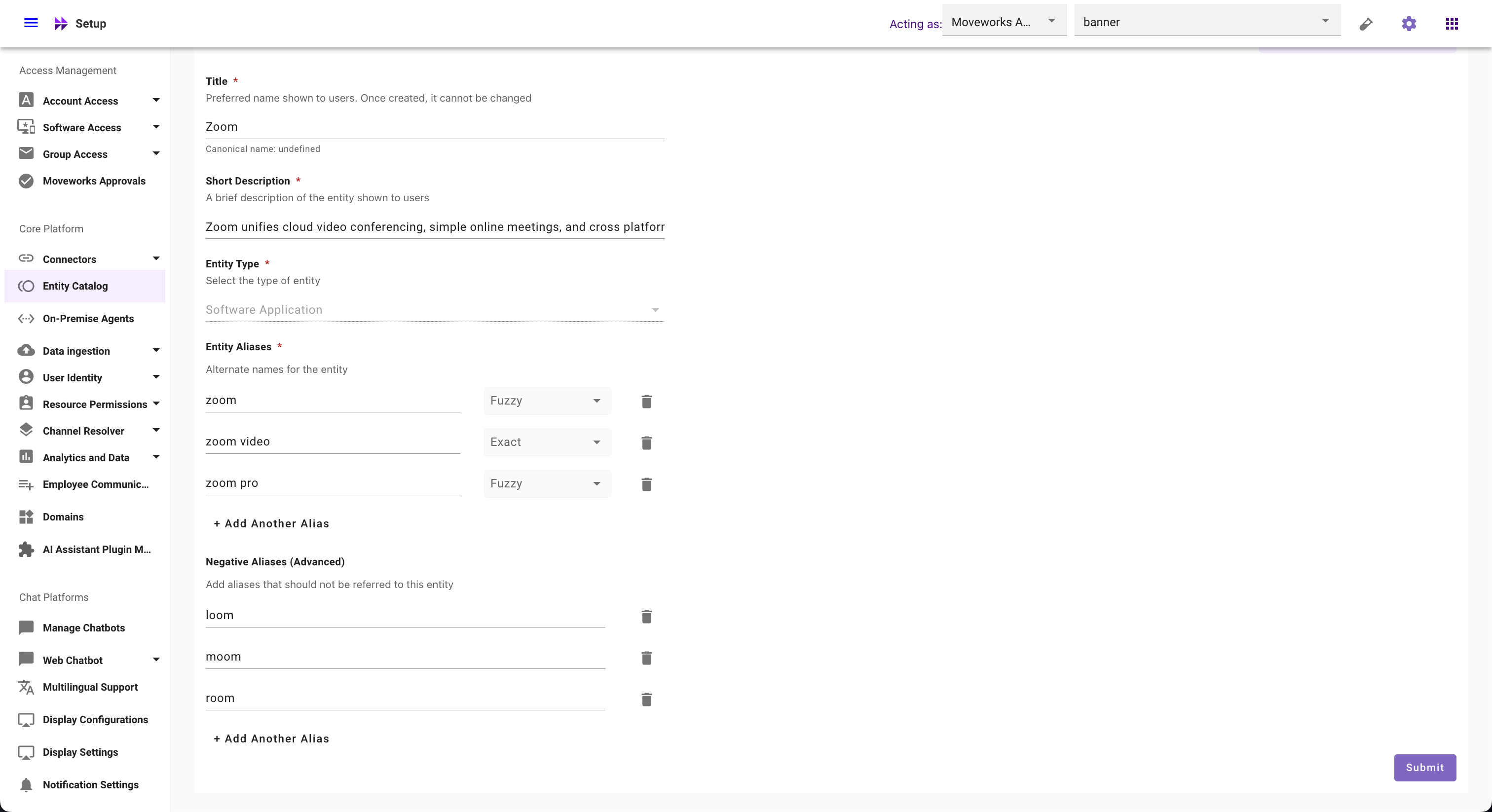
Input all the required config fields
- Title (Not editable once created) (E.g.
Zoom) - Short Description (E.g. Zoom unifies cloud video conferencing, simple online meetings, and cross platform group chat into one easy-to-use platform.)
- Entity Type (Selected by default and not editable)
- Entity Aliases and their respective matching logic (E.g.
zoomas fuzzy,zoom videoas exact,zoom proas fuzzy) - Negative Aliases (E.g.
loom,moom,room, and more)
- Title (Not editable once created) (E.g.
-
Click on Submit button
How to modify custom software entities
How to update Description
-
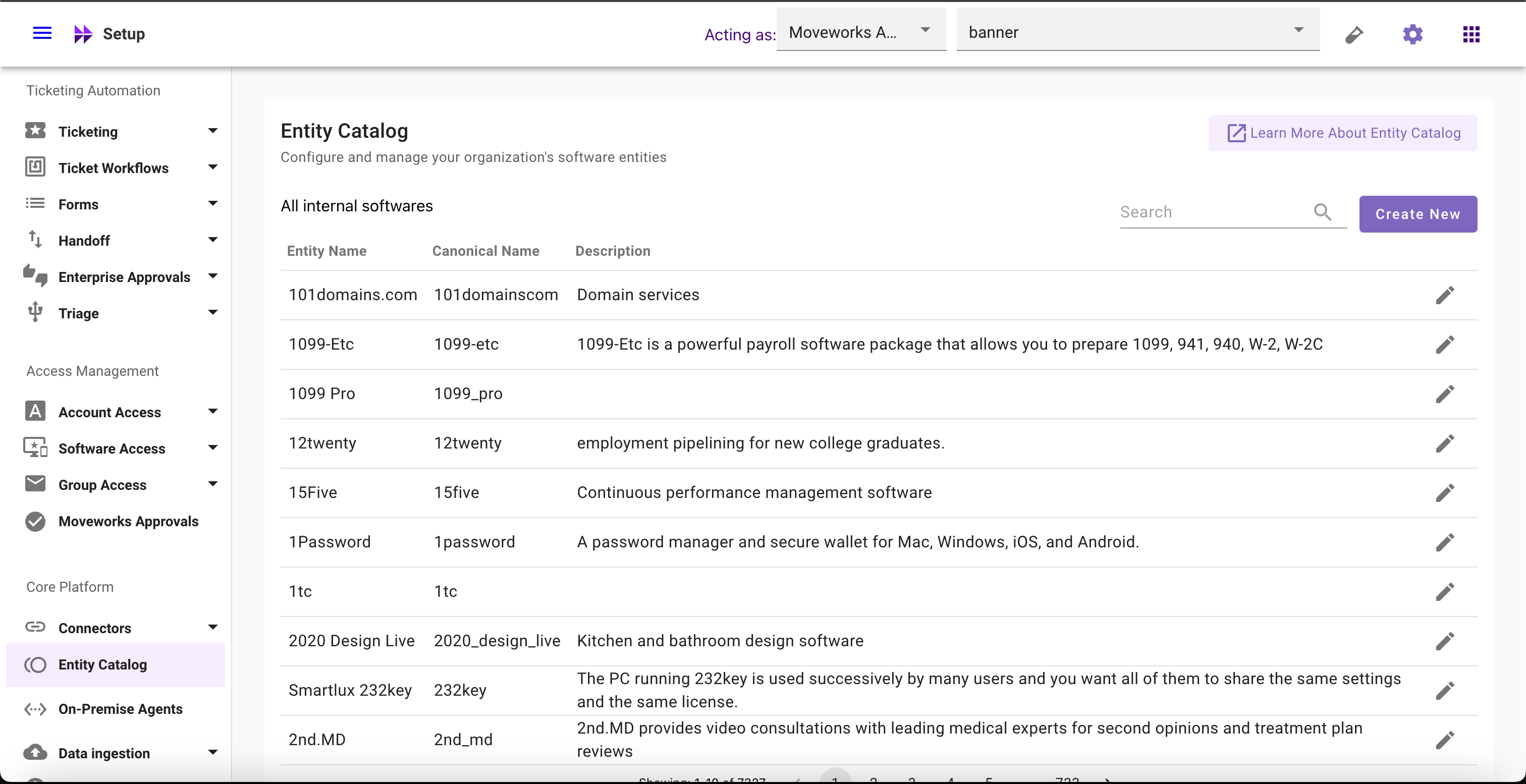
Navigate to Moveworks Setup > Core Platform section > Entity Catalog screen
-
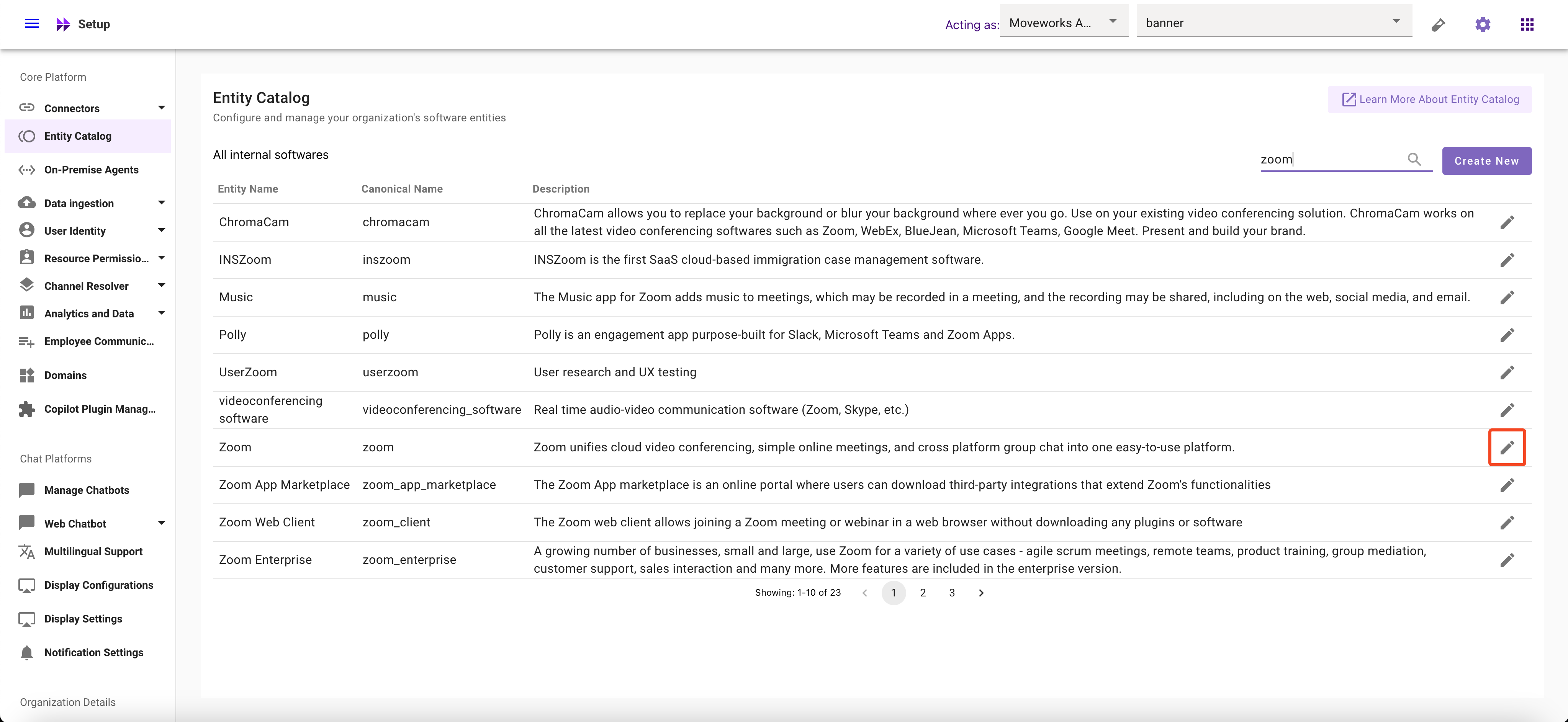
Select the Entity whose description you want to modify
-
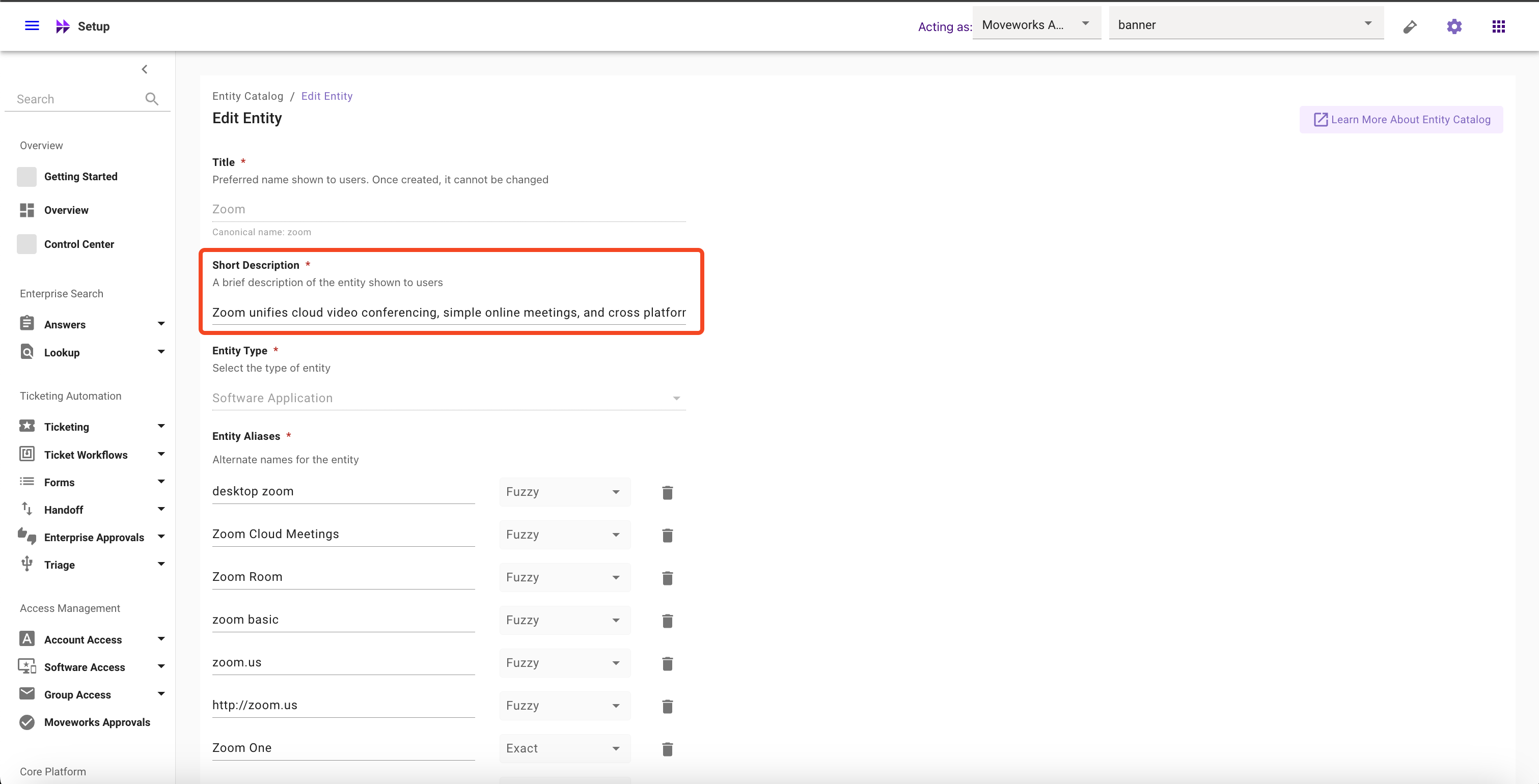
Edit the Description for the Entity
-
Click on Submit button
How to add Aliases
-
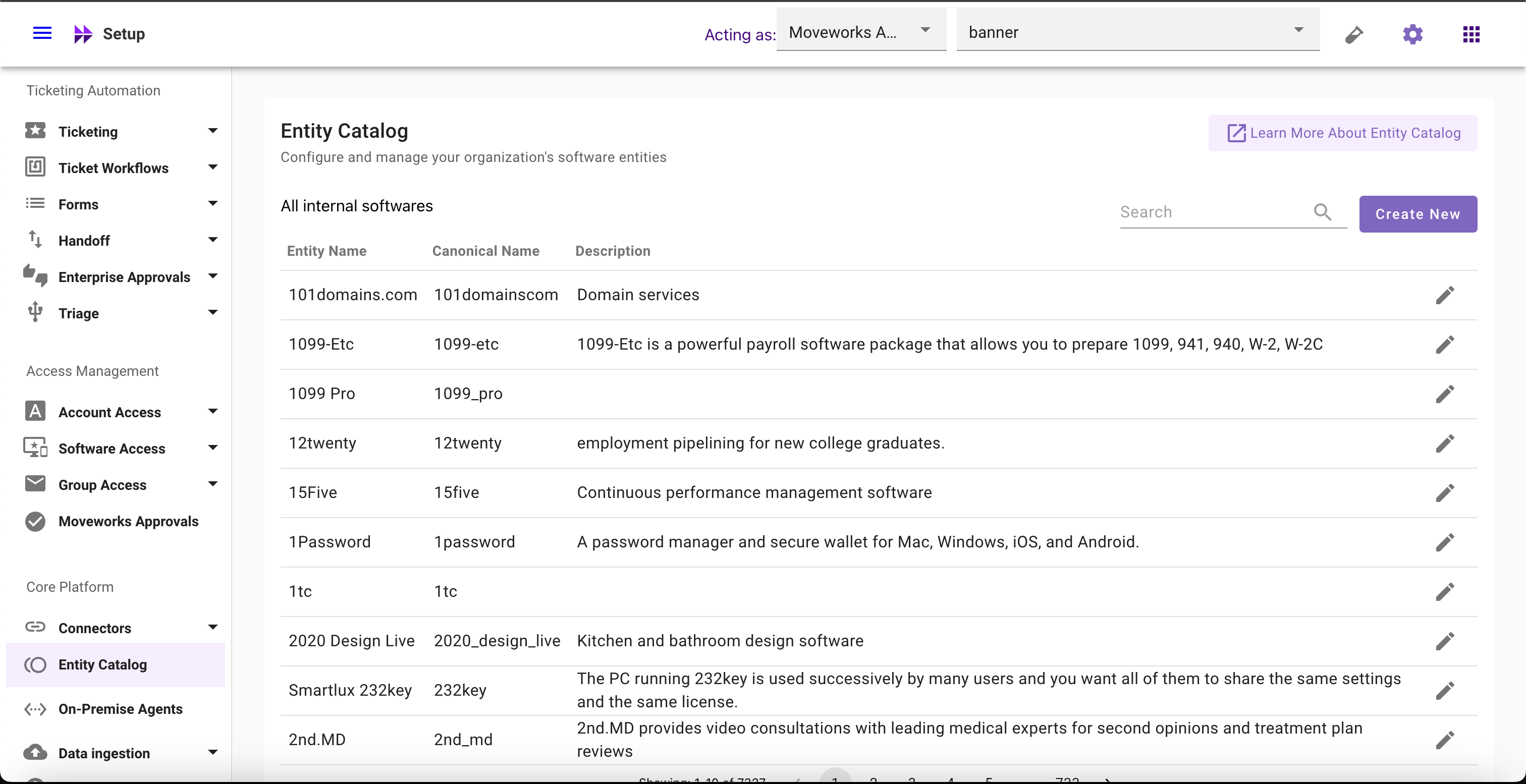
Navigate to Moveworks Setup > Core Platform section > Entity Catalog screen
-
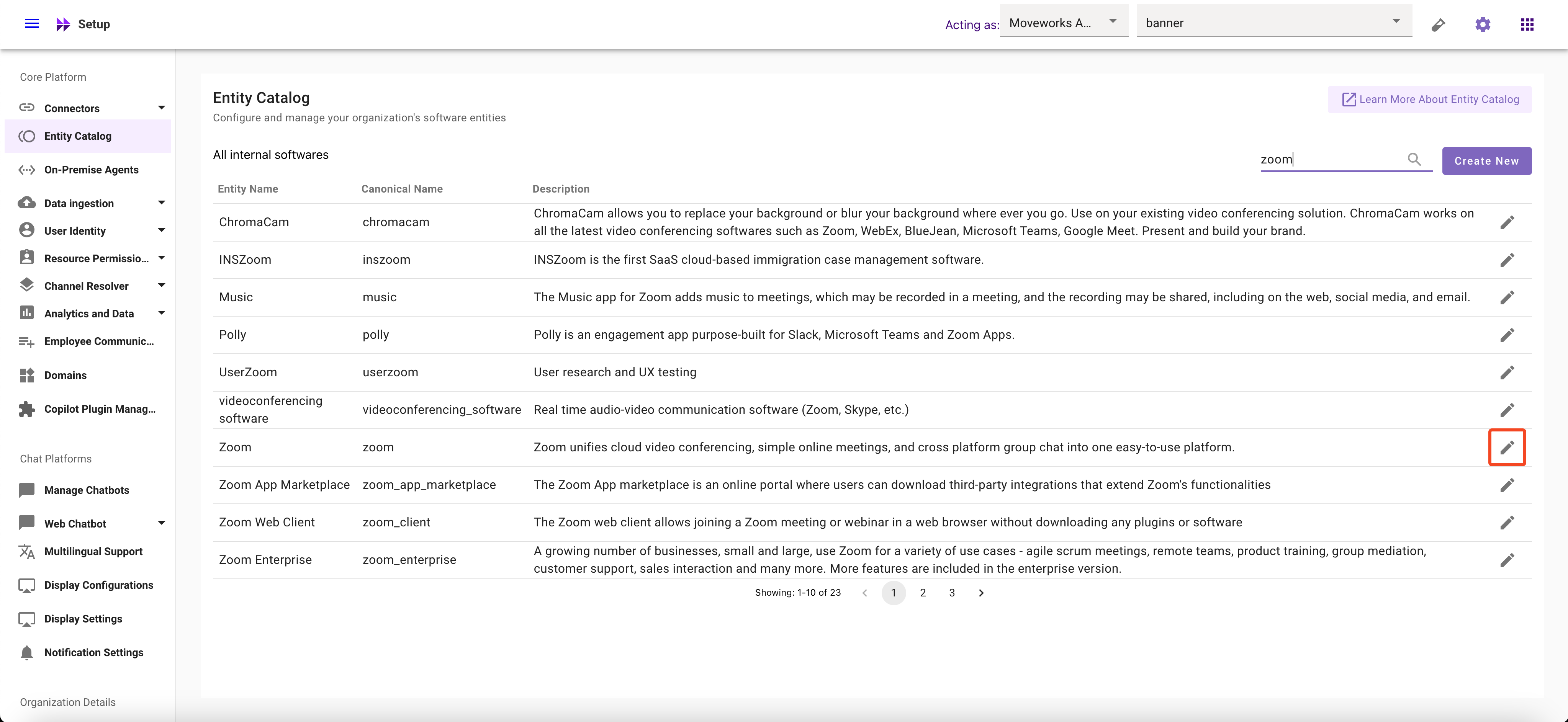
Select the Entity for which you want to add aliases
-
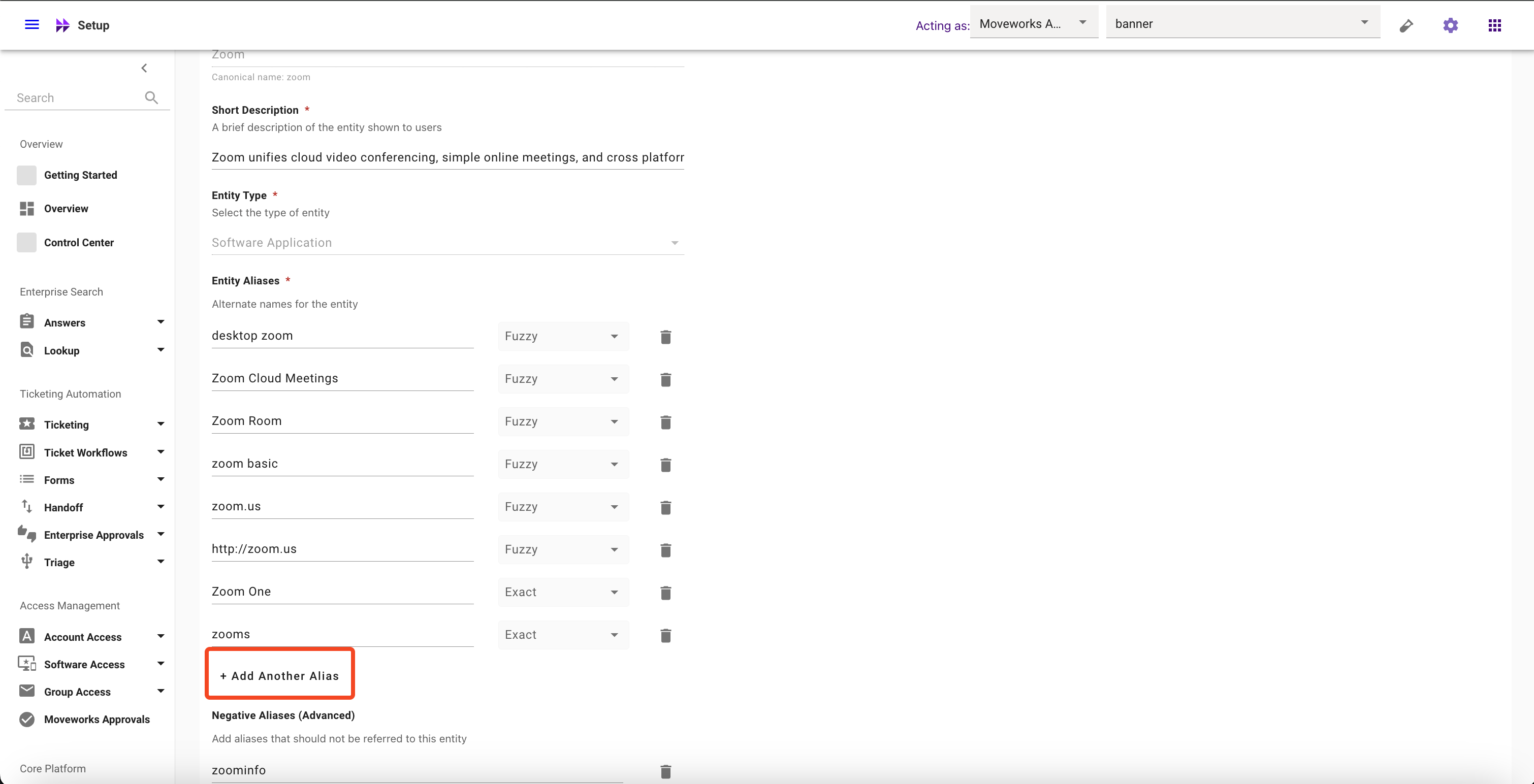
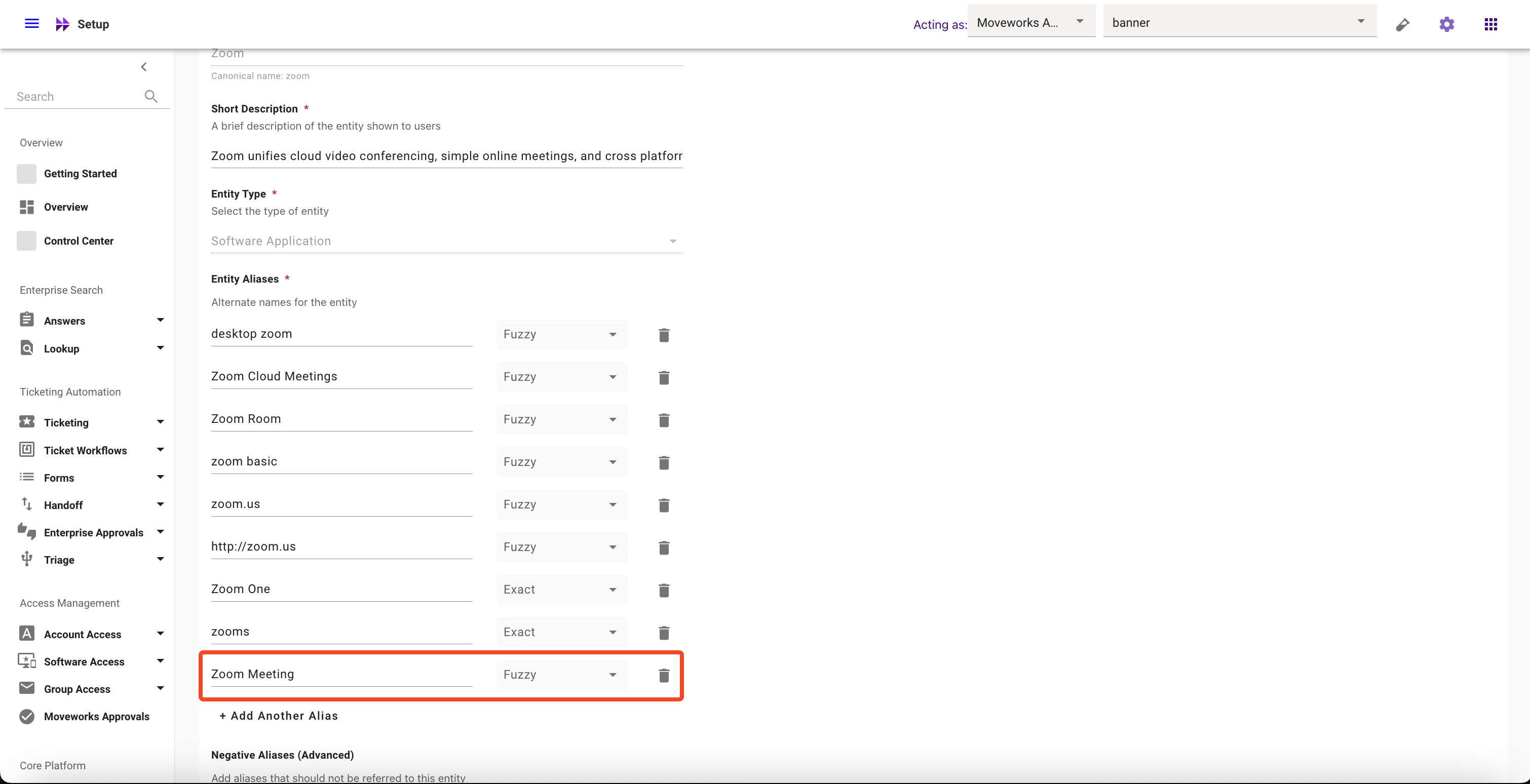
Click on Add Another Aliases and configure their matching logic
-
Click on Submit button
How to modify Aliases
-
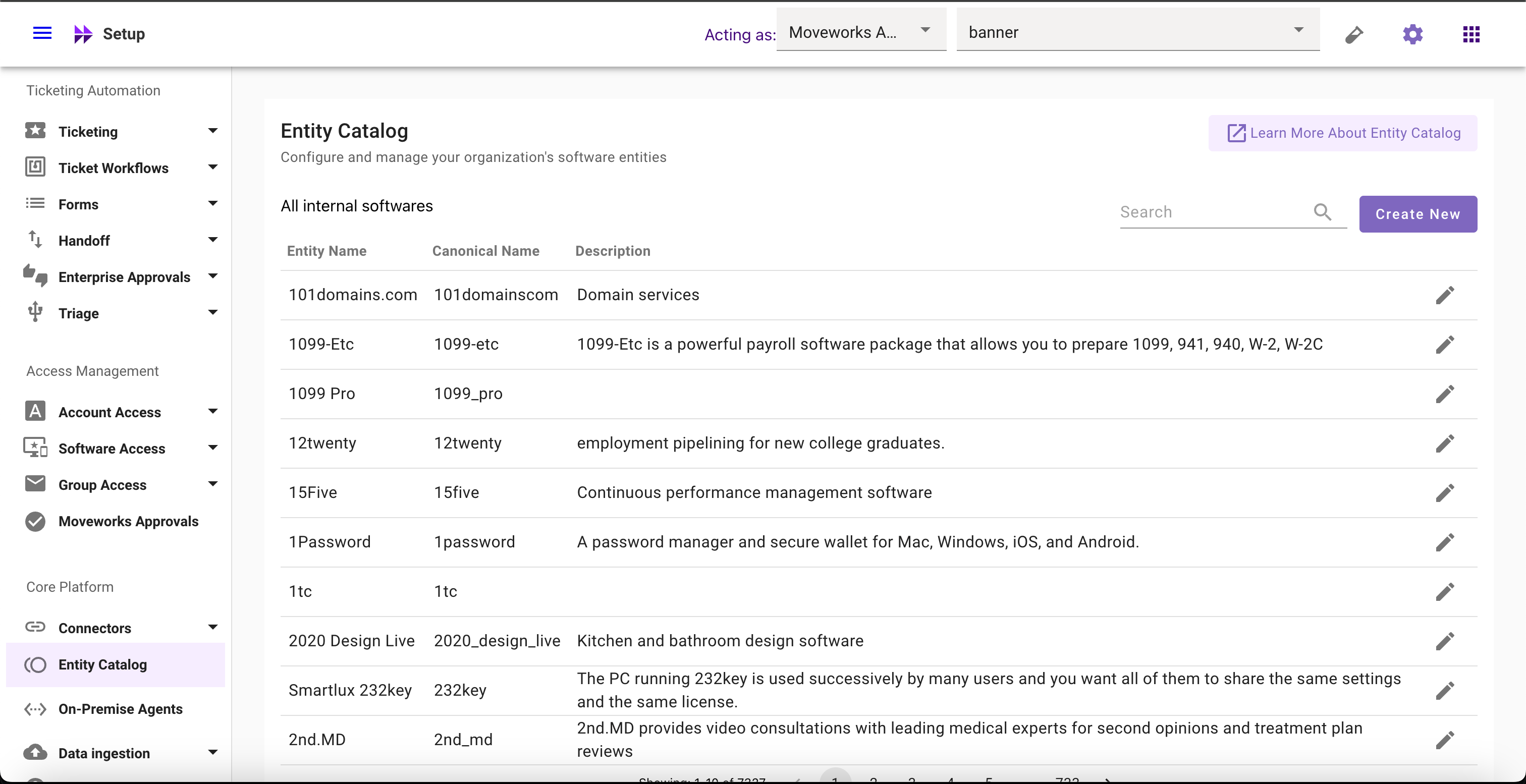
Navigate to Moveworks Setup > Core Platform section > Entity Catalog screen
-
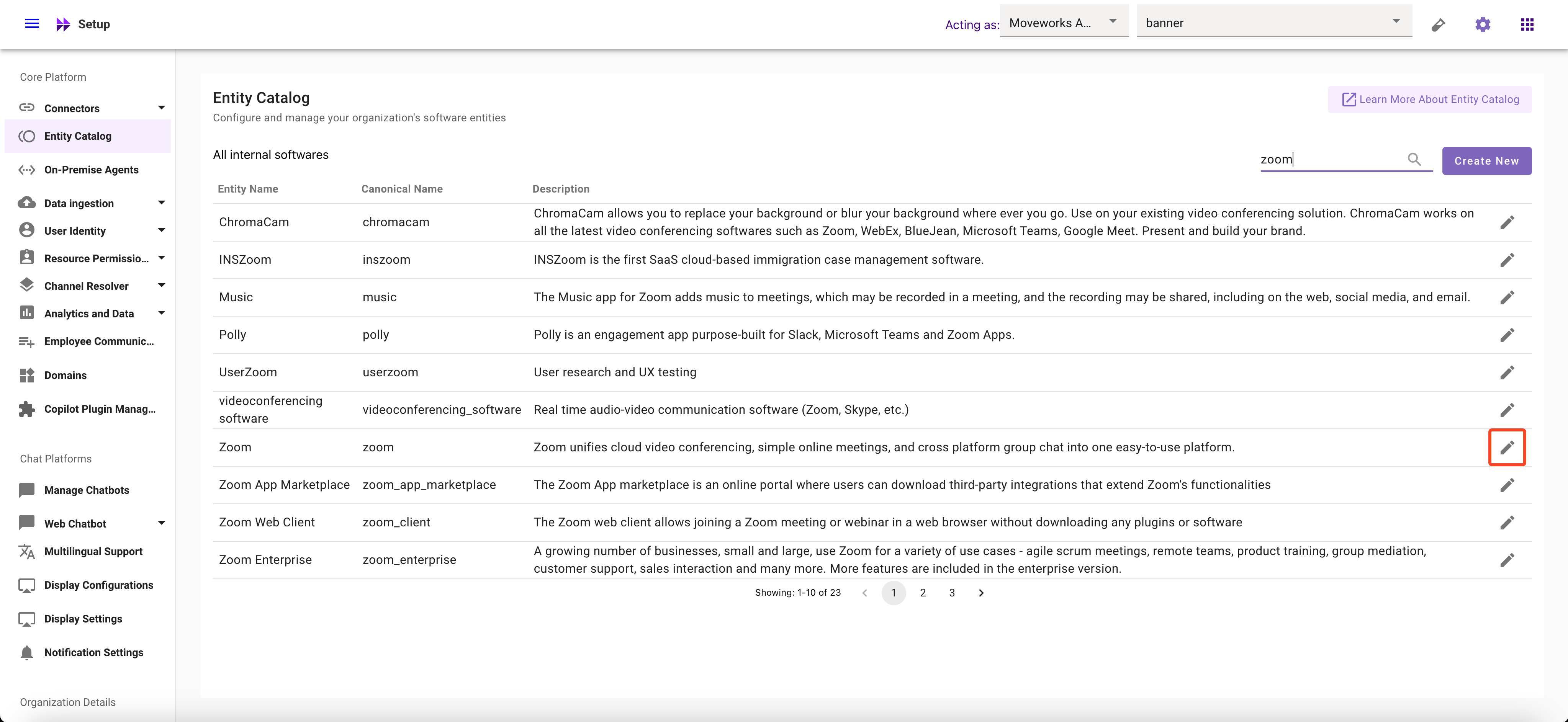
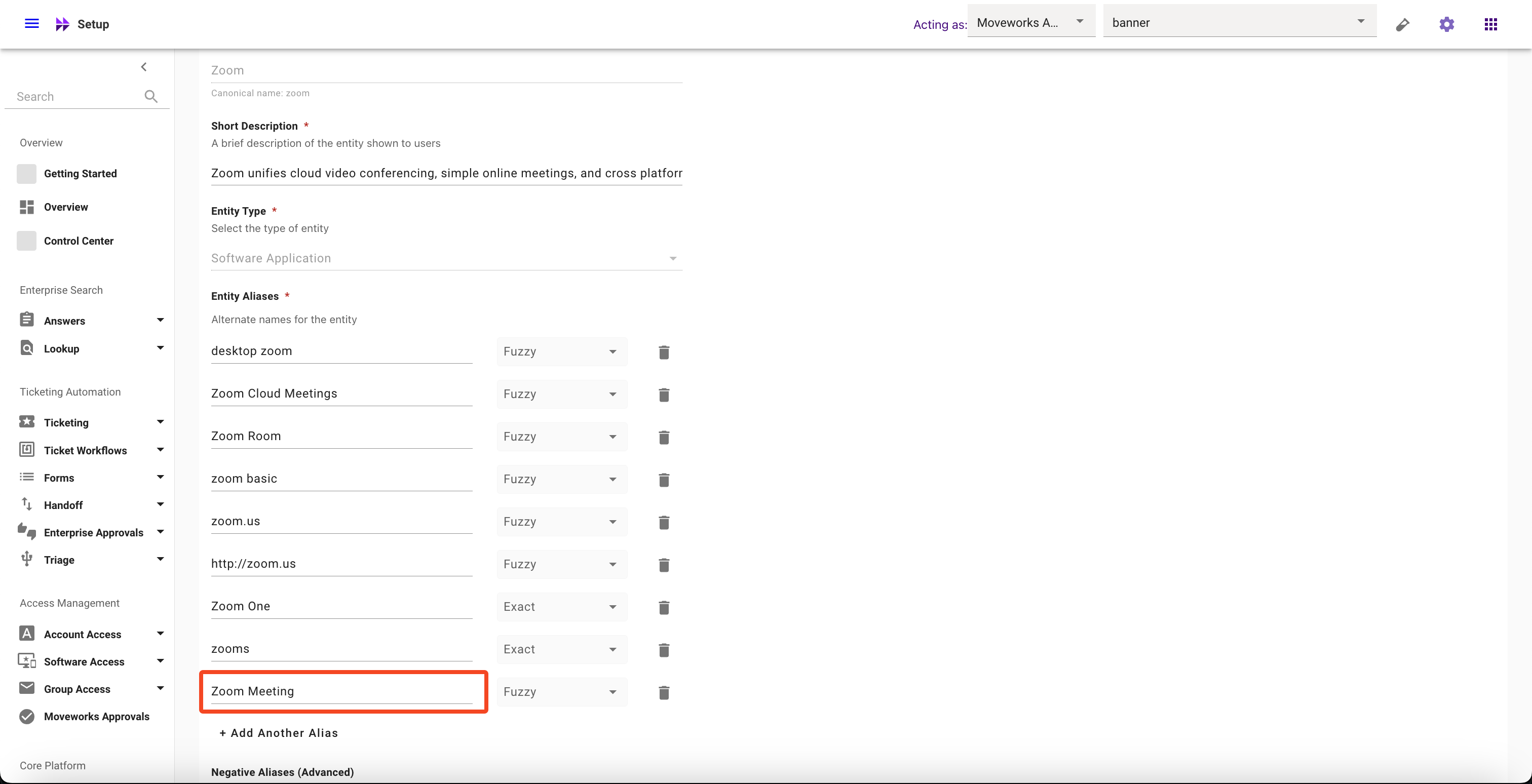
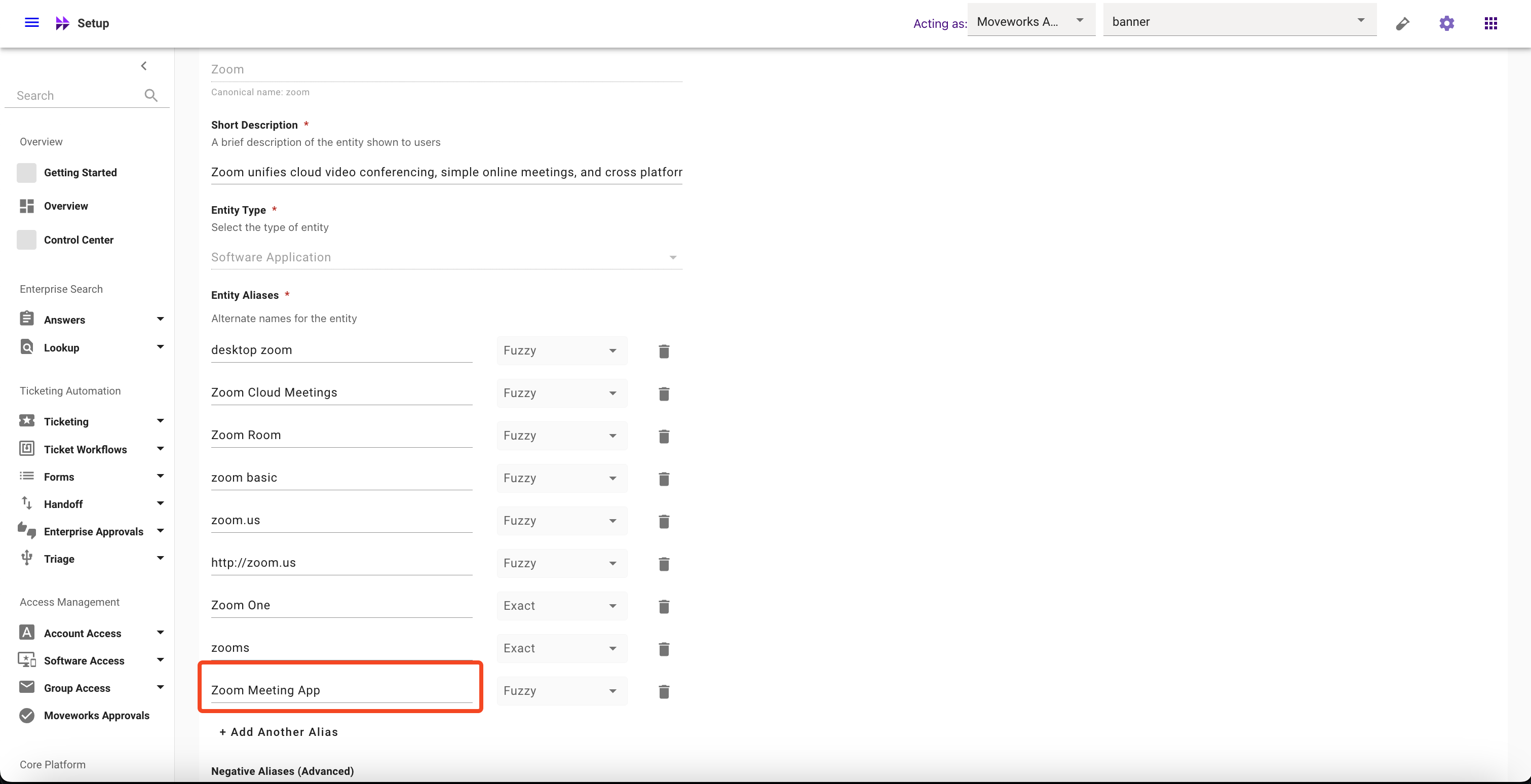
Select the Entity whose Aliases you want to modify
-
Click on Aliases field and Modify it
-
Click on Submit button
How to delete Aliases
-
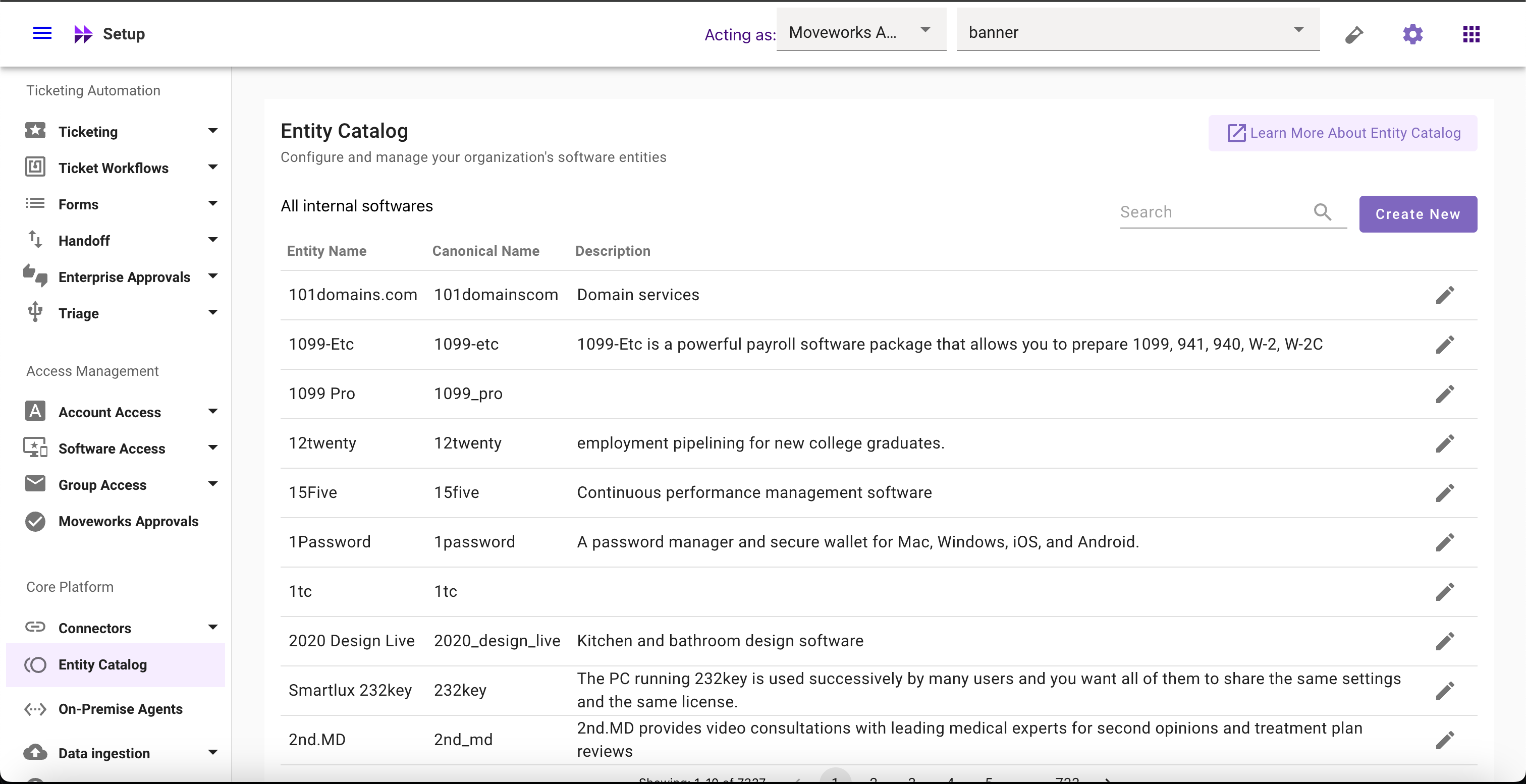
Navigate to Moveworks Setup > Core Platform section > Entity Catalog screen
-
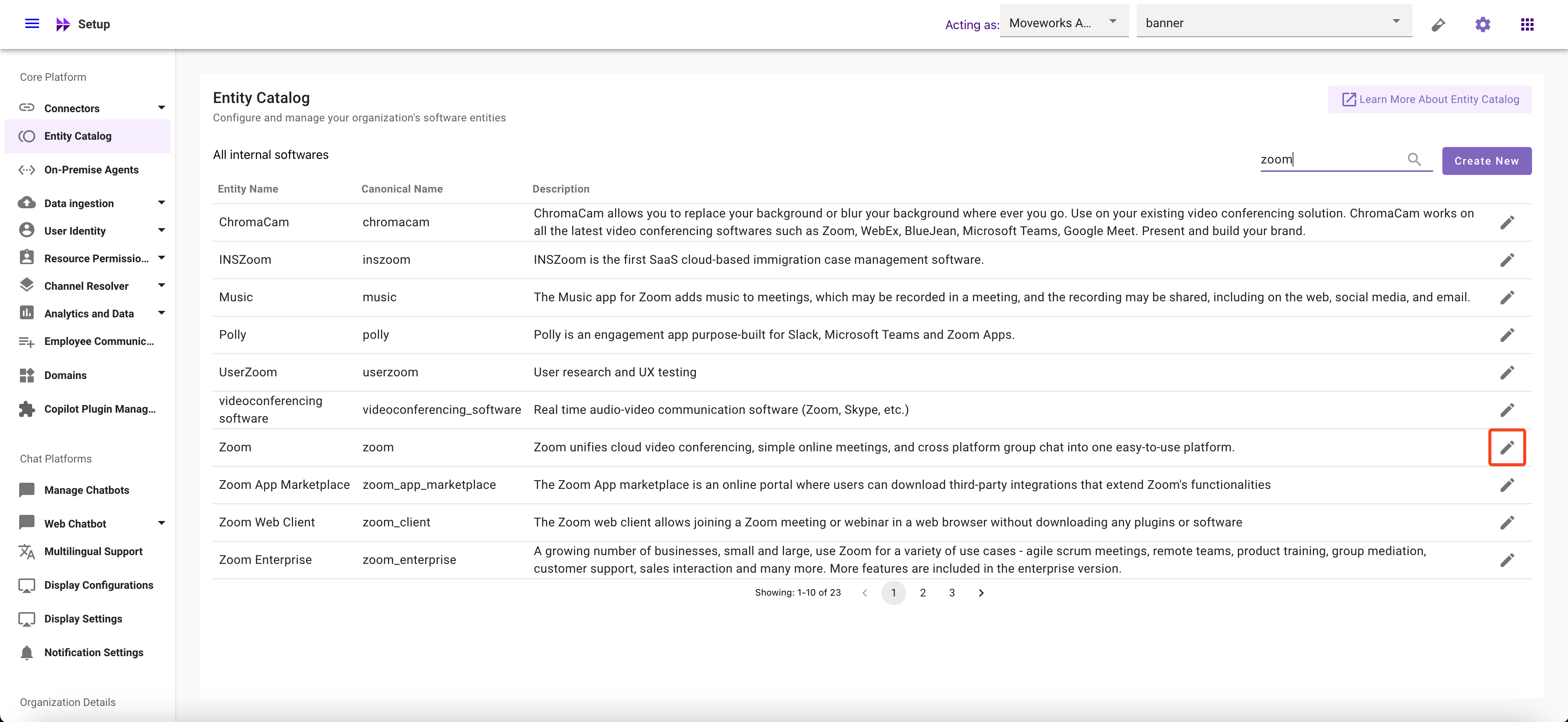
Select the Entity whose Aliases you want to delete
-
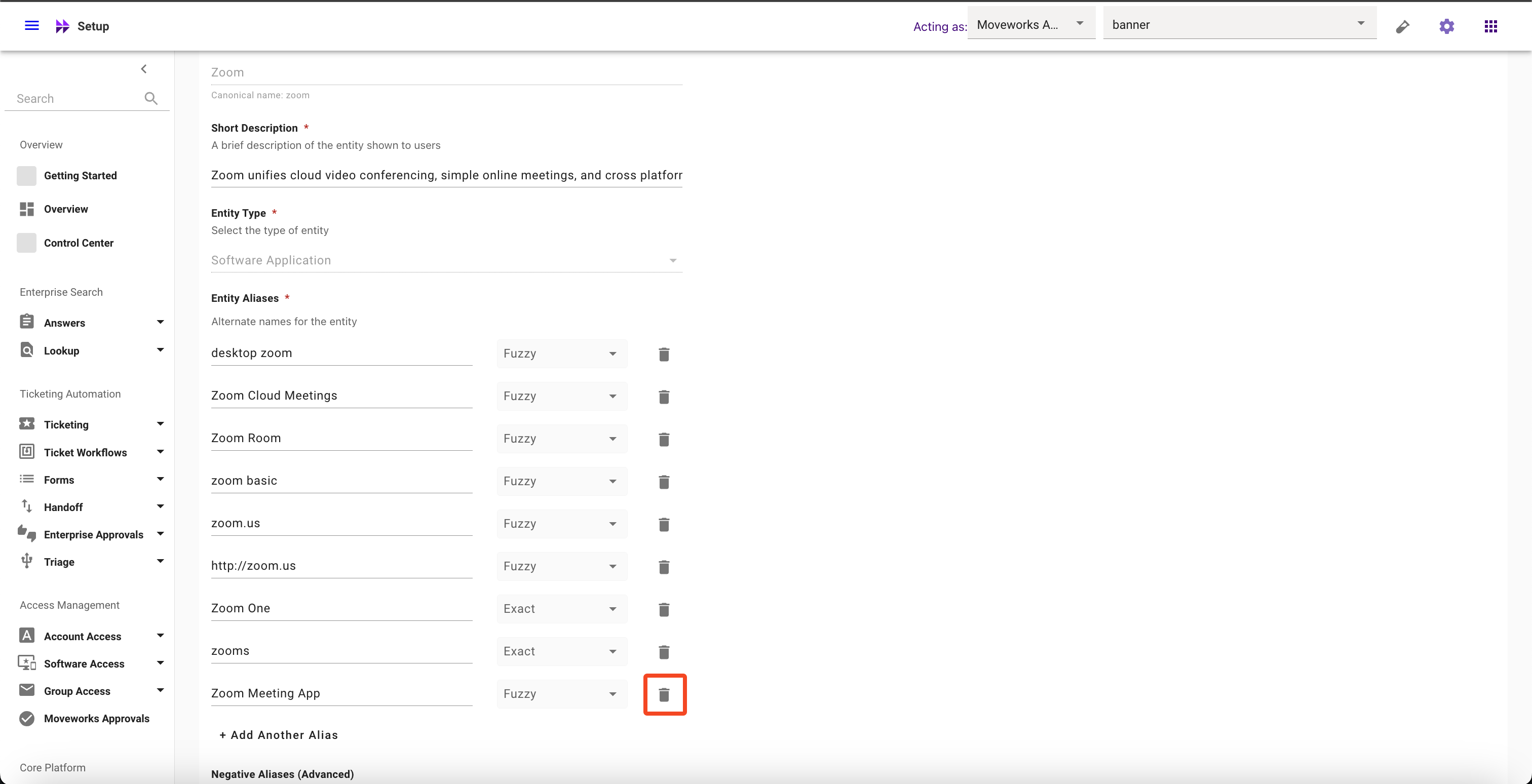
Click on the Delete button
-
Click on Submit button
How to update Matching Logic
-
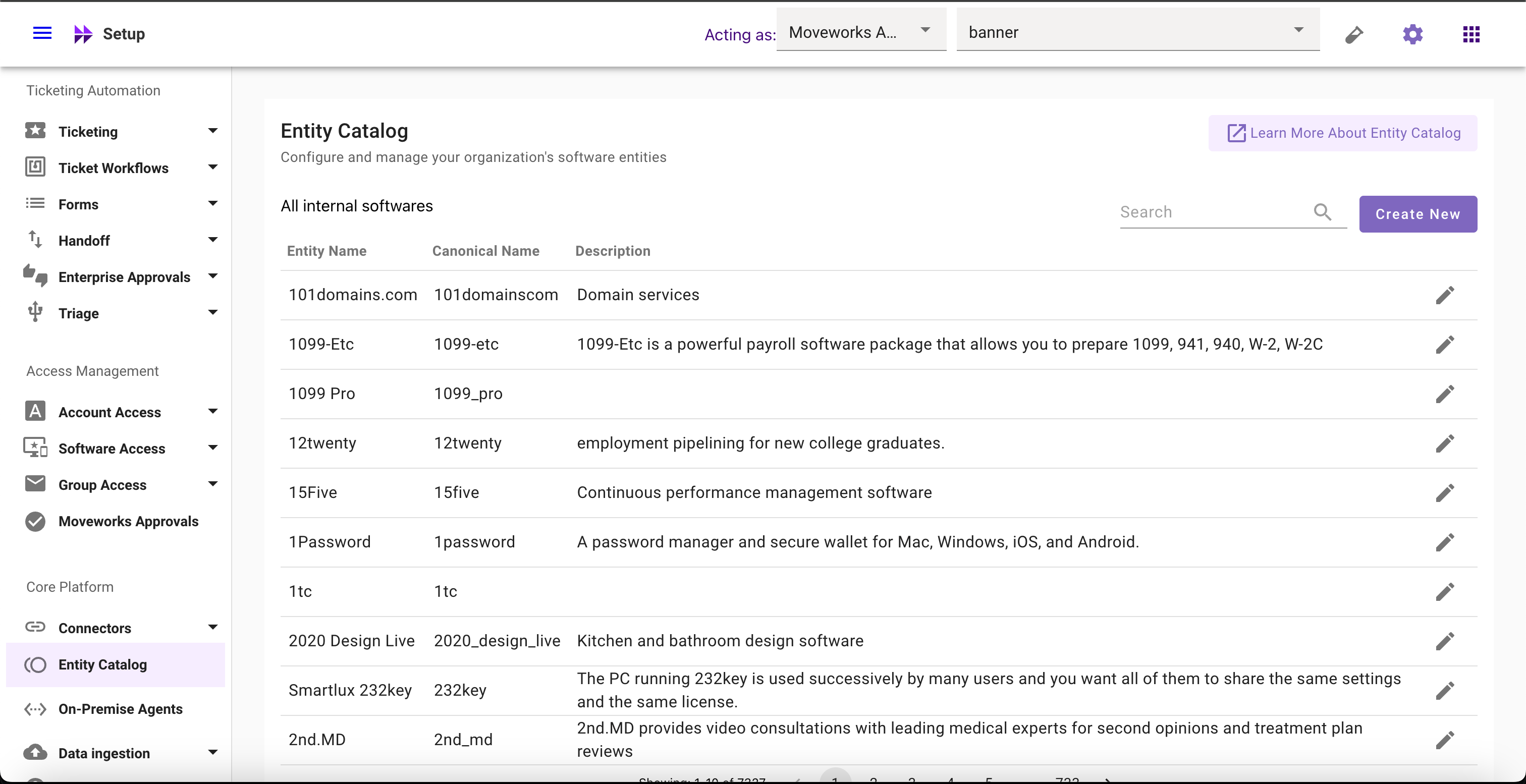
Navigate to Moveworks Setup > Core Platform section > Entity Catalog screen
-
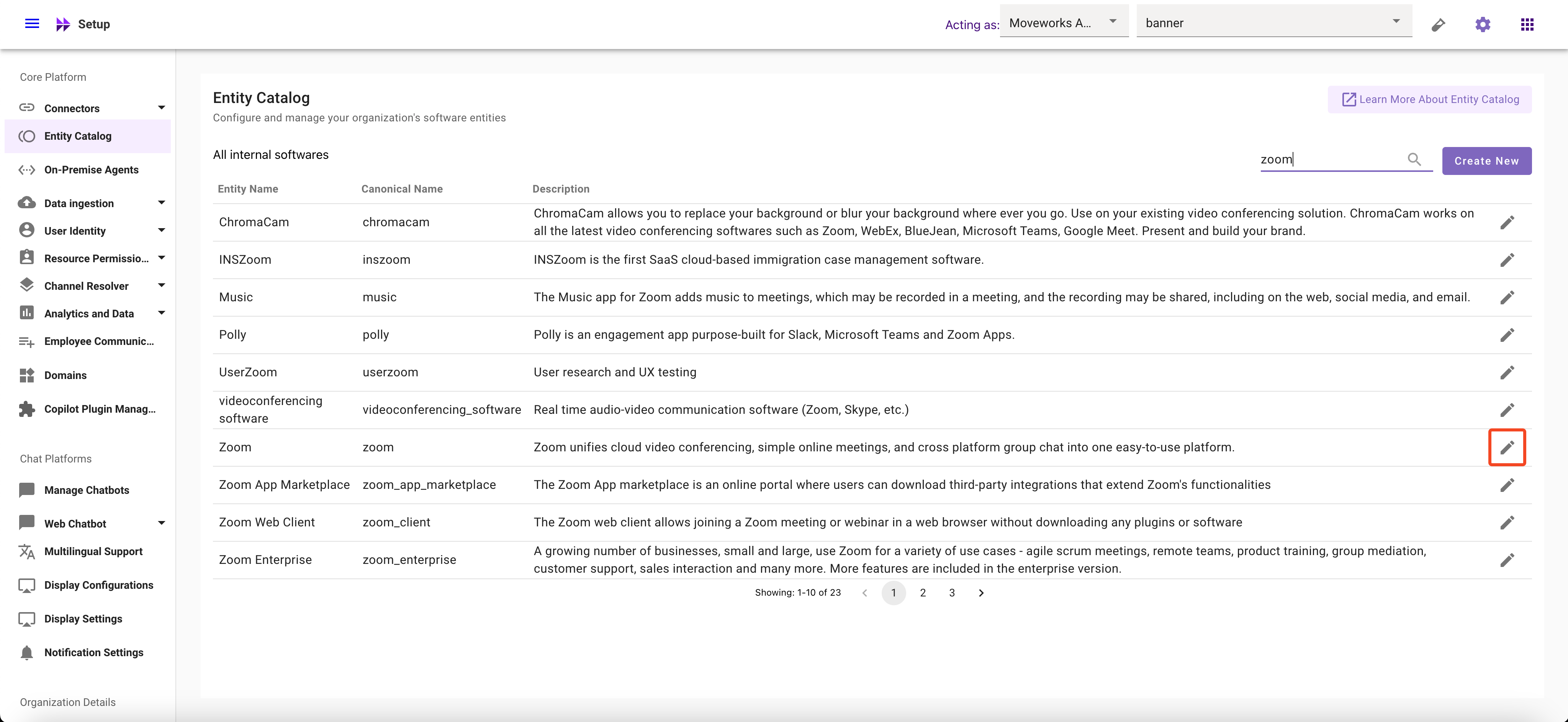
Select the Entity whose Aliases you want to modify
-
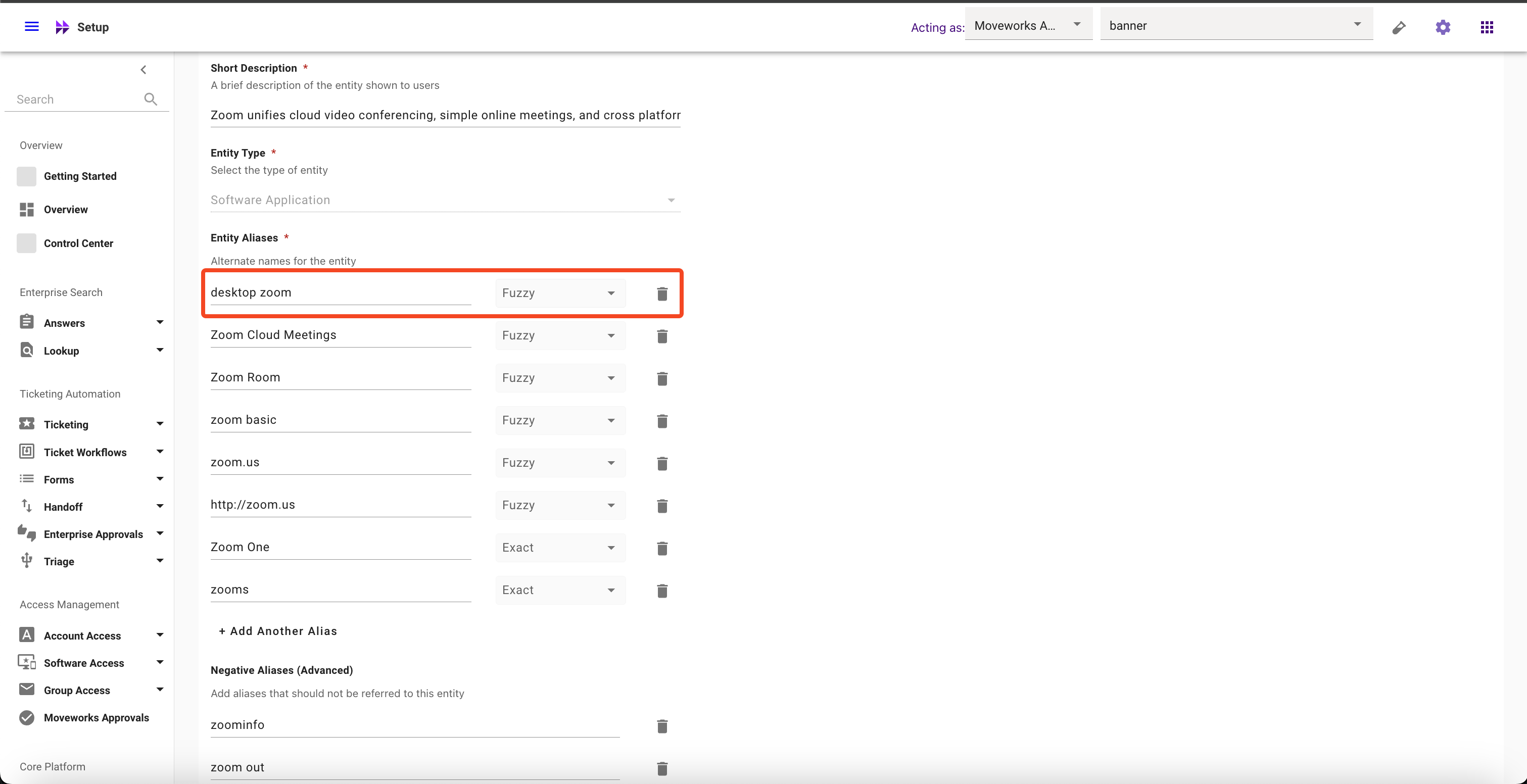
Click on the Matching Logic dropdown and Select your preferred option
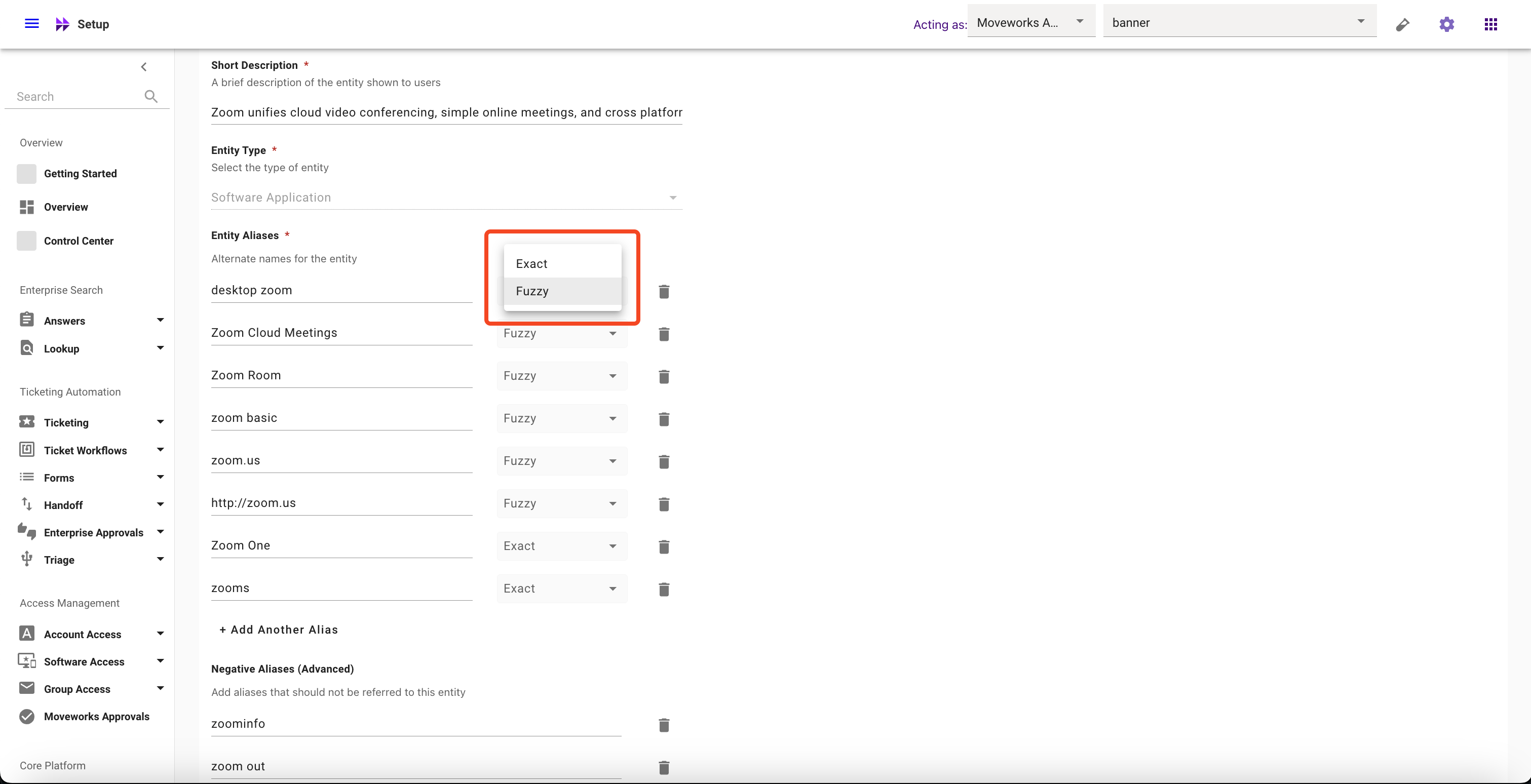
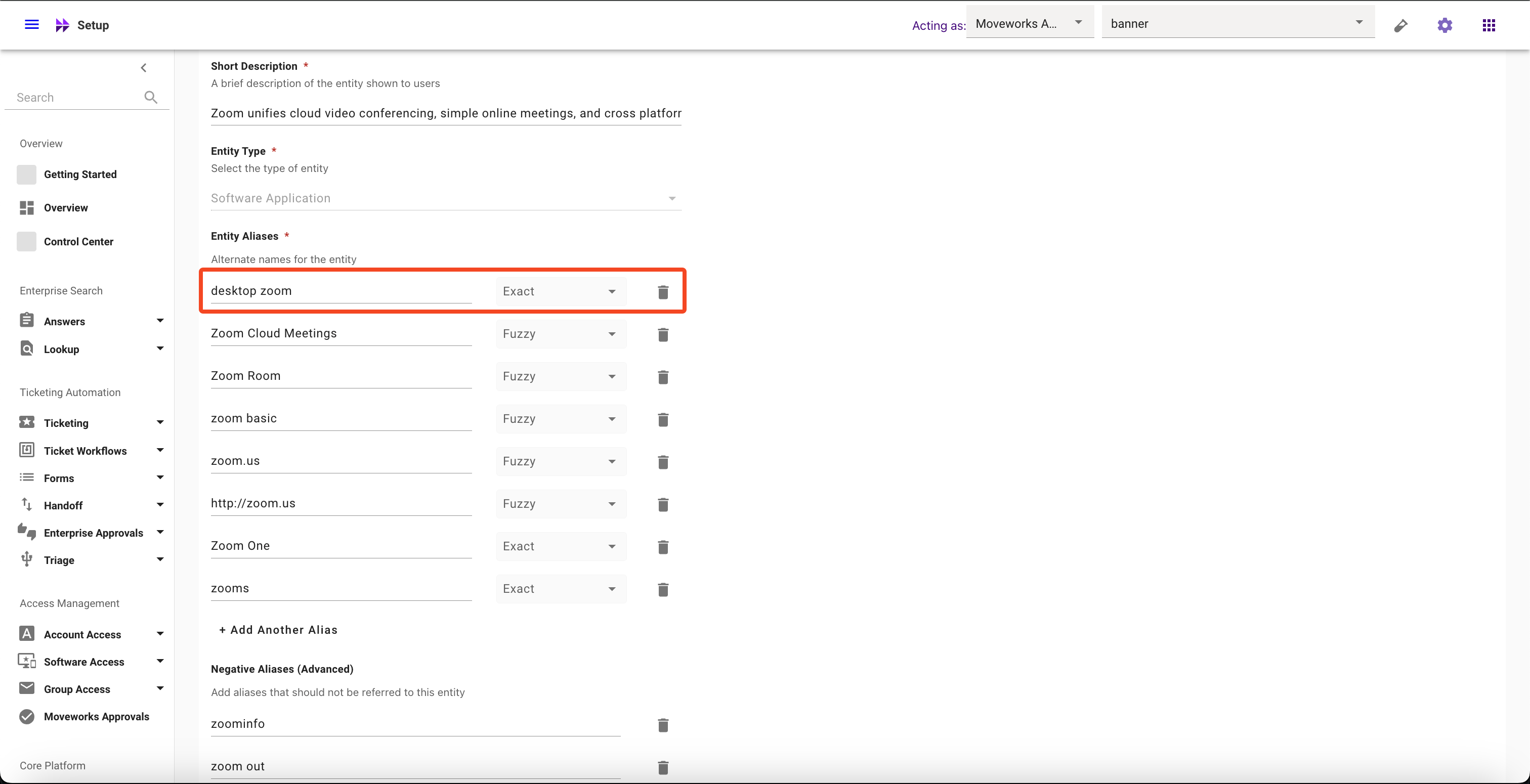
-
Click on Submit button
How to add Negative Aliases
-
Navigate to Moveworks Setup > Core Platform section > Entity Catalog screen
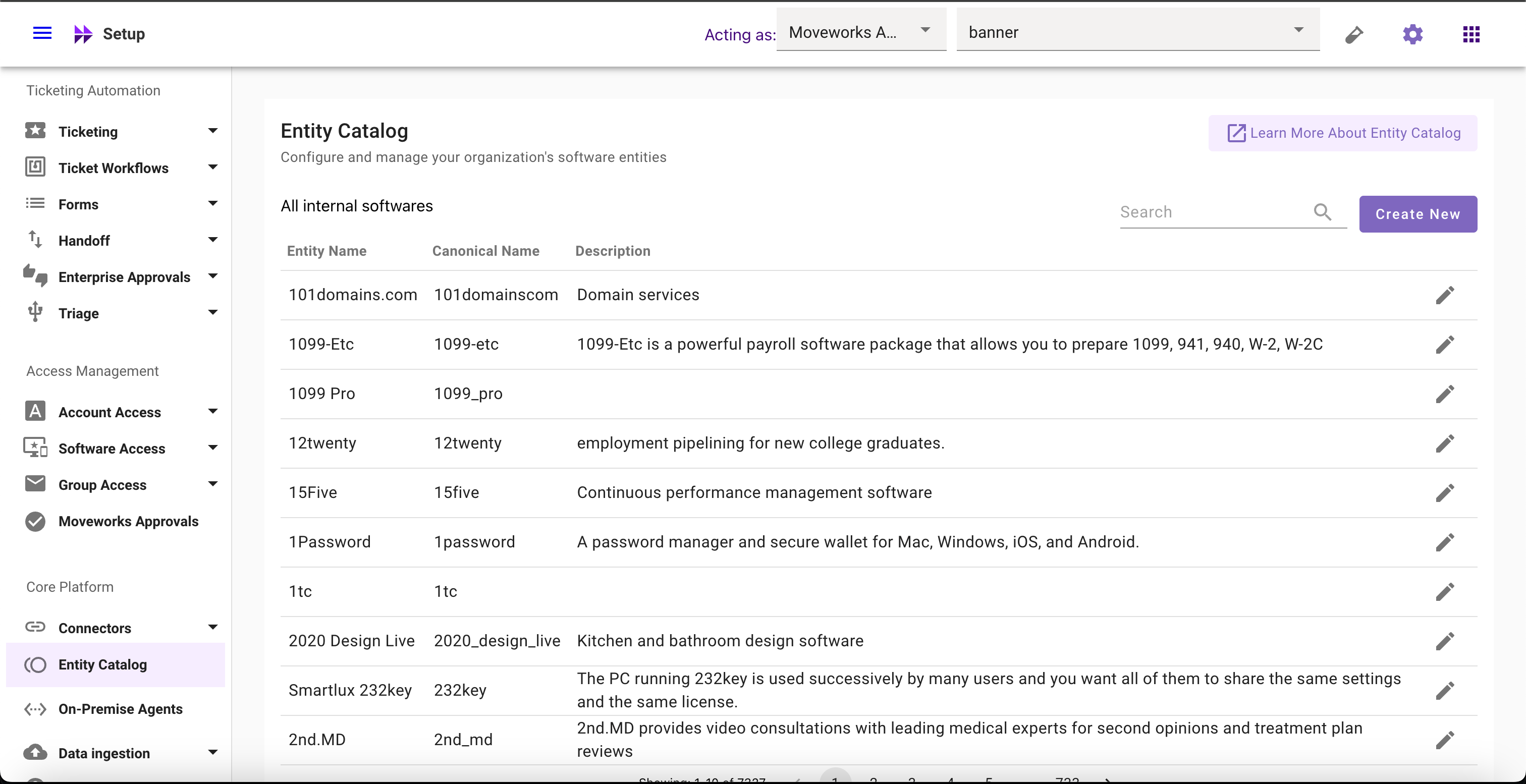
-
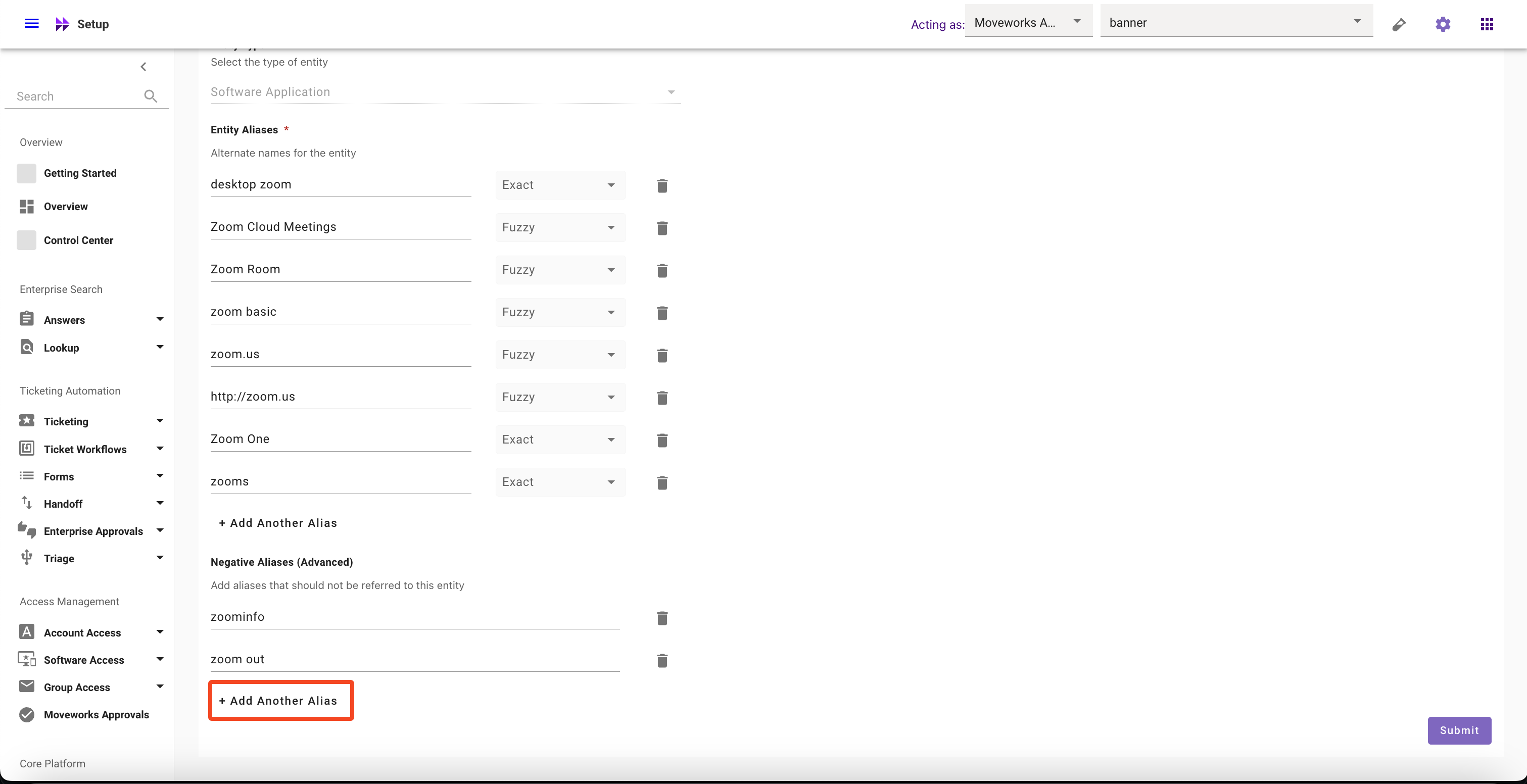
Select the Entity for which you want to add Negative Aliases
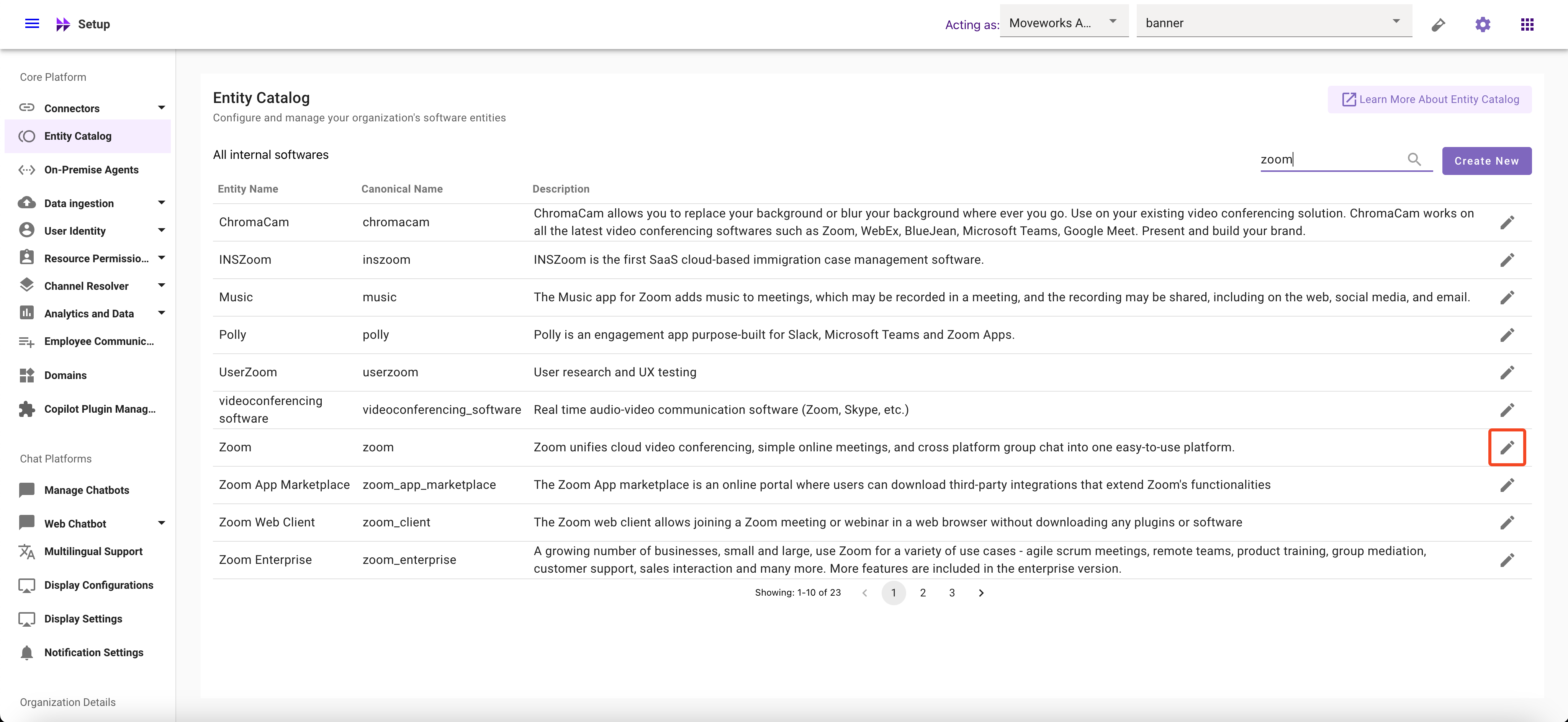
-
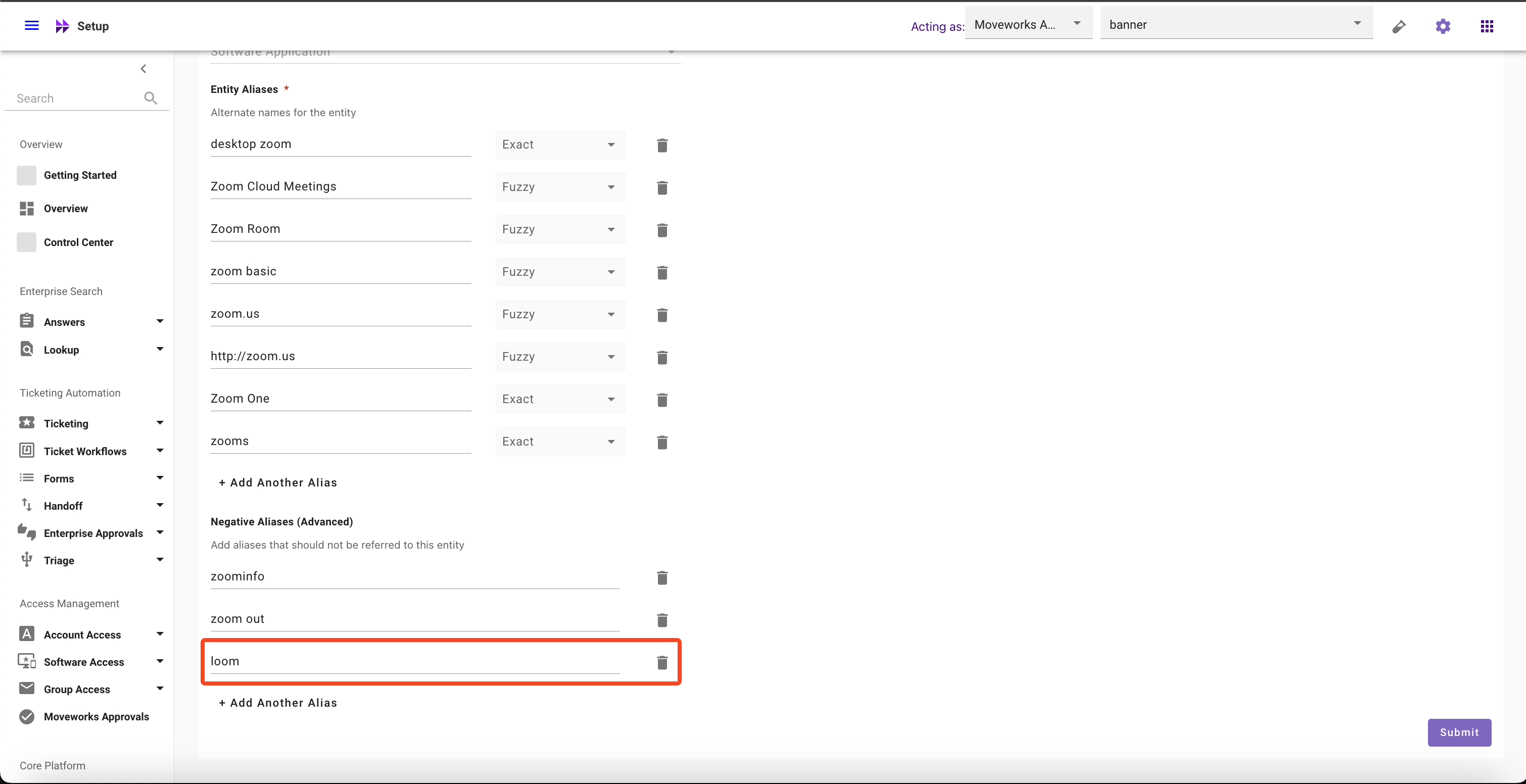
Click on Add Another Alias
-
Click on Submit button
How to modify Negative Aliases
-
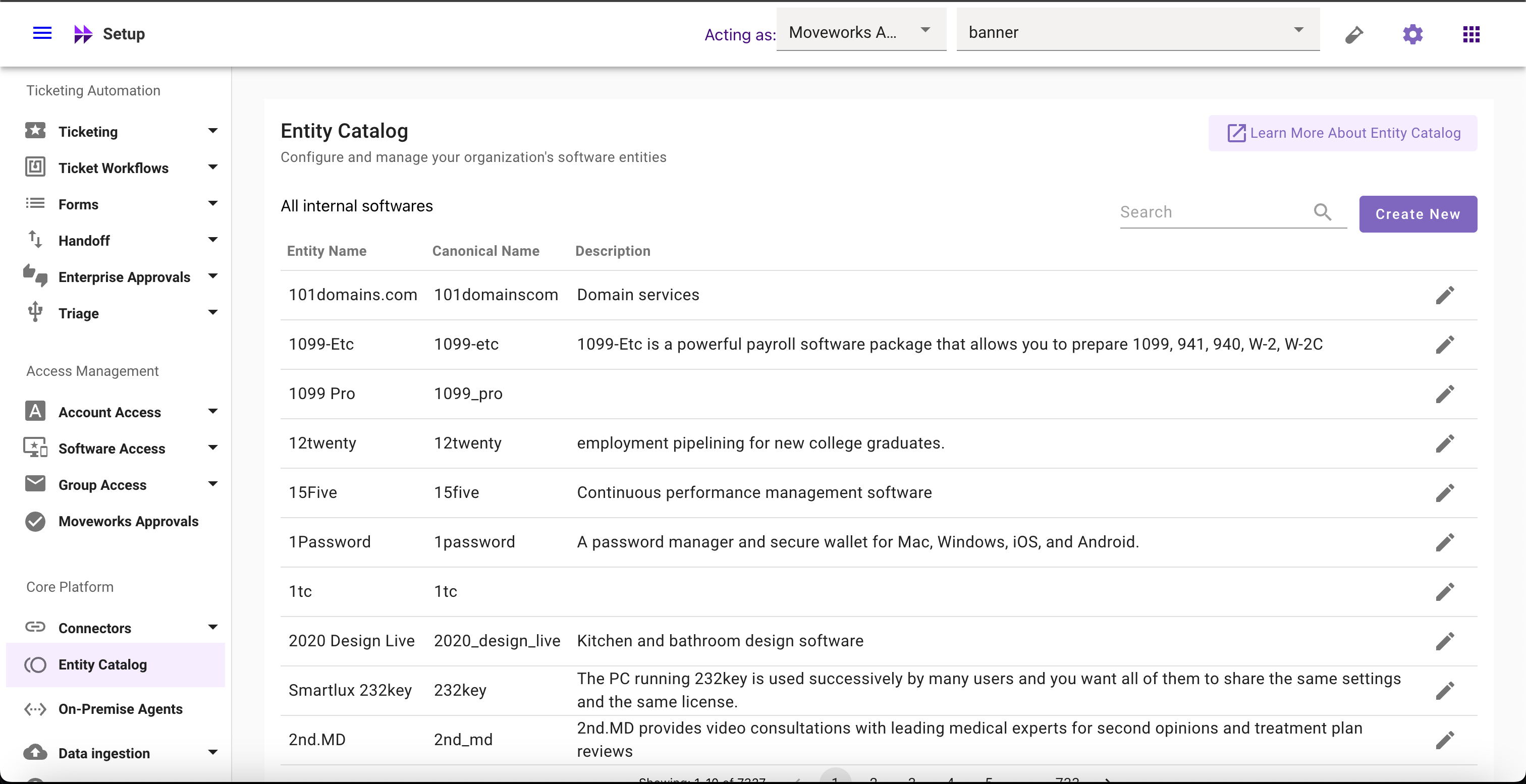
Navigate to Moveworks Setup > Core Platform section > Entity Catalog screen
-
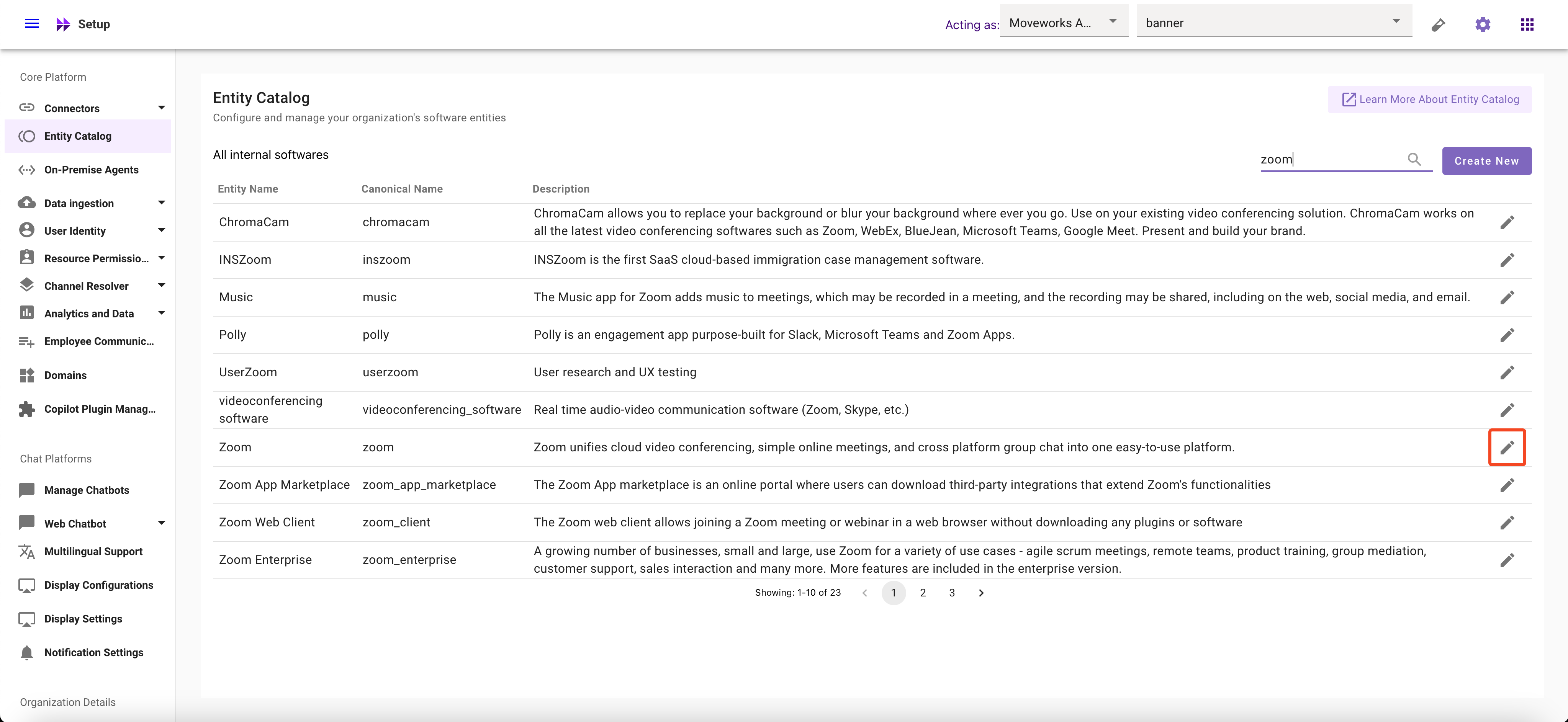
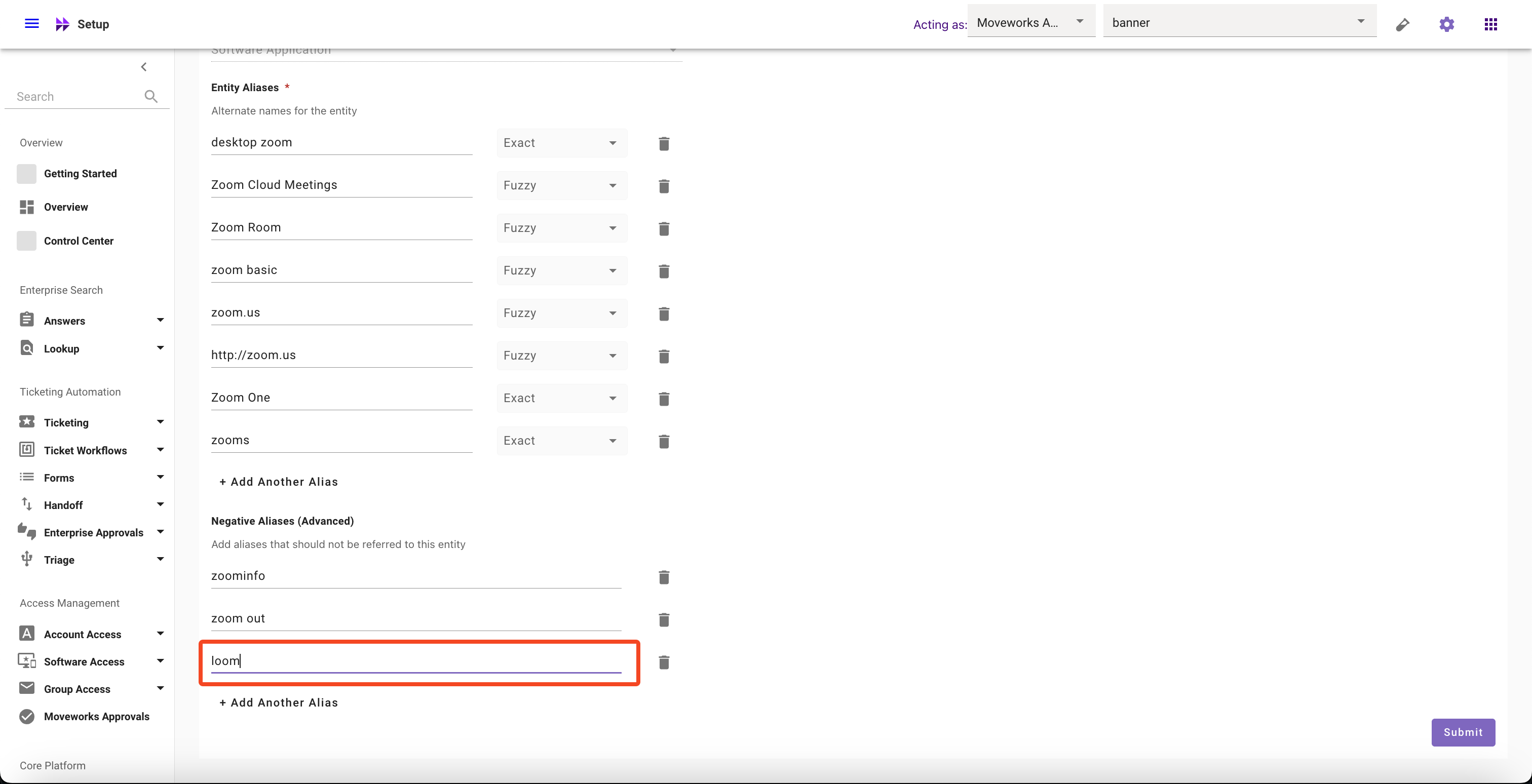
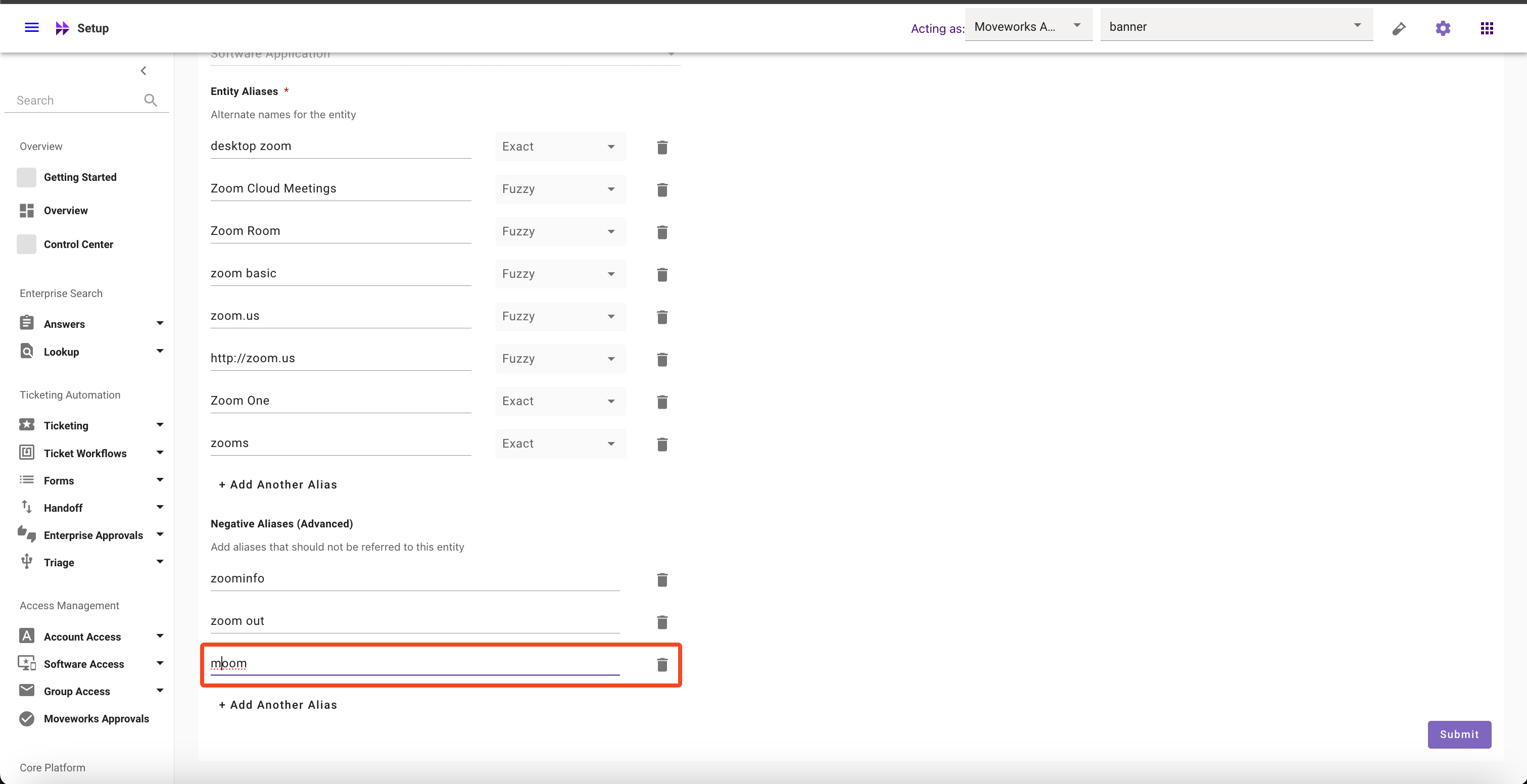
Select the Entity whose Negative Aliases you want to modify
-
Click on Aliases field and Modify it
-
Click on Submit button
How to delete Negative Aliases
-
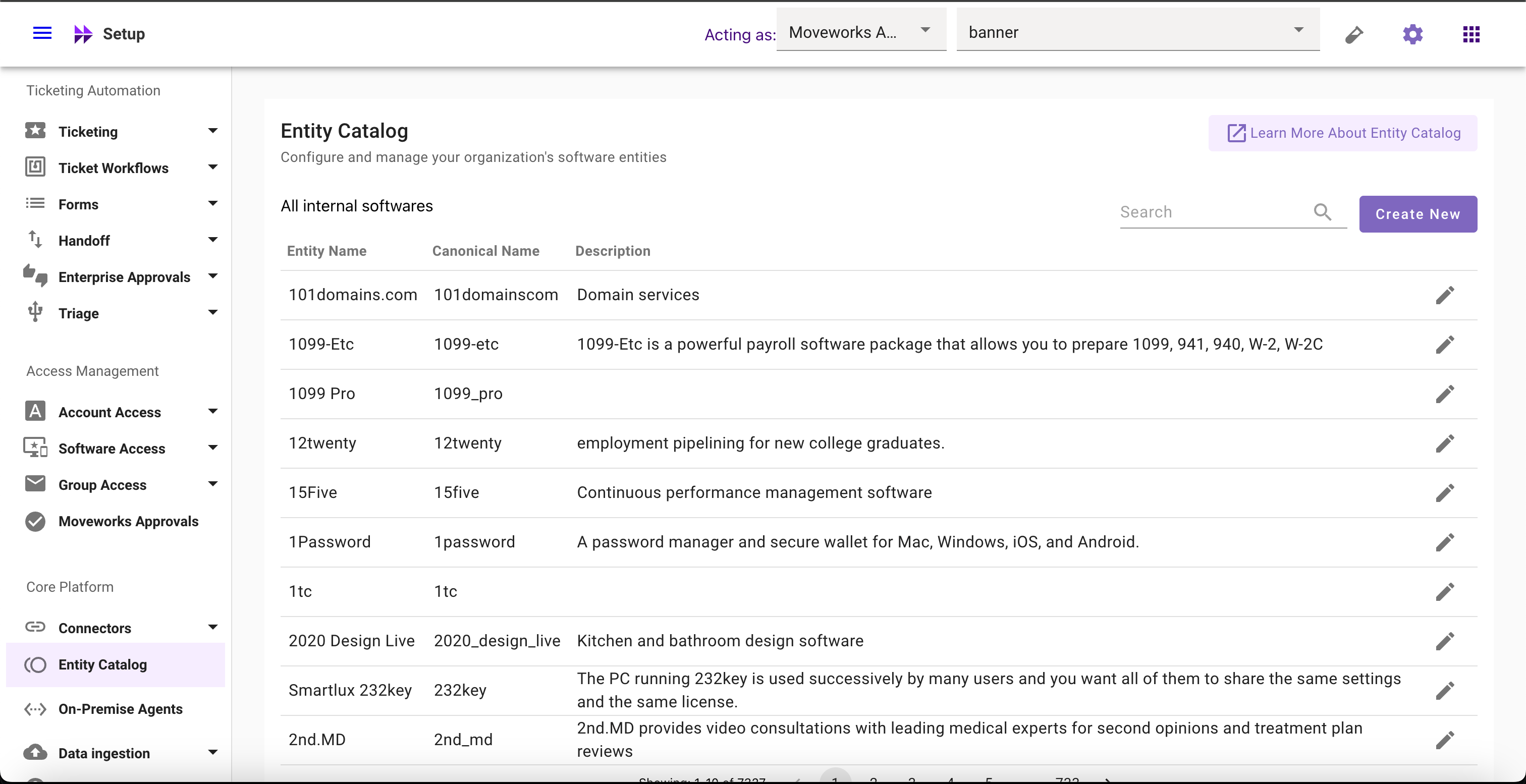
Navigate to Moveworks Setup > Core Platform section > Entity Catalog screen
-
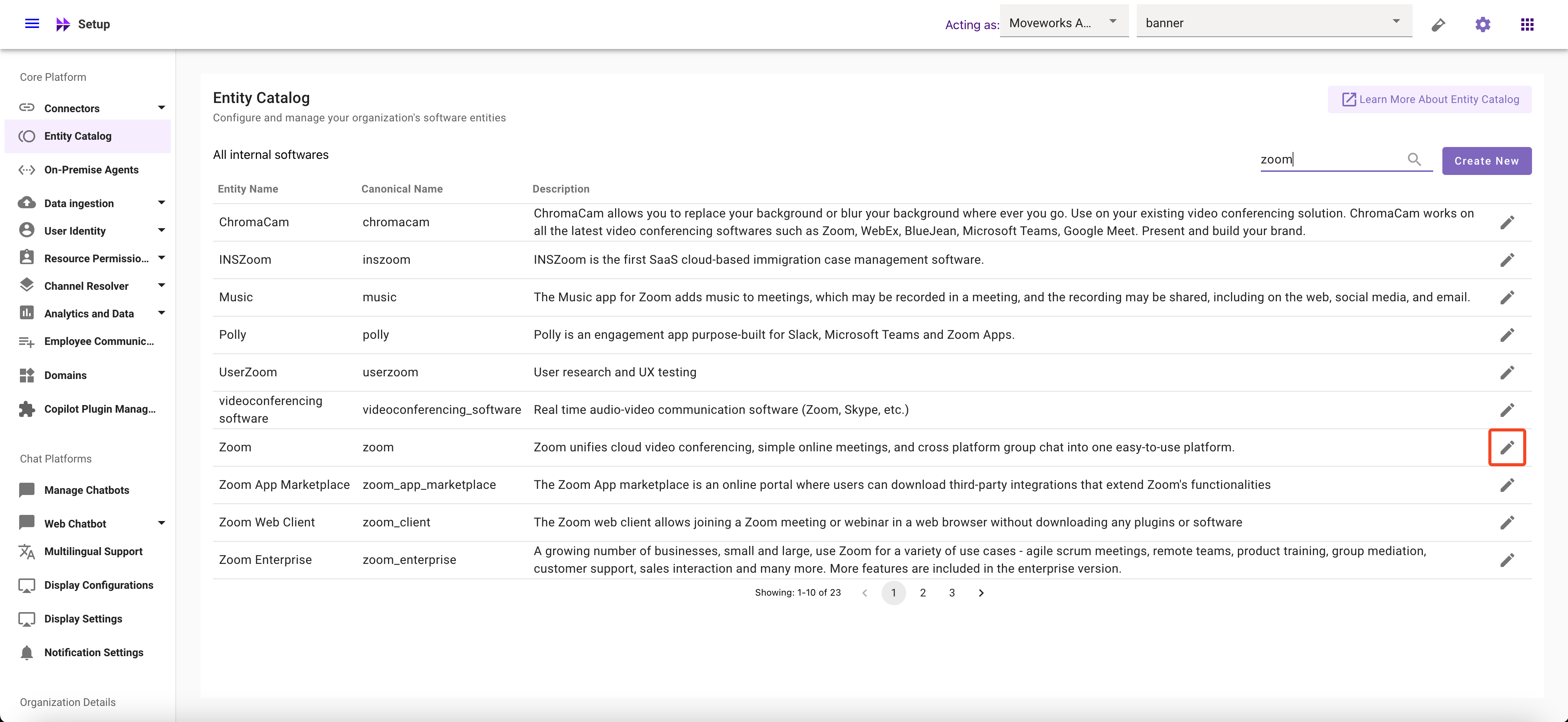
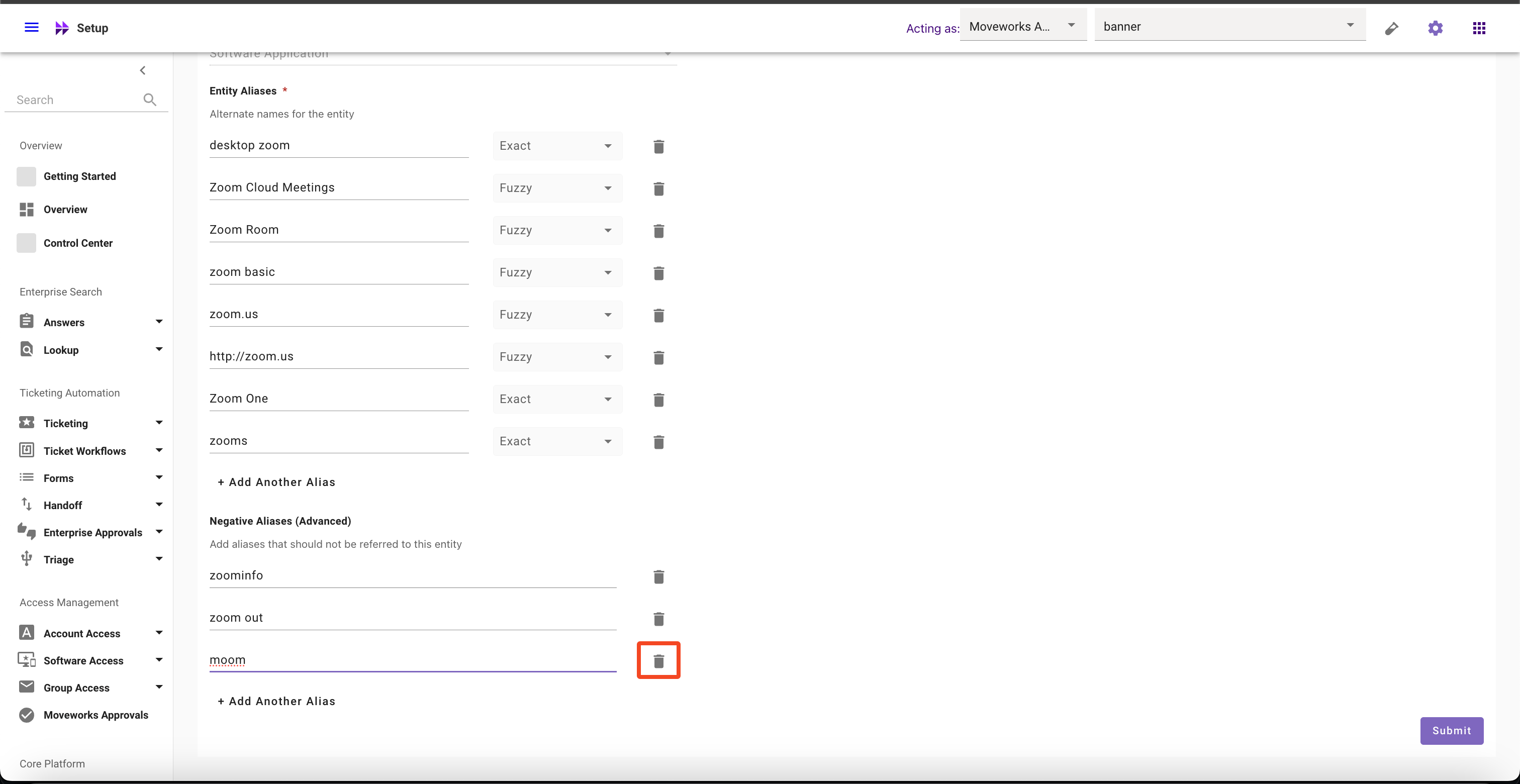
Select the Entity whose Negative Aliases you want to delete
-
Click on the Delete button
-
Click on Submit button