
Handoff settings
Setup handoff categories
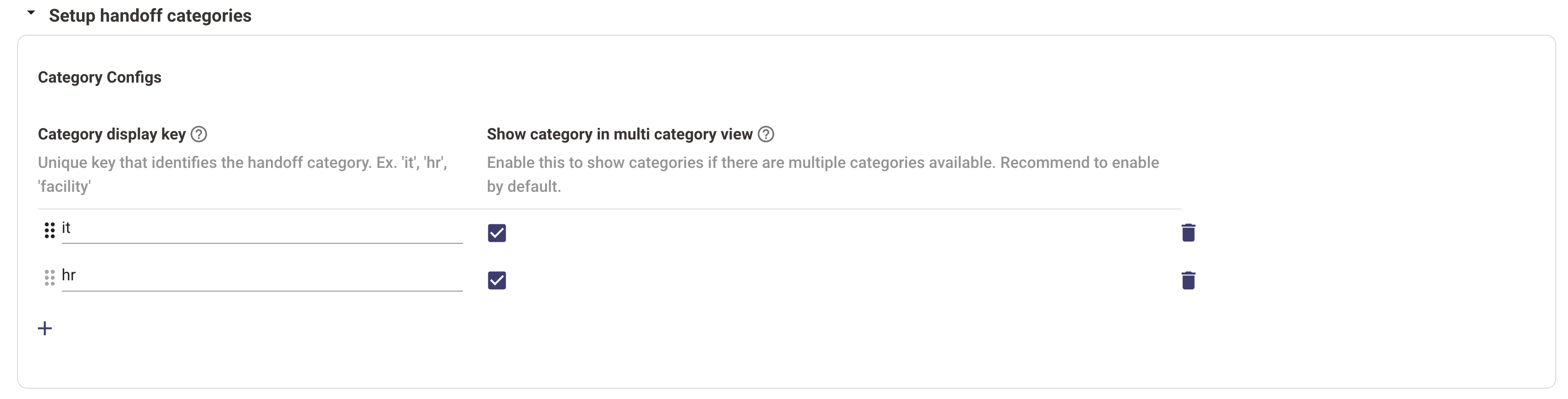
- Category represents a top-level visual grouping of handoff options that will be available to the user
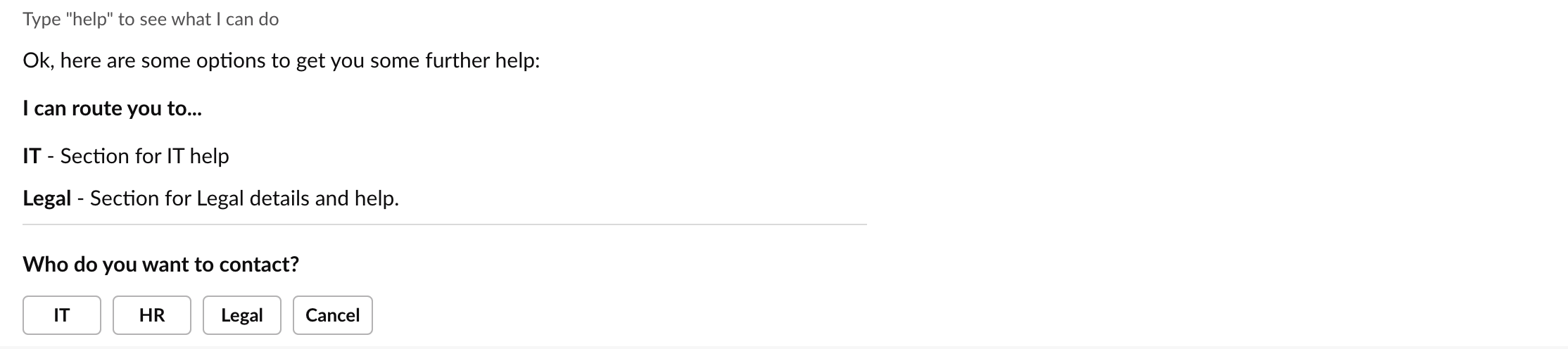
- In this configuration, you are required to activate those categories which will be displayed to the user during the handoff process, as portrayed in the image.
- The category display keys will be used for configuring display values in the next step
Setup handoff categories display configurations
- In this configuration, you are required to enter display values for “Handoff category names” and “Handoff category description”.
- The category name and description are used, as portrayed in the image.
Setup items for categories
- An “item” represents a single handoff destination (email address, URL, file ticket, live chat, handoff to MSTeams channel (to name a few). It’s helpful to think of an item as the lowest leaf node of the whole handoff system (e.g. a “leaf-level” endpoint).
- Add Item Display Key: Ensure that the same key name is provided in the Display configurations and Live Agent settings for proper linkage.
- Select Item Domain: Choose the appropriate domain for the item.
- Choose Deflection Action: If you wish to enable deflection handoff, select a deflection action from the following options:
- URL
- Chat channel ID
- Rich ticket filing form
- Specify Handoff Type: Exclude this step if you’ve already activated URL/Email/Chat Channel Deflection handoff. Choose one of the following depending on your preference:
- File Ticket Handoff: Opt for this if you desire ticket creation through the usual route or if you’ve previously selected Rich Ticket Filing.
- Agent Handoff: Choose this to enable agent handoff.
- Pre-Trigger Rule: A Domain Specific Language (DSL) rule determines when the handoff gets triggered. This is typically tied to the domain—if a handoff is detected for a domain, it gets activated. Educate yourself more about DSL here:
Items rated at 1.0 are immediately shown to the user, those rated at 0.5 require the user to manually find them, and items rated at 0.0 are completely hidden and inaccessible throughout the user’s session. - Select Category Display Key: Choose the categories that an item can fall under. Multiple categories can be selected. Once set, this item will appear in all the chosen categories.
Setup items for categories display configurations
- In this configuration, you are required to enter display values for “Handoff item name”, “Handoff item description”, “Handoff item action texts” and “Handoff item disclaimer”.
- The category name and description are used, as portrayed in the image.