
Freshservice
Overview
The Freshservice Classic Ingestion connector indexes Solution Articles from your Freshservice tenant, making that content searchable through the Moveworks AI Assistant.
Supported Content Types
The Freshservice content connectors supports ingesting Solution Articles present in the Freshservice tenant. Moveworks recommends using font sizes within your Freshservice article editor judiciously to break up the articles in relevant sections.
Snippet Titles
Note that outside of just using titlez, Moveworks will also parse the rest of the article content to determine the best title for your article.
In this example, Moveworks would create a knowledge article “snippet” titled “VPN Troubleshooting Guide: How to solve connection errors”
Snippet Description
By default, Moveworks will display data from thedescription field of your articles. However, if you store any important information in any different or custom fields, you can configure Moveworks to extract from those other fields.
Article Links
Moveworks generates links to your articles based on the article’s path.
https://{{freshservice_url}}/a/solutions/articles/{{article-id}}
If you have a custom portal with a different URL, this URL format can be configured differently.
Unsupported Behavior: Advanced Content
Please note that images, tables, or other multi-media formats will not be rendered in chat. Instead, the user will be able to click the article and view the source article.
Access Requirements
Before setting up the Freshservice Classic Ingestion connector, review the Freshservice Access Requirements.
Permissions
The Classic Ingestion connector for Freshservice does not mirror source permissions. All indexed content is visible to all employees in the AI Assistant search experience.
Architecture
Knowledge Ingestion
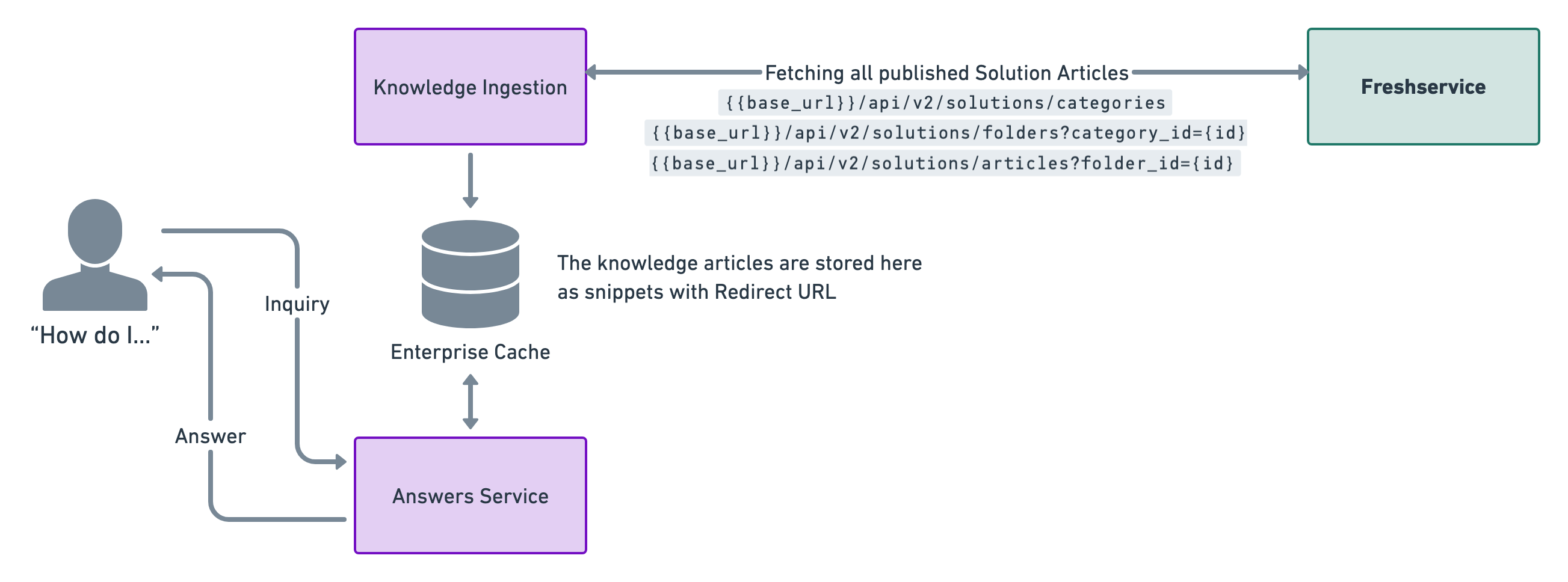
Moveworks leverages the Freshservice APIs to filter & implement the correct ingestion logic:
- Get list of available Solution Categories
{{freshservice_url}}/api/v2/solutions/categories - Get list of available Folders within each Solution Category
{{freshservice_url}}/api/v2/solutions/folders?category_id={{category_id}} - Get list of published Solution Articles within each Folder
{{freshservice_url}}/api/v2/solutions/articles?folder_id={{folder_id}}
Configuration
To configure Freshservice Classic Ingestion in Moveworks Setup, see How to Configure Freshservice Knowledge Ingestion.