
Data Mapper in HTTP Actions
Overview
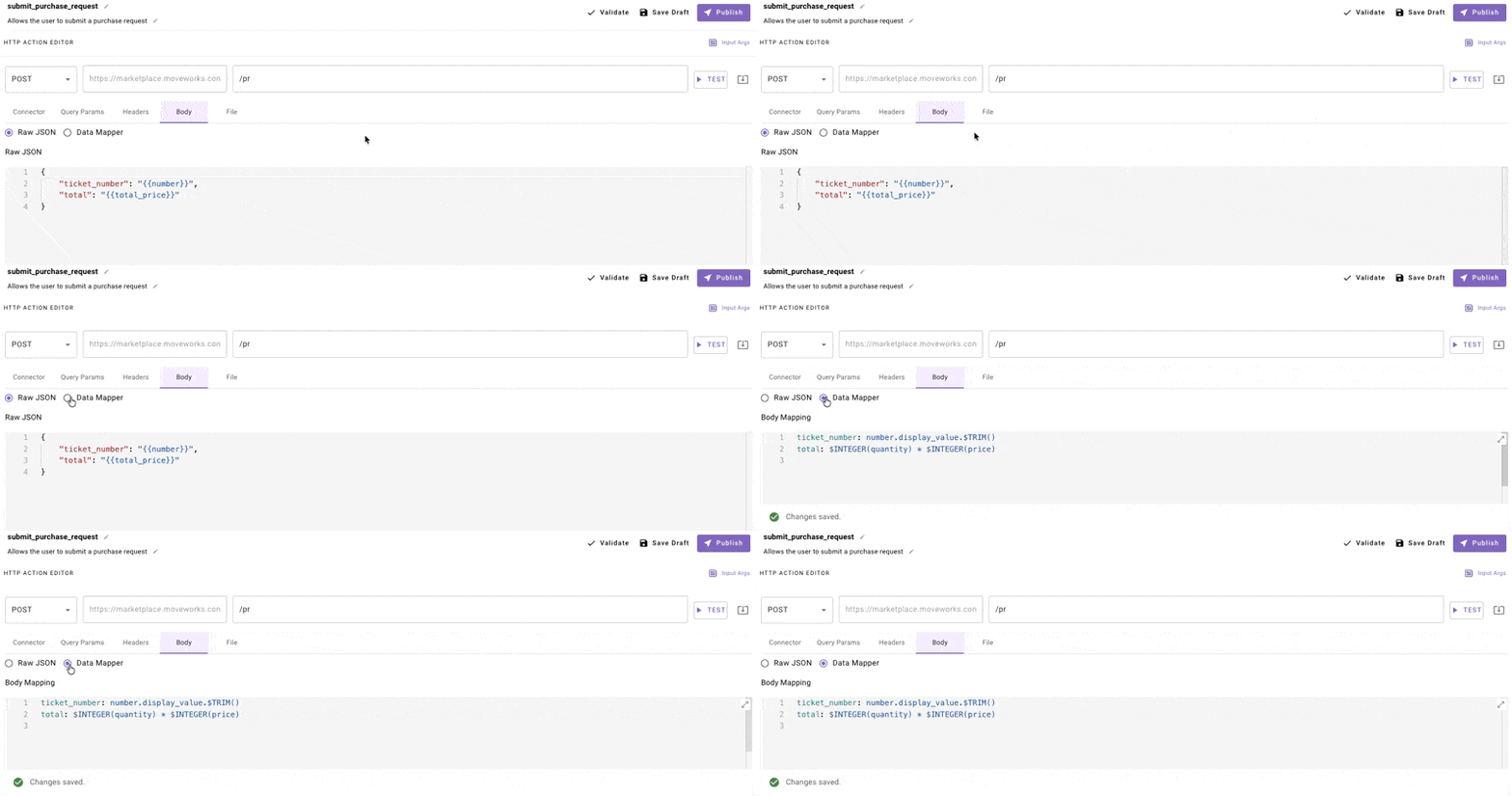
Data Mapper is a YAML-based transformation language for constructing and manipulating JSON payloads. Within Data Mapper, you can also use DSL expressions for string manipulation, type conversion, and computed values.
When to Use Data Mapper
Use Data Mapper when you need to:
- Build dynamic arrays of objects from input data
- Create nested JSON structures with computed fields
- Transform data before sending (filter, map, sort)
- Include conditional fields based on input values
Stick with Mustache for simple variable substitution where the JSON structure is static.
Quick Start
Mustache (Before)
Data Mapper (After)
Both produce the same output for simple cases. Data Mapper is useful when you need array manipulation or conditional logic.
Building Complex Payloads
Example 1: Create a List of Objects
Scenario: Send a bulk update request with multiple items.
Input Data:
Data Mapper:
Output:
Example 2: Conditional Fields
Scenario: Include a field only when a condition is met.
Input Data:
Data Mapper:
Output:
Example 3: Flatten Nested Data
Scenario: Extract values from a nested API response.
Input Data (ServiceNow-style):
Data Mapper:
Output:
Example 4: Filter and Transform Arrays
Scenario: Send only high-priority items to an API.
Input Data:
Data Mapper:
Output:
Example 5: Build Request from 2D Array
Scenario: Transform a Snowflake/SQL response into structured JSON.
Input Data:
Data Mapper:
Output:
Example 6: Keys with spaces or special characters
Scenario: Create a page in a Notion database whose property names contain spaces and &, such as Assignment Group and Files & media.
Data Mapper reads every key as a path, so a key with a space, hyphen, & or other punctuation fails to evaluate. Wrap that kind of key in $["..."] to use it as literal text. Plain keys such as Title and Source don’t need it. For the full rules, see Keys with spaces or special characters in the Data Mapper reference.
Input Data:
Data Mapper:
The CONDITIONAL() adds the Files & media property only when the request includes file uploads, and MERGE() combines it with the other properties.
Output:
Common Operators Reference
String Functions
Apply directly to field values:
Troubleshooting
Tip: Test with hardcoded values first, then add Data Mapper transformations one at a time.
Syntax Errors
Data Mapper uses YAML. Watch for:
- Indentation: Use consistent spaces (not tabs)
- Quotes: String literals need single quotes inside:
"'literal string'" - Colons in values: Wrap in quotes if value contains
: - Keys with spaces or special characters: Wrap the key in
$["..."], for example$["Assignment Group"]. See Example 6.
Wrong:
Correct:
Empty Arrays
If MAP() or FILTER() returns empty, check:
- The
itemspath is correct - Input data actually contains the expected array
- Filter condition isn’t too restrictive
Debugging
- Test your API with hardcoded values first
- Add one Data Mapper transformation at a time
- Check the Response tab to see actual output
Migration from Mustache
Key difference: Data Mapper preserves types. Arrays stay as arrays, numbers stay as numbers. No need for $STRINGIFY_JSON() workarounds.