
Connect a Server
MCP Workspace is available to a limited set of customers. Moveworks is validating the experience and gathering feedback, so capabilities and limits may change. To request access, register your interest.
Connect a remote MCP server in Tool Studio, confirm that Preview Tools returns the tools you expect, and decide whether users approve each tool call. When the server works, pilot it with a small audience before you widen access.
Before You Start
- Connecting servers is a Tool Studio admin task.
- The authentication method determines whose permissions apply. Per-user authorization uses the employee’s credentials. Application credentials use the application’s permissions.
- Check that the server meets the server requirements. To grade a server against about 70 checks before you connect it, use Rate My MCP Server.
- Start with apps and use cases that do not overlap with an existing plugin or Enterprise Search. See Choose What to Pilot.
Moveworks does not review, approve, or vet MCP servers or their tools. Review the full inventory before you make a server available. A server decides which tools and guardrails it exposes, including whether it offers write or destructive actions.
Add the Required Name and Description
Every MCP server in MCP Workspace requires a Name and Description. Complete both fields when you create a preconfigured or custom server.
- Name: Use the name of the application or service behind the MCP server. Match the words users are likely to use in requests. For example, name a Linear server Linear so a request such as “Check my Linear issues” clearly matches it. For a custom server, use the name of the application or internal service it exposes, not Custom MCP server or a list of capabilities.
- Description: Explain the server’s purpose, the kinds of tools it contains, and the range of functions and operations it supports. Include important boundaries, such as read-only access or operations the server does not provide.
The description is especially important for quality. The assistant uses it to understand the server’s purpose and decide whether the server fits a request.
For example, a custom server for an internal application named Acme Benefits should use Acme Benefits as its Name. Its Description could be: “Looks up employee benefit eligibility, coverage, policy cost, and policy text. The tools are read-only and do not enroll employees or change benefit selections.”
The MCP Workspace description is separate from the individual tool names and descriptions returned by the remote server. Both affect tool selection, so review the tool inventory after the server connects.
Choose a Connection Path
Choose Authentication
Authorization Code supports token refresh when the provider issues a valid refresh token. If the refresh token expires or is revoked, the user must authorize again. Microsoft Entra ID uses this delegated sign-in path. An on-behalf-of token exchange is not built into the MCP connection.
Client Credentials does not automatically send the employee’s UPN or email. Do not use a caller-supplied email as proof of delegated authorization.
For MCP Client Credentials, use the standard token request. Custom grant types, additional token-request headers or body fields, and custom authentication-header options are not supported. Static headers for requests to the MCP server are separate from token-request headers. Custom per-user headers are not supported.
Connect a Preconfigured Server
Preconfigured servers have their connection details filled in for you. MCP Workspace uses DCR to discover their OAuth settings and register the client during setup.
Tool names and descriptions come from the server and are view-only in Tool Studio. The tools shown to an administrator are not necessarily the same tools each end user sees. For per-user authorization, MCP Workspace retrieves tools with the employee’s upstream permissions. With application credentials, it uses the application’s access.
Connect a Custom Server
Use the Custom Server path for a compatible remote server that is not in the preconfigured list, including a homegrown server.
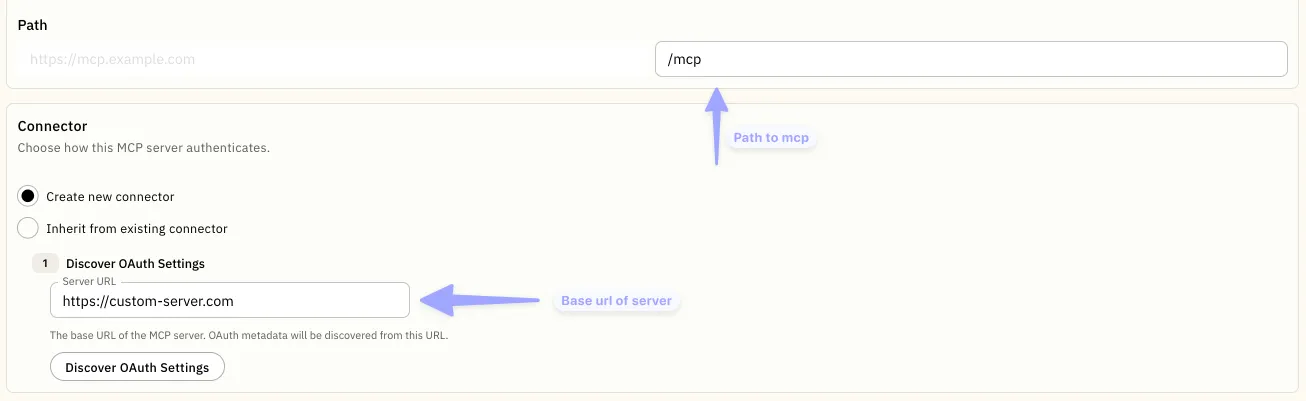
Enter the server endpoint
Select Custom Server, then enter the base URL and path from the server owner’s documentation. Enter the base URL without a trailing /, such as https://mcp.example.com, and enter the Streamable HTTP path in the separate Path field, such as /mcp.
The server does not support DCR
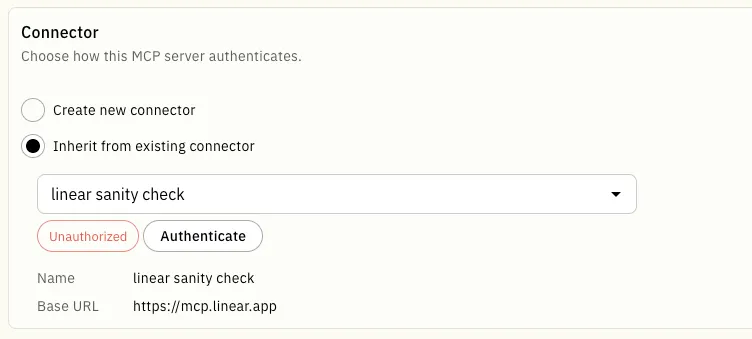
Create an OAuth 2.0 Authorization Code HTTP connector before you connect the custom server. Collect these values from the server owner and authorization provider:
Register the OAuth client
Register an OAuth application with the authorization provider. Add the callback URL for your Moveworks data center, then save the client ID and client secret.
Create the HTTP connector
Follow the OAuth 2.0 Authorization Code guide. Use the MCP server’s base URL, choose the minimum required scopes, and select PKCE using SHA256 code challenge.
MCP Workspace supports DCR for both connection paths when the server supports it. Without DCR, a developer or administrator configures a custom server through an HTTP connector. DCR configures user authorization; it does not grant upstream permissions.
Set the Tool Approval Policy
Every MCP server has a tool approval policy. It controls whether a user has to approve a tool before it runs.
The policy applies to all tools on that server. Set it when you connect the server, and change it at any time afterwards.
How “Follow server guidance” decides
MCP servers can describe each tool with annotations. Moveworks reads three of them.
A tool skips approval only when all three of these are true at once:
- Read-only is
true - Destructive is
false - Open world is
false
In every other case the user is asked.
Annotations are set by whoever built the MCP server, not by Moveworks. A server that sets none of them will ask for approval on every tool. That is the intended outcome: when we cannot tell whether a tool is safe, we ask.
Set or change the policy
- In Tool Studio, go to MCP Servers and open the server.
- Find Tool approval policy in the server configuration.
- Choose one of the three options. Follow server guidance or Always allowed, confirm the change when prompted.
- Publish for the changes to go into effect.
Changing the policy takes effect on the next tool call. It does not require users to re-authenticate.
What your users see
When a tool requires approval, the user is shown what the assistant is about to do and asked to allow it before anything runs. If they decline, the tool does not run.
Existing servers
Every server that existed before this setting was introduced is set to Follow server guidance.
If your servers set tool annotations, read-only tools keep running without interruption and anything that writes or reaches outside the connected system starts asking first. If your servers set no annotations, every tool will ask for approval. Either way, review the policy on each server and change it if the default is not what you want.
Publish the Server
After you verify the server and set its tool approval policy, publish your changes. Then set the pilot audience and test the server with real requests.