
Roles and Permissions
⚠️ Pre-requisite: Please ask your single-sign on (SSO) Admin to follow these instructions (link) to configure Moveworks for your organization (link) and enable this application for you
MyMoveworks is your one-stop portal to access all Moveworks applications. Within MyMoveworks there are a variety of applications (Moveworks Setup, Analytics, Agent Studio, Knowledge Studio, etc.)
This guide will explain how to grant users access to specific applications.
Roles and Permissions for Administrators
Moveworks provides Role-based Access Control (RBAC) capabilities for all Moveworks developed applications. As an administrator, learn to manage access to applications through the “Roles and Permissions” application in this section.
There are three types of access you can configure for each user and application:
- Admin: A role that can grant or revoke access to a specific licensed app for other users.
- Super Admin: A role that can grant or revoke access to all licensed apps for other users. They can also grant or revoke admin access to applications. Moveworks Super Admin has the same access as the bot, bypassing any underlying system/data/API access controls.
- User: A role that can access one app. They cannot add or remove access to these apps.
Additionally, some applications like Agent Studio have additional roles controlling access to analytics for that particular application.
You can access Roles and Permissions from your My Moveworks application through your single-sign on (SSO) app homepage or by logging into https://my.moveworks.com.
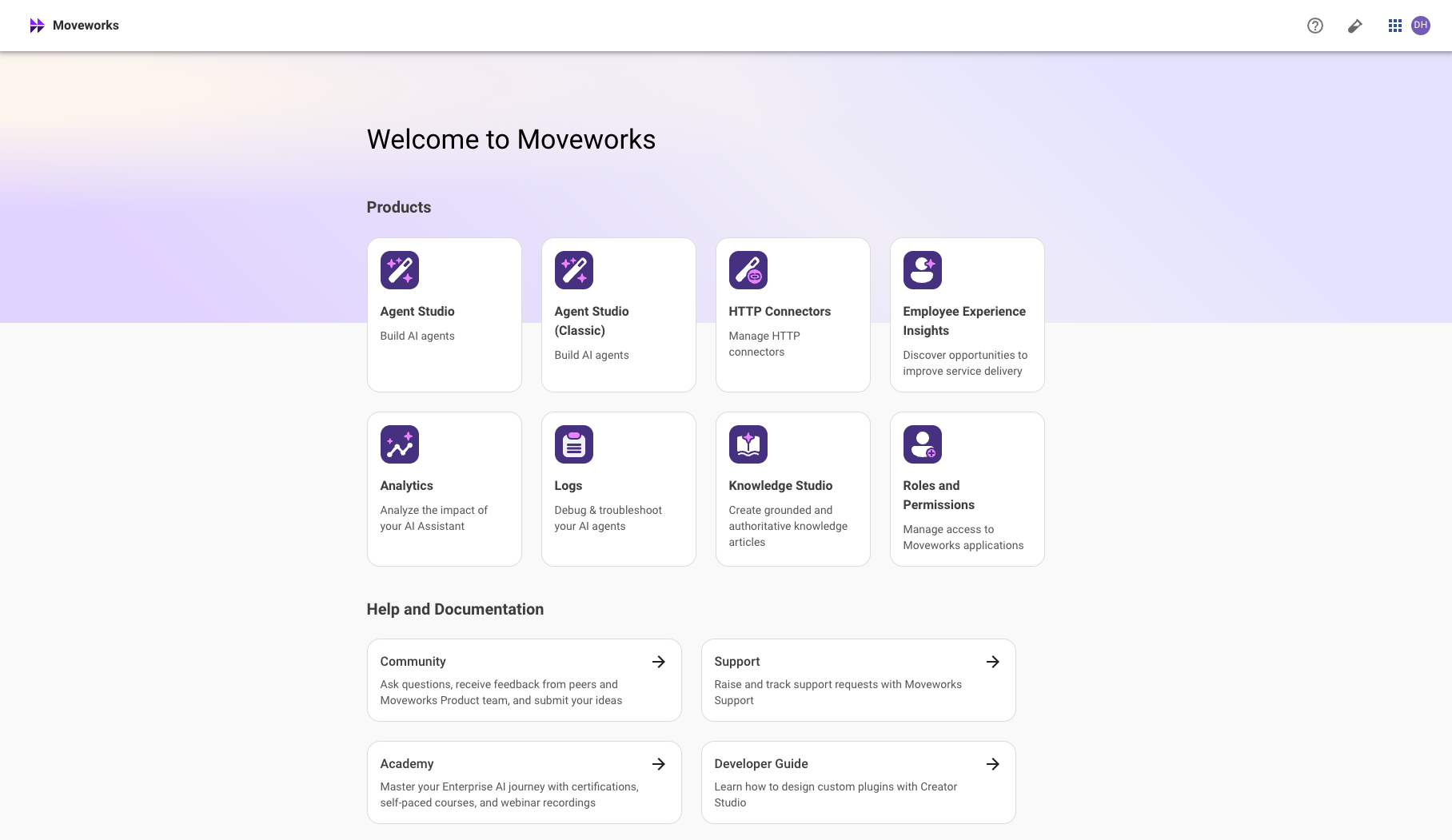
Don’t see Moveworks in your list of SSO applications? You might not be a super admin or Moveworks app administrator. Request access from your organization’s super admin or reach out to the Moveworks Customer Support Team.
Don’t see Moveworks in your list of SSO applications? Check that your SSO admin has enabled the application for you.
Can’t log intohttps://my.moveworks.com with your email? Ensure your SSO admin has granted access to your desired email address.
Can’t log intohttps://my.moveworks.com with your SSO admin? Ask your SSO admin to Contact support to validate your SSO configuration with Moveworks.
Standard Administrator and User Roles and Permissions
Important update:
We are introducing a new role for Analytics. This role is aimed towards allowing admins to govern visibility of all user interactions with the assistant. Read more, on the community post below :
Add a Super Admin
-
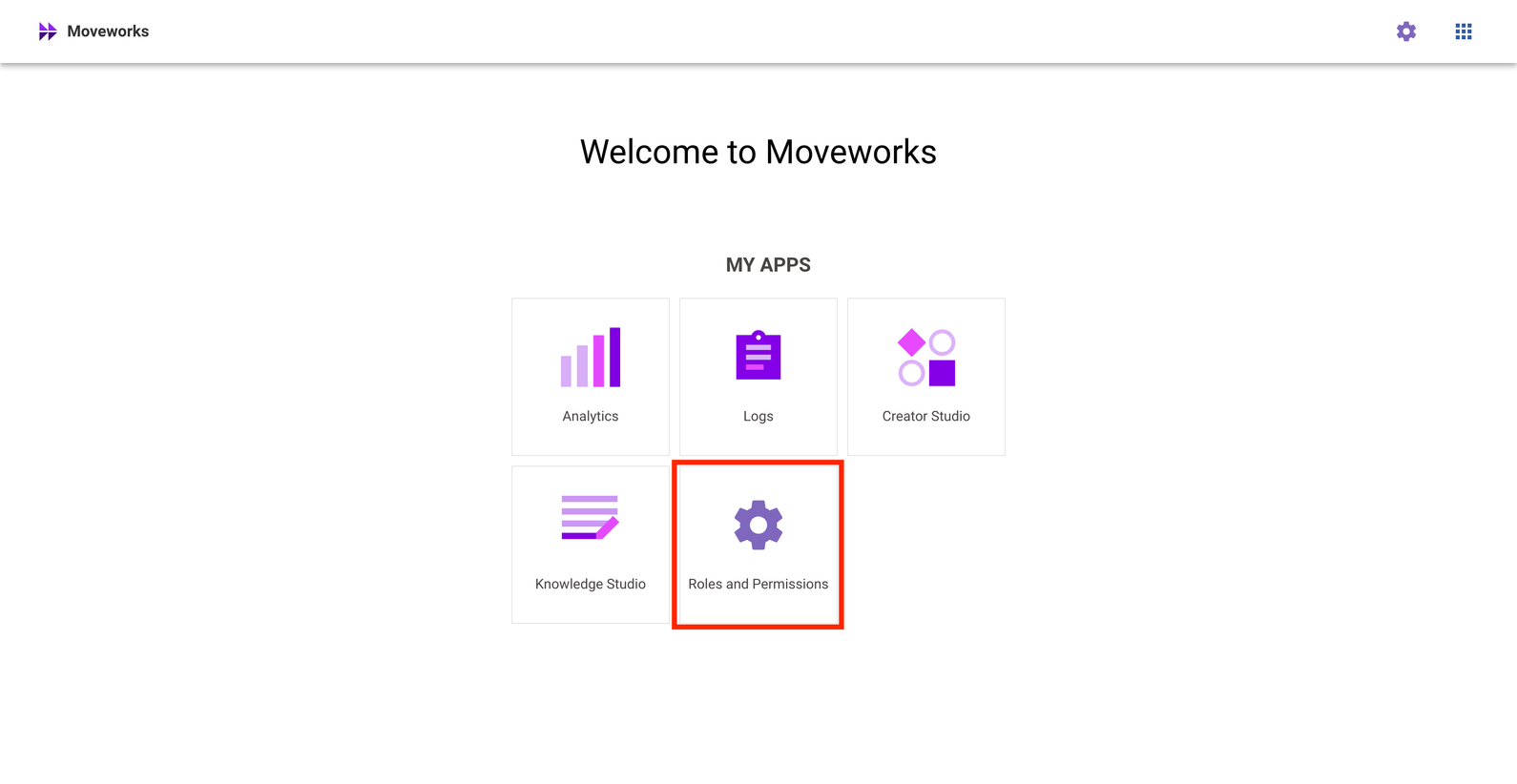
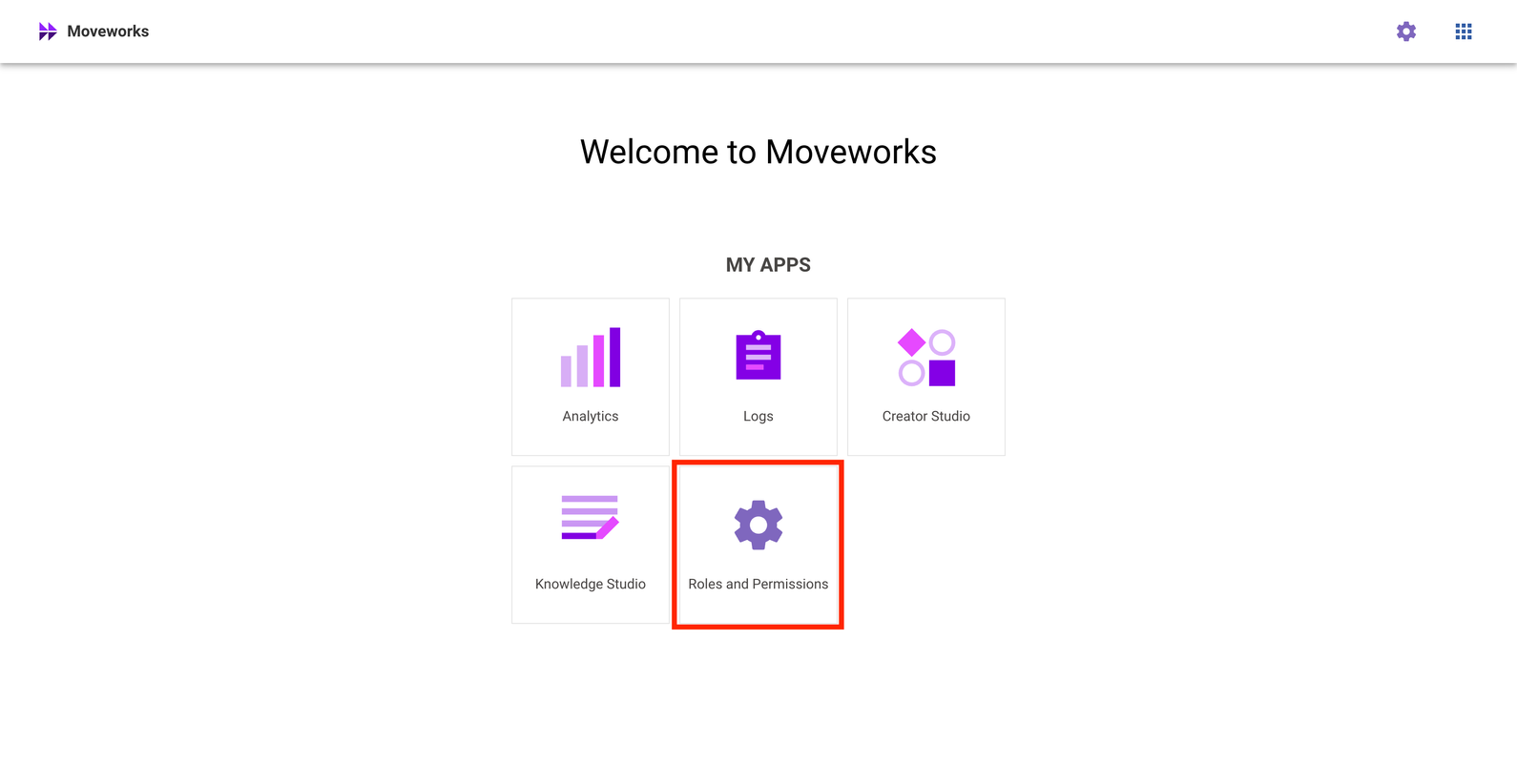
Click on Roles and Permissions.
-
Click on Add User.

-
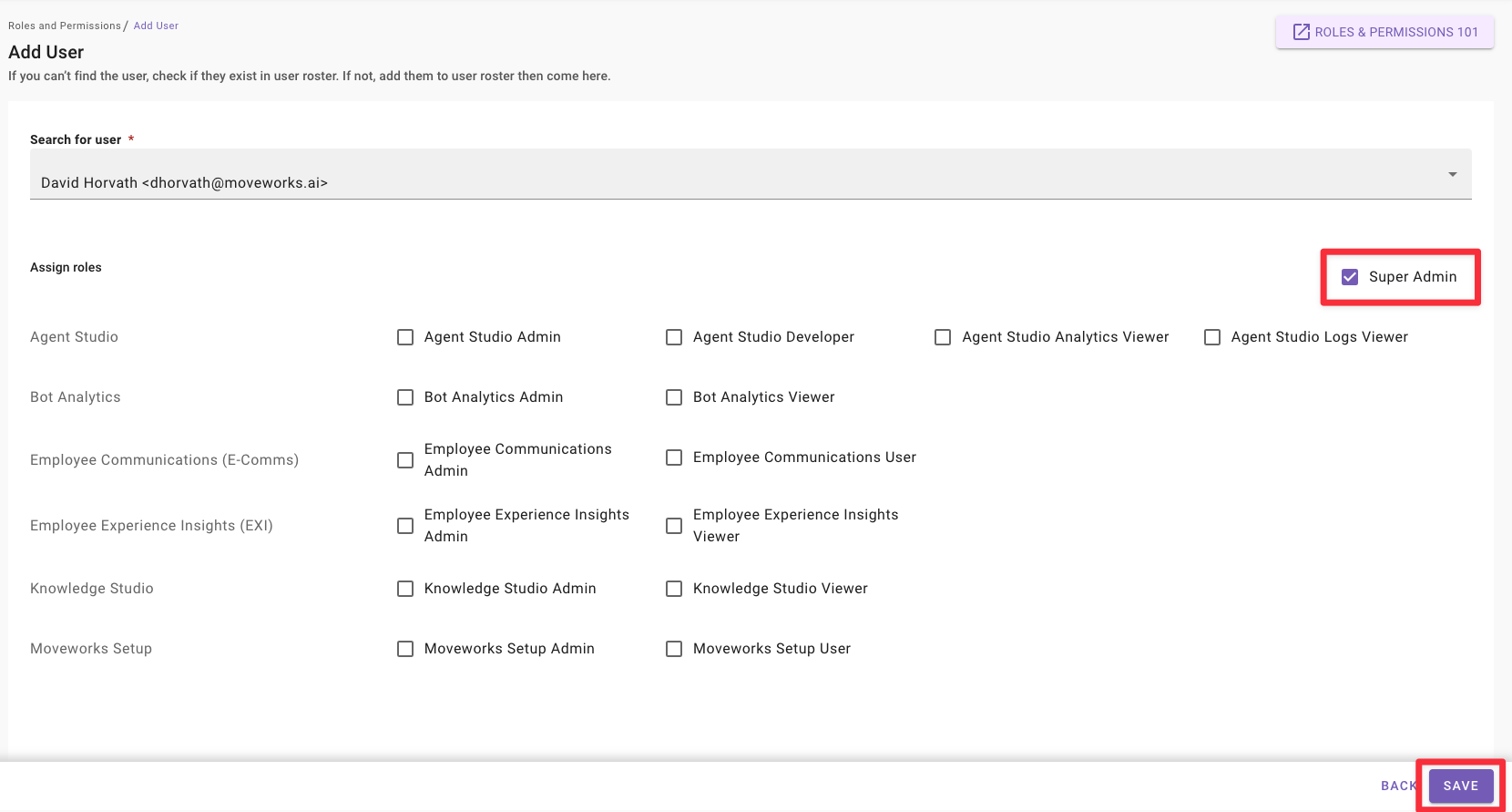
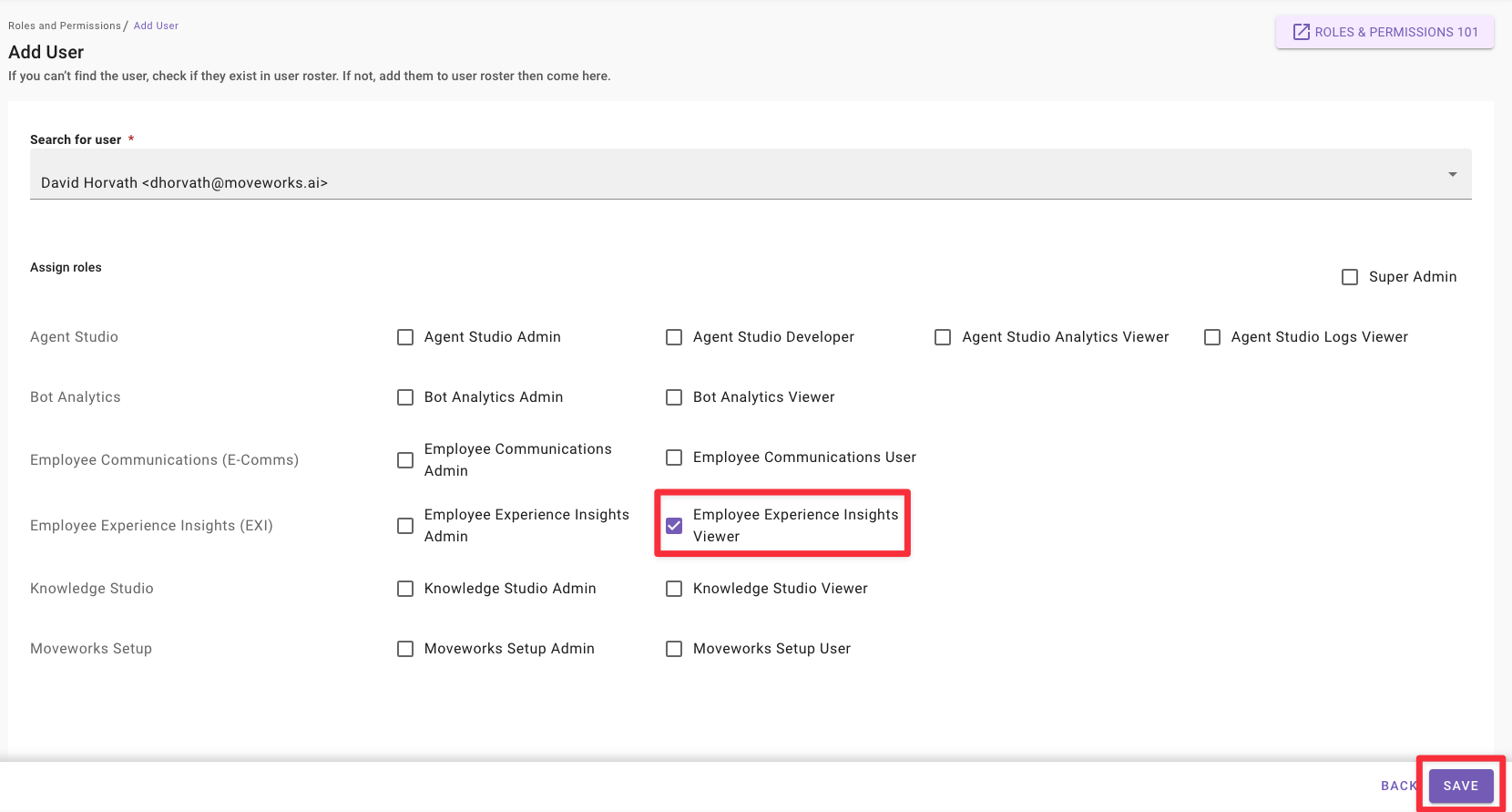
Search for your user by name or email. Check the Super Admin toggle, and click Save.
-
Changes take effect in under 10 seconds, usually instantaneously.
Remove a Super Admin
Super Admin access cannot be revoked by other super administrators inside an organization.
Please contact Moveworks Customer Support through the MyMoveworks portal to revoke a super admin. Feel free to use the following template:
Add an Application Admin
-
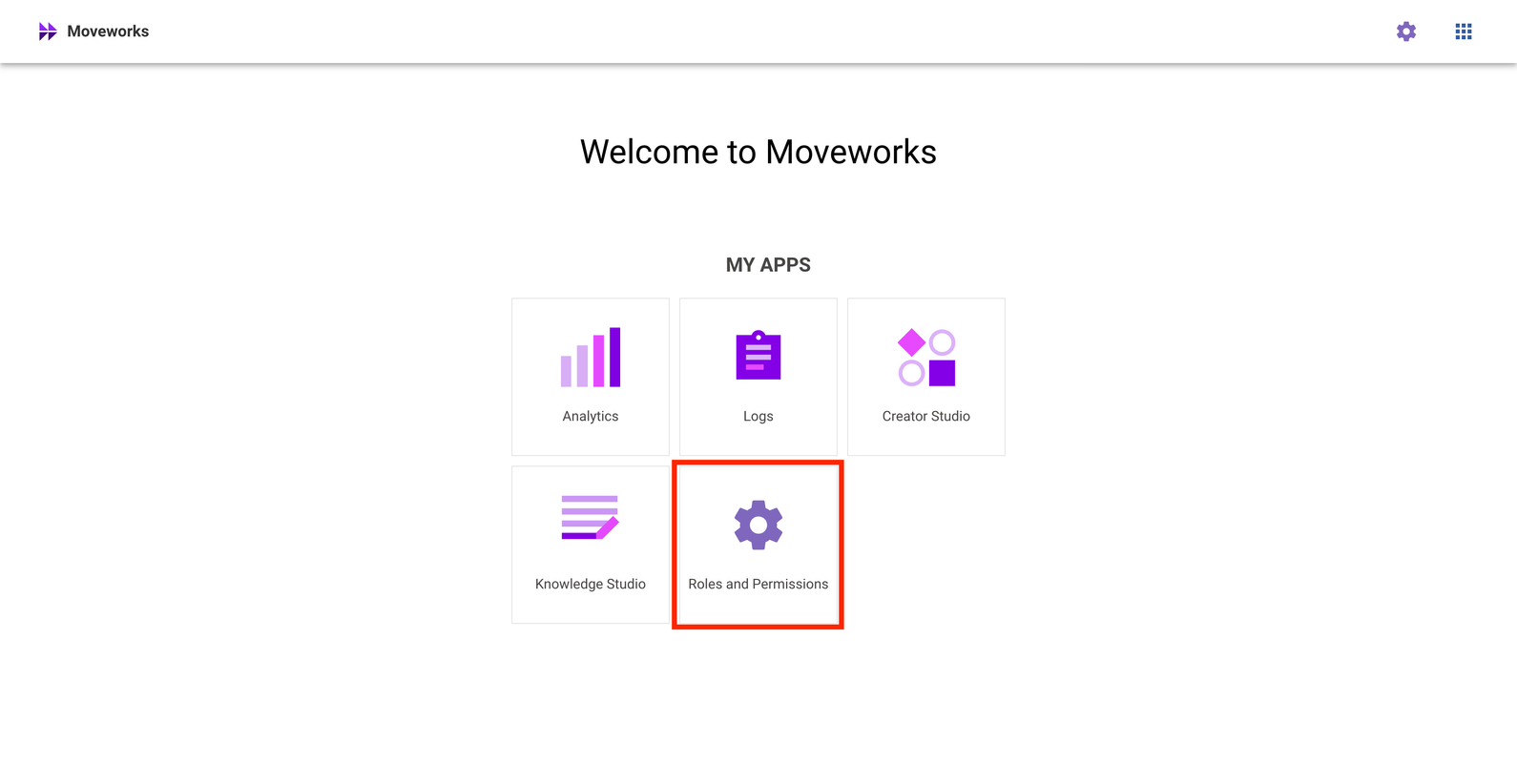
Click on Roles and Permissions.
-
Click on Add User.
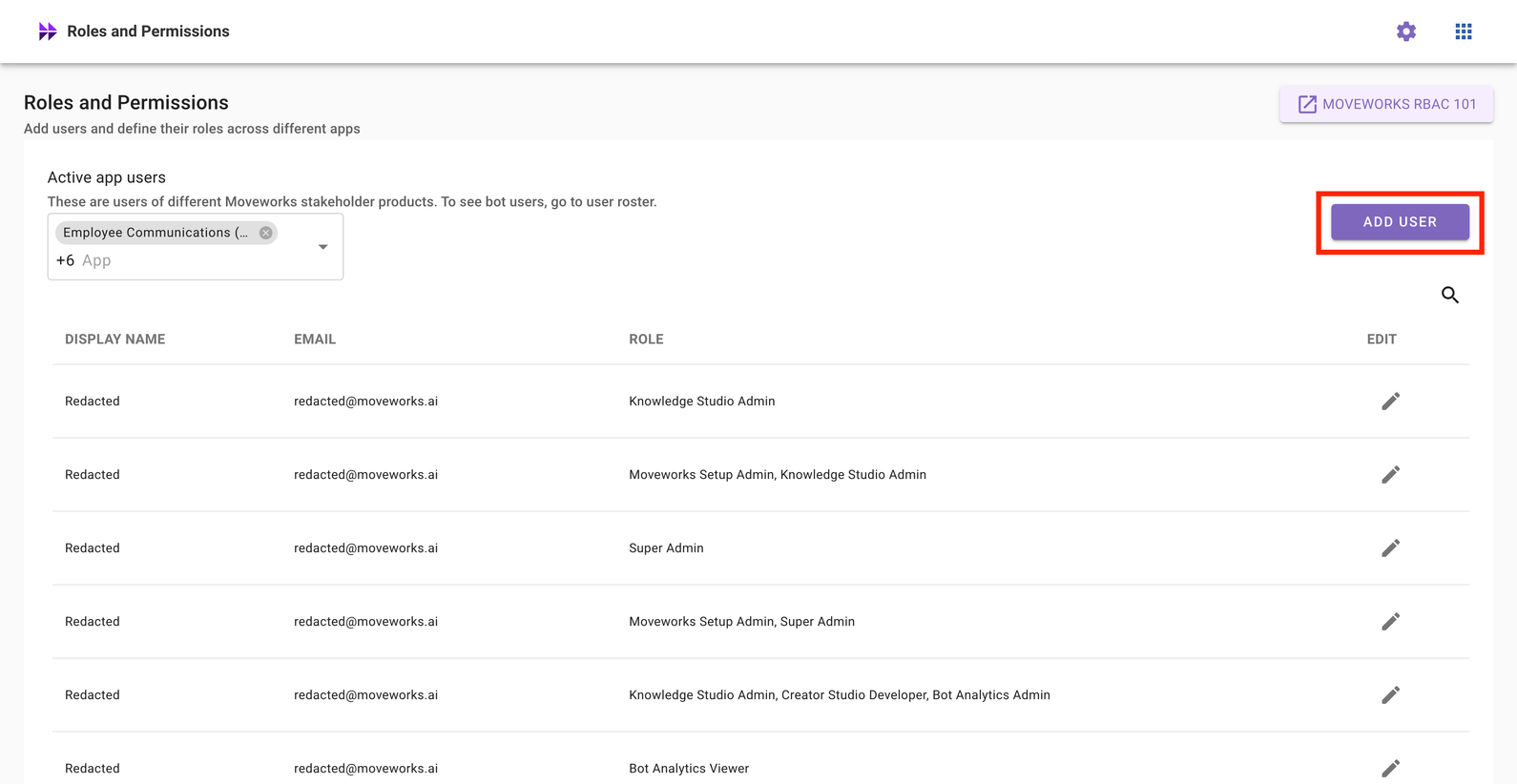
-
Search for your user by name or email. Check the application toggle you would like to grant administrative access to, and click Save.
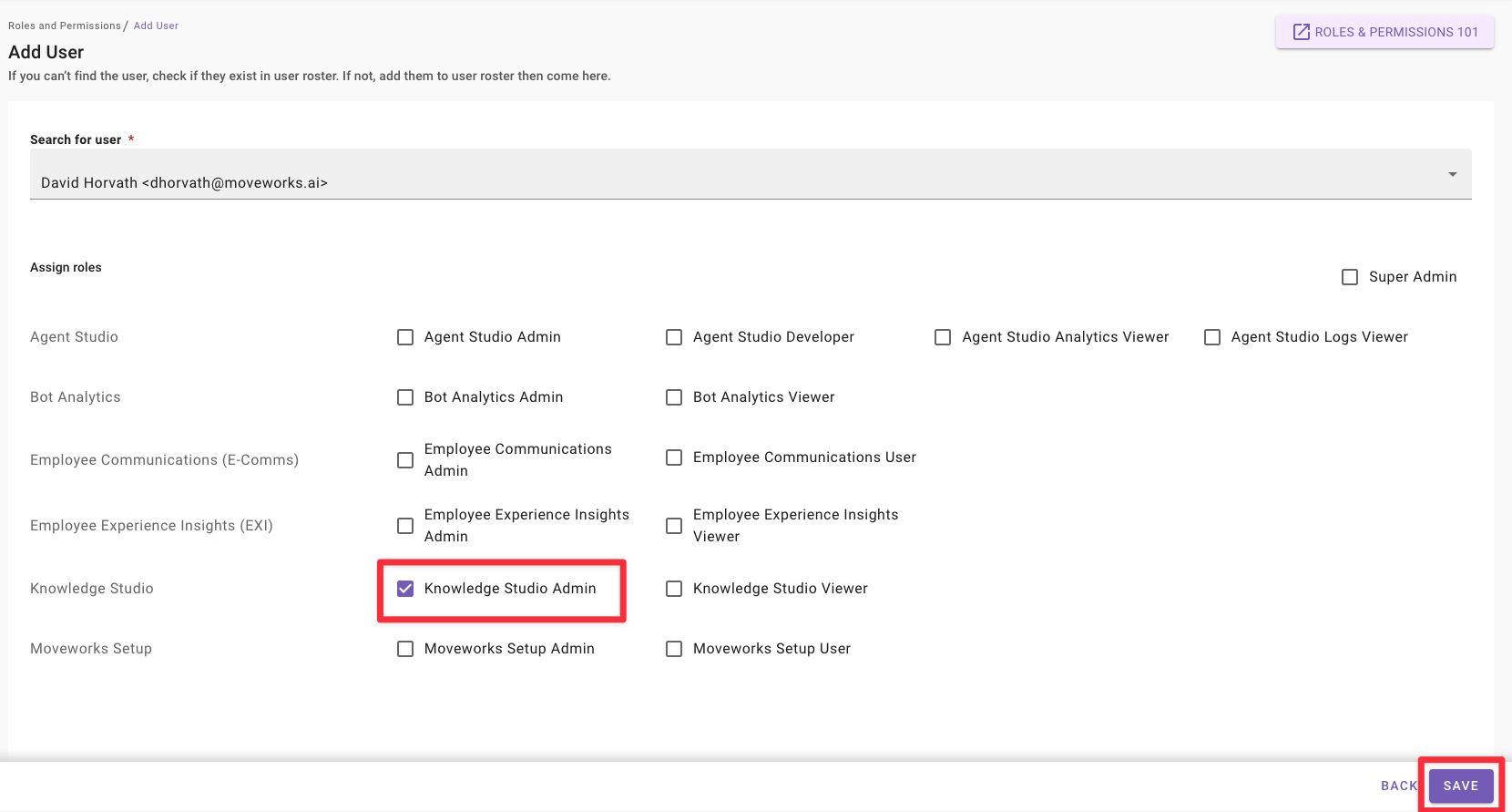
Changes take effect in under 10 seconds, usually instantaneously.
Remove an Application Admin
-
Click on Roles and Permissions.
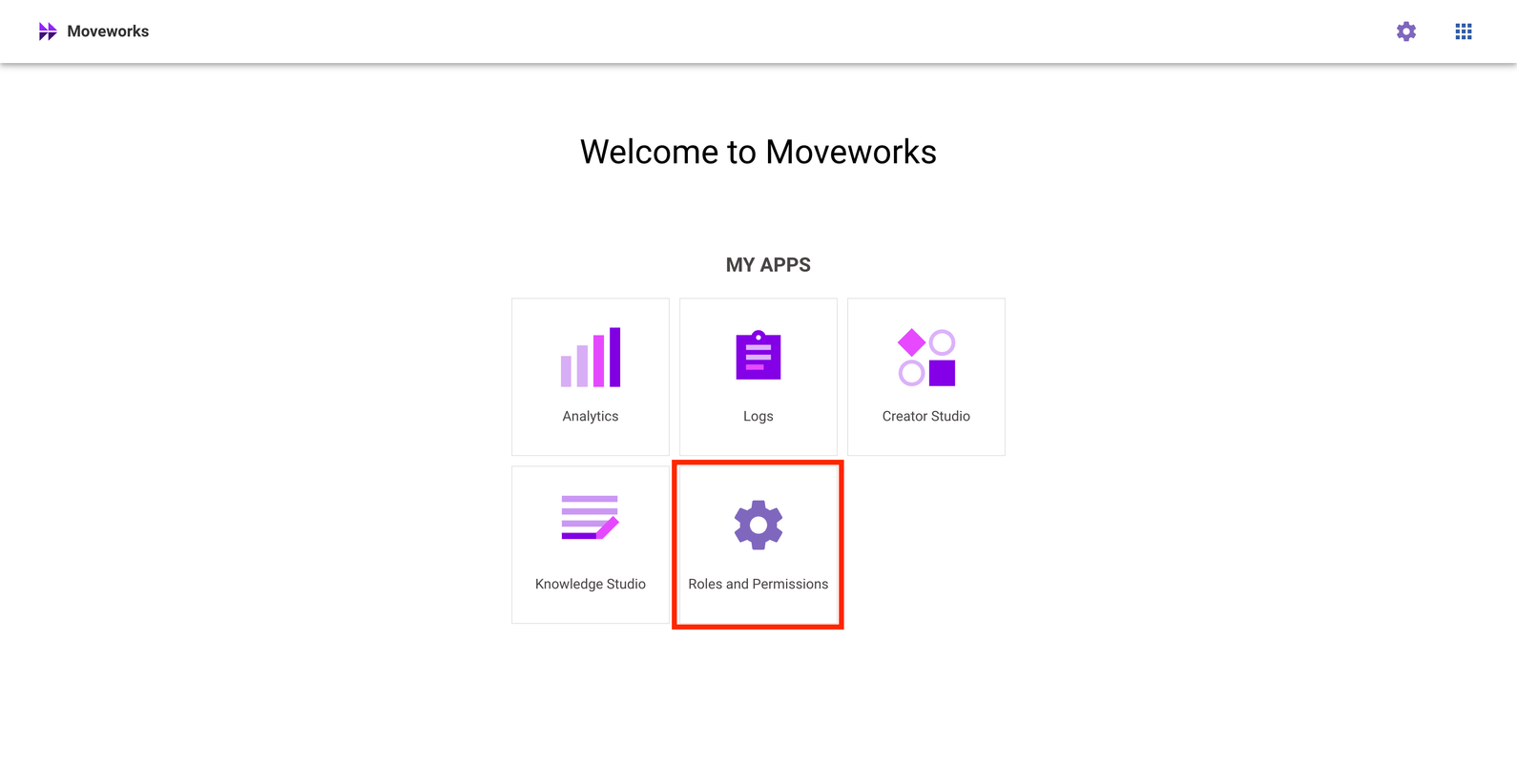
-
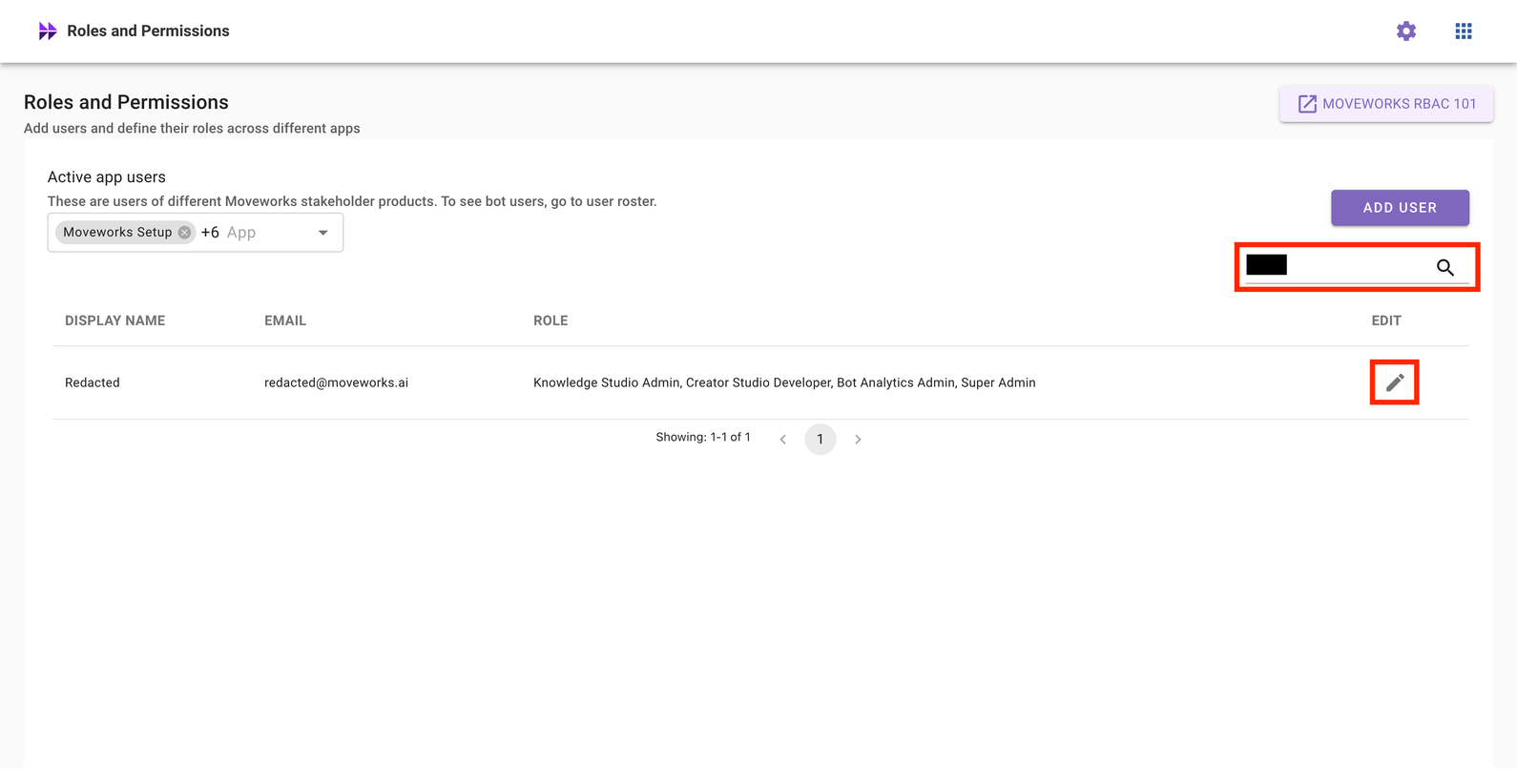
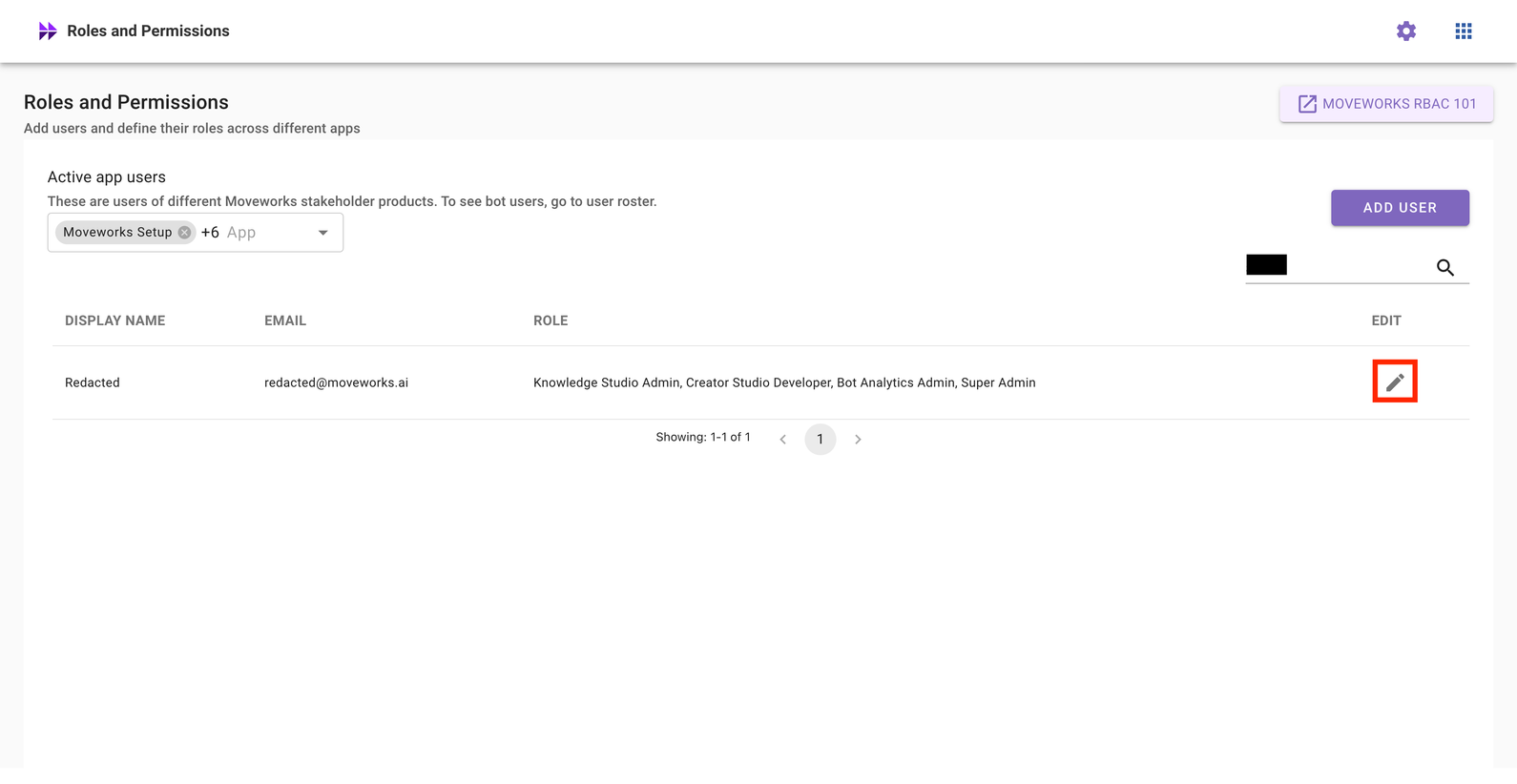
Search for a user by name or email, and click on the pencil icon to edit permissions for that user.
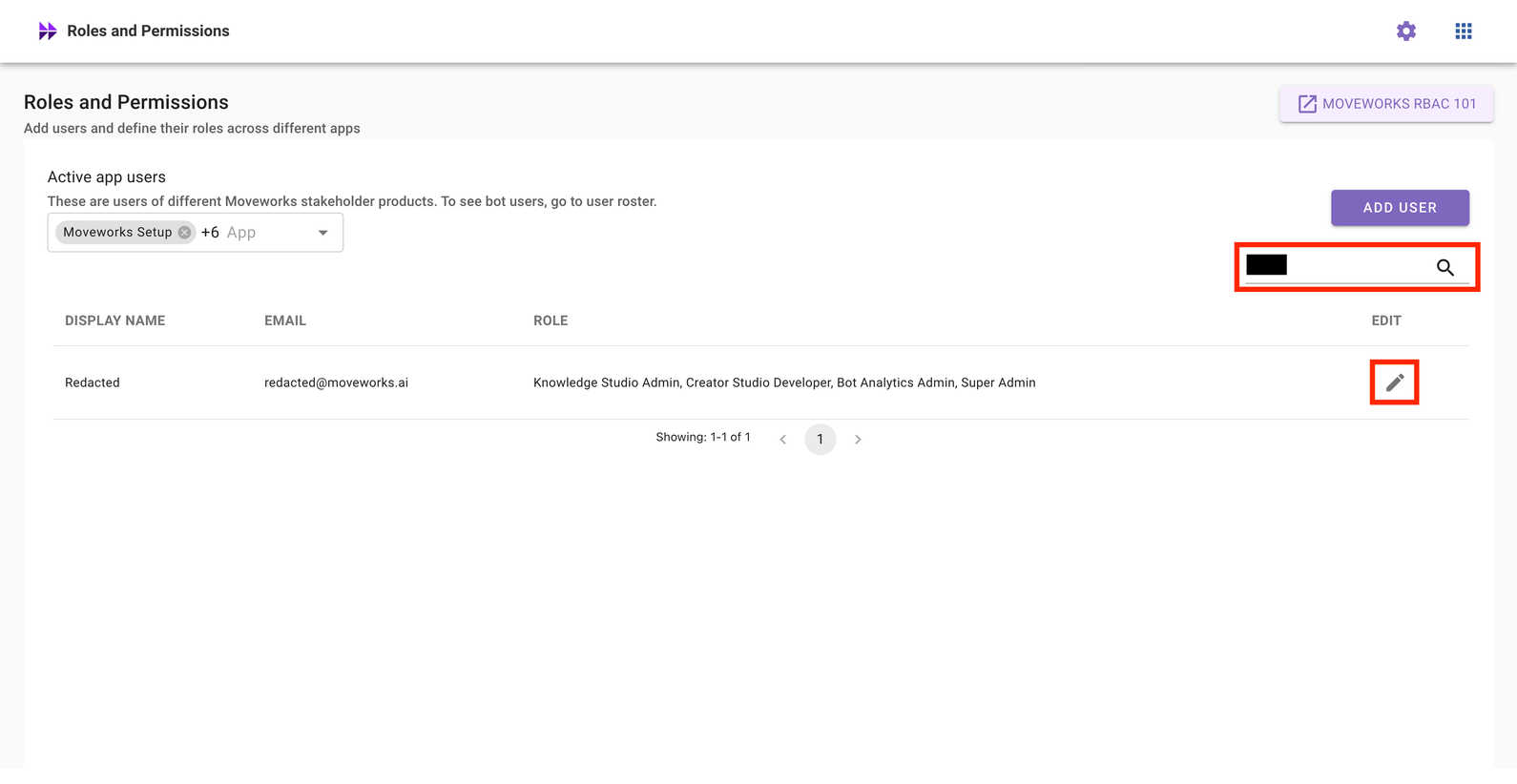
-
Uncheck the application toggle you would like to grant administrative access to, and click Save.
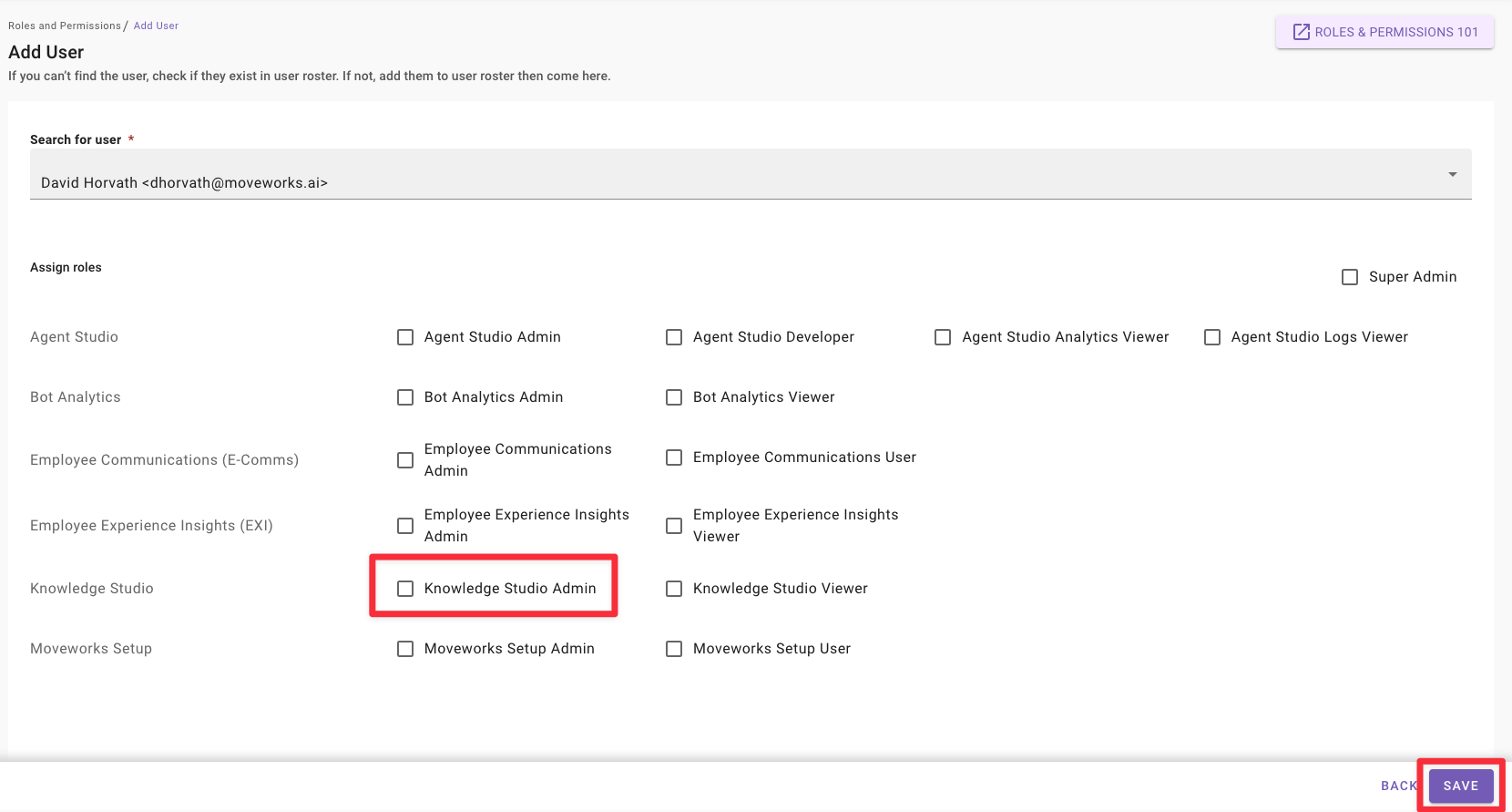
Changes take effect in under 10 seconds, usually instantaneously.
Add a User to an Application
-
Click on Roles and Permissions.
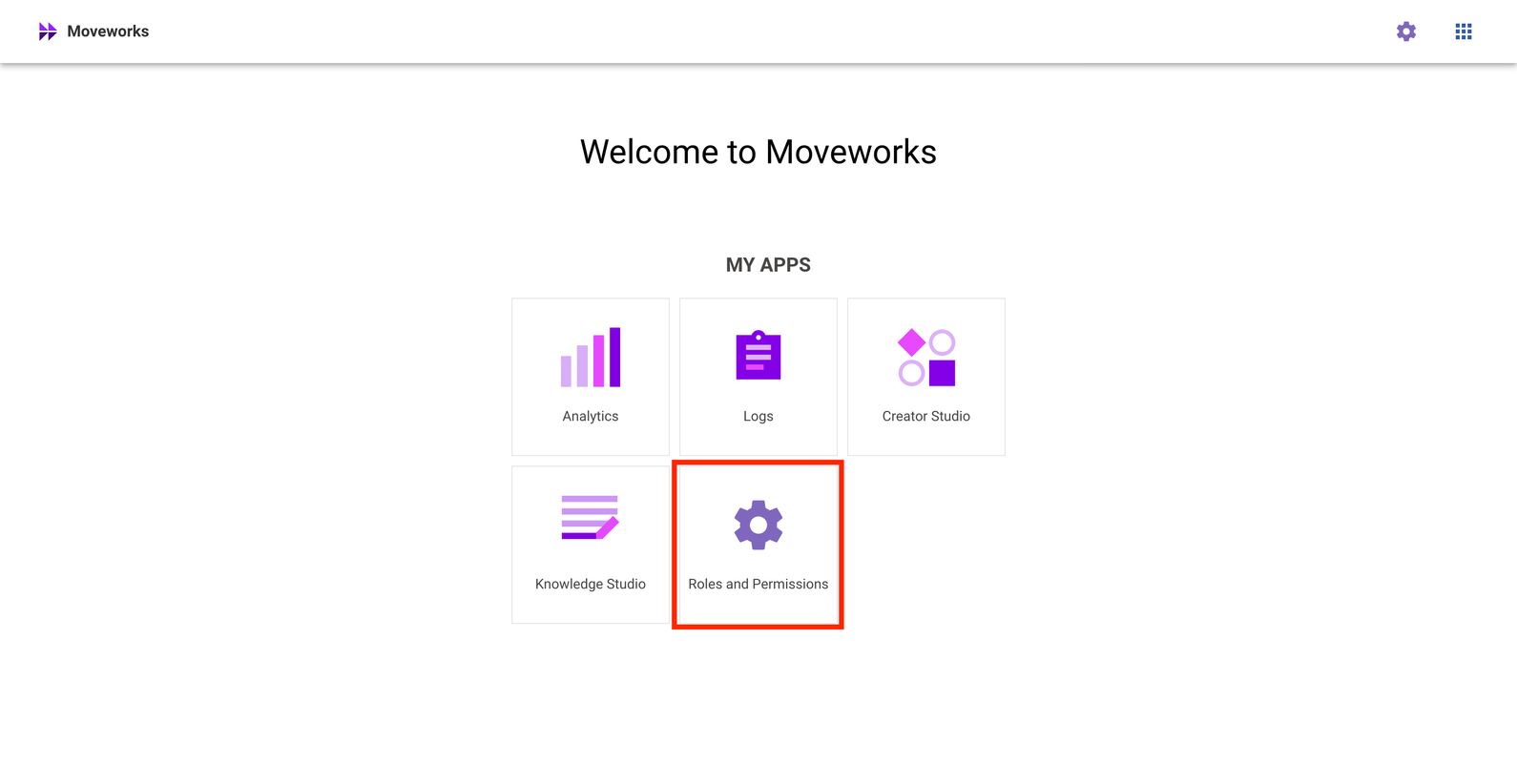
-
Click on Add User.
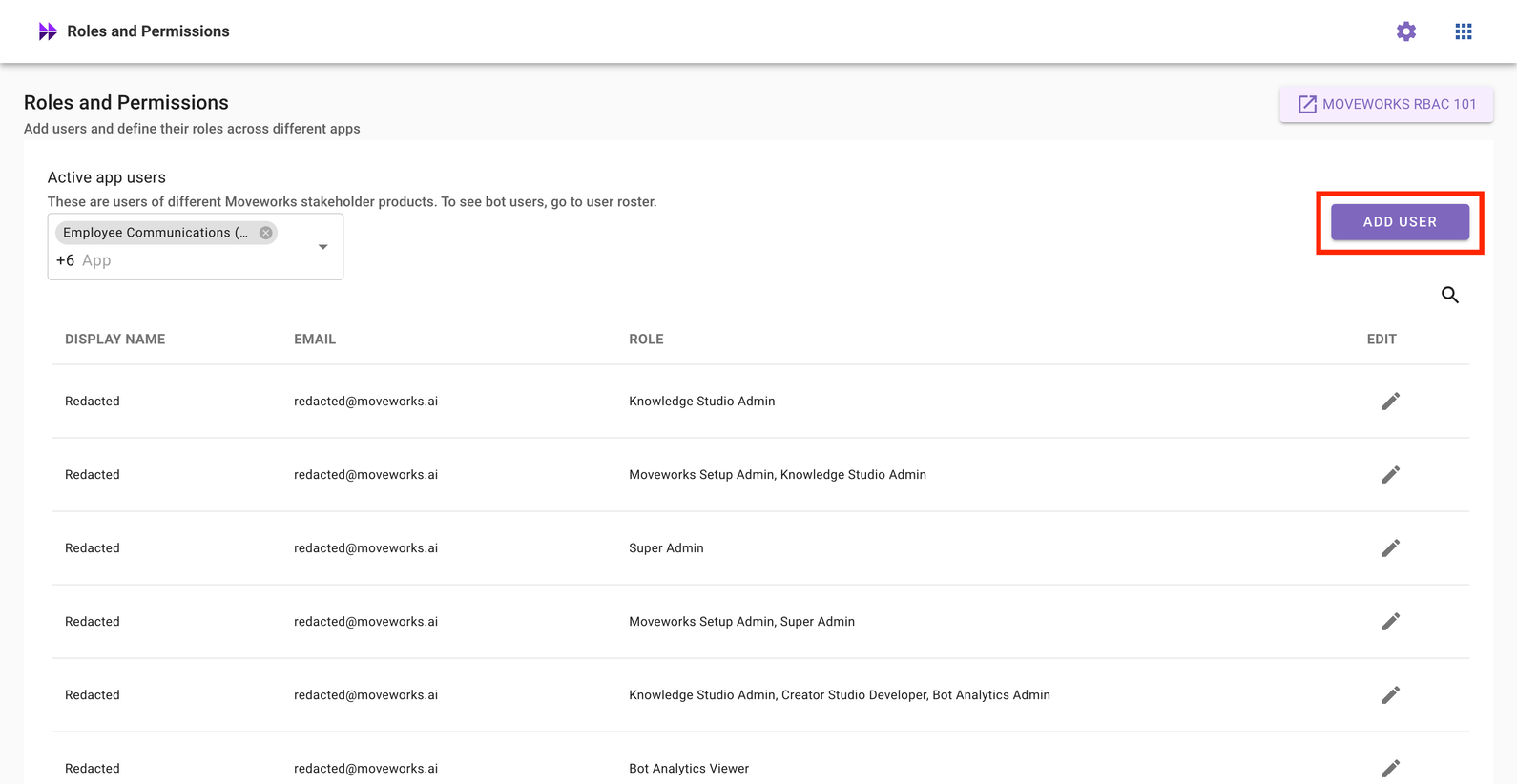
-
Search for your user by name or email. Check the application toggle you would like to grant user access to, and click Save.
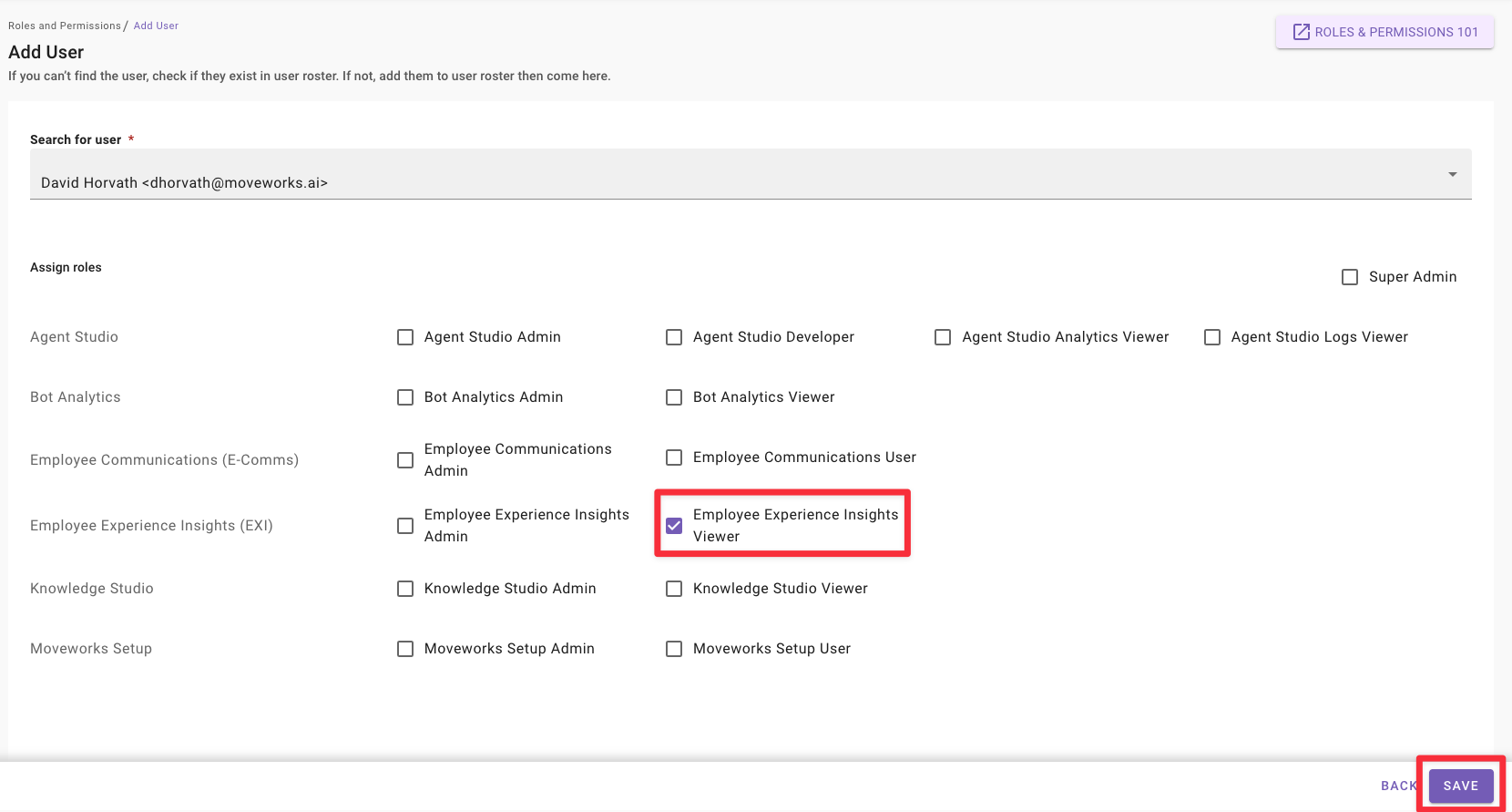
Changes take effect in under 10 seconds, usually instantaneously.
Remove a User from an Application
-
Click on Roles and Permissions.
-
Search for a user by name or email, and click on the pencil icon to edit permissions for that user.
-
Check the application toggle you would like to grant user access to, and click Save.
Changes take effect in under 10 seconds, usually instantaneously.
Search for Permissions Assigned to User
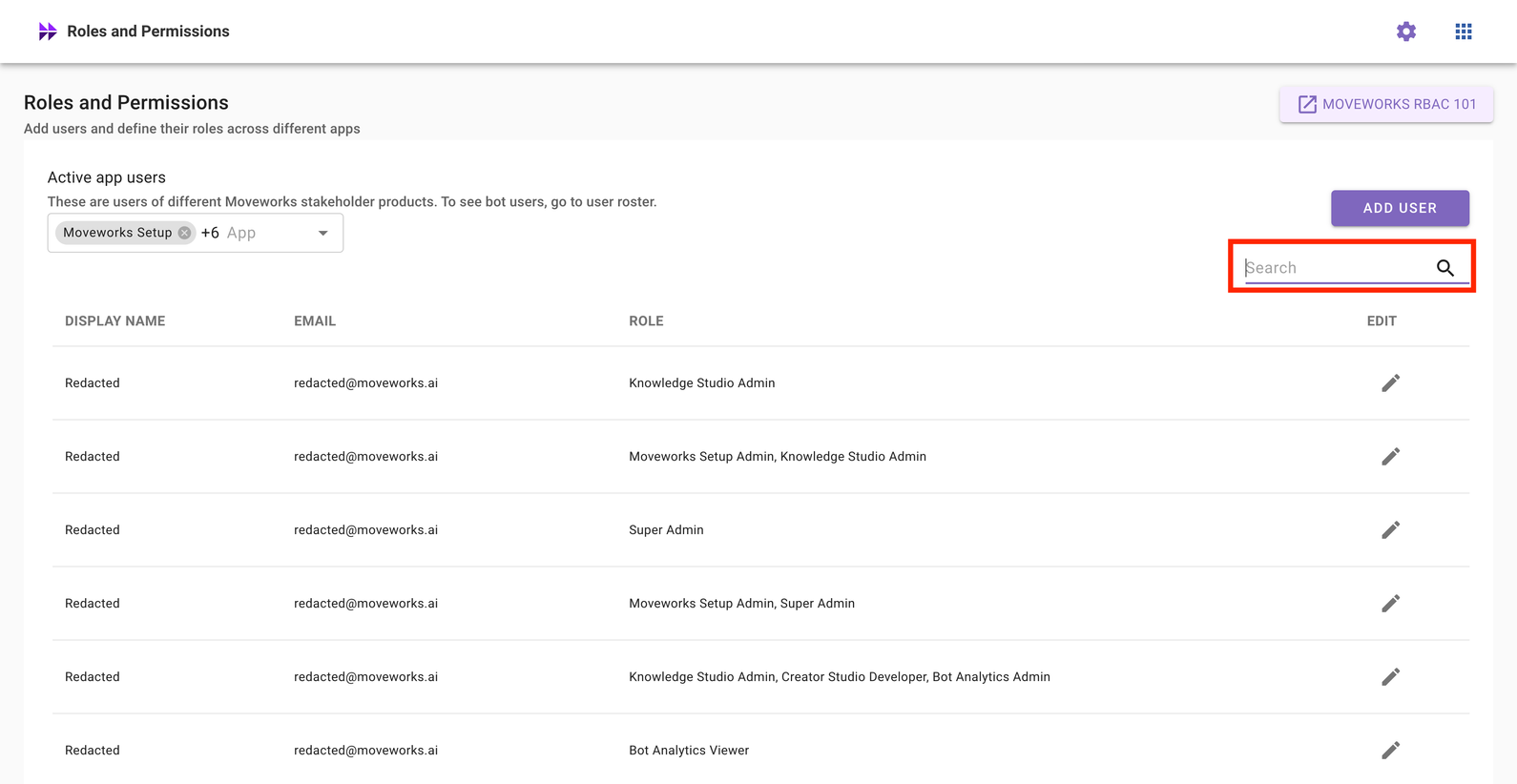
You can search for users by name or email to quickly validate permissions for that users.
-
Click on the 🔍 Magnifying Glass icon on the right-hand side to search for a user by name or email.
-
As you type, the list of users filters down until you match the user you are looking for.

-
Review the permissions assigned to this user. If the permissions do not match, you can click on the pencil icon and edit permissions for that user.
Frequently Asked Questions (FAQ)
- Can Moveworks view the roles and permissions in my environment or make changes in my environment on my behalf?
- Yes – Moveworks uses an administrator account (similar to
moveworksadmin@<domain>.com) to help you view your configurations, make roles and permissions changes, or take other actions on your behalf in your My Moveworks applications. This service account is automatically inserted into your user roster when you configure Moveworks. This account is not used for any other purposes.
- Yes – Moveworks uses an administrator account (similar to
- Is audit data available when Moveworks makes changes in my environment, or when configuration details are viewed by Moveworks?
- Moveworks stores internal logs of all role changes described in the previous section. You can reach out to Moveworks Customer Support team for access to this information.
- Audit information for configuration changes in Moveworks setup or extensibility through Agent Studio is available to audit through SFTP. Please read our SFTP data dictionary to learn more.
- Do you plan to make audit data available through My Moveworks?
- Yes, please upvote this community idea to help the Moveworks team prioritize this feature
- How long is this data retained by Moveworks
- By default, audit logs of role changes are stored for a period of 2 weeks as part of our service logs.
- Please read our data retention deletion policy to learn more
- Can admins add more admins for their org?
- Yes. Org Admins can assign “Org Admin” permissions to other users
- Is there a maximum number of Org Admins?
- There is no limit to the number of users who can be given Org admin permission.
- What happens if an Org Admin is deactivated?
- Other Org Admins will ensure continuity. If no Org Admin is active, please reach out the Moveworks Customer Support Team to provision a new Org Admin.