
How to build raw interactions table using Data API
This document describes the process of reconstructing the Raw Interactions table using data retrieved from the Data API.
The Data API provides raw data in a normalized format, split across multiple related tables. To recreate the unified Raw Interactions view, these tables must be joined and transformed to align with the structure and semantics of the original dataset.
In this exercise, we download the raw data into an Excel file and perform the necessary transformations within Excel to build the final view.
Step - 1 : Fetching and storing data into CSV files.
The Data API distributes raw data across five key tables: Conversations, Interactions, Plugin Calls, Plugin Resources, and Users.
We use a Python script to fetch data from the past 24 hours and generate an Excel file containing all five tables.
You can copy the script into your environment and execute it. Be sure to replace the placeholder for the API key with your actual Data API credentials before running the script.
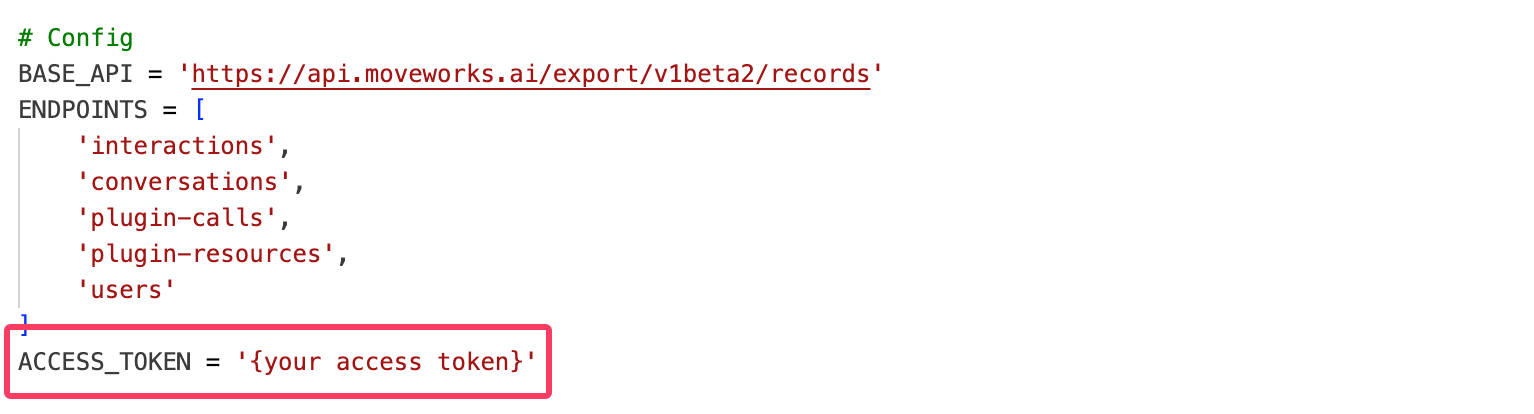
Python script
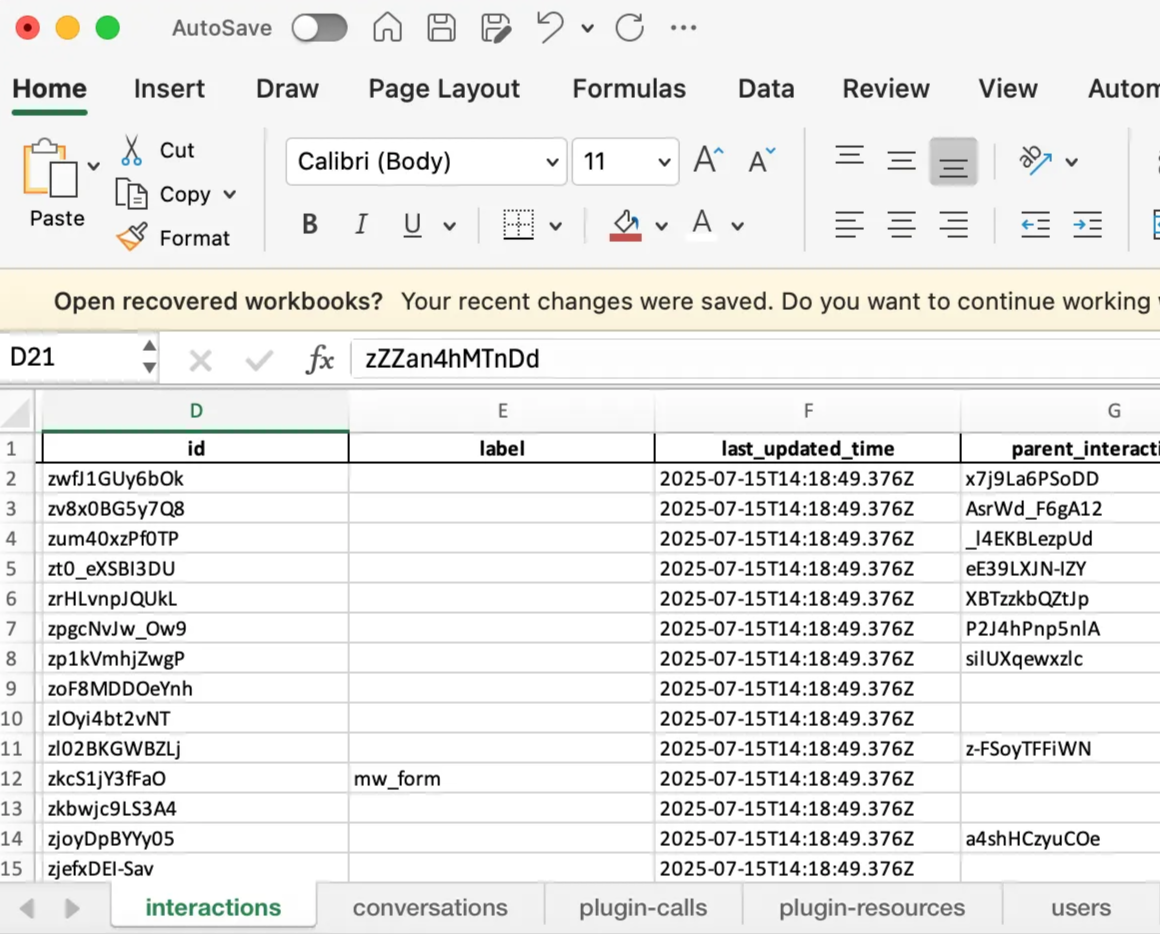
Step - 2 : Modification of the excel file to generate the raw interactions view.
Let’s learn the sequence of columns shown in raw interactions table and understand where this data is stored in Data API
Now that we have identified the columns required to reconstruct the Raw Interactions view, let’s begin working through the raw data and progressively merge the interactions and conversations tables to form a unified view. Please note that we will be using Excel functions throughout this process.
-
Bring in the base columns — Actor, Conversation ID, Created Time, Interaction ID, Interaction Type
a. From the interactions sheet, extract the relevant details into a new sheet. We are only interested in user-led interactions.
Use the following formula to filter this data:
=FILTER(interactions!A:D, interactions!A:A="user") -
Using the Conversation ID, fetch Conversation Domain and Conversation Topic
a. To fetch the Conversation Domain, use the
VLOOKUPfunction to pull data from the conversations sheet:=VLOOKUP(B4,conversations!B:E,3,FALSE)b. To recreate the Conversation Topic, aggregate all topics detected at the interaction level and replicate them for each interaction.
Use this formula:
=TEXTJOIN(", ", TRUE, UNIQUE(FILTER(interactions!P:P, interactions!B:B= B2))) -
Fetch additional content fields from the Interactions table
a. To extract Interaction Content, pull values from
detail_content,detail_detail, or similar columns, and combine them based on data availability. Use the following nestedIFstructure:=IF(INDEX(interactions!K:K, MATCH(D1294, interactions!D:D, 0))<>"", INDEX(interactions!K:K, MATCH(D1294, interactions!D:D, 0)), IF(INDEX(interactions!N:N, MATCH(D1294, interactions!D:D, 0))<>"", INDEX(interactions!N:N, MATCH(D1294, interactions!D:D, 0)), IF(INDEX(interactions!L:L, MATCH(D1294, interactions!D:D, 0))<>"", INDEX(interactions!L:L, MATCH(D1294, interactions!D:D, 0)), IF(INDEX(interactions!Q:Q, MATCH(D1294, interactions!D:D, 0))<>"", INDEX(interactions!Q:Q, MATCH(D1294, interactions!D:D, 0)), ""))))b. To retrieve the Bot Response corresponding to each user interaction, use the parent interaction ID to index into bot-led interactions:
=TEXTJOIN(CHAR(10), TRUE, FILTER(interactions!K:K, interactions!G:G=D2))There can be multiple bot interactions pointing to a single user interaction. Join these interactions to form a bot response similar to raw interactions table.
-
Determine plugins involved in an interaction using the Plugin Calls table
Retrieve three plugin-related columns using the formulas below:
a. Unsuccessful plugin:
=TEXTJOIN(", ", TRUE,FILTER('plugin-calls'!F:F,('plugin-calls'!D:D=D10) *('plugin-calls'!H:H =FALSE) *('plugin-calls'!I:I=FALSE)))b. Plugin served:
=TEXTJOIN(", ", TRUE,FILTER('plugin-calls'!F:F,('plugin-calls'!D:D=D10) *('plugin-calls'!H:H =TRUE)))c. Plugin used:
=TEXTJOIN(", ", TRUE,FILTER('plugin-calls'!F:F,('plugin-calls'!D:D=D10) *('plugin-calls'!H:H =TRUE) *('plugin-calls'!I:I=TRUE))) -
Add plugin resource information
Use the plugin-resources table to fetch citation and content-related metadata:
a. Resource Domain: Indicates the configured domain for knowledge or ticket-based interactions.
=TEXTJOIN(", ", TRUE, UNIQUE(FILTER('plugin-resources'!K:K, 'plugin-resources'!E:E = D2)))b. Number of Citations: Counts distinct resources cited per interaction.
=IFERROR(COUNTA(UNIQUE(FILTER('plugin-resources'!D:D, 'plugin-resources'!E:E = D2))), 0)Note: Even when there’s a #CALC! error, Excel may return 1. Use the Content Item ID column to clean up any incorrect entries.
c. Content Item ID:
=TEXTJOIN(", ", TRUE, UNIQUE(FILTER('plugin-resources'!D:D, 'plugin-resources'!E:E = D2)))Filter out rows returning
#CALC!. For such rows, mark No of Citations as 1 and Content Item ID as “Nil”.d. Content Item Name:
=TEXTJOIN(", ", TRUE, UNIQUE(FILTER('plugin-resources'!M:M, 'plugin-resources'!E:E = D2))) -
Populate ticketing information (only applicable when a ticket is created)
a. Ticket Type: Indicates whether a ticket was user-initiated or bot-initiated.
=TEXTJOIN(", ", TRUE, UNIQUE(FILTER('plugin-resources'!S:S, 'plugin-resources'!E:E = D2)))b. Ticket ID: Filter the values to include only rows where the resource type is “ticket”.
=TEXTJOIN(", ", TRUE, UNIQUE(FILTER('plugin-resources'!H:H,('plugin-resources'!E:E = D4)*('plugin-resources'!I:I="RESOURCE_TYPE_TICKET")))) -
Fetch the platform where the interaction took place
This can be extracted from the interactions sheet based on Interaction ID:
=TEXTJOIN(", ", TRUE, UNIQUE(FILTER(interactions!H:H, interactions!D:D = D2))) -
Get the user’s preferred language from the Users table
Use this formula to fetch preferred language based on user ID:
=TEXTJOIN(", ",TRUE,UNIQUE(FILTER(users!J:J,users!F:F=F3)))
Additional Notes:
Fields like User Department, User Location, and User Country are not directly available from the Data API. These attributes must be sourced from your organization’s external identity systems.
The User API provides an external ID which can be used to enrich user metadata by integrating with external identity providers such as Okta. You can refer to Okta List Users for details. Once this data is pulled from the external system, join it using the external ID to populate the missing attributes.
While the modifications shown here are demonstrated in Excel, we are also providing a Python script that can directly generate a raw interactions table based on the time input specified in the script
To run a Python file, first install Python from python.org. On Mac, open Terminal, navigate to your file’s folder, and run python3 script.py. On Windows, open Command Prompt, go to the file’s folder, and run python script.py.