
Zoom Chat
Summary
You will need to configure two Zoom Apps to set up Zoom Chat with Moveworks.
Both can be created at https://marketplace.zoom.us/develop/create. Here is an outline of what each App will be used for :
- The Zoom Server-to-Server App will be used to create and update your organization’s user roster.
- These are the details which will need to be collected when creating the App to configure the Connector.
Account IDClient IDClient Secret
- These are the details which will need to be collected when creating the App to configure the Connector.
- The Zoom General Chatbot App will be added as a bot to your Zoom instance’s chat and is what users will be able to interact with.
- These are the details which will need to be collected when creating the App and this will be used to create the Chat Bot Configuration.:
Prod Client IDProd Client SecretProd Bot JIDSecret Token
- These are the details which will need to be collected when creating the App and this will be used to create the Chat Bot Configuration.:
Make sure your Zoom Account Admin has enabled the creation of Zoom Server-to-Server Apps.
Zoom App Development Homepage: https://marketplace.zoom.us/
App # 1: Server-to-Server App
-
Navigate to the Zoom App Creation Page: https://marketplace.zoom.us/develop/create
-
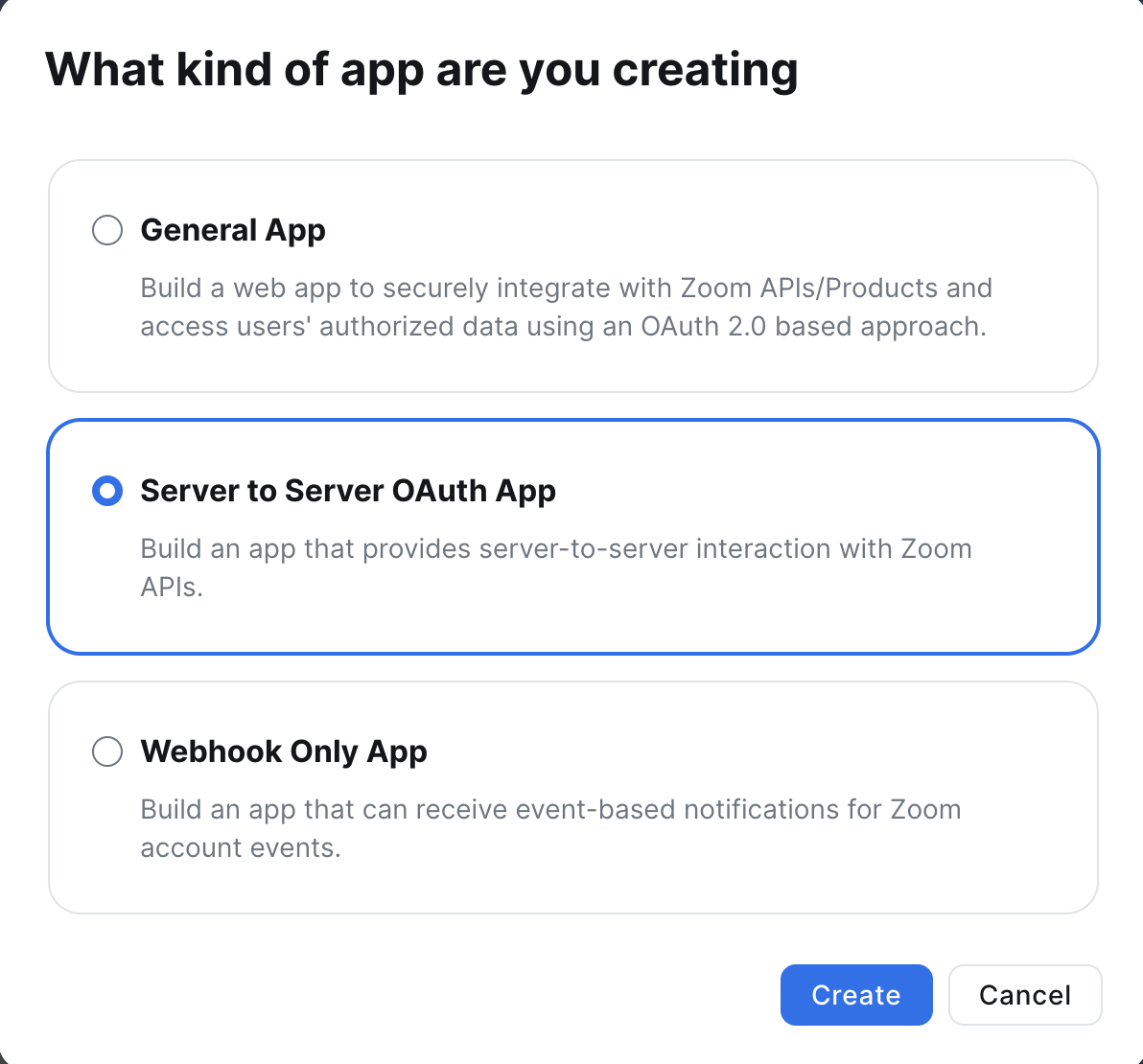
Select Server-to-Server OAuth App, click Create, and name your app.
-
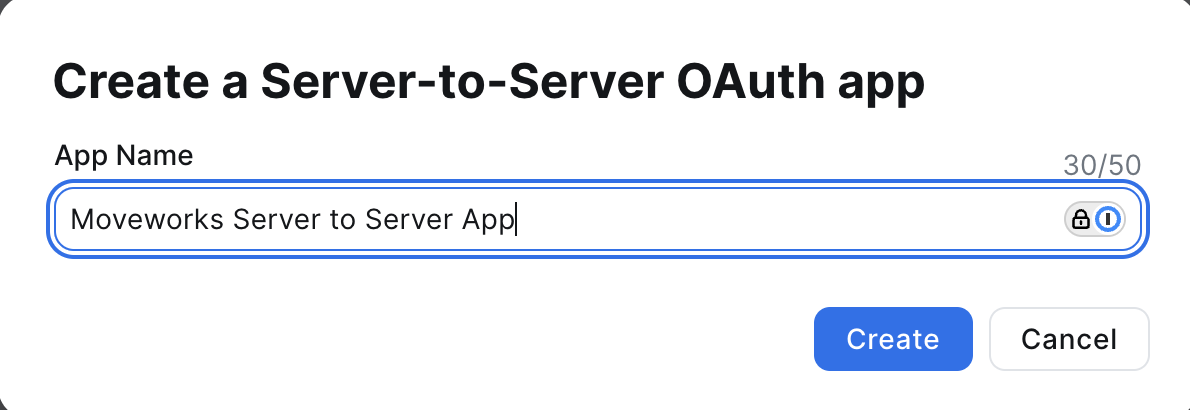
Name your app (ex. Moveworks Server to Server App)
-
After naming your app you will be brought to this page, make sure to save your
Account ID,Client ID, andClient Secret. You will need this information to authenticate the Server-to-Server App and create the Connector. Click Continue after saving these values.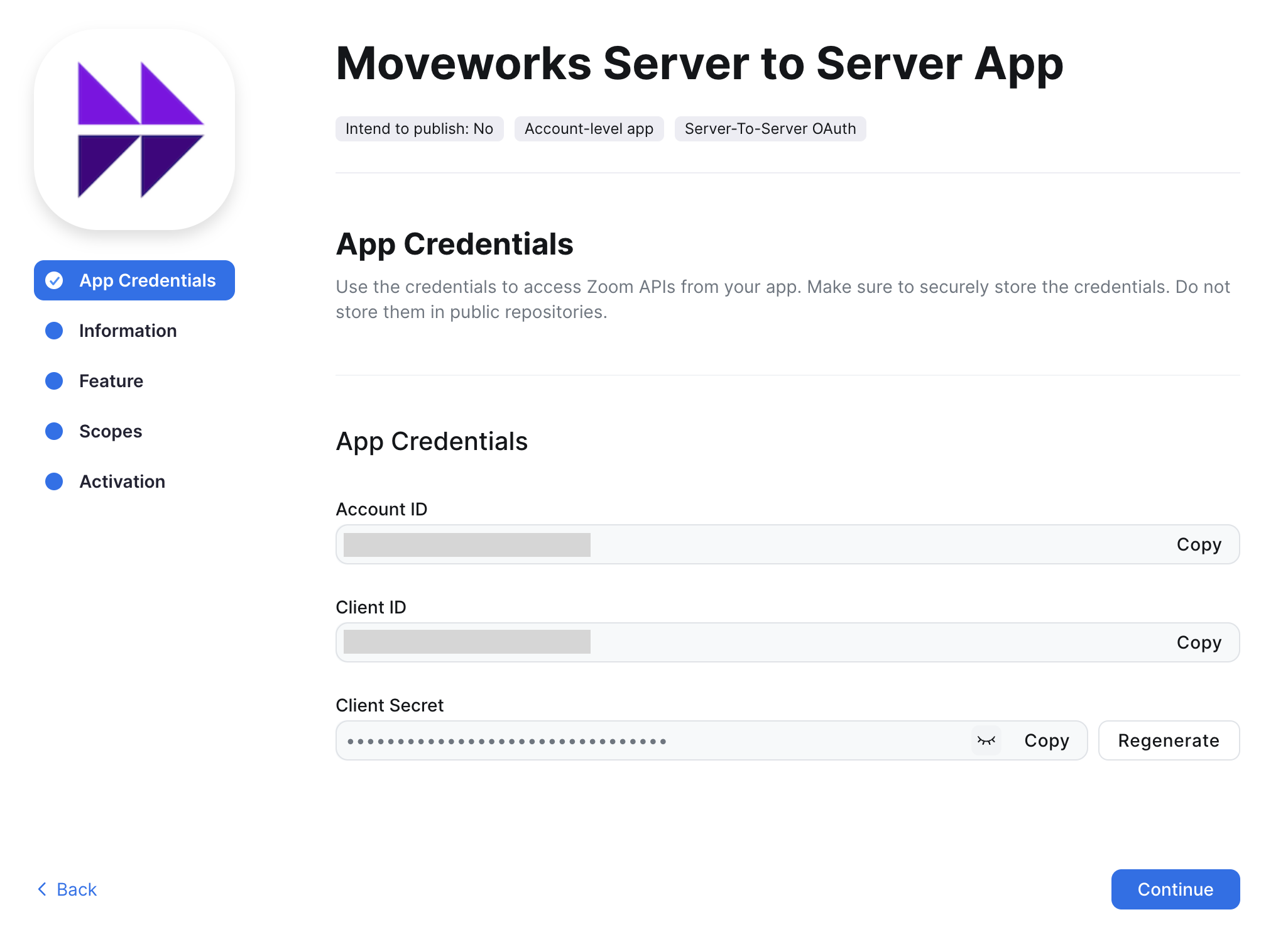
-
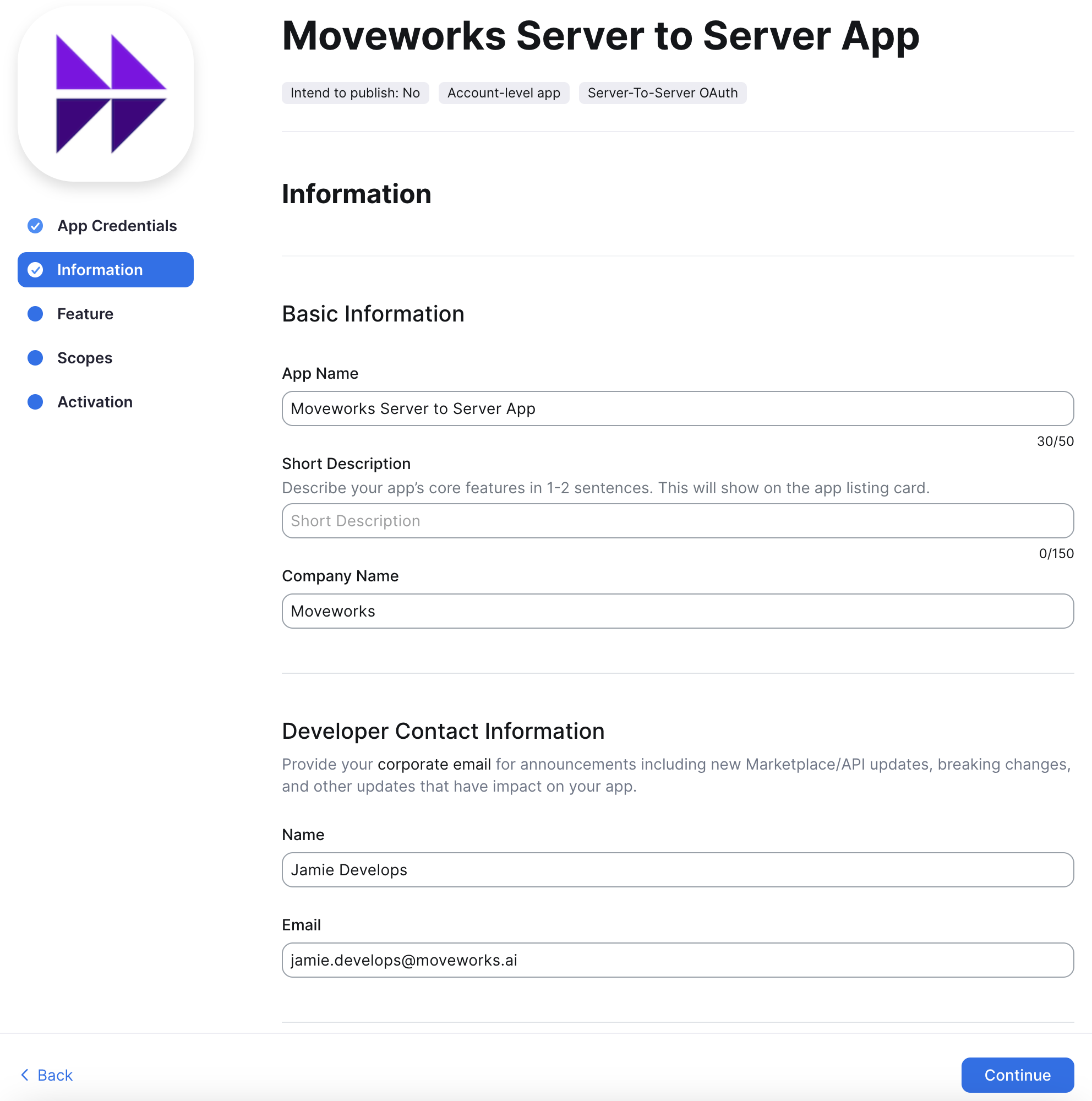
Fill out the required fields on the Information screen and click Continue
-
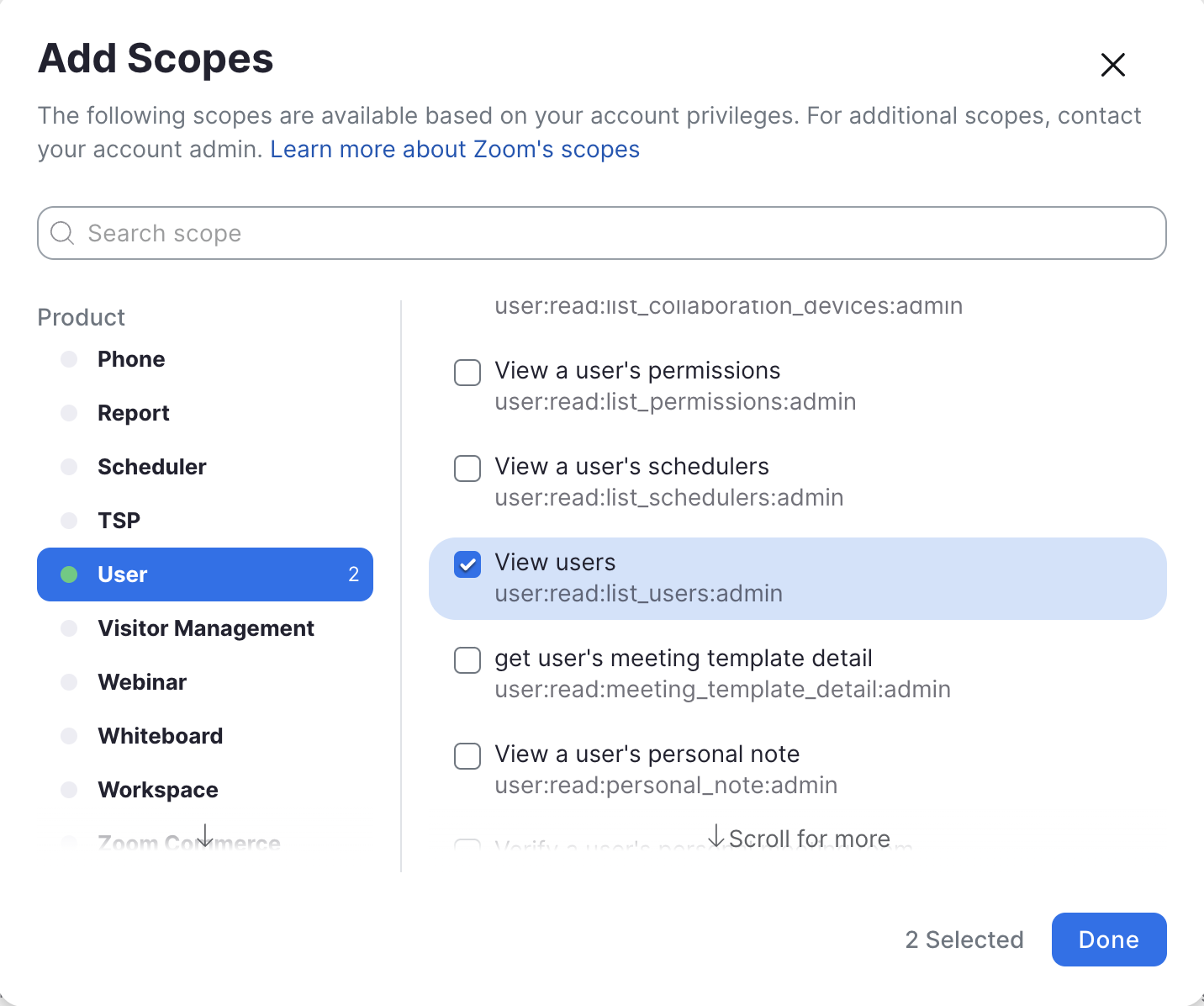
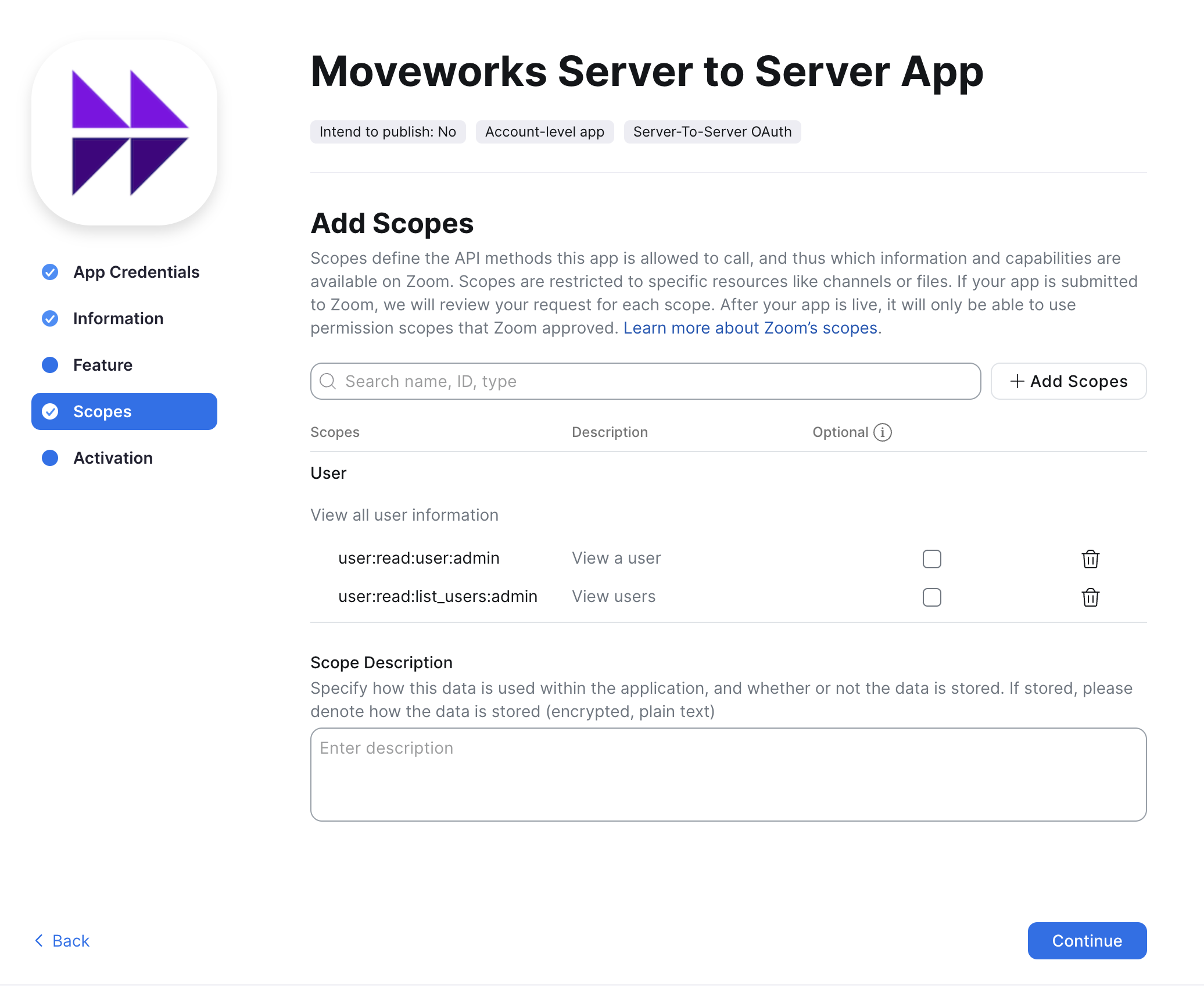
Click Add Scopes and select the following scopes:
-
user:read:user:admin -
user:read:list_users:admin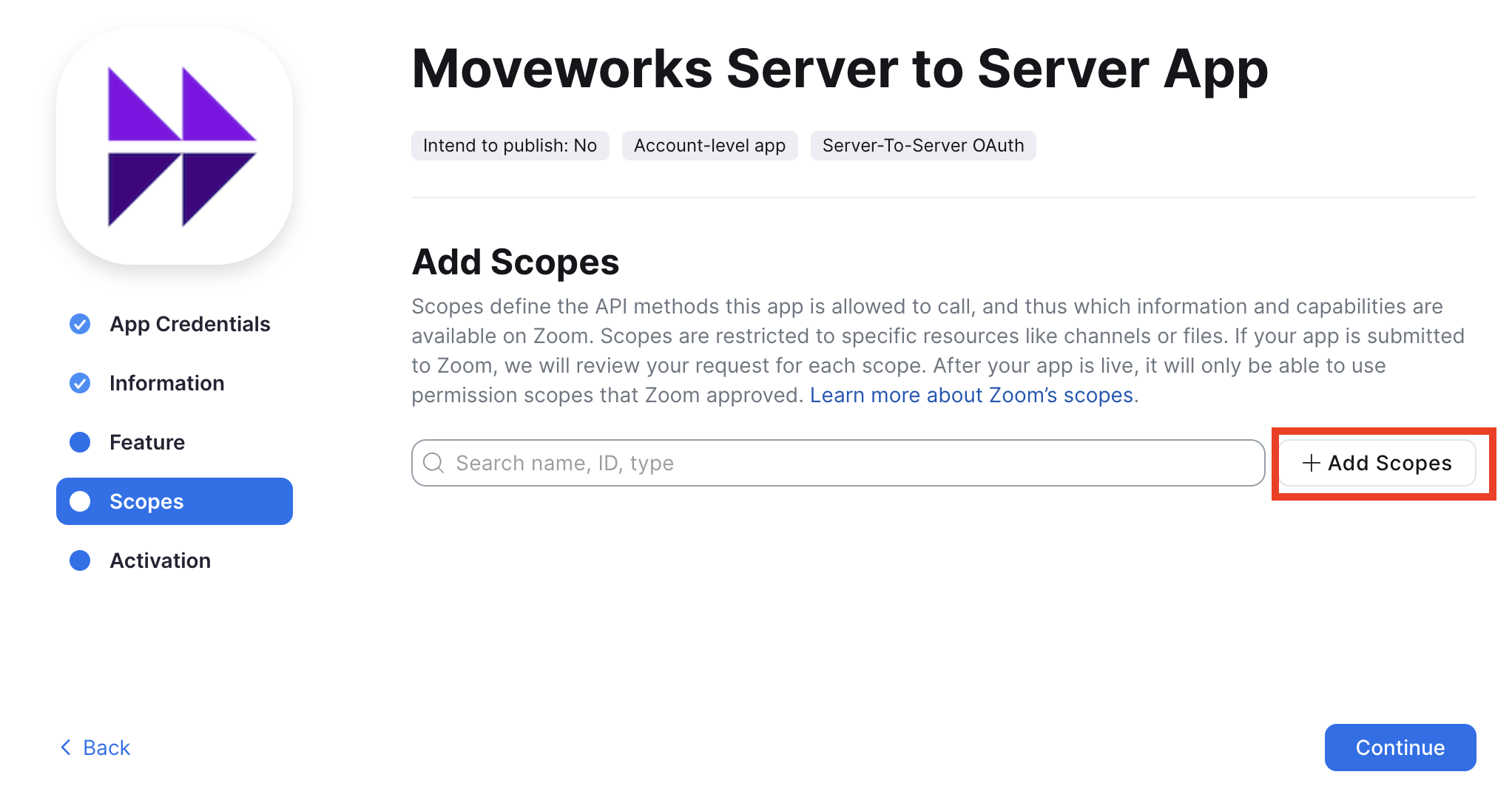
-
-
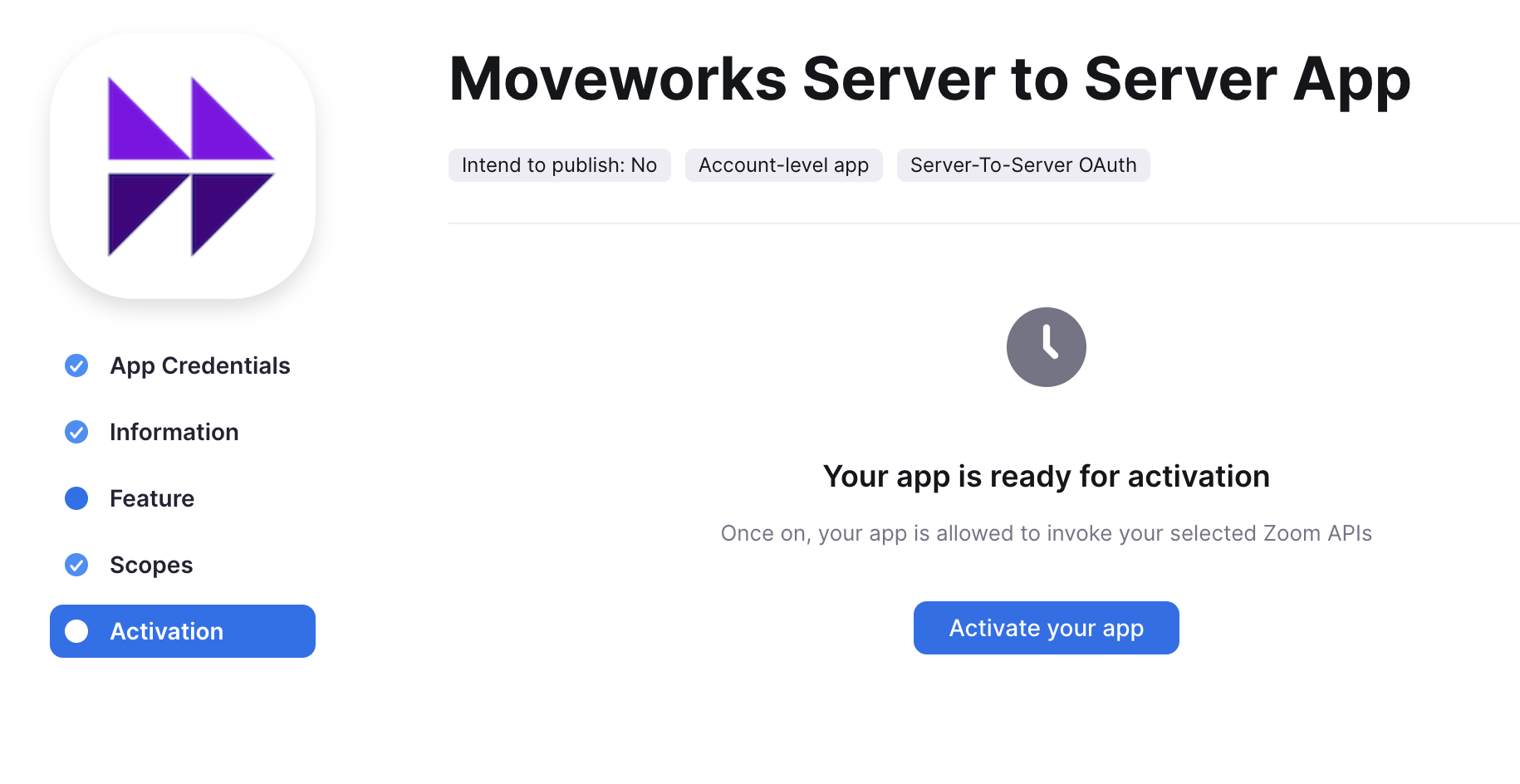
Continue to the next page and click Activate your app
-
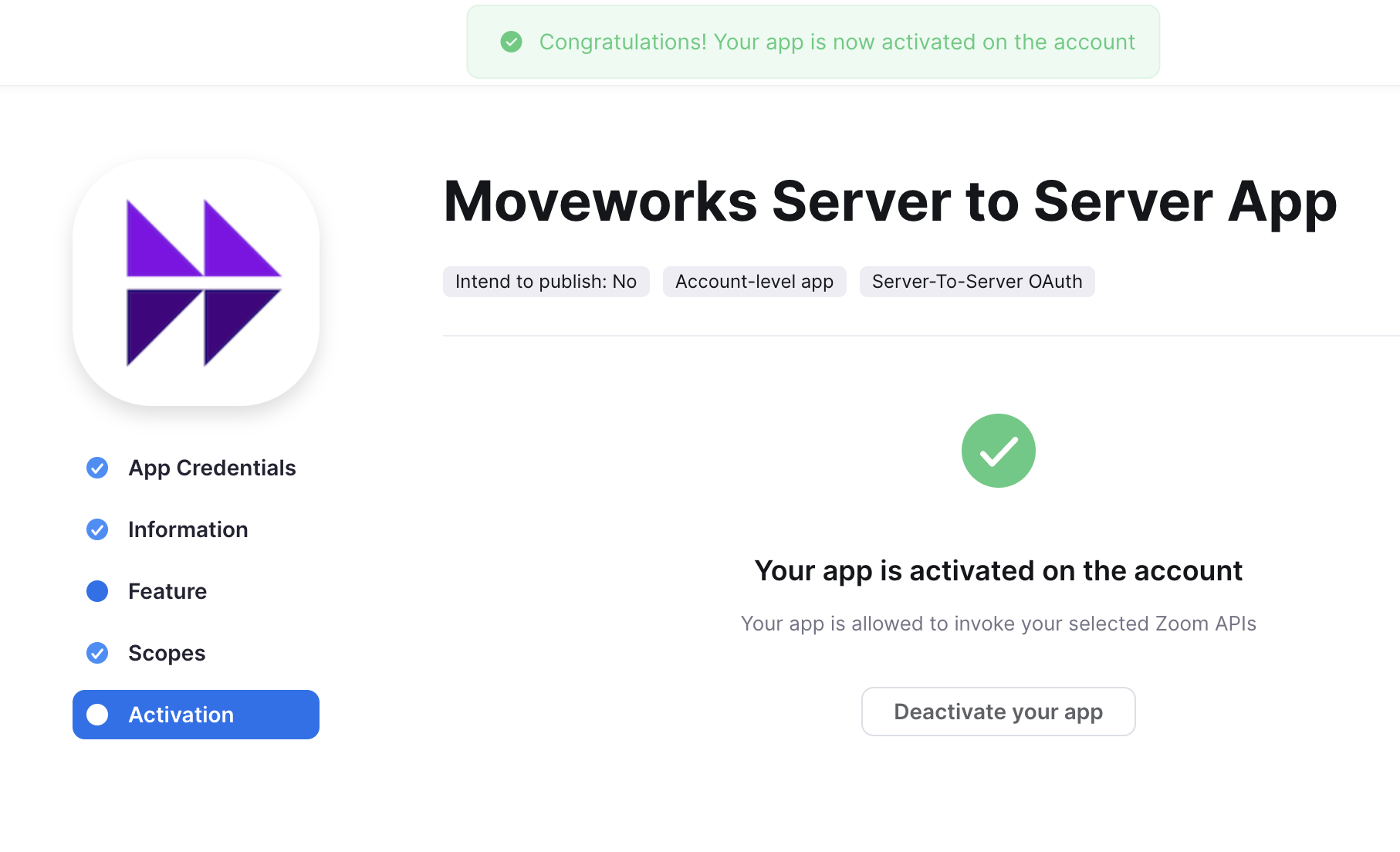
You should see a success message confirming your app is activated.
-
Be sure to collect the following values.
Account IDClient IDClient SecretSecret Token
App #2: General Chatbot App
-
Navigate to the Zoom App Creation Page: https://marketplace.zoom.us/develop/create
-
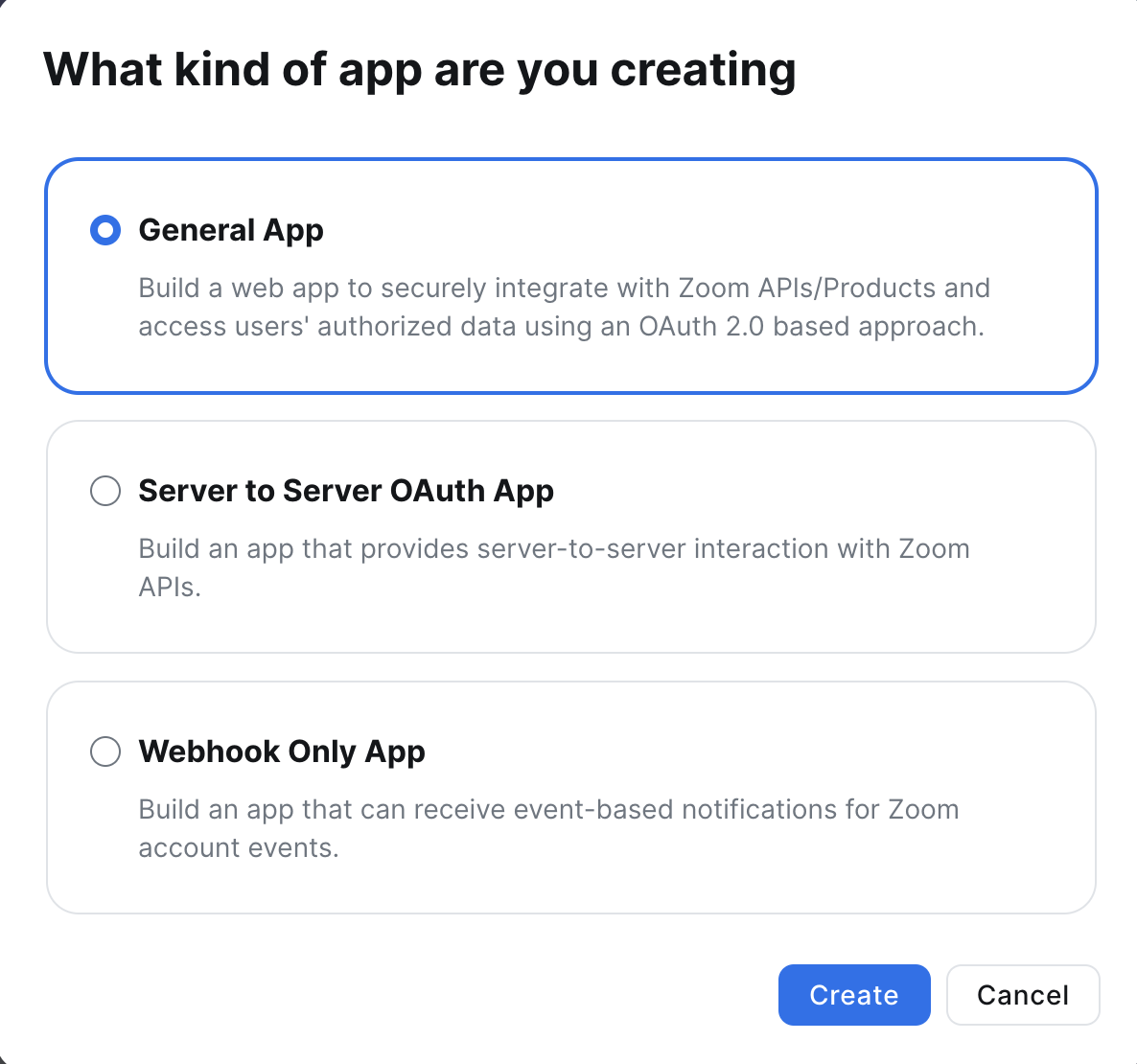
Select General App, click Create.
-
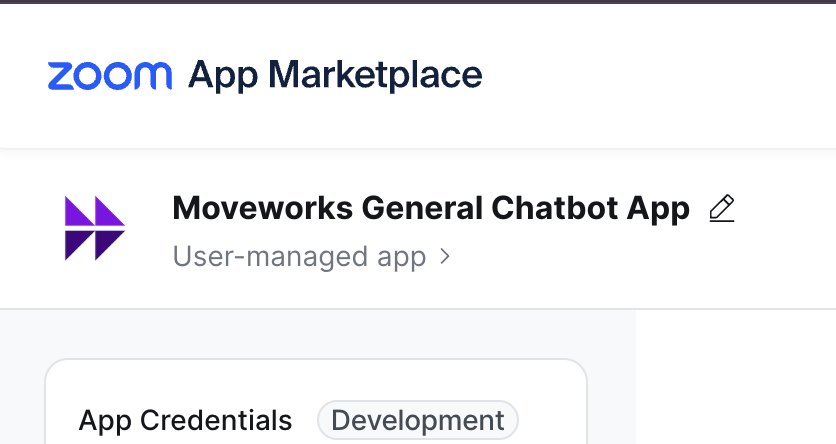
Update App Name and Icon at the top left (ex. Moveworks General Chatbot App
-
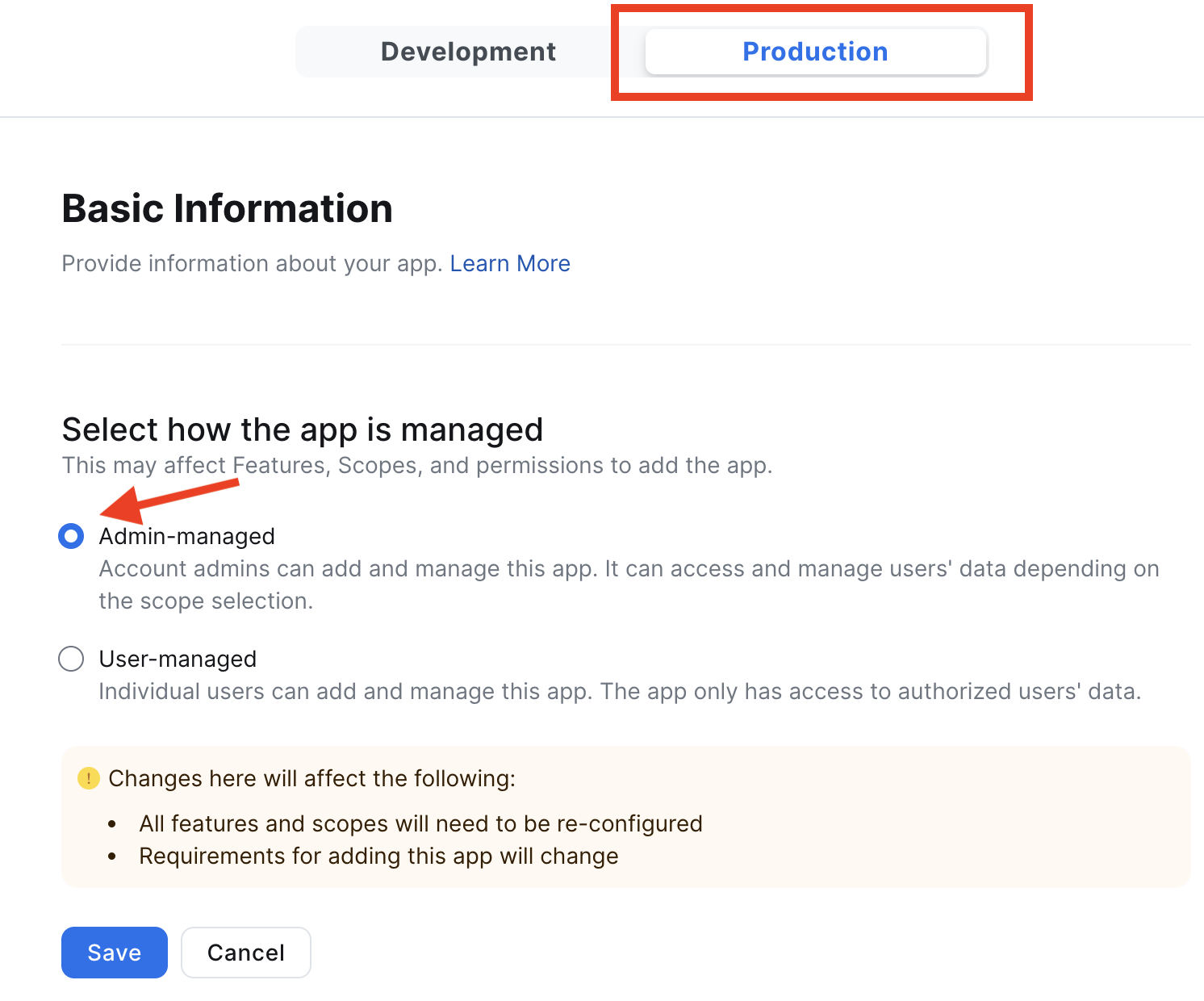
Click on the Production tab, then select Admin Managed and click Save
📘 Ensure you are in the Production tab for all of the following steps
-
Enter the following values under Oauth Information:
-
Oauth Redirect URL:
https://oauth.pstmn.io/v1/callback -
OAuth Allow Lists:
https://app.moveworks.ai/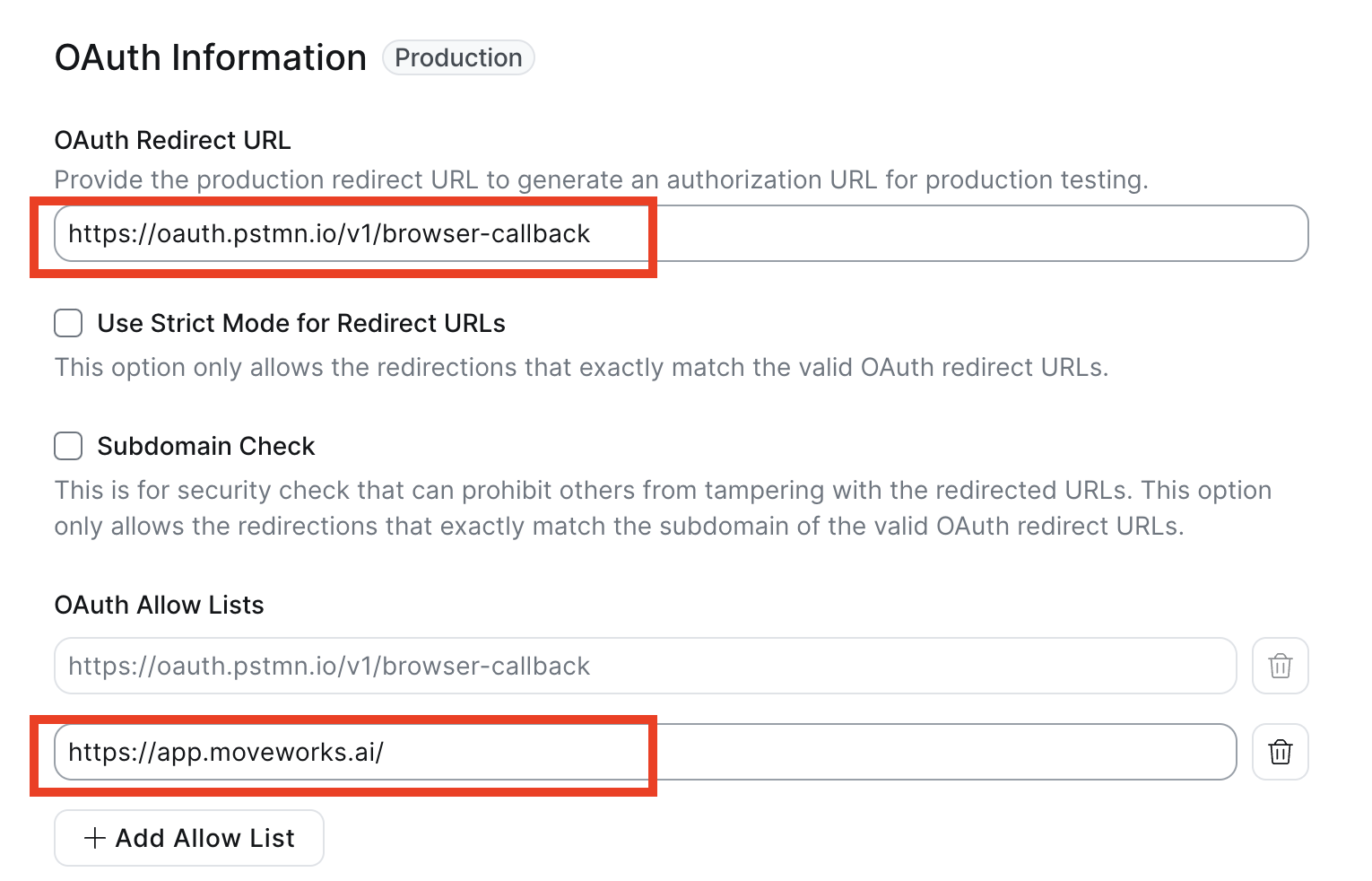
-
-
Save your
Client ID, &Client Secretvalues.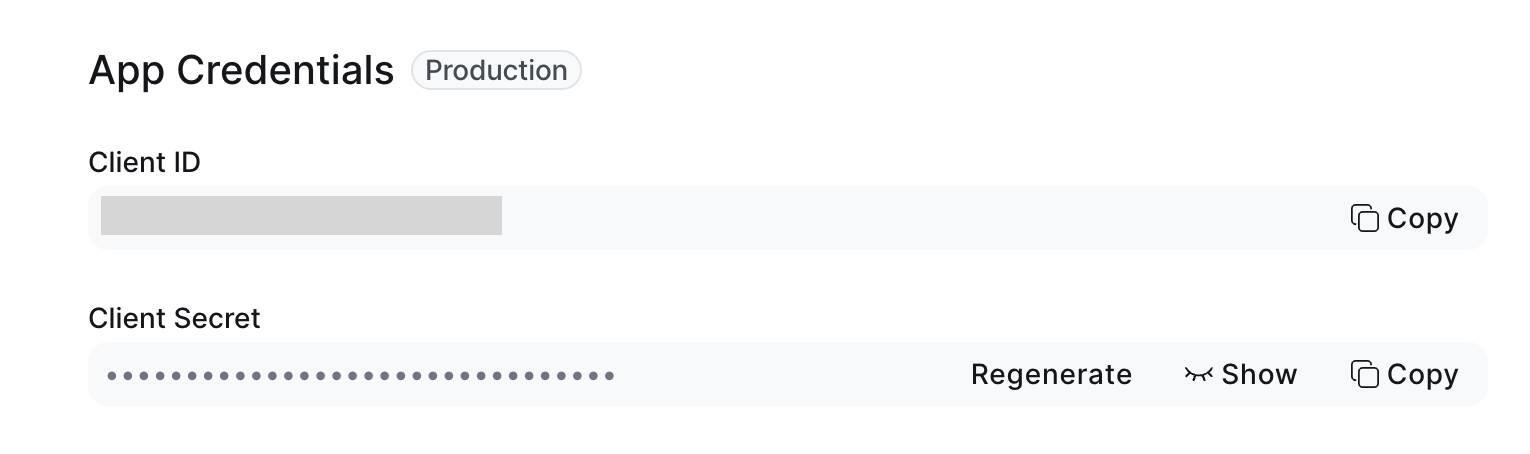
-
Go to the Access page, save your
Secret Tokenvalue.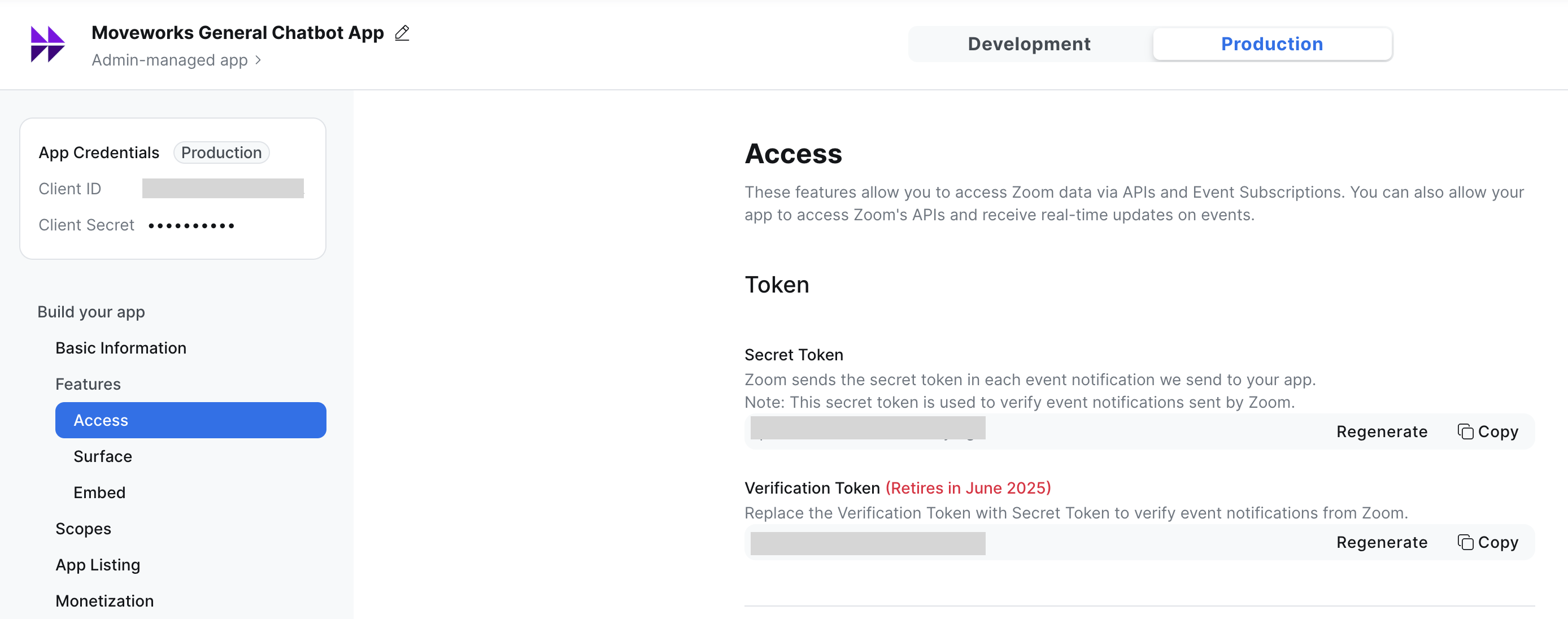
-
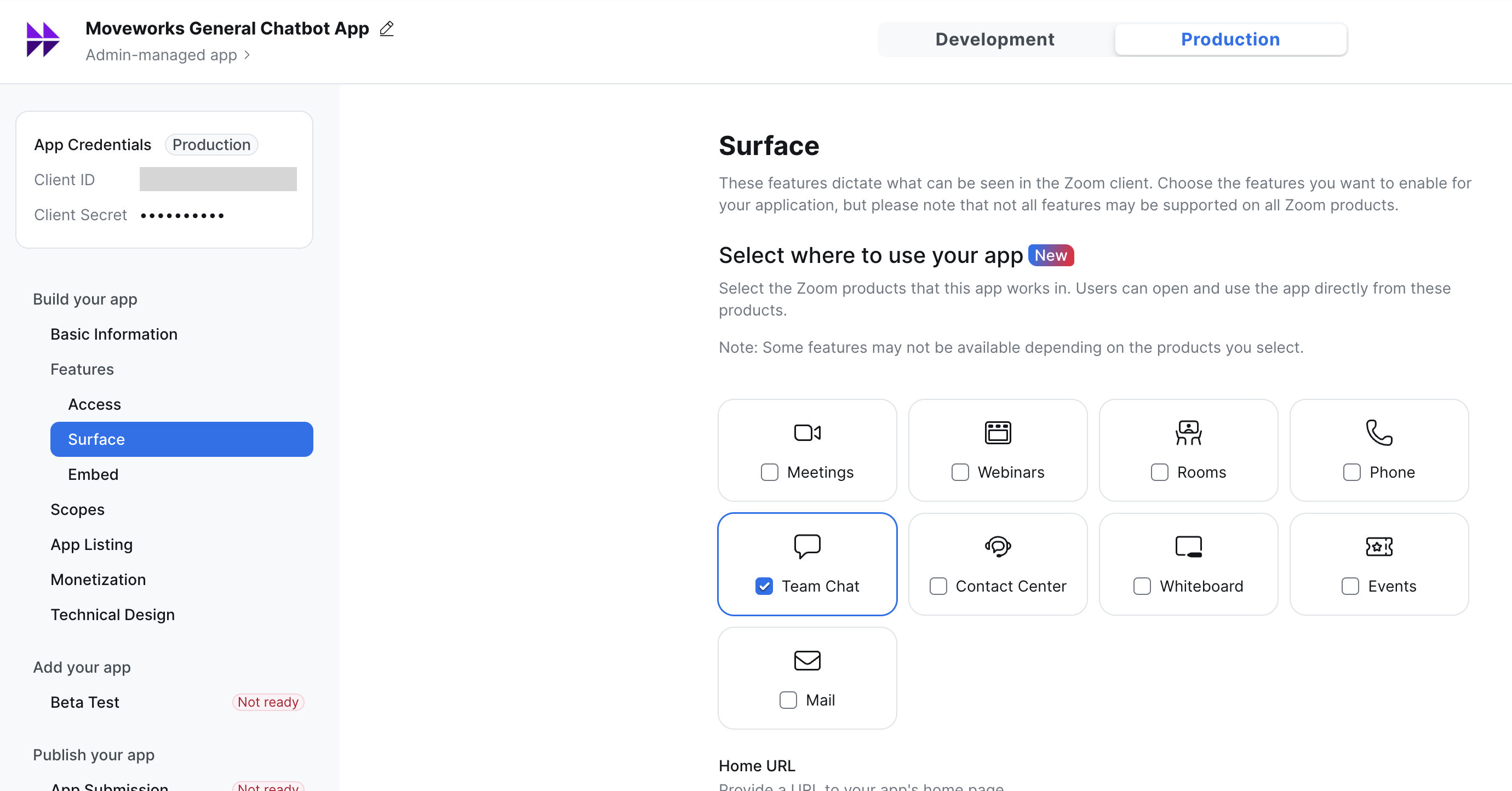
Navigate to the Surface page and select Team Chat
-
Scroll down and enable Team Chat Subscription
-
Enter
https://app.moveworks.ai/bot_jid/zoom/eventsin the Bot Endpoint URL and press Save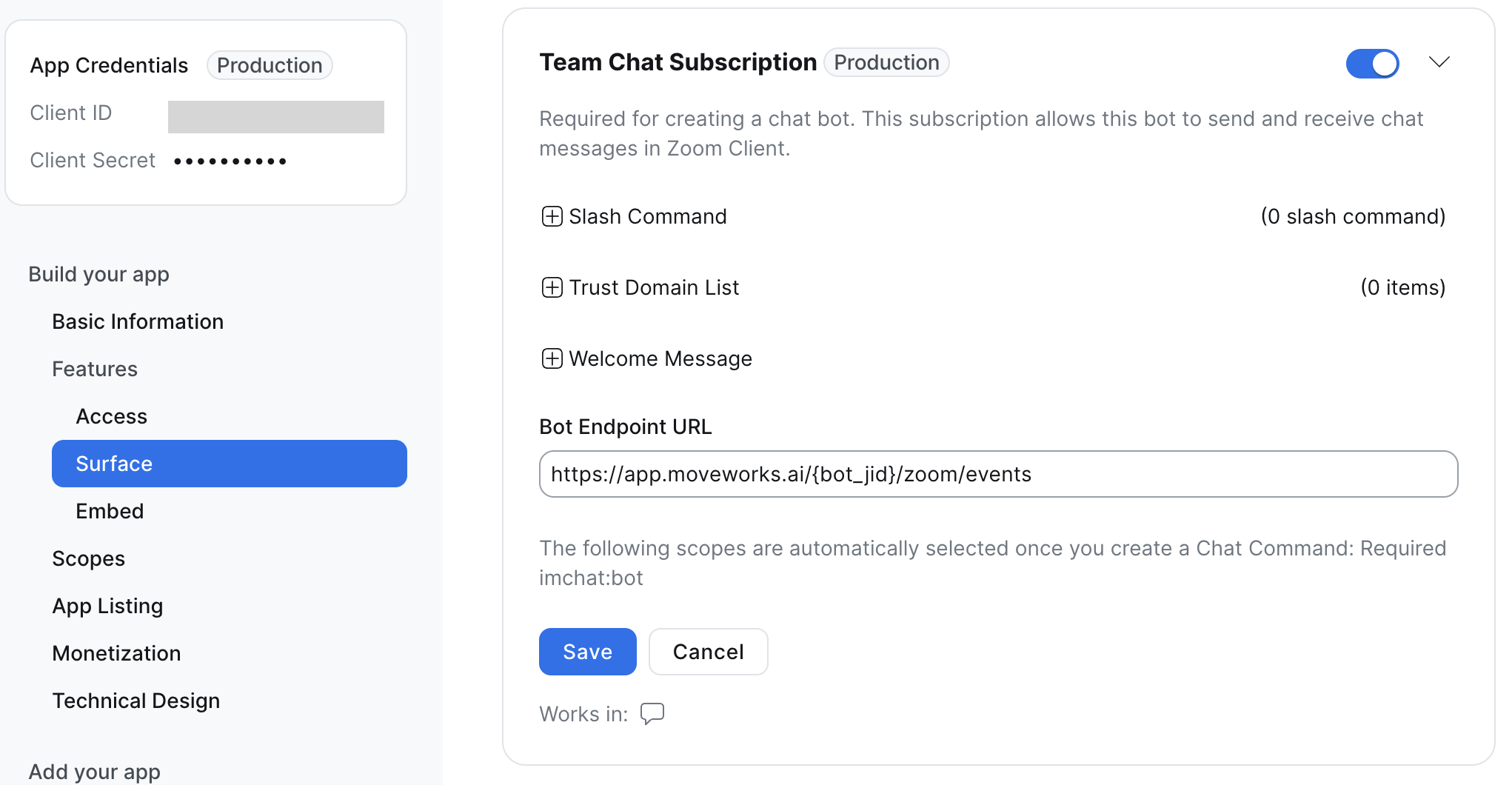
-
-
This will generate you a new
Bot JIDvalue, save theBot JIDcollect these store them securely.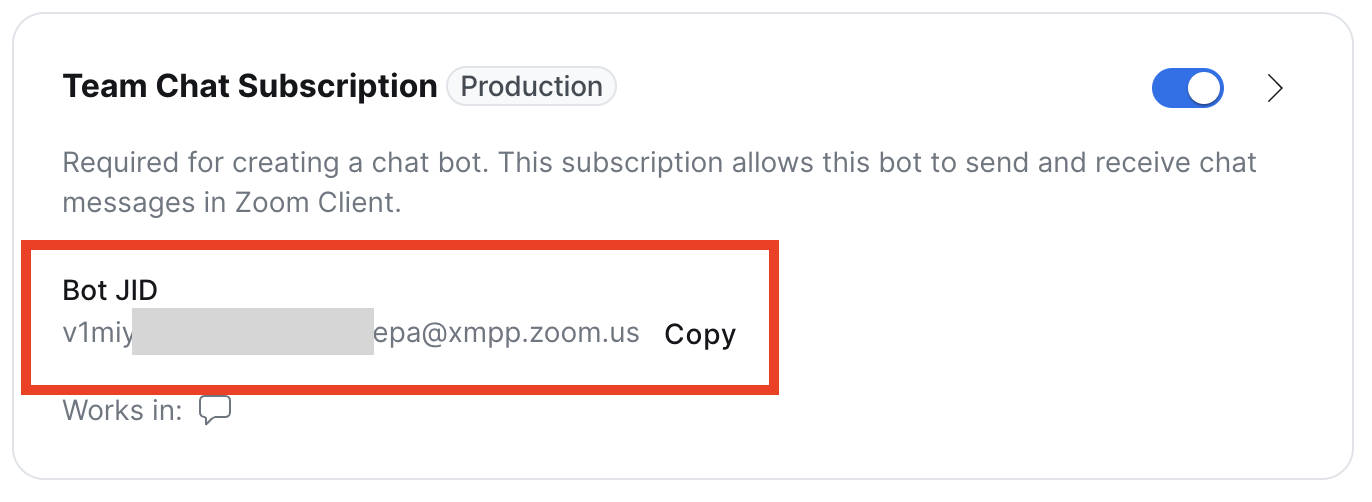
-
Edit the Team Chat Subscription you just enabled and update the Bot Endpoint URL to
https://app.moveworks.ai/{your bot_jid}/zoom/eventsreplacing{your bot_jid}with your copied value and click https://app.moveworks.ai/bot_jid/zoom/events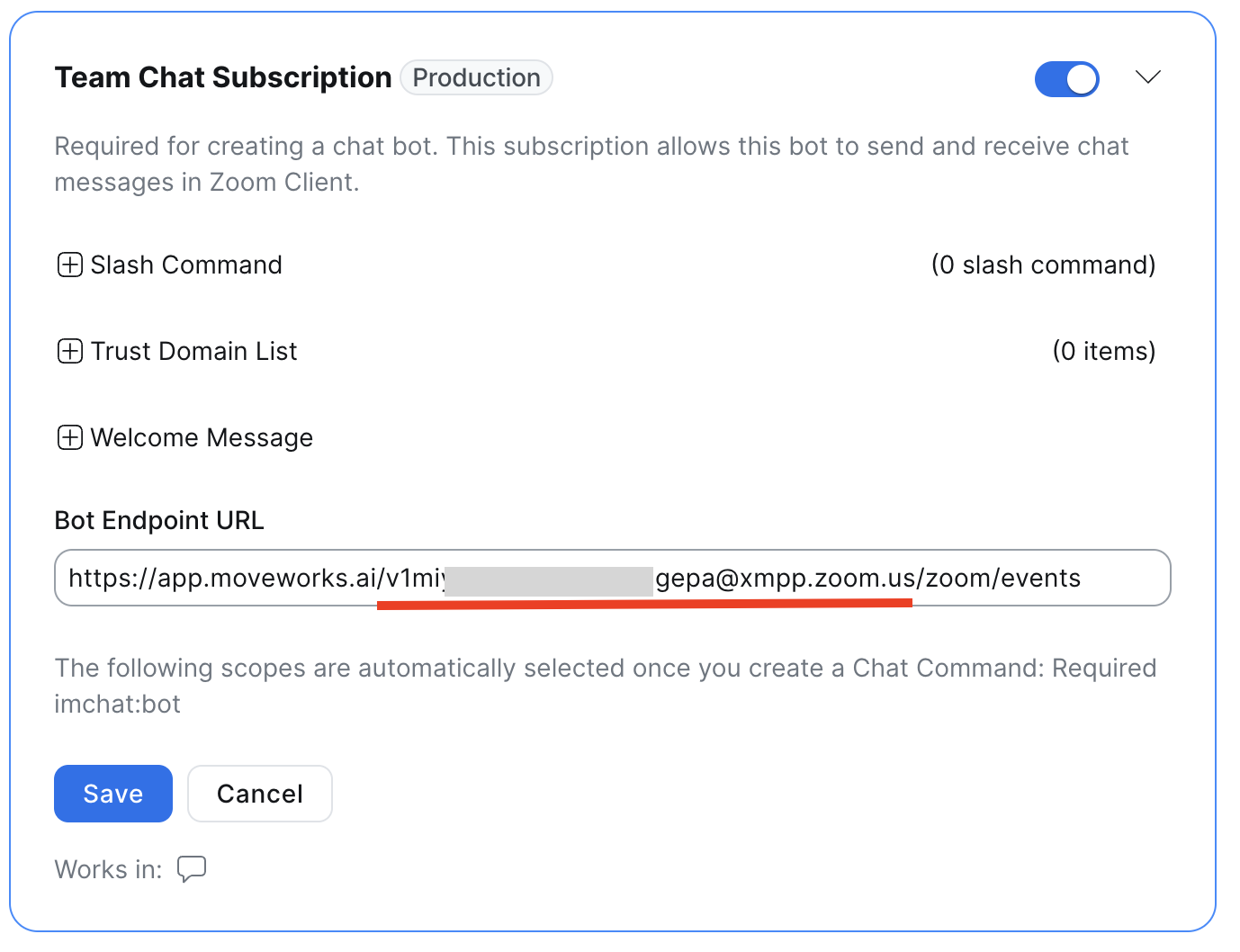
-
On the Scopes page, add the following Scopes
-
imchat:bot(Note: This may be already selected by default) -
user:read:user:admin -
user:read:list_users:admin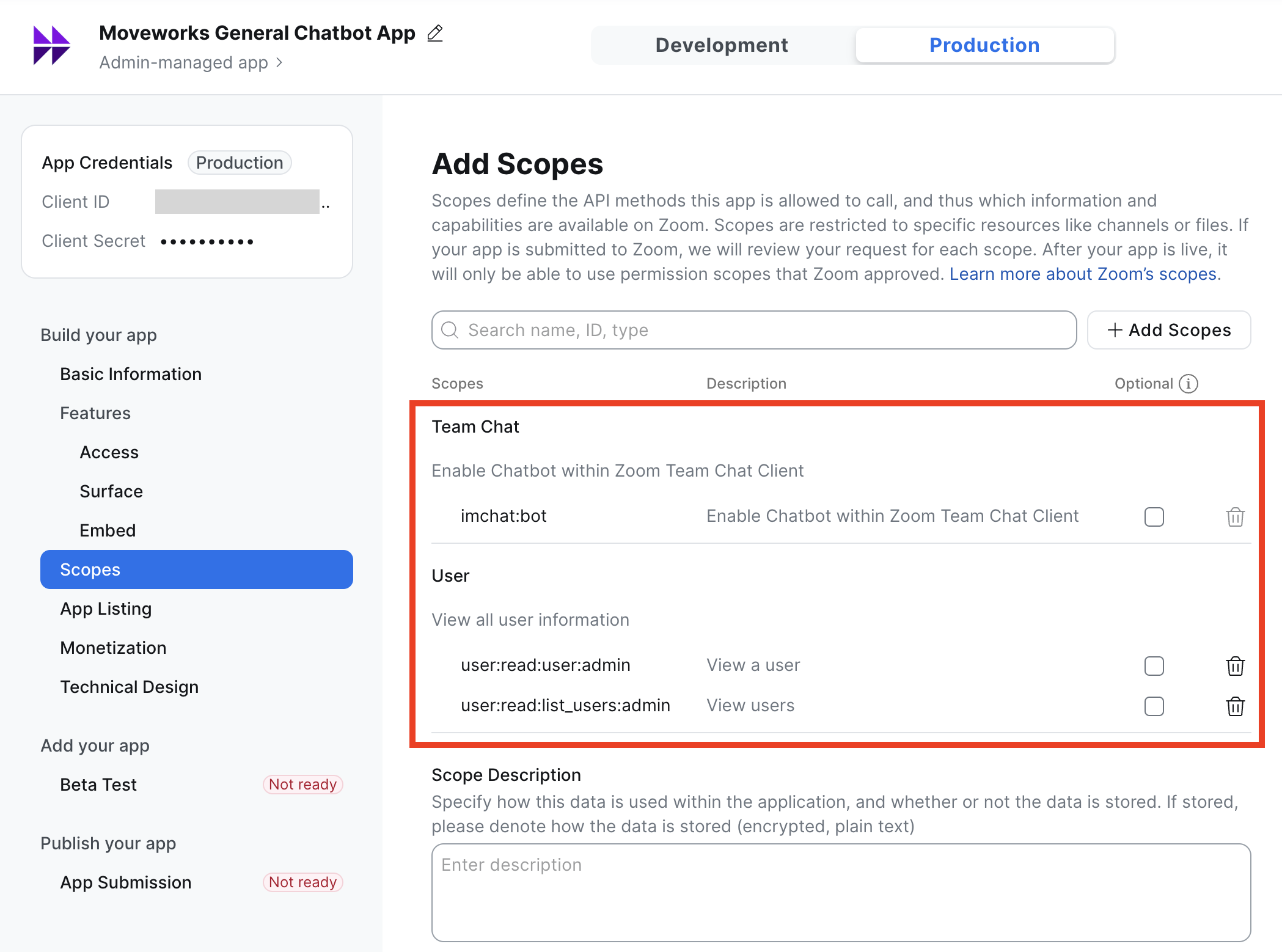
-
-
Be sure to collect the following Production values for creating the Chat Bot Configuration.
Client IDClient SecretSecret TokenBot JID
Setting up the Zoom Chat Assistant
Now that we have collected all the Credentials and details, Please follow this Guide on How to Configure the Moveworks Assistant in order to Deploy the Assistant.