
Embedded AI Assistant (formerly, Moveworks for Web)
Overview
Embedded AI Assistant is a web-based, embedded chat client that can be hosted in your most frequented employee service portals and intranet sites. It automatically authenticates users by using their existing session on the host site, to grant them access to the full capabilities of the Moveworks platform without leaving their browser.
How does Embedded AI Assistant work?
How is the user authenticated?
Each host is implemented differently, but in general, Moveworks will embedded via a Javascript snippet on each page we want it to appear. When a user visits that page, a call is made to Moveworks services, offering a token or other form of authentication provided by the host system, which allows Moveworks to validate authentication for the current user. Moveworks validates the following:
- A. The user is authenticated into the host system
- When the AI Assistant is set up via SSO (OIDC or SAML), authorization happens against the user’s ID in the host system (e.g. Entra ID or Okta User ID) as these are the unique identifiers assigned to each user in the SSO systems.
- B. The user exists within the Moveworks User Identity
- C. The user is authorized to access to Embedded AI Assistant.
Only if all of these checks pass, Embedded AI Assistant will successfully load. If any of the checks do not pass, then nothing will appear, and the user will not see Embedded AI Assistant. If the user is authenticated, the script renders an iframe on the page containing the AI Assistant icon in the bottom right corner of the page.
On which pages does Embedded AI Assistant show up?
Depending on the host, Embedded AI Assistant can be applied to individual pages or across your entire portal by applying it to your portal’s theme. We generally recommend the latter if possible with the host, as it only takes a few seconds to do and your users will have access to the AI Assistant throughout their entire journey through the portal.
What types of hosts/authentication methods are supported?
- Any destination that supports HTML embedding can leverage the following SSO based auth methods:
- SAML
- OIDC
📘 Most common Authentication Providers support SAML and OIDC
We have tested SAML and OIDC against Azure, Okta, ADFS, and many other industry standard authentication providers.
- ServiceNow (JWT based auth)
- SharePoint (JWT based auth)
Although ServiceNow supports a native based auth, Moveworks strongly recommends authenticating the web AI Assistant with your SSO provider using OIDC OR SAML instead.
Configuration options
Which parts of the design can be customized?
Below are the customizations we offer for our Embedded Assistant Experience:
- Theme Settings
- Primary Color
- Screen Height & Width
- Avatar & Button Settings
- Avatar image
- Avatar Size
- Close button size
- Expire Speech Bubble
- Web bot display url settings
- Display Urls Allow List
- Display Urls Block List
- Proactive popup url settings
- Proactive Popup Urls Allow List
- Proactive Popup Urls Block List
Theme Settings:
To configure the primary color, navigate to this page within Moveworks Setup:
- Find the “Chat Platform” section
- Click on “Display Settings”
- Expand the “Moveworks Web Forms UI Styling” section
To change the primary color, choose a new color by specifying the RBG. This primary color is shared between on Assistant on Web experience + Embedded Assistant experience.
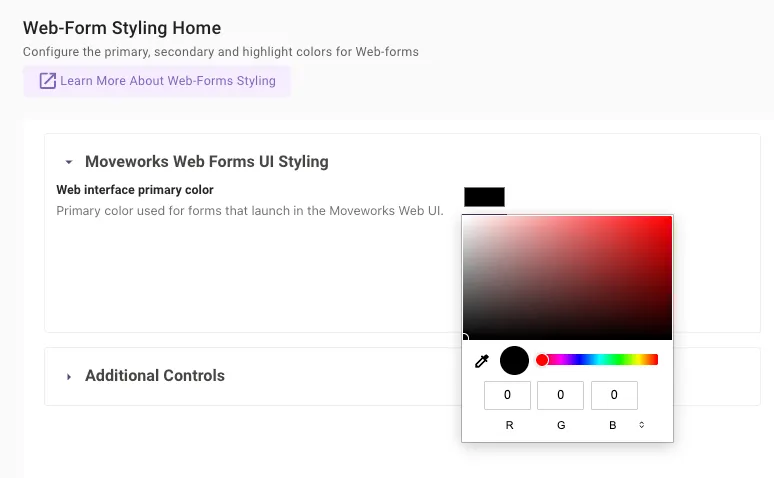
How primary color works:
- If you have a primary color set in both embedded assistant AND assistant on web, we will use the primary color on the assistant on web config.
- If you don’t currently use Embedded Assistant and had already specified a primary color for assistant on web, you’ll see the primary color you had specified for Assistant on Web.
- If you have never specified a primary color, we will automatically default the primary color to Black (RGB: 0, 0, 0).
To configure the Screen Height & Width, navigate to this other page within Moveworks Setup:
- Find the “Chat Platform” section
- Click on “Customization Settings”
- Find the “Avatar and button settings” section
- Expand the “Theme Settings” section
On this section you’ll be able to configure:
- Full Screen Height &Full Screen Width: Embedded AI Assistant supports custom specifications for the Full Screen (or maximize) button. If you would prefer to have the option to expand the iframe, but not take up the full screen, you can specify the height and width with valid CSS syntax.
Avatar & Button Settings
Navigate to this page within Moveworks Setup:
- Find the “Chat Platform” section
- Expand the “Web chatbot” section
- Click on “Design settings”
- Find the “Avatar and button settings” section
Here you’ll be able to modify the following fields which are related to the entry point:
Avatar image:This is the image that will be used as your avatar.Avatar Size:This controls the size of your avatar, specifically how large it appears when it’s displayed as the entry point.Close button size:This is also related to the entry point.Expire Speech Bubble:If you’d like to hide the speech button that says, “how can I help you?” after a specific time this is where you would specify that timeframe.
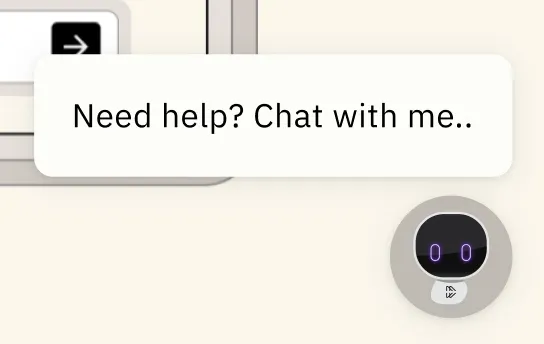
These setting can be found on the following section within Moveworks Setup:
- Find the “Chat Platform” section
- Click on “Design Settings”
- Find the “Avatar and button settings” section
Avatar Image
This is where you can specify the image url for the bot. If this is left blank, the AI Assistant will use a default Moveworks logo. It is recommended to use a 160x160 SVG file.
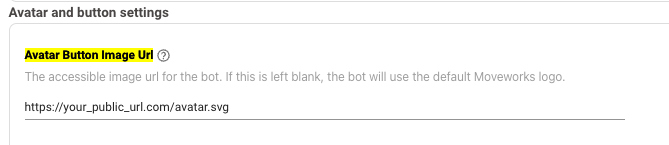
The other configurable fields related to the entry point are found below that config:
Avatar Size -This controls the size of the avatar button which is present when the AI Assistant is in the closed stateClose Button Size- This controls the size of the close button which is present when the AI Assistant is in the open state- Speech Bubble Configuration
Expire Speech Bubble(hide the speech bubble) - If true, hide the speech bubble after the configured number of seconds. Otherwise, persist the speech bubble until the user opens the botSpeech Bubble Expiration Time- The configured number of seconds after which to hide the speech bubble if the above config is true.
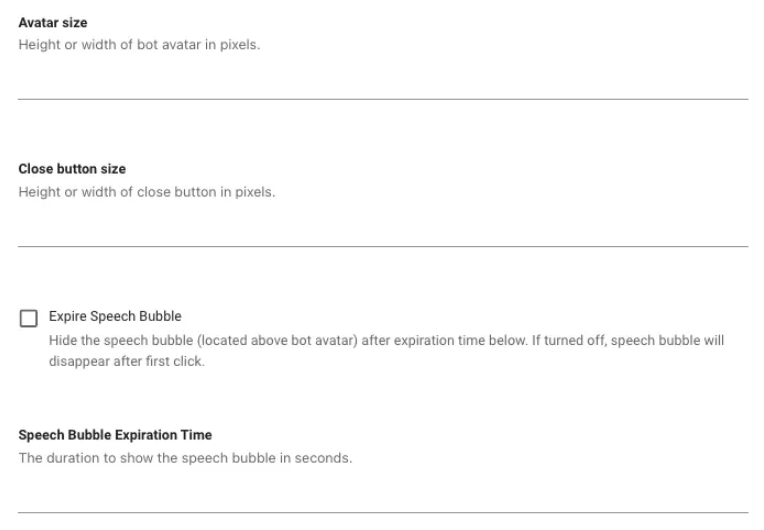
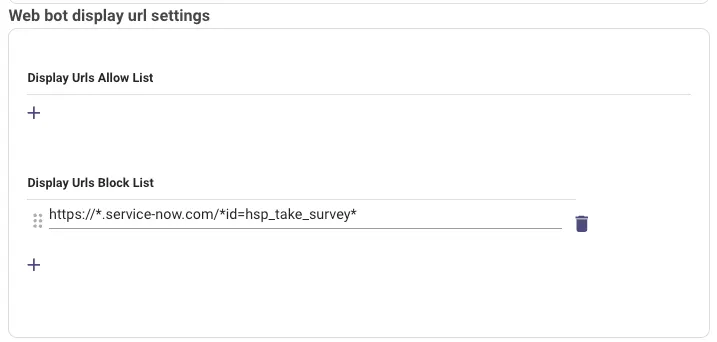
Web bot display url settings:
This configuration let’s you decide which websites you’d like to display your embedded assistant on and which websites you don’t want your embedded assistant to appear on.
These help you determine which websites you’d like your embedded assistant to appear in. When you add urls to the list of “Display Urls Allow List” section, we only show the embedded assistant in those urls that you’ve specified.
The reverse logic would apply for the “Display Urls Block List”. If you add urls to the list of “Display Urls Block List” section, we WILL NOT show the embedded assistant in those urls that you’ve specified.
Proactive popup url settings:
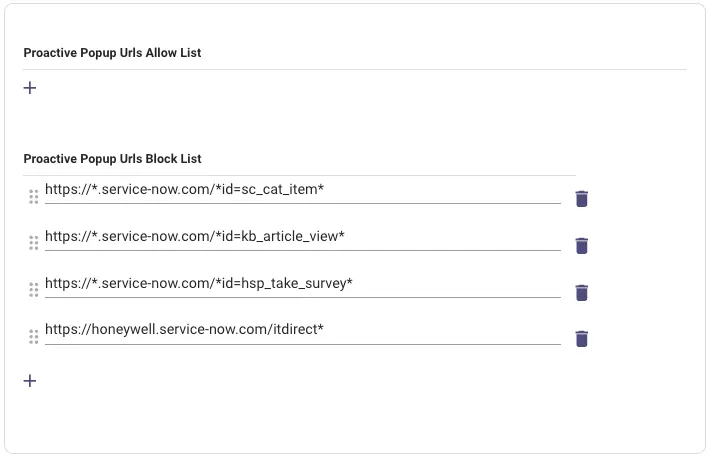
In addition to deciding which website you’d like to display your embedded assistant on, you can decide whether or not the embedded assistant should automatically be expanded or collapsed.
If you add urls to the “Proactive Popup Urls Allow list” allow list, we’ll proactively expand the embedded assistant on those urls.
If you add urls to the “Proactive Popup Urls Block list” allow list, the embedded assistant will be presented as collapsed view.
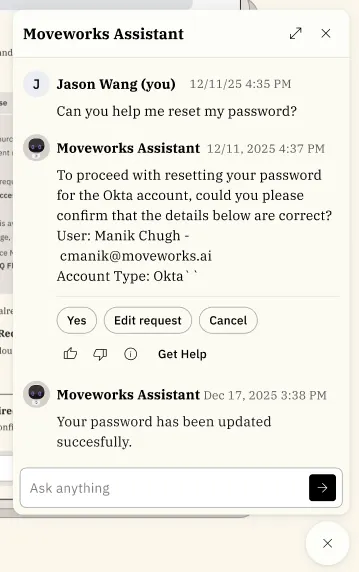
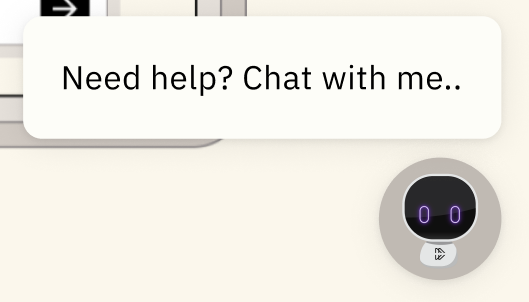
For reference, this is the expanded and collapsed view.
Expanded:
Collapsed:
How to embed my AI Assistant on a Web page
After you have set up authentication for your Embedded AI Assistant bot, using SAML, or OIDC, you can use leverage the code snippets below to embed your AI Assistant on any web page that supports embedding HTML & Javascript.
You will need to replace bot_id, which is is the unique bot ID of your bot. You can view this from Moveworks Setup, or ask your Moveworks team.
If your installation does not require any style overrides then use the following:
Otherwise use the following:
- You can also added these optional parameters along with the serverURL. See below.
stylescontrols the position of the avatar
FAQ
Q: How long does Embedded AI Assistant links stay active?
A: Embedded AI Assistant links are active for 14 days.
Q: Is the text within chat bubbles configurable?
Yes, the text in with chat bubbles in Embedded AI Assistant is configurable by configuring the botMessage or userMessage parameters outlined above.
Q: Can we have both JWT and SSO simultaneously for M4W and standalone app?
Yes, ServiceNow native auth, and SSO based auth can coexist.
History Syncing
All your Embedded AI Assistant bots’ chat histories stay in sync within and across hosts. For example, a user’s history will be shared across ServiceNow pages and across ServiceNow and SharePoint.
Chat histories are not synced between the web and native chat platforms. This is consistent with how, for example, Slack and Teams bots are not synced.
All Assistants (web and native chat) have access to the same underlying data and integrations. For example, I could file a ticket in Embedded AI Assistant on SharePoint and immediately check the status of it and add a comment to it in Slack.
Users have up to a 30 day history on their Embedded AI Assistant messages per our data retention policies.
Forms Functionality
Clicking on any link to an external resource will lead users to the same destination as configured for your organization’s other chat platform(s). For clarity, links to forms will have one of three results:
- For a simple in-bot-fillable form (i.e. one or less mandatory fields), the behavior is the same in Embedded AI Assistant as in Slack/Teams/etc., which is to allow users to fill the form conversationally in chat.
- For a complex in-bot-fillable form (i.e. more than one mandatory field), the user will be able the form out in a modal on the same tab as the Embedded AI Assistant UI, as long as the modal feature is enabled.
- For a form that is not in-bot-fillable, the user will be directed to the source system of the form to fill out the form in a new tab on the web browser (this will be consistent with where users are directed in their normal chat platform).
Proactive Greetings (No longer supported)
This is only available in the Moveworks Classic experience, users of Moveworks AI Assistant will not receive proactive greetings.
Proactive welcome is the reachout message we send to users upon landing on a page that hosts Embedded AI Assistant. By default, this looks like this:
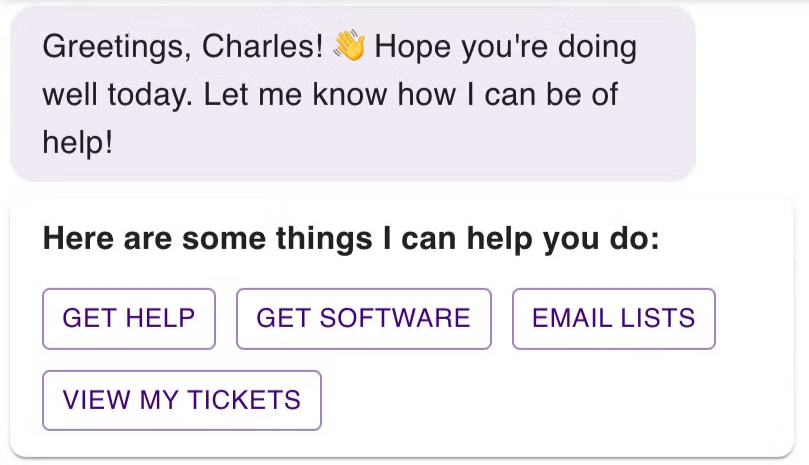
Proactive welcome configs allow you to set rules for when and which type of proactive welcome is triggered based on several factors.
You can determine how often the greeting should trigger, what platforms/pages/URLs to trigger on, and even to trigger to display existing active tickets the user has.