
Configure Enterprise Search
Ingest your ServiceNow knowledge base articles into Moveworks Enterprise Search so the AI Assistant can answer questions from your content, respecting the article permissions defined in ServiceNow.
For administrators. This page covers the minimum configuration to get knowledge answers working. For deeper options, see the Enterprise Search documentation.
Before You Begin
- Connect ServiceNow is complete: connector tested, update sets installed (the
moveworks.aclupdate set powers permission mirroring), and the integration account holds themoveworks_userrole. - Your ServiceNow instance has published knowledge base articles.
- Plan for the initial ingestion window: the first content-and-permissions ingestion takes approximately 12 hours. After that, incremental syncs run every 15 to 30 minutes.
Procedure
1. Create the Search Configuration
-
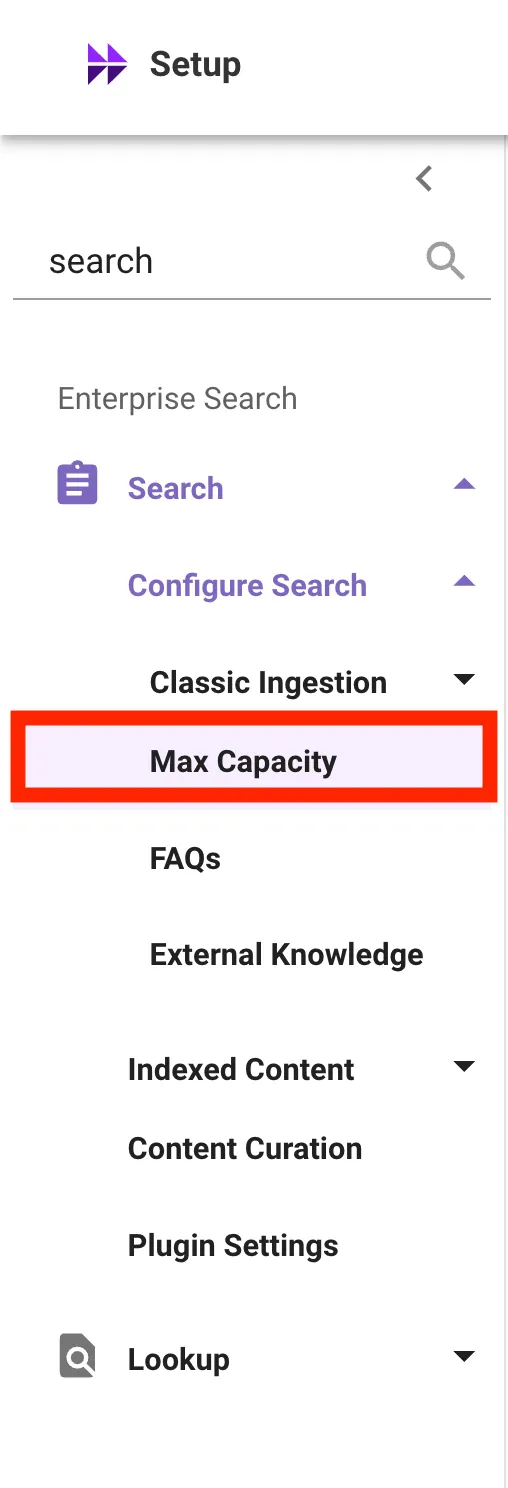
In Moveworks Setup, go to Search > Configure Search > Max Capacity and click Get Started.
-
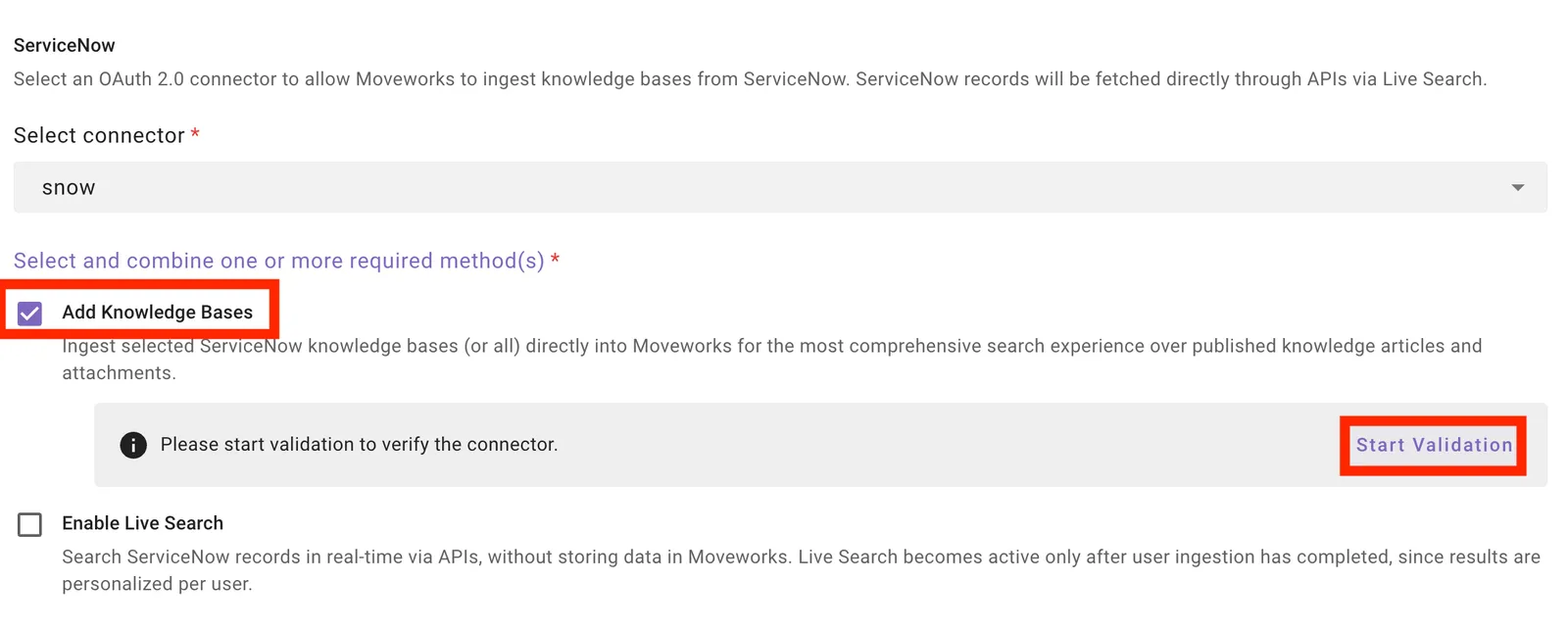
Select ServiceNow as the source system, then choose your connector from the Select connector dropdown.
-
Under Select and combine one or more required method(s), check Add Knowledge Bases, then click Start Validation. Moveworks verifies the instance is ready for ingestion.
-
Confirm that Credentials, Content, User, and Permission all return successful, then click Close and Save.
If validation fails: confirm you can reach the instance from the Moveworks Setup API Playground, and confirm the Moveworks update sets appear on your instance’s Retrieved Update Sets page. A failing Permission check usually means the moveworks.acl update set is missing or the integration account lacks the moveworks_user role.
2. Select Content and Audience
-
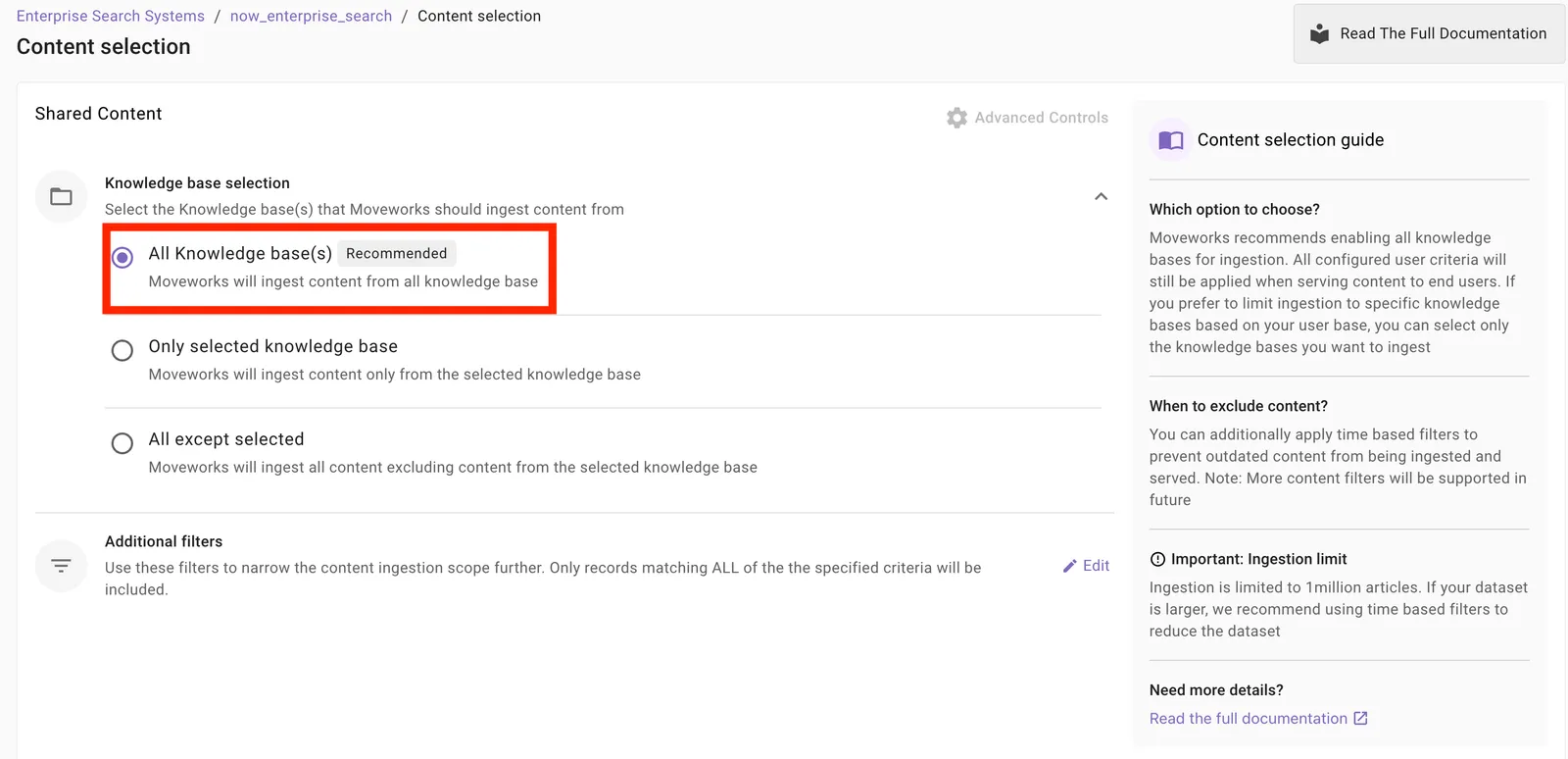
On the Content Selection step, choose which knowledge bases to ingest - all of them, or a specific subset - and click Save.
-
On the Audience step, choose who can search this content (for example, All Users) and click Save. Initial ingestion begins after you save.
3. Confirm Permissions Are Mirrored
Moveworks enforces your ServiceNow article permissions using Relationship-Based Access Control (ReBAC): users only see articles their ServiceNow user criteria allow.
- On the Resource Permissions > Mirror Permissions page, confirm your connector is selected and knowledge access controls are being fetched. This page is powered by the
moveworks.aclupdate set. - Review the Permission Rules page. Mirroring is ServiceNow-specific; permission rules apply across all integrated systems.
4. Enable the Plugin
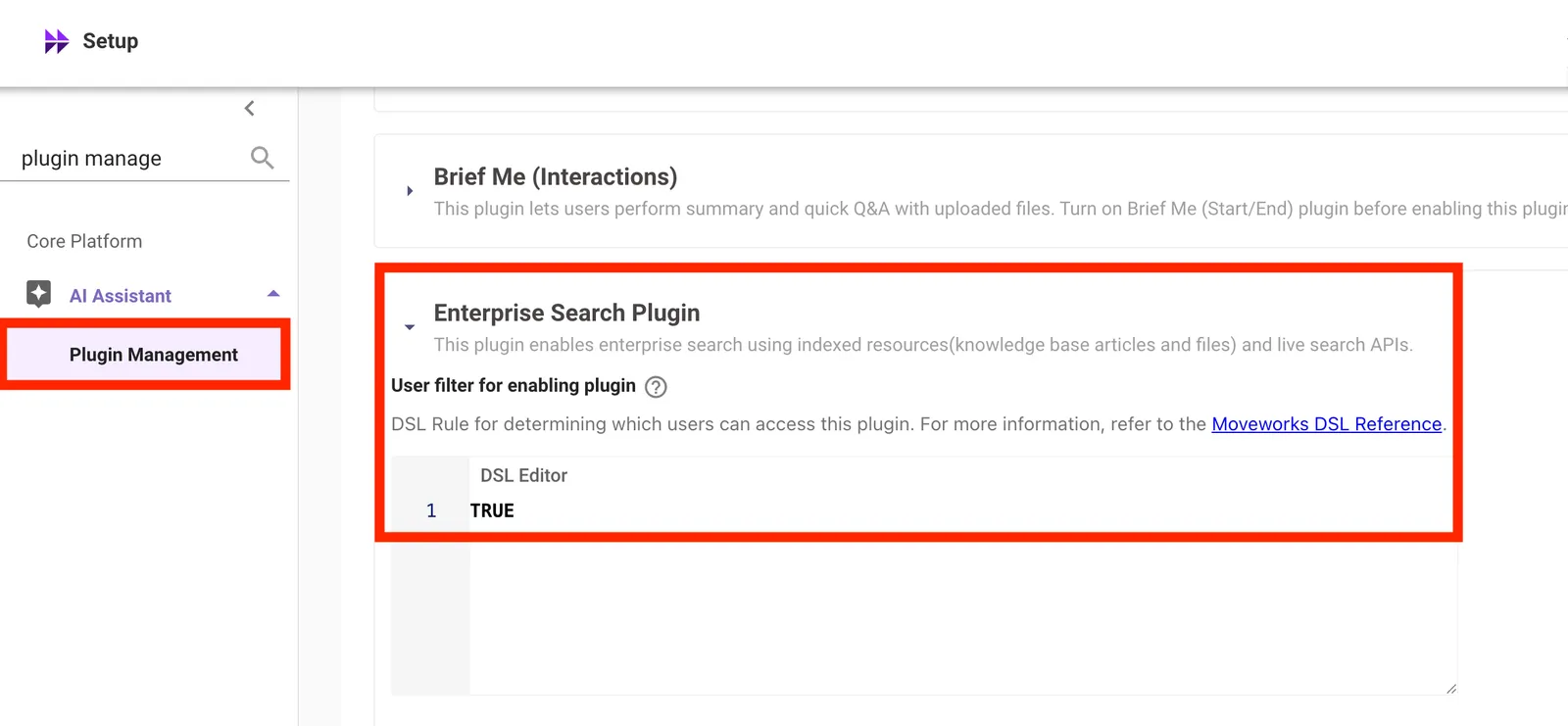
Go to AI Assistant > Plugin Management and set the Enterprise Search plugin to TRUE. Leave the DSL rule empty to grant access to all users, or scope it later.
Result
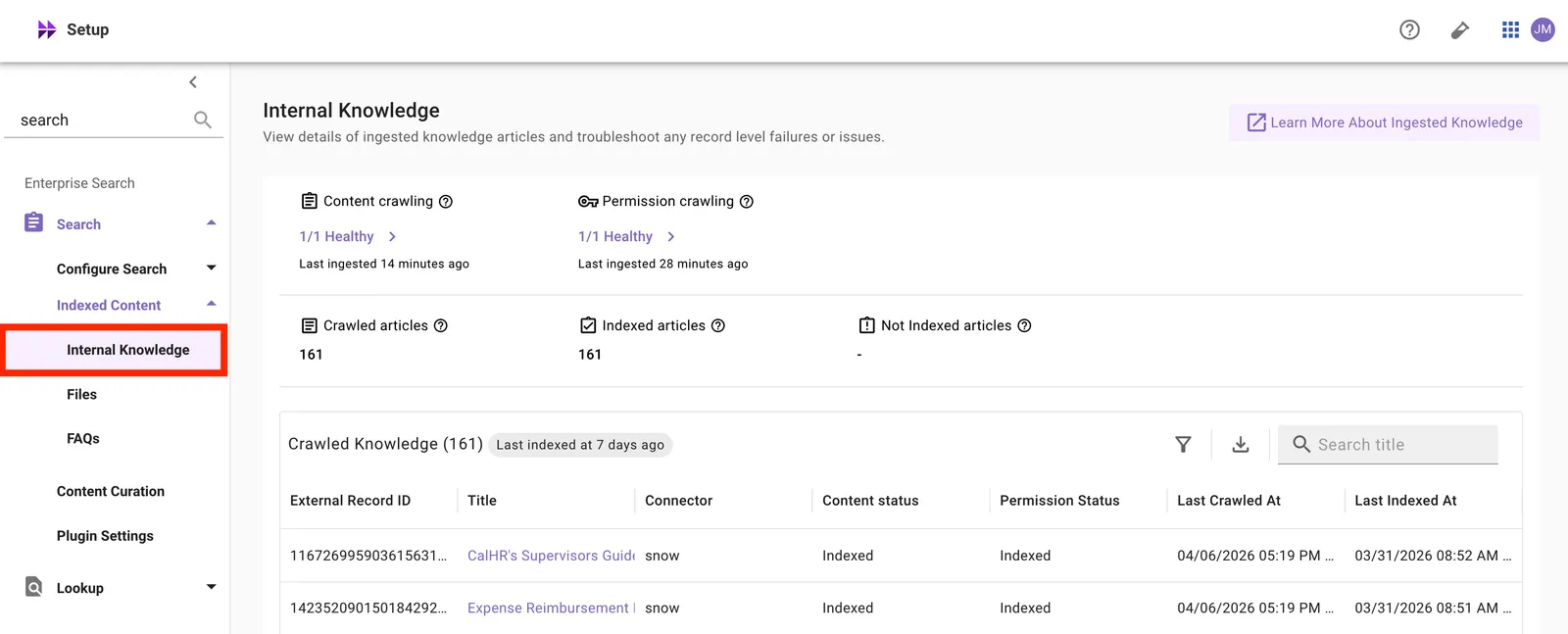
After the initial ingestion completes (approximately 12 hours), your articles appear with status Serving on the Indexed Content > Internal Knowledge page, and asking the AI Assistant a question covered by an ingested article returns an answer with a citation.
What to Do Next
- Configure Forms so users can find and fill catalog items in chat.
- If an ingested article is not surfacing for a user, check its status is Serving on Indexed Content, then verify that user’s access on the article’s resource permission - Moveworks follows your ServiceNow user criteria.