
Set Up ServiceNow Federated ID for Assistant Analytics
Populate the federated_id column on the ServiceNow sys_user table so Moveworks Assistant Analytics events are attributed to the correct user when surfaced in ServiceNow.
This page documents a one-time ServiceNow setup step required for Moveworks Assistant Analytics to appear in ServiceNow with correct per-user attribution. Run this after the Moveworks for Employee Center app is installed, and before you expect Assistant Analytics data to render in your ServiceNow analytics surface.
Why This Step Is Required
Moveworks identifies users by their Moveworks user_record_id. ServiceNow’s User Experience Analytics (UXA) and related analytics surfaces identify users by the federated_id column on the sys_user table. For Moveworks Assistant Analytics to flow into ServiceNow and be attributed to the correct user, every user row in sys_user must have a populated federated_id value.
ServiceNow ships with a scheduled job (IAM Generate Federated ID for Table-sys_user) that backfills this column for all existing users. The job is delivered by the ServiceNow IAM (Identity and Access Management) platform but does not run automatically on every instance, so you may need to trigger it manually.
If federated_id is not populated, Moveworks Assistant Analytics events will arrive in ServiceNow but will not associate to the correct user, and your dashboards will either show anonymous activity or fail to render per-user breakdowns at all.
Prerequisites
- ServiceNow admin or equivalent role with permission to view and execute records on the
sys_trigger(Scheduled Jobs) table. - The Moveworks for Employee Center app installed in your ServiceNow instance.
Steps
1. Open Scheduled Jobs
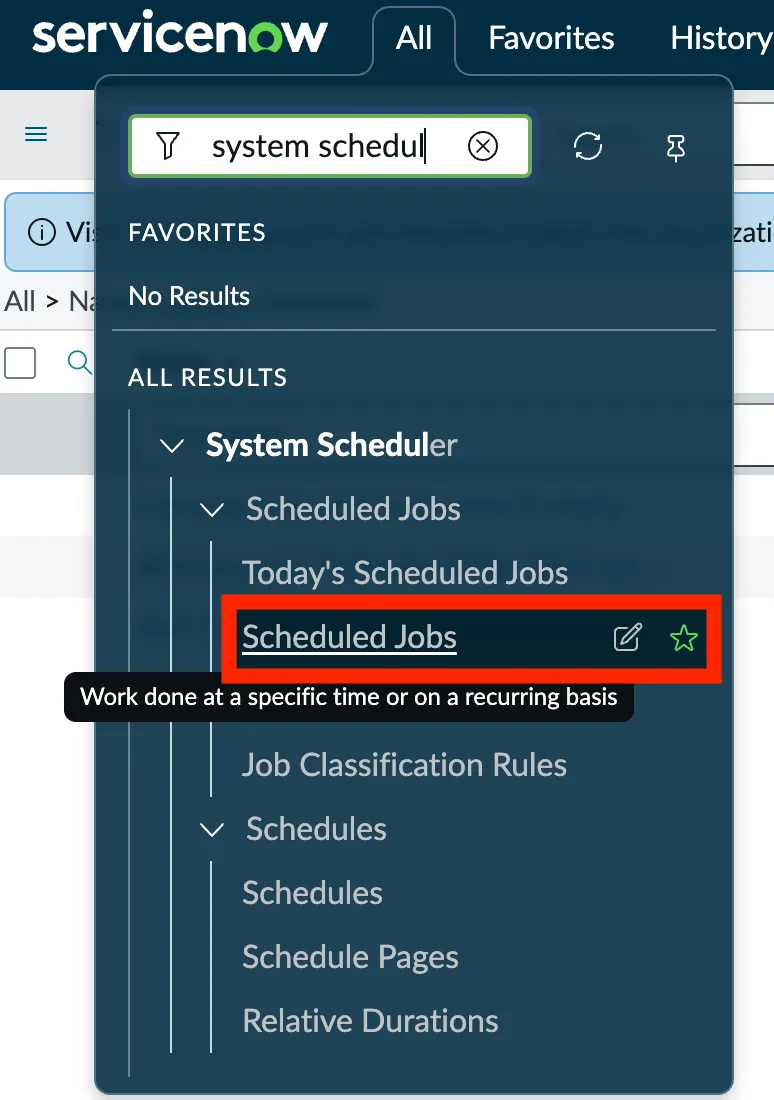
In ServiceNow, use the All menu to search for system scheduler and select Scheduled Jobs under the System Scheduler section.
2. Filter Scheduled Jobs by Name
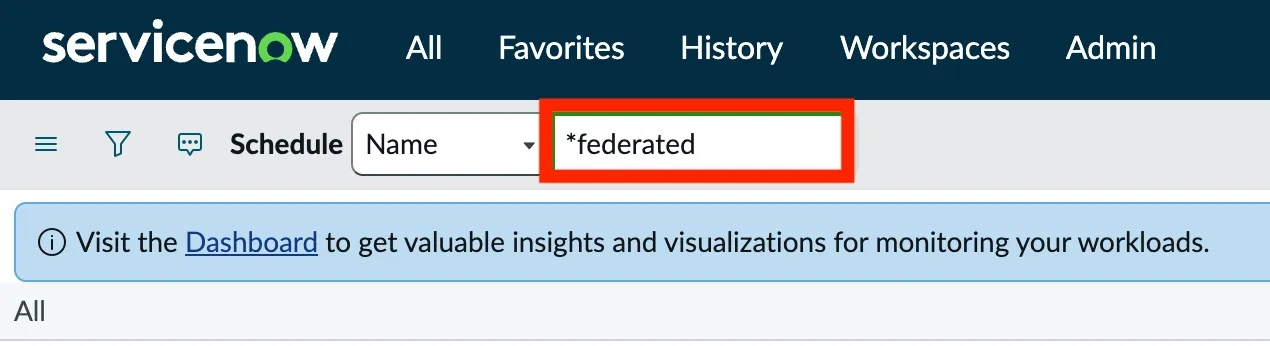
On the Scheduled Jobs list, set the column filter to Name and search for *federated. The leading wildcard ensures any name containing “federated” is returned.
3. Open the IAM Generate Federated ID for Table-sys_user Job
The filter returns multiple IAM Generate Federated ID for Table-* jobs, one per IAM-tracked table. Click into the row whose name is IAM Generate Federated ID for Table-sys_user. This is the job that backfills the federated_id column on the user table.
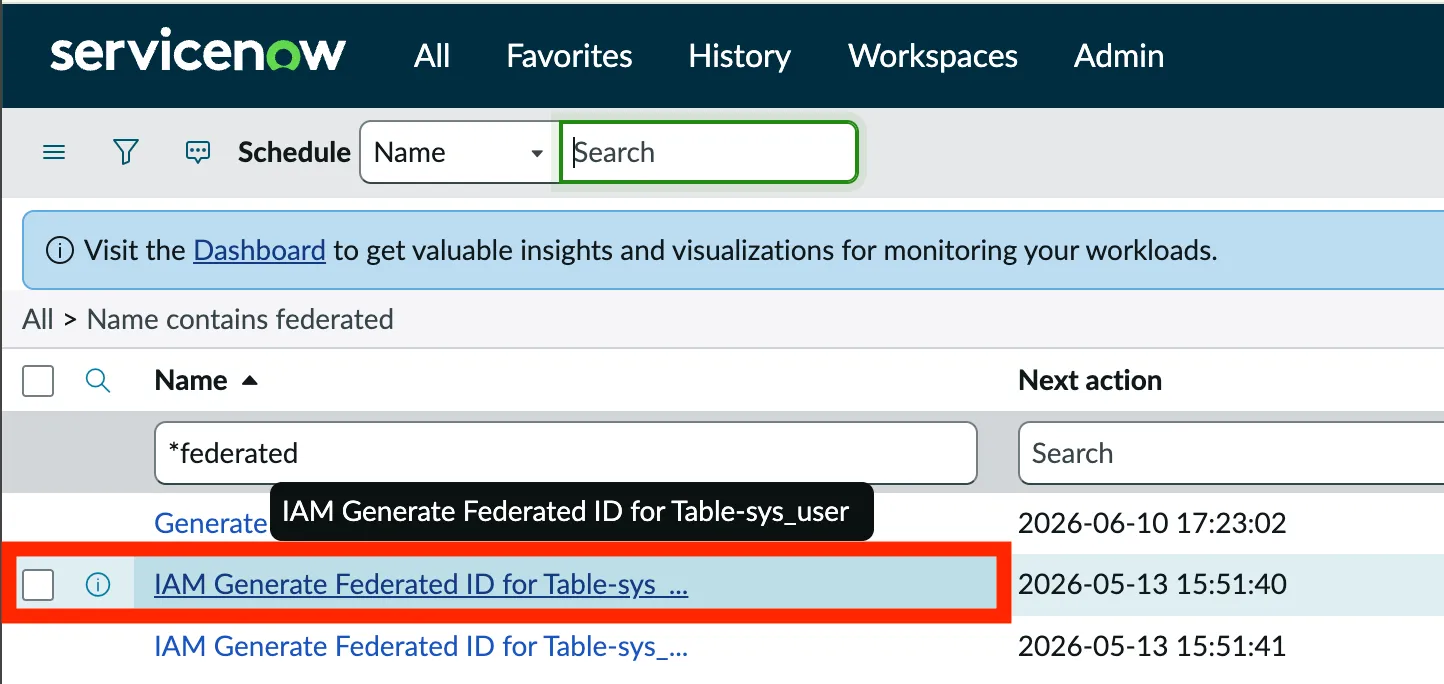
Be careful to select the sys_user job specifically. The other rows backfill federated IDs for different tables (groups, roles, etc.) and will not address the Moveworks Analytics attribution issue.
4. Execute the Job
On the scheduled-job record, use the Execute Now related link (or the equivalent action in your ServiceNow version) to run the job immediately rather than waiting for its next scheduled run.
The job iterates through every row in sys_user and populates federated_id for any record where the column is empty. Runtime scales with the size of your user roster; expect a few minutes for tens of thousands of users.
Validation
After the job completes:
- Open the
sys_usertable in your ServiceNow instance. - Add the
Federated IDcolumn to the list view if it is not already visible. - Confirm that the column is populated for all active users. Spot-check a handful of recently created users in addition to a sample of older records.
Once federated_id is populated and your Moveworks Assistant Analytics integration is configured, user activity flowing from Moveworks into ServiceNow will be attributed to the matching sys_user record.
Troubleshooting
The job has already run, but some users still have an empty federated_id. New users created after the initial run also need the field populated. The scheduled job runs on a recurring cadence by default; confirm the job is enabled and that its next scheduled run is in the future. If new users still are not getting federated IDs assigned, contact your ServiceNow administrator to confirm the IAM trigger is firing on user insert.
The job name does not appear in the filtered list. The IAM Generate Federated ID for Table-sys_user job is delivered with the ServiceNow IAM platform. If you do not see it, confirm that your instance has IAM enabled. If IAM is enabled and the job is still missing, contact ServiceNow Support to have it provisioned.
Federated IDs are populated, but Moveworks Analytics is still not attributing users. Confirm the user-record identity mapping between Moveworks and ServiceNow is using federated_id and not another identifier. Your Moveworks contact can validate the configured mapping for your tenant.