
Create a Productivity Assistant
Productivity Assistants are in Controlled Availability. Capabilities, limits, and interface labels described here may change before general availability. To request access, contact your Moveworks account team.
This page walks through the assistant creator from naming the assistant to sharing it. For what a Productivity Assistant is and who can build one, see the overview.
Before You Start
- You need a builder role in the Productivity Assistants application. The tier you hold decides how widely you can share the result.
- Productivity Assistants must be enabled for your organization in Setup under AI Assistant > Advanced Settings.
- Have your inputs ready. Skills are uploaded during creation. MCP servers must already be connected in MCP Workspace, and A2A agents must already be registered under A2A Agents in Tool Studio; the creator only lets you pick from them.
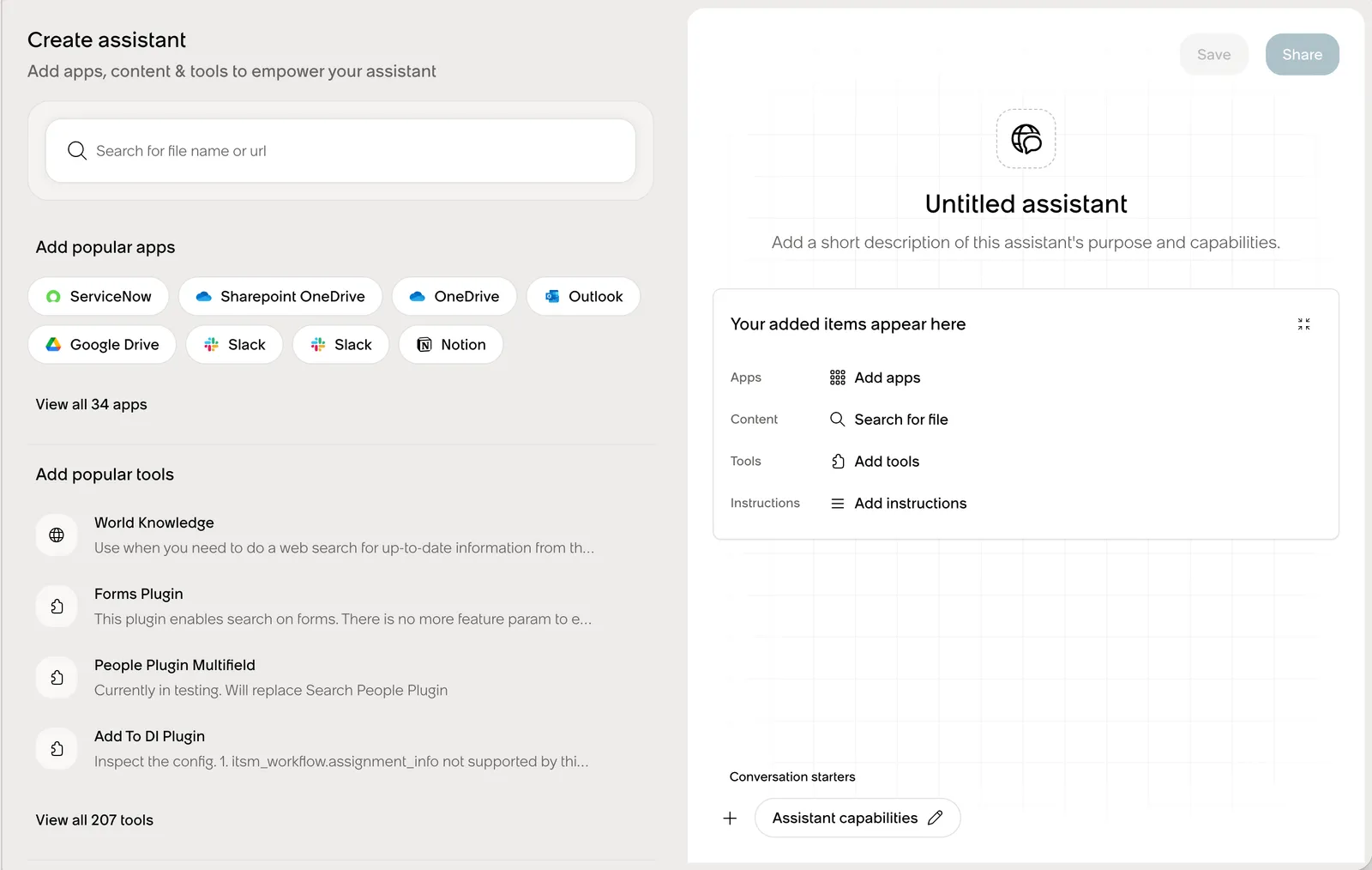
The creator is Assistant Builder, opened from Browse assistants in the EmployeeWorks web app where it is enabled for your organization.
Create the Assistant
Name the assistant and write a welcome message
Enter an Assistant name (up to 128 characters) and an Assistant welcome message (up to 1,024 characters). The welcome message is shown when a user first opens the assistant, so use it to say what the assistant does and what to ask it.
Add instructions
Select Add instructions and write the behavior you want, up to 30,000 characters. The Agentic Orchestrator appends your text to its base prompt on every turn, verbatim. It shapes tone, workflow, and output, but cannot override the Orchestrator’s core safety and plan-review rules. There are no template variables; the Orchestrator supplies the user’s name, email, role, department, location, timezone, and the current date and time automatically.
Cover these points:
- Who the assistant is for and what they typically ask.
- What it should do and what it should refuse or avoid.
- The output format you expect, such as a table, a short summary, or a document.
- When to use which Skill or tool, by name.
- When to send the user to the main Moveworks AI Assistant, for example for requests that need systems this assistant cannot reach.
See Skills for how instructions and Skills work together, with examples.
Add conversation starters
Under Conversation starters, add up to 10 entries. Each has a display text, which users see, and an utterance, which is sent as the message. Both are limited to 150 characters. A default starter, Assistant capabilities, is included; replace it with prompts that match the assistant’s purpose.
Add tools and apps
Under Add popular tools, pick built-in tools such as World Knowledge, Internal People Lookup, and Internal Room Lookup, or use All tools and Search for a tool to find others. Under Add popular apps, pick connected apps such as ServiceNow, SharePoint, OneDrive, Outlook, Teams, Confluence, and Google Drive, or browse All apps. Published A2A agents appear among the apps, labeled A2A; an assistant can have up to 50, and an empty selection means the assistant has no A2A tools. See A2A Agents.
An assistant can include up to 300 tools, including the enterprise search plugin that is added automatically when you set a knowledge scope. Selecting a plugin does not provision or authorize the underlying integration. Each user still needs their own permissions in the system behind it.
Set the knowledge scope
Choose what enterprise search covers for this assistant: whole systems such as Box, Google Drive, or SharePoint; workspaces such as a Confluence space, a SharePoint site, or a ServiceNow knowledge base; channels in Slack or Teams; or specific documents.
Selections form a union, and choosing a system includes everything in that system the user can already access. Leaving the scope empty removes the assistant-specific restriction; it does not disable search. A non-empty selection enables enterprise search for the assistant automatically. Source permissions always apply, so users only see results they could already open.
Add Skills
A Skill is an uploaded bundle of instructions that the assistant loads on demand when a request matches the Skill’s description. Skills are not plugins: a plugin is a tool the assistant can call, while a Skill tells the assistant how to do a task with the tools it already has.
Under Add Skills, select Upload a skill and choose a .zip or .skill file. The bundle must contain a SKILL.md with a YAML name and description. Upload one Skill at a time; each bundle can be up to 100 MiB. New assistants start with no Skills selected, and an assistant can reference up to 100.
See Skills for the bundle format and how the Agentic Orchestrator loads them.
Add MCP servers
Pick the servers this assistant may call from those connected in MCP Workspace, up to 50. An empty selection means the assistant has no MCP access. Selecting a server does not supply credentials. For servers that require each user to authorize, the assistant prompts the user to connect the first time a request needs that server, and later requests use that connection.
There is no preview chat in the creator. Test the assistant as a user after you create it. While you iterate, share with Only me and widen the audience when the behavior is right.
Validate the Assistant
Open the assistant in the EmployeeWorks web app and work through this list:
- The welcome message and conversation starters appear as intended.
- Each conversation starter sends the utterance you wrote.
- One request per tool, app, MCP server, and A2A agent produces the expected result, including the first-time sign-in prompt where a server needs it.
- One request per Skill causes the assistant to follow that Skill rather than improvise.
- A search question returns results only from the knowledge scope you set.
- An out-of-scope request is declined or redirected to the main Moveworks AI Assistant, as your instructions specify.
Edit and Delete
The assistants list has two tabs: Created by me and Shared with me. Open an assistant you created and select Edit assistant to change any of the settings above.
A Skill cannot be deleted while any assistant references it. Remove the Skill from every assistant that uses it before you delete it.