
Assistant Steer-ability : Demonstrations
The Moveworks Assistant leverages advanced LLMs and machine learning models to offer conversational flexibility and enhanced reasoning capabilities. While the reasoning engine is globally optimized for broad, cross-environment performance, we understand that each business has unique requirements that a one-size-fits-all approach cannot fully address.
Variations in plugin preferences, bot responses to specific situations, resource prioritization, and even word choice and tone must be considered. Therefore, it is crucial to offer customizability and steerability for each customer Assistant to ensure it meets their specific needs. This is done using Demonstrations.
What are Demonstrations
Demonstrations allow you to show and tell the Moveworks AI Assistant, how to handle specific types of user queries. These demonstrations are added to the prompt when the user query closely matches one of the provided “Positive Triggering Example.”
Each demonstration consists of :
- Example Steps: Examples Utterances on how the AI Assistant should handle an example query.
- Description for Model: This is where the user can provide instructions in an “if , then ” format, enabling the AI Assistant to understand what the expectation is from this demonstration when it is invoked and then what appropriate plugin or action it needs to consider as part of its planning.
- Triggering Positive Examples: Defines user utterances that should invoke the demonstration. The demonstration is added to the prompt if any of the positive examples match the user query.
By using these demonstrations, you can ensure that the Moveworks AI Assistant handles queries effectively and aligns with specific business needs.
📘 It is very important to understand the scope of a Demonstration in order to ensure AI Assistant is working as expected after they are created.
The below demonstration use cases are scoped scenarios which should be used when creating your own, please ensure your scenarios exists in the below use cases, if not please reach out to the Moveworks Support Team.
How to Create Demonstrations
Before creating a demonstration we need to ensure the requirement and scope of the demonstration you are trying to create falls under one of the below use cases. This is required to be done to ensure the functioning and execution of the AI Assistant does not change significantly.
❗️ Demonstrations created without the right scoping can impact the reasoning and action planning of the AI Assistant.
Influencing Plugin Selection
When interacting with the AI Assistant, there are instances where it may select an incorrect plugin to fulfill a user’s request when a different one would be more appropriate. In such cases, guiding the Assistant towards the correct plugin is essential.
The purpose of these demonstrations is to inform and influence the AI Assistant to prioritize a specific plugin with greater confidence, ensuring the user’s needs are effectively met based on the Positive Utterance Examples.
Configuring a Demonstration
Now lets consider a scenario where a User is providing the utterance I am having printer issues and the AI Assistant provides a possible resolution by calling the Knowledge Plugin and returning a summarised response by parsing through content like Articles and Files etc.
Although we are providing a knowledge plugin driven response here, It would be ideal for the AI Assistant to instead return a specific Form about printer issues which the customer has ingested into Moveworks.
In order to achieve this requirement we can use Demonstrations, which will help us guide the AI Assistant to select a particular plugin when relative utterances are provided. This way the reasoning of the AI Assistant will be updated with our requirement.
Click on Add➕ under “Execution Example Example Steps”. This is where we define the flow os steps based on what we are trying to achieve
-
The First step to be added is always “User Step”. This steps includes all the example user input utterances which can be used to invoke the Demonstration.
-
Under “Utterance”, put as many variations of the utterance as possible, and separate them with semicolon(;).
Note : You will need to add these utterances below in the positive triggering utterances.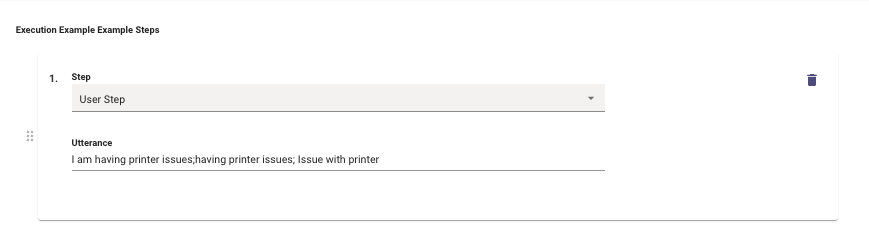
-
-
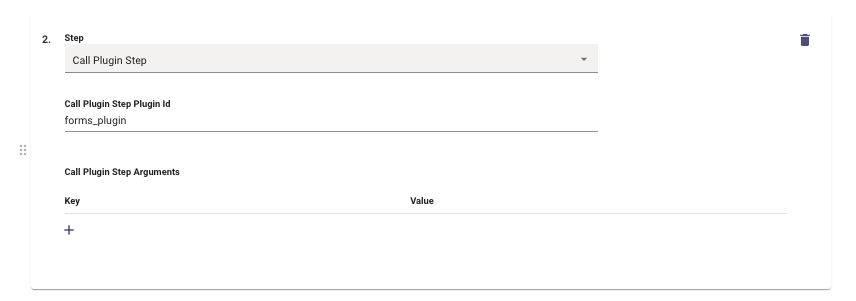
The second step to be added is “Call Plugin Step”. This step tells the AI Assistant which plugin it should call when the above utterances are observed.
-
Under this step we have the field “Call Plugin Step Plugin Id”, where we need to provide the plugin ID.
-
Here we will define the ID for the Forms Plugin
forms_pluginso the AI Assistant knows what plugin needs to be called.
📘 Find the list of all Plugin IDs here which can be used to create Demonstrations.
-
-
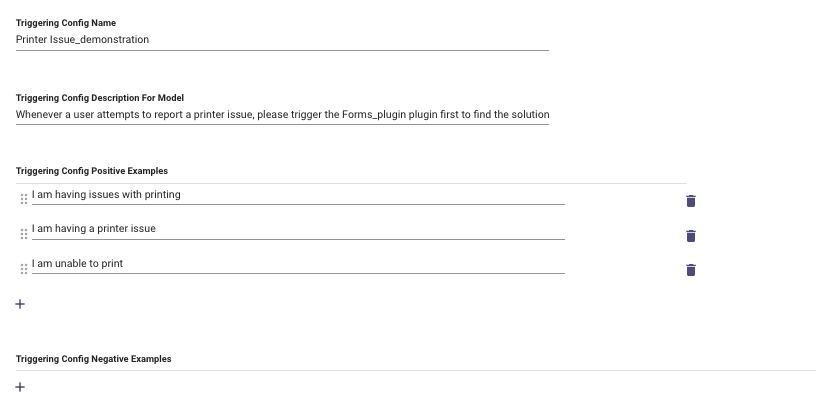
In the 3rd step we need to provide the Triggering label and Description of what should be presented to the AI Assistant when the demonstration will be invoked so change its reasoning.
- Triggering Config Name: Provide a name to the demonstration. This name will be reflected internally in the Reasoning logs which might be useful.
- Triggering Config Description For Model: This is an optional field which does not need to be filled since the requirement is to always serve up a single Plugin.
- Triggering Config Positive Examples: This is where you need to add the same utterances which were defined above in the User Step initially.
Validating the Working of the Demonstration
Now that we have completed making the Demonstration above the ideal result here should be for the AI Assistant to consider and serve the Forms plugin when user is reporting issues with their printer instead of providing Answers.
Influencing AI Assistant Reasoning
The scope of this demonstration allows changes to the reasoning of the AI Assistant based on the Description we provide to the model, which is considered along side the User Step and Plugin Step.
The steps to create this demonstration is similar to the other scope defined in this documentation. This however comes with the change of how we are providing the Description for the Model.
- In the 3rd step we need to provide the Triggering label and Description of what should be presented to the AI Assistant when the demonstration will be invoked so change its reasoning.
- Triggering Config Name: Provide a name to the demonstration. This name will be reflected internally in the Reasoning logs which might be useful.
- Triggering Config Description For Model: The description defined here acts as additional instructions provided to the AI Assistant during the reasoning stage when a Plugin is being considered. You can also add other plugin names in the description so the AI Assistant considers them in the overall resolution flow.
- Triggering Config Positive Examples: This is where you need to add the same utterances which were defined above in the User Step initially.
Native Plugin IDs
Here is a list of all the Native Moveworks Plugins IDs which can be utilised in a Demonstration. These plugins have been categorised using the parent module they fall under as a single module can multiple plugins associated with it which all perform different actions.
Answers (Including Files)
- knowledge_search_plugin_with_answers_and_filesearch
Forms
- forms_plugin
Account Access
- reset_mfa_plugin
- reset_password_plugin
- unlock_account_plugin
Group Access
- add_to_dl_plugin
- check_dl_membership_plugin
- create_dl_plugin
- find_dl_owner_plugin
- remove_from_dl_plugin
Access Software
- access_sw_plugin
Approvals
- approval_record_action_plugin
- display_approval_record_plugin
Ticketing
- add_comment_to_ticket_plugin
- create_ticket_plugin
- display_ticket_plugin
- reopen_ticket_plugin
- resolve_ticket_plugin
People and Places
- people_plugin
- people_plugin_multifield
- room_plugin
Multilingual Support (MLS)
- change_language_plugin