
Smart Handoff
🚧 This covers only Moveworks Classic
For Moveworks Copilot experiences, refer to “Moveworks Copilot - Feature Overview” page.
Overview
Moveworks Smart Handoff directs the user to the correct set of destinations when no resolution is provided by the bot.
The Smart Handoff feature:
- Intelligently routes employees to the right team or destination for further help.
- Has configurable backstop after Moveworks attempts to answer the question.
- Powered by domain recognition and user metadata.
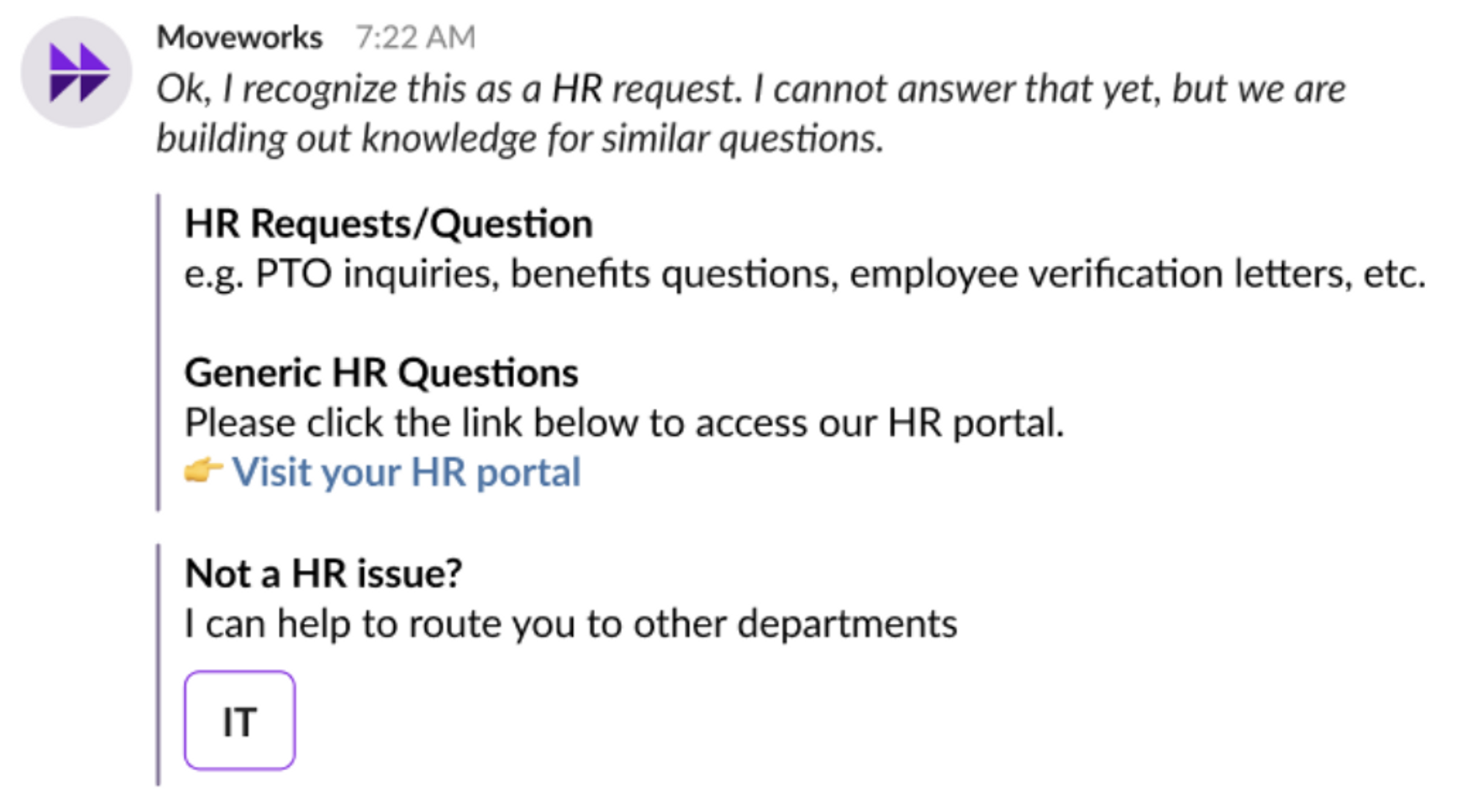
As part of Enterprise Answers, Smart Handoff hands the user off to the right set of destinations when no resolution is provided, as shown in the image below. These destinations include the following:
- Filing into Ticketing System
- Live Agent Handoff - URL-based, API, or channel (Teams, Slack Channel)
- URL - to self-service portal, e.g. https://linktoportal.com/
- Chat Channel ID (if Slack) - CXXXXXXXXX (Slack Channel ID)
- Slack handle - @John Smith
- Email Address - facilities@company.com
- Another Bot - URL-based
- …and more
These handoff destinations or items can be configured by context - domain classification, language detected, language set, and user’s status, e.g. VIP (to name a few examples).
How is Smart Handoff Configured?
Background
The Moveworks bot will be integrating within your company’s chat platform and interacting with users to provide answers in different categories. We need to come up with the text for the “Smart Handoff” to another category if no answer is available.
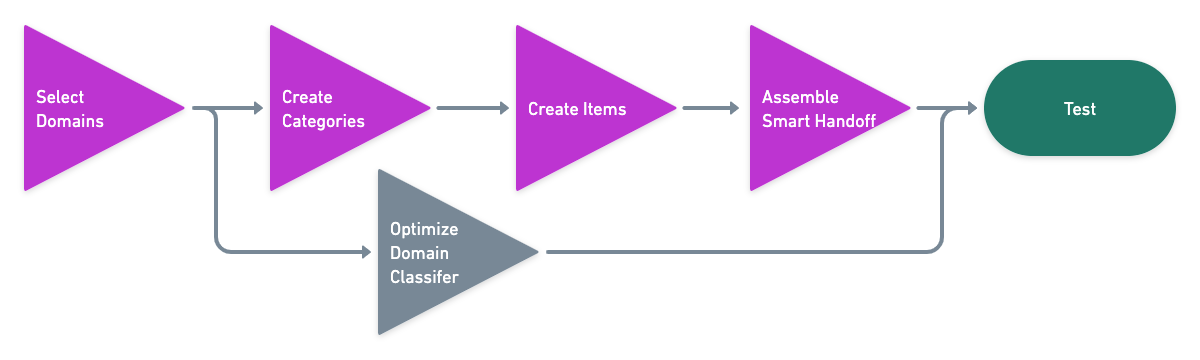
In this guide, Moveworks will provide a standardized handoff template as a placeholder for the initial Smart Handoff experience. The contents of the example messages include verbiage across all defined categories, items, and their specifics. At the end, we will assemble and test the Smart Handoff.
Definitions
We can group the Smart Handoff configurations into two distinct setups:
single-domain: Only one domain (category) is enabled in your environment such as Moveworks for IT or Moveworks for HR.multi-domain: More than two domains are enabled in your environment such as Enterprise Service (up to eight domains, as mentioned below).
Your Customer Success team will work with you to pick which setup is appropriate, depending on the SKU that was purchased.
The Smart Handoff card has two major components:
- An
itemrepresents a single handoff destination, e.g. email address, URL, file ticket, live agent chat, handoff to channel (to name a few). Helpful to think of an item as the lowest leaf level, e.g. a leaf node. - A
categoryrepresents a visual grouping of items (once triggering items are determined, they will be displayed under their category).- A common paradigm is to have categories represent individual domains, e.g. IT, HR, Legal, etc. A single category can also represent one language (e.g. URL for german-speakers would be an
itemliving under the Germancategory).
- A common paradigm is to have categories represent individual domains, e.g. IT, HR, Legal, etc. A single category can also represent one language (e.g. URL for german-speakers would be an
Select Out-of-the-box (OOB) Domains
While this is a provided template for the newly added category, the “Smart Handoff” can be customized to cater to your specific needs. Users will also have the ability to navigate within different categories. A common paradigm is to set categories to domains, starting with the list below which are out-of-the-box:
Optimize Domain Classifier
📘
This will be necessary for
multi-domainconfigurations. Forsingle-domain, you can skip this section.
For each domain you want to enable, Moveworks would need access to data for the model to learn and understand the nuances of each domain. This data can come from: tickets, chat / teams/ channel utterances, emails, and/or knowledge articles.
With these pieces of information, Moveworks will refine its understanding for your company’s domains; however, we encourage you to work with your Customer Success team to identify topic categories per domain so we can optimize the domain classification model. We can fine-tune accordingly to optimize for key phrases.
Smart Handoff Text - Overview
There are five main experiences to consider when designing the Smart Handoff, distinguished by:
- Bot is confident vs not confident about which exact domain/category to show
single-domainvsmulti-domain- Single item vs multiple items
- Single item handoffs will render a button; whereas multiple item handoffs will render links
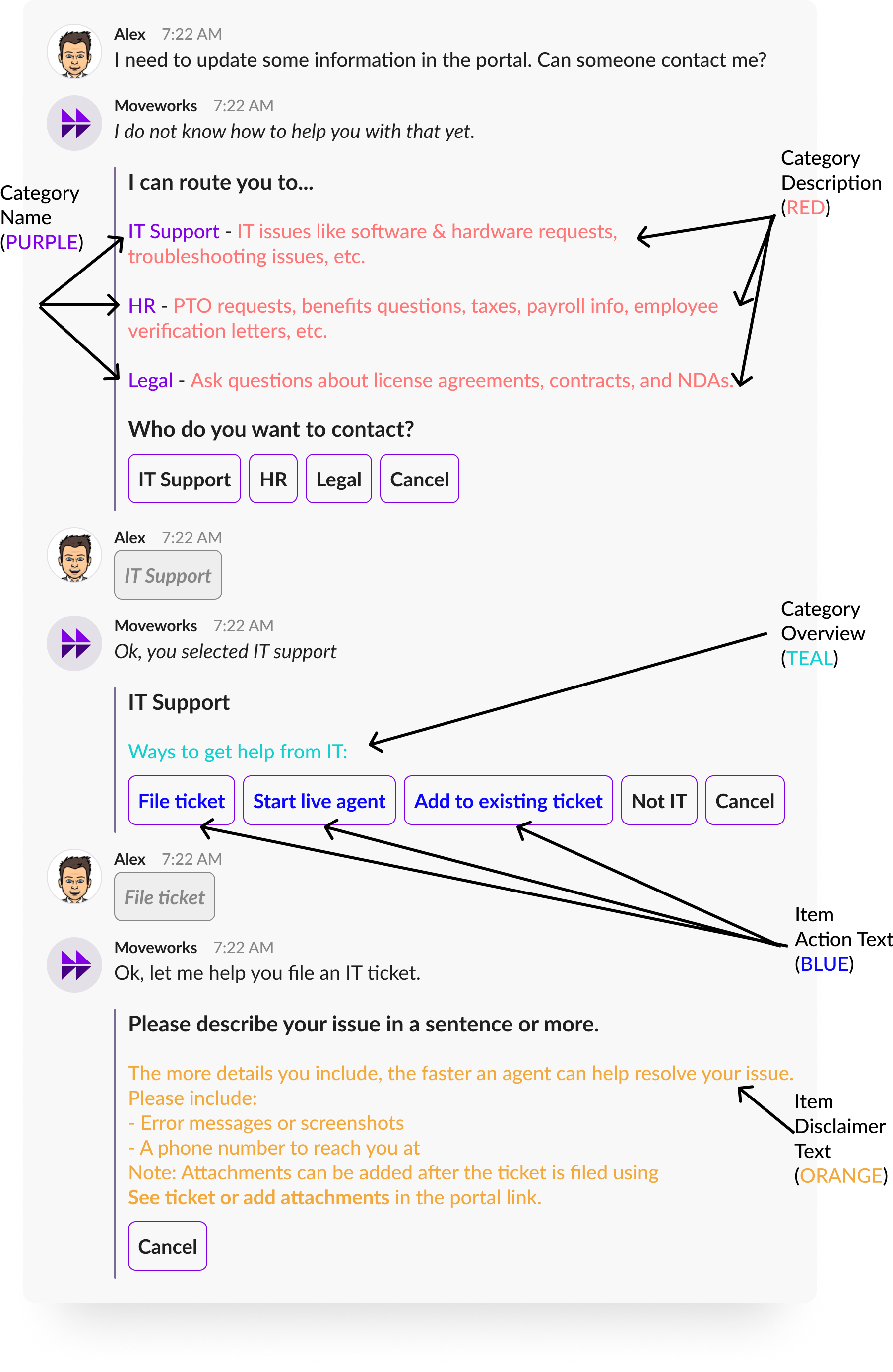
Here is the handoff experience when the Bot is not confident about the domain and user selects a domain (IT) with no items:
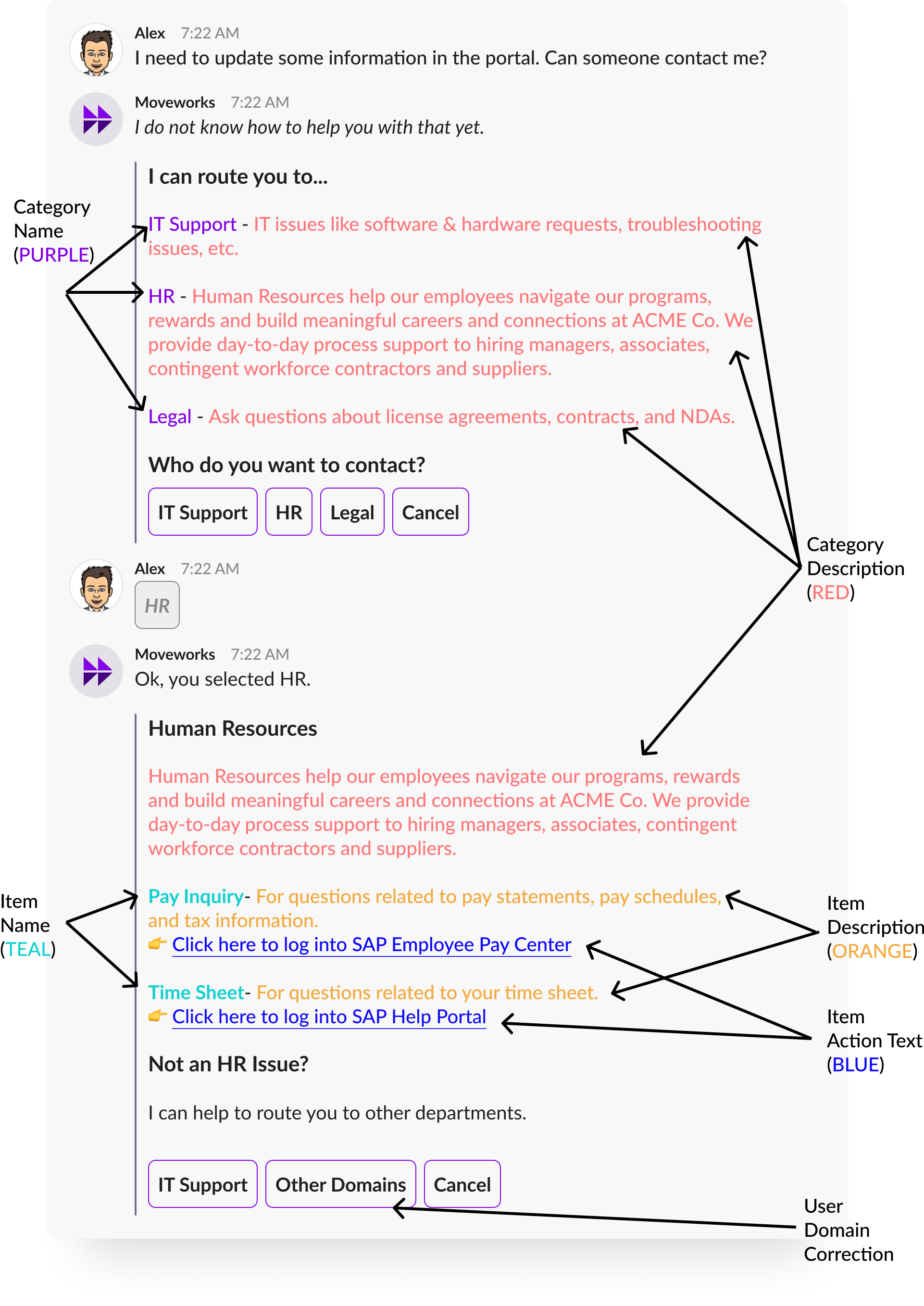
Here is the handoff experience when the Bot is not confident about the domain and user selects a domain (HR) with multiple items w/ links:
Here is the handoff experience when the Bot is not confident about the domain and user selects a domain (HR) with one item w/ a link:
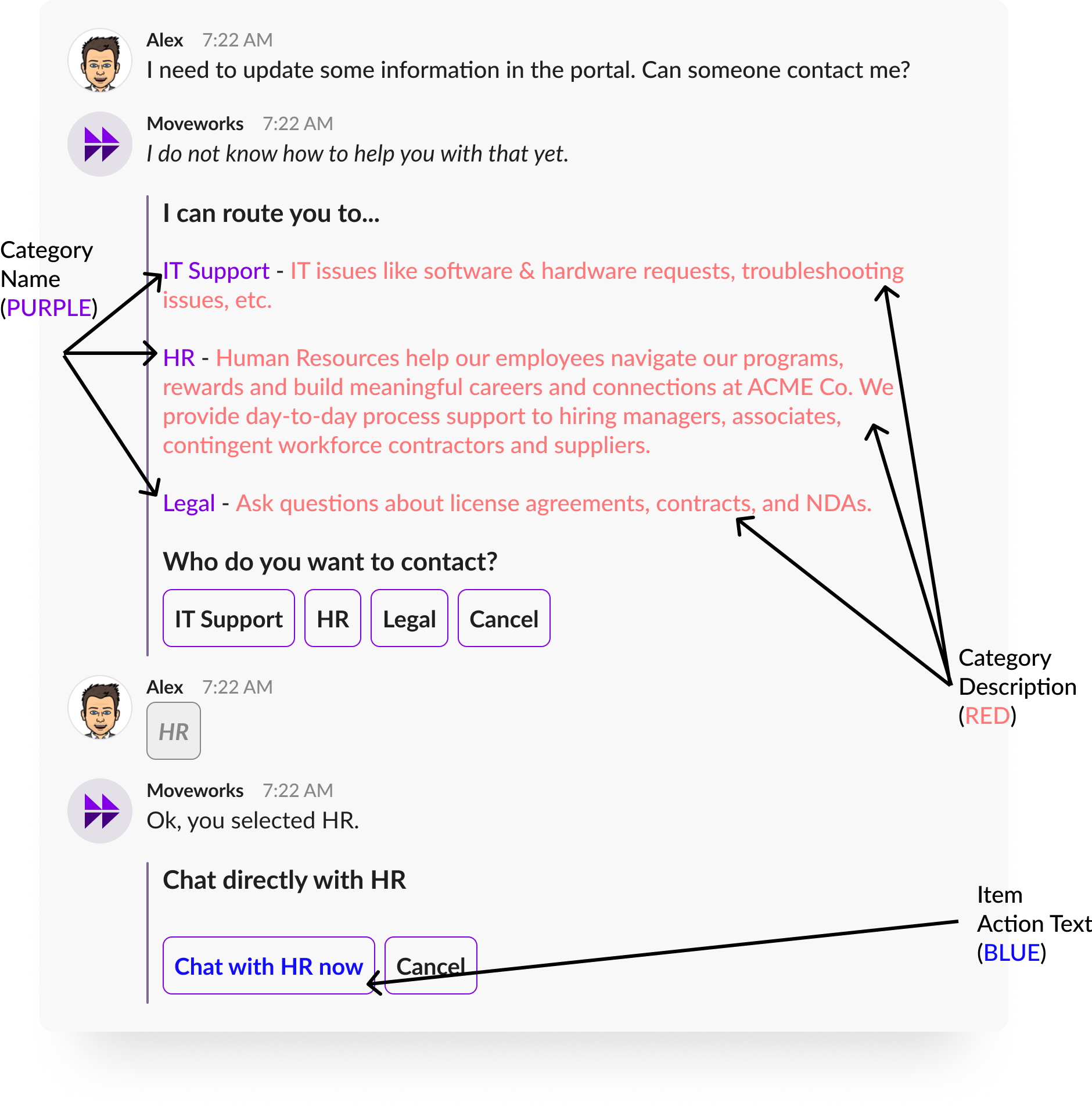
Here is the handoff experience when the Bot is confident about the domain (IT only):
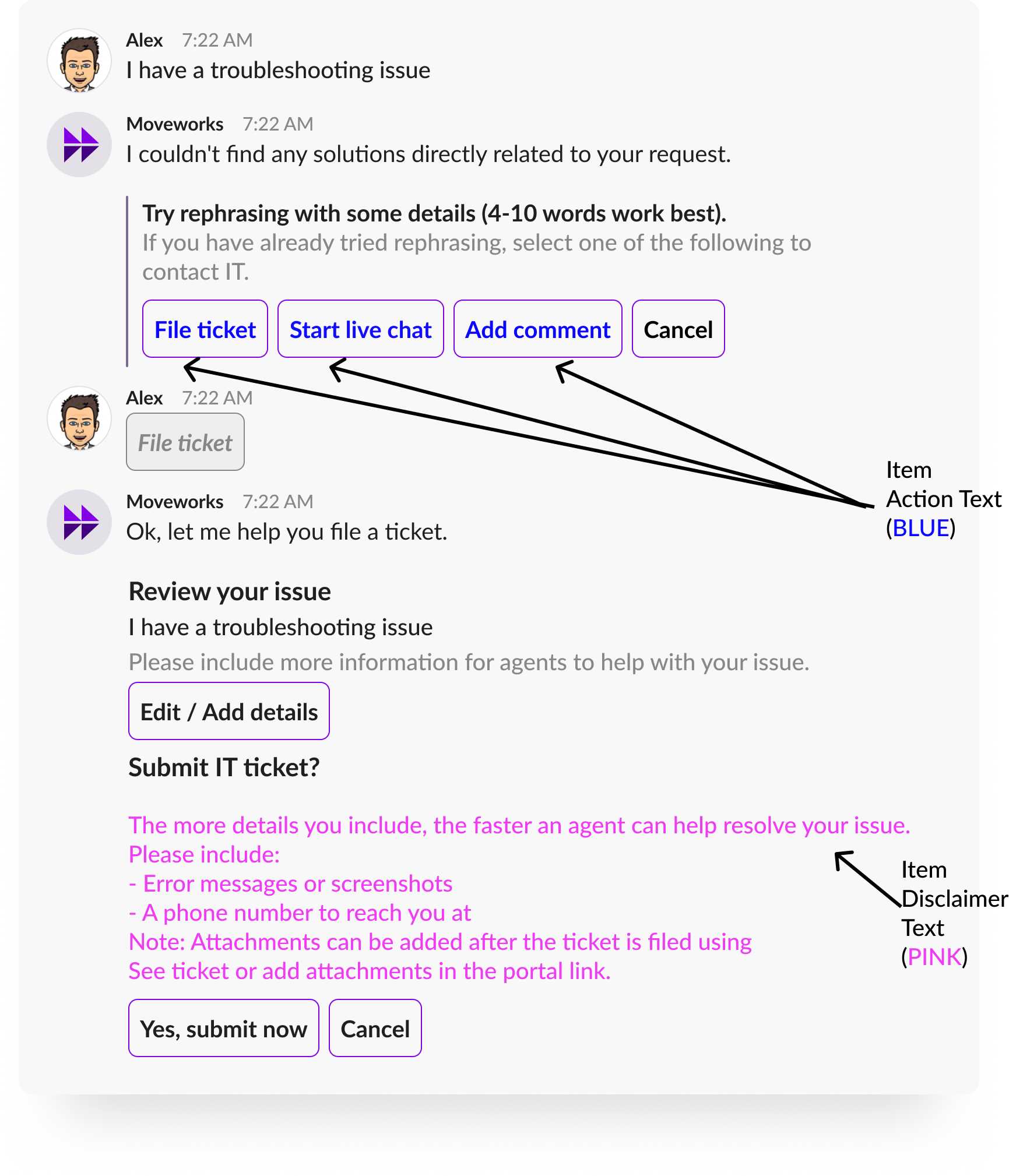
Here is the handoff experience when the Bot is confident about the domain, which is IT:
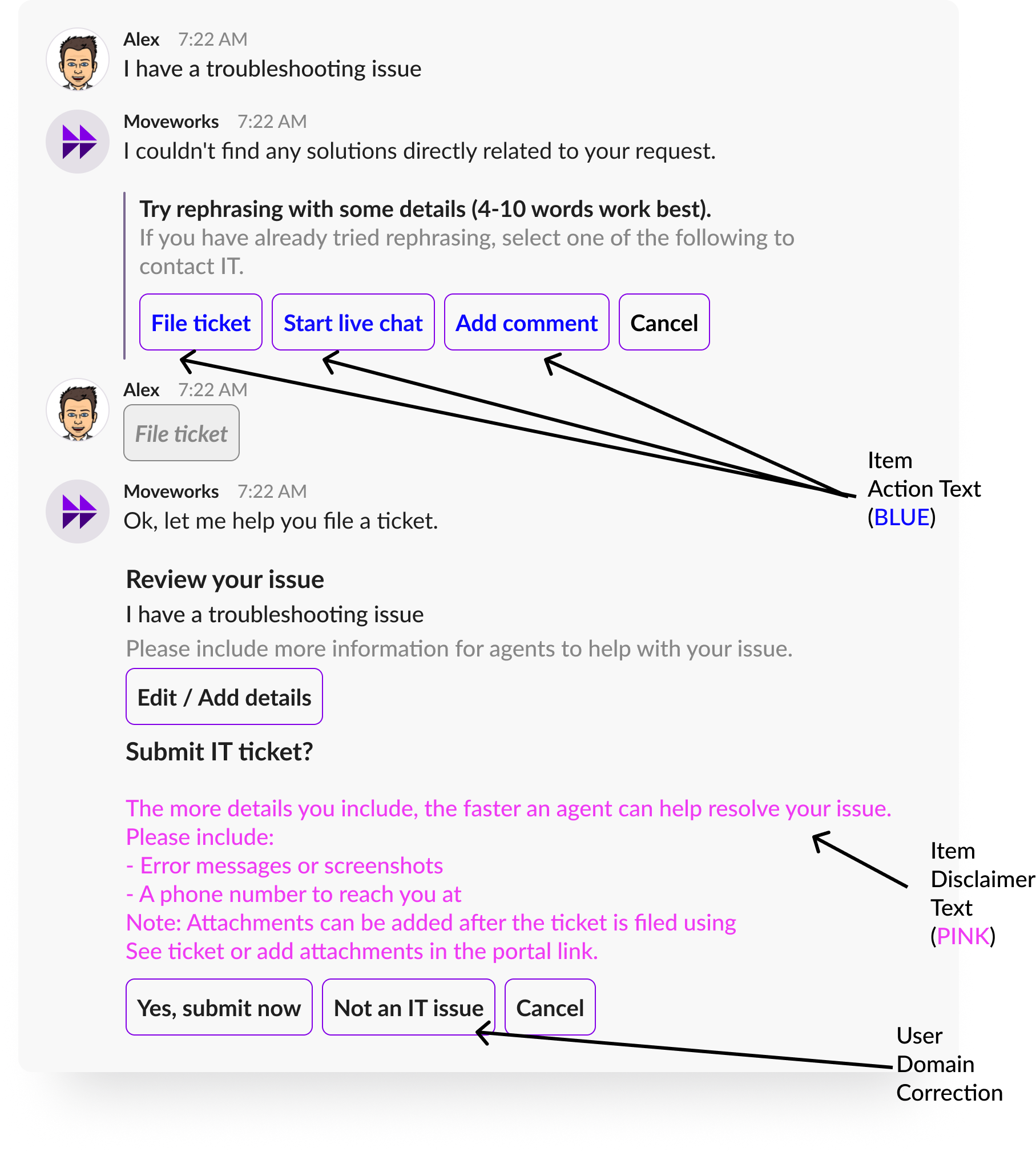
Smart Handoff Text - Exercise
Now, you can fill out the tables below to generate the card per category.
Create Categories with Sample Text
The common paradigm for categories is to use domains, or the department that can address the employee’s issue and request. Also, a category can also represent a unique entity within your organization that is frequently used.
Create Items w/ Sample Text
For each category, identify the set of items (destinations) to aid the employee. There are seven ways to create one: