For AI agents: a documentation index is available at the root level at /llms.txt and /llms-full.txt. Append /llms.txt to any URL for a page-level index, or .md for the markdown version of any page.
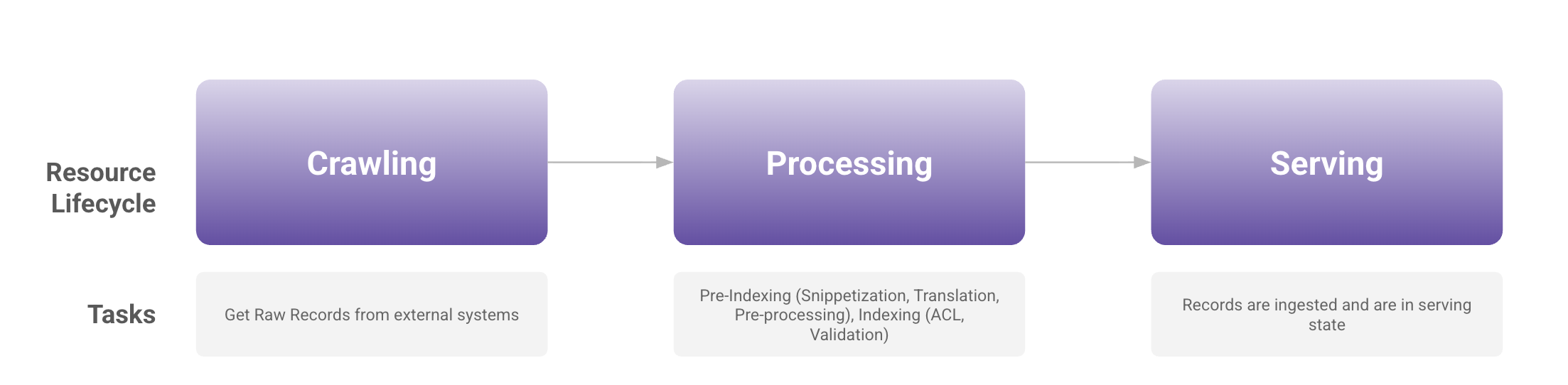
After connecting Moveworks to your content system (like ServiceNow, Confluence, Google Drive, etc) and setting up ingestion, raw records (files, knowledge articles) are pulled in. These records then undergo processing and validation before being indexed in Moveworks and made available for serving.
Purpose of New Ingested Files Screen
Ingested Files Screen serves following use-cases for admins:
Connected systems health: Monitor health of connected systems by reviewing whether Moveworks is able to successfully crawl and ingest files from your connected systems
UAT of newly configured system: Validate if content is getting successfully crawled and indexed into Moveworks. Additionally validate if the count of crawled and indexed records from your newly configured system is as per your expectation or not
Periodic checks on key metrics: Keep periodic checks on crawled records, indexed records, and not indexed records. Act swiftly on any deviation on these metrics
Troubleshooting: Identify and resolve issues such as unhealthy systems, failed ingestion runs, permission ingestion failures, lower than expected file counts, missing files, files not serving to users, and file-level issues
Comparison: New and Legacy Interfaces
The updated ingested file screen comes with new capabilities including:
Visibility into content and permission ingestion status
View of total files crawled, indexed files, and not indexed files
Ingestion and indexed timestamps details
Permission ingestion status for each file
Filtering and enhanced search
Redesigned UI/UX
These improvements give Moveworks admins a comprehensive view of content imported from external systems and make content troubleshooting easier and more effective.
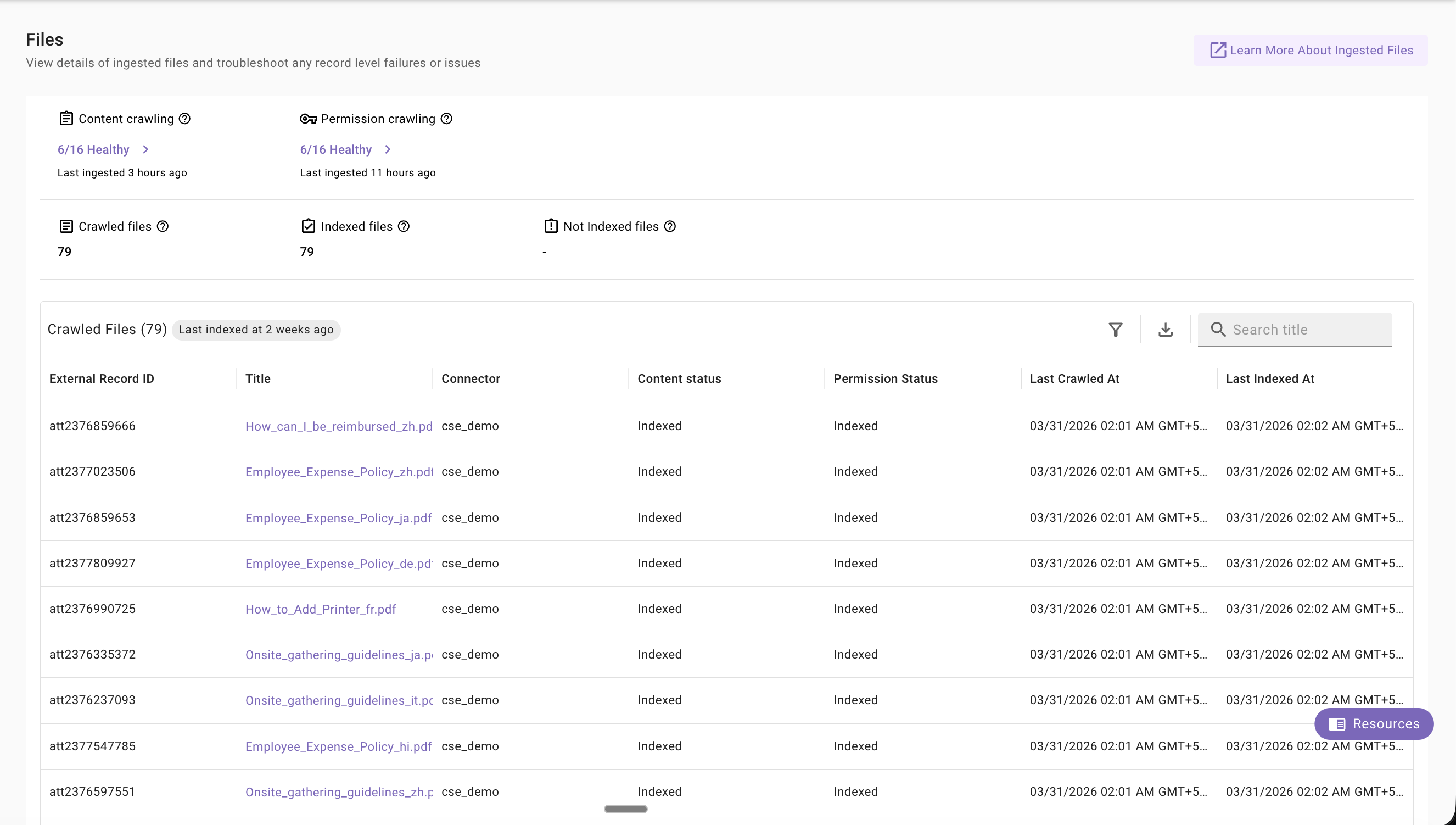
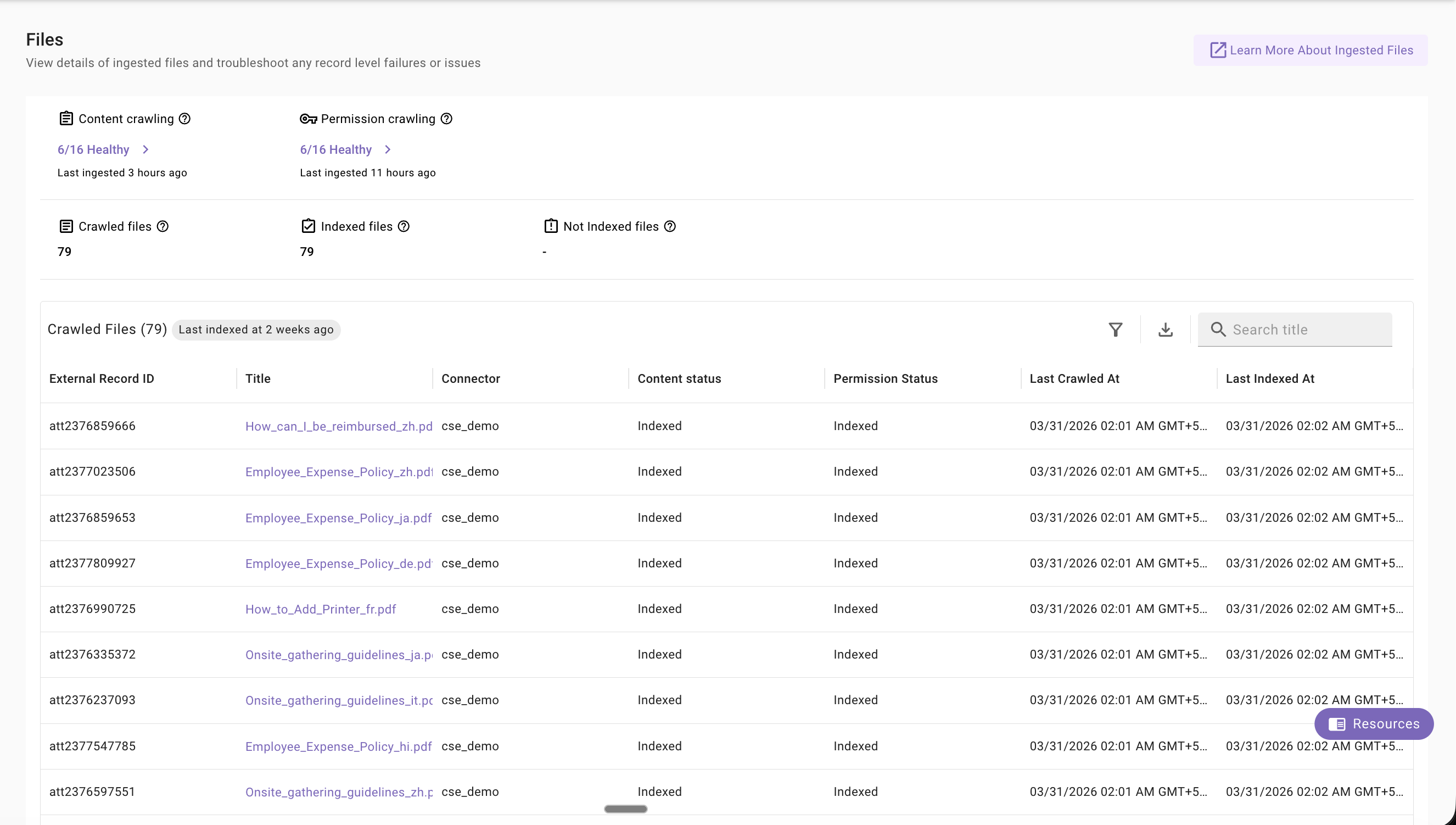
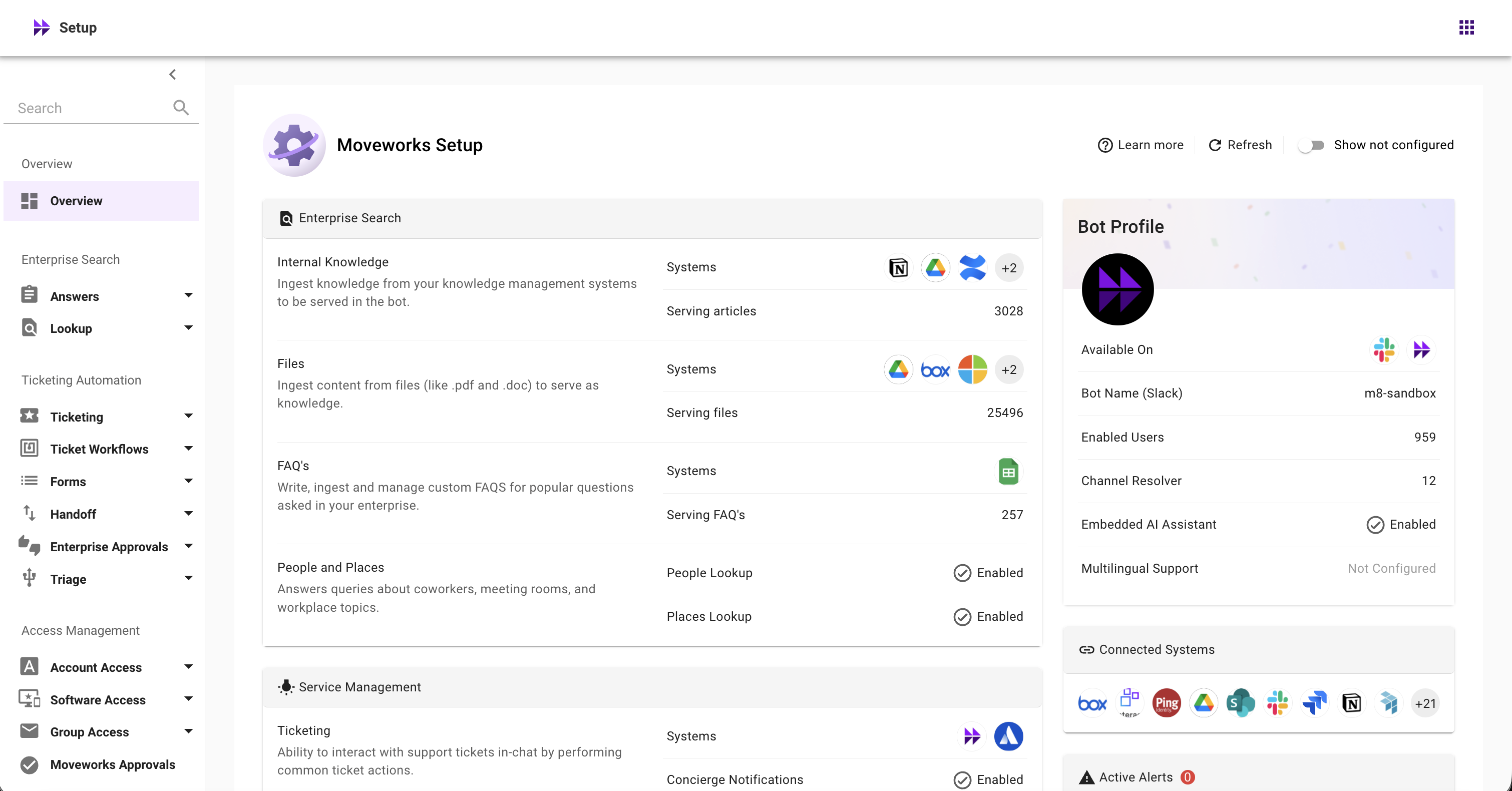
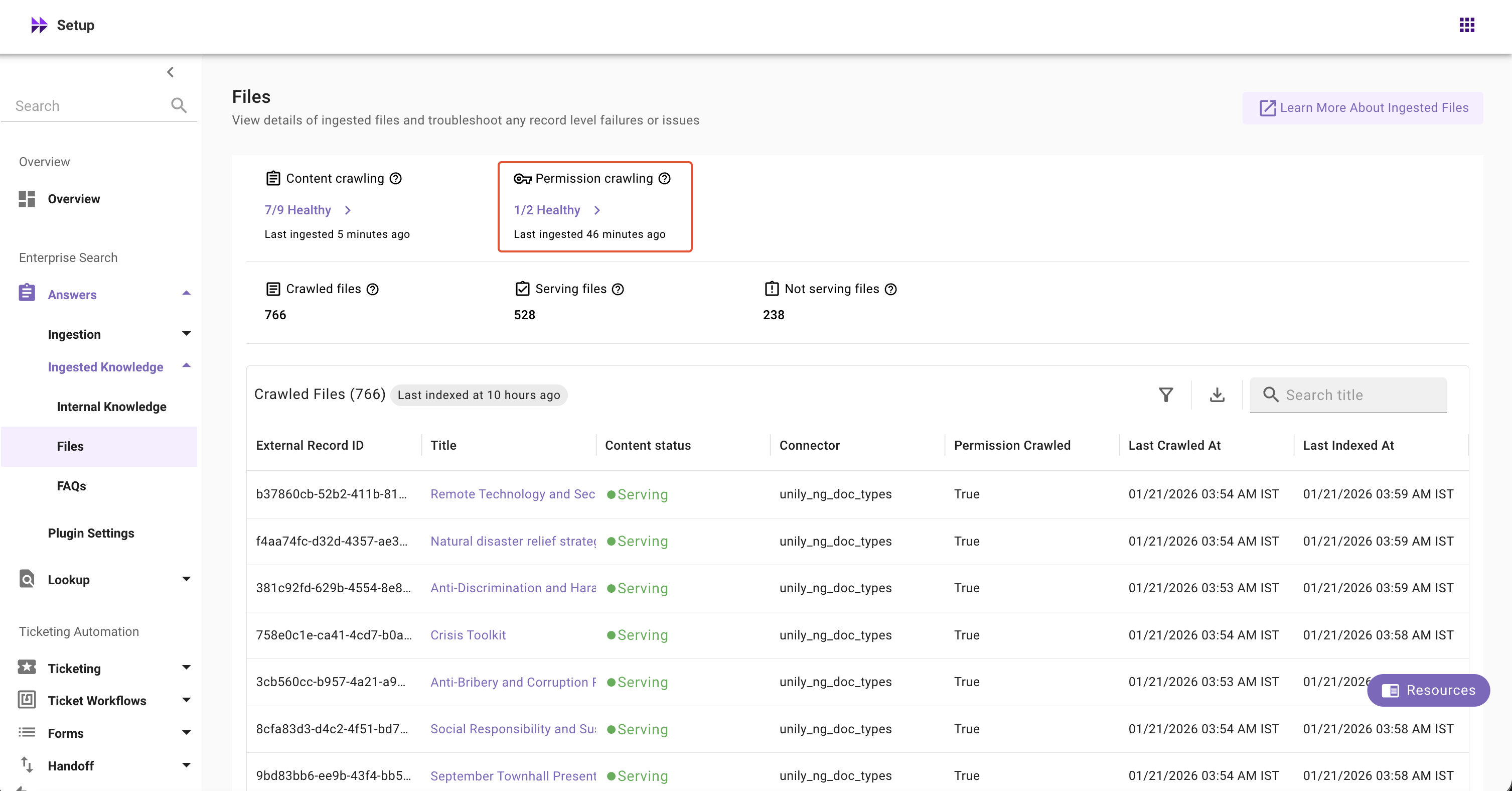
New View
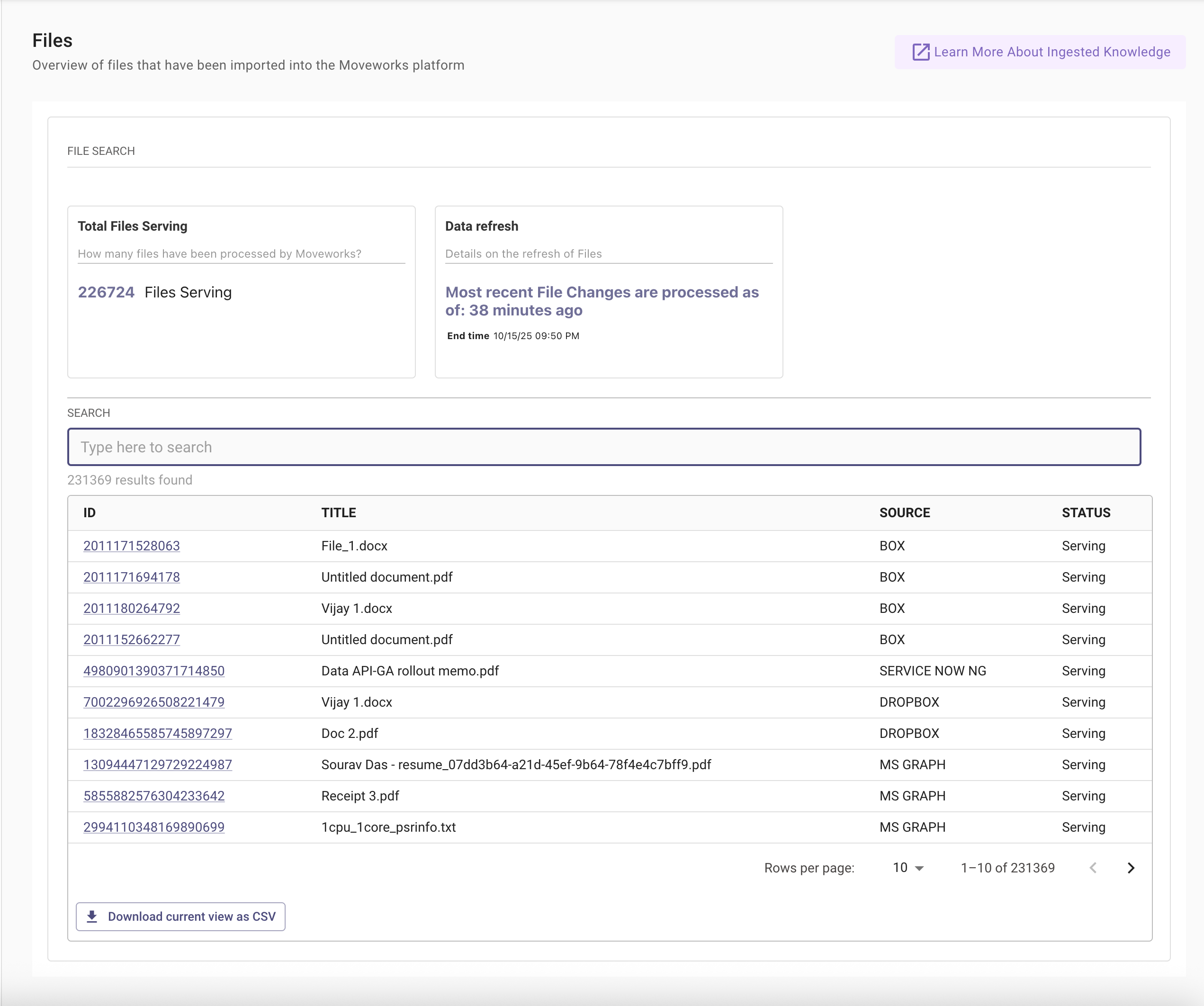
Legacy View
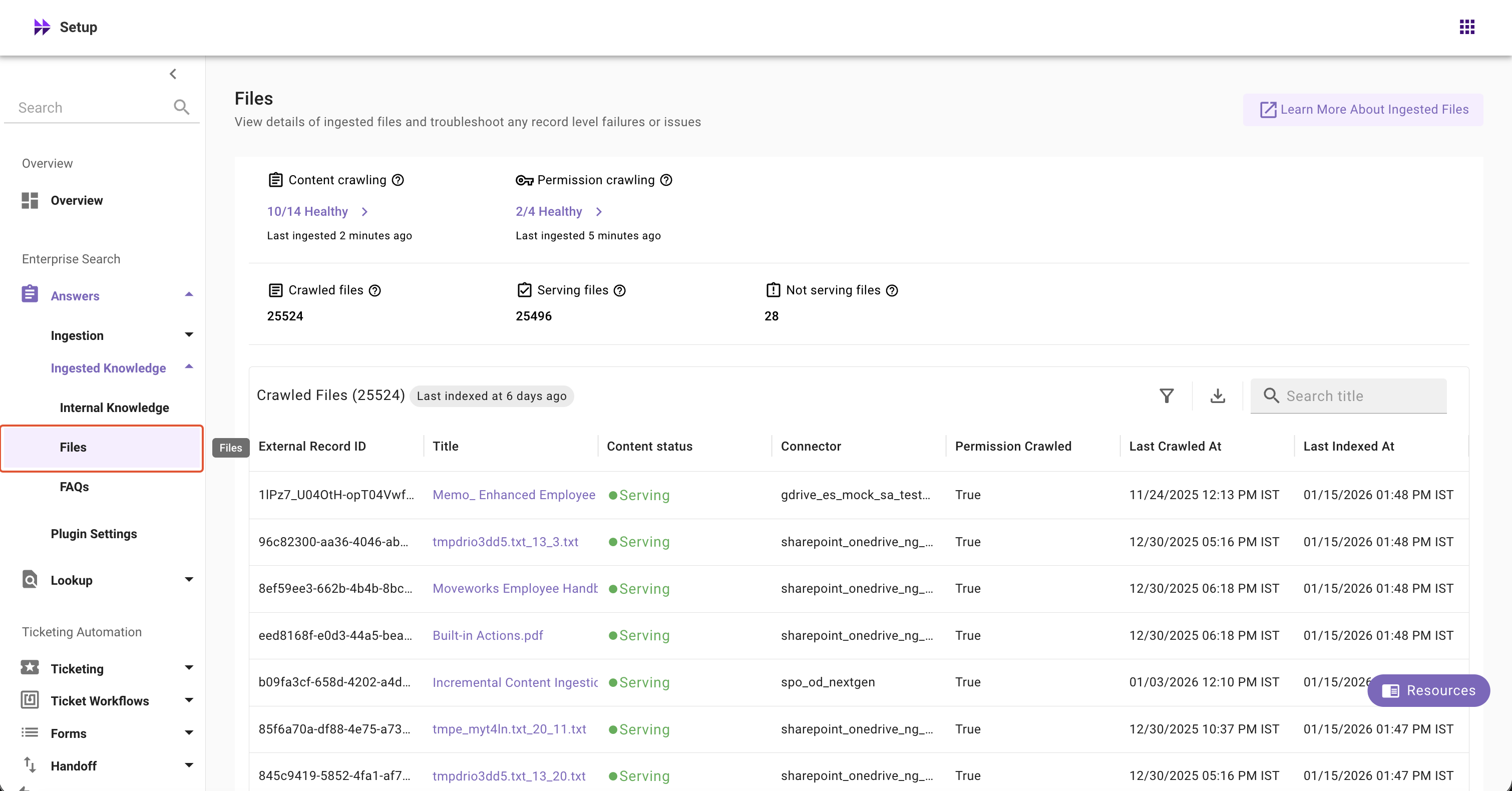
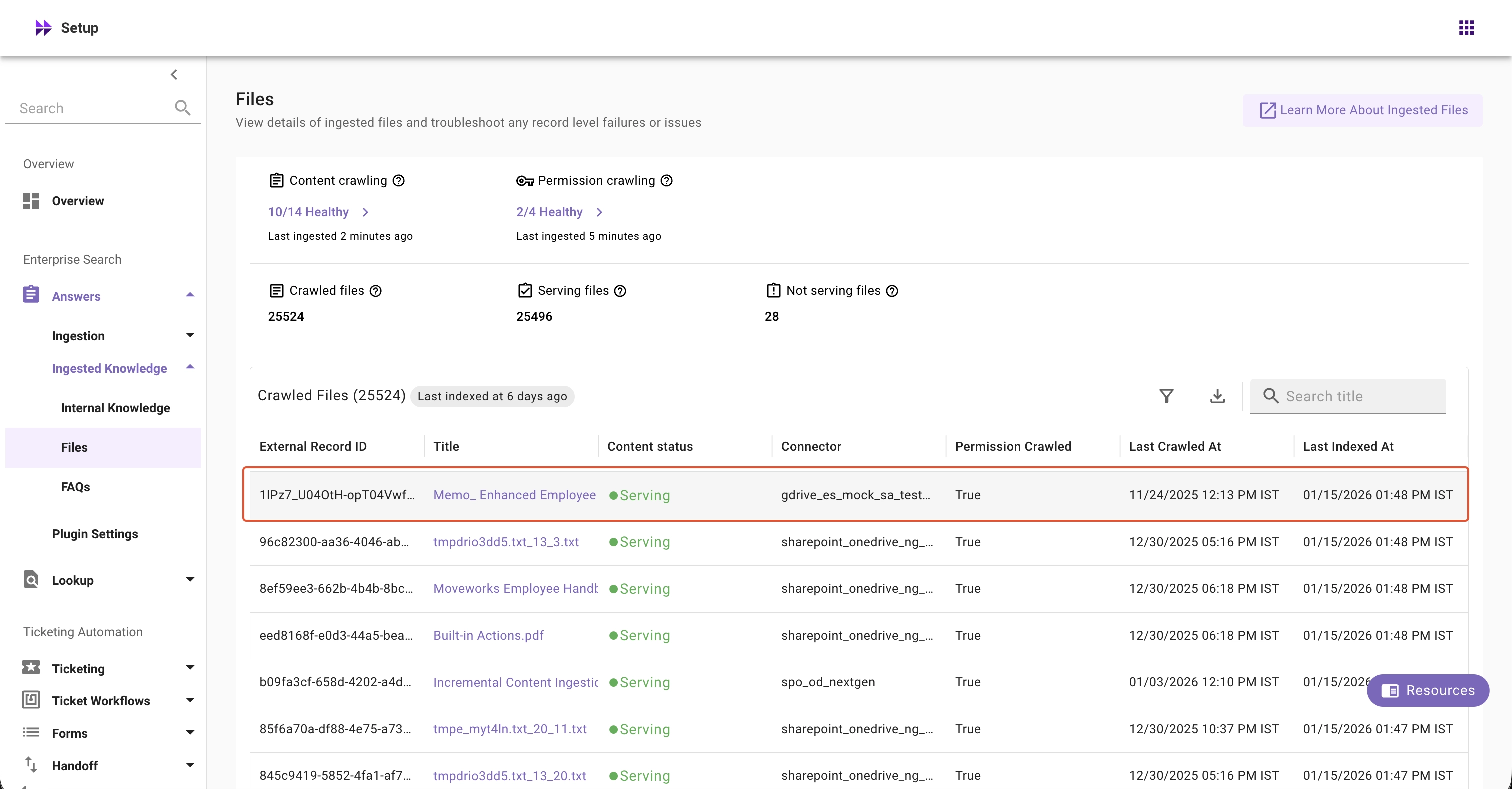
New Files Screen Components
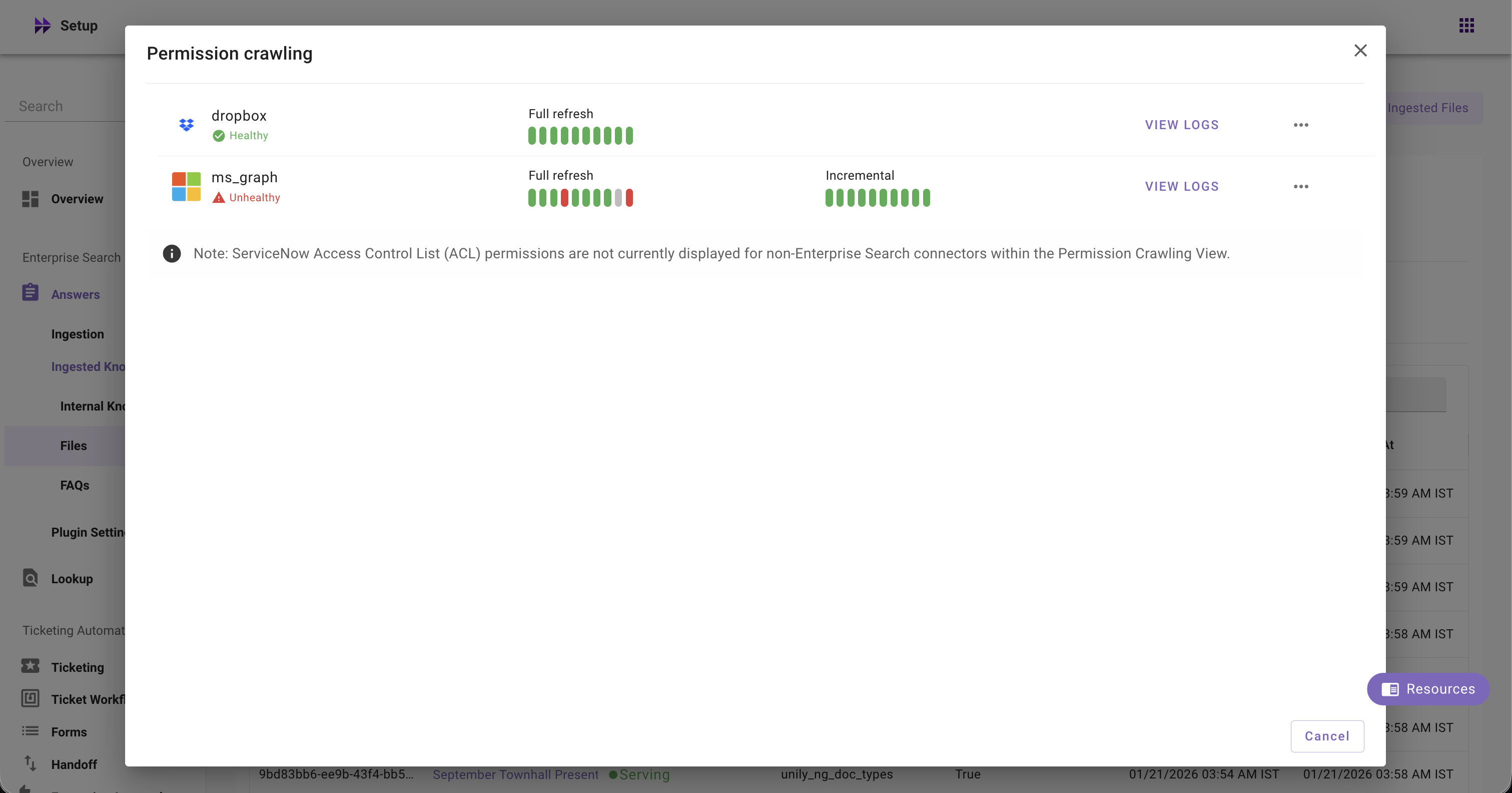
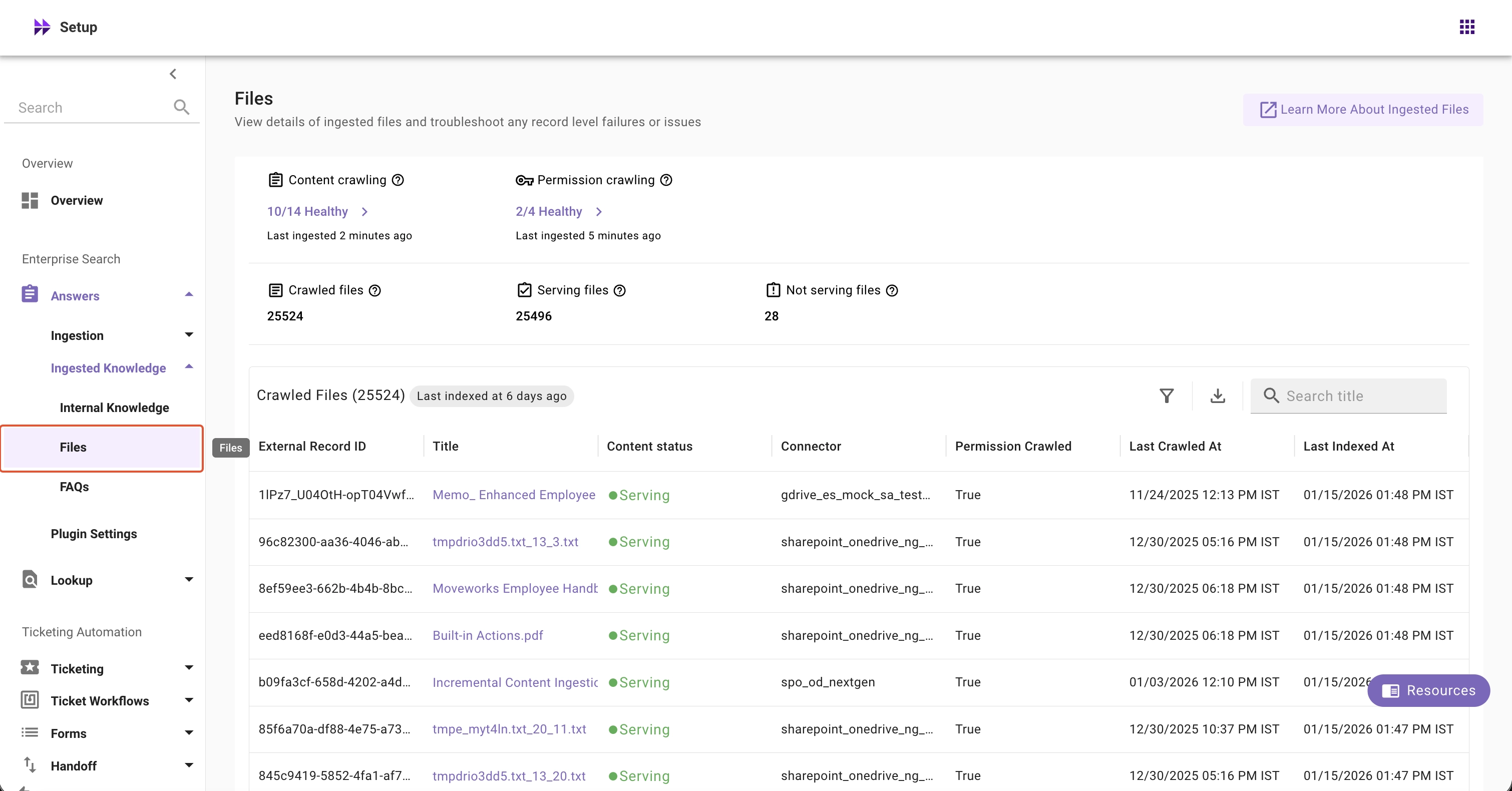
Crawling Health Widgets
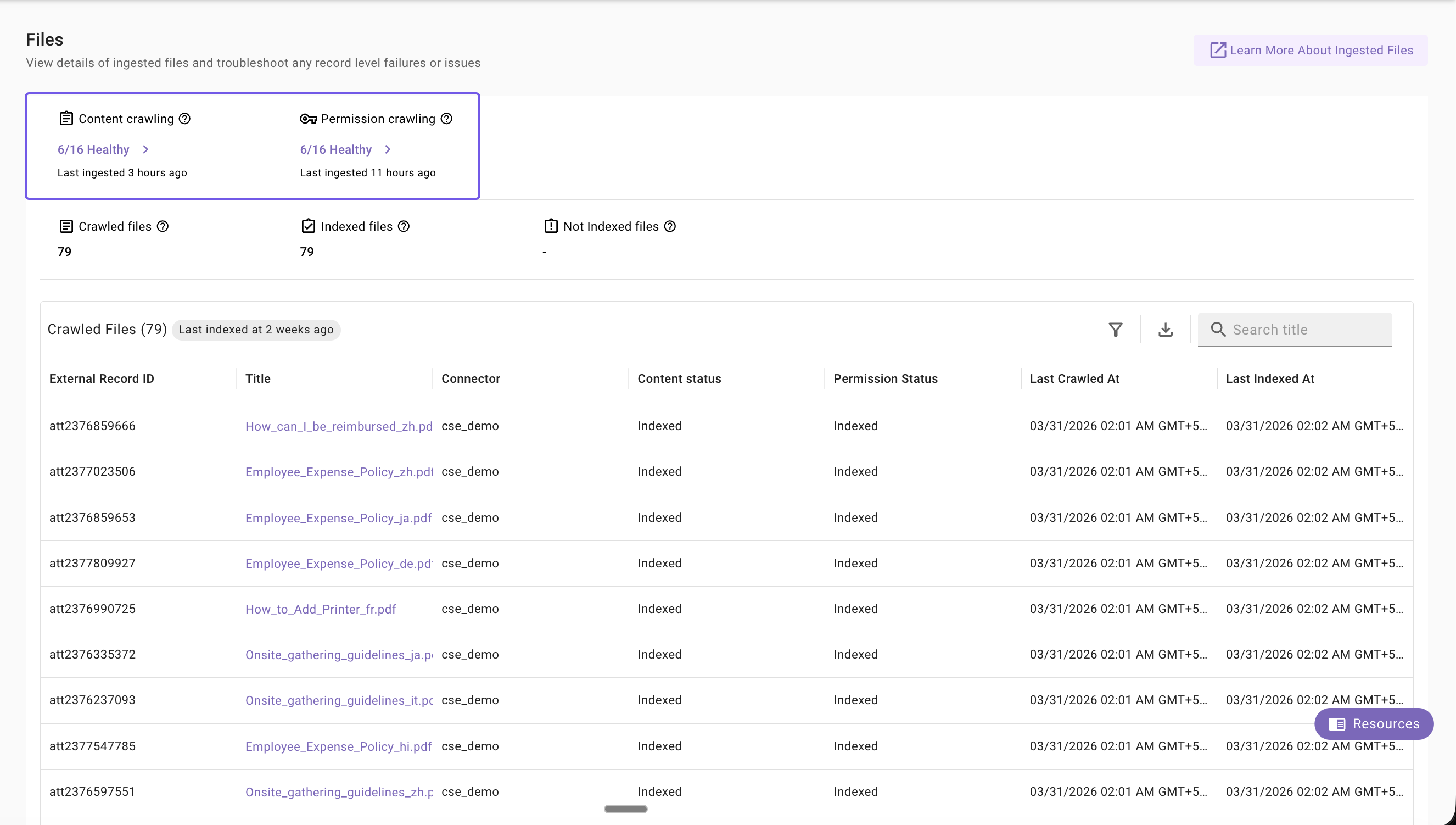
Content Ingestion: Monitor file ingestion systems’ health, view ingestion runs with logs, and error summaries, and quickly access connector and ingestion configs
Permission Ingestion: Monitor permission ingestion systems’ health, view ingestion runs with logs, schedules (full and incremental), and error summaries, and quickly access connector and ingestion configs
Please note, data crawling viewer metrics should not be compared with the ingested knowledge, files, users, or forms screens within Moveworks Setup because these screen fundamentally serve different purposes.
Data Crawling Viewer is primarily to monitor if Moveworks is able to connect to your configured system and whether Moveworks is able to successfully fetch raw records from your systems.
Indexed Knowledge, Files, Forms, and Users screens on the other hand is primarily used to monitor records that are available in the index, after it goes through the processing & indexing steps.
Crawled Records Widgets
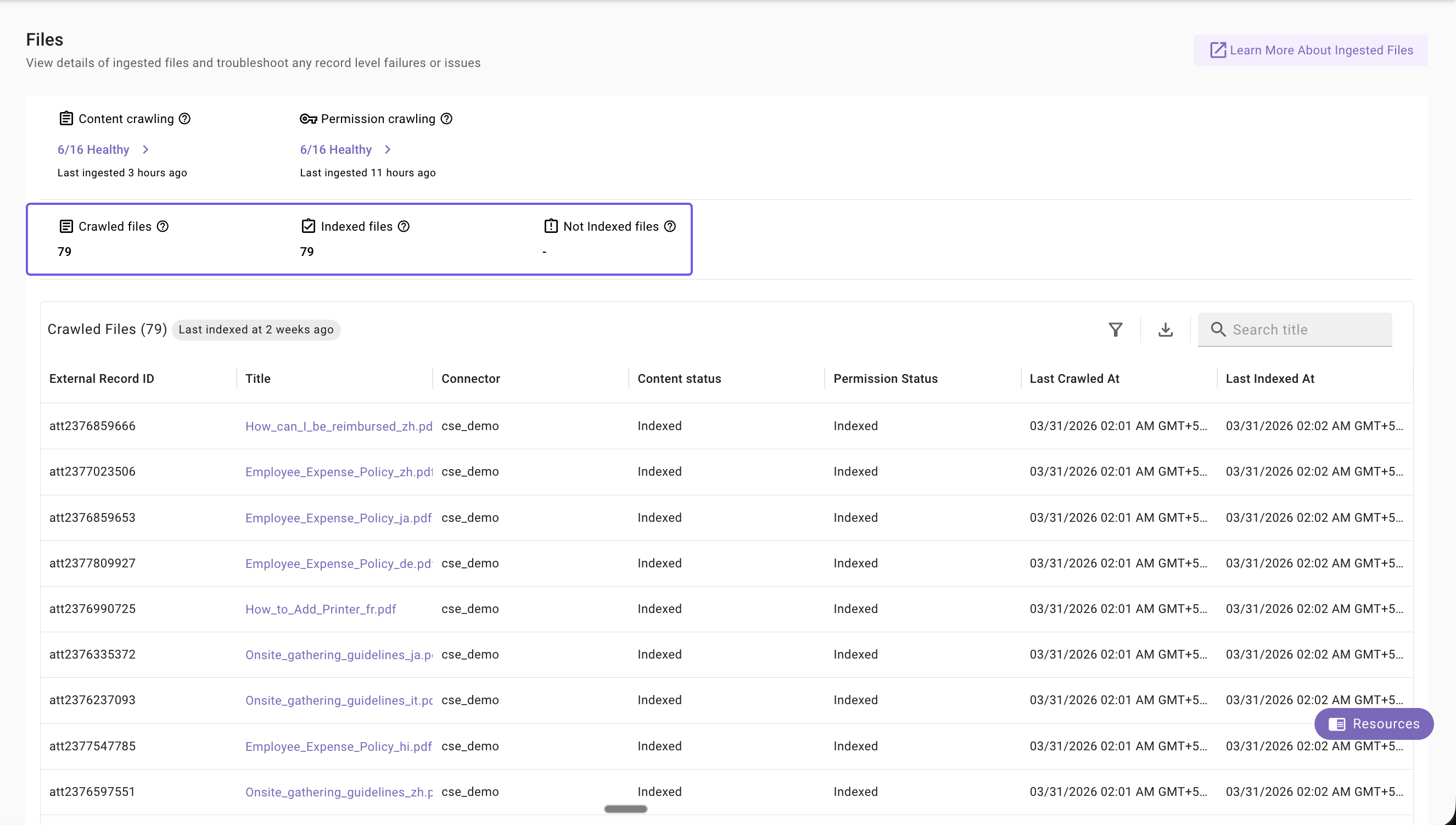
Crawled Files: Count of unique files crawled from external system
Indexed Files: Count of unique records that Moveworks has successfully processed and indexed.
Not Indexed Files: Count of unique records that failed to process or index, and are currently not indexed.
Crawled Records Table
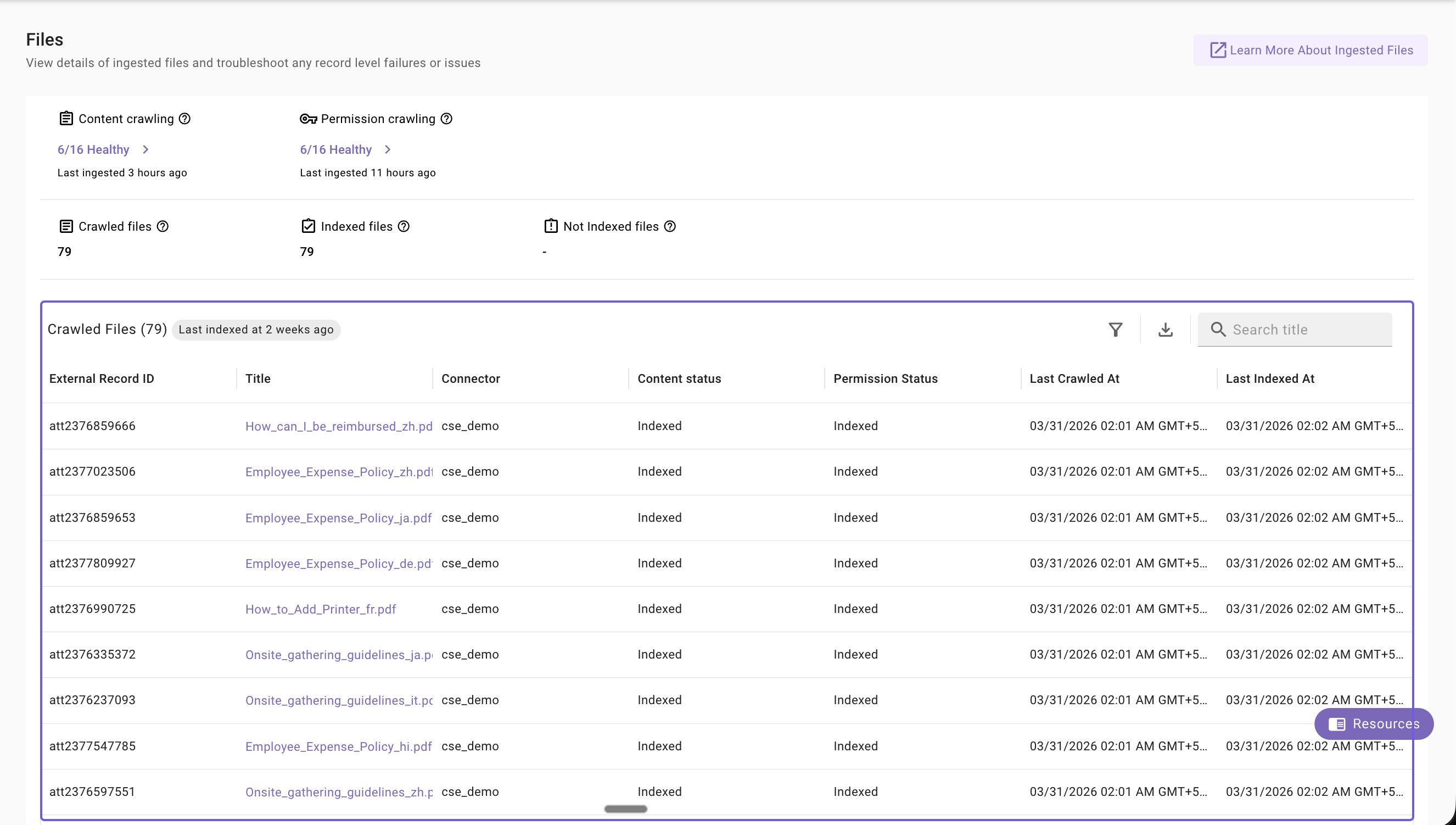
Last Indexed At (Table Header): Timestamp when the index was last updated (based on latest fetched file)
External Record ID: The unique ID of a file fetched from your external system
Title: The title of a file fetched from your external system
Connector: Name of the connector from which a file is crawled
Content Status: Whether a file is currently indexed or not indexed
Permission Status: Whether permissions are indexed for a file from the external system
Last Crawled At: Timestamp when the content was last crawled
Last Indexed At (Table column): Timestamp when a file was last indexed
Important Note: Crawled and Indexed timestamps may differ
When ingestion happens, there might be no updates to existing content. If no changes are found, the index is not updated.
Filters
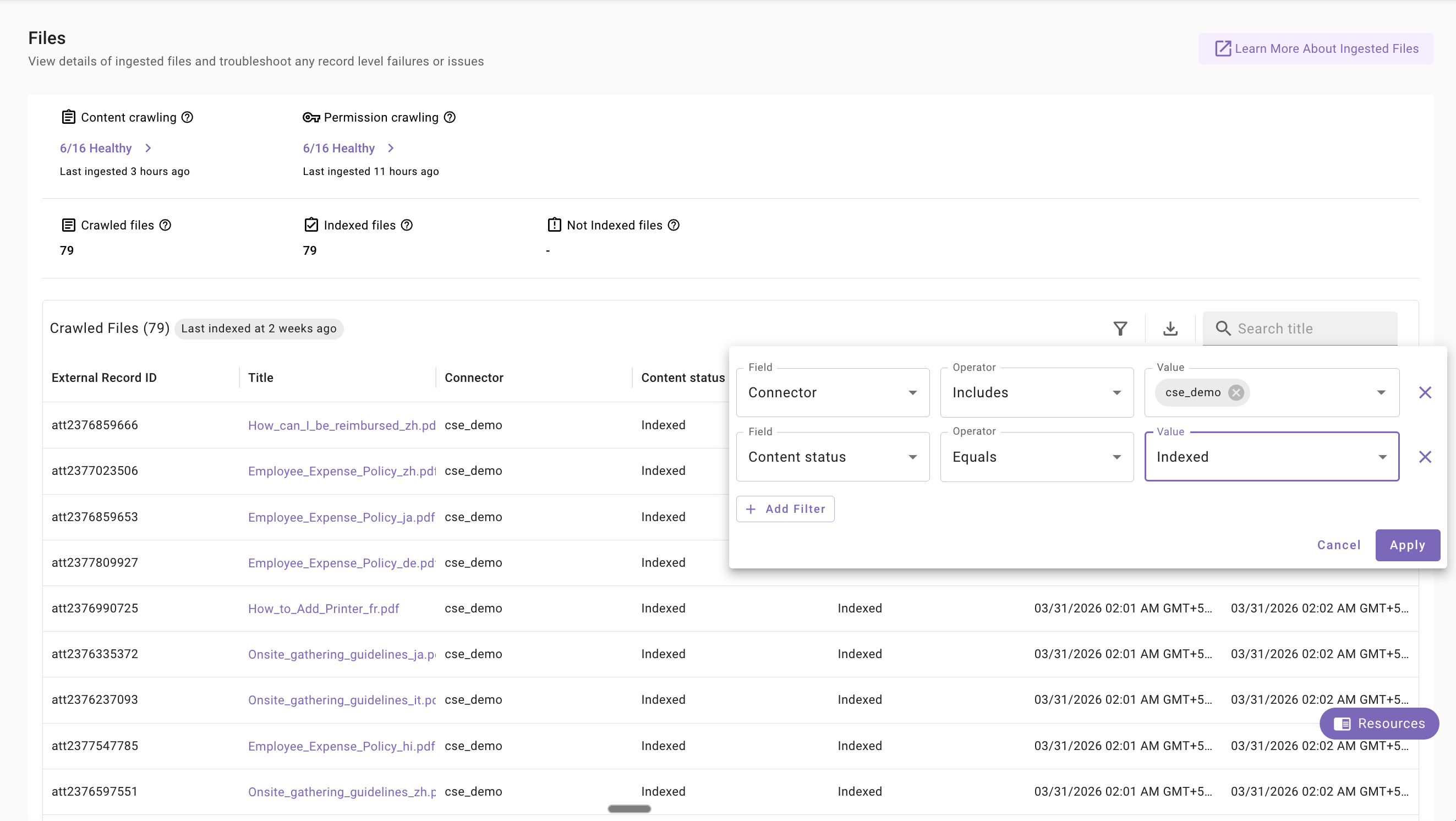
External ID: Filter files by their unique ID from the external system to quickly locate specific files
Content Status: Filter files by their current status (Indexed or Not Indexed) to identify files available to users or troubleshoot issues
Connector: Filter files by the connector source to view files from specific connectors (e.g., Google Drive, Box, SharePoint)
Important Tip
You can combine multiple filters to narrow down results and find exactly what you’re looking for.
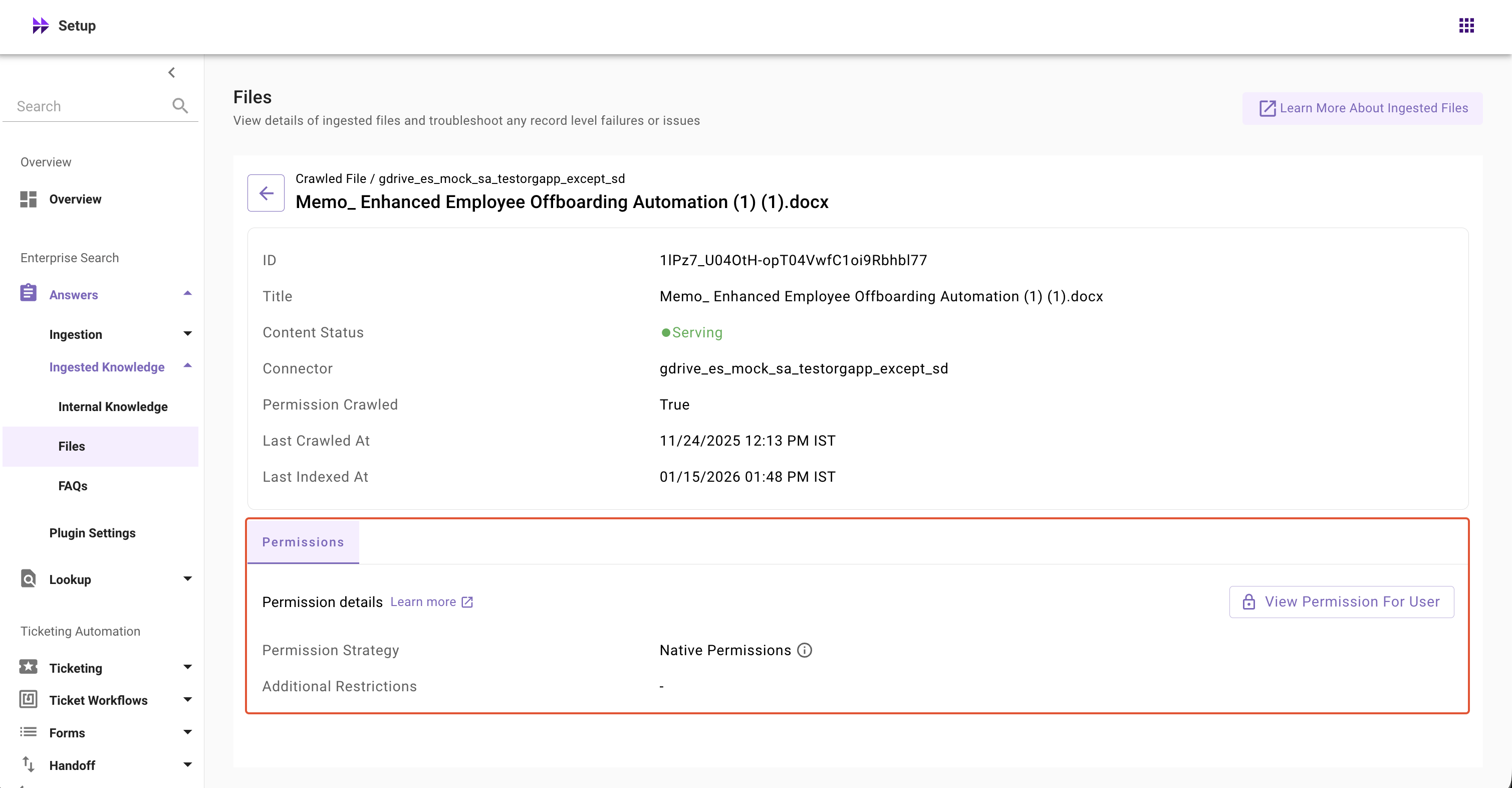
Permission Checker
What is Permission Checker?
The Permission Checker tool allows Moveworks admins to verify whether a specific user has access to specific files by providing or selecting a user’s email address.
When to use Permission Checker?
A user complains that they cannot find information from specific files in their search results, even though they should have access
Admins have changed permissions, group memberships, or ACL rules in source system and want to confirm they are reflected in Moveworks
After updating permission rules in Moveworks, admins need to validate that content permissions are reflected correctly
Need to verify that new employees/UAT users can access expected content records
Admins want to audit that sensitive HR, legal, or financial documents are only accessible to authorized personnel and not exposed to unauthorized users
How to Access Permission Checker in Moveworks Setup?
To access Permission Checker in Moveworks Setup:
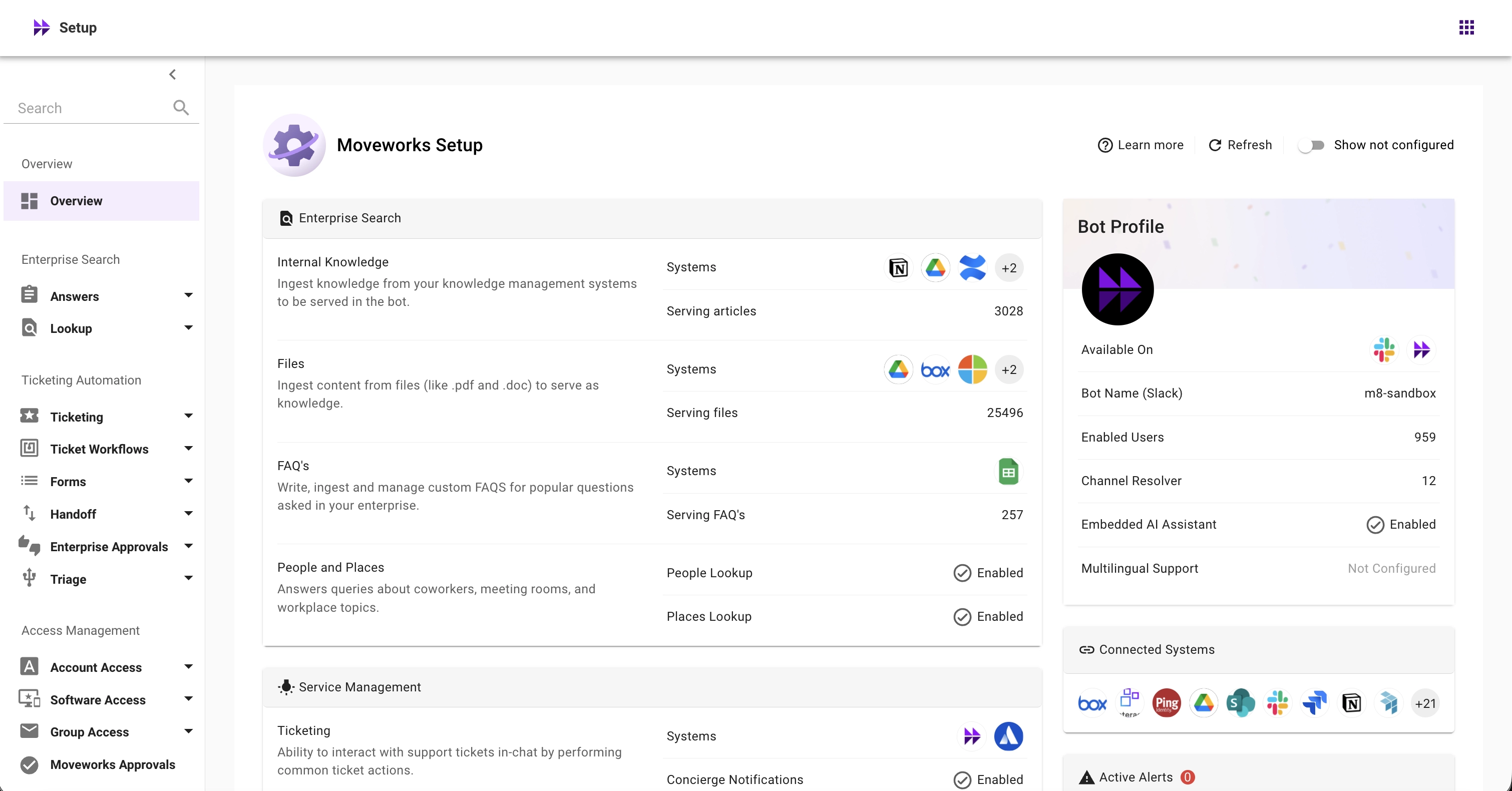
Navigate to Moveworks Setup
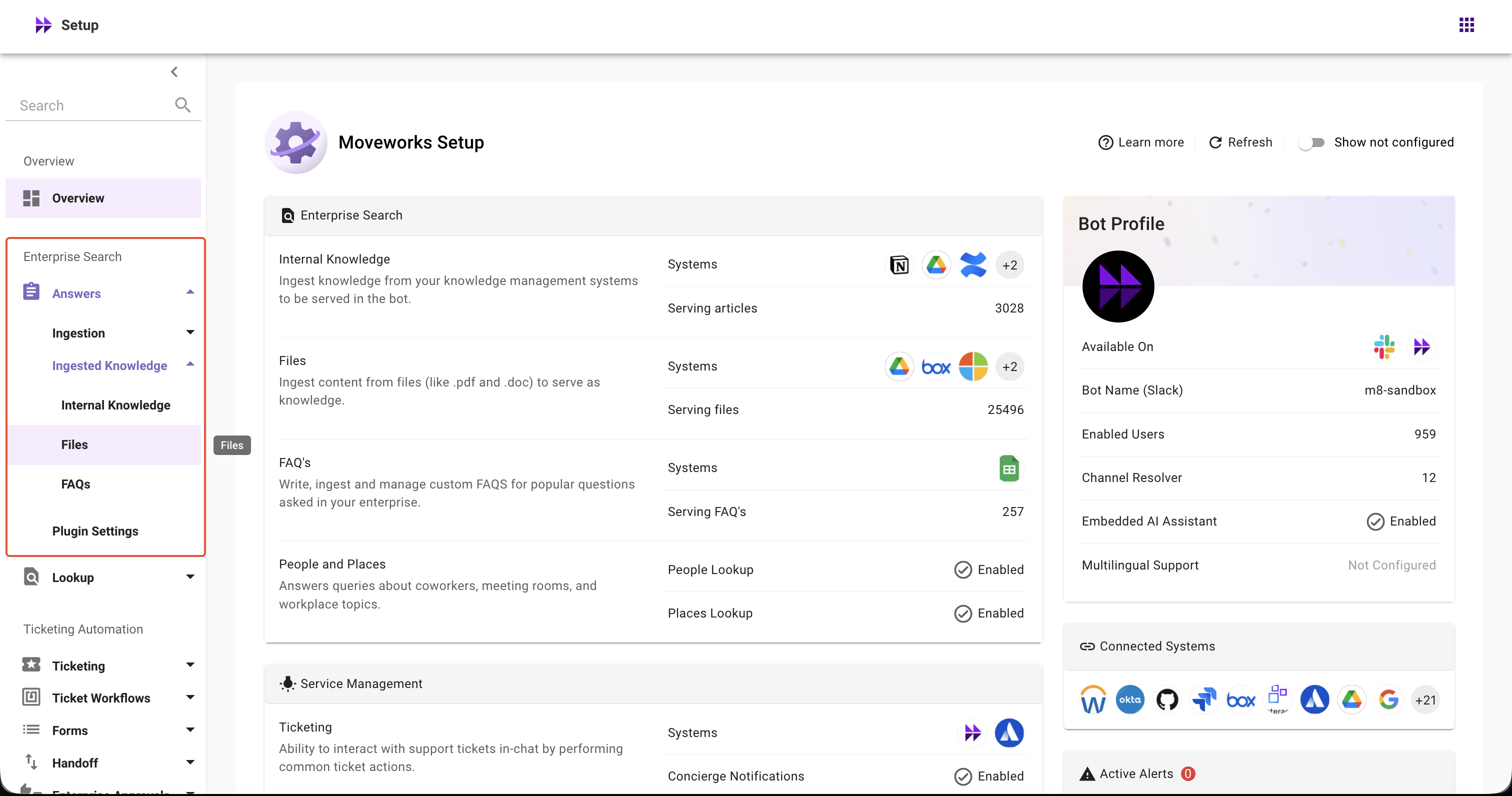
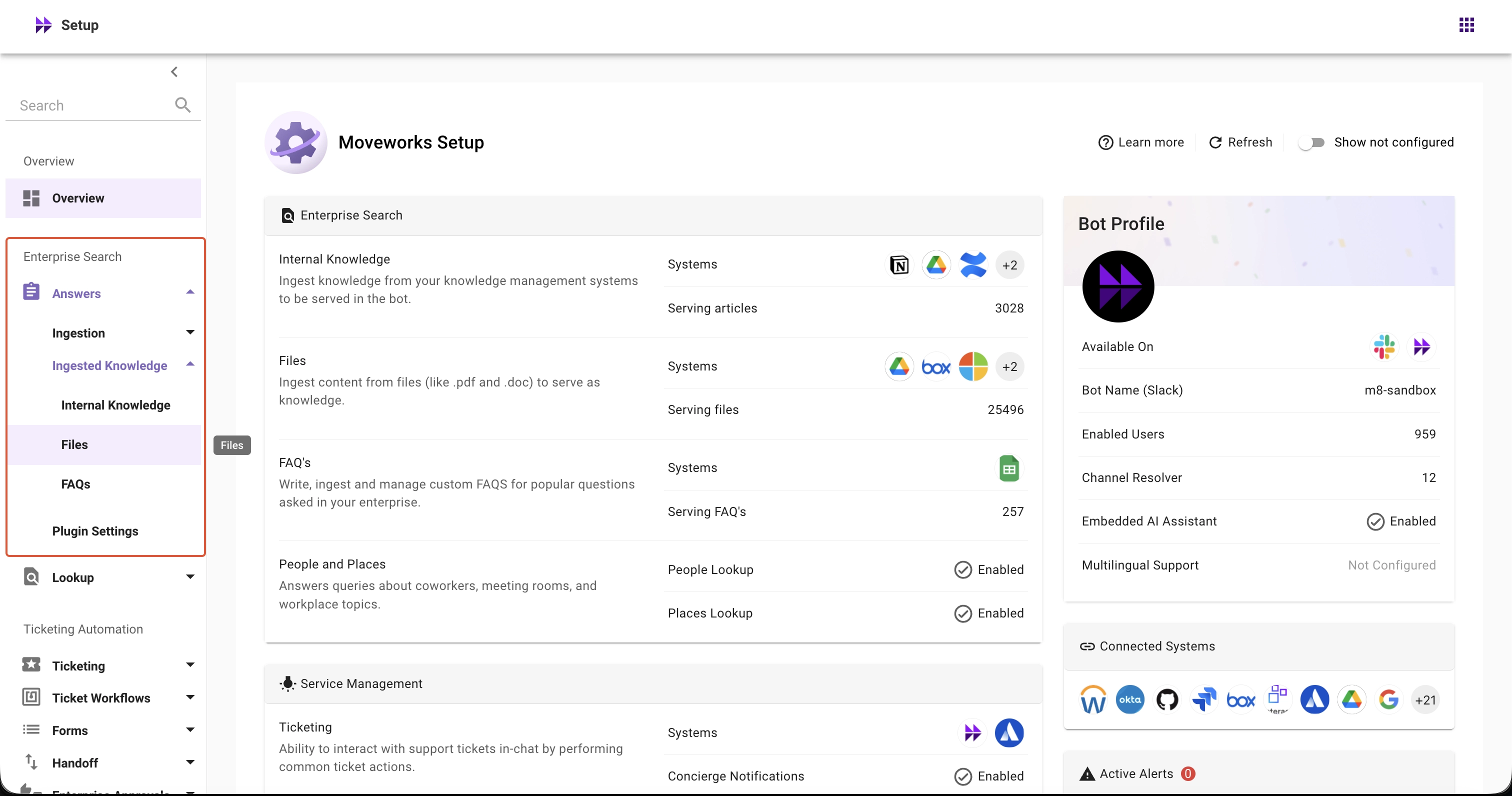
In Enterprise Search left nav section, expand Enterprise Search → Search → Indexed Content
Select Files screen
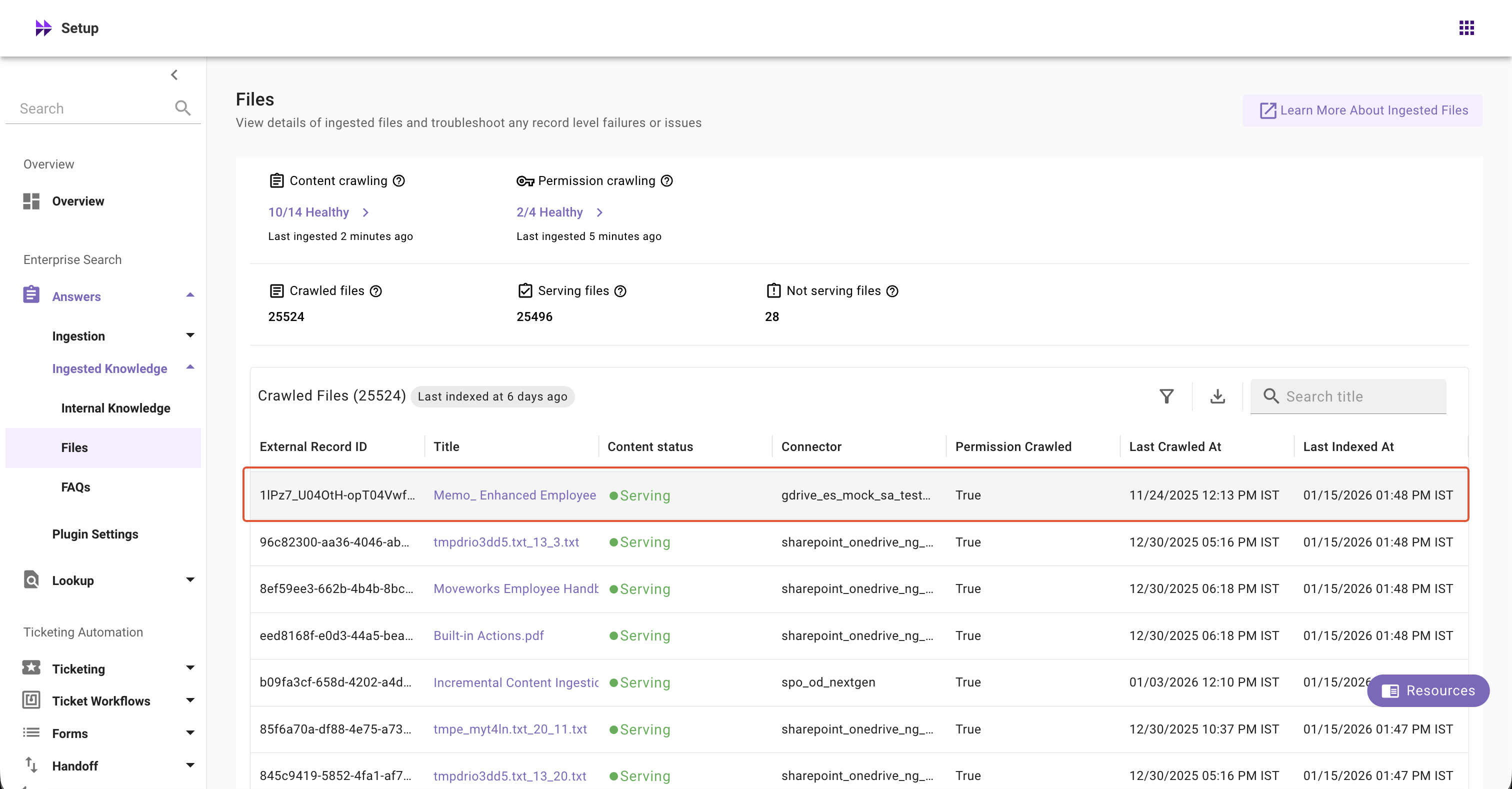
Click on any record in the table
View the Permission Checker tool
How to Use Permission Checker in MW Setup?
Review your current permission strategy
The permission details section displays the following details:
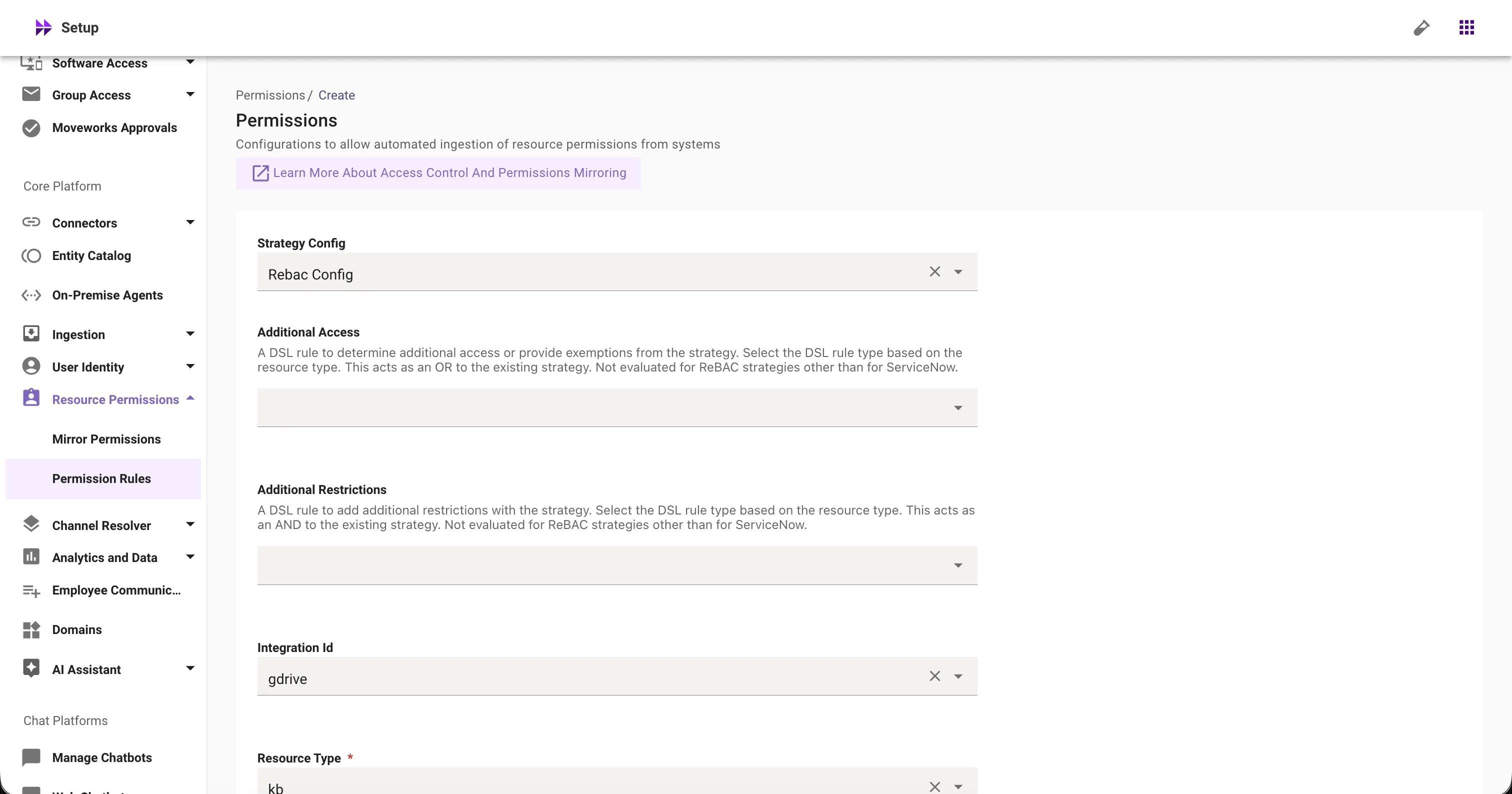
Permission Strategy: Shows the permission strategy configured for this connector in Core Platform > Resource Permissions > Permission Rules screen > Strategy Config
If ReBAC strategy is selected, it displays Native Permissions
If ABAC or Public to all members of the organization is selected, it displays Moveworks Enforced Permissions
Additional Restrictions: DSL rules that layer additional access filters on top of existing permissions mirrored from the source system, providing granular control over who can view specific content. Configured in Core Platform > Resource Permissions > Permission Rules > Additional Restrictions config.
Additional Access: DSL rules that let Moveworks admins define extra audiences who are allowed to see certain records on top of the existing mirrored permissions. This explicitly adds access rather than restricts it. Configured in Core Platform > Resource Permissions > Permission Rules > Additional Access config.
Learn more about Resource Permissions here
Click ‘View Permission For User’ → Select or enter the user’s email address → Click ‘View Permission’
Review the results
Has permission: True - User can access this content
Has permission: False - User cannot access this content
If there’s any issue in evaluating the permissions, you will see the following errors:
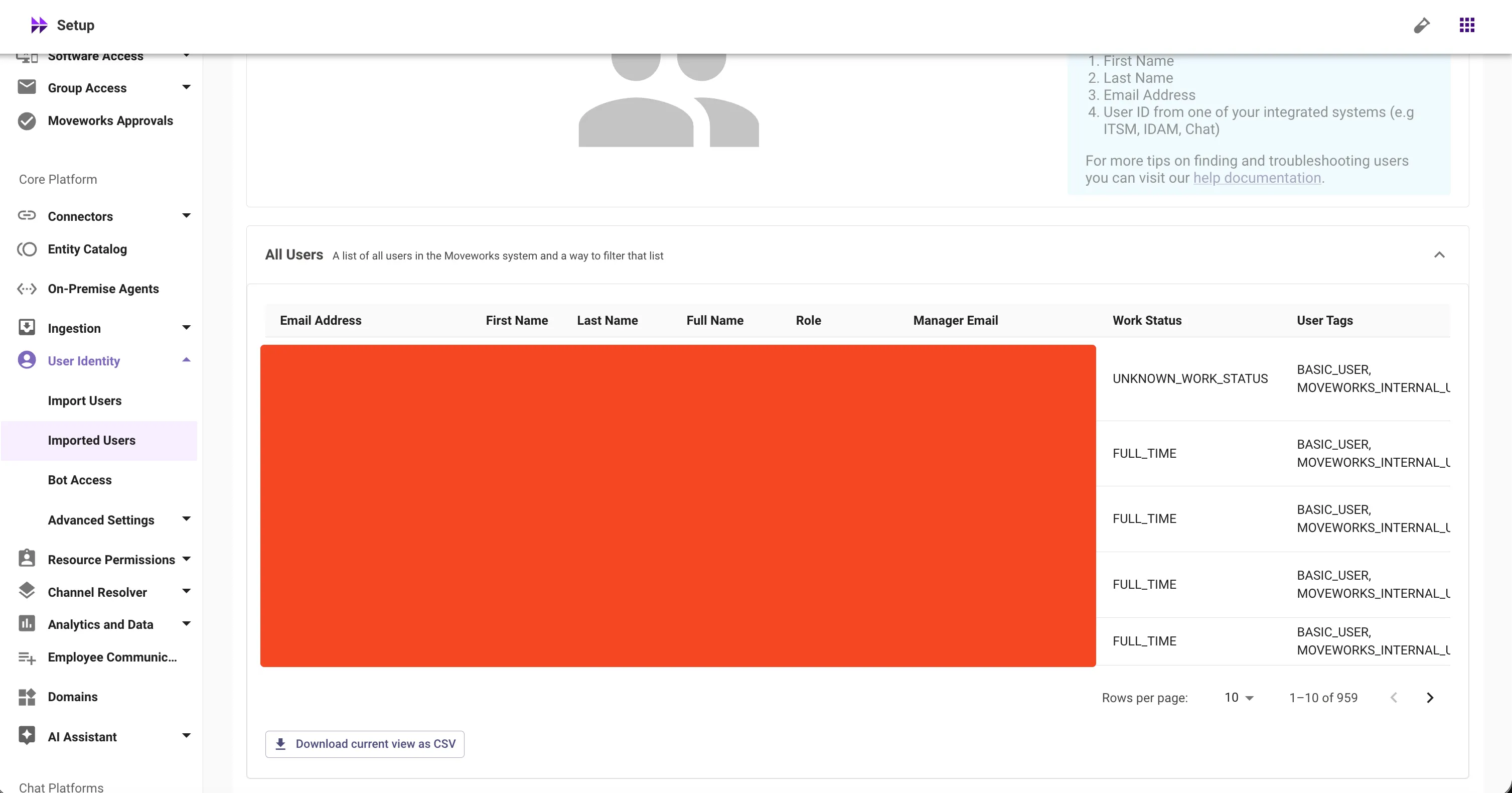
User profile not found. Please verify whether the user exists in Moveworks.: This user doesn’t exist in the Moveworks platform to evaluate permissions. Please check whether the user is ingested in User Identity > Imported Users > All Users.
Unable to test user permissions - permission data could not be found. Please try again later.: Permission data from your source system is not ingested yet. Please verify in Permissions Crawling widget or Customer Data Crawling Viewer that permissions have been successfully ingested.
Unable to test user permissions - permission rules not found. Please configure permission rules and try again: Permission strategy has not been defined for this connector. Please verify whether Permission Rules exist for the connector.
Unable to test user permissions - internal system error occurred. Please try again later.: There’s an internal error at Moveworks - this will be resolved by our team. Reach out to Support if this issue persists.
Important Note:
If permissions are not ingested, '0 Permission Ingested' error is displayed.
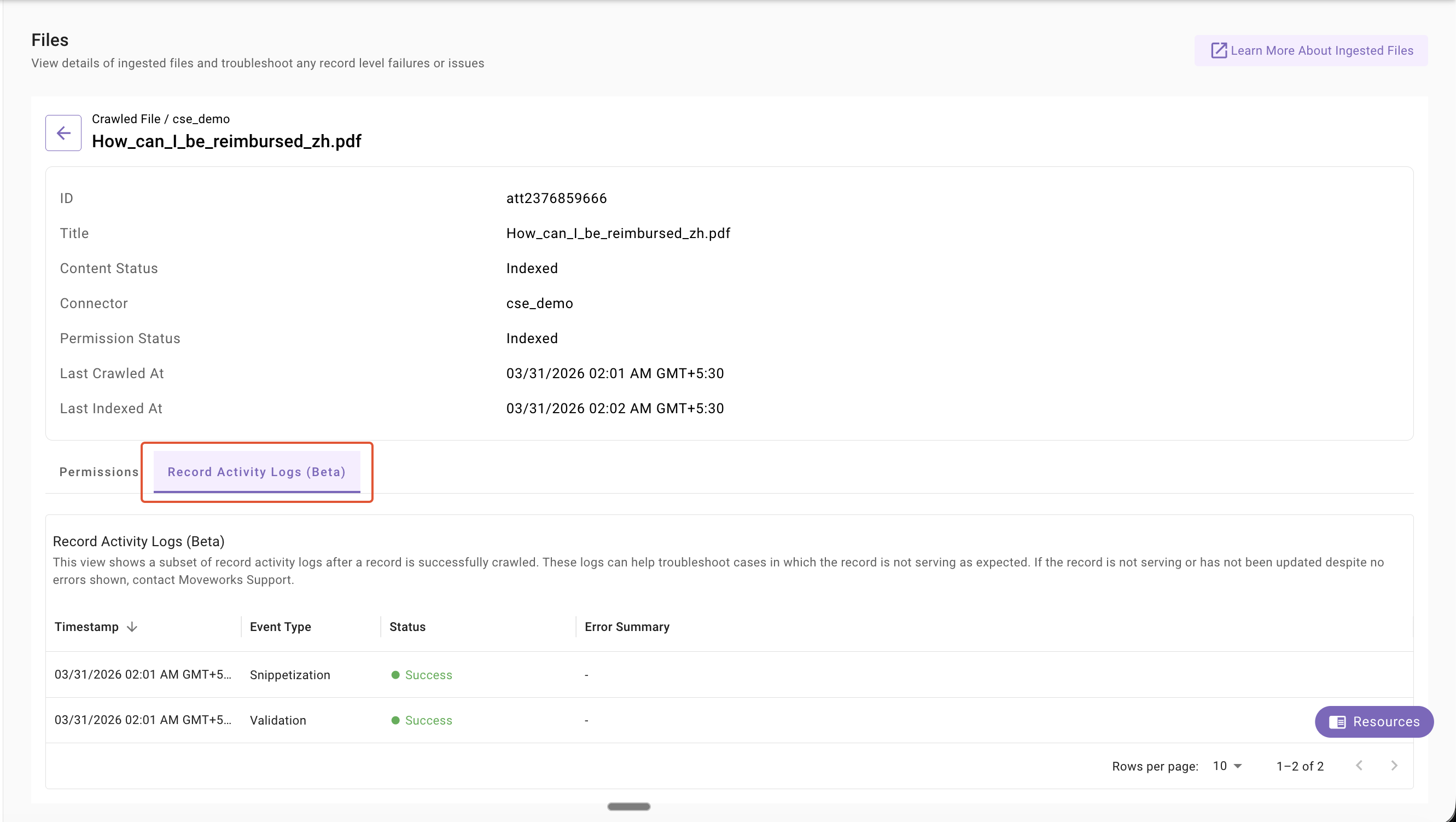
Record Activity Logs
Record Activity Logs provide visibility into a subset of enrichment and processing steps a record goes through after it is successfully crawled. During enrichment steps, failures can occur due to issues like:
Unsupported record types
Large record sizes
Corrupted or empty content
Password-protected documents
These failures can prevent records from being indexed, updated, and served to users.
Record Activity Logs help Moveworks admins understand whether a record was successfully processed or failed during these steps, enabling effective troubleshooting of content that is not being served.
When to use Record Activity Logs?
Users report that specific content is not being served, even though they have access to it
After adding or updating content, admins want to verify that records are processed and indexed correctly
Content appears outdated or incomplete, and admins want to check if processing issues are blocking updates
Admins want to understand enrichment failures caused by issues such as file size limits, unsupported formats, or corrupted content
When troubleshooting complex issues, admins want to share detailed processing errors with the Moveworks Support team
How to access Record Activity Logs?
Navigate to Moveworks Setup
In Enterprise Search left nav section, expand Enterprise Search → Search → Indexed Content → Files
Select Files screen
Click on any record in the table
View the Record Activity Logs tool
How to use Record Activity Logs?
Use Record Activity Logs to understand what happened to a record after it was crawled and identify if it failed during processing.
Review the latest logs (sorted by timestamp) to see enrichment steps such as Validation and Snippetization
Check the Status column:
Success → The step completed successfully
Failure → The step failed and may be blocking the record from being served
Look at Error Summary (if available) to understand why a step failed
Trace the sequence of steps to identify where the failure occurred
If all steps show Success but the record is still not being served or updated, contact the Moveworks Support team with the record details for further investigation.
Note about Record Activity Logs
Record Activity Logs display only a subset of processing steps and errors. In some cases, all visible steps may show Success, but the record may still fail due to issues in other enrichment steps that are not currently surfaced.
List of all the errors surfaced in record activity logs:
When does it occur
Errors Messages
Examples
MIME type of the record is not supported.
Record cannot be processed due to an unsupported record type.
HTML MIME TYPE is not supported in MS Graph
Record size is too large to be crawled.
Record exceeds the size limit and cannot be processed.
PPTX file > 25 MB
Unsupported or outdated record types.
Record cannot be processed due to an unsupported or outdated format.
Older Office formats like .doc, .xls, .ppt
The record is either damaged or the content is corrupted/invalid.
Record content is invalid or corrupted.
Rename photo.jpg to document.docx → Error because it’s not really a Word file
The record is either password protected or encrypted.
Record is password-protected and cannot be processed. Please remove the password.
Password-protected Office documents
Record has no content in the body.
Record body has no content. Please ensure the article is not empty.
Upload empty KB article
Record could not be read or interpreted properly.
Record cannot be processed because it could not be read properly.
Corrupted PowerPoint files that crashes the reader
Record claims to be PDF the content is not valid. (Only for PDFs)
Record cannot be processed because the PDF is invalid or corrupted.
Rename image.png to document.pdf → Error because it’s not really a PDF
Record is password protected or encrypted. (Only for PDFs)
Record is password-protected and cannot be processed.
Password-protected Office documents
Record size is too large to be crawled. (Only for PDFs)
Record exceeds the size limit and cannot be processed.
PDF size is > 25 MB
FAQs
What does content serving or not serving mean?
Indexed: The content has been successfully processed and indexed
Not Indexed: Moveworks couldn’t process and index the content. This typically happens when content isn’t in the proper format or when there’s a large drop in files that prevents processing
What does the permission ingested column mean?
Permission status – Indexed: Permissions have been successfully ingested for these records
Permission status – Not Indexed: This can mean two things:
Missing permissions: Permissions exist but haven’t been ingested for this record yet
Not applicable: Permissions don’t apply to this type of record
What does ‘0/1 healthy’ or ‘8/10 healthy’ mean in the ingestion widgets?
This shows how many of your configured systems are currently healthy. For example, “1/10 healthy” means 1 out of your 10 configured systems is healthy
What is the difference between last ingested at and last indexed at?
Last crawled: The timestamp when we successfully pulled a record from the external system as part of our data ingestion processes
Last indexed: The timestamp when we updated our index after detecting changes to a content record
Important Note
Last ingested at may be recent but last indexed at may be older because we continuously ingest records but only update the index when changes are detected to the content records.
Does the ingested files count represent the sum of serving and not serving files?
Yes, the ingested files count represents the total of both indexed and not indexed files combined
Is SNOW ACL supported or not?
Currently, we do not support showing ServiceNow ACL permissions flow in our permissions view. This feature is on our future roadmap
Count of successfully ingested records in the view logs does not match with the ingested records in Indexed Knowledge/Files/Users/Forms screen. Is this expected?
Yes, this is expected. Data ingestion viewer shows count of records ingested in each full or incremental runs. Post which the records go through a series of processing and validation steps, before reaching the index and to the serving state. Therefore we must not compare the view log metrics with the ingested resource screens
When content has both Native Permissions and Additional Restrictions or Additional Access (only for ServiceNow) configured, how is access determined?
Permission Checker applies Additional Restrictions or Additional Access on top of Native Permissions using AND logic - both the native source permissions AND the additional DSL rules must allow access for the result to show “True.”
I see “Native Permissions” as the permission strategy but ‘-’ in the Additional Restrictions - does this mean no restrictions are applied?
Correct, if Additional Rules shows ”-” or is empty, only the source system’s native permissions are being used without any additional Moveworks-defined restrictions.
Does Permission Checker work for ServiceNow content even though ACL permissions aren’t displayed in the UI?
Yes, Permission Checker can evaluate ServiceNow content permissions, but we do not support showing ACL ingestion yet.
After updating permissions in the external system, how long should I wait before testing with Permission Checker?
Wait for your next scheduled ingestion cycle to complete - Permission Checker reflects permissions as of the last successful ingestion, not real-time source system changes.
Can I use Permission Checker to bulk test multiple users against the same document?
No, Permission Checker supports individual user testing only.
Why is Additional Access visible sometimes and not other times?
Additional Access configuration is only available for ServiceNow connectors. It will not appear for other connector types.
I’m getting Unable to test user permissions - internal system error occurred. error, what should I do?
This indicates an internal system error. Please try again in a few minutes. If the error persists, reach out to support for assistance.
I’m getting Unable to test user permissions - internal system error occurred. error, what should I do?
Yes, Record Activity Logs only show a subset of processing steps and errors. In some cases, all visible steps may appear as successful, but the record can still fail due to issues in other enrichment steps that are not currently surfaced. In such scenarios, please reach out to the Moveworks support team.