Roles and Permissions

View as Markdown

Pre-requisite: Please ask your single-sign on (SSO) Admin to follow these instructions (link) to configure Moveworks for your organization (link) and enable this application for you

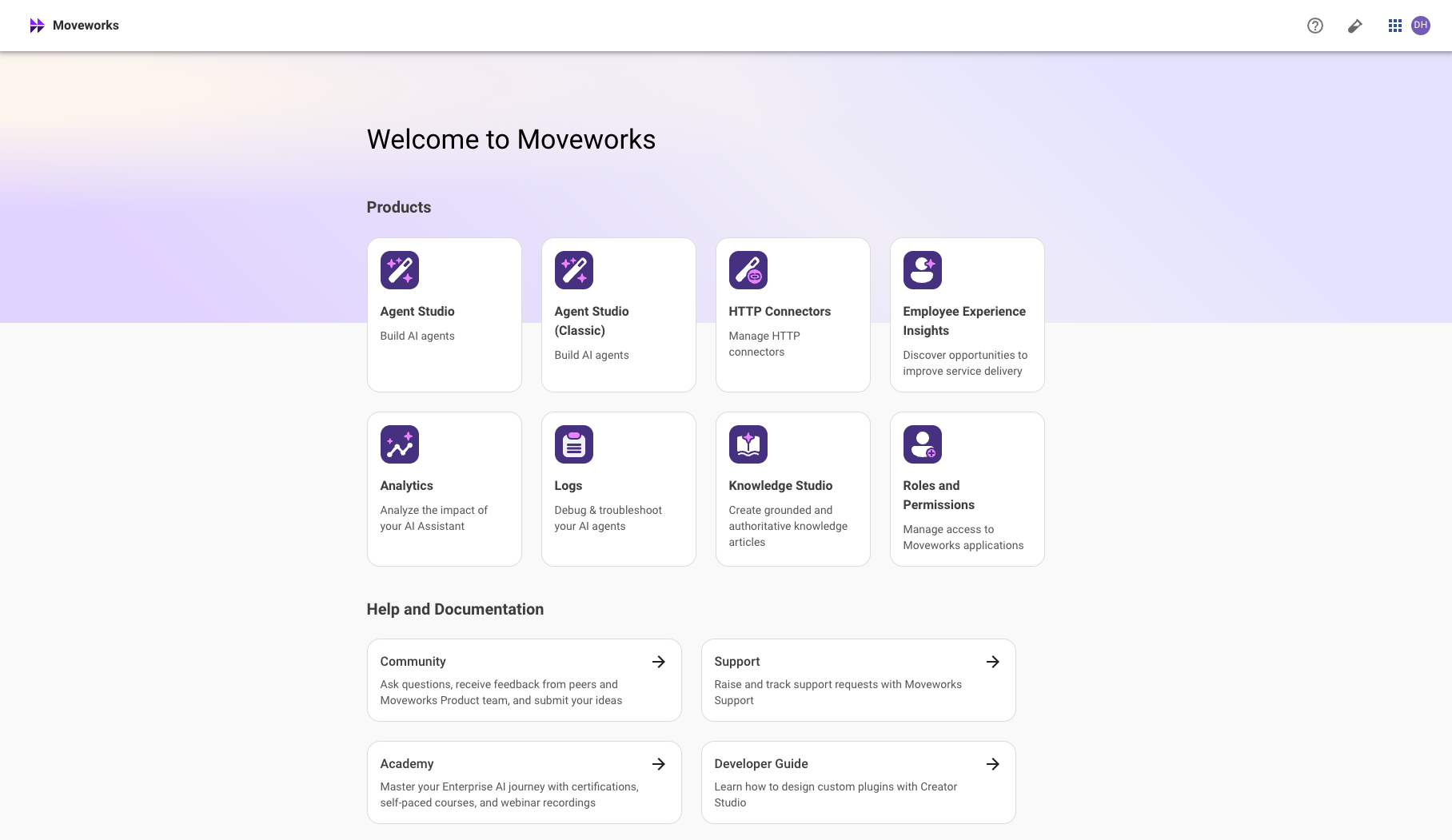
MyMoveworks is your one-stop portal to access all Moveworks applications. Within MyMoveworks there are a variety of applications (Moveworks Setup, Analytics, Agent Studio, Knowledge Studio, etc.)

This guide will explain how to grant users access to specific applications.

Roles and Permissions for Administrators

Moveworks provides Role-based Access Control (RBAC) capabilities for all Moveworks developed applications. As an administrator, learn to manage access to applications through the “Roles and Permissions” application in this section.

There are three types of access you can configure for each user and application:

  • Admin: A role that can grant or revoke access to a specific licensed app for other users.
  • Super Admin: A role that can grant or revoke access to all licensed apps for other users. They can also grant or revoke admin access to applications. Moveworks Super Admin has the same access as the bot, bypassing any underlying system/data/API access controls.
  • User: A role that can access one app. They cannot add or remove access to these apps.

Additionally, some applications like Agent Studio have additional roles controlling access to analytics for that particular application.

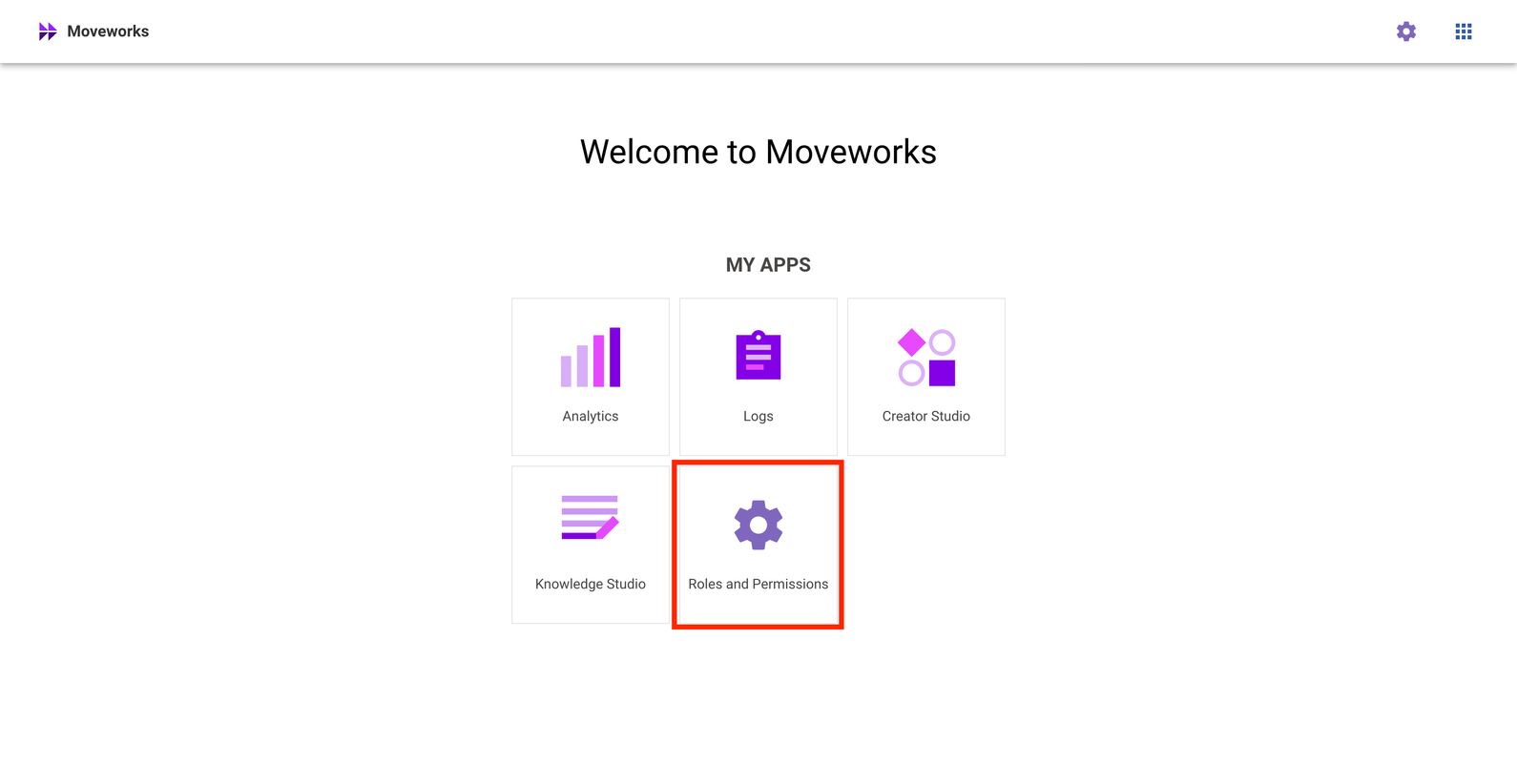
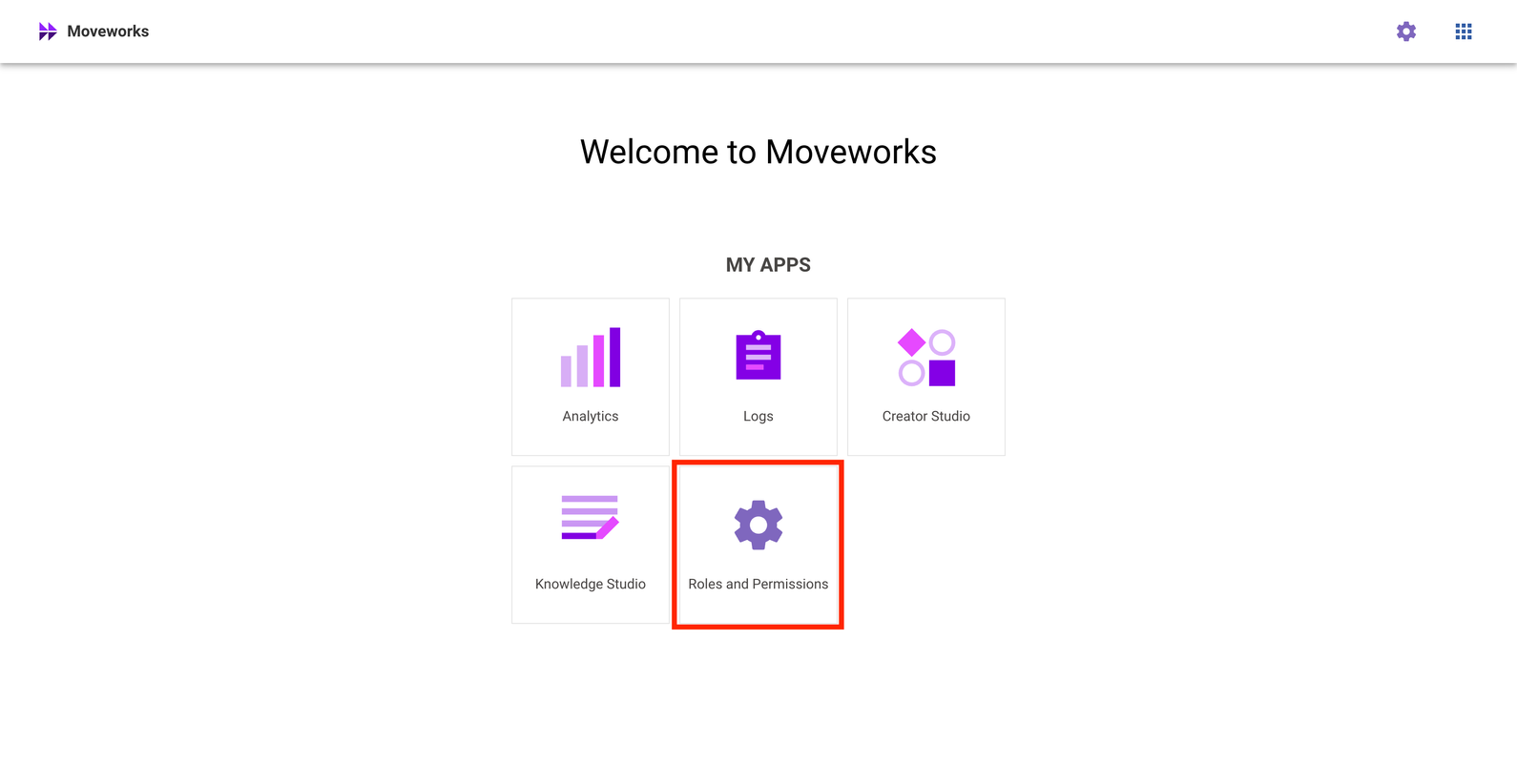
You can access Roles and Permissions from your My Moveworks application through your single-sign on (SSO) app homepage or by logging into https://my.moveworks.com.

Don’t see Moveworks in your list of SSO applications? You might not be a super admin or Moveworks app administrator. Request access from your organization’s super admin or reach out to the Moveworks Customer Support Team.

Don’t see Moveworks in your list of SSO applications? Check that your SSO admin has enabled the application for you.

Can’t log intohttps://my.moveworks.com with your email? Ensure your SSO admin has granted access to your desired email address.

Can’t log intohttps://my.moveworks.com with your SSO admin? Ask your SSO admin to Contact support to validate your SSO configuration with Moveworks.

Standard Administrator and User Roles and Permissions


Important update:

We are introducing a new role for Analytics. This role is aimed towards allowing admins to govern visibility of all user interactions with the assistant. Read more, on the community post below :

PermissionSuper AdminBot Analytics AdminBot Analytics ViewerInteractions viewerAgent Studio AdminAgent Studio UserAgent Studio Analytics ViewerAgent Studio Log ViewerAgent Studio Elevated Logs ViewerEmployee Comms AdminEmployee Comms UserEXI AdminEXI UserKnowledge Studio AdminKnowledge Studio UserMoveworks Setup AdminMoveworks Setup User
Add / revoke access to any licensed Moveworks application
Use any licensed Moveworks application
Add / revoke access to assistant analytics
View assistant analytics
View user interactions and feedback
Add / revoke access to Agent Studio
Access and build on Agent Studio
View analytics for Agent Studio use cases
View run-time logs for Plugins built using Agentic Automation Engine in Agent Studio
Access to sensitive webhook-related logs
Add / revoke access to Employee Comms
Broadcast messages using Employee Comms
Add / revoke access to Employee Experience Insights (EXI)
Get insights about help desk and applications using Employee Experience Insights
Add / revoke access to Knowledge Studio
Generate knowledge articles for gaps in knowledge base with Knowledge Studio
Add / revoke access to Moveworks Setup
Configure Moveworks bot settings, and manage stakeholder product configurations
Role NameDescriptionRelated Moveworks Product(s)Who fills this roleWhat it gives access to
Super AdministratorManage permissions for all Moveworks apps and view all productsAll Moveworks productsMoveworks Product Owner Lead / Manager Project ManagerOrg Admins can add new Org Admins and access all modules in My Moveworks
Moveworks Setup AdminConfigure all Moveworks products, control connections to various external platforms, and manage permissions to access all configurationsMoveworks SetupIT Lead / Manager Business Systems Administrator Senior IT TechnicianAll Moveworks Setup Modules
Moveworks Setup UserConfigure all Moveworks products and control connections to various external platformsMoveworks SetupBusiness App Product Owner IT Lead / Manager IT Project Manager Technical Knowledge Writer Senior IT TechnicianAll Moveworks Setup Modules
Agent Studio AdminCreate custom conversational AI use cases, use API keys and connections to external platforms, view analytics for these use cases, and manage permissions to access use cases and connectionsAgent StudioMoveworks Owner Head of Employee Experience Software Engineers Developers Business Systems Admins Business Analysts (for analytics)Agent Studio, Agent Studio Logs, Agent Studio Analytics
Agent Studio UserCreate custom conversational AI use cases, and use API keys and connections to external platformsAgent StudioHead of Employee Experience Software Engineers Developers Business Systems AdminsAgent Studio
Agent Studio Analytics ViewerView analytics for your conversational AI use casesAgent StudioHead of Employee Experience Business Analysts (for analytics)Agent Studio Analytics
Agent Studio Log ViewerView run-time logs for Plugins built using Agentic Automation (Plugins tab) Engine in Agent Studio.Agent StudioSoftware Engineers Developers Business Systems AdminsLogs
Agent Studio Elevated Log ViewerProvides access to sensitive webhook-related logs. Must be used with Agent Studio Log Viewer. Note: Use Agent Studio Elevated Log Viewer only when necessary, as it grants visibility into potentially sensitive webhook payload data.Agent StudioSoftware Engineers Developers Business Systems AdminsGrants access to sensitive system logs related to webhook-triggered plugins. Specifically: listener.webhook.trigger, listener.webhook.processor.update, listener.webhook.plugin.trigger
Bot Analytics AdminView analytics related to how well your copilot is performing and access fine-grained interactions, and manage permissions to view analyticsAnalyticsMoveworks Owner Head of Employee Experience Business Analysts (for analytics)Bot Performance Insights Copilot Insights (including Copilot response to each user interaction that summarizes from knowledge base, ingested files, etc)
Bot Analytics ViewerView analytics related to how well your copilot is performing and access fine-grained interactionsAnalyticsMoveworks Owner Head of Employee Experience Business Analysts (for analytics)Bot Performance Insights Copilot Insights (including Copilot response to each user interaction that summarizes from knowledge base, ingested files, etc)
Employee Experience Insights (EXI) AdminView insights about employee service for help desk owners, and manage permissions to view EXIEmployee Experience InsightsMoveworks Owner Head of Service Desk Head of Employee Experience Business System AdministratorsEmployee Experience Insights
Employee Experience Insights (EXI) ViewerView insights about employee service for help desk ownersEmployee Experience InsightsMoveworks Owner Head of Service Desk Head of Employee Experience Business System AdministratorsEmployee Experience Insights
Employee Comms AdminBroadcast custom messages to all or a subset of users in your organization, via the Moveworks bot, and manage permissions to access the Employee Communications platformEmployee CommunicationsMoveworks Product Owner HR Business Partners System Administrators Finance TeamsEmployee Communications
Employee Comms ViewerBroadcast custom messages to all or a subset of users in your organization, via the Moveworks botEmployee CommunicationsMoveworks Product Owner HR Business Partners System Administrators Finance TeamsEmployee Communications
Knowledge Studio AdminGenerate helpful knowledge articles to fill gaps in your employee knowledge base, and manage access to Knowledge StudioKnowledge StudioMoveworks Product Owner IT System Administrators Knowledge Base ManagerKnowledge Studio
Knowledge Studio ViewerGenerate helpful knowledge articles to fill gaps in your employee knowledge baseKnowledge StudioMoveworks Product Owner IT System Administrators Knowledge Base ManagerKnowledge Studio
Moveworks Setup AdminConfigure Moveworks bot settings, and manage stakeholder product configurations, and manage access to Moveworks SetupMoveworks SetupMoveworks Product Owner IT System Administrators Technical System AdministratorsMoveworks Setup
Moveworks Setup UserConfigure Moveworks bot settings, and manage stakeholder product configurationsMoveworks SetupIT System Administrators Technical System AdministratorsMoveworks Setup

Add a Super Admin

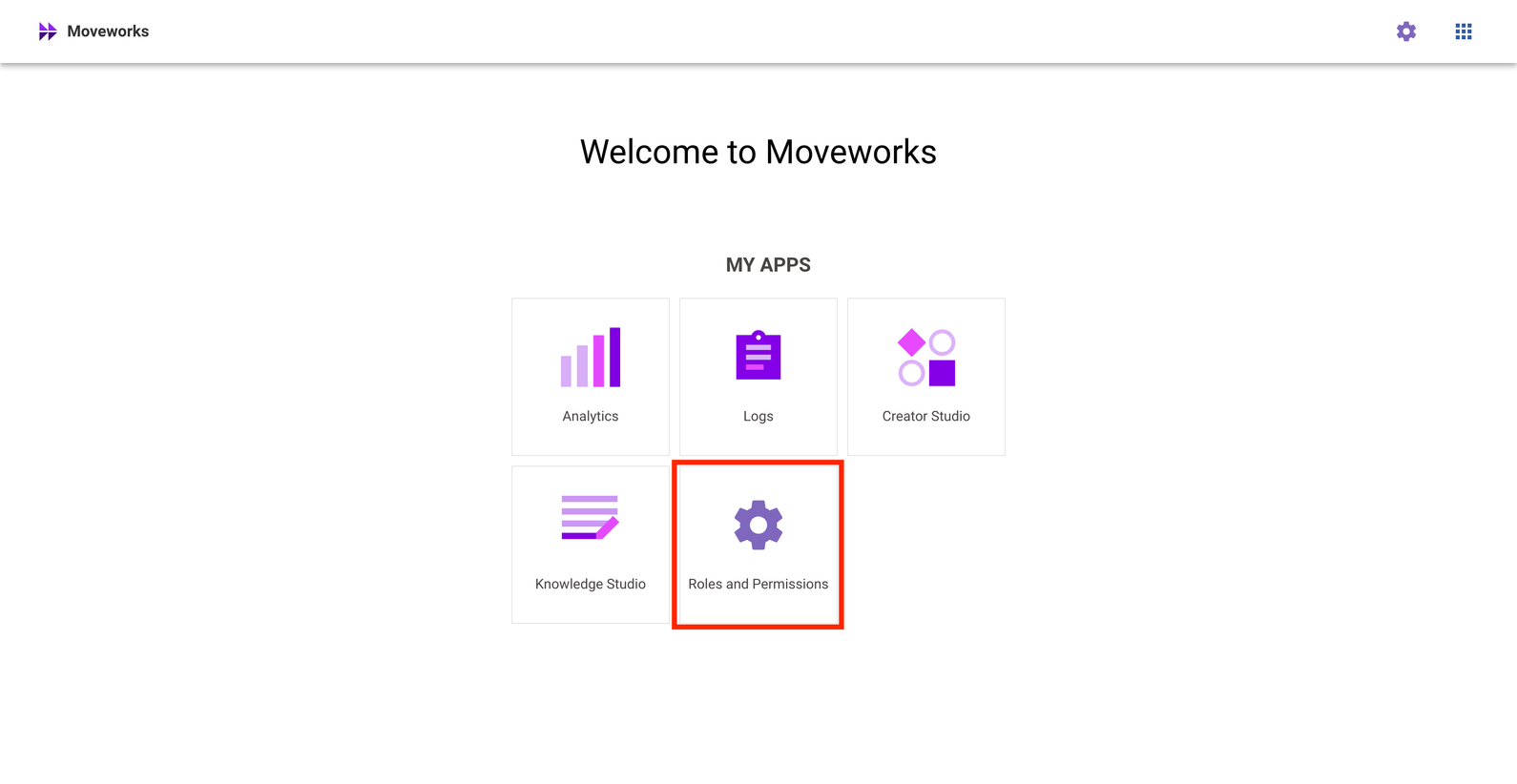
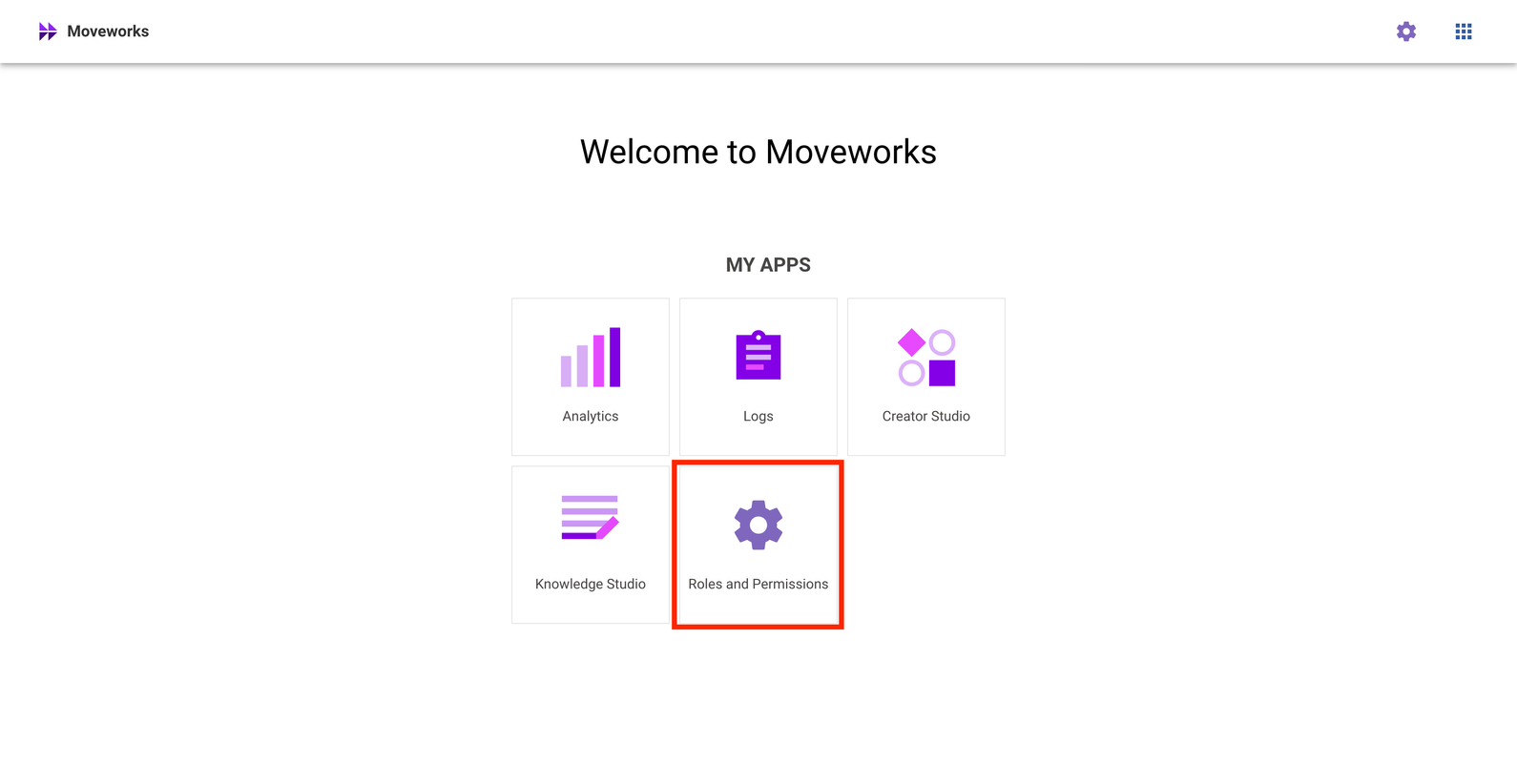
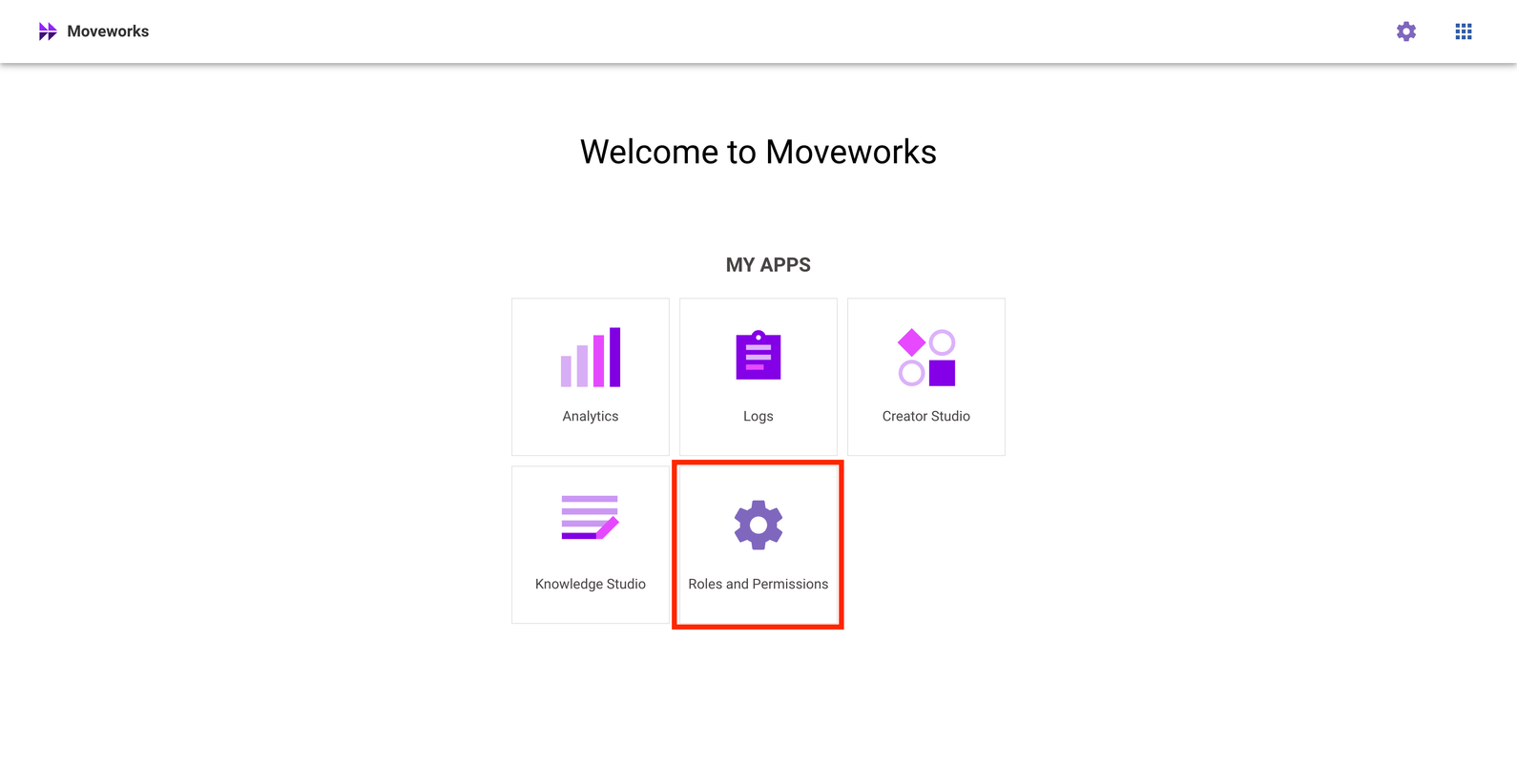
  1. Click on Roles and Permissions.

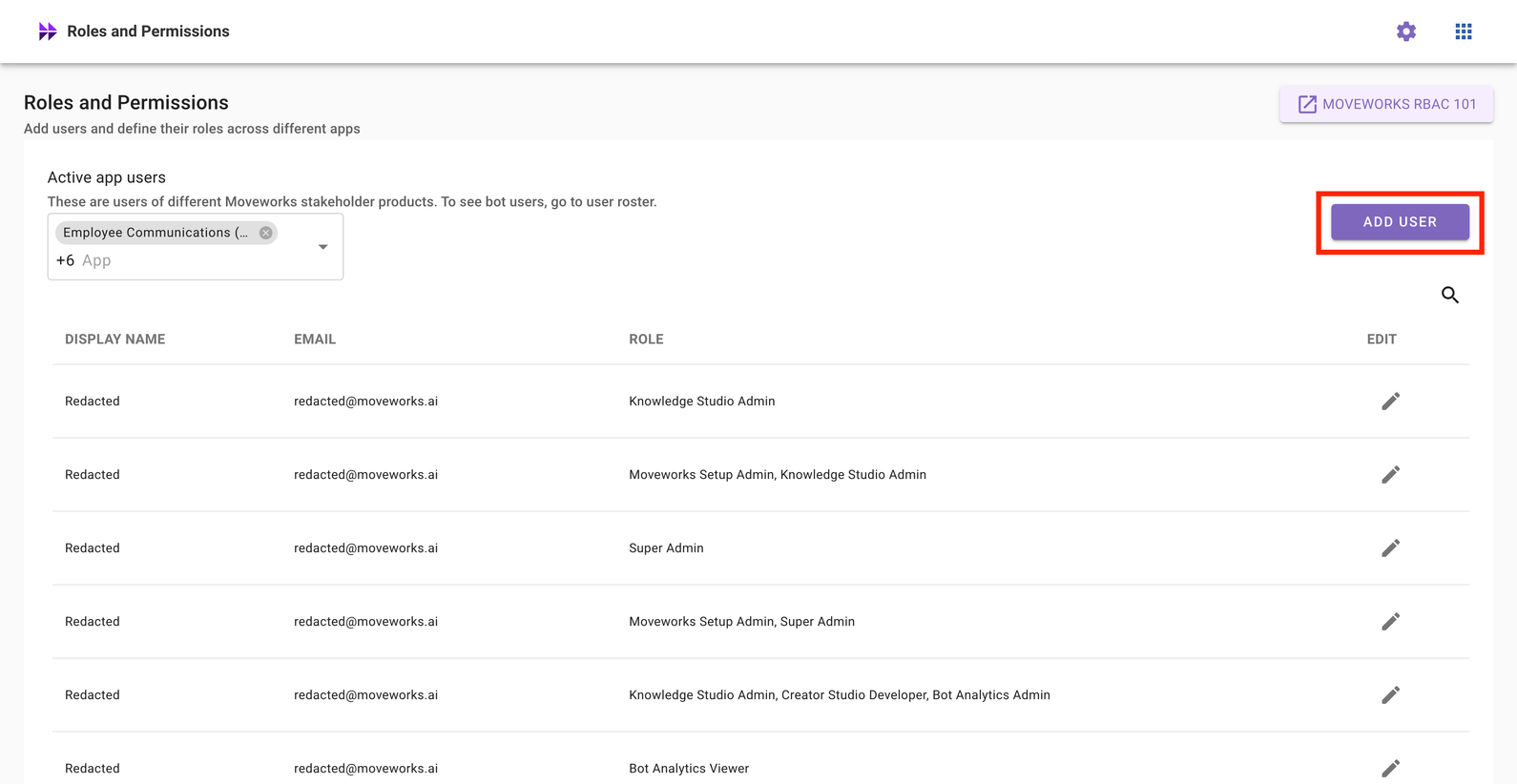
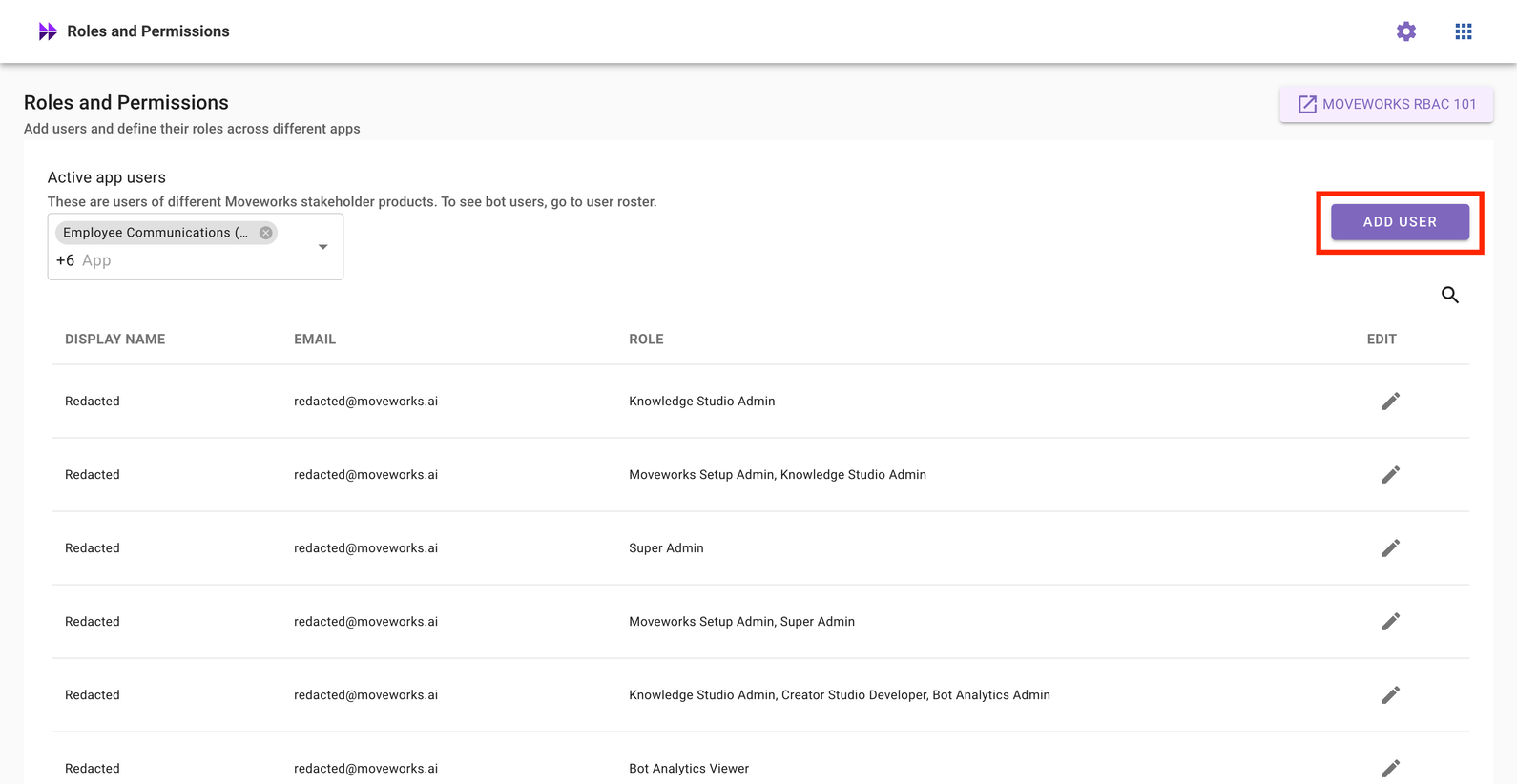
  2. Click on Add User.

  3. Search for your user by name or email. Check the Super Admin toggle, and click Save.
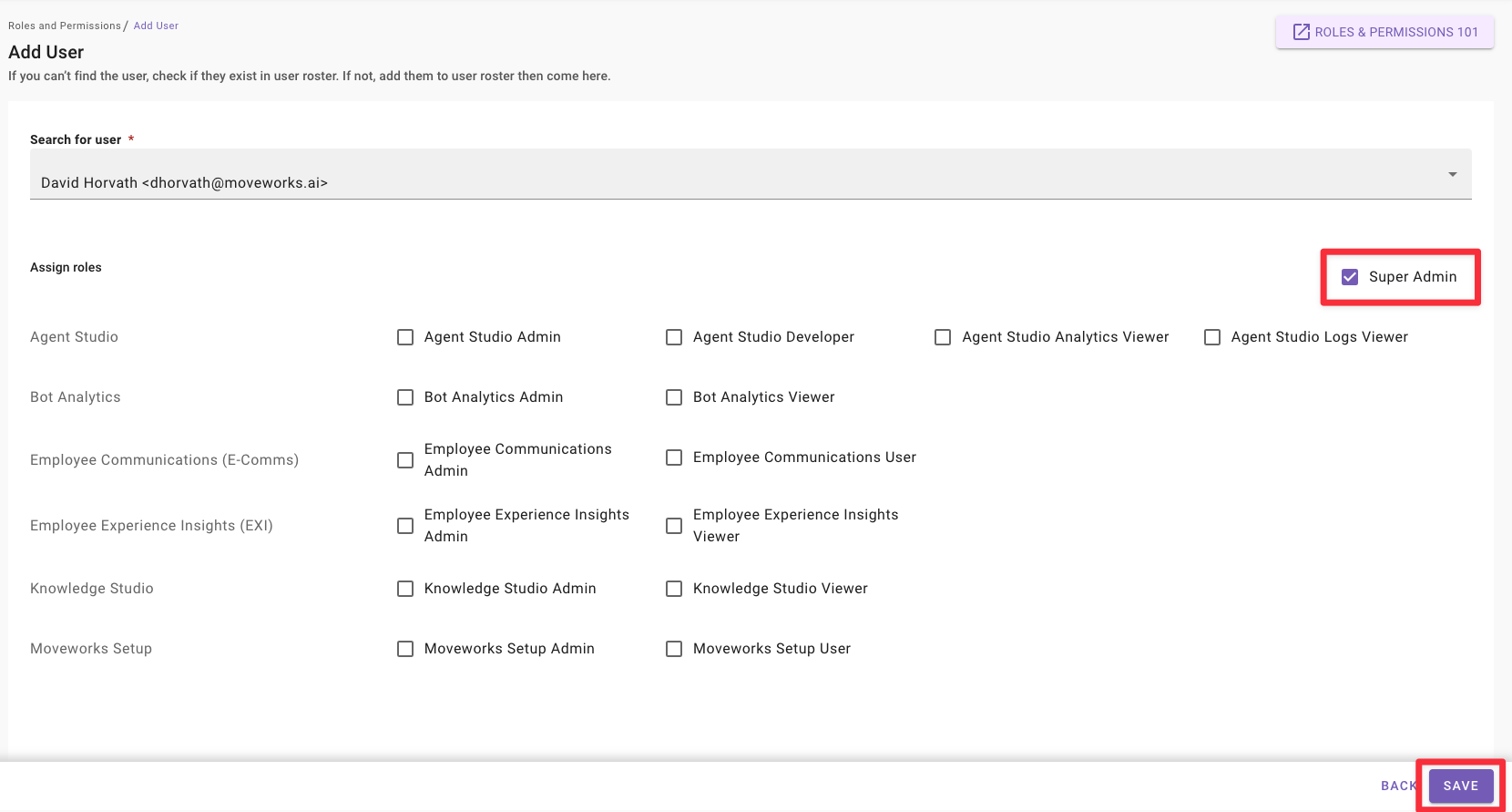
Note: You may see fewer applications than what is listed here


  1. Changes take effect in under 10 seconds, usually instantaneously.

Remove a Super Admin

Super Admin access cannot be revoked by other super administrators inside an organization.

Please contact Moveworks Customer Support through the MyMoveworks portal to revoke a super admin. Feel free to use the following template:

Hello support,
I would like to revoke superadmin access to user@example.com in my organization.
I understand that only Moveworks and other superadmins in my organization can manage access to applications, and have read our RBAC documentation at /service-management/moveworks-setup/accessing-moveworks-setup to understand the consequences of this action.
Thank you
Name

Add an Application Admin

  1. Click on Roles and Permissions.

  2. Click on Add User.

  3. Search for your user by name or email. Check the application toggle you would like to grant administrative access to, and click Save.
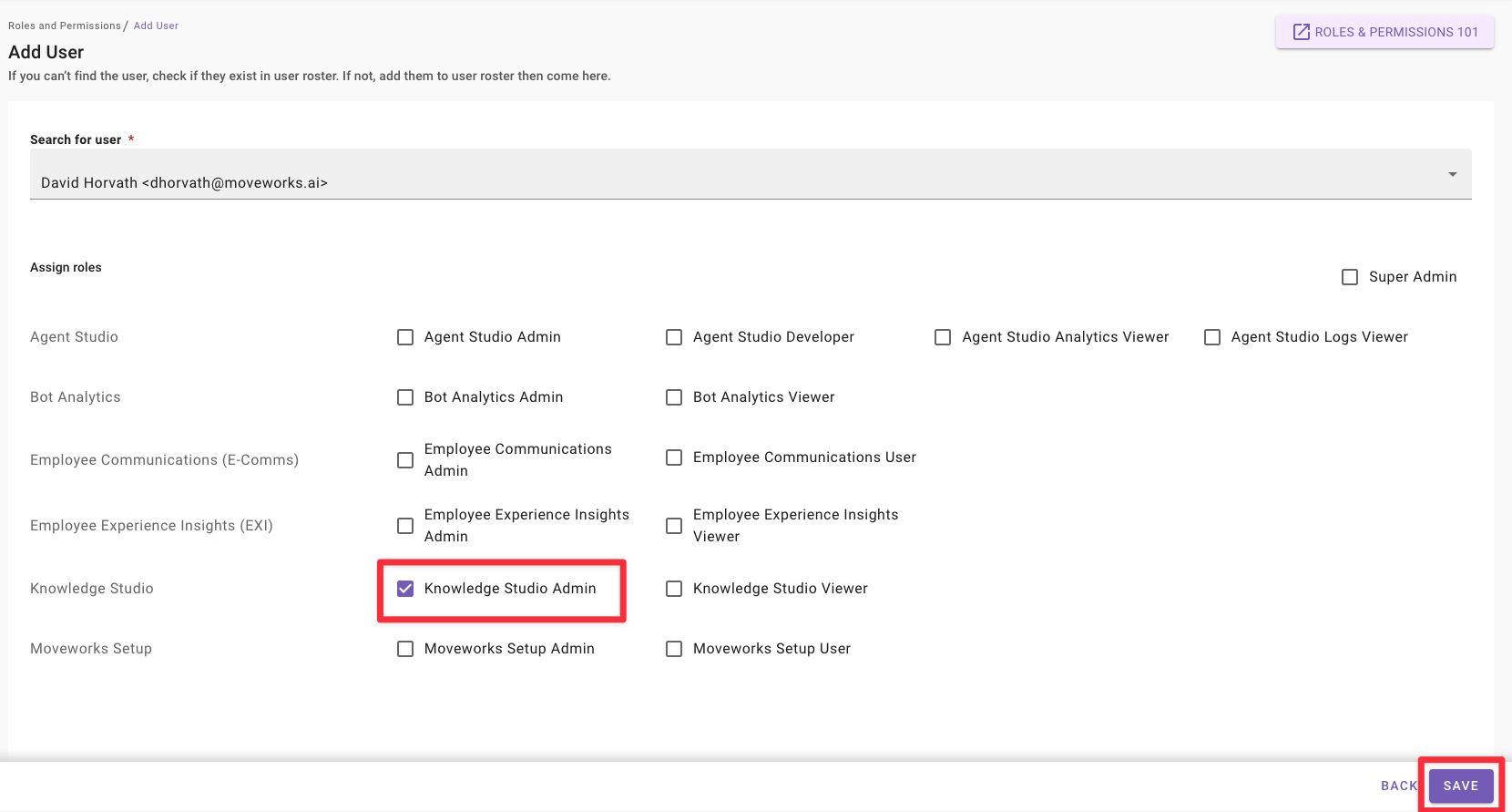
    Changes take effect in under 10 seconds, usually instantaneously.

Remove an Application Admin

  1. Click on Roles and Permissions.

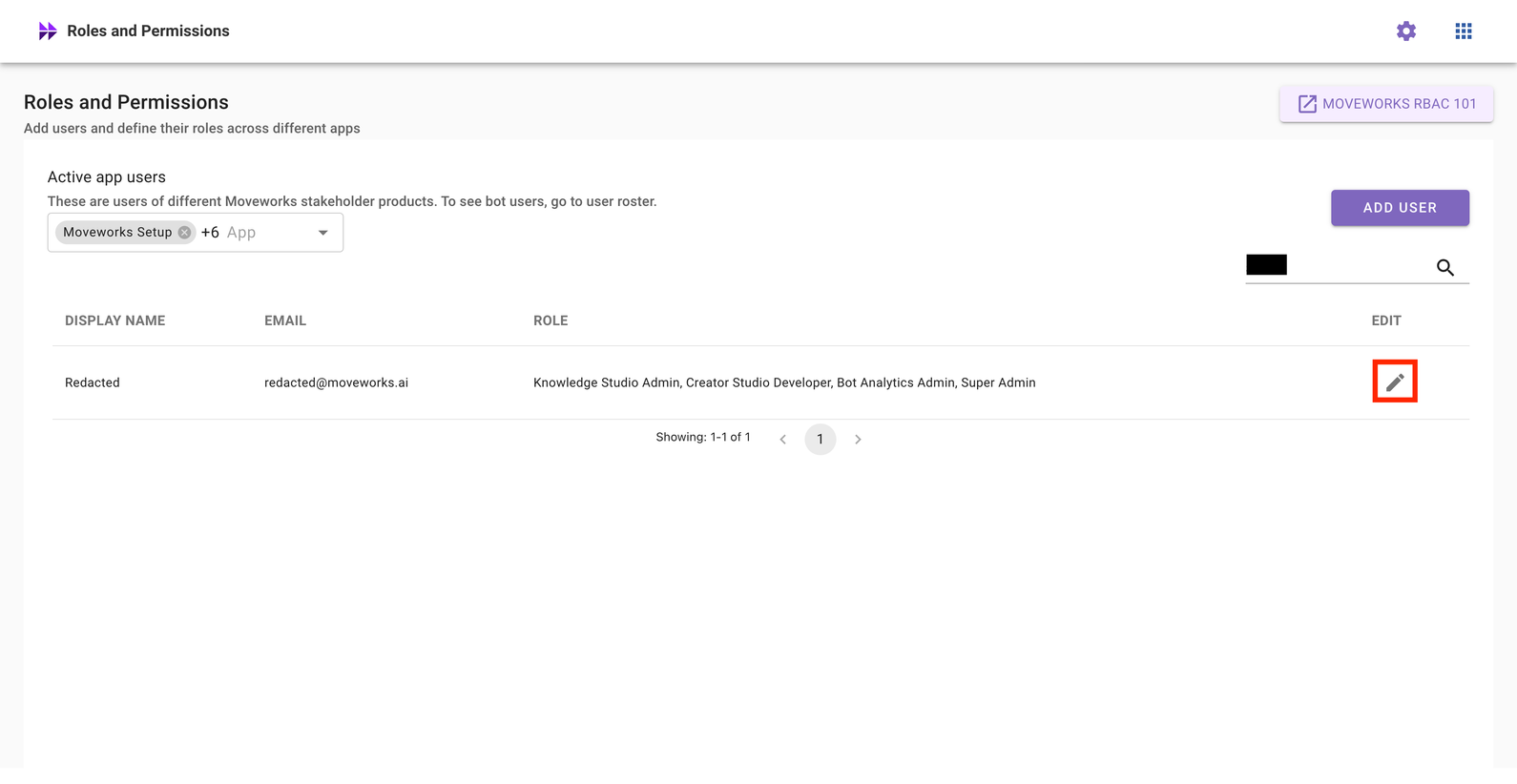
  2. Search for a user by name or email, and click on the pencil icon to edit permissions for that user.
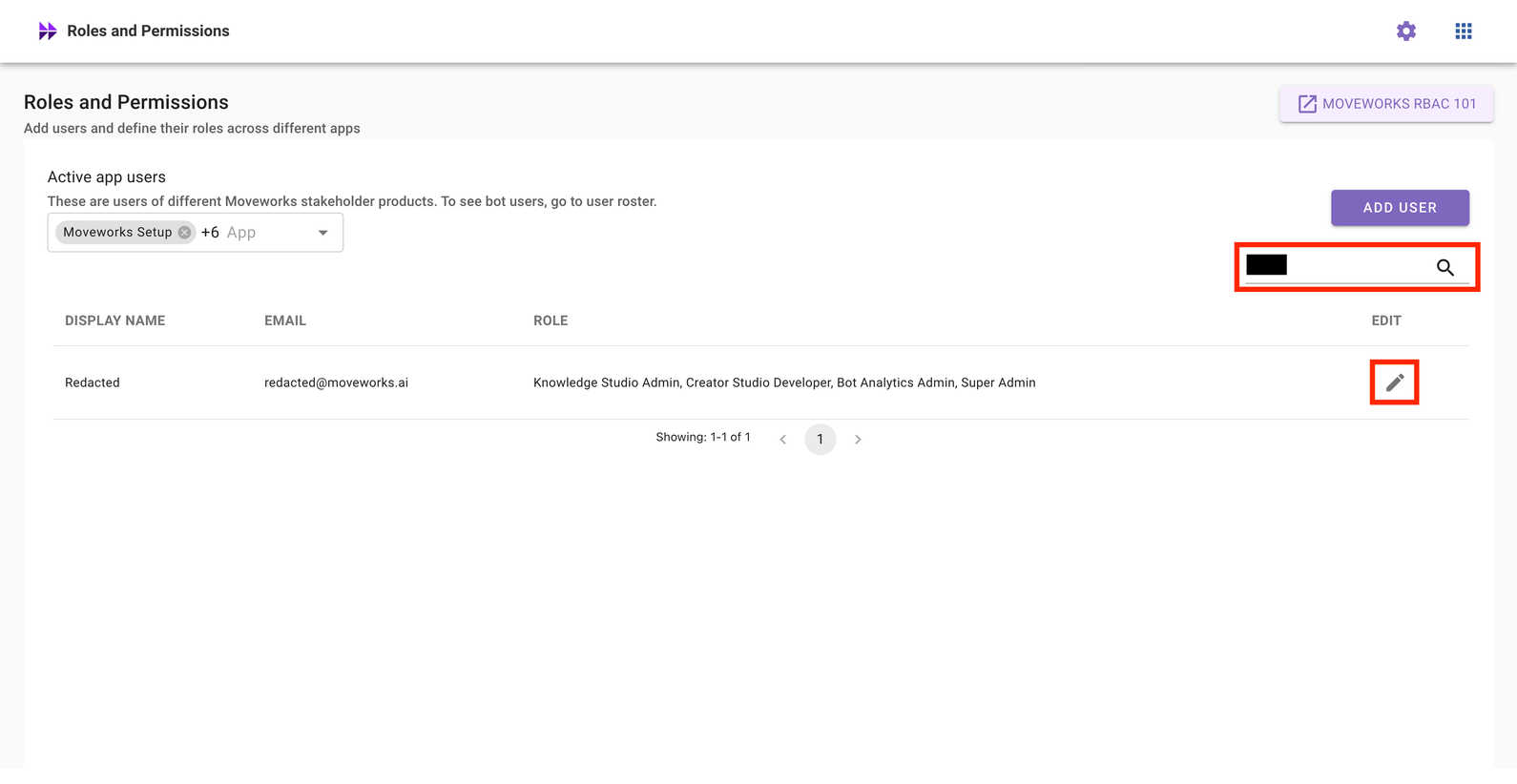
  3. Uncheck the application toggle you would like to grant administrative access to, and click Save.
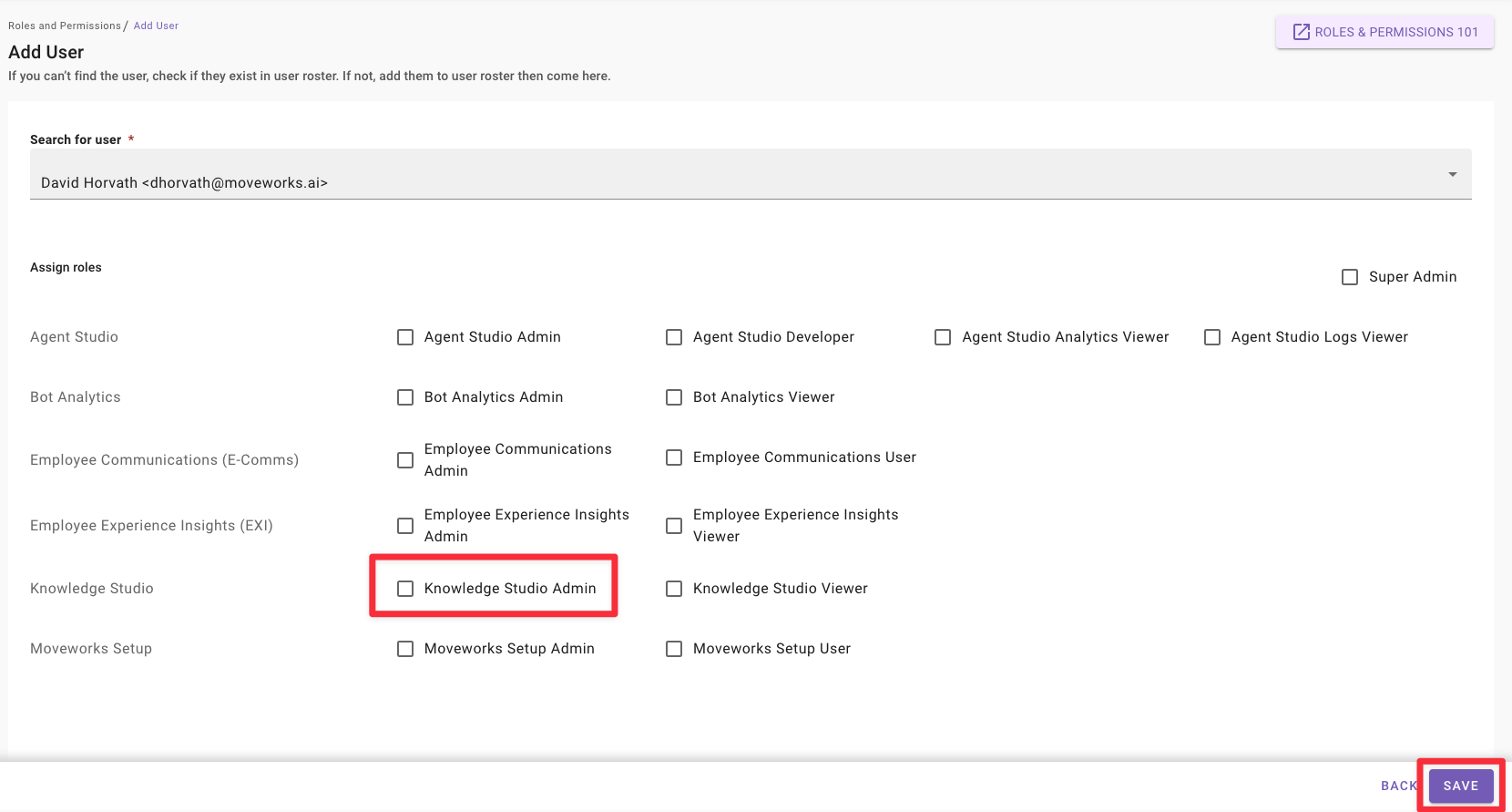
Changes take effect in under 10 seconds, usually instantaneously.


Add a User to an Application

  1. Click on Roles and Permissions.

  2. Click on Add User.

  3. Search for your user by name or email. Check the application toggle you would like to grant user access to, and click Save.
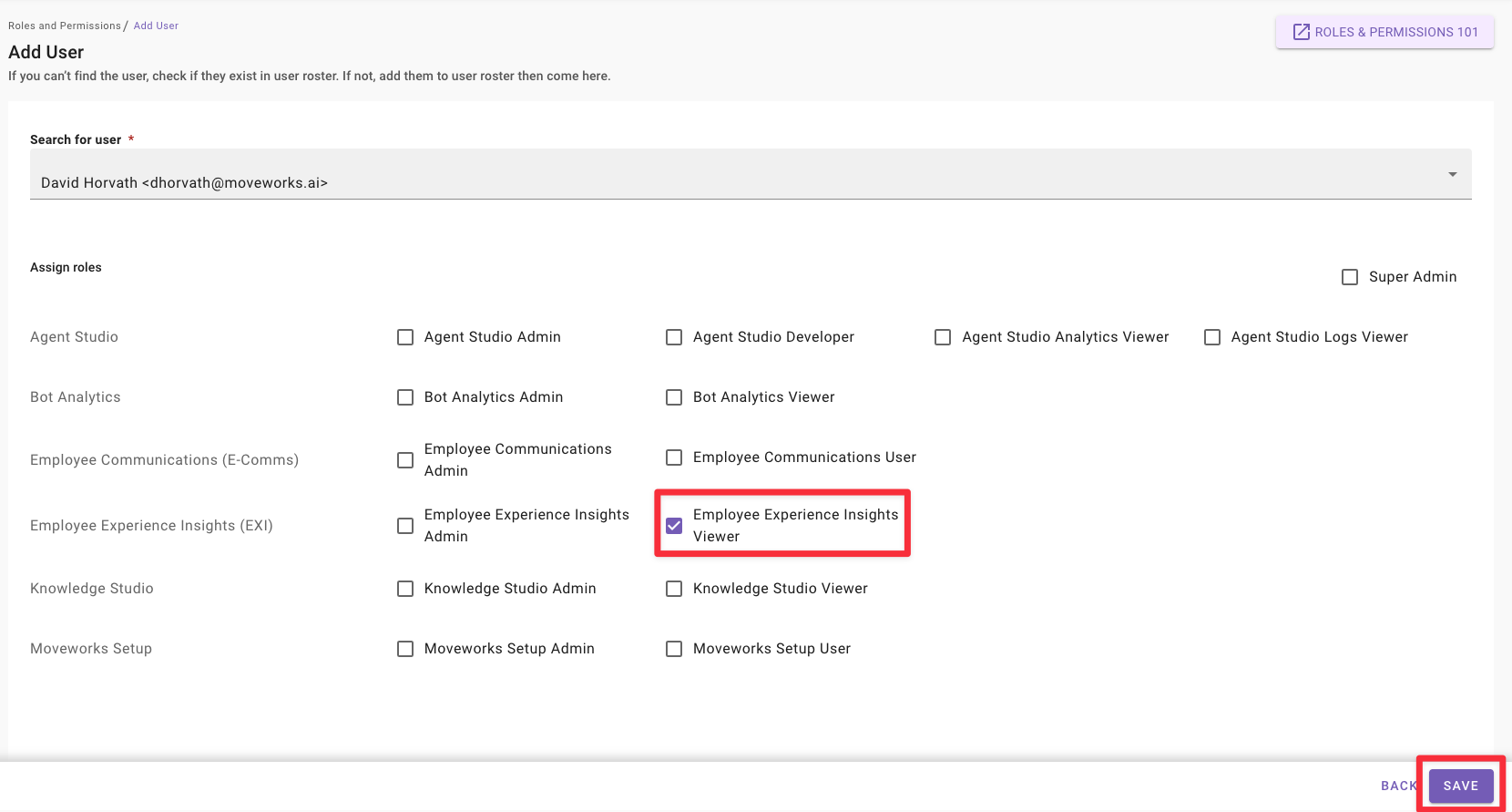
    Changes take effect in under 10 seconds, usually instantaneously.

Remove a User from an Application

  1. Click on Roles and Permissions.

  2. Search for a user by name or email, and click on the pencil icon to edit permissions for that user.
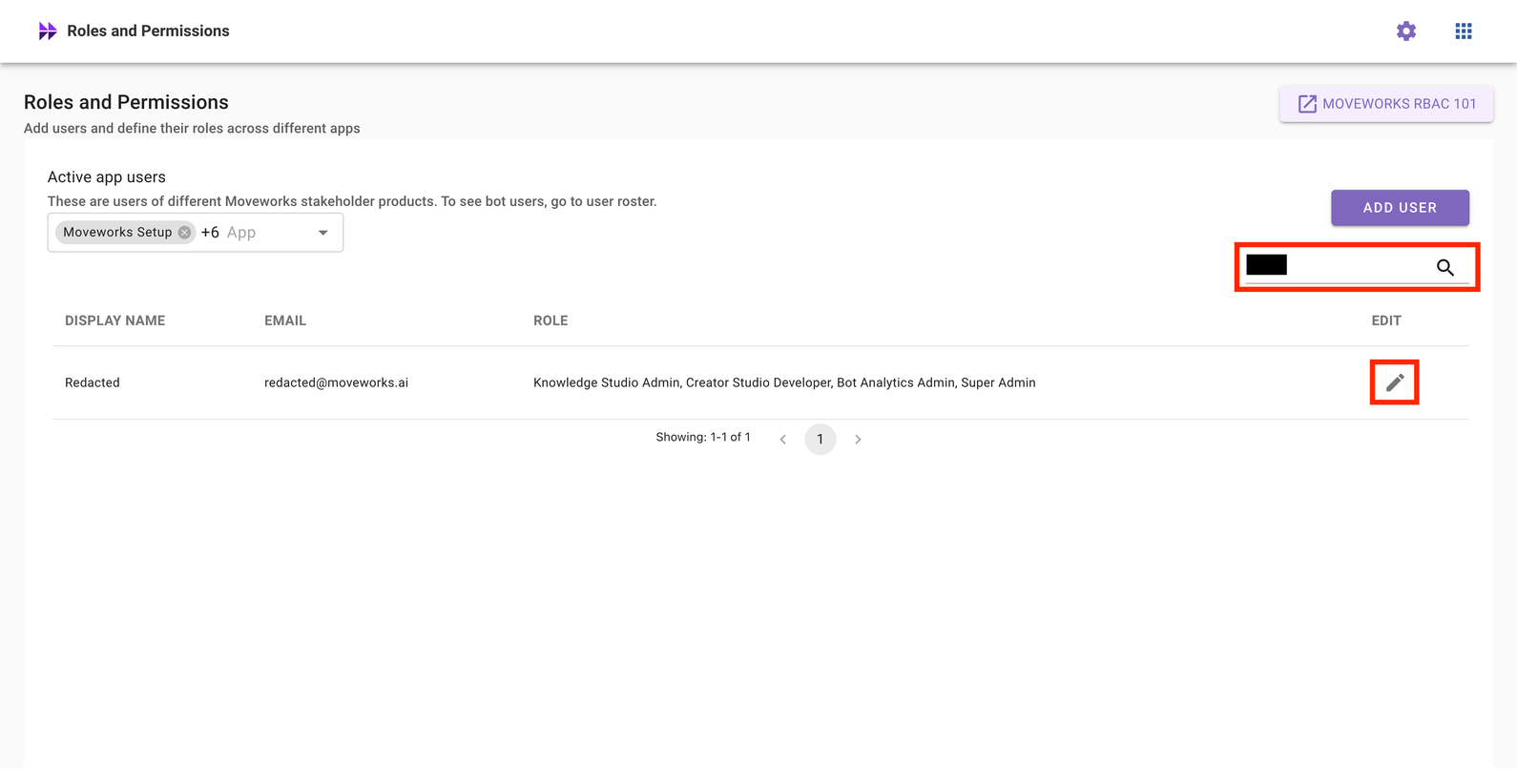
  3. Check the application toggle you would like to grant user access to, and click Save.
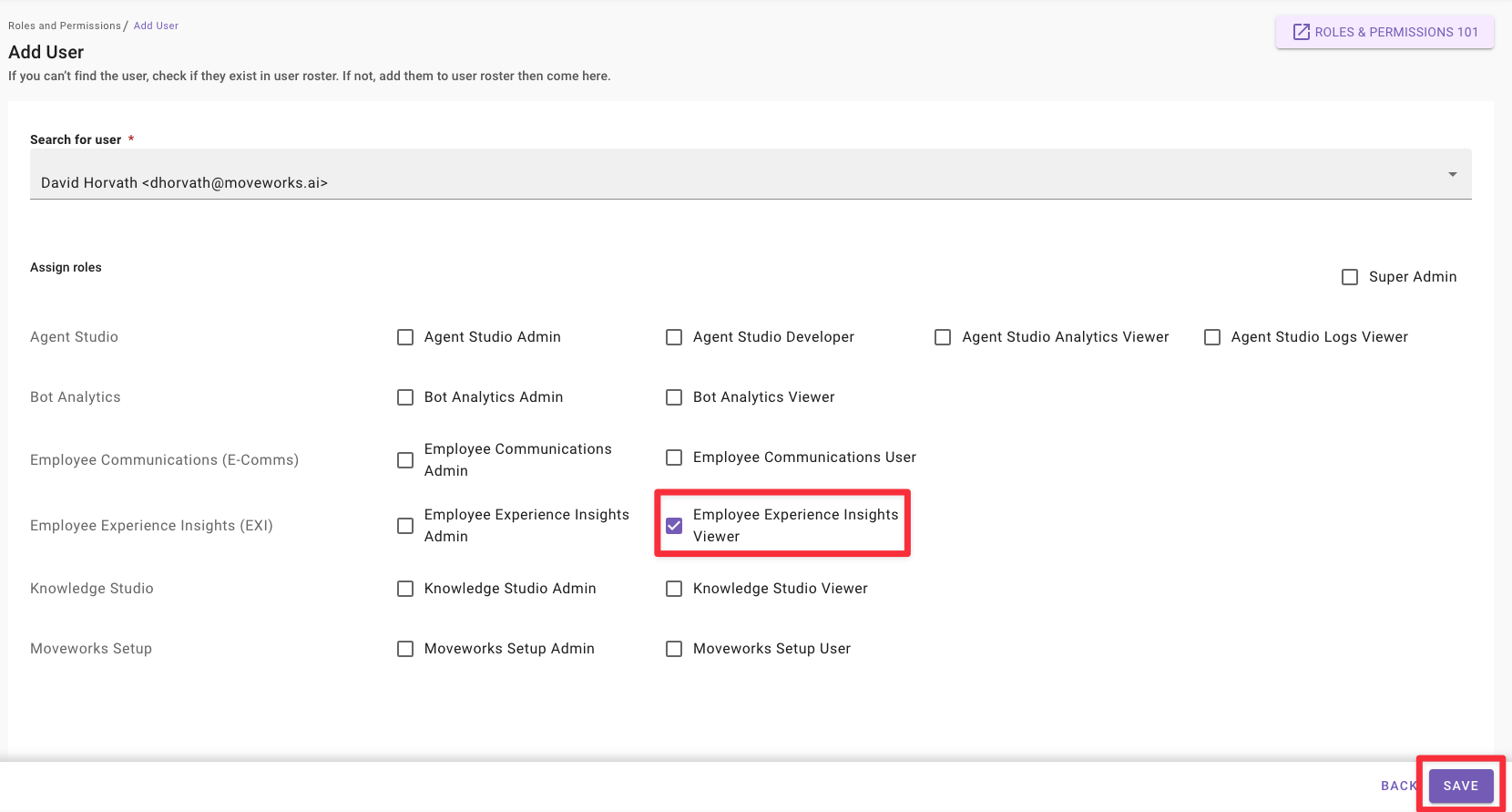
    Changes take effect in under 10 seconds, usually instantaneously.

Search for Permissions Assigned to User

You can search for users by name or email to quickly validate permissions for that users.

  1. Click on the 🔍 Magnifying Glass icon on the right-hand side to search for a user by name or email.
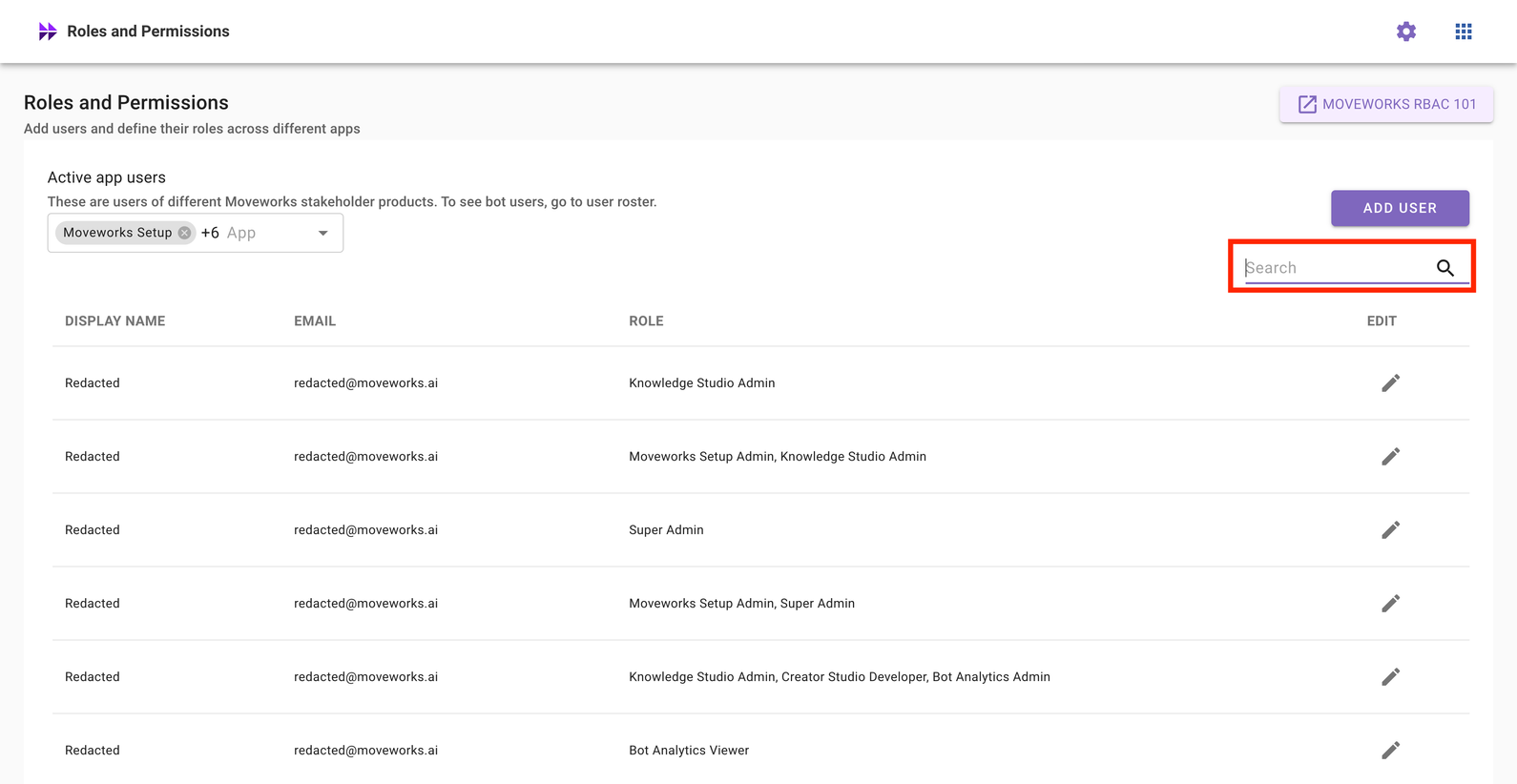
  2. As you type, the list of users filters down until you match the user you are looking for.

  3. Review the permissions assigned to this user. If the permissions do not match, you can click on the pencil icon and edit permissions for that user.

Frequently Asked Questions (FAQ)

  1. Can Moveworks view the roles and permissions in my environment or make changes in my environment on my behalf?
    1. Yes – Moveworks uses an administrator account (similar to moveworksadmin@<domain>.com) to help you view your configurations, make roles and permissions changes, or take other actions on your behalf in your My Moveworks applications. This service account is automatically inserted into your user roster when you configure Moveworks. This account is not used for any other purposes.
  2. Is audit data available when Moveworks makes changes in my environment, or when configuration details are viewed by Moveworks?
    1. Moveworks stores internal logs of all role changes described in the previous section. You can reach out to Moveworks Customer Support team for access to this information.
    2. Audit information for configuration changes in Moveworks setup or extensibility through Agent Studio is available to audit through SFTP. Please read our SFTP data dictionary to learn more.
  3. Do you plan to make audit data available through My Moveworks?
    1. Yes, please upvote this community idea to help the Moveworks team prioritize this feature
  4. How long is this data retained by Moveworks
    1. By default, audit logs of role changes are stored for a period of 2 weeks as part of our service logs.
    2. Please read our data retention deletion policy to learn more
  5. Can admins add more admins for their org?
    1. Yes. Org Admins can assign “Org Admin” permissions to other users
  6. Is there a maximum number of Org Admins?
    1. There is no limit to the number of users who can be given Org admin permission.
  7. What happens if an Org Admin is deactivated?
    1. Other Org Admins will ensure continuity. If no Org Admin is active, please reach out the Moveworks Customer Support Team to provision a new Org Admin.