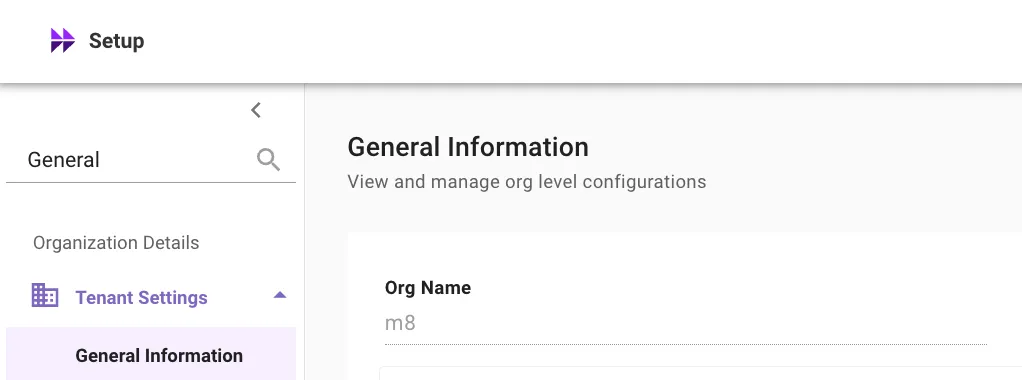
General Information
Overview
General Information module allows admins to view and edit certain organization level configurations. Through the General Information module, admins can make configuration changes such as:
- View the status of their ongoing implementation
- View the org_name for their Moveworks tenant
- View Network Details of the tenant
- Add alternate company email domains through which company admins can additionally login
- Customize org’s MyMoveworks URL
- Configure the AI Assistant Avatar
Configure General Information
-
Org Name [READ ONLY] - In Moveworks, the “Org Name” is the unique identifier for a customer’s organization. It is also referred to as the Customer ID and cannot be changed once it is set by Moveworks. This is used in various configurations such as configuring the Moveworks Agent.
-
Company Details
- Company Name - your organization’s display-friendly company name (e.g. Moveworks). This gets used in various Analytical dashboards.
- Company Email Domain- This is your company’s primary email domain. When a user navigates to https://my.moveworks.com, this email domain gets used to route users to your tenant’s SSO.
- Additional Company Email Domains - Admins can add any other email domains that exist in their company. For eg. moveworks.com, moveworks.ai. These additional domains are needed if your Moveworks admins will login with email domains other than the configured company domain.
- Onboarding Stage - The stage of your organization’s onboarding onto Moveworks. This gets used for Moveworks internal analytics. This should be changed to:
dev_integration- when you start configuring Moveworks, you should set the org to this stage.limited_rollout- Customer is live with Moveworks to a partial set of users in production.live- once the customer is live with Moveworks to all customerssandboxif this is a sandbox org
- Go-Live Date- This the date when your Moveworks implementation goes live. Please note: Analytics & Alerts will start generating only post this date. Use format: YYYY-MM-DD.
- MyMoveworks Custom Domain Alias - Admins can customize their organization’s custom MyMoveworks Login URL using this field.
- For example, if you want to override your org’s MyMoveworks url with “company-moveworks.moveworks.com”, you would enter company-moveworks below. Keeping this blank will default to orgname.moveworks.com. Pre-requisite: OIDC configuration is required under SSO settings.
-
AI Assistant Preferences
- AI Assistant Avatar: Upload a custom avatar for your AI Assistant that will appear across all customer-facing experiences, including chat applications, embedded assistant, web app, and popup forms.
- Image Upload Guidelines:
- Format: PNG
- Maximum file size: 2 MB
- Recommended max dimensions: 1000 × 1000 pixels
If no image is uploaded, the default Moveworks AI Assistant avatar will be used.
-
⚠️ Restrict Moveworks administrator access to My Moveworks Apps
- Default: OFF
- By default, Moveworks technical operations (Customer Support and Customer Success Engineering) have access to your My Moveworks Apps for troubleshooting and support purposes. This includes the Moveworks Setup app. Turning this feature ON, will result in Moveworks Customer Support & your Customer Success Engineer to lose access to troubleshoot your tenant.
- Do not turn this feature on without discussing its implications with your Moveworks Customer Success team.
Customization
How can I customize my company’s MyMoveworks URL?
This will require you to adjust your SSO settings (🔗).
- Go to General Information in Moveworks Setup
- Go to MyMoveworks Custom Domain Alias field
- Input your desired custom name. If you want to customize your MyMoveworks URL as companyname.mymoveworks.com, input companyname
- Click on Submit
How can I customize my AI Assistant Avatar?
-
Navigate to Organization Details → Tenant Settings → General Information in the left navigation
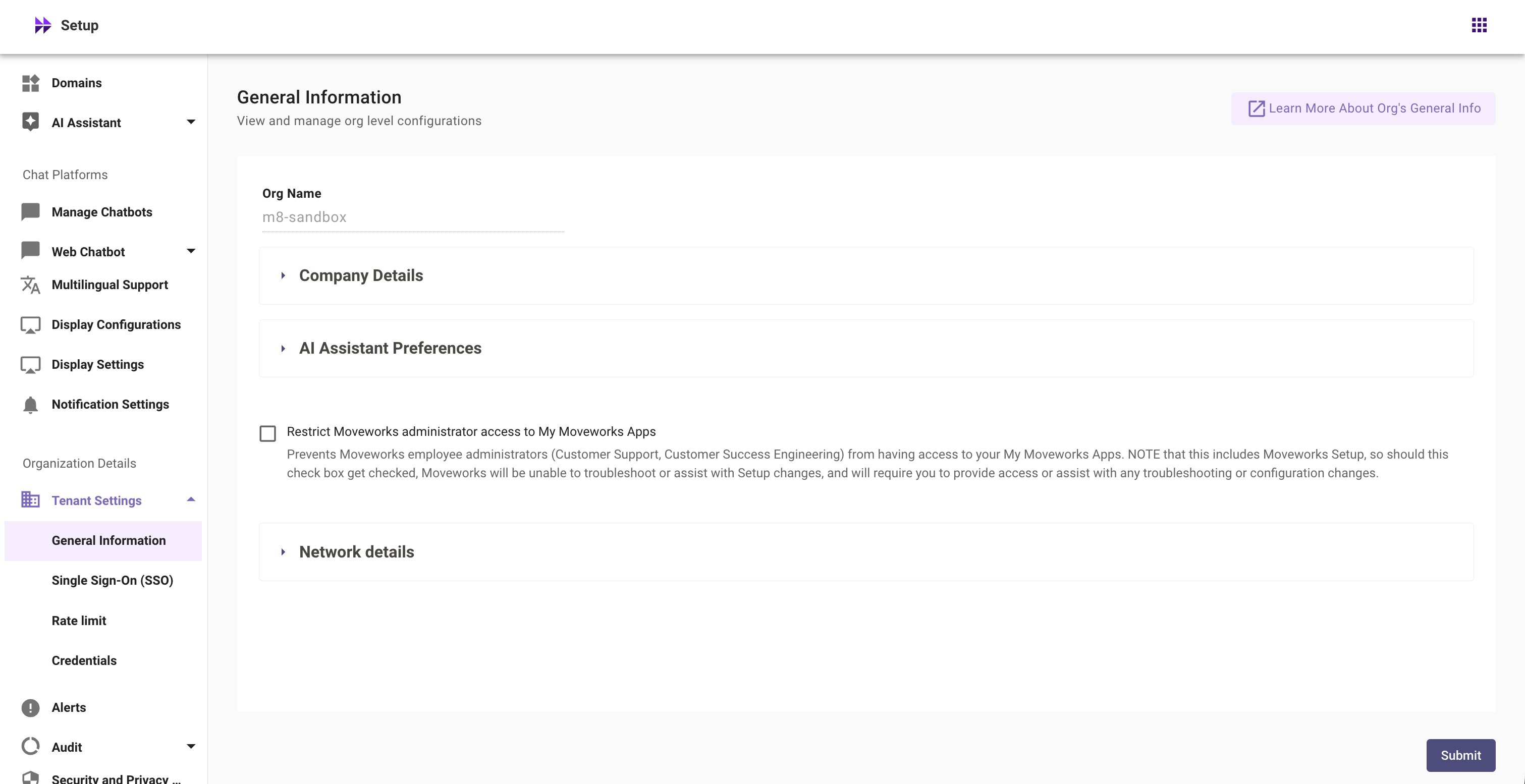
-
Expand the AI Assistant Preferences section
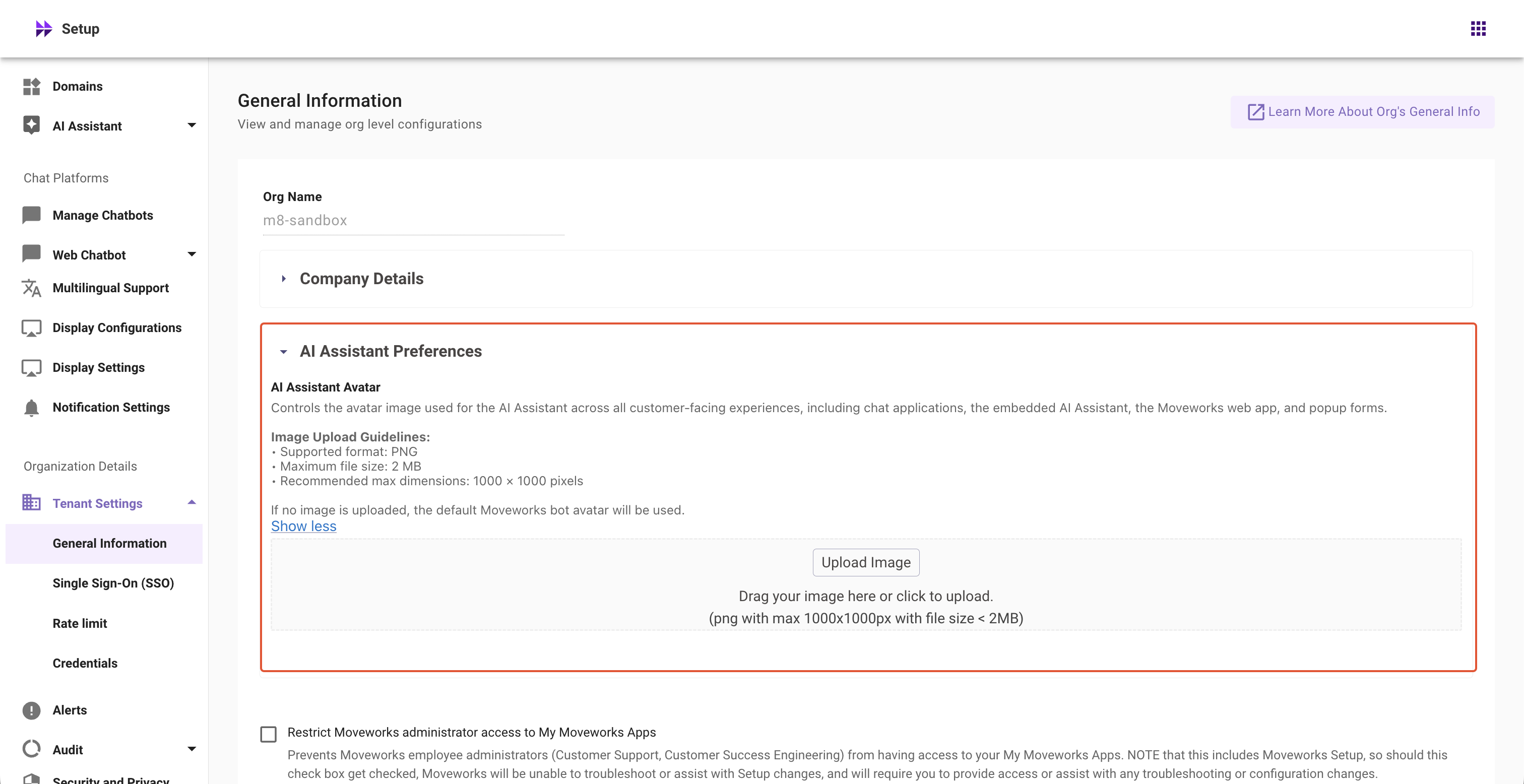
-
Click Upload Image to upload your AI Assistant avatar
Important note:
- Image requirements:
- Format: PNG only
- File size: Less than 2 MB
- Dimensions: Maximum 1000x1000 pixels
- If no image is uploaded, the default Moveworks avatar will be displayed
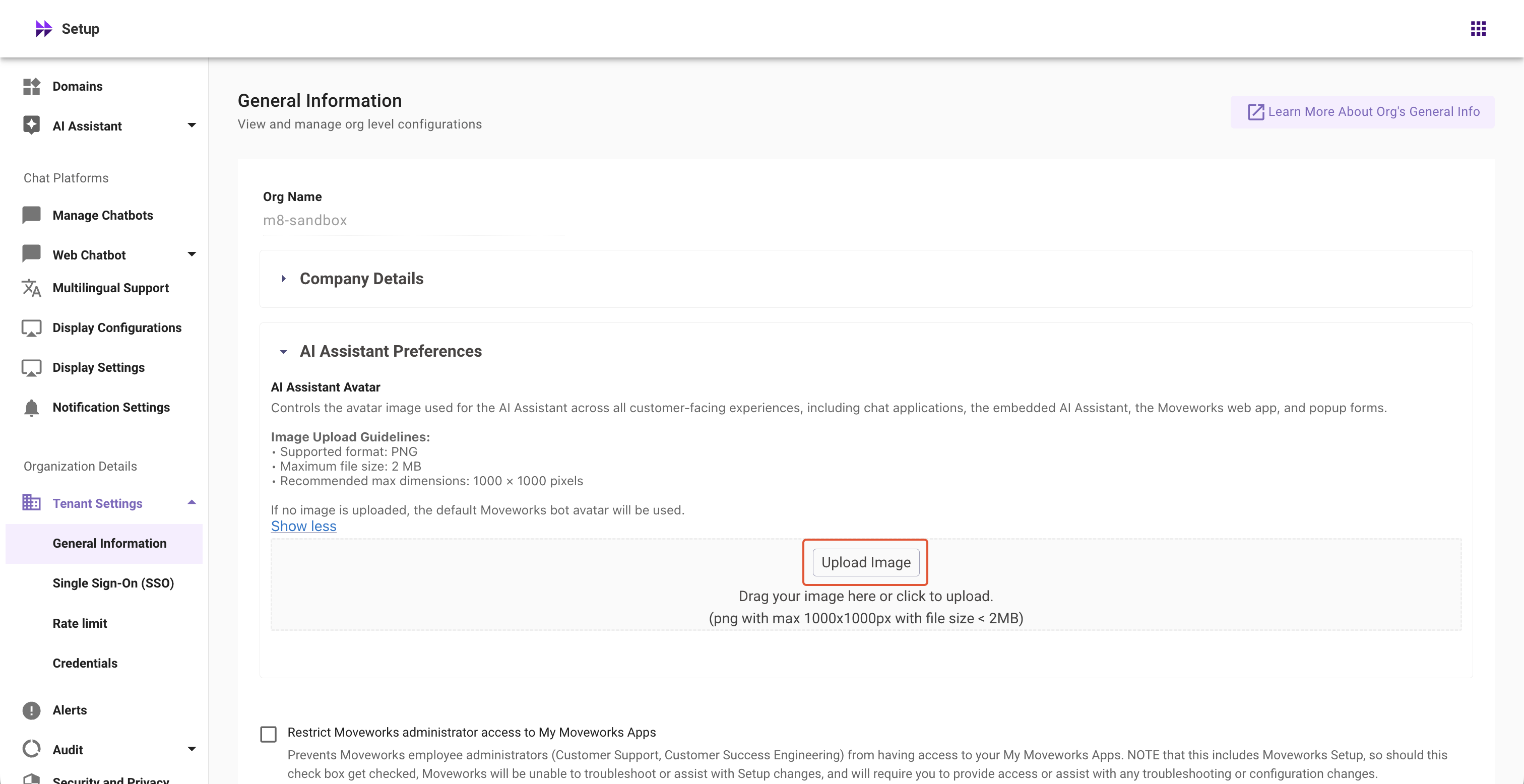
- Image requirements:
-
Preview the uploaded image
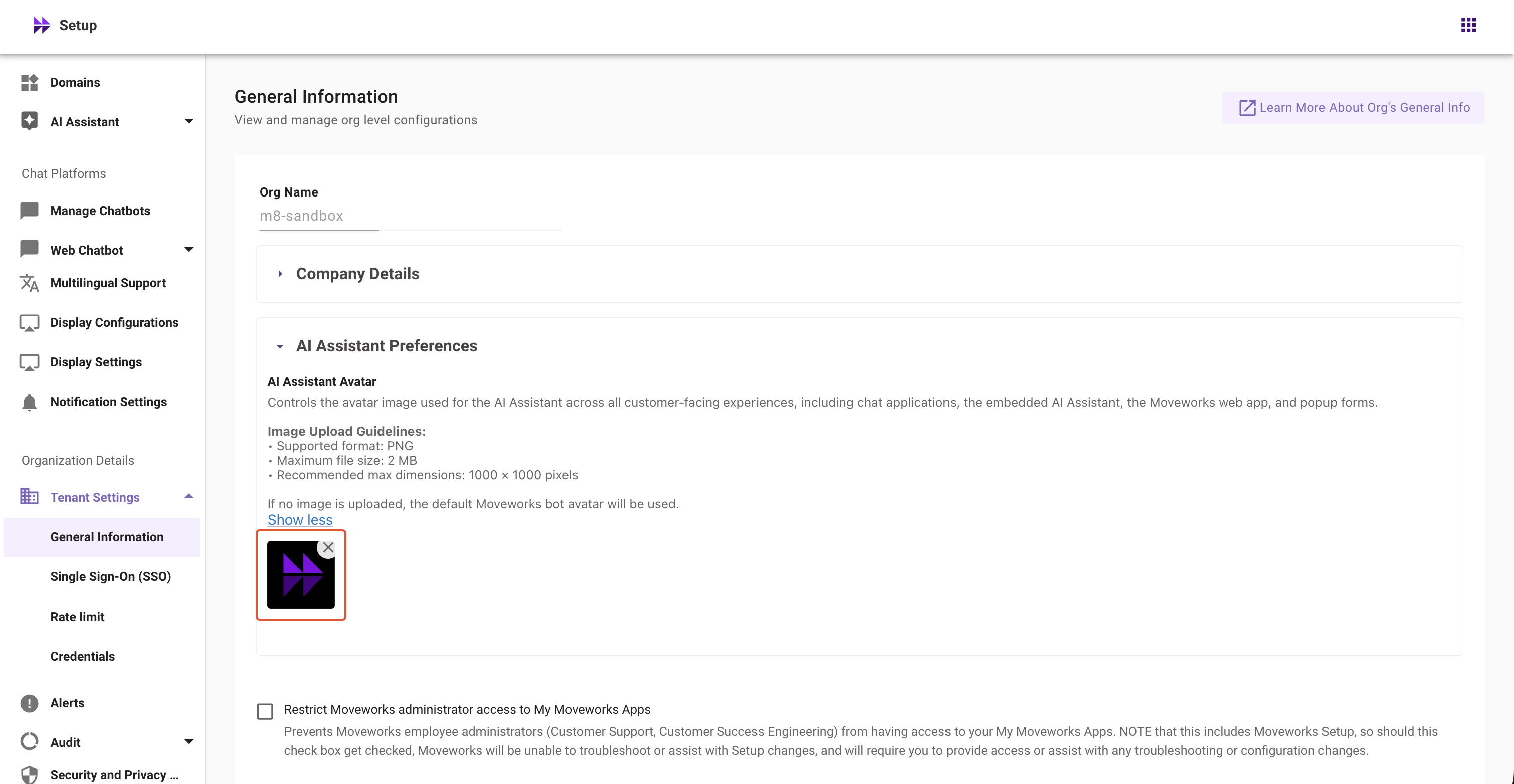
-
Click Submit to save your new AI Assistant avatar
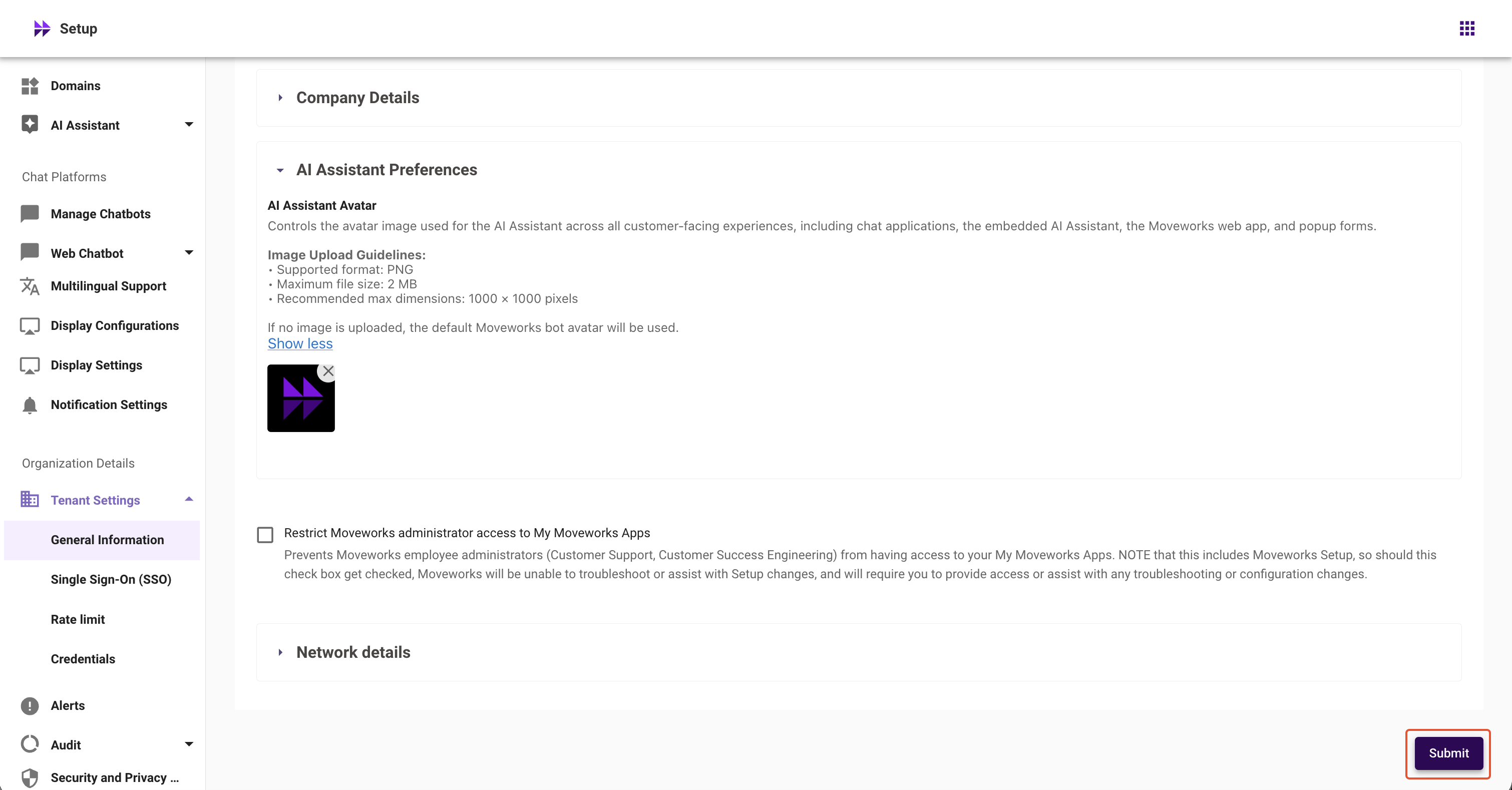
Important Note:
Simply clicking ‘X’ and re-uploading won’t update your avatar. You must click Submit to apply changes.
FAQ
How do I find the org name for my Moveworks tenant?
In Moveworks Setup, navigate to Tenant Settings > General Information. Your org name appears in the Org Name field.