AI Powered Recommendations
Say hello to our AI recommendations
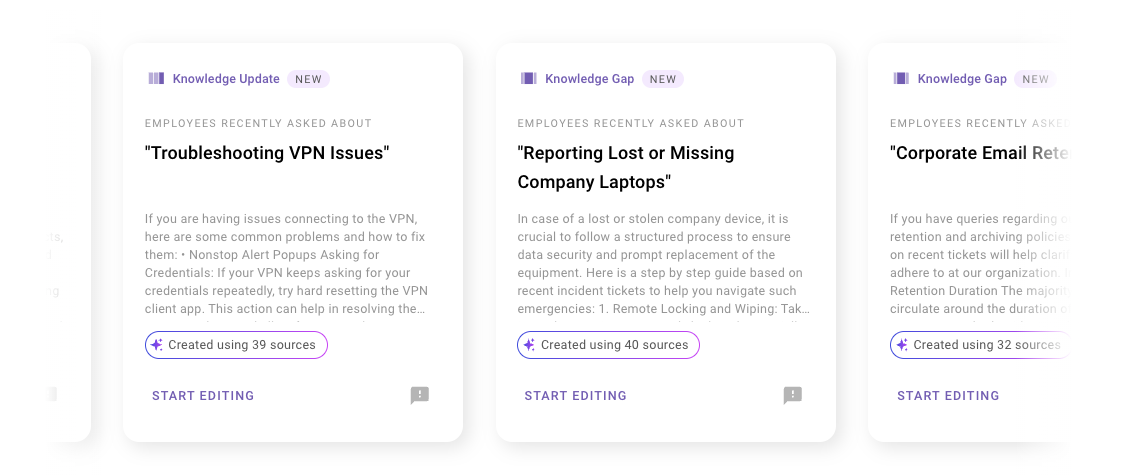
Each month Knowledge Studio will give you AI recommendations that help you identify what to write about next. We will recommend topics that are based on recent issues your employees are facing. This is accomplished by analyzing the last 30 days of IT tickets and determining if there are any knowledge gaps and knowledge updates you can address.
What types of recommendations are available?
Within the product you’ll see two types of recommendations:
- Knowledge Gap: Our “Knowledge Gap” recommendation will create a brand new article for you about issues your employees are submitting tickets about, which are currently not addressed in your knowledge base.
- Knowledge Update: When we detect that employees are filing tickets about a topic that already exists within your knowledge base, we’ll tag as a “Knowledge Update” for you and generate an article that addresses the issue that was reported. For the classification on how we’re determining a “Knowledge Gap” vs “Knowledge Update” recommendation we are looking at your employee facing knowledge articles.
“Knowledge Update” recommendations reference your existing knowledge articles
One of the challenges in maintaining your knowledge base is ensuring that all articles remain current and reflect the latest information. This is why we introduced the Knowledge Update recommendations in addition to Knowledge Gap recommendations within Knowledge Studio.
Since our “Knowledge Update” recommendations are related to topics that already exist within your knowledge base, now you can see which articles you may want to potentially update. We will reference any relevant articles that are currently published within your knowledge base systems. These are the same knowledge base systems your bot is connected to.
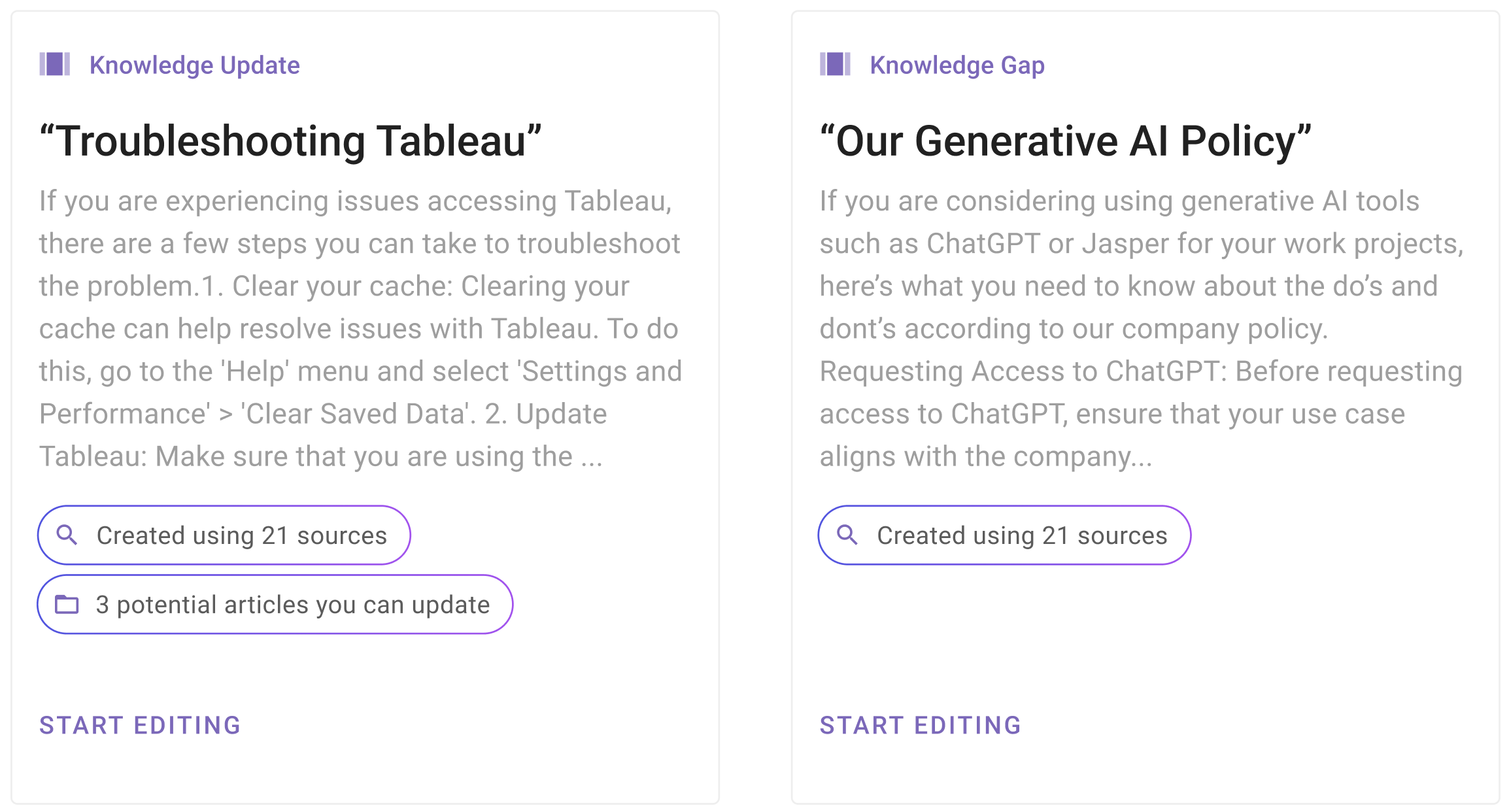
Viewing potential articles to update within your “knowledge update” recommendations
Upon logging into Knowledge Studio, you will notice a new button within your “Knowledge Update” recommendations that says, “# potential articles to update.”
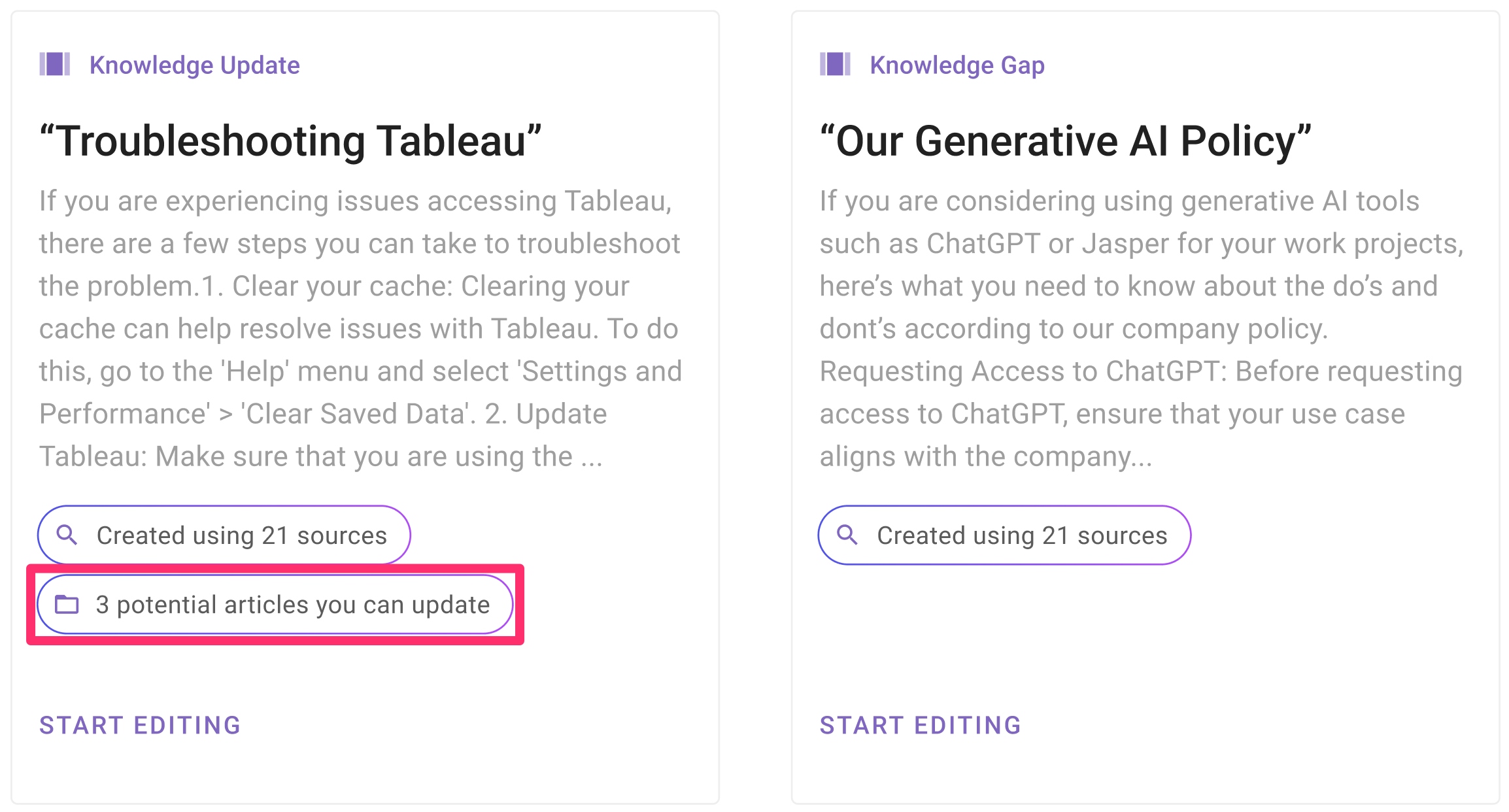
Clicking on this button reveals a sidebar panel displaying a list of relevant articles that already exist within your knowledge base. We’ll display your FAQs along with articles from your knowledge base system.
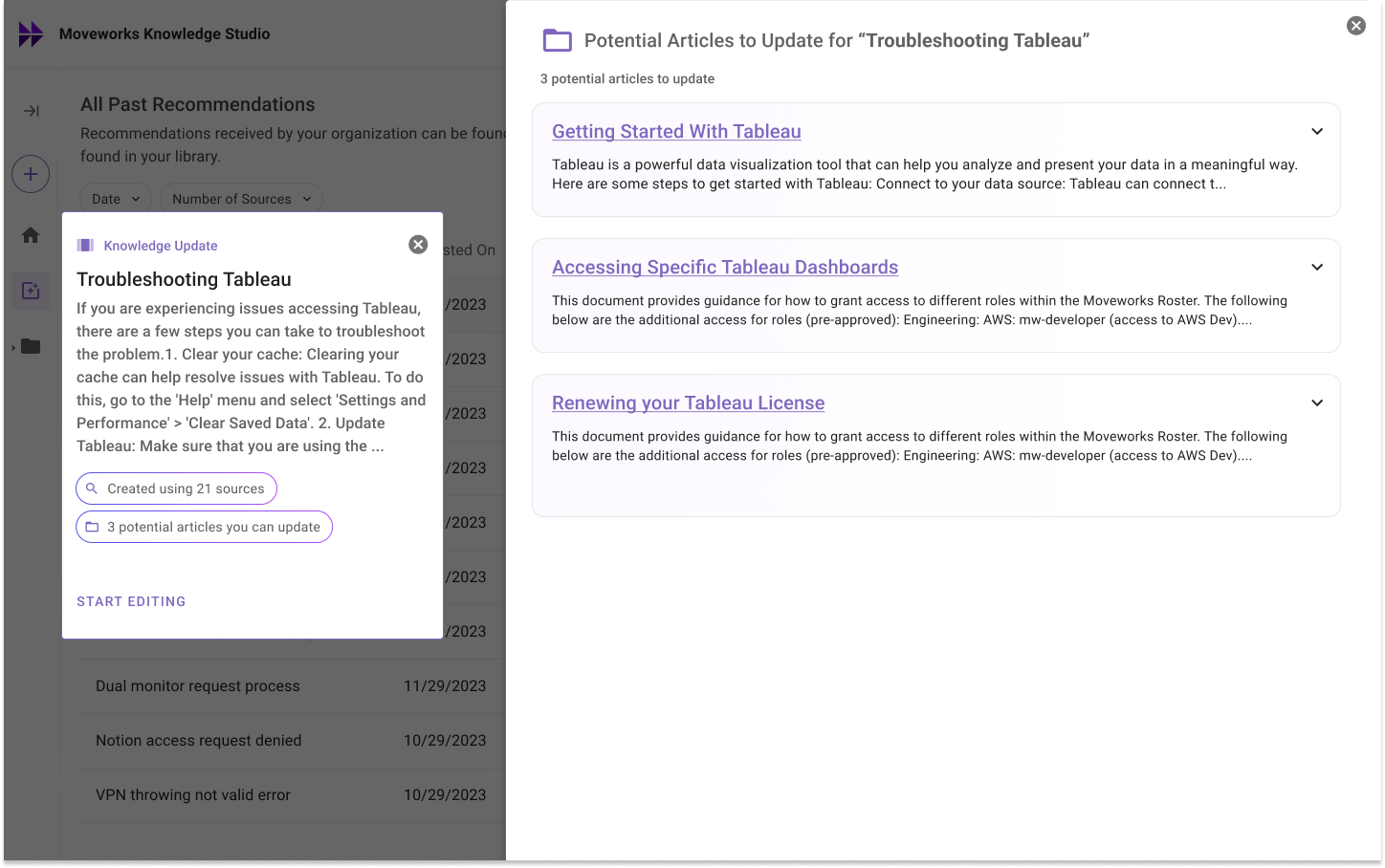
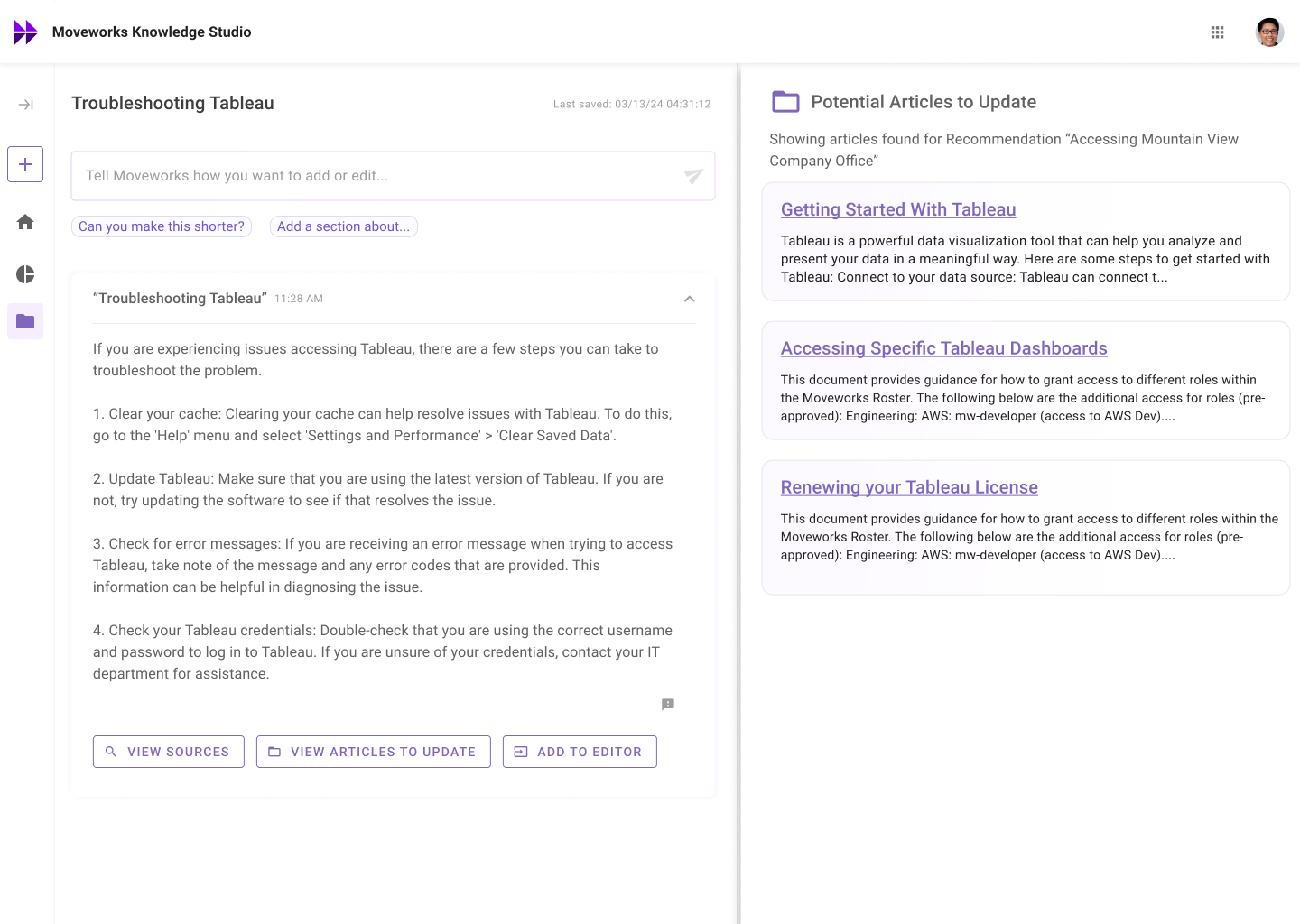
With this enhancement, you’ll be able to identify the most relevant articles and update pre-existing articles that may be outdated. At the moment you will need to view each article to determine how it can be improved.
You will also continue to be able to “Start Editing” your recommendation as well as “View Sources”.
How do recommendations work?
Every month, Moveworks analyzes the last 30 days of IT tickets that were filed within your organization to understand what issues your employees are facing. Recommendations are refreshed and posted the first week of every month.
From a technical perspective, the Moveworks process for the generation of knowledge opportunities is broken down to four steps:
1. Summarization
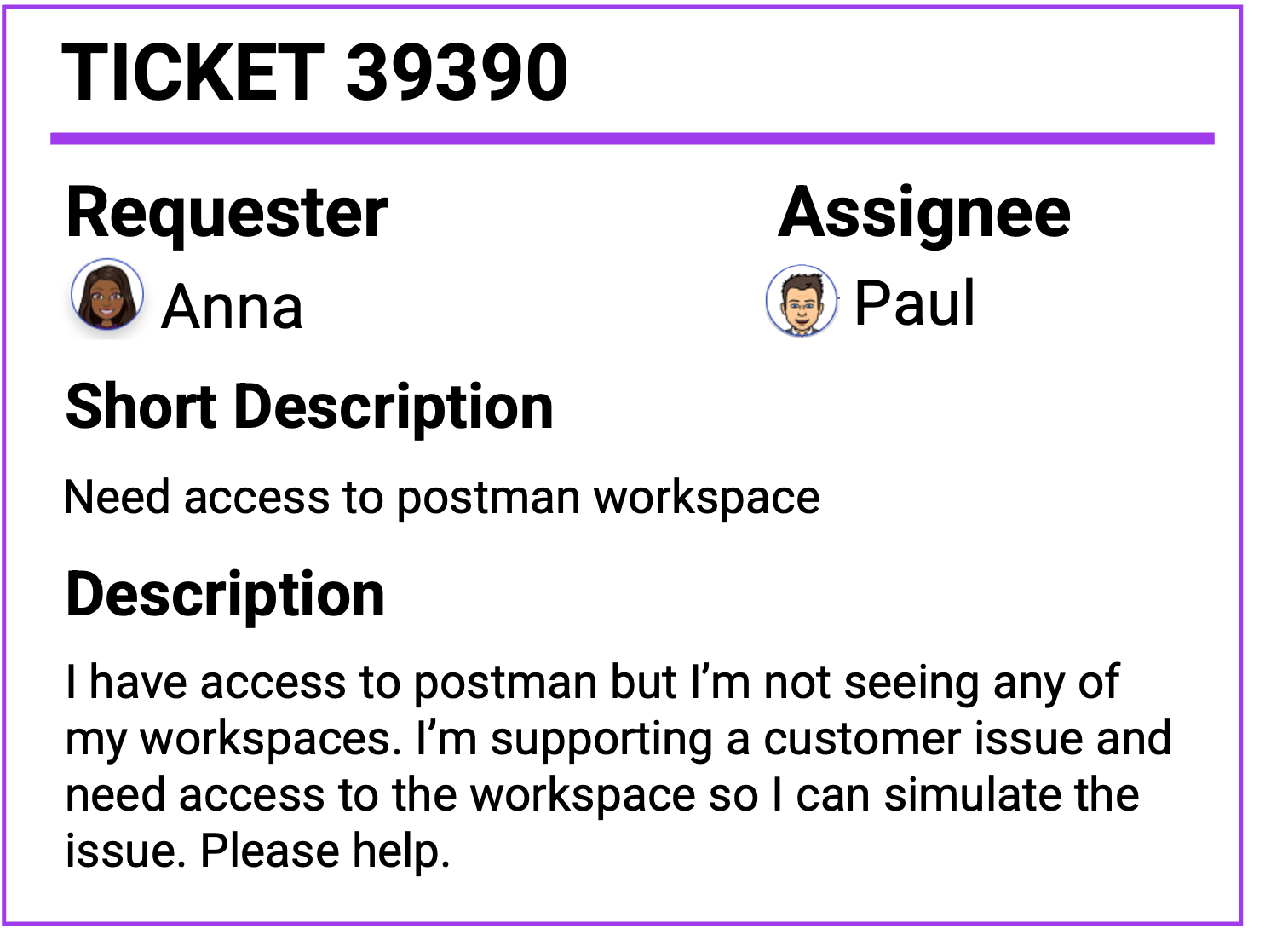
We use GPT-3.5 to create a summary for each IT ticket by analyzing the description fields within each ticket.
Summary example: “Employee has access to postman but no workspaces assigned”
2. Clustering
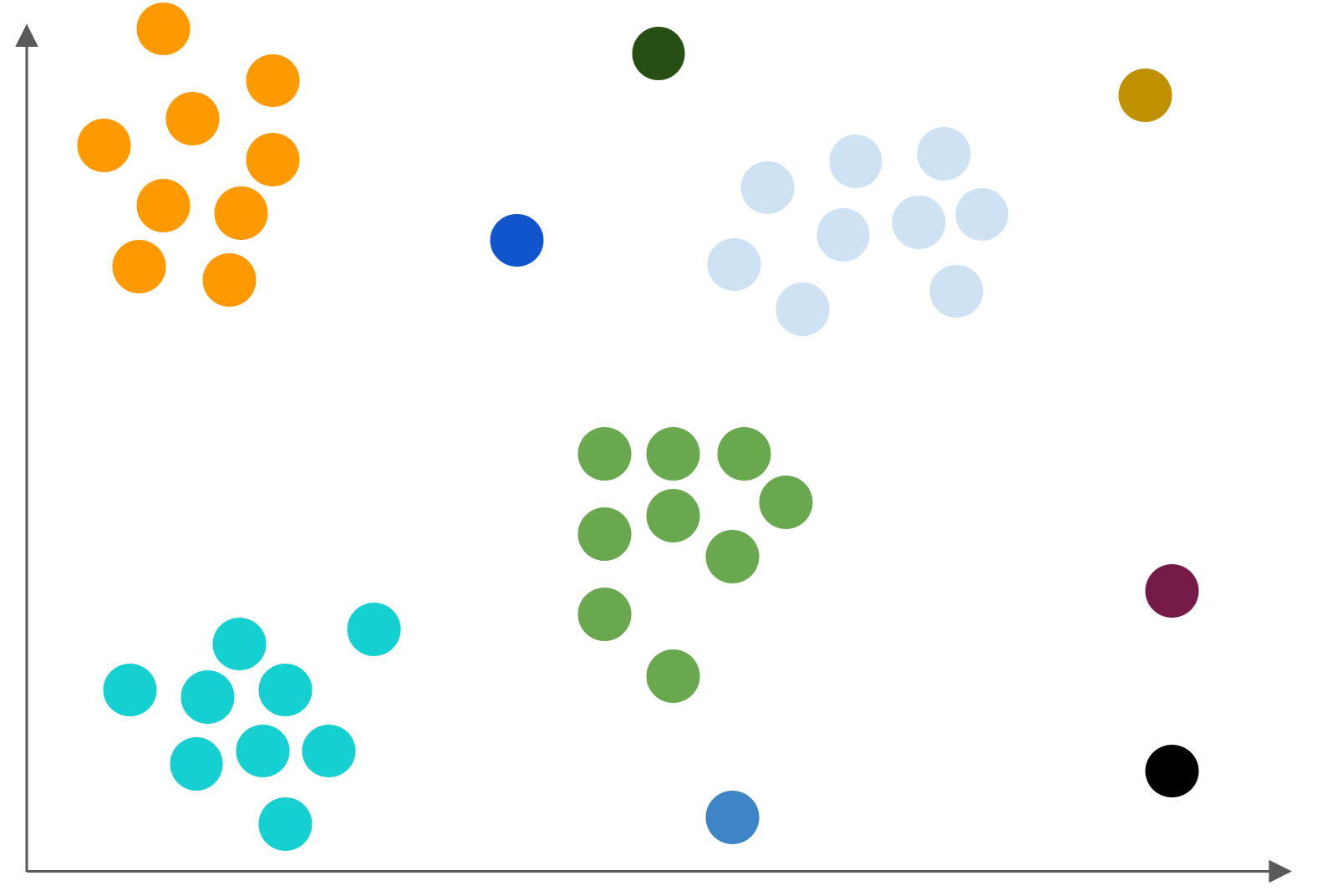
Each ticket summary is then embedded using a fine-tuned MPNet model to group related tickets.
Each cluster in this figure contains a set of relevant tickets.
3. Extraction
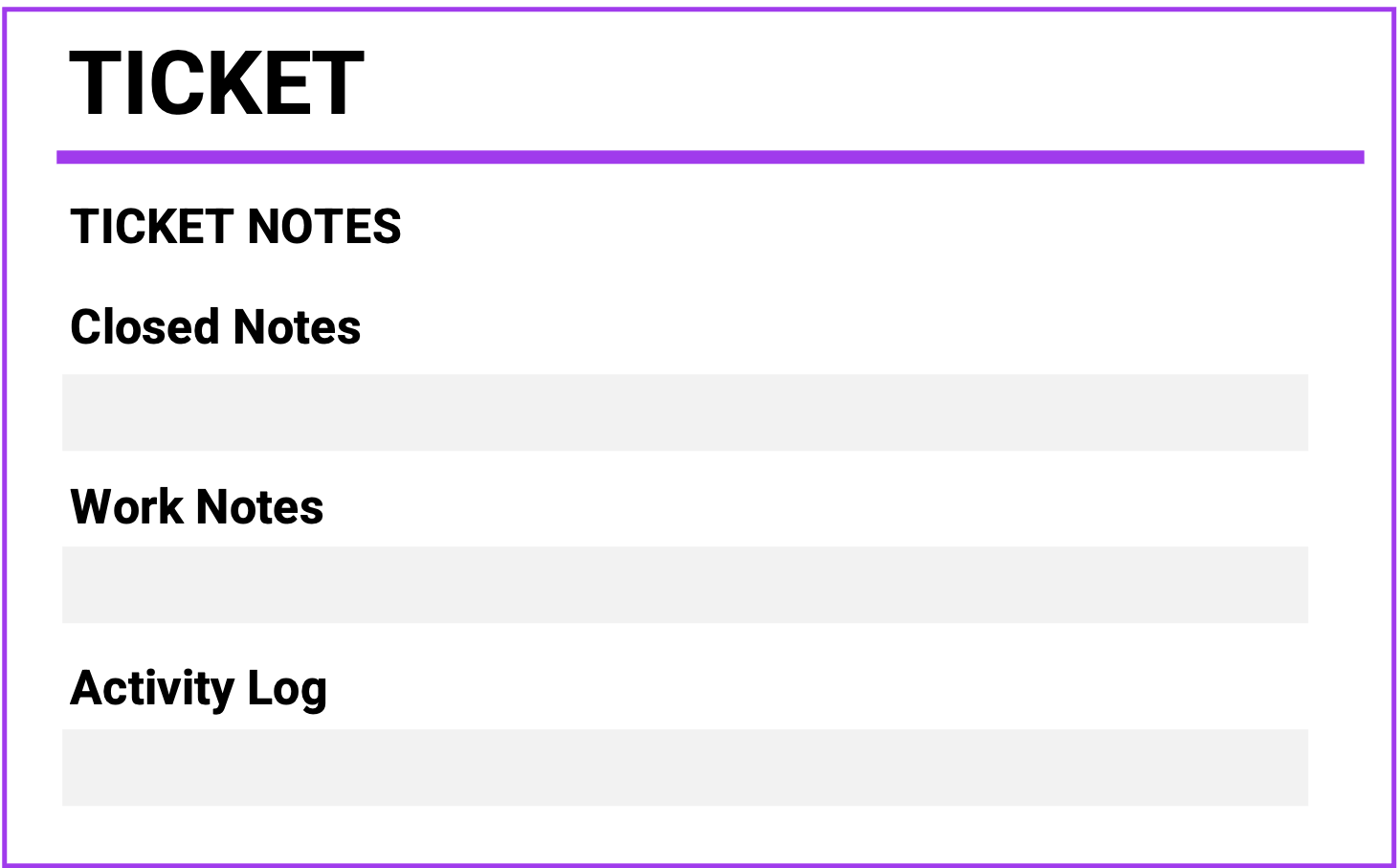
For each ticket within a cluster we use GPT to extract ticket notes to learn the actions taken to resolve the issue. We extract information across the following ticket fields: closed notes, work notes, and activity log. This process produces a summarized list of bullets that describe each action agents took.
Extraction example:
- “Confirmed purpose of access and type of access needed”
- “Provisioned ‘Postman Workspace - Deployment’ access to Marcus Smith”
4. Generation
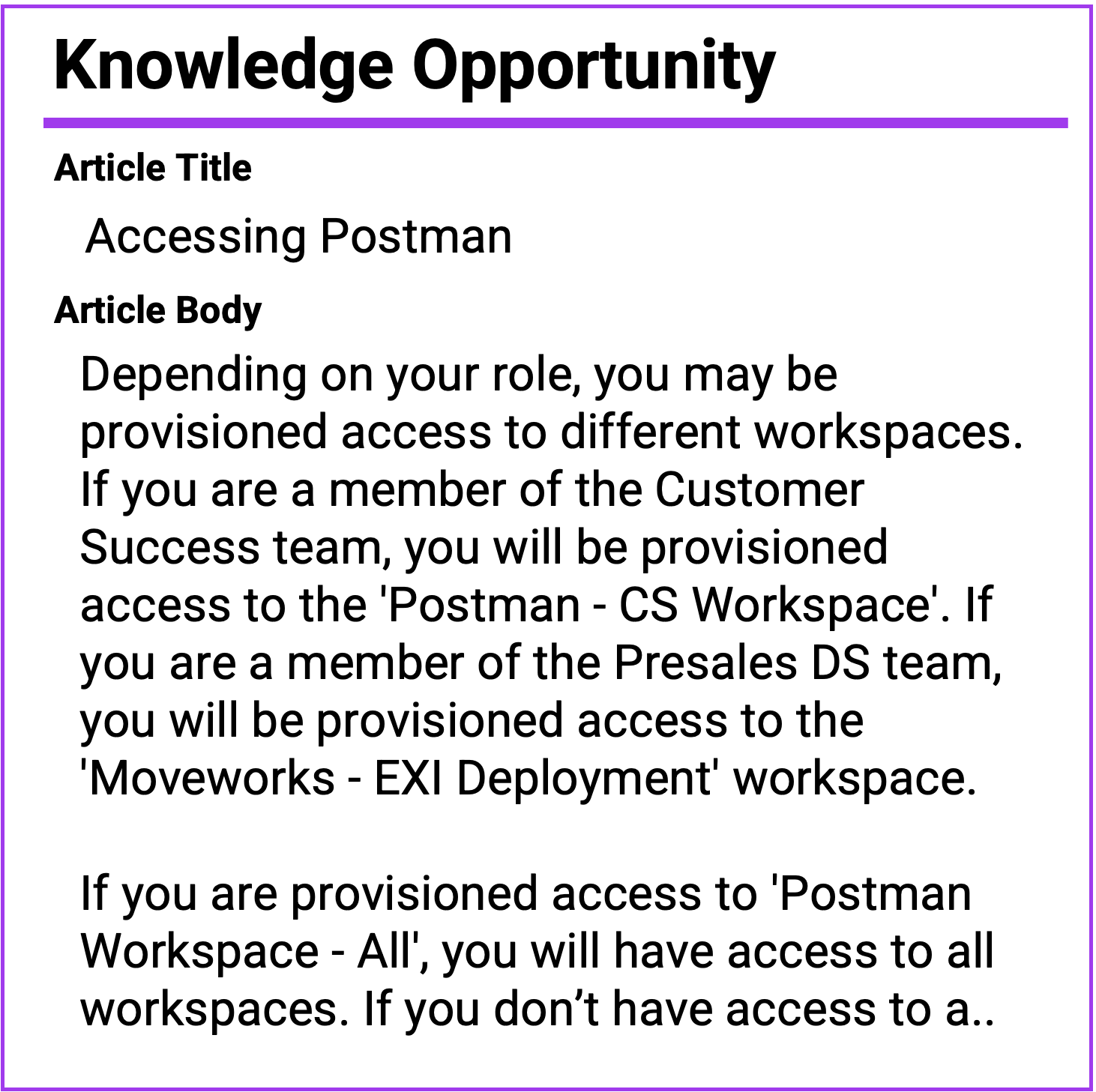
Given the ticket notes we extracted, per cluster we select the top 10 tickets that will be used for generation. Then, we task GPT to generate a knowledge article by leveraging all the ticket notes we extracted.
This produces an article that is ready for review to ensure the information generated conforms to your company best practices and policies.
Have feedback on our recommendations?
The recommendation you are seeing within your Knowledge Studio workspace are specific to your organization. If you have specific feedback on our recommendations, please send us feedback so we can continue to improve them.
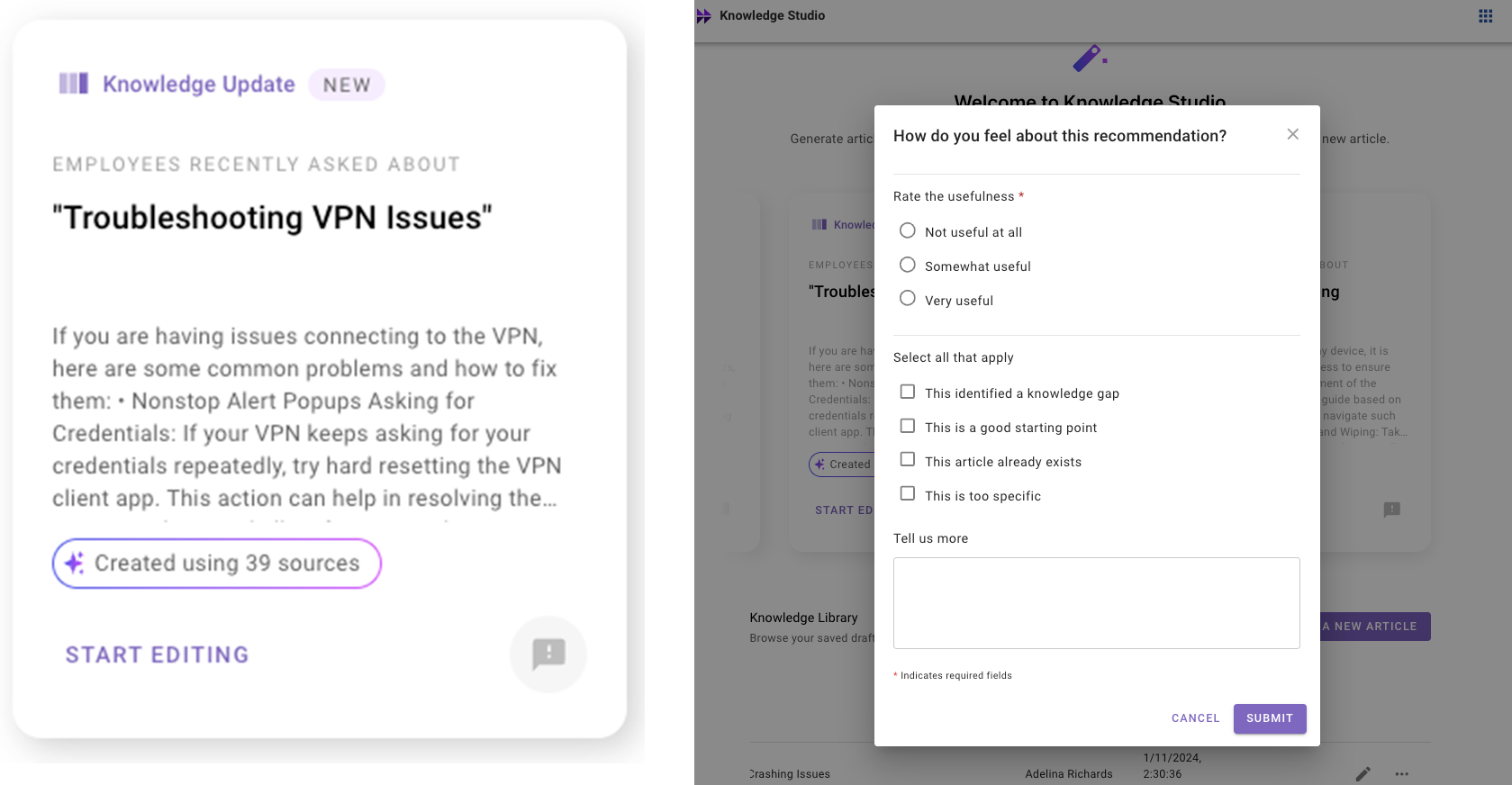
Click on the icon that appears on the bottom right corner of each recommendation and fill out a quick survey to send us feedback.